How to connect Zoom to V1CE

To connect Zoom to V1CE, open Automations, click Integrations, find Zoom and press Connect. Sign in, then press Allow. Zoom now shows as Connected.
Video transcript and chapters
Chapters
0:00 Intro
0:08 Open Integrations
0:18 Press Connect
0:26 Sign in and allow
0:31 Connected

Transcript
Here's how to connect Zoom to V1CE. Booked calls get a Zoom link automatically. Start on Today, then hover Co-Work in the side menu. Choose Automations. Click the Integrations tab. Find Zoom, and press Connect. Sign in to your Zoom account. Press Allow, to let V1CE connect. That's it. Zoom now shows as Connected. That's it. V1CE is now connected to Zoom.
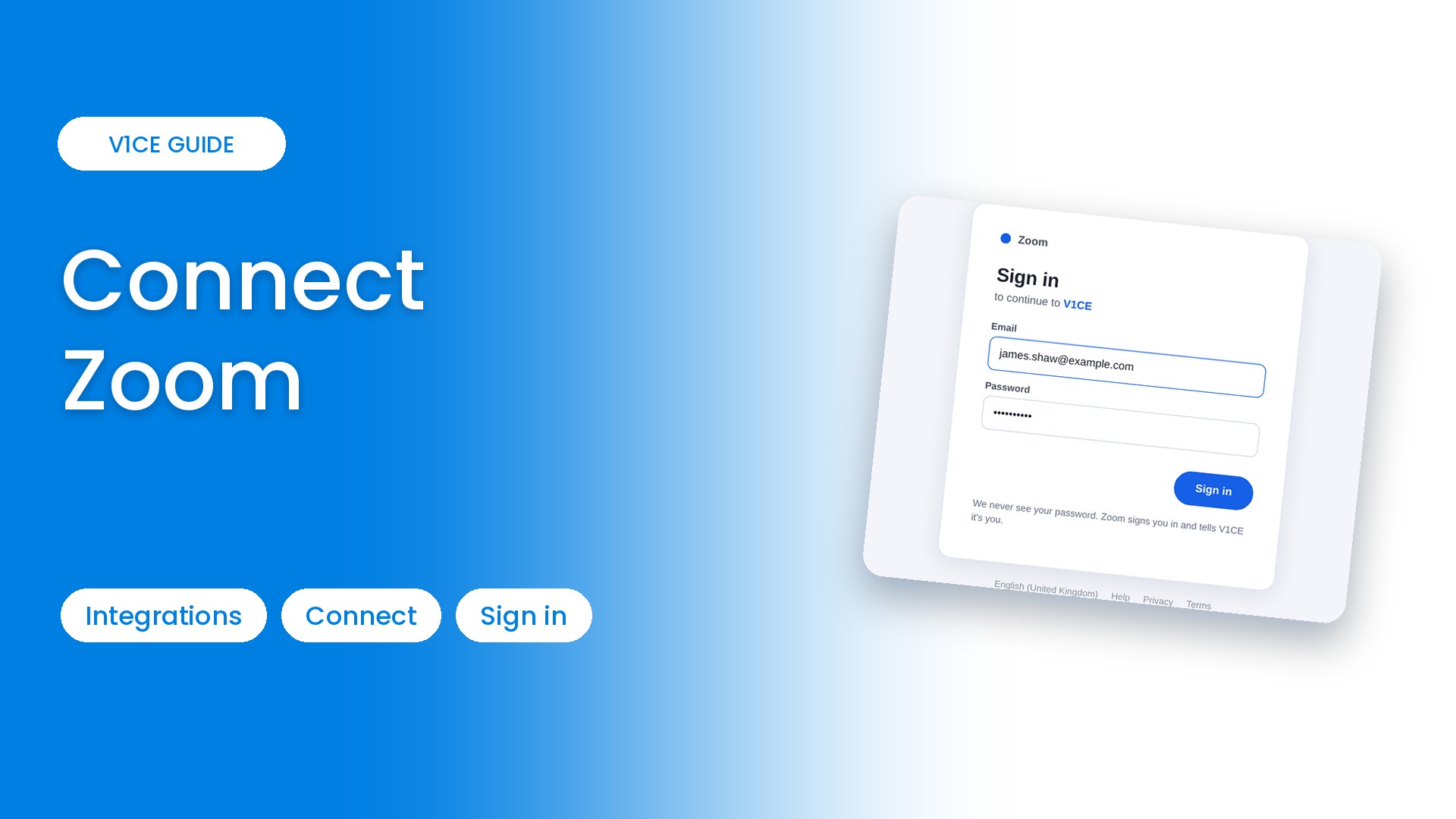
Connecting Zoom to V1CE takes about a minute. Booked calls get a Zoom link automatically. Here is how to do it. You press Connect, sign in, and you are done.
Watch the video
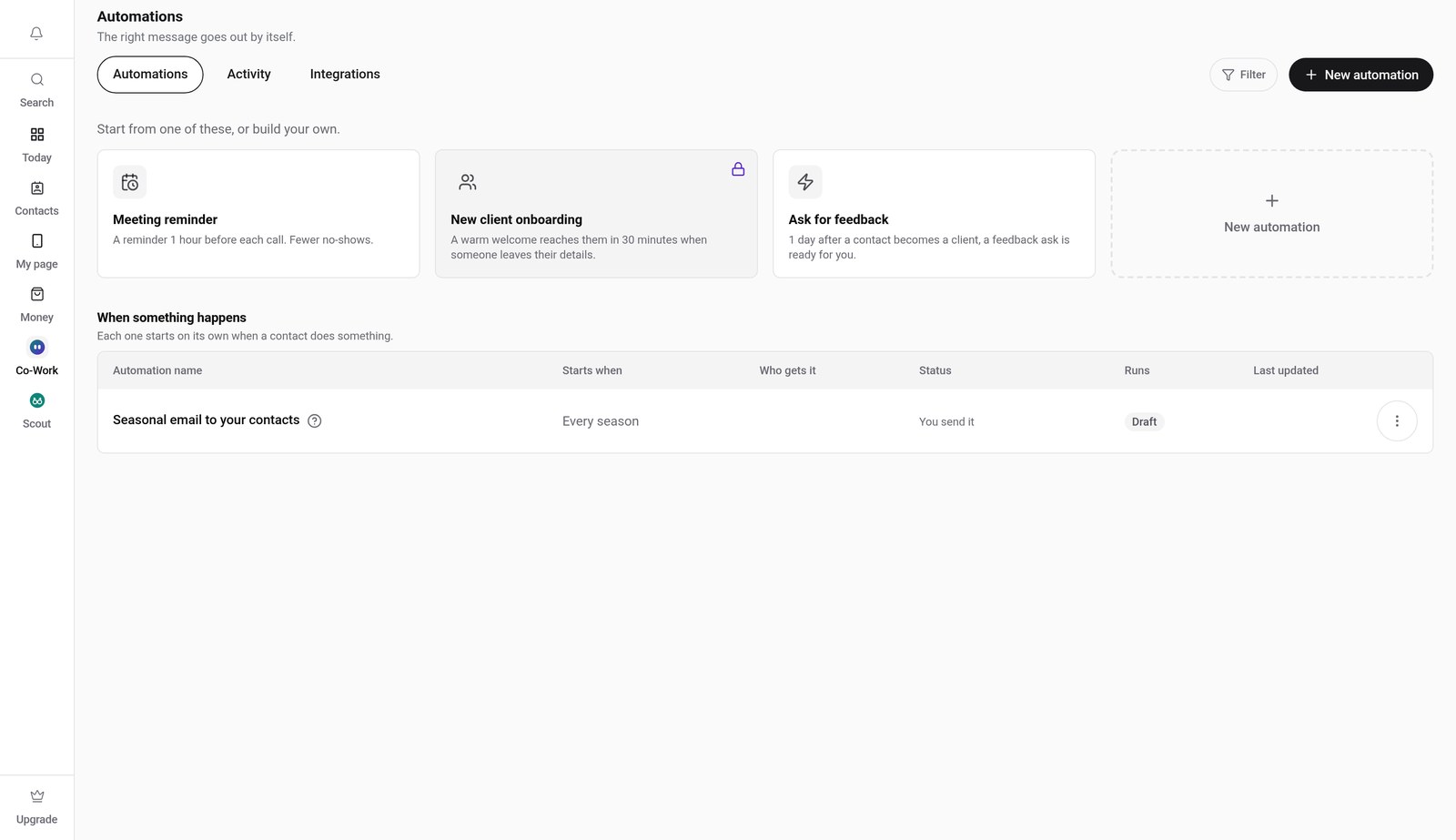
Step 1: Open Automations
Hover Co-Work in the side menu, then choose Automations.
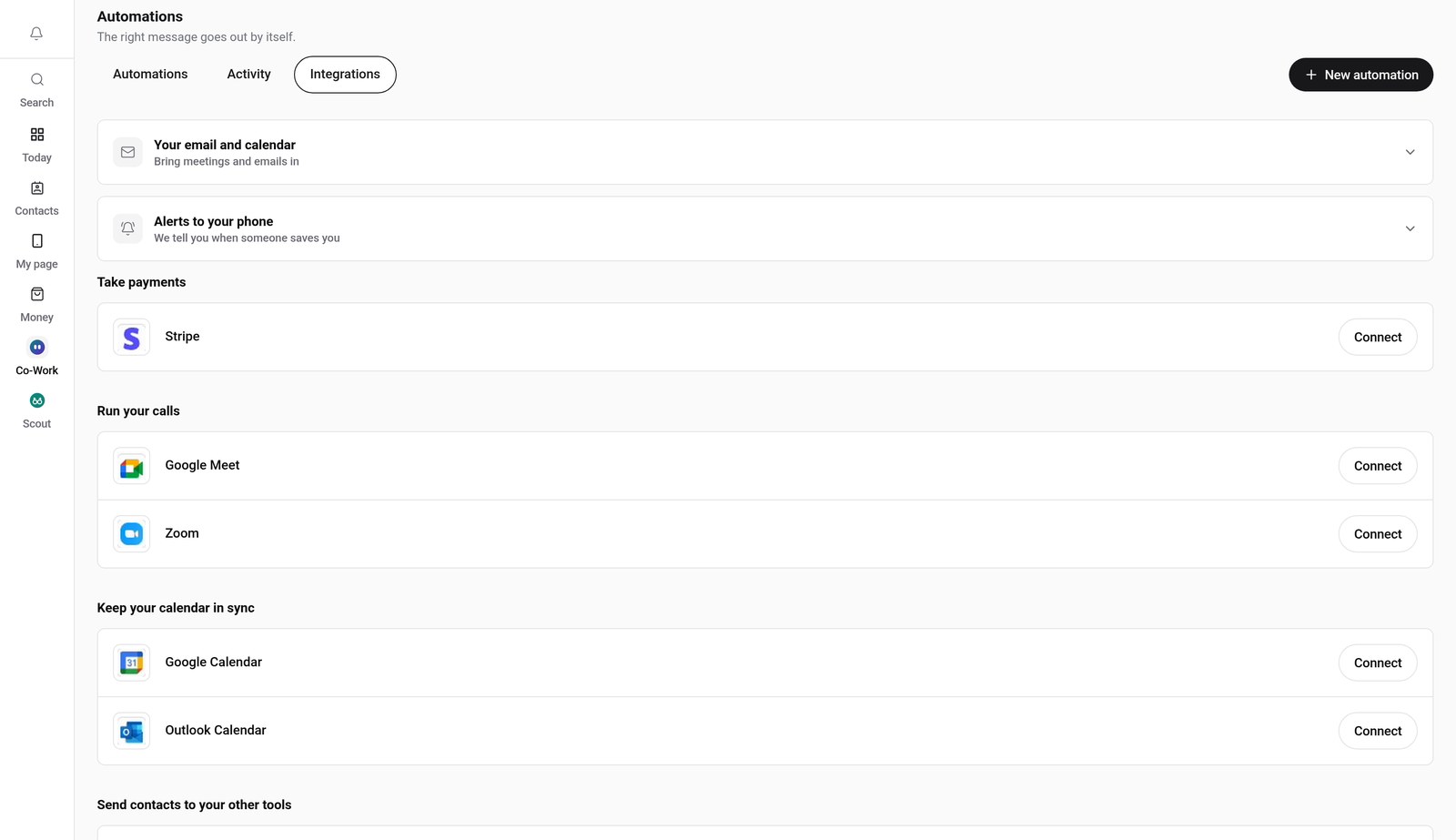
Step 2: Click the Integrations tab
Click Integrations, then find Zoom in the list.
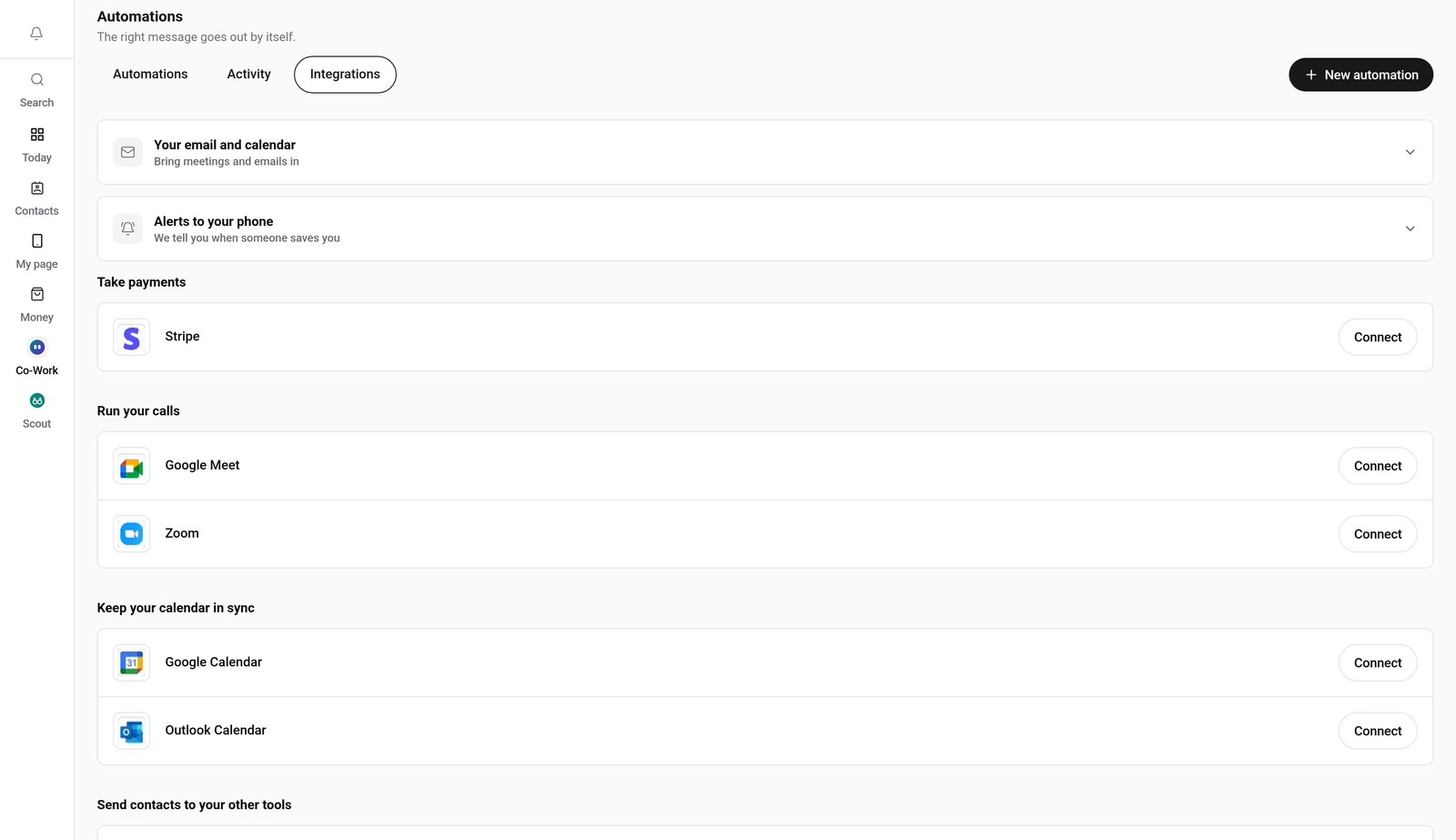
Step 3: Press Connect
Press Connect next to Zoom.
Step 4: Sign in
Sign in to your Zoom account. Check it says it is connecting to V1CE.
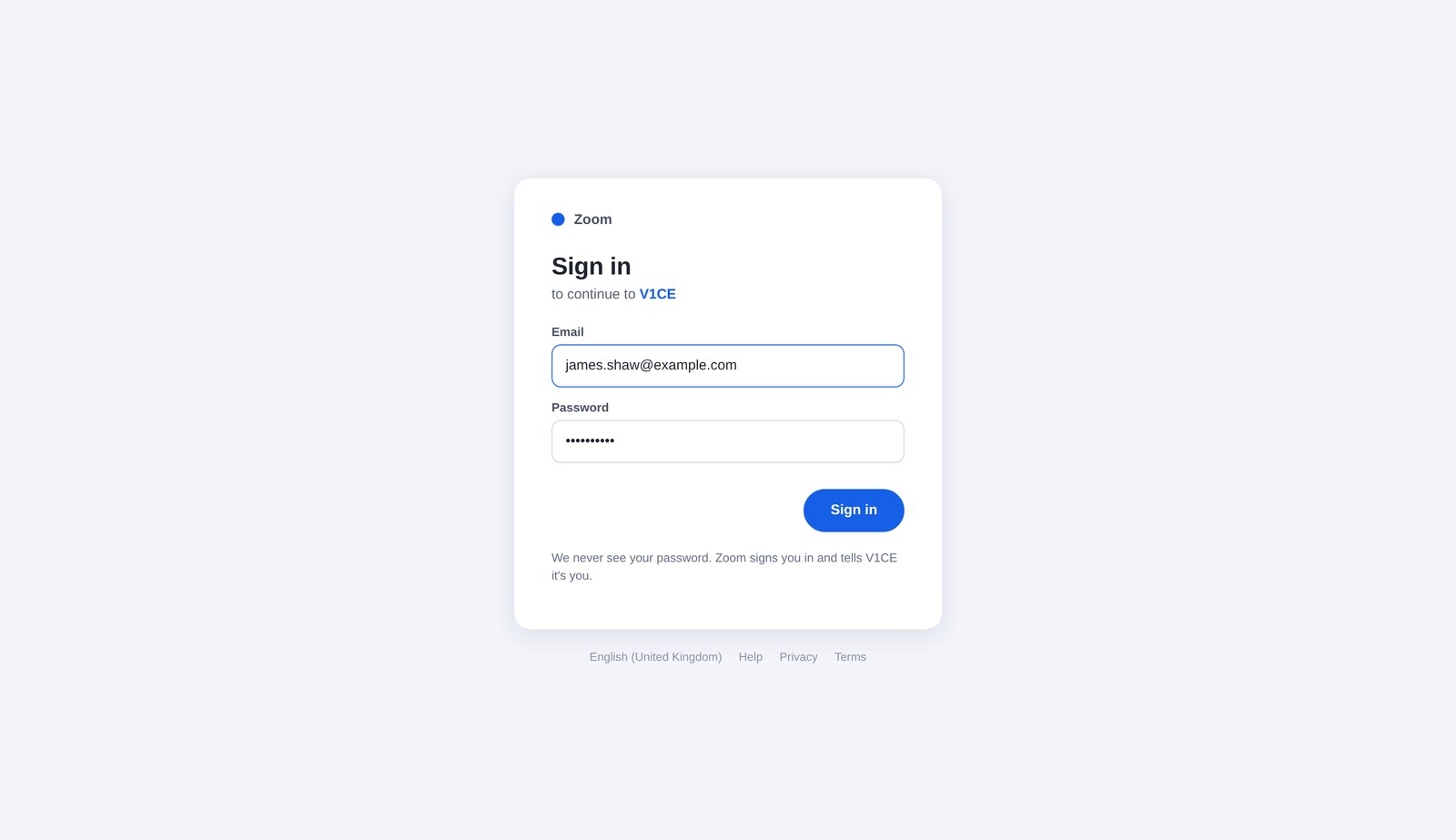
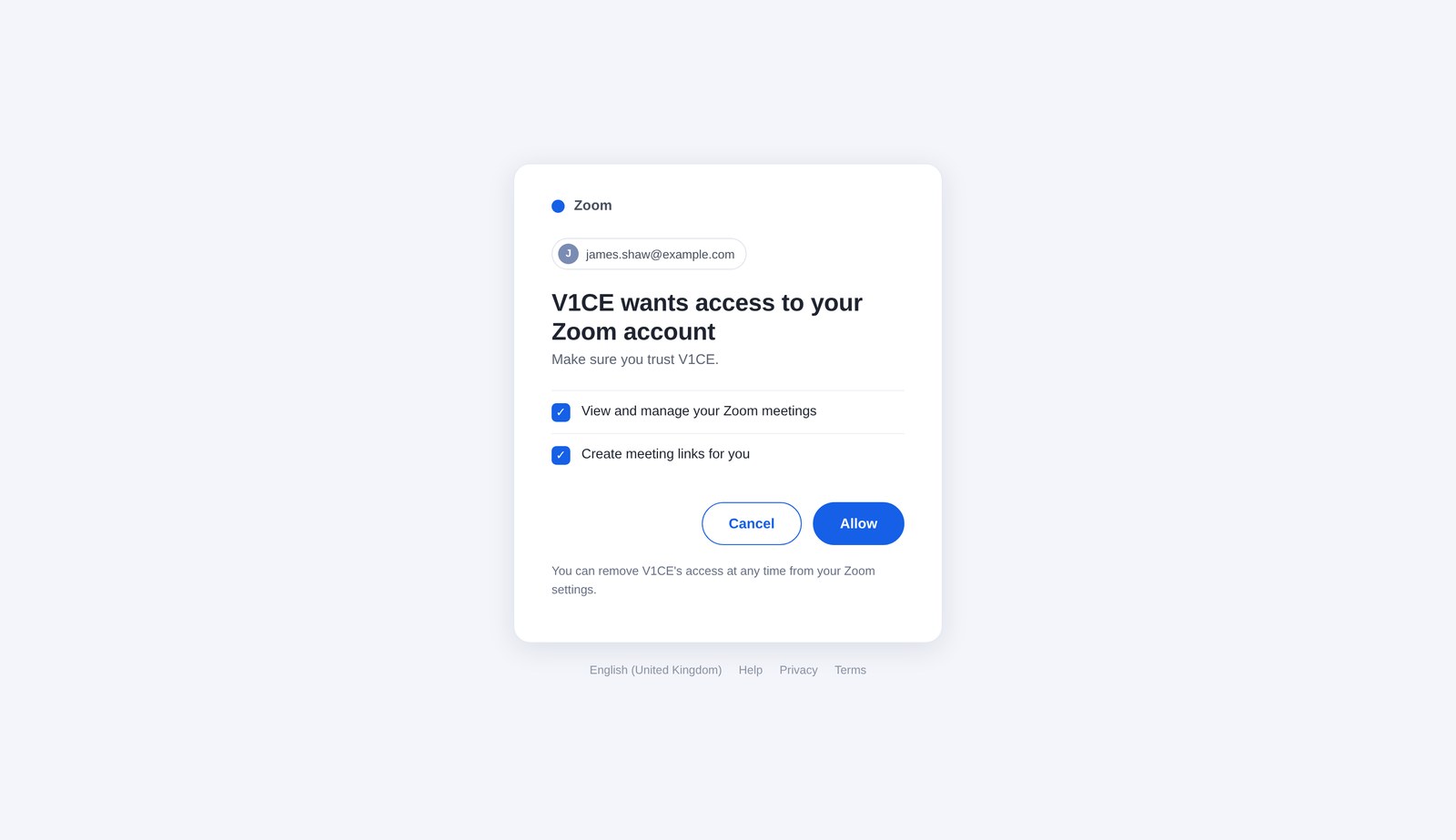
Step 5: Allow access
Press Allow, to let V1CE connect.
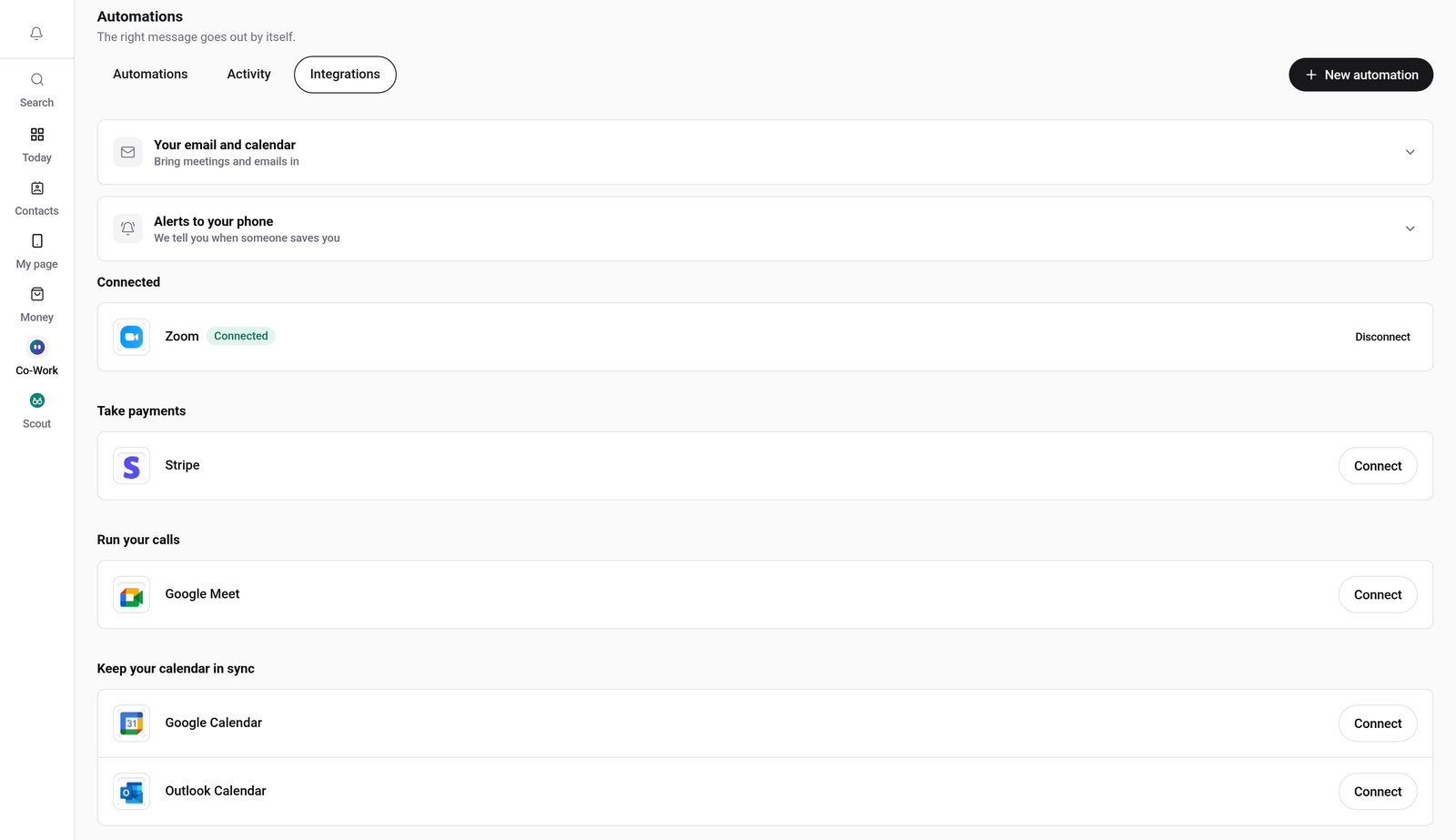
Step 6: Check it says Connected
You land back in V1CE, and Zoom now shows as Connected.
Good to know
- To disconnect later, open the same Integrations tab and press Disconnect next to Zoom.
- The sign-in screens in the video are examples. Yours will look like the real Zoom page.
Frequently asked questions
How do I connect Zoom to V1CE?
Open Automations, click the Integrations tab, find Zoom and press Connect. Sign in and allow access, and it shows as Connected.
How do I disconnect Zoom?
Open the same Integrations tab and press Disconnect next to Zoom.
What does connecting Zoom do?
Booked calls get a Zoom link automatically.
How long does it take to connect ?
About a minute. Open Integrations, press Connect and follow the steps.
Where do I find Integrations in V1CE?
Hover Co-Work in the side menu, choose Automations, then click the Integrations tab.