You've received your V1CE card: what to do next

To set up a new V1CE card, tap it on your phone or scan its QR code, press Set up my card, and choose New to V1CE? Make an account. Type your email, open the sign-in link V1CE sends you, add your name and job title, then press Make page and link card.
| Time needed | 2 minutes |
|---|---|
| What you need | Your V1CE card and your email address |
| Where in the app | Tap your card, then Set up my card |
Video transcript and chapters
Chapters
0:00 Introduction
0:10 Tap or scan your card
0:16 Press Set up my card
0:23 Choose New to V1CE
0:32 Type your email
0:40 Check your email
0:47 Make your page
0:56 Build your page
1:05 Tap your card
1:17 Go to dashboard
1:21 You're done

Transcript
You've received your V1CE card. Here's what to do next.
Open your card, make an account, then link the card to your page. It takes about two minutes.
Tap your card on your phone or scan its QR code and V1CE finds your card.
Press set up my card. Choose me because the card is for you.
Then press continue. You don't have an account yet, so select new to V1CE, make an account.
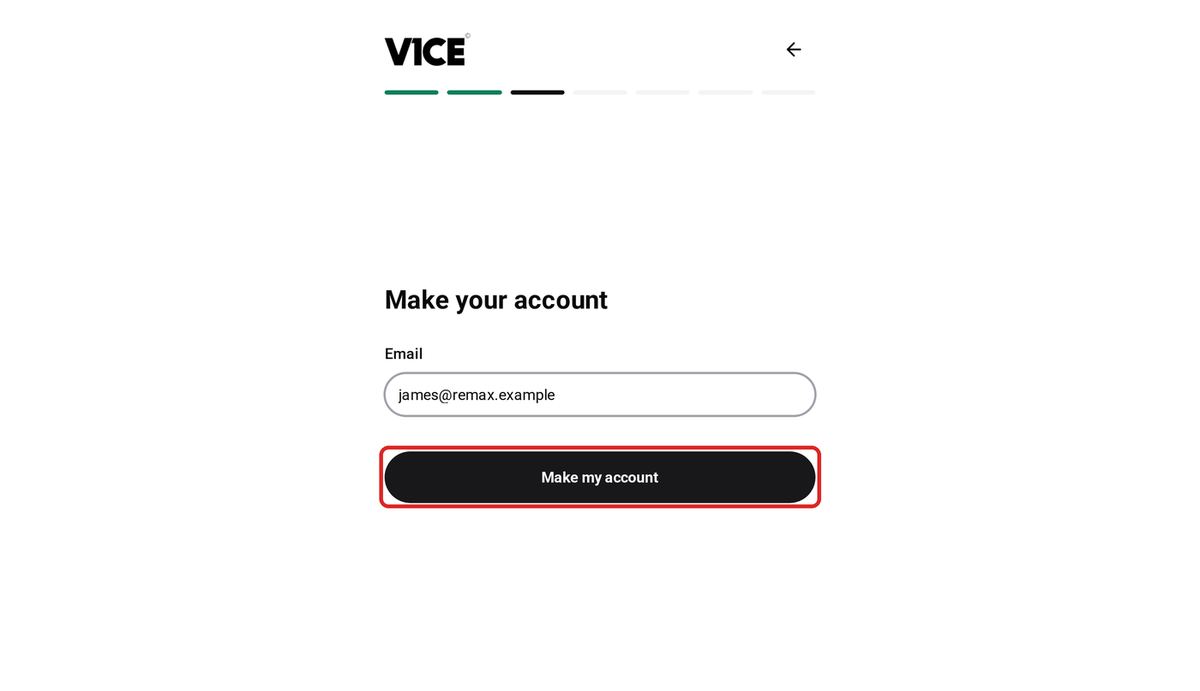
Type your email address. Then press make my account. There's no password to remember.
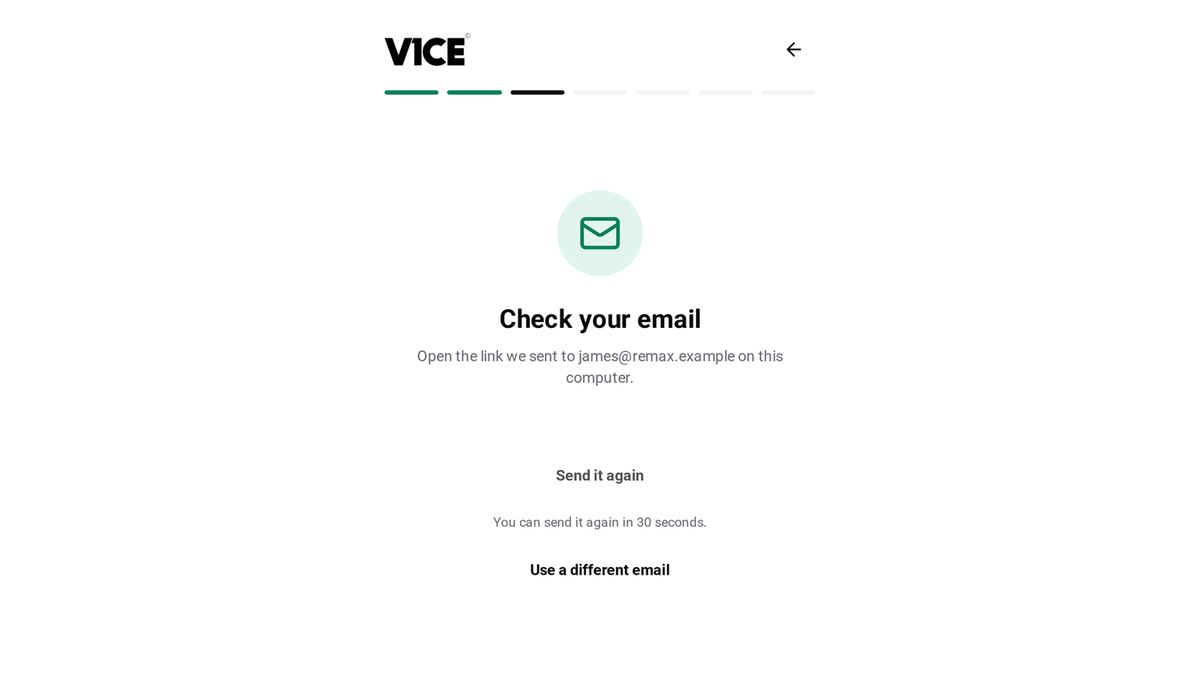
V1CE emails you a link to sign in.
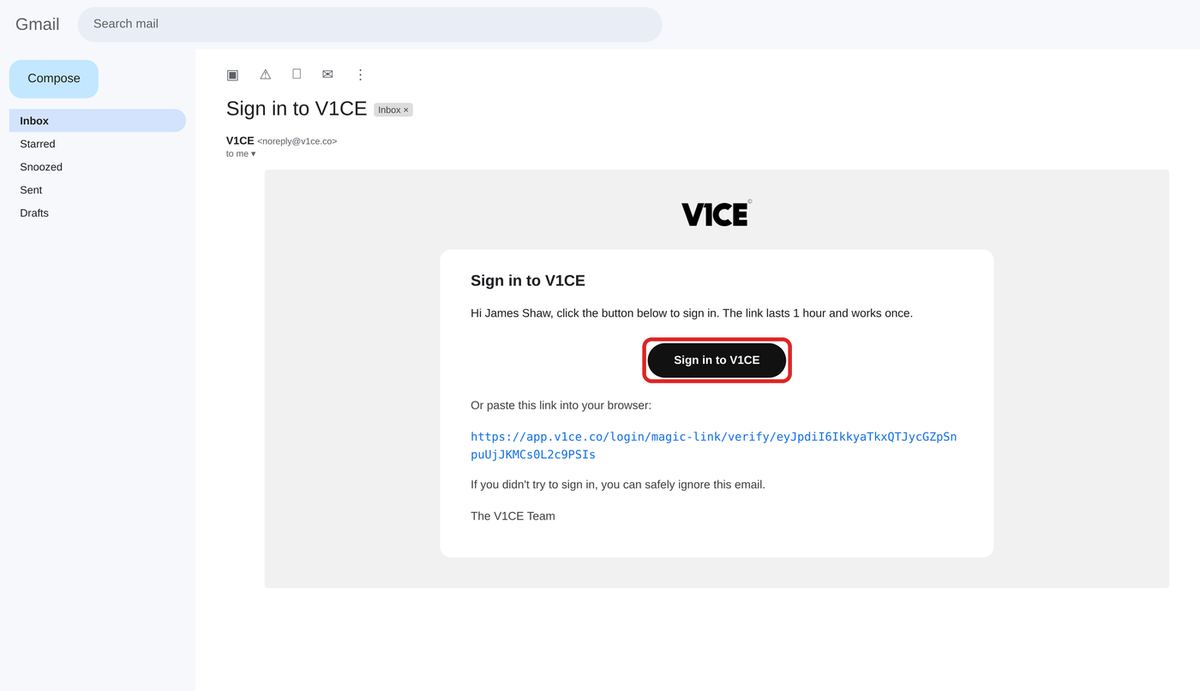
Open the email and select sign in to V1CE.
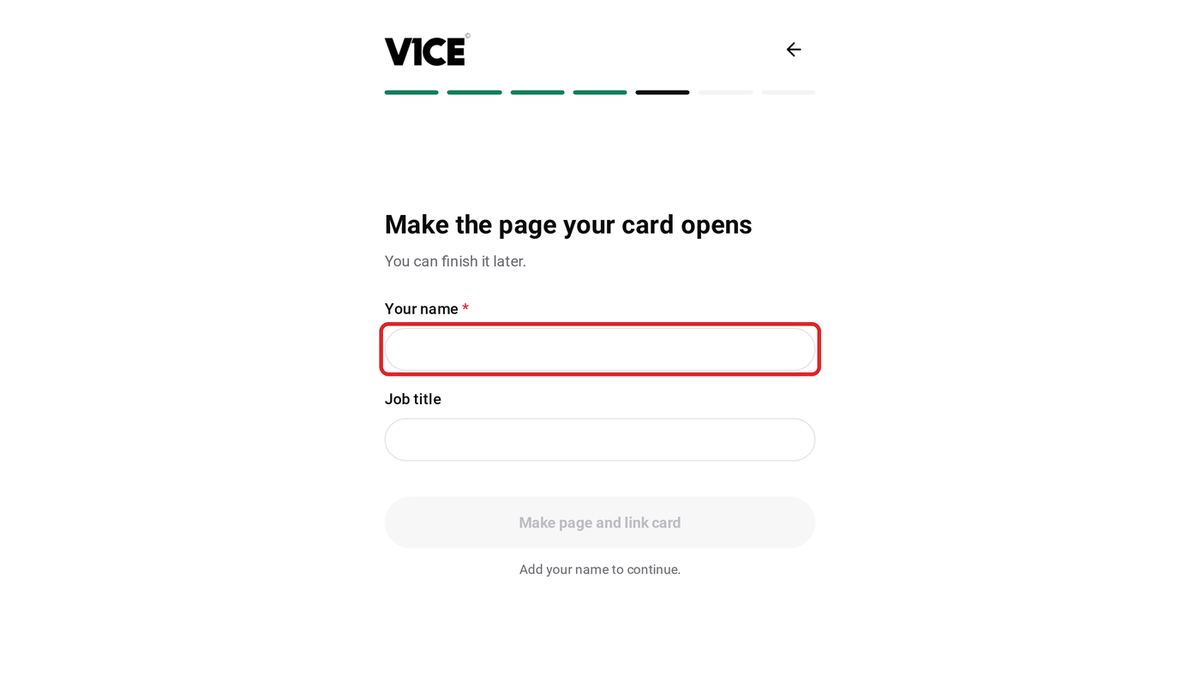
Your card needs a page to open. Type your name and your job title.
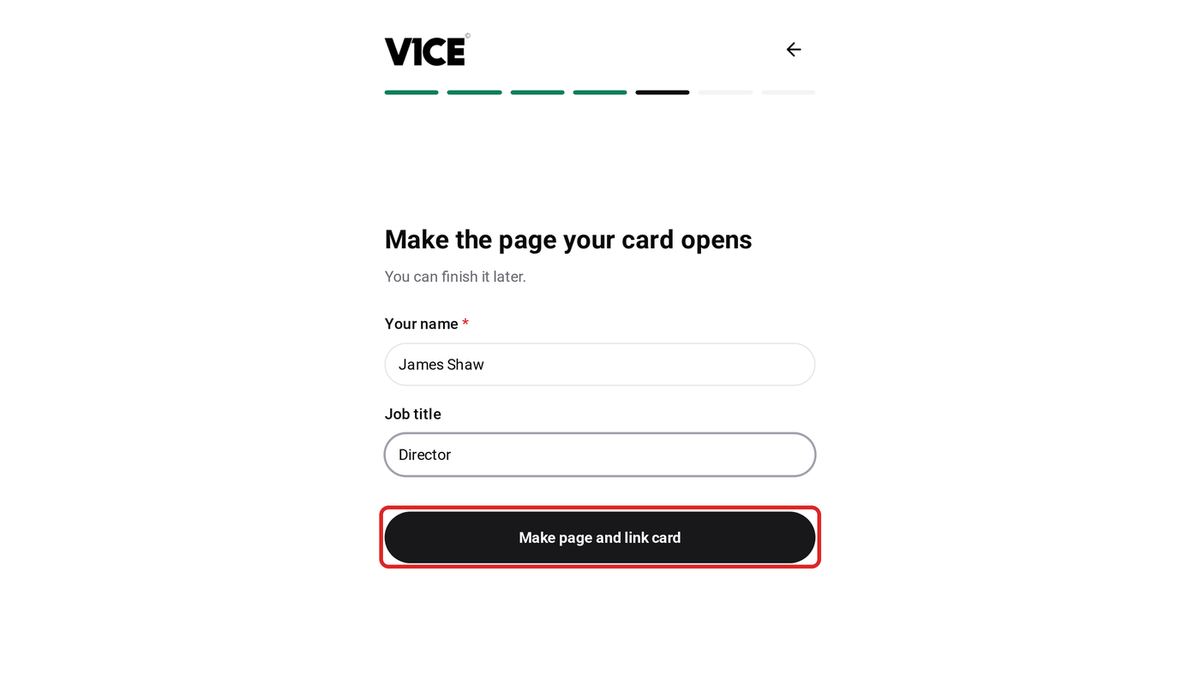
Then press make page and link card.
Your card is linked. Before you test it, build your page so there's something to see when it opens.
Add your photo, bio and links from my page, then pages.
Now try your first tap.
Hold the middle of your card near the top of your phone as the steps show.
As soon as V1CE sees the tap, you'll see your card works.
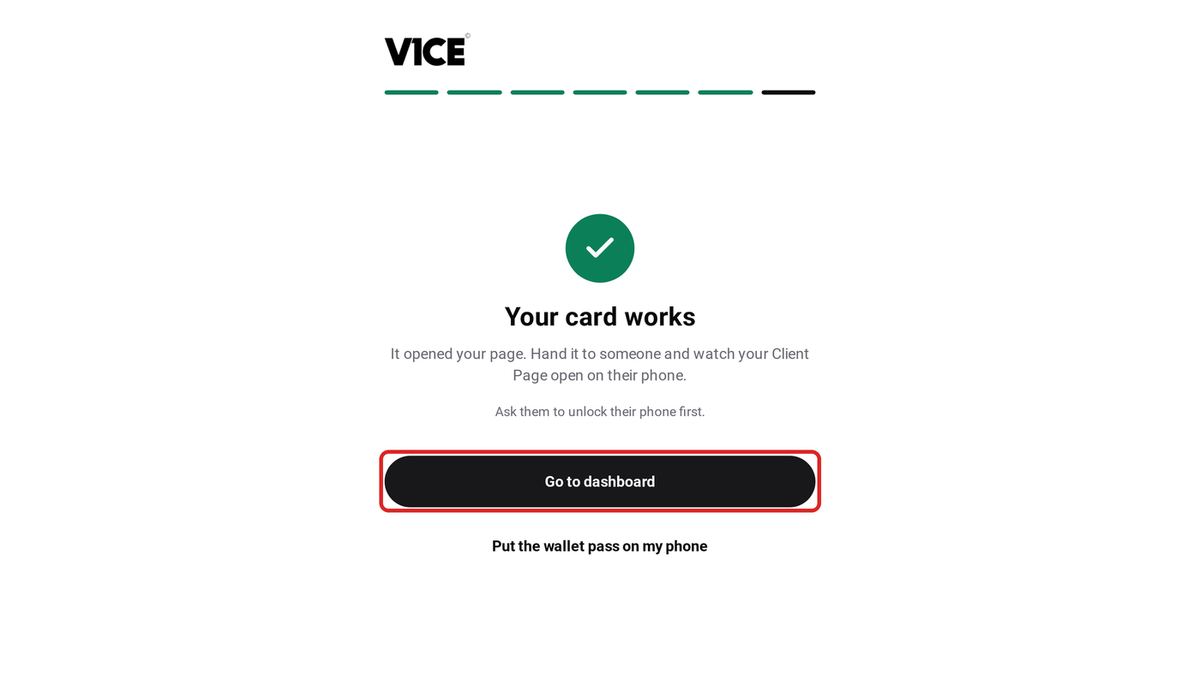
Select go to dashboard and you're all set.
That's it. Your card is set up and your page is live.
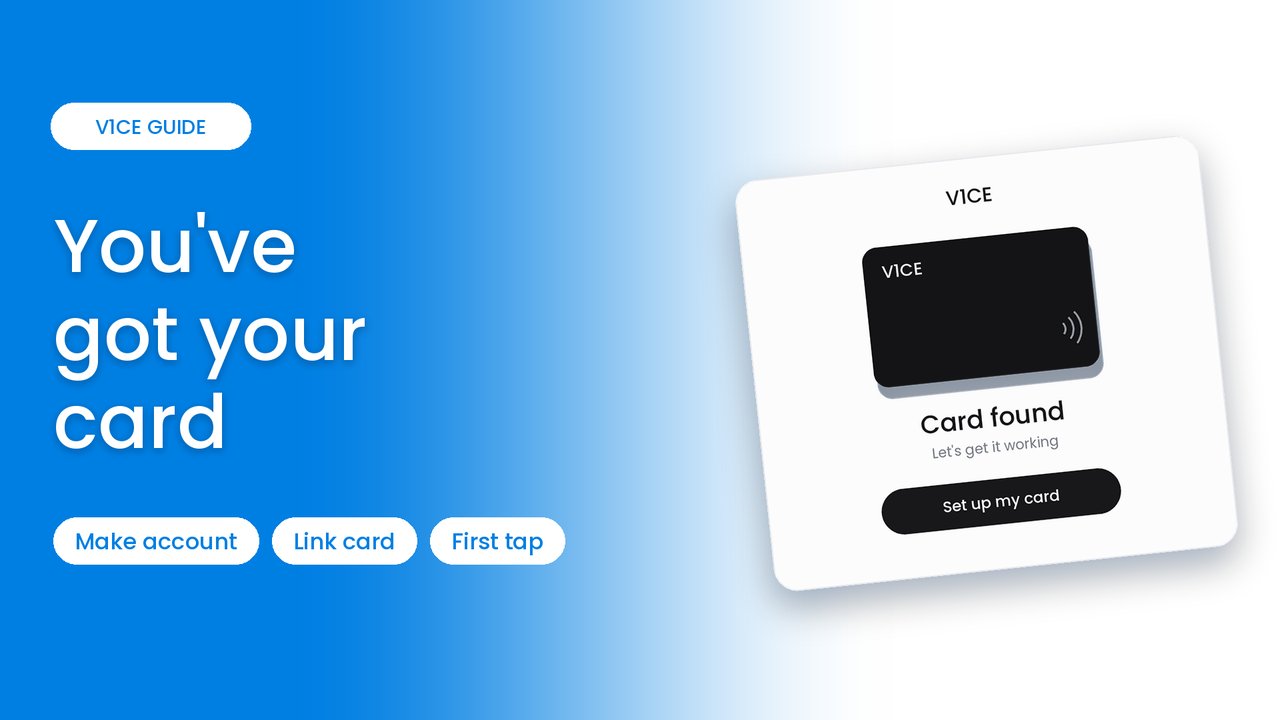
Your V1CE card has arrived. It's ready to open your V1CE page whenever someone taps it on their phone or scans its QR code, but first it needs a page to open.
If you don't have a V1CE account yet, you can make one as part of setting up your card. There's no password to remember: V1CE emails you a link to sign in.
This guide takes you from a brand new card to a working one in about two minutes.
Watch the video
Step 1: Tap or scan your card
Tap your card on your phone, or scan its QR code. V1CE finds your card.
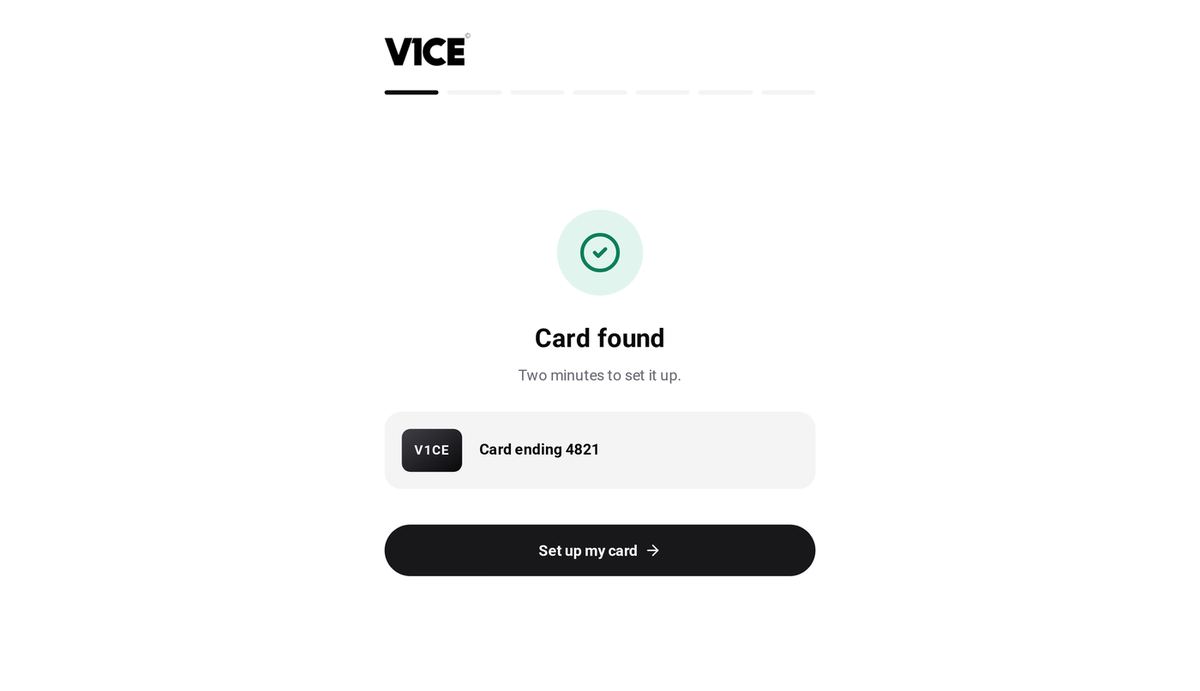
Step 2: Press Set up my card
Press Set up my card.
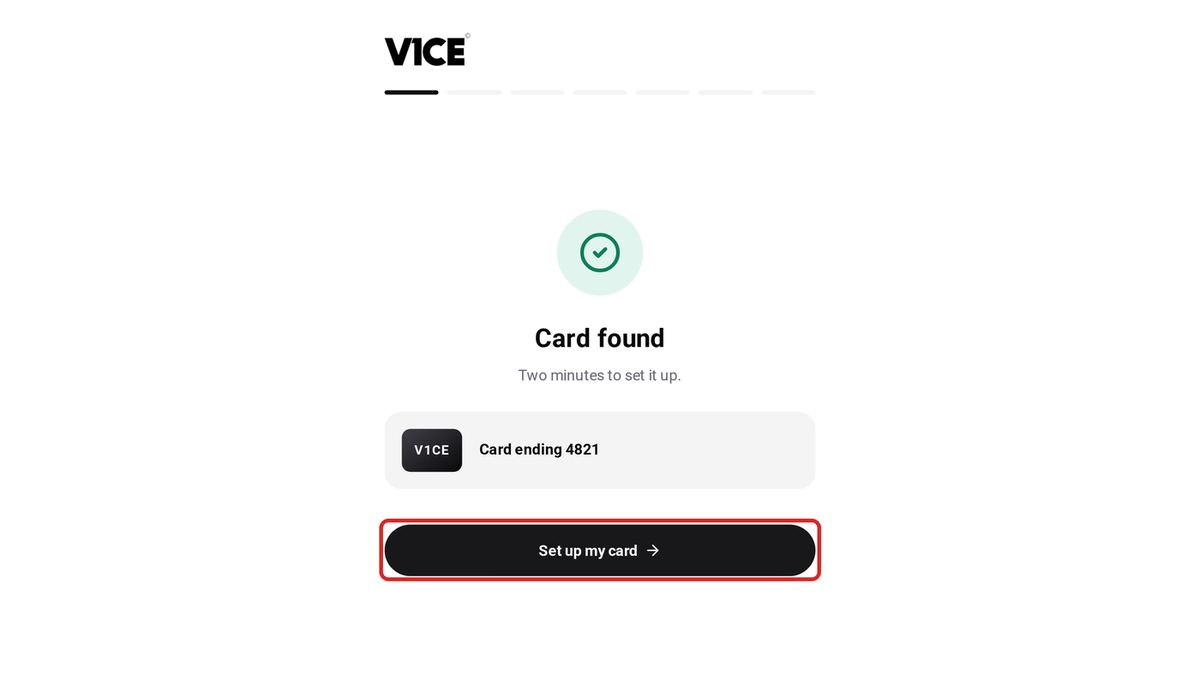
Step 3: Choose Me
Choose Me, because the card is for you.
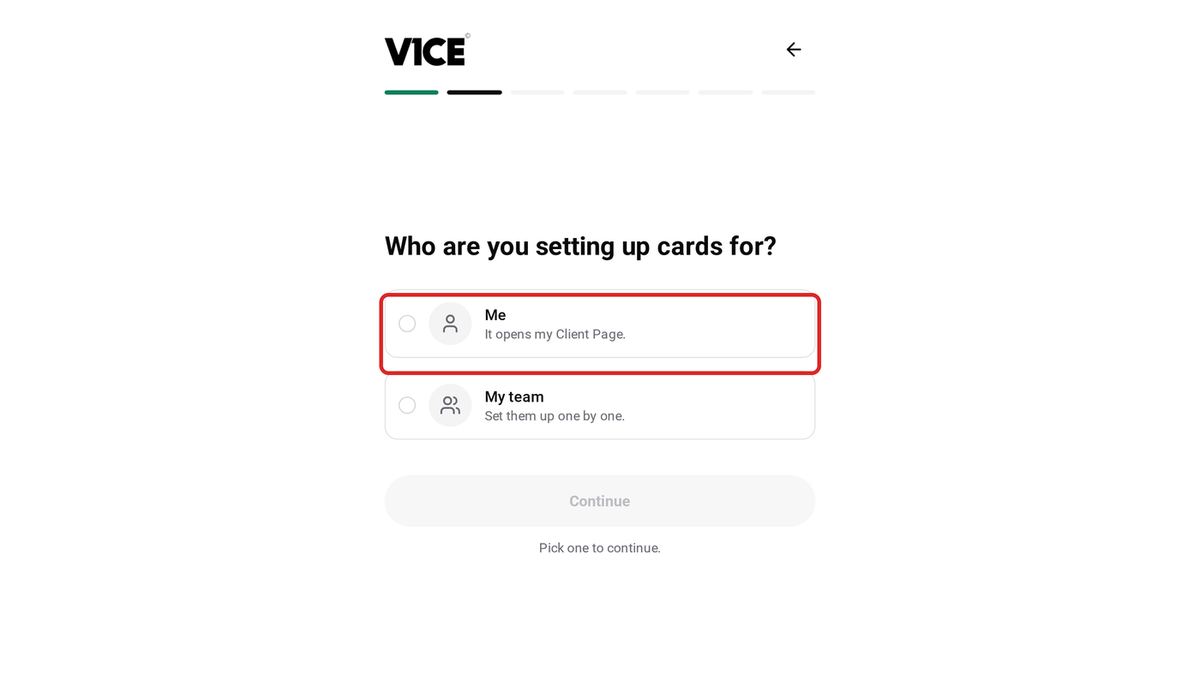
Step 4: Press Continue
Press Continue.
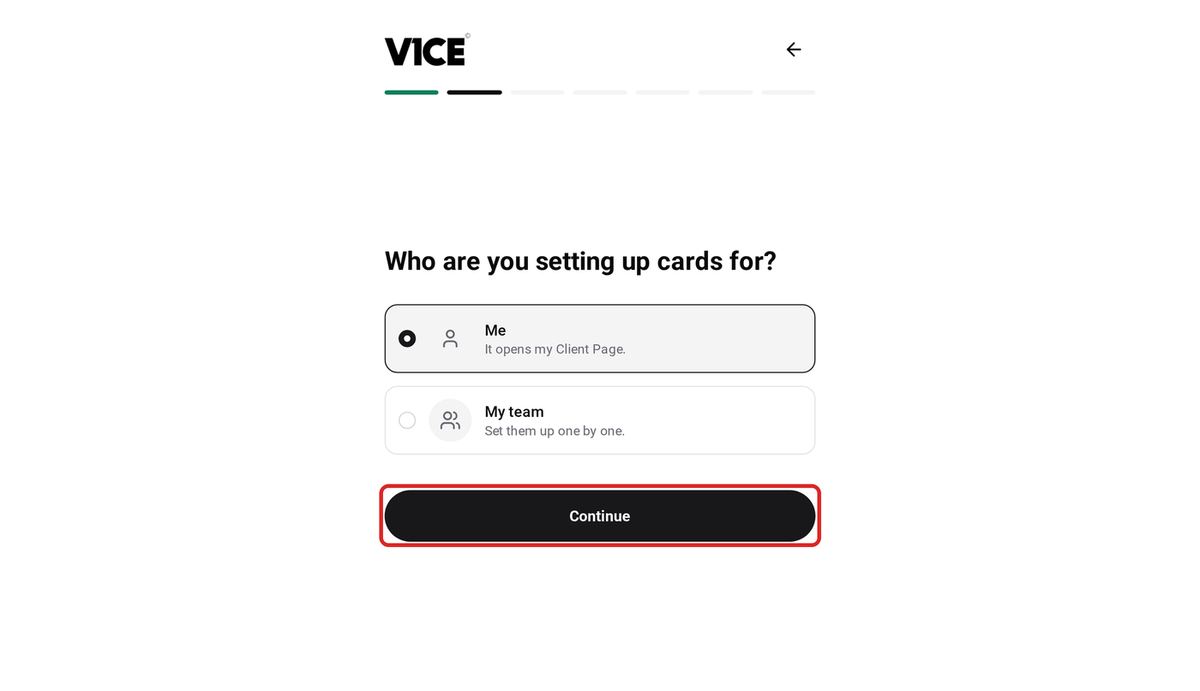
Step 5: Choose New to V1CE? Make an account
You don't have an account yet, so choose New to V1CE? Make an account.
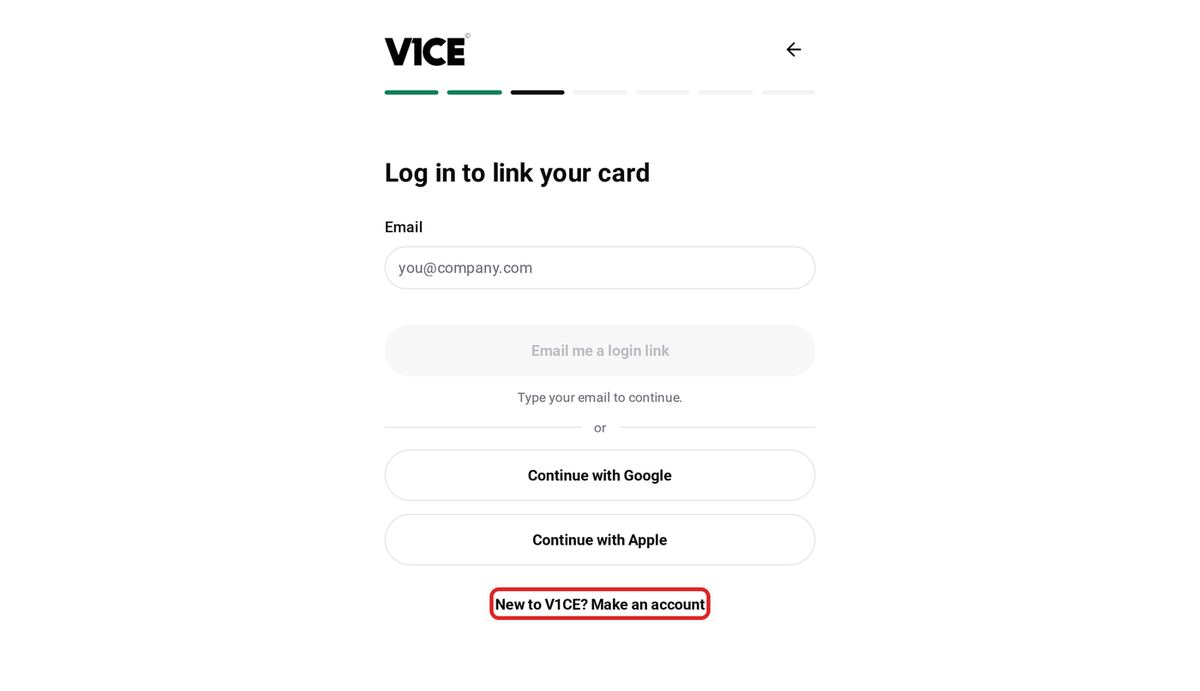
Step 6: Type your email
Type your email address.
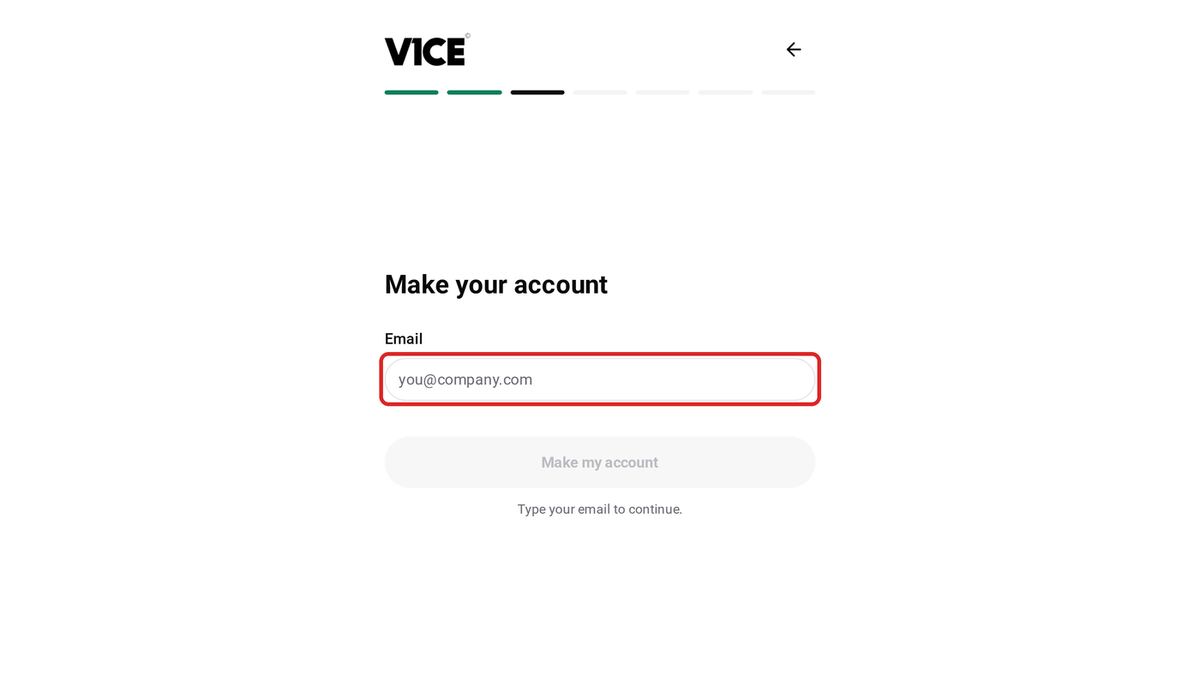
Step 7: Press Make my account
Press Make my account. There's no password to remember.
Step 8: Check your email
V1CE emails you a link to sign in.
Step 9: Select Sign in to V1CE
Open the email and select Sign in to V1CE. The link lasts one hour and works once.
Step 10: Make your page
Your card needs a page to open. Type your name and your job title.
Step 11: Press Make page and link card
Press Make page and link card.
Step 12: Build your page
Before you test the card, build your page so there's something to see when it opens. Add your photo, bio and links from My page, then Pages.
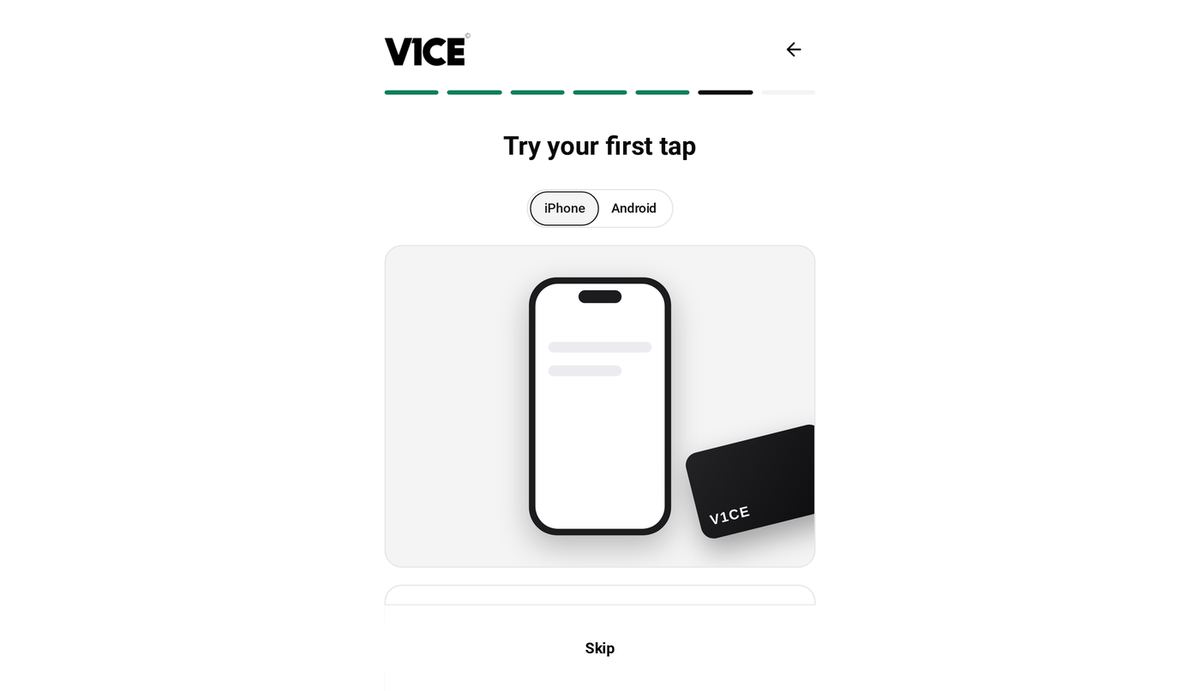
Step 13: Tap your card on your phone
Hold the middle of your card near the top of your phone, as the on-screen steps show.
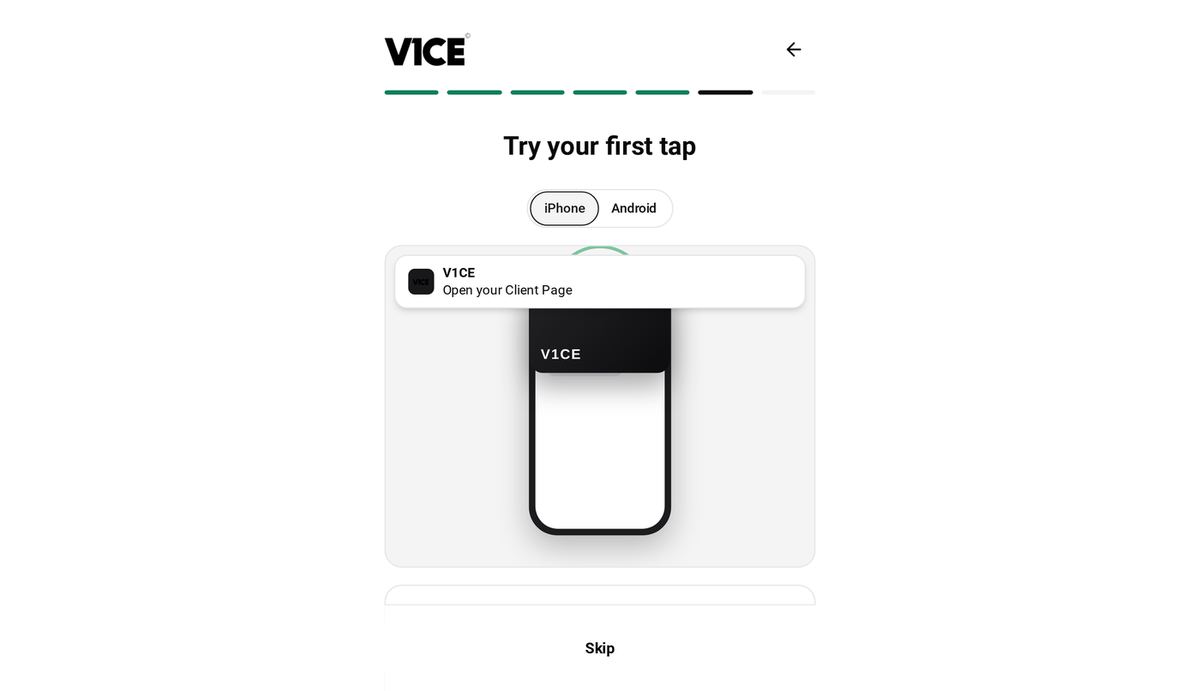
Step 14: Go to your dashboard
As soon as V1CE sees the tap, you'll see Your card works. Select Go to dashboard and you're all set.
Good to know
- Open the sign-in email on the same device you're using to set up your card.
- Can't see the email? Check your spam folder, or press Send it again.
- You can change the page your card opens at any time from Cards.
Frequently asked questions
Do I need a password?
No. V1CE emails you a link to sign in. The link lasts one hour and works once.
What if I already have a V1CE account?
This guide is for new accounts. If you already have a V1CE account, read How to activate your V1CE card instead.
Should I build my page before I test the card?
Yes, so there's something to see when it opens. Add your photo, bio and links from My page, then Pages.
How do I test that my card works?
Hold the middle of your card near the top of your phone. When V1CE sees the tap, you'll see that your card works.