How to use Note taker for your meetings

To use Note taker, open it and press New recording. Choose Join a video call, paste your Zoom, Google Meet or Microsoft Teams link and press Send bot to meeting. Co-Work joins and, when the call ends, writes a summary, key points and action items.
| Time needed | 2 minutes |
|---|---|
| What you need | A Zoom, Google Meet or Microsoft Teams link, or a meeting in person |
| Where in the app | Note taker |
Video transcript and chapters
Chapters
0:00 Introduction
0:15 Open Note taker
0:25 Choose Join a video call
0:33 Paste your meeting link
0:40 Let Co-Work in
0:47 Wait for the call to end
0:55 Read your notes
1:12 Record a meeting in person
1:17 Add who is in the room
1:25 Start and stop recording
1:34 Open your notes
1:43 You're done

Transcript
Here's how Co-Work takes your meeting notes for you on video calls and in person.
It joins your call, listens, and writes it all up.
You get a summary, key points and action items, ready to turn into tasks.
Open Note taker, keep this switch on, and Co-Work takes notes on every call you book.
For any other call, press New Recording.
Co-Work asks what you'd like to do.
Choose Join a Video Call.
Then press Continue.
Paste your meeting link.
Zoom, Google Meet, and Microsoft Teams all work.
Press Send Bot to Meeting.
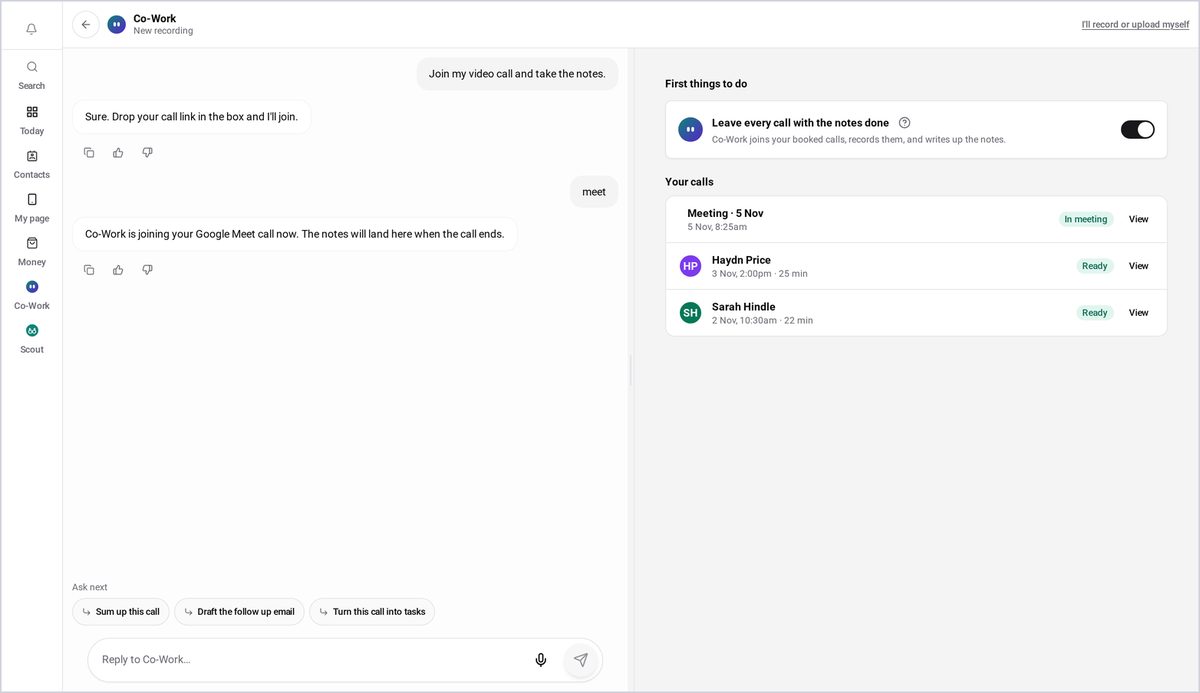
Co-Work joins the call.
When it asks to come in, let it in from the meeting.
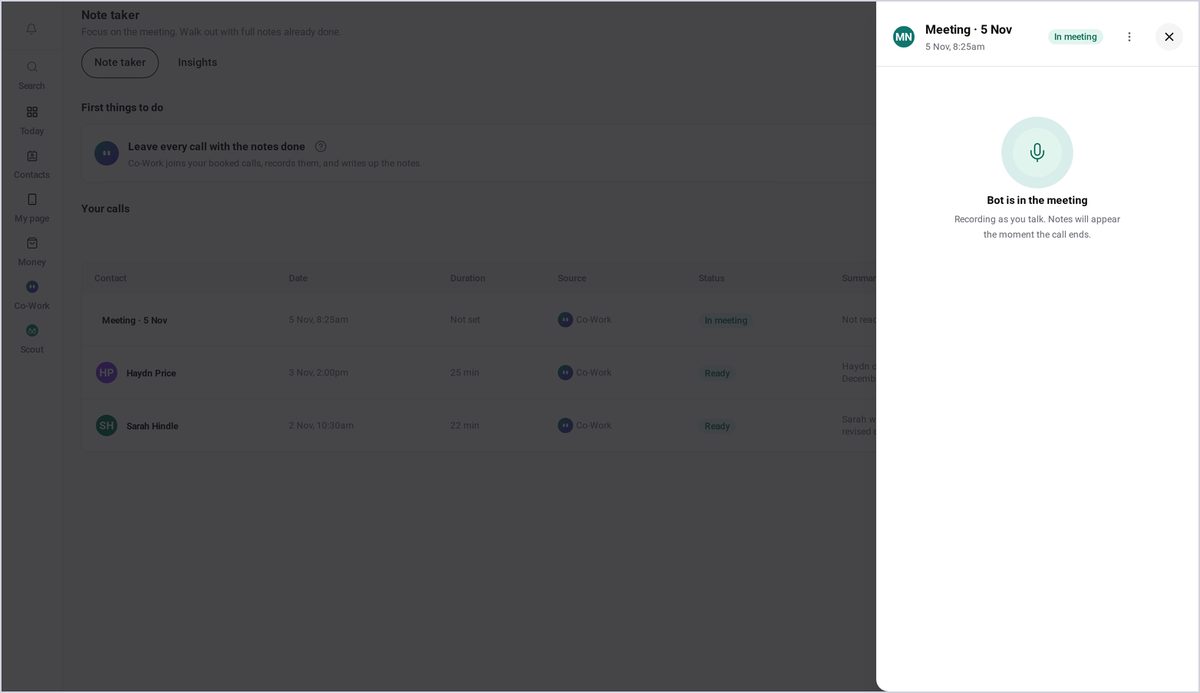
While the call is on, it shows as In Meeting.
The notes appear the moment the call ends.
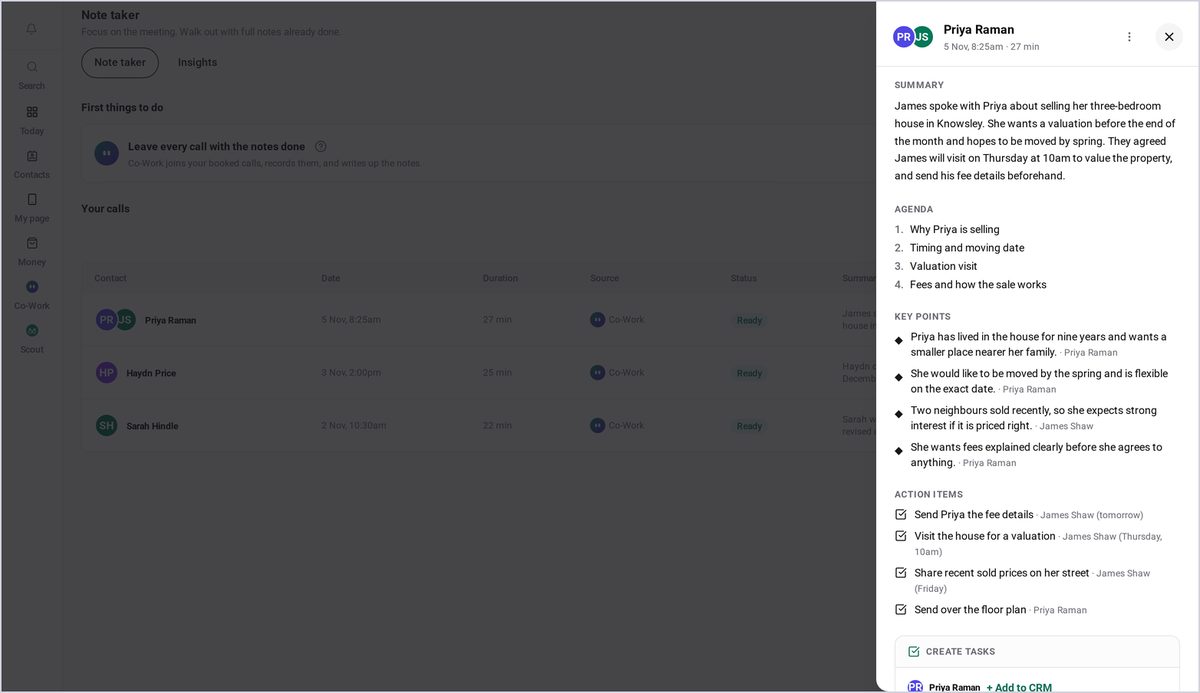
When the call ends, the notes are ready.
Open the call to read them.
You get a short summary of the call.
Then the key points with who said what.
And the action items with who owns each one and when it's due.
You can turn them into tasks in one go.
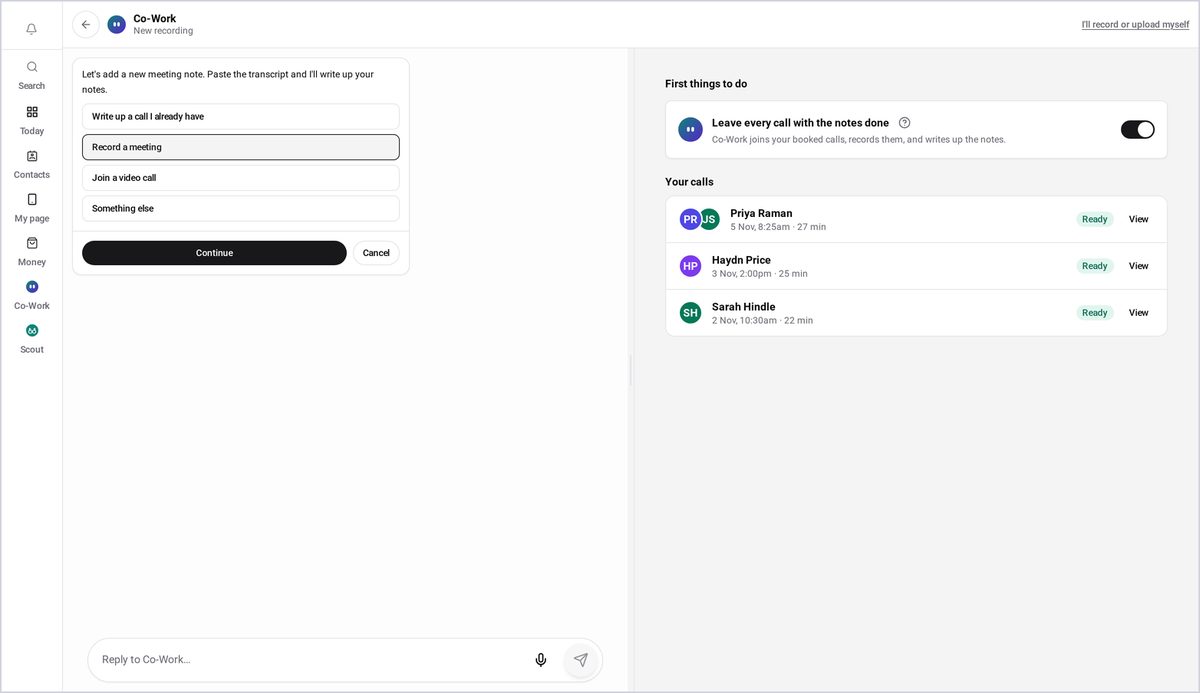
Meeting someone in person?
Press New Recording and choose Record a Meeting.
Add the names of everyone in the room.
Tick the box to confirm everyone knows it's being recorded.
Then tap the red button to start.
Tap Stop when you're done.
When Co-Work turns the recording into notes, it only takes a moment.
When it's finished, it shows as ready in your list.
Open it for the summary, key points, and action items just like a video call.
That's it. Co-Work takes the notes so you can focus on the meeting.
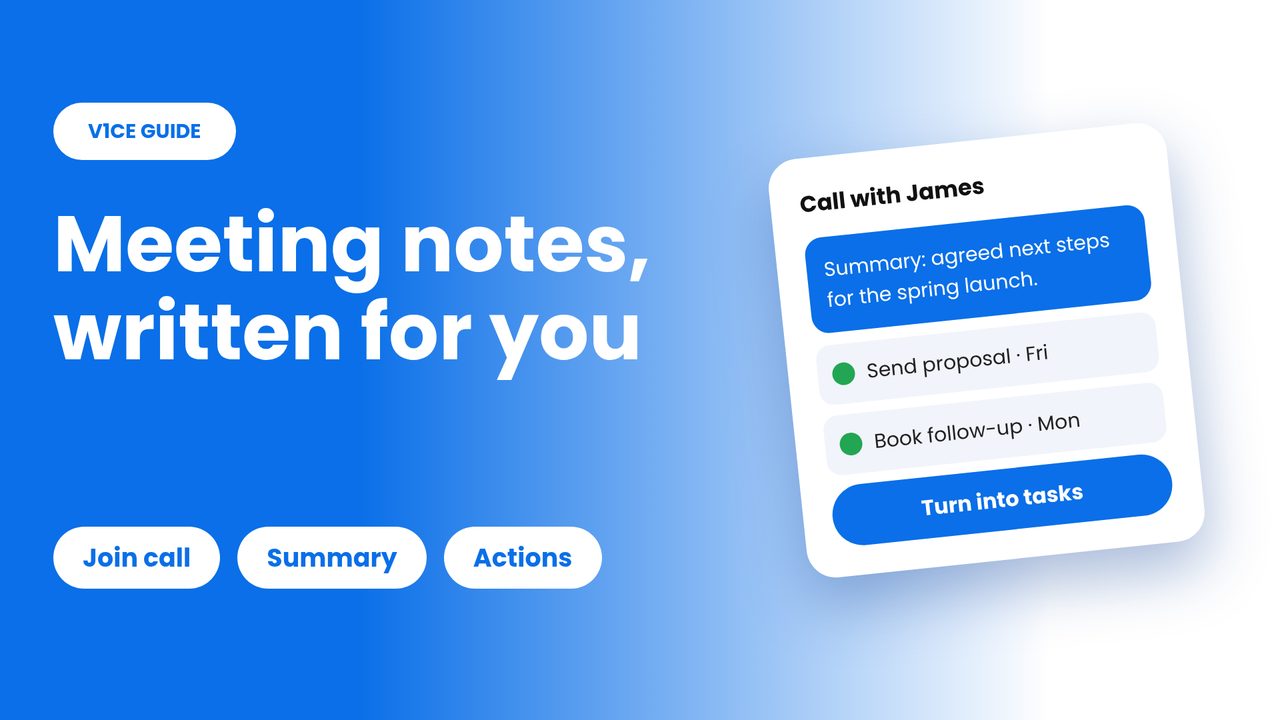
Note taker joins your calls and writes everything up for you: a short summary, the key points, and action items you can turn into tasks.
It works on Zoom, Google Meet and Microsoft Teams, and for meetings in person.
Watch the video
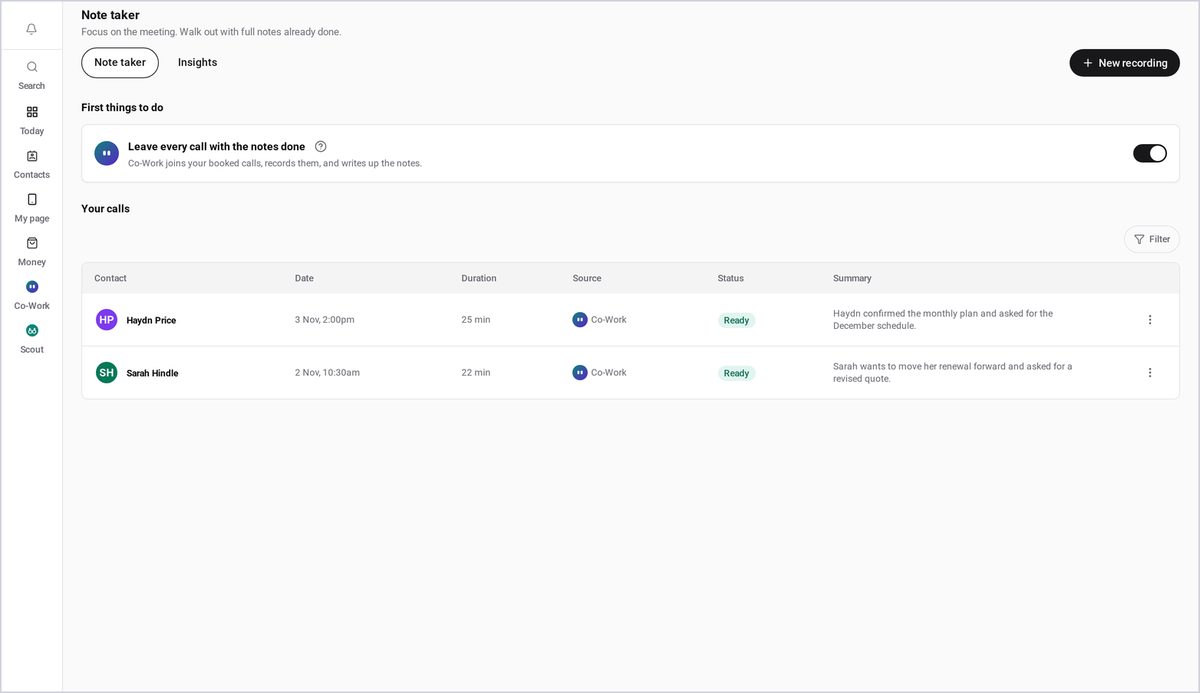
Step 1: Open Note taker
Open Note taker. Keep this switch on, and Co-Work takes notes on every call you book. For any other call, press New recording.
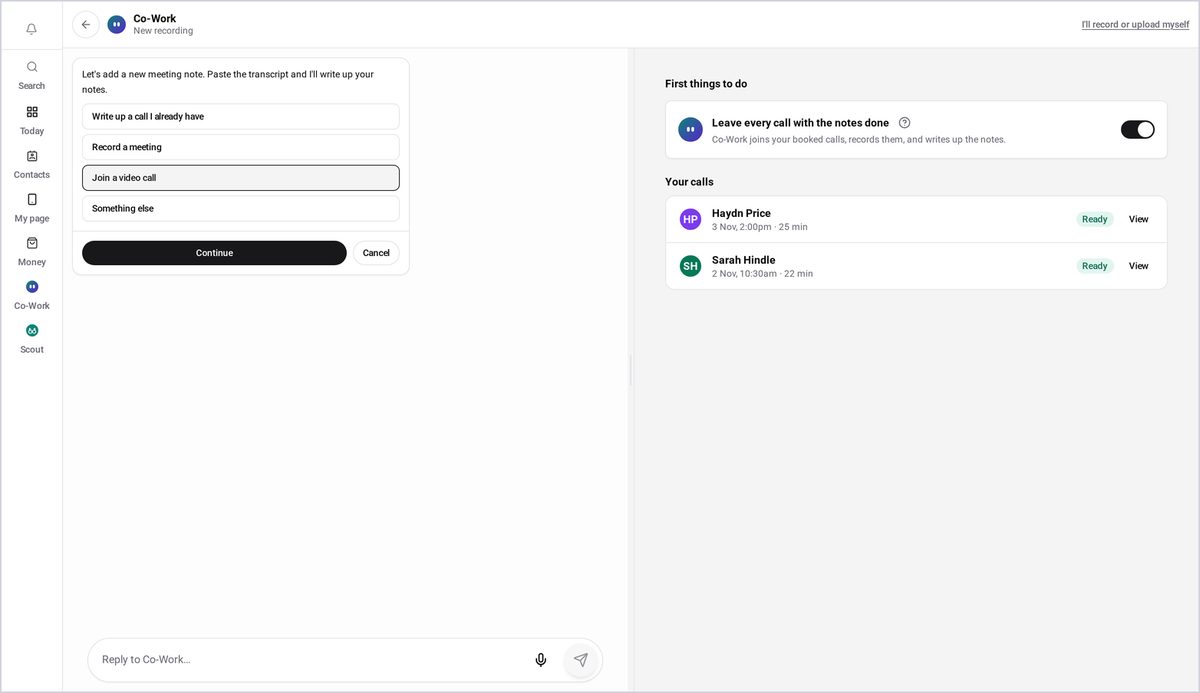
Step 2: Choose Join a video call
Co-Work asks what you'd like to do. Choose Join a video call. Then press Continue.
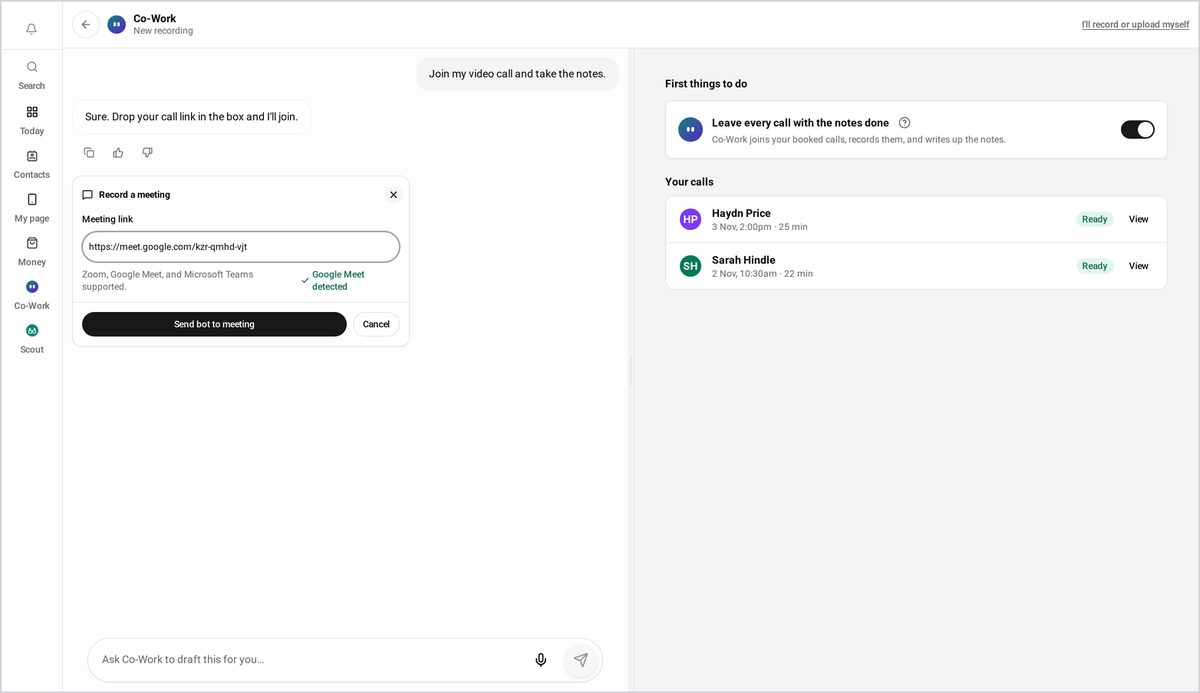
Step 3: Paste your meeting link
Paste your meeting link. Zoom, Google Meet and Microsoft Teams all work. Press Send bot to meeting.
Step 4: Let Co-Work in
Co-Work joins the call. When it asks to come in, let it in from the meeting.
Step 5: Wait for the call to end
While the call is on, it shows as In meeting. The notes appear the moment the call ends.
Step 6: Open the call
When the call ends, the notes are ready. Open the call to read them. You get a short summary of the call. Then the key points, with who said what. And the action items, with who owns each one and when it's due. You can turn them into tasks in one go.
Step 7: Record a meeting in person
Meeting someone in person? Press New recording, and choose Record a meeting.
Step 8: Add who is in the room
Add the names of everyone in the room.
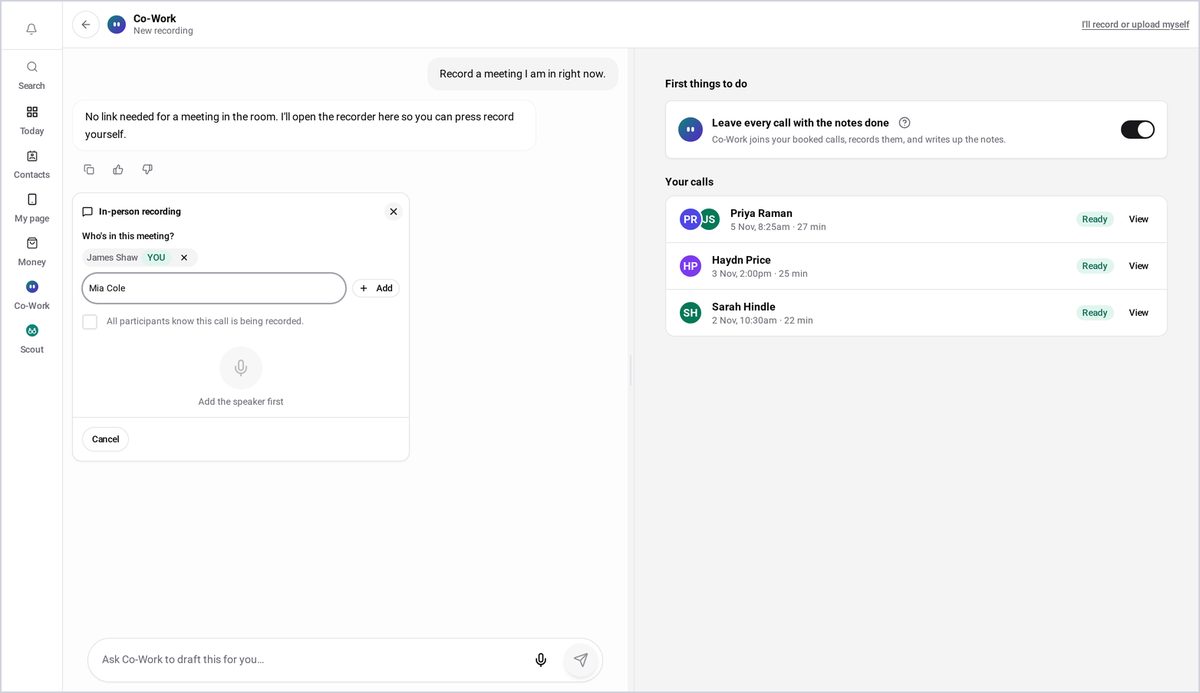
Step 9: Confirm everyone knows
Tick the box to confirm everyone knows it's being recorded. Then tap the red button to start. Tap stop when you're done.
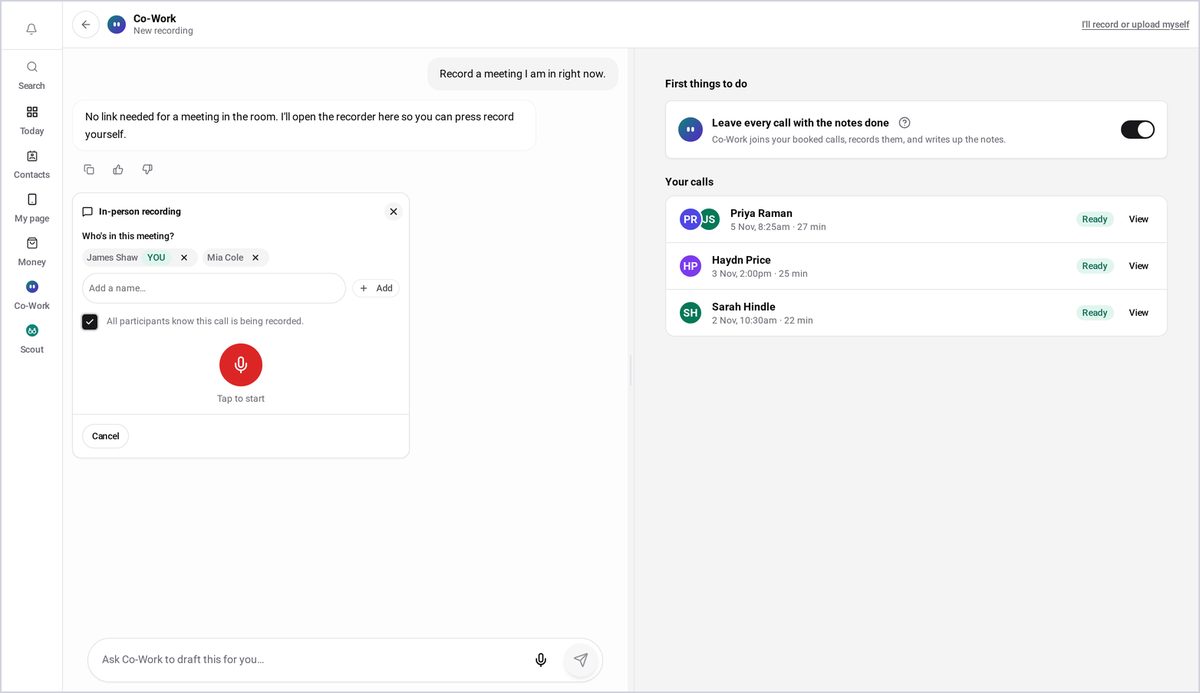
Step 10: Co-Work writes it up
Co-Work turns the recording into notes. It only takes a moment.
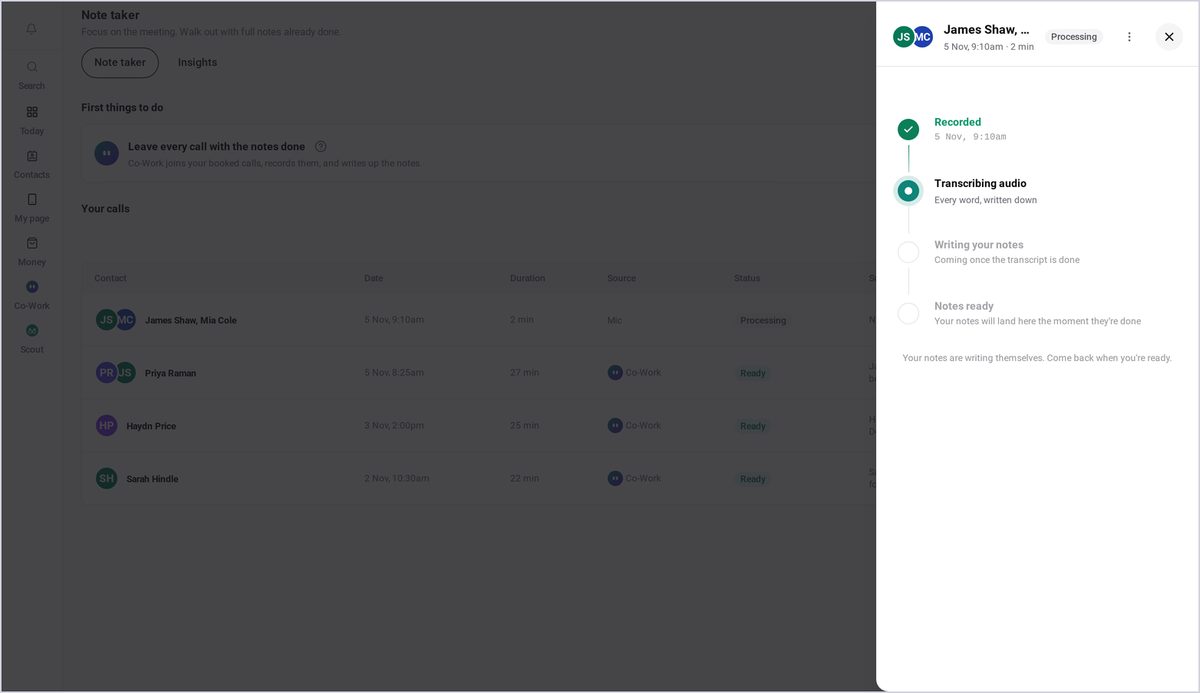
Step 11: Find it in your list
When it's finished, it shows as Ready in your list. Open it for the summary, key points and action items, just like a video call.
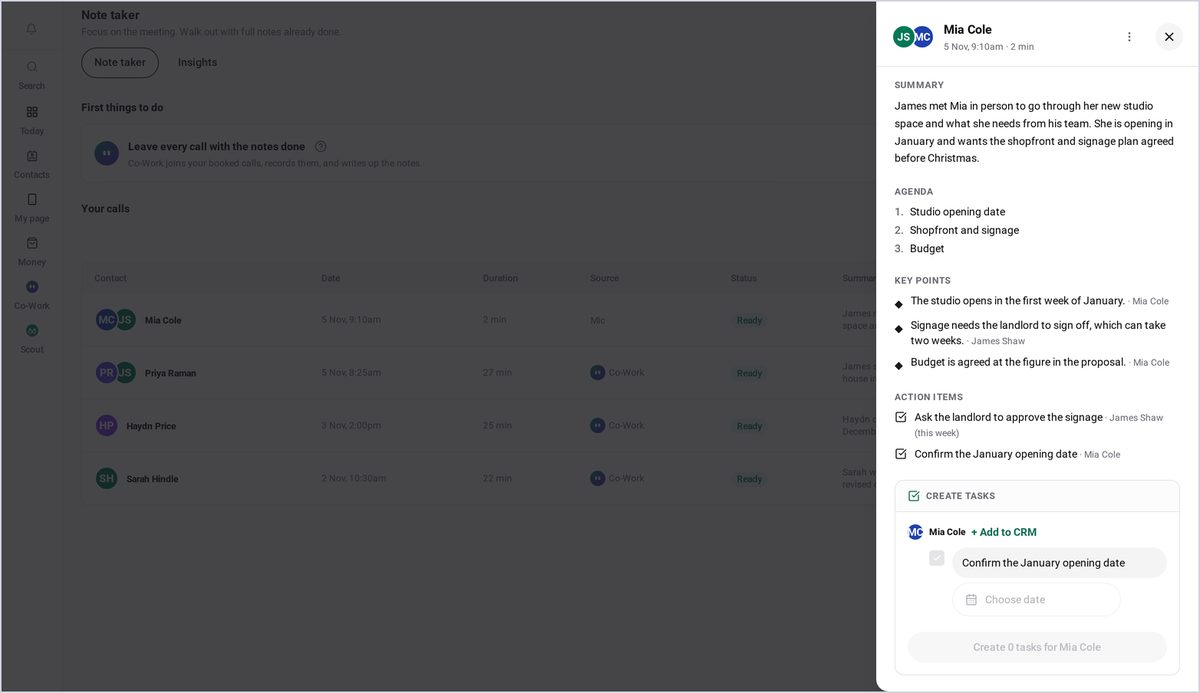
Good to know
- Keep the switch on at the top and Note taker joins every call you book.
- For in-person meetings, always tick the box to confirm everyone knows it is being recorded.
- Action items can be turned into tasks in one go.
Frequently asked questions
Which video call apps does Note taker work with?
Zoom, Google Meet and Microsoft Teams. It also works for meetings in person.
What do I get after a call?
A short summary, the key points with who said what, and action items with who owns each one and when it's due. You can turn them into tasks in one go.
Can it record a meeting in person?
Yes. Press New recording, choose Record a meeting, add the names of everyone in the room and tick the box to confirm everyone knows it's being recorded.
Does it take notes on every call?
Keep the switch on and Co-Work takes notes on every call you book. For any other call, press New recording.