How do I connect V1CE to my CRM or other tools?

To connect V1CE to your CRM or another tool, hover Co-Work in the side menu, choose Automations and click the Integrations tab. Find the tool, press Connect and sign in. If your tool is not listed, press Request an integration.
| Time needed | 1 minute |
|---|---|
| What you need | Your V1CE account and an account for the tool you want to connect |
| Where in the app | Co-Work > Automations > Integrations |
Video transcript and chapters
Chapters
0:00 Intro
0:08 Open Integrations
0:20 Press Connect
0:30 Sign in and allow
0:40 Request a tool

Transcript
Here's how to connect V1CE to your CRM, or any other tool. Send your new contacts to the tools you already use. Start on Today, then hover Co-Work in the side menu. Choose Automations. Click the Integrations tab. Scroll down to see everything V1CE connects to. Pick the tool you need, for example Klaviyo, and press Connect. Sign in to your account. Press Allow, to let V1CE connect. That's it. The tool now shows as Connected. Can't see your tool? Scroll to the bottom, and press Request an integration. Type the tool you'd like, and press Send request. That's it. Connect any tool from Integrations, or request the one you need.
You connect V1CE to your CRM and other tools from the Integrations tab. This guide shows how, what you can connect, and what to do if your tool is not on the list. It takes about a minute.
Watch the video
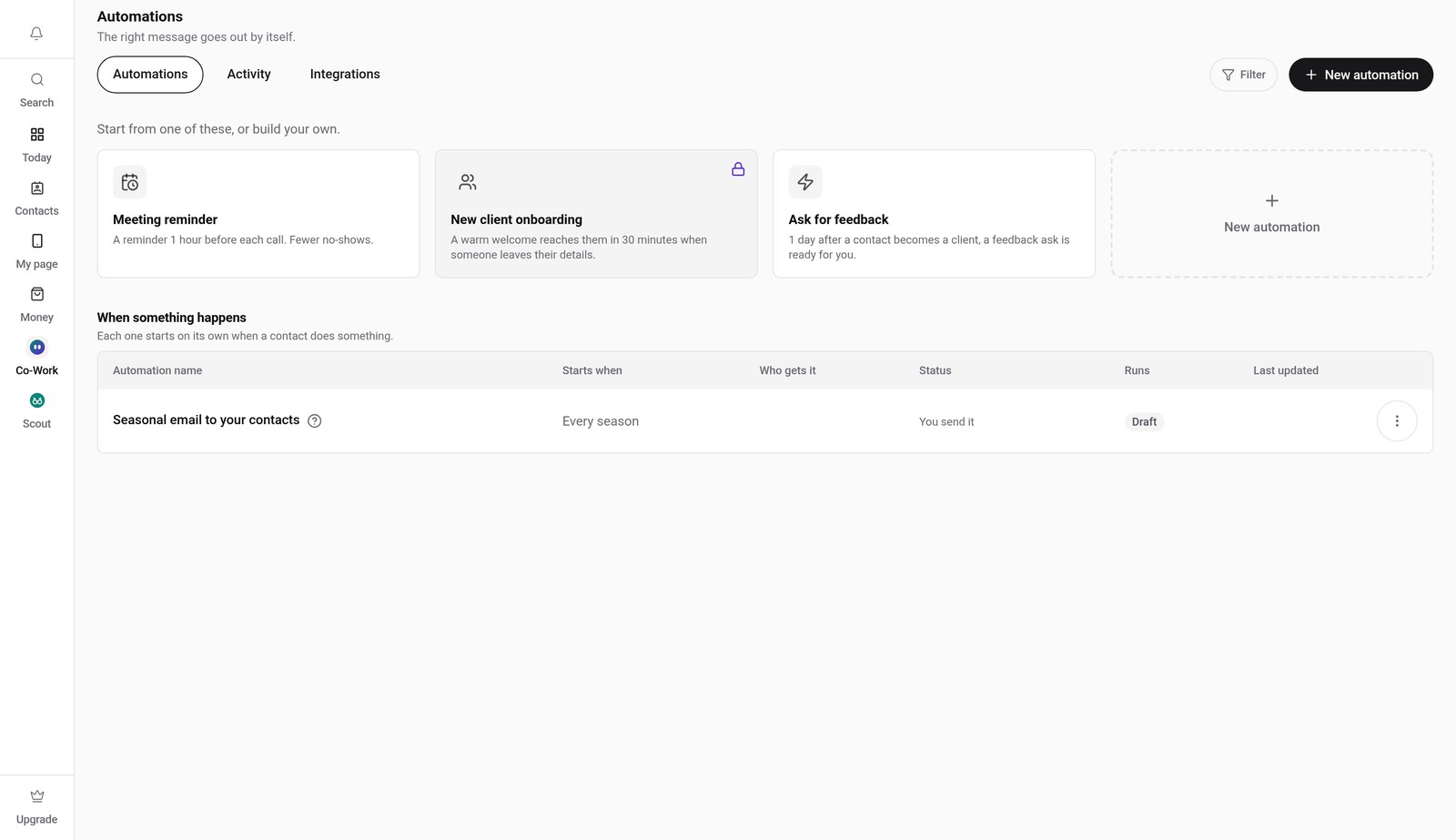
Step 1: Open Automations
Hover Co-Work in the side menu, then choose Automations.
Step 2: Click the Integrations tab
Click Integrations, then scroll down to see everything V1CE connects to.
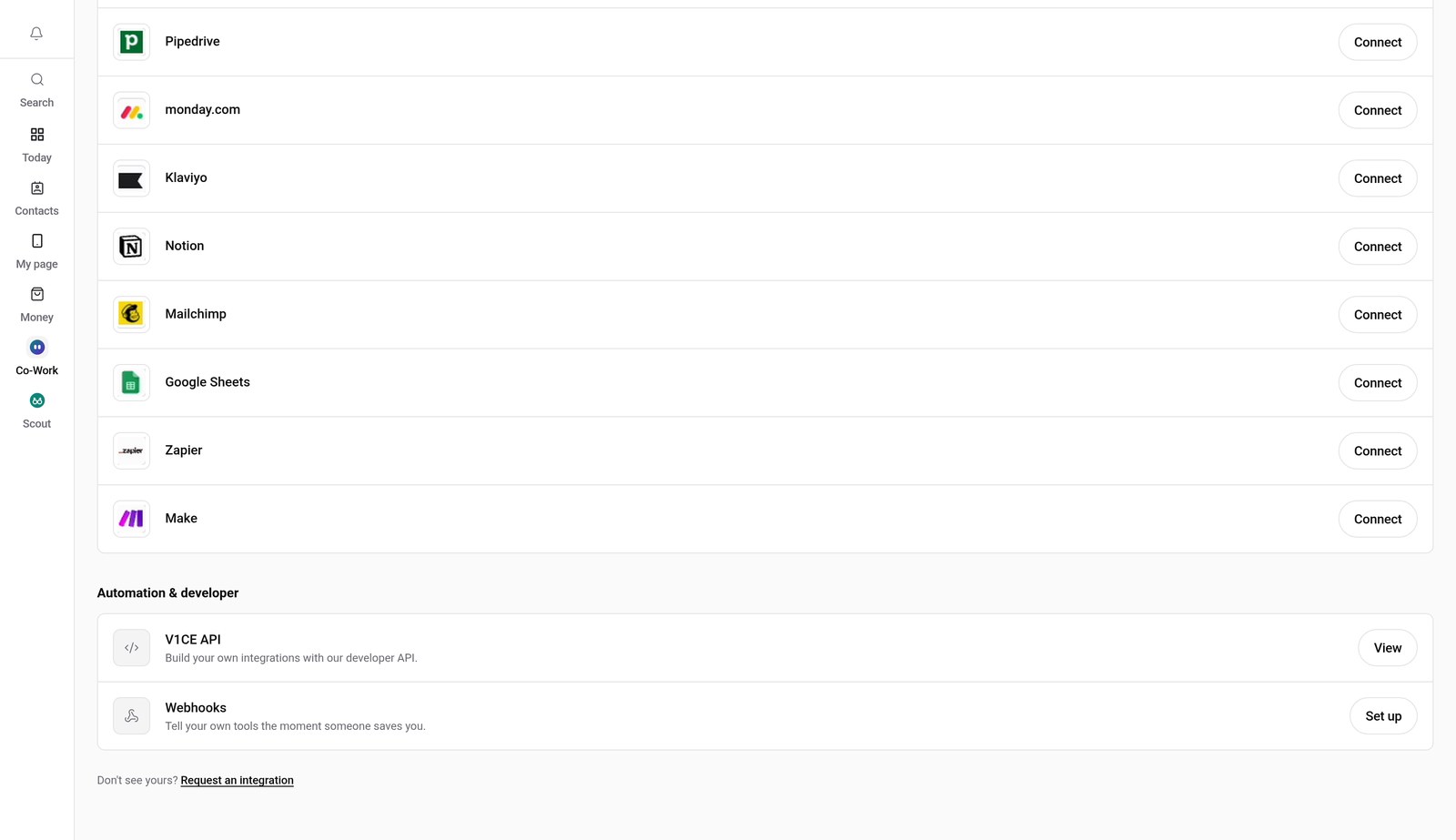
Step 3: Press Connect and sign in
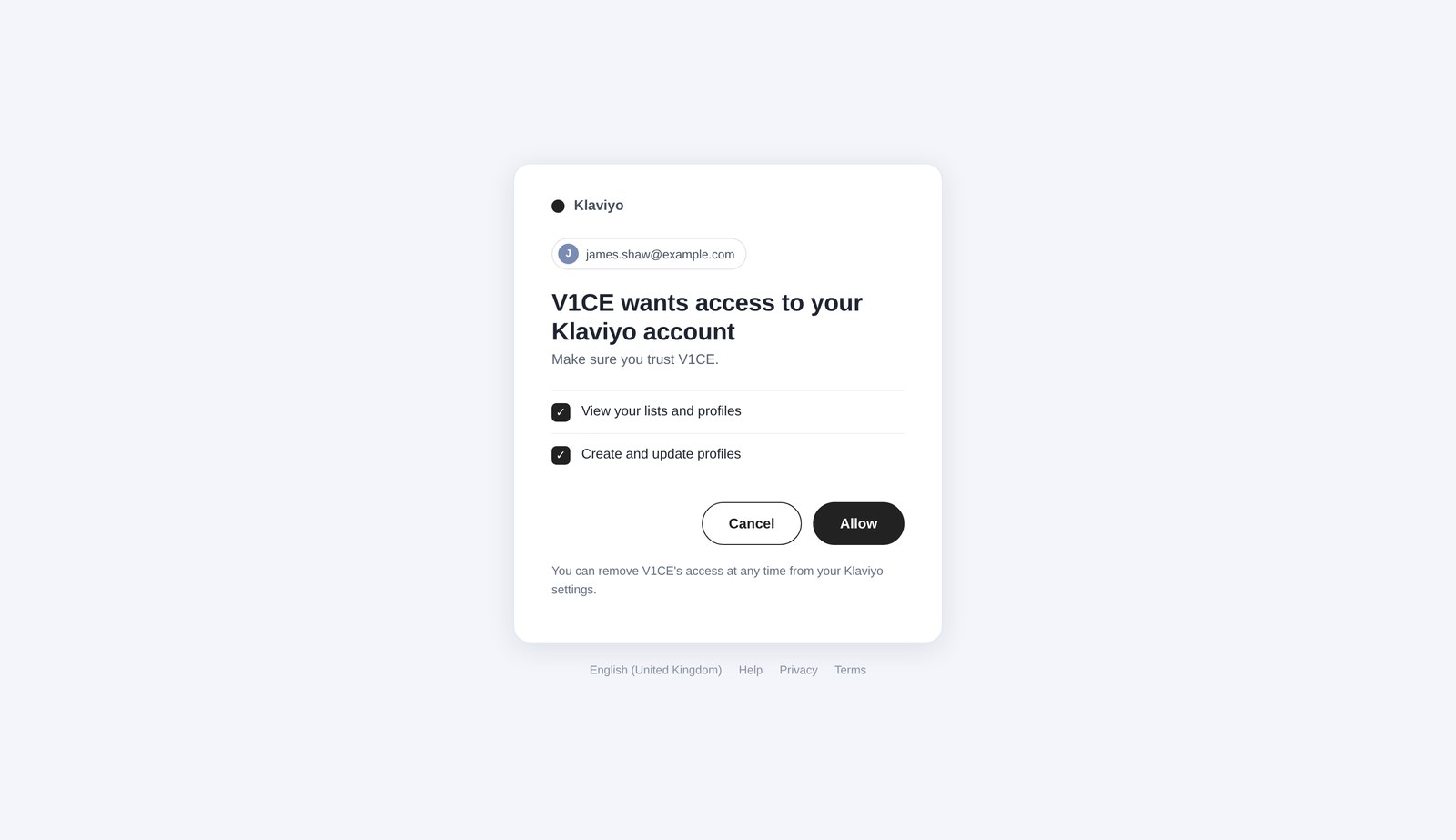
Find the tool you need and press Connect. Sign in to your account for that tool. Check it says it is connecting to V1CE.
Step 4: Allow access
Press Allow, or the button your tool shows, to let V1CE connect.
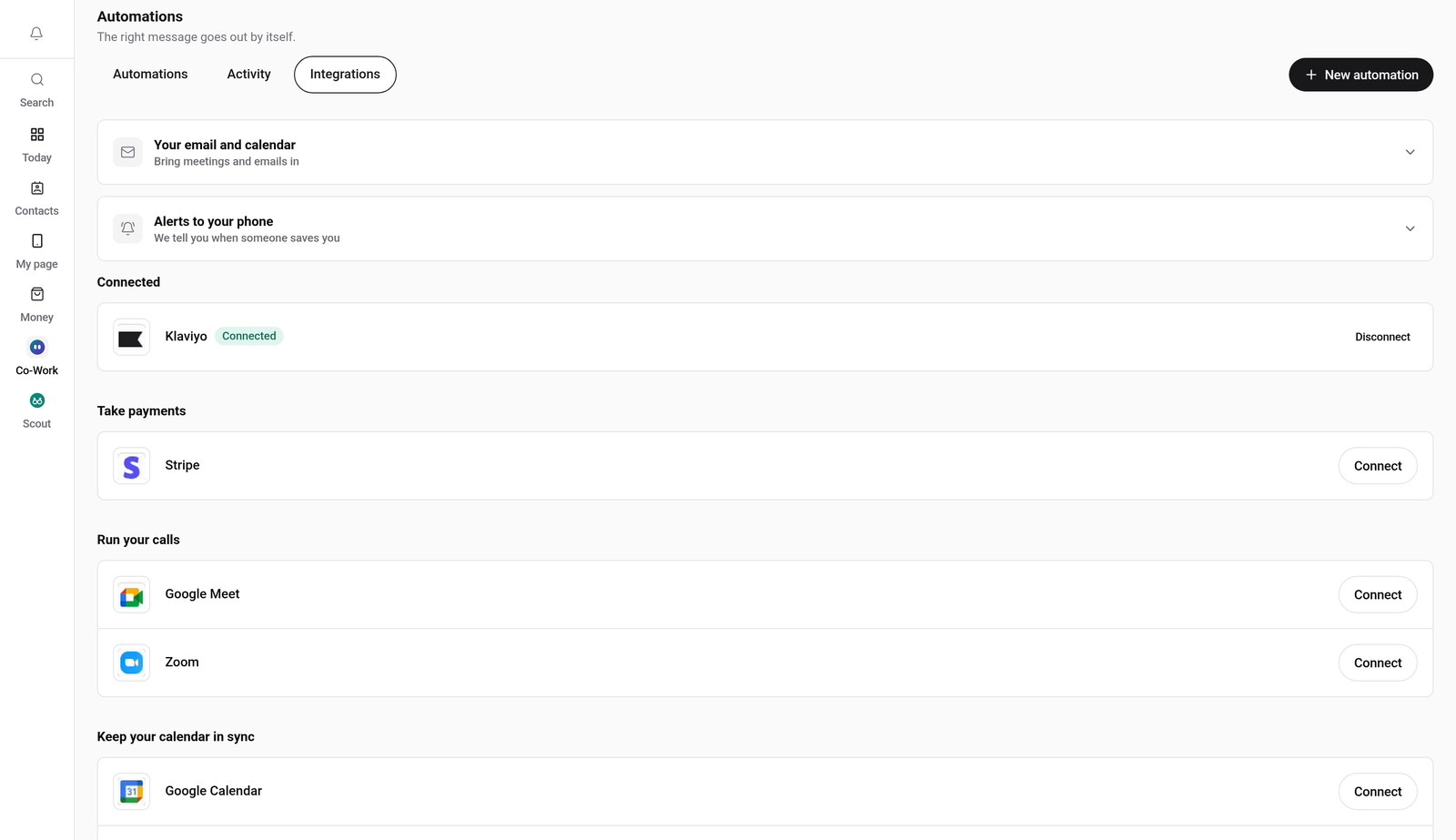
Step 5: Check it says Connected
You land back in V1CE, and the tool now shows as Connected. New contacts then go to it automatically.
What you can connect
Each tool below has its own step-by-step guide.
- Payments: Stripe
- Calls: Zoom and Google Meet
- Calendar: Google Calendar and Outlook Calendar
- CRM and contacts: HubSpot, Salesforce, Pipedrive, Zoho and monday.com
- Email marketing: Klaviyo and Mailchimp
- Notes and spreadsheets: Notion and Google Sheets
- Automation: Zapier and Make
- Developers: V1CE API and Webhooks
Can't see your tool? Request an integration
Scroll to the bottom of the Integrations tab and press Request an integration. Type the tool you would like and press Send request. We will look into it.
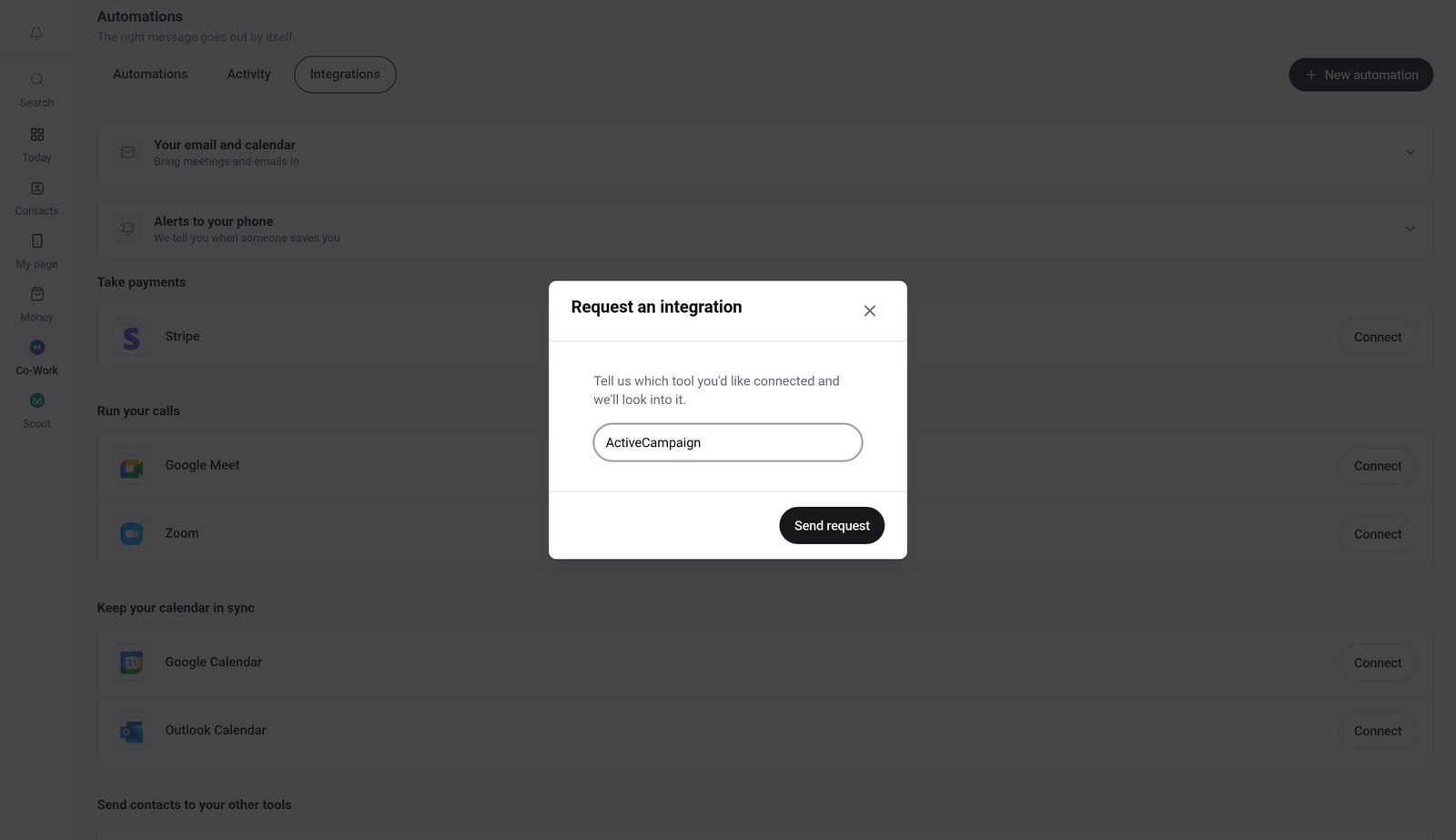
In the meantime, Zapier and Make can link V1CE to thousands of other apps, and the V1CE API and Webhooks let you build your own connection.
Good to know
- Some integrations need a paid V1CE plan. If yours does, V1CE tells you when you press Connect.
- To disconnect later, open the same Integrations tab and press Disconnect next to the tool.
- The sign-in screens in the video are examples. Yours will look like the real page for your tool.
Frequently asked questions
How do I connect V1CE to my CRM?
Open Automations, click the Integrations tab, find your CRM and press Connect. Sign in and allow access, and it shows as Connected.
Which tools can I connect to V1CE?
Stripe, Zoom, Google Meet, Google Calendar, Outlook Calendar, HubSpot, Salesforce, Pipedrive, Zoho, monday.com, Klaviyo, Notion, Mailchimp, Google Sheets, Zapier and Make, plus the V1CE API and Webhooks.
Where do I find Integrations in V1CE?
Hover Co-Work in the side menu, choose Automations, then click the Integrations tab.
How do I disconnect a tool?
Open the same Integrations tab and press Disconnect next to the tool.
What if my tool is not listed?
Press Request an integration at the bottom of the Integrations tab and tell us the tool. You can also use Zapier, Make, the V1CE API or Webhooks in the meantime.
Do I need a paid plan to connect a tool?
Some integrations need a paid V1CE plan. If yours does, V1CE tells you when you press Connect.