How to email a group of your contacts

To email a group of contacts, open Co-Work and say you want to send a broadcast email. Answer its quick questions: who gets it, what it's about, what you want people to do and the tone. Review the draft, then press Send now and confirm.
| Time needed | 2 minutes |
|---|---|
| What you need | Contacts with a tag in V1CE |
| Where in the app | Co-Work |
Video transcript and chapters
Chapters
0:00 Introduction
0:11 Open Co-Work
0:15 Say what you want to send
0:19 Co-Work asks a few questions
0:27 Answer in one go
0:33 Review the draft
0:40 Check who receives it
0:44 Read the email
0:48 Send it
0:57 Your email is on its way
1:00 See it in your list
1:06 You're done

Transcript
Here's how to email a group of your contacts using Co-Work.
Just tell Co-Work what you want to send.
It writes the email for you and you check it before it goes out.
Open Co-Work from the side menu.
Type what you want.
For example, I want to send a broadcast email.
Co-Work asks a few quick questions.
Who should get it?
What it's about?
What you want people to do?
And the tone?
Answer them in one go.
Name the tag to send to, say what it's about,
and pick a tone.
Co-Work writes the email and saves it as a draft.
Nothing is sent yet.
Press Review in Editor.
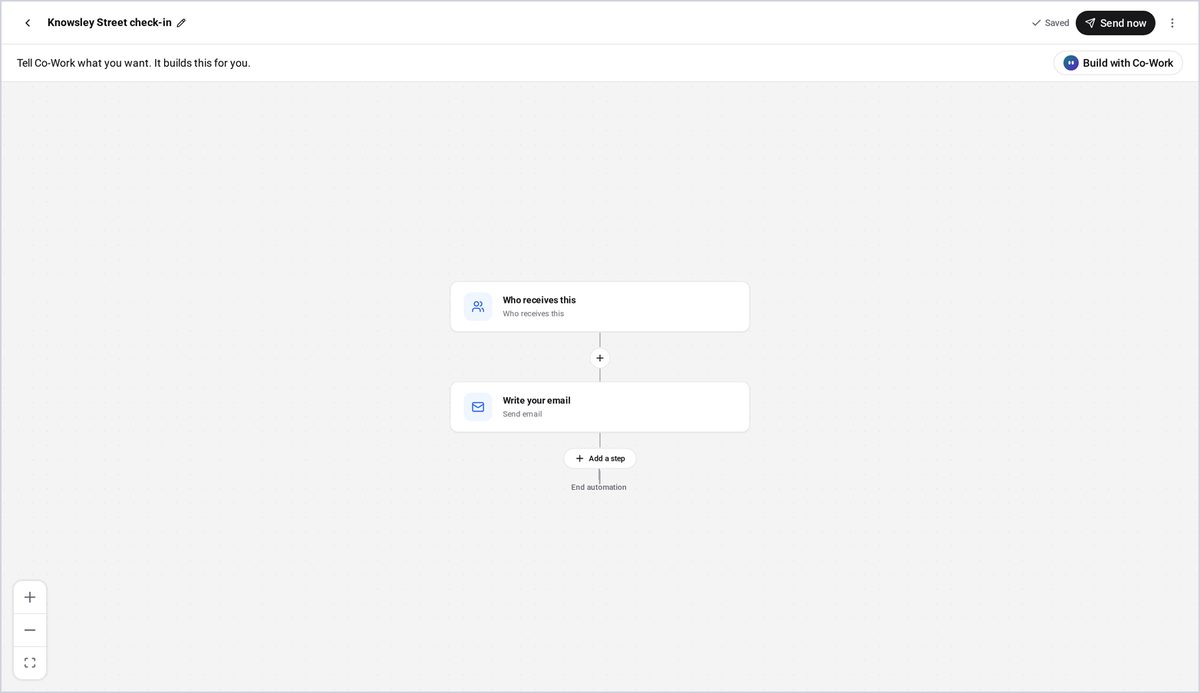
The editor shows who receives it and the email itself.
Press Write your email to read the message and check it.
When you're happy with it, press Send Now.
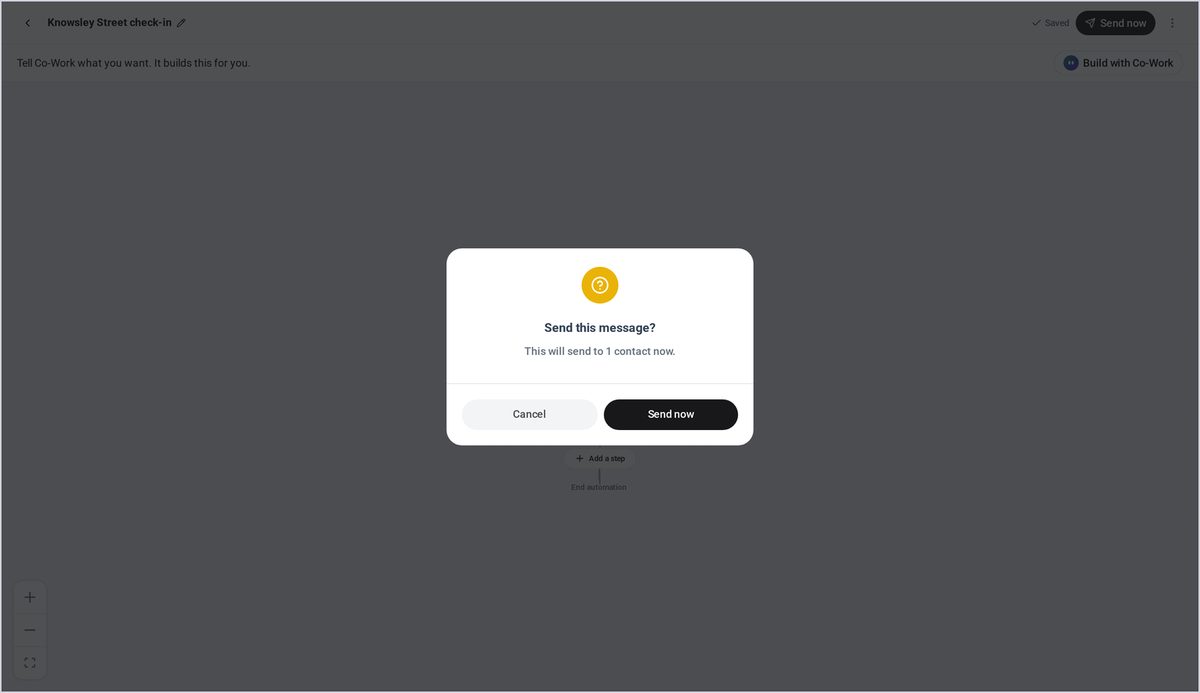
Co-Work checks how many people it's going to.
Confirm with Send Now.
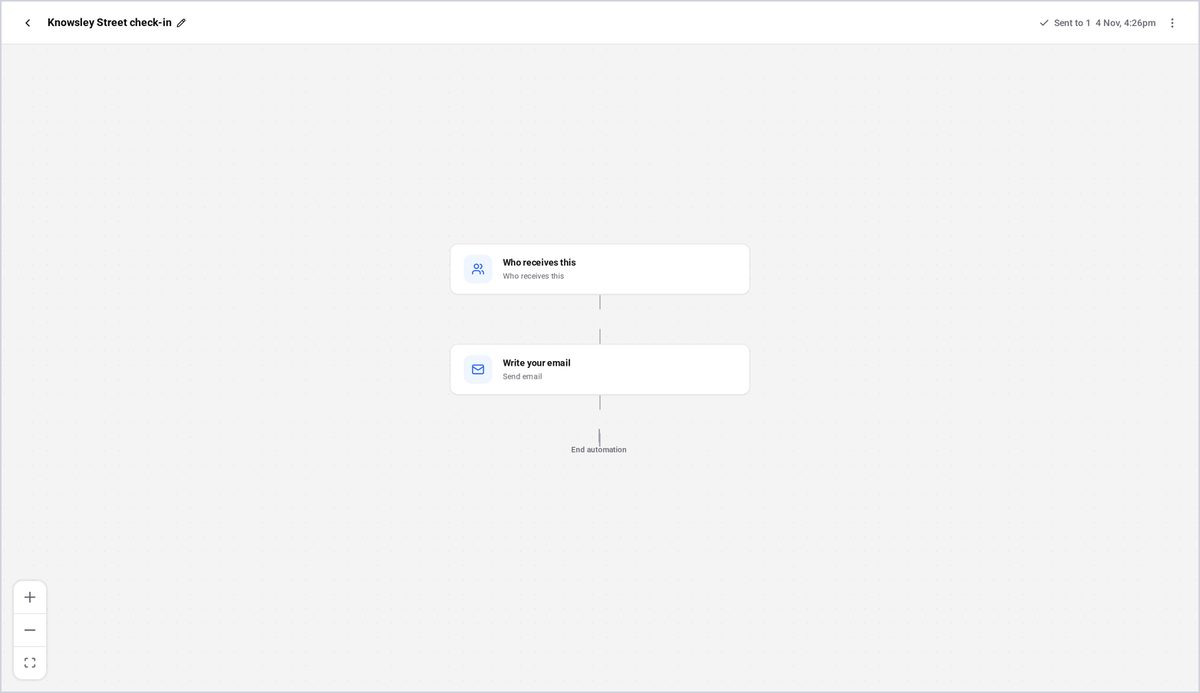
That's it.
The email is on its way.
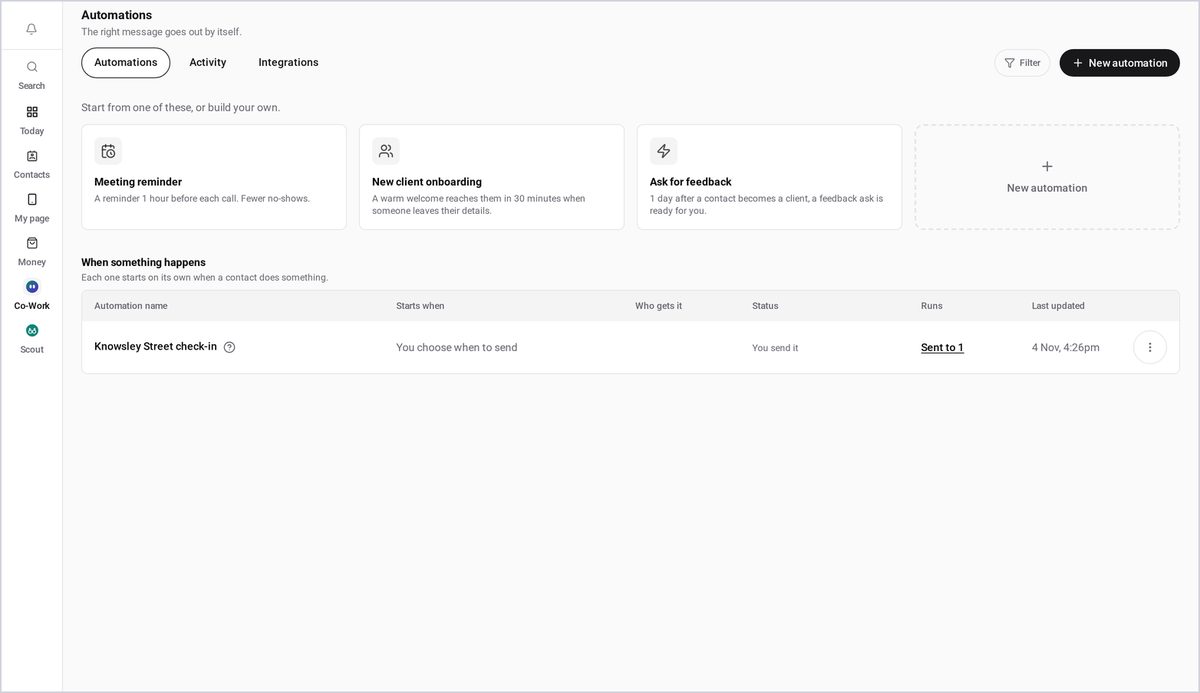
Your automations list shows it as sent
so you can see who it went to.
That's it.
Your email has gone out to your group.
You can email a whole group of contacts in one go by asking Co-Work. It writes the email for you and saves it as a draft, so nothing goes out until you say so.
Here we send a broadcast to everyone with a chosen tag.
Watch the video
Step 1: Open Co-Work
Open Co-Work from the side menu.
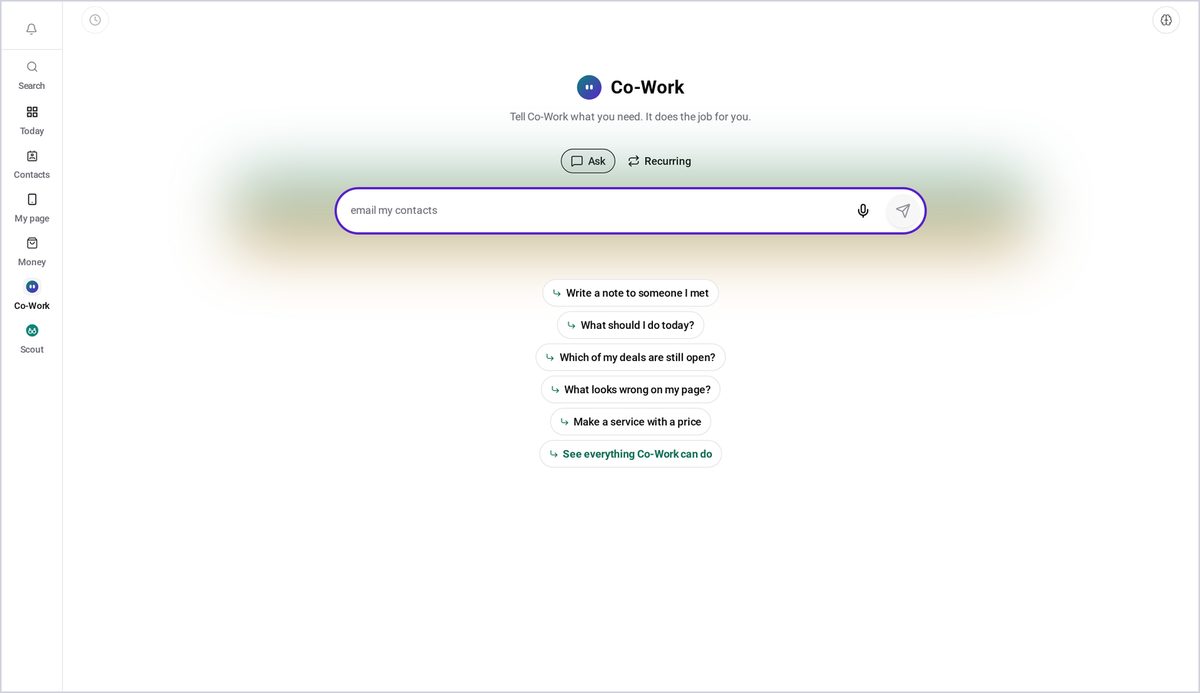
Step 2: Say what you want to send
Type what you want. For example, I want to send a broadcast email.
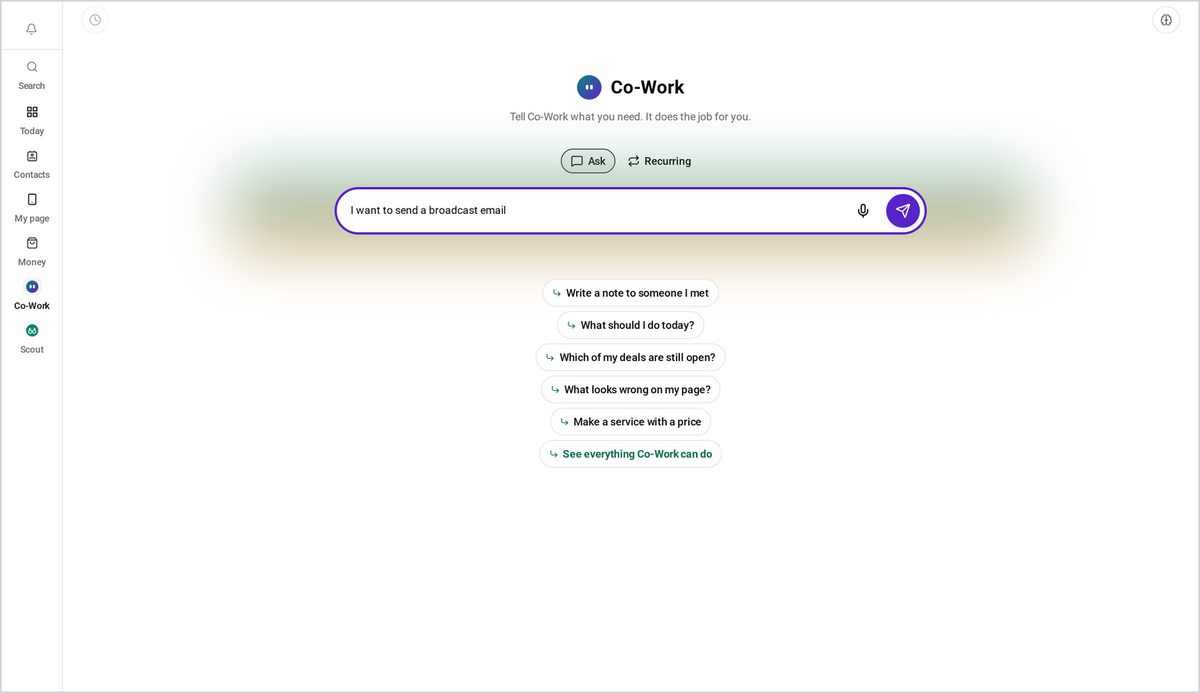
Step 3: Co-Work asks a few questions
Co-Work asks a few quick questions: who should get it, what it's about, what you want people to do, and the tone.
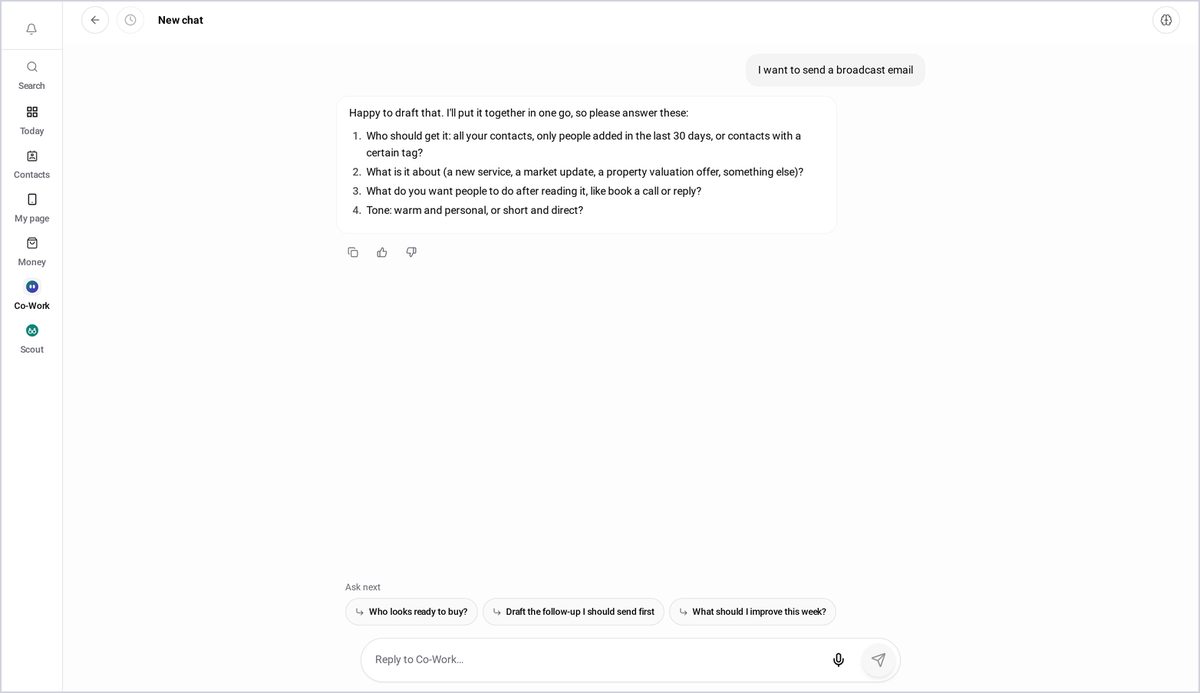
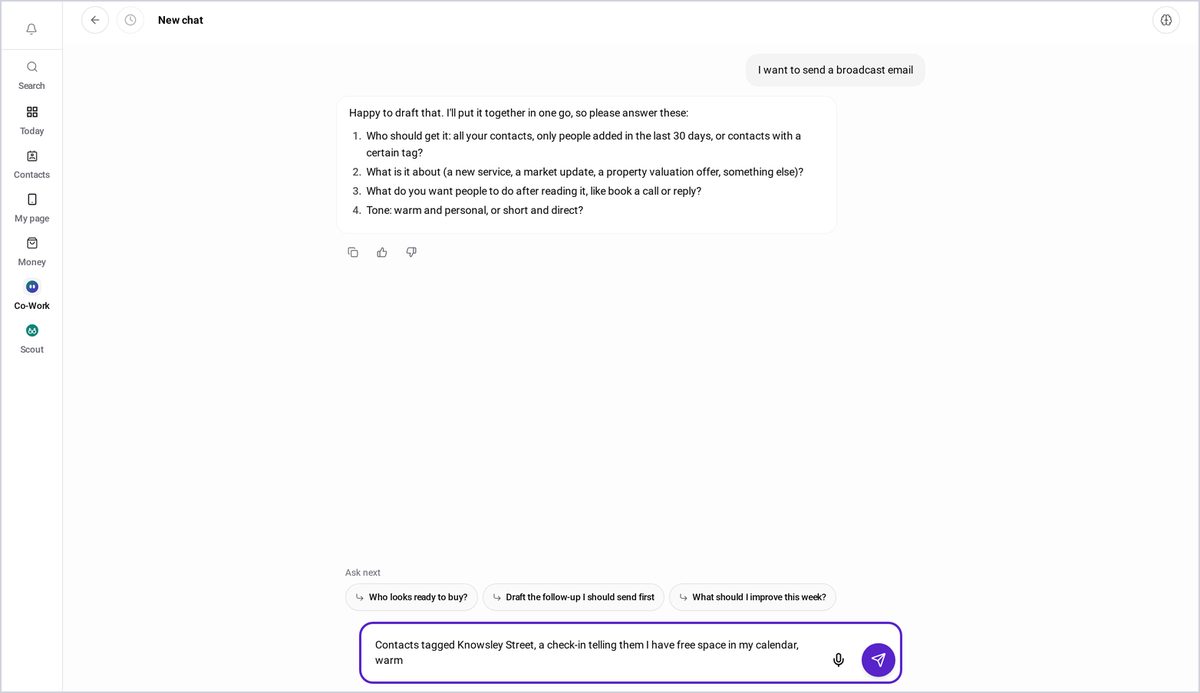
Step 4: Answer in one go
Answer them in one go. Name the tag to send to, say what it's about, and pick a tone.
Step 5: Review the draft
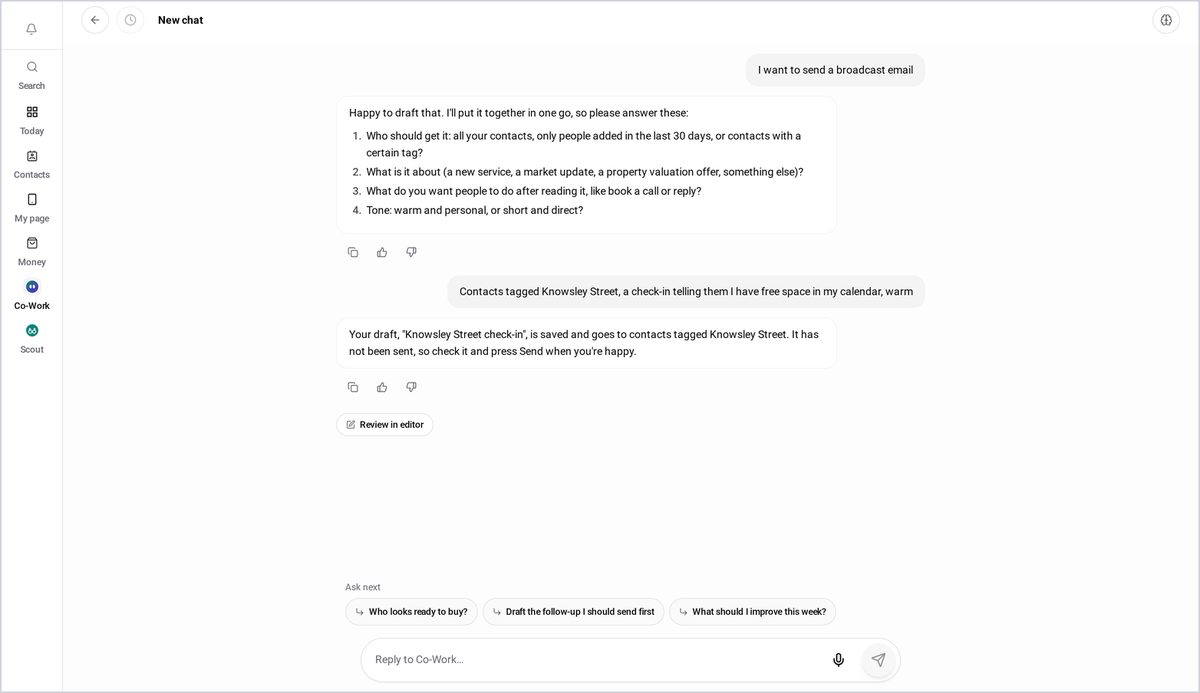
Co-Work writes the email and saves it as a draft. Nothing is sent yet. Press Review in editor.
Step 6: Check who receives it
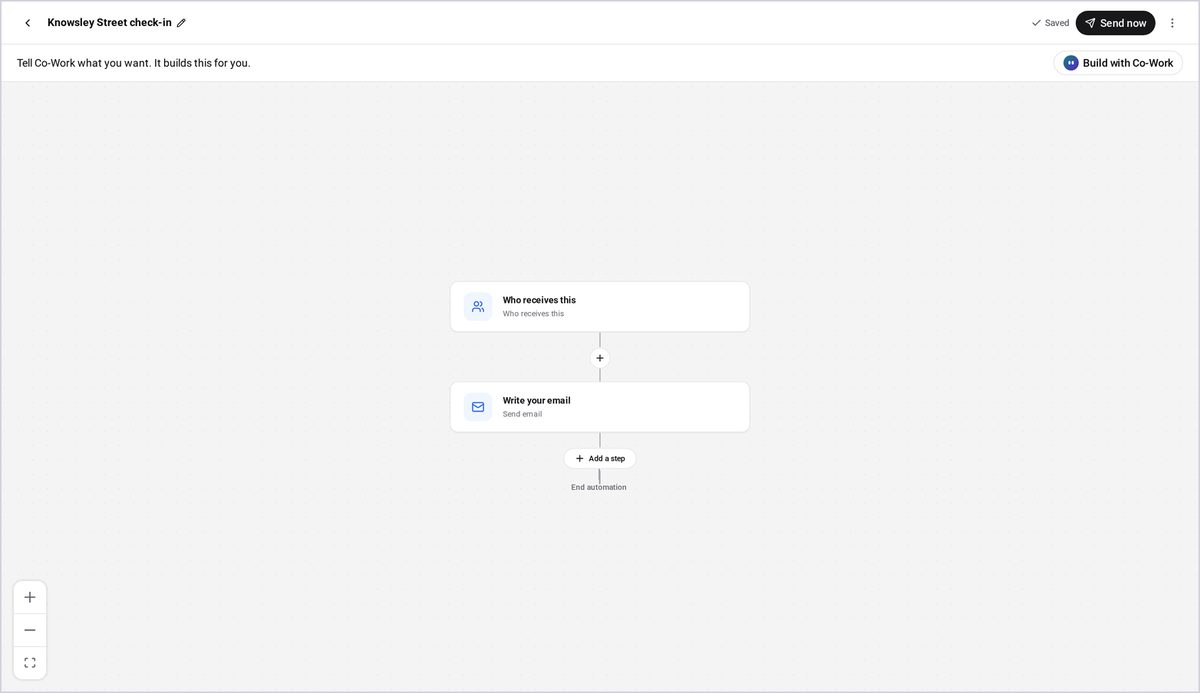
The editor shows who receives it, and the email itself.
Step 7: Read the email
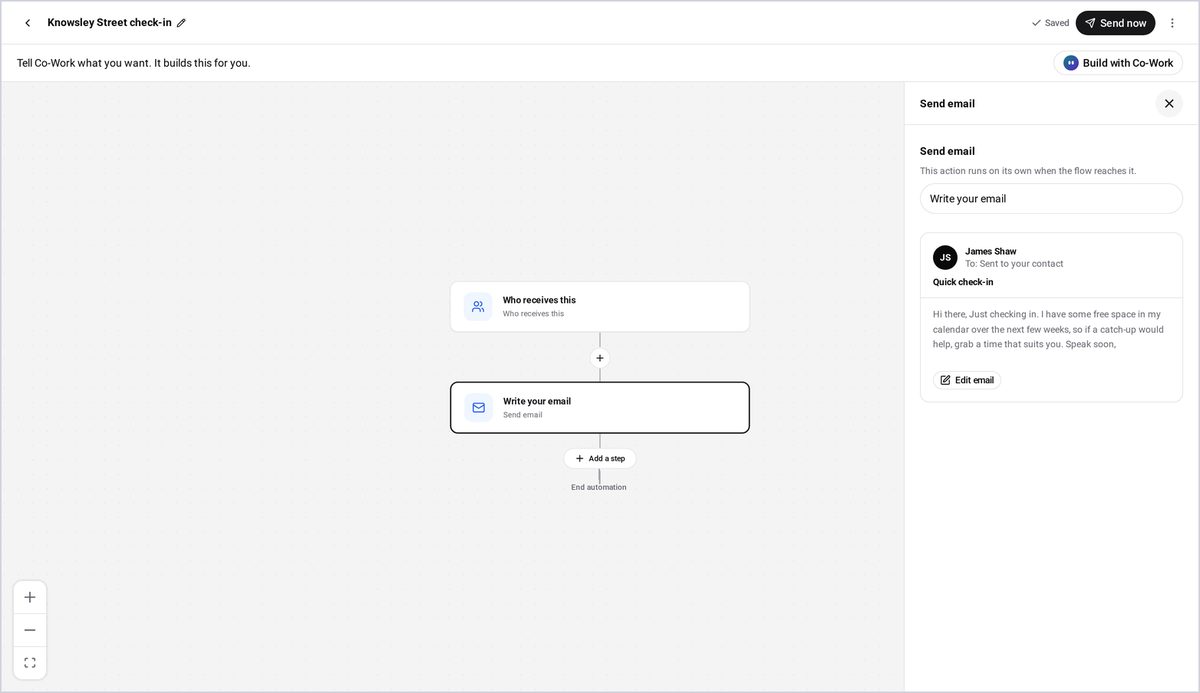
Press Write your email, to read the message and check it.
Step 8: Send it
When you're happy with it, press Send now.
Step 9: Confirm the send
Co-Work checks how many people it's going to. Confirm with Send now.
Step 10: Your email is on its way
That's it. The email is on its way.
Step 11: See it in your list
Your automations list shows it as sent, so you can see who it went to.
Good to know
- Nothing is sent until you press Send now, and you confirm it a second time.
- Use tags to choose exactly who receives the email.
Frequently asked questions
Will the email send automatically?
No. Co-Work writes the email and saves it as a draft. Nothing is sent until you press Send now, and you confirm it a second time.
How do I choose who receives it?
Name the tag to send to when Co-Work asks who should get it. Use tags to choose exactly who receives the email.
What does Co-Work ask me?
Who should get it, what it's about, what you want people to do, and the tone.
Where can I see the email afterwards?
Your automations list shows it as sent, so you can see who it went to.