How to set up an automation

To set up an automation, open Automations, press New automation and pick a template, such as Nudge me about contacts going cold. Check the steps, press Edit steps if you want to change anything, then turn the switch on.
| Time needed | 1 minute |
|---|---|
| What you need | Your V1CE account |
| Where in the app | Automations > New automation |
Video transcript and chapters
Chapters
0:00 Introduction
0:10 Open Automations
0:20 Choose a template
0:25 See the steps
0:31 Edit the steps
0:34 Turn it on
0:38 Check it is active
0:42 You're done

Transcript
Here's how to set up an Automation in V1CE.
Automations send the right message by themselves.
Pick a template, check the steps, and switch it on.
Open Automations, then press New Automation.
Pick a template to start.
Use the list on the left to jump to a group, like Relationships.
Choose the one you want.
Here we'll pick Nudge me about contacts going cold.
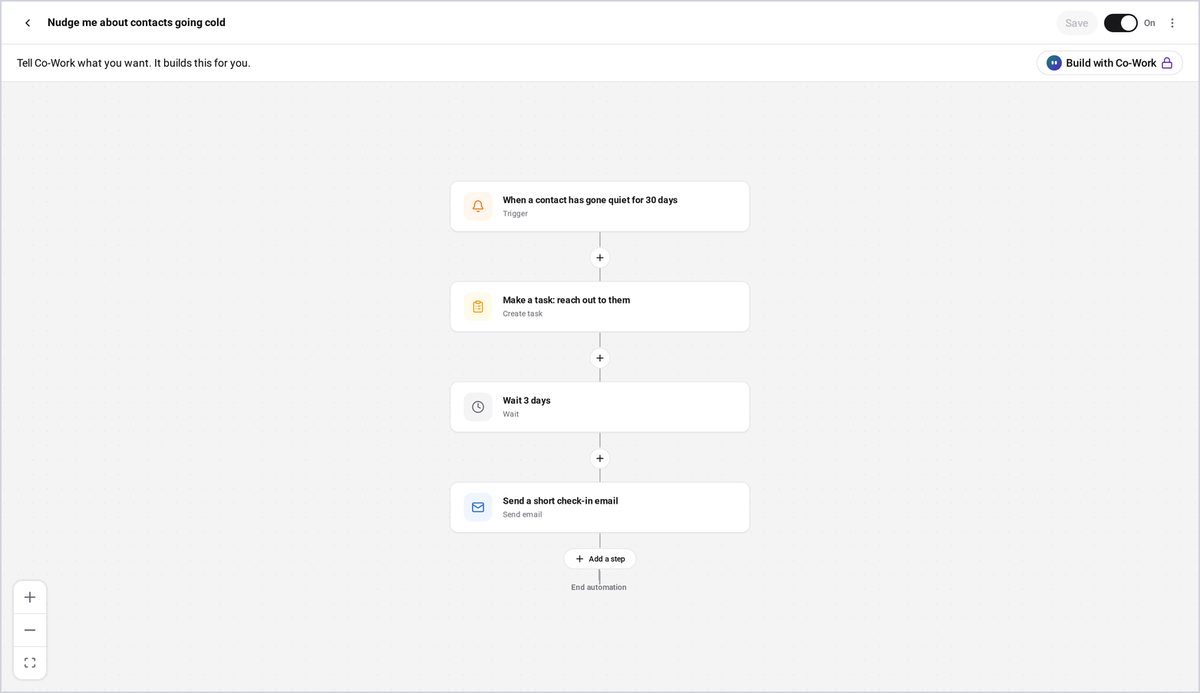
You can see every step it will take.
When something happens, V1CE does the rest.
Press Edit Steps if you want to change anything.
When you're happy, turn the switch on.
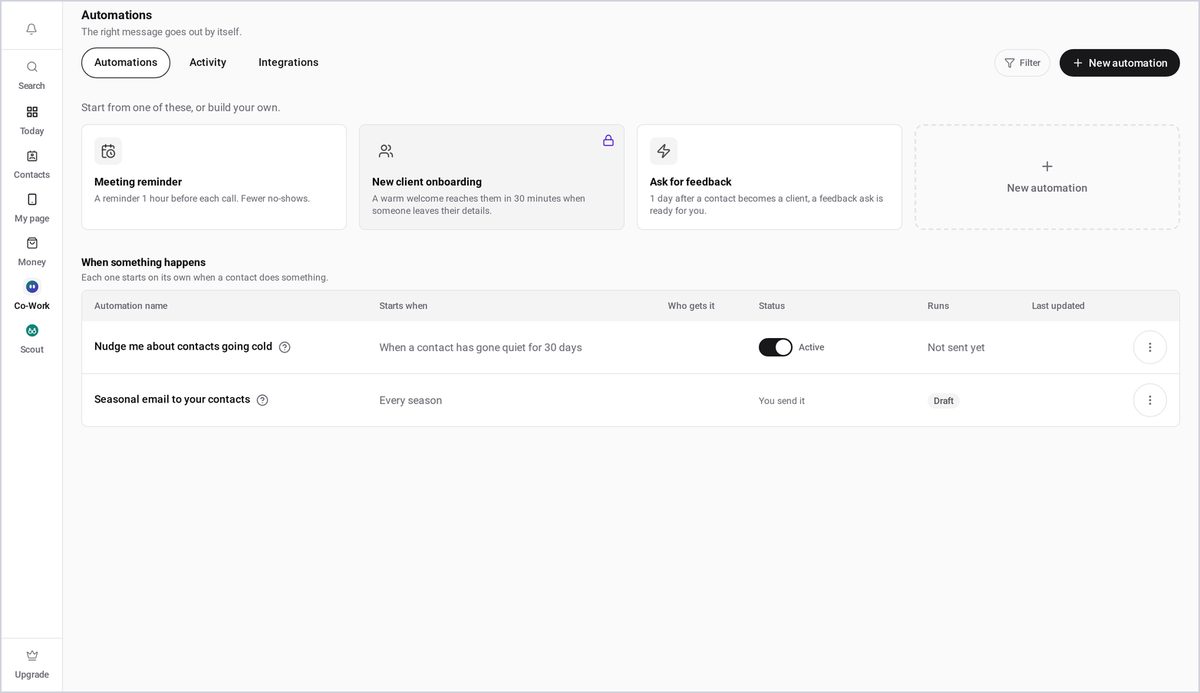
Then go back and your Automation is active.
That's it. Your Automation is on and it'll run by itself.
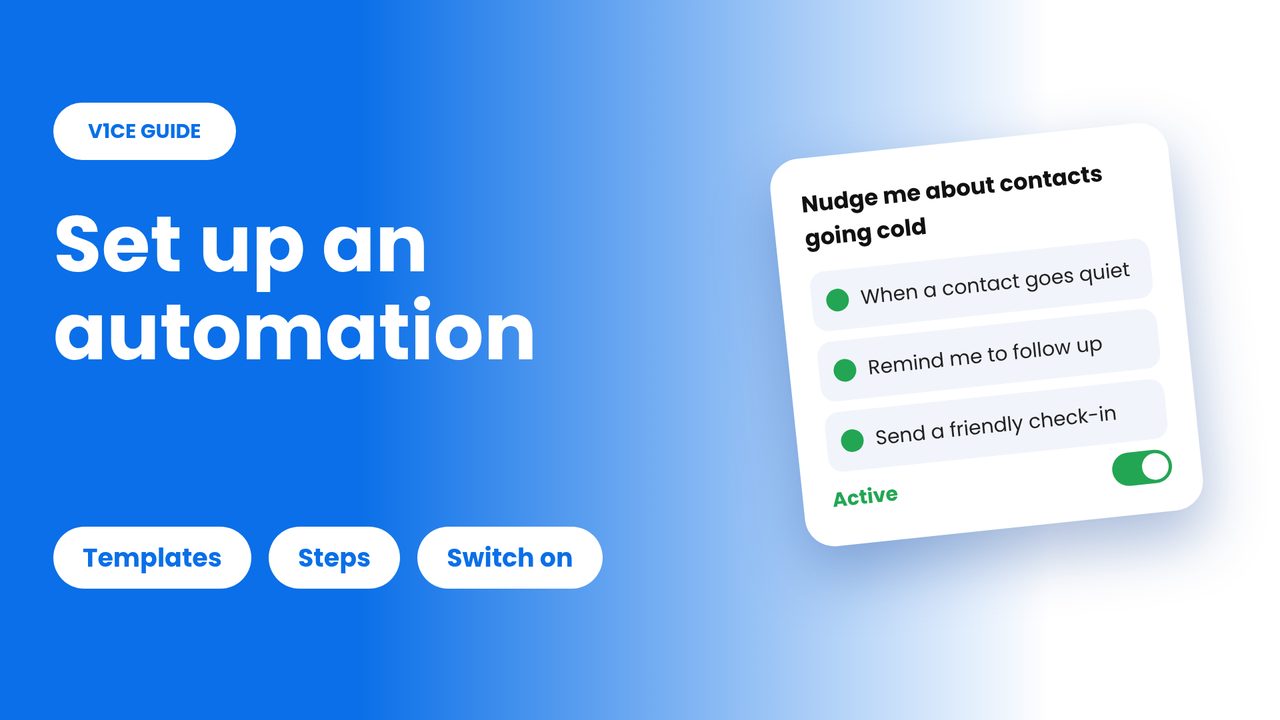
Automations send the right message at the right time, without you lifting a finger. Choose a ready-made template, check what it will do, and switch it on.
Here we set up Nudge me about contacts going cold, which reminds you when a contact has gone quiet.
Watch the video
Step 1: Open Automations
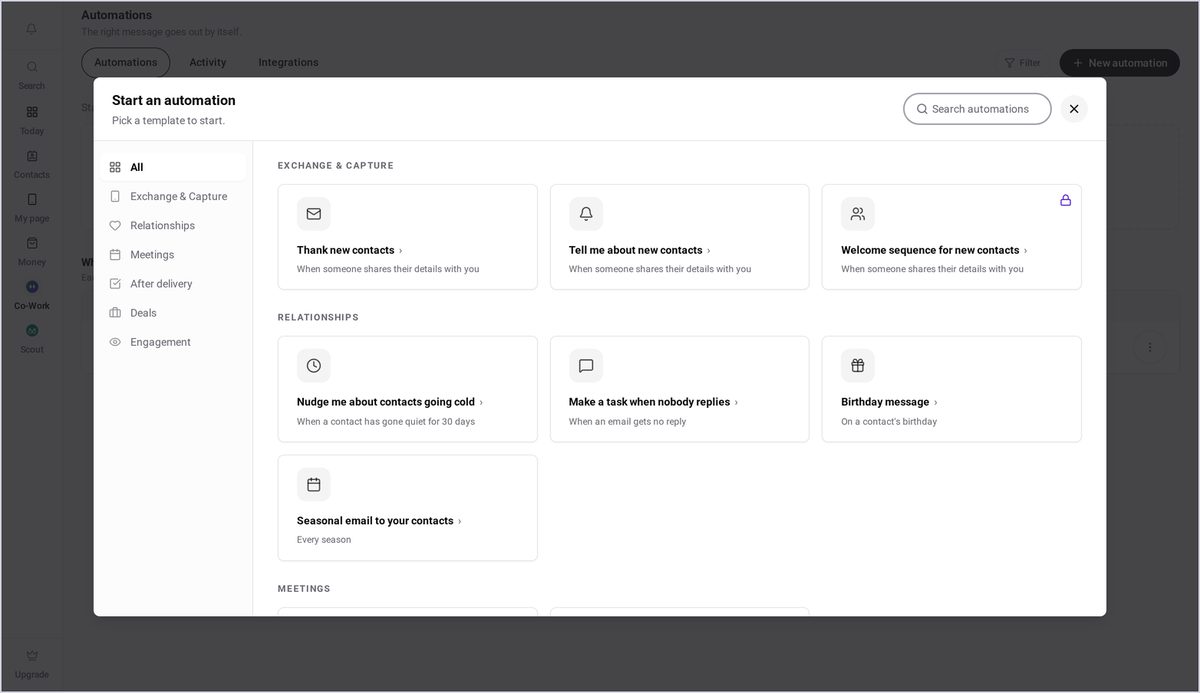
Open Automations, then press New automation. Pick a template to start. Use the list on the left to jump to a group, like Relationships.
Step 2: Choose a template
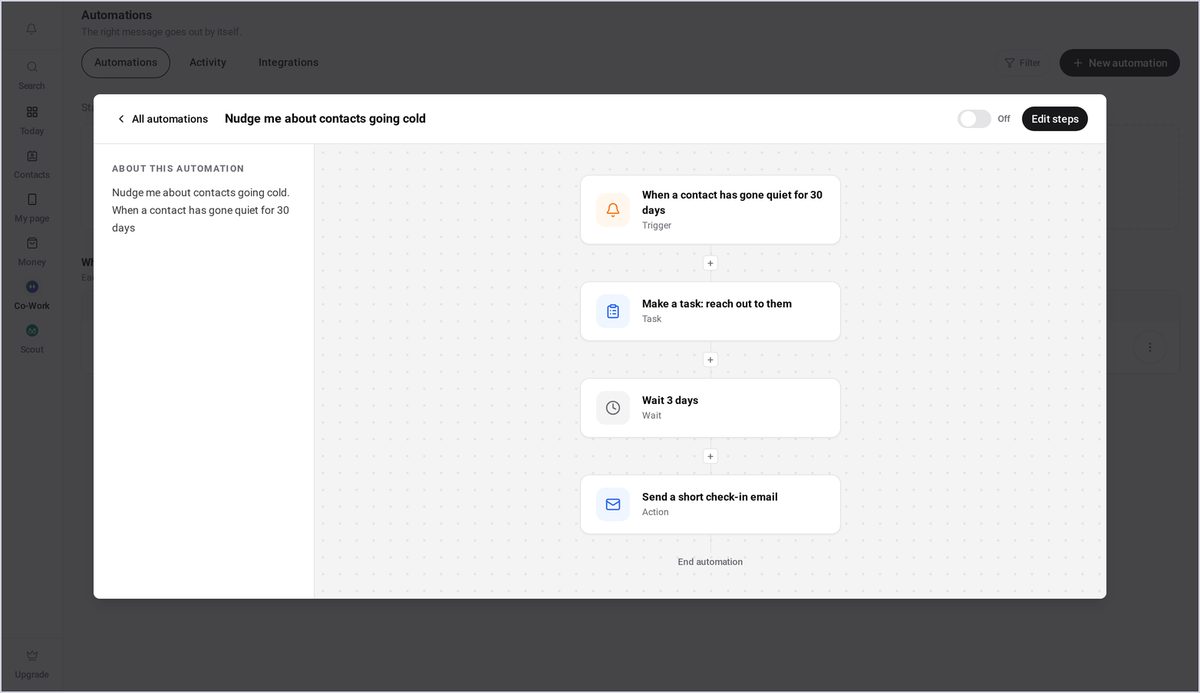
Choose the one you want. Here, we'll pick Nudge me about contacts going cold. You can see every step it will take. When something happens, V1CE does the rest.
Step 3: Edit the steps if you need to
Press Edit steps if you want to change anything.
Step 4: Turn it on
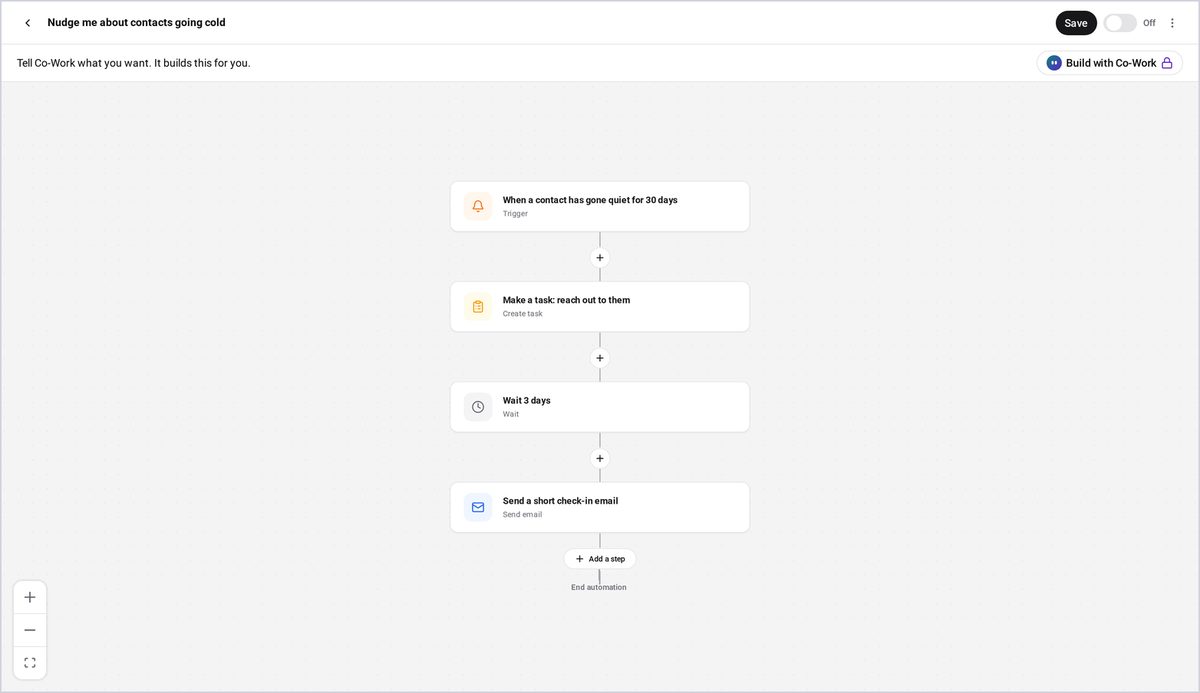
When you're happy, turn the switch on.
Step 5: Check it is Active
Then go back, and your automation is Active.
Good to know
- You can switch an automation off at any time from the same screen.
- Select Edit steps to change the wording or timing before you turn it on.
Frequently asked questions
What does an automation do?
It sends the right message at the right time by itself. When something happens, V1CE does the rest.
Can I change the steps before I turn it on?
Yes. Press Edit steps to change the wording or timing before you turn it on.
How do I switch an automation off?
You can switch an automation off at any time from the same screen.
How do I know my automation is running?
Go back and your automation shows as Active.