How to activate your V1CE card

To activate a V1CE card, open My page, choose Cards, then select Activate my card. Type the link printed on your card, choose the page it should open, and press Link my card. Tap the card on your phone to test it. It takes about two minutes.
| Time needed | 2 minutes |
|---|---|
| What you need | Your V1CE card, your V1CE account and a phone for the test tap |
| Where in the app | My page > Cards > Activate my card |
Video transcript and chapters
Chapters
0:00 Introduction
0:04 What you'll do
0:09 Open My page
0:13 Choose Cards
0:17 Select Activate my card
0:20 Press Set up my card
0:24 Choose Me or My team
0:31 Press Continue
0:35 Type the link from your card
0:38 Press Find my card
0:42 Choose the page your card opens
0:46 Press Link my card
0:49 Tap your card on your phone
0:59 Your card works
1:05 Go to your dashboard
1:10 You're done

Transcript
Here's how to activate a V1CE card you've bought.
It takes about two minutes. Find your card, pick the page it opens, then give it a tap.
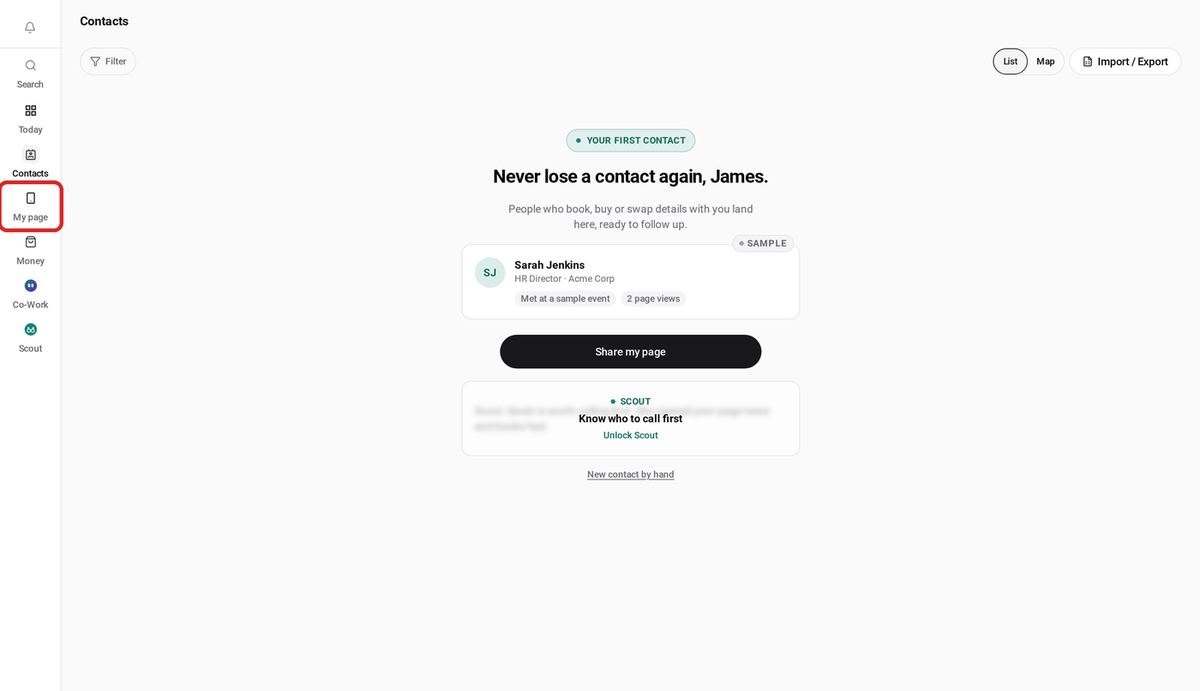
From anywhere in V1CE, open My page.
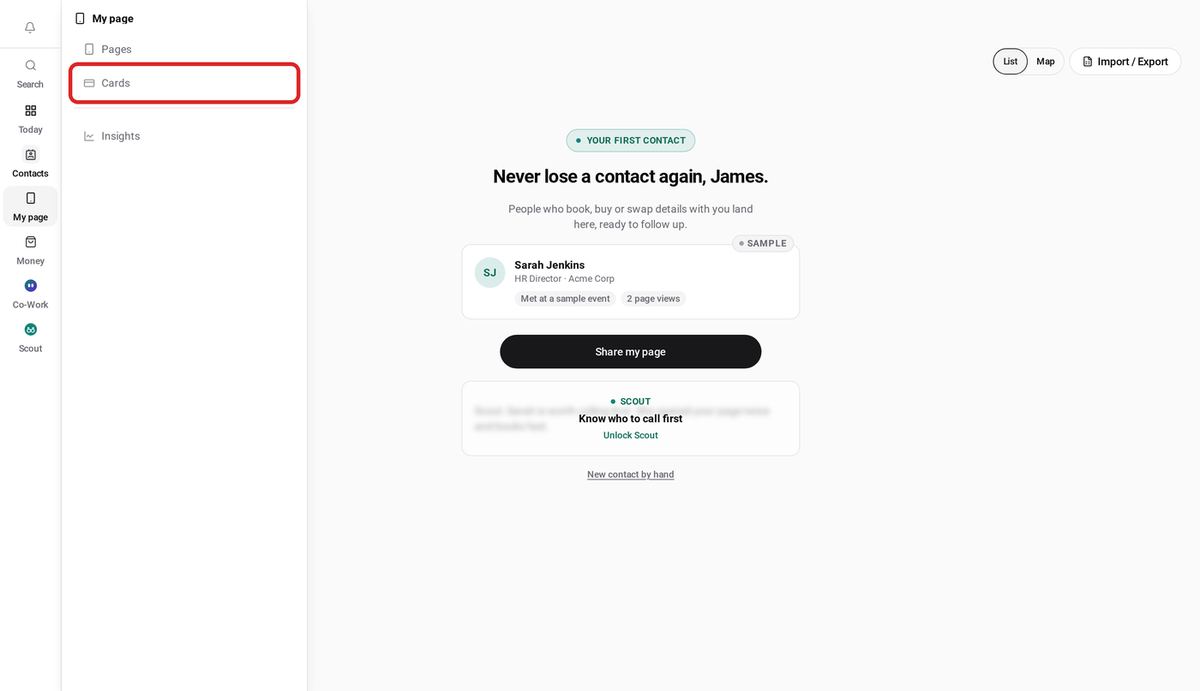
Then choose Cards.
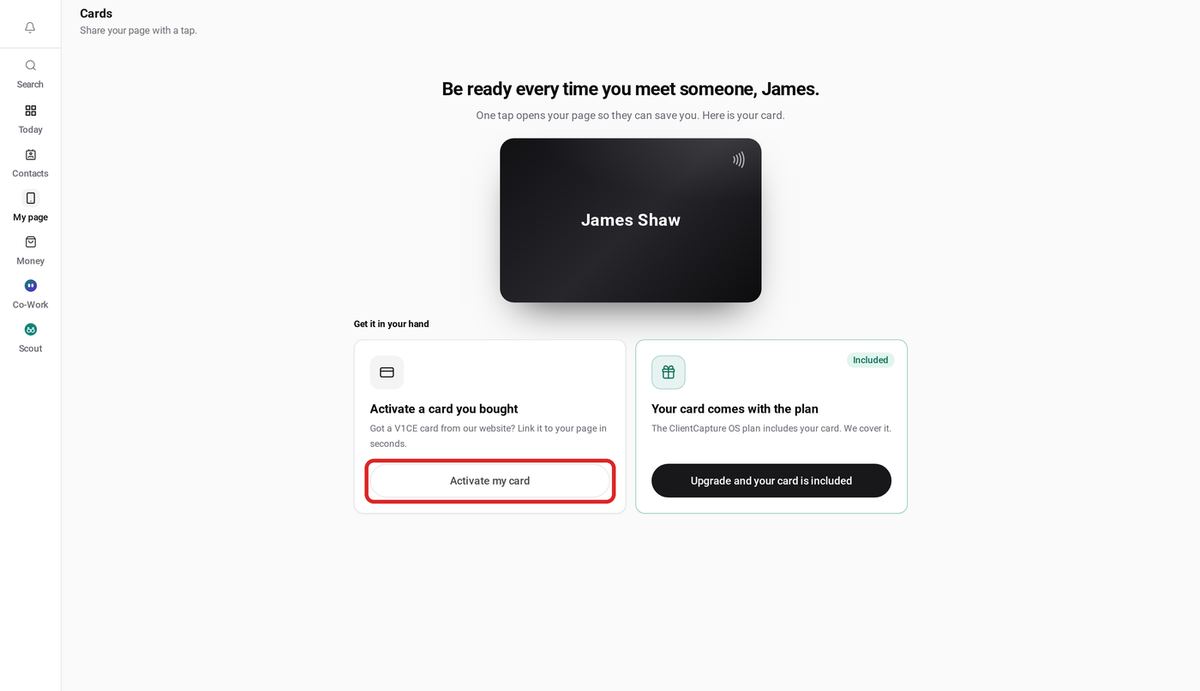
Select Activate my card.
Press Set up my card.
Choose Me, because the card is for you. If you're setting up cards for a team, you'd choose My team instead.
Then press Continue.
Type the link from your card.
Press Find my card.
Choose the page you want your card to open.
Then press Link my card.
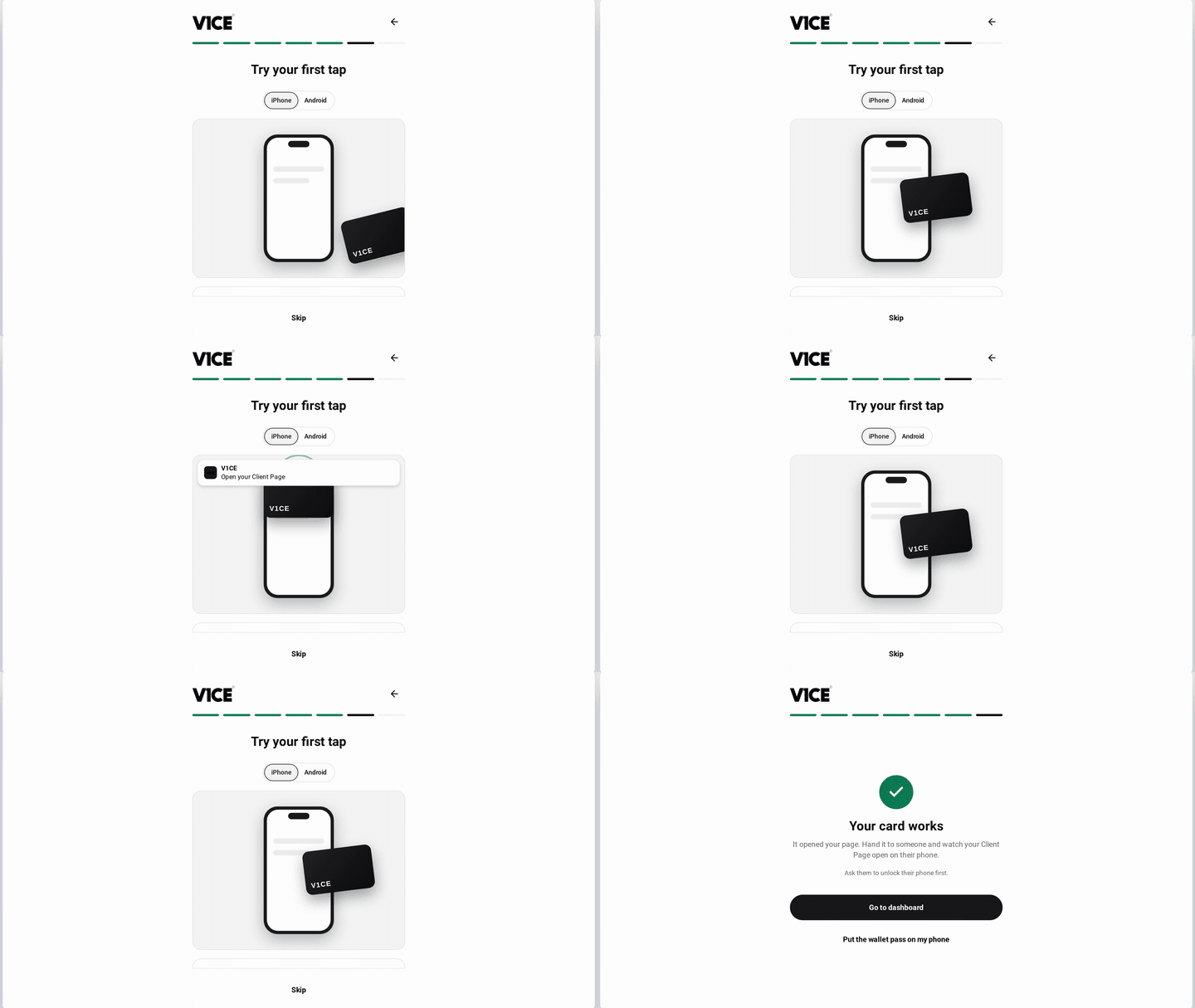
Now try your first tap. Hold the middle of your card near your phone, as the steps show.
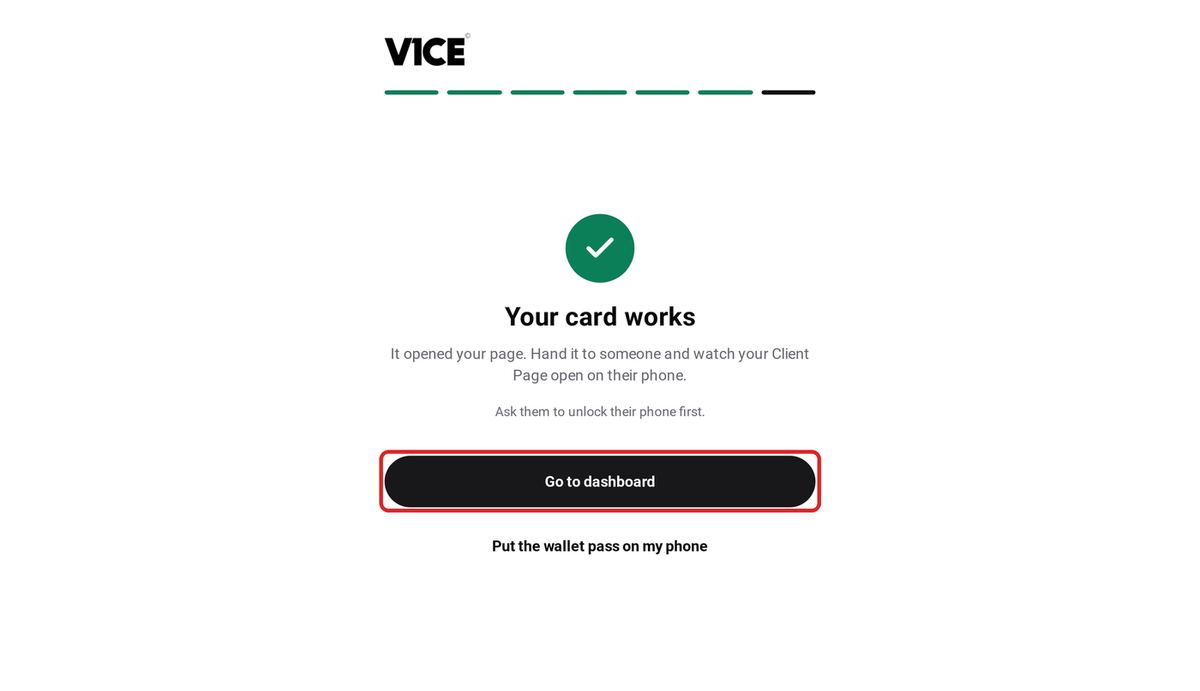
As soon as V1CE sees the tap, you'll see Your card works.
Select Go to dashboard, and you're done.
That's it. Your card is live, and ready to share your page.
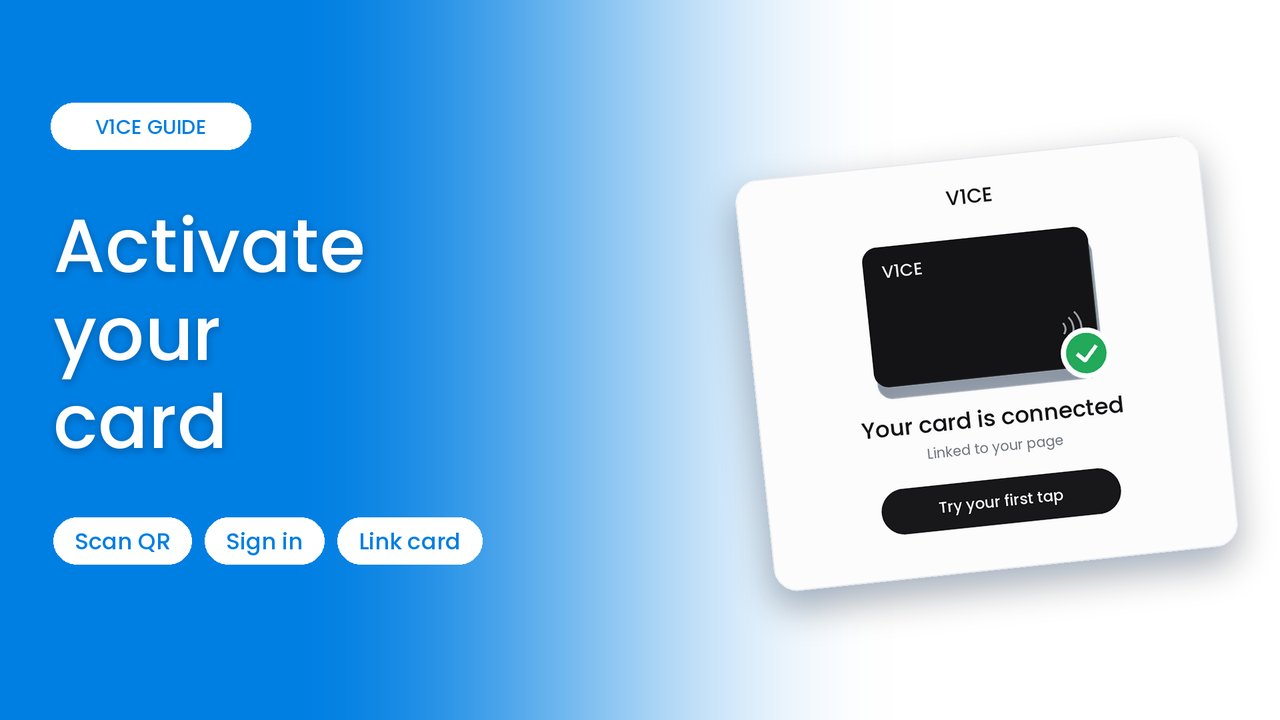
A V1CE card is a physical card that opens your V1CE page the moment someone taps it on their phone or scans its QR code. Before it can do that, it needs to be linked to one of your pages.
Activating your card takes about two minutes. You find your card using the link printed on it, choose the page it should open, and give it a test tap to check it's working.
This guide is for people who already have a V1CE account. If you've just received your card and don't have an account yet, see You've received your V1CE card: what to do next instead.
Watch the video
Step 1: Open My page
From anywhere in V1CE, open My page.
Step 2: Choose Cards
Choose Cards from the menu.
Step 3: Select Activate my card
Select Activate my card.
Step 4: Press Set up my card
Press Set up my card to begin.
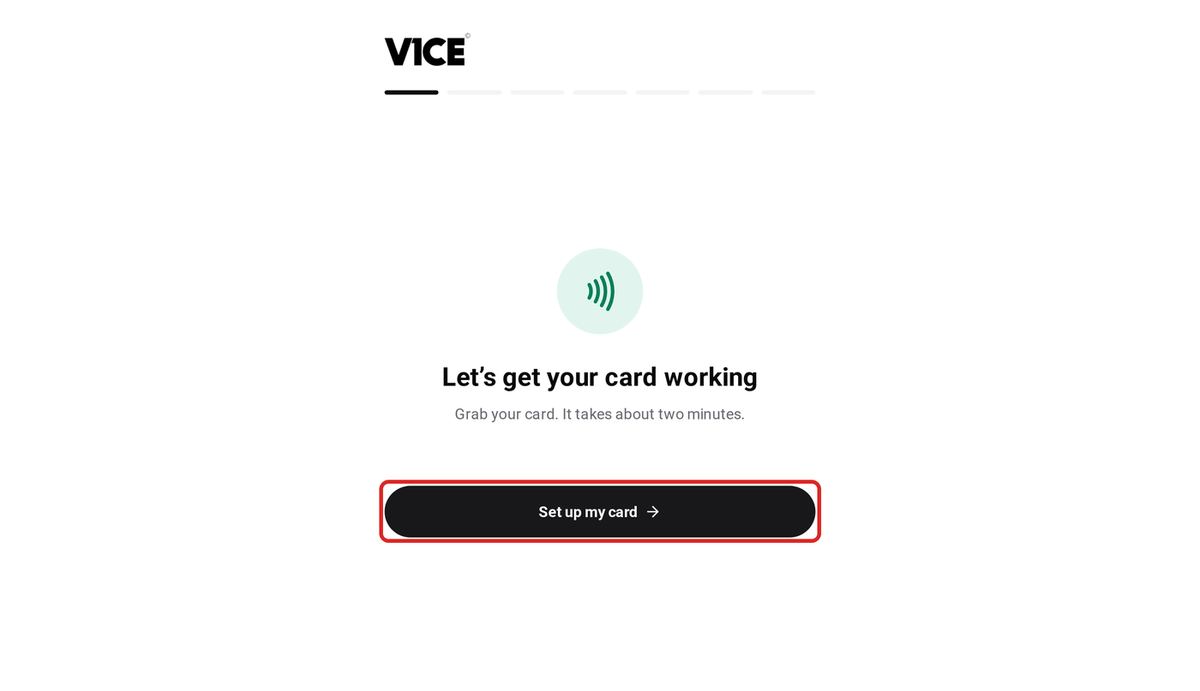
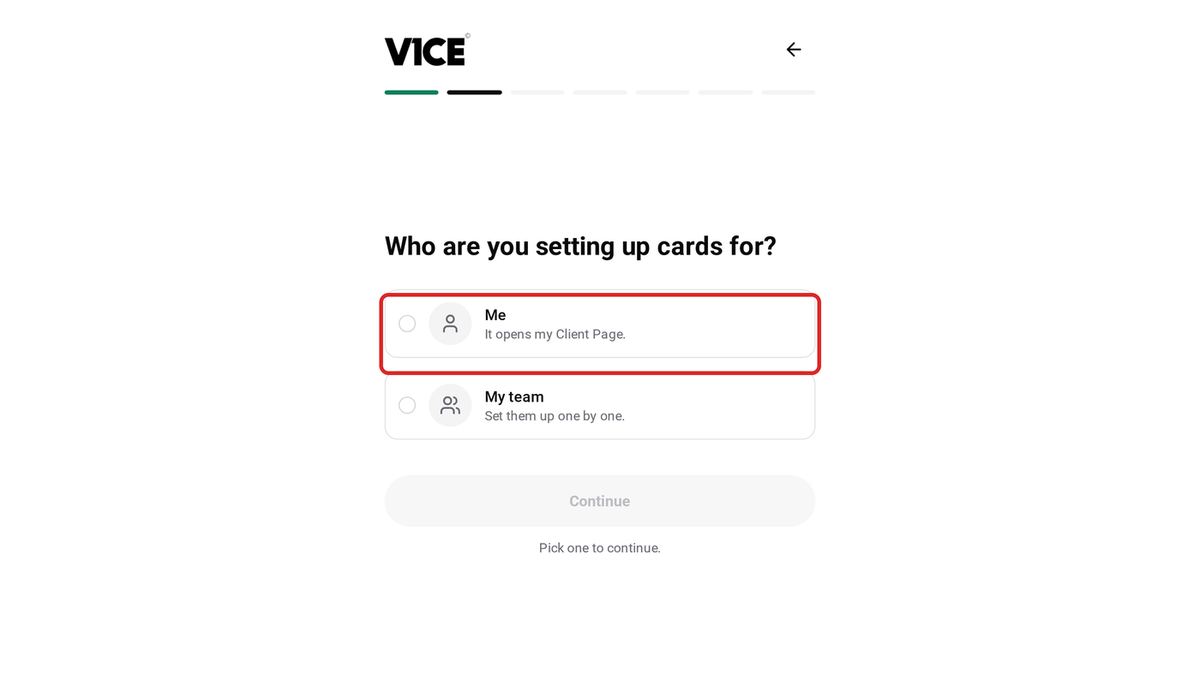
Step 5: Choose Me
Choose Me, because the card is for you. If you're setting up cards for a team, choose My team instead.
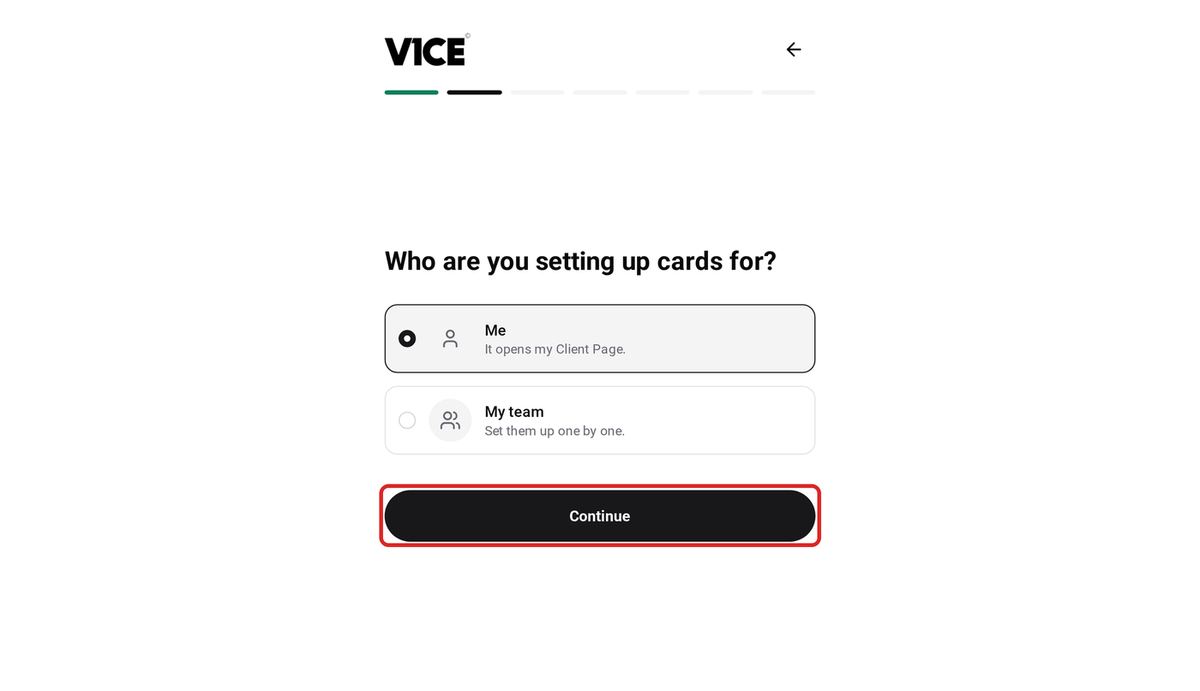
Step 6: Press Continue
Press Continue.
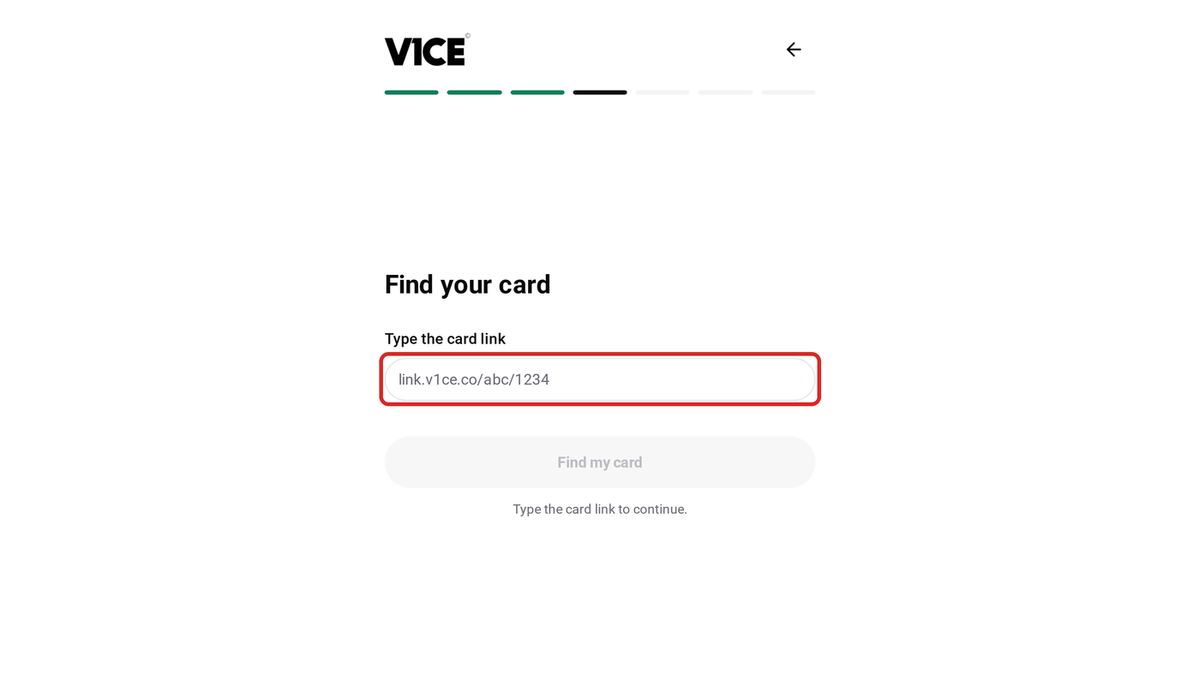
Step 7: Type the link from your card
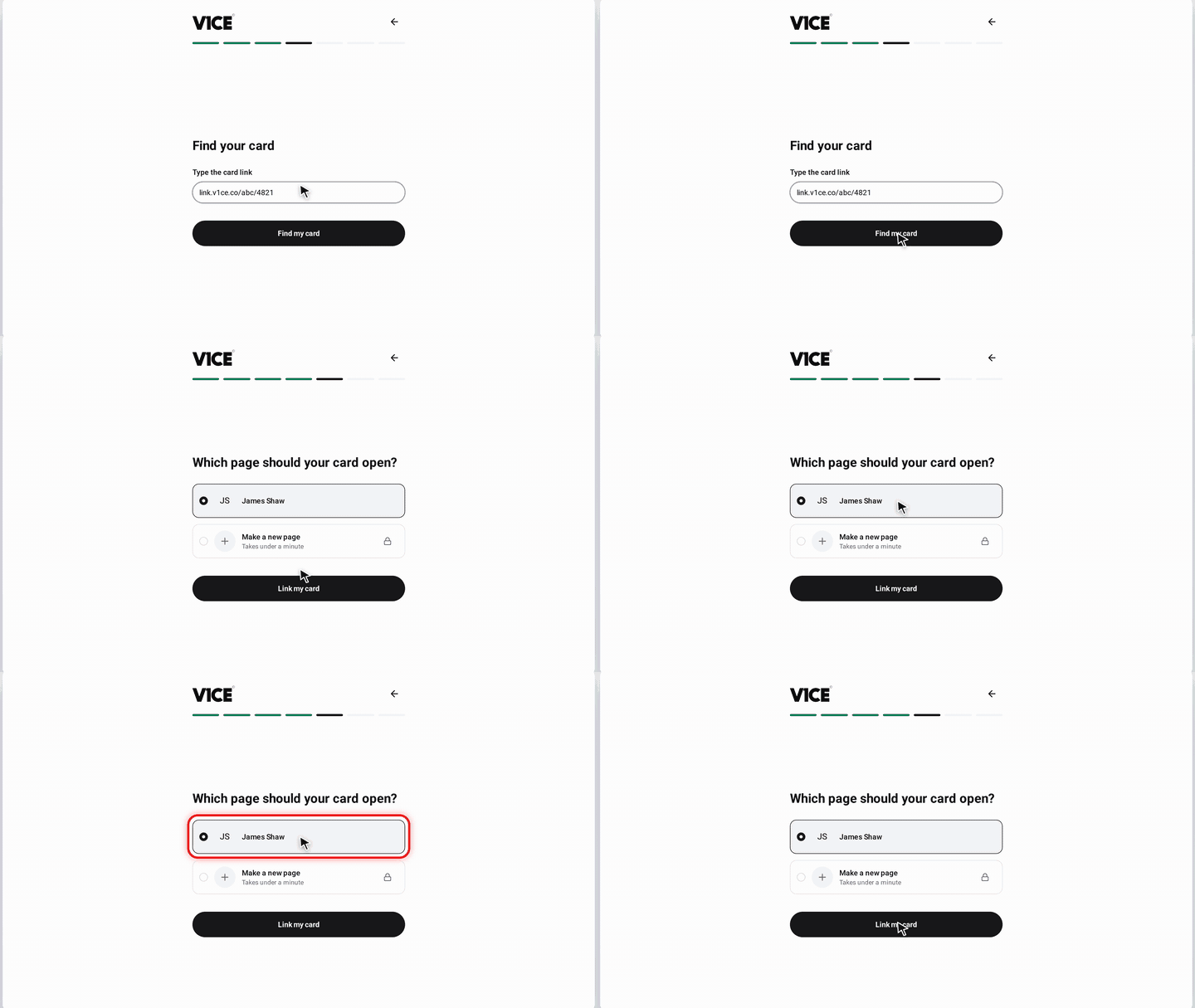
Type the link printed on your card into the box.
Step 8: Press Find my card
Press Find my card.
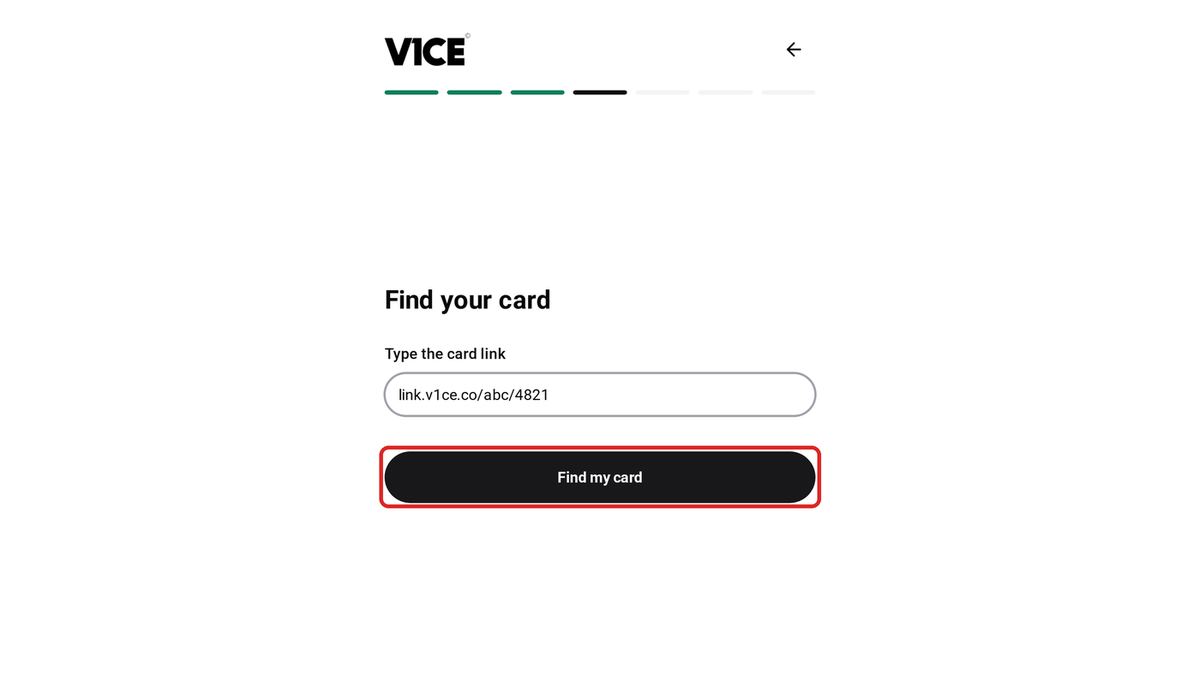
Step 9: Choose the page your card opens
Choose the page you want your card to open. You can also make a new page here.
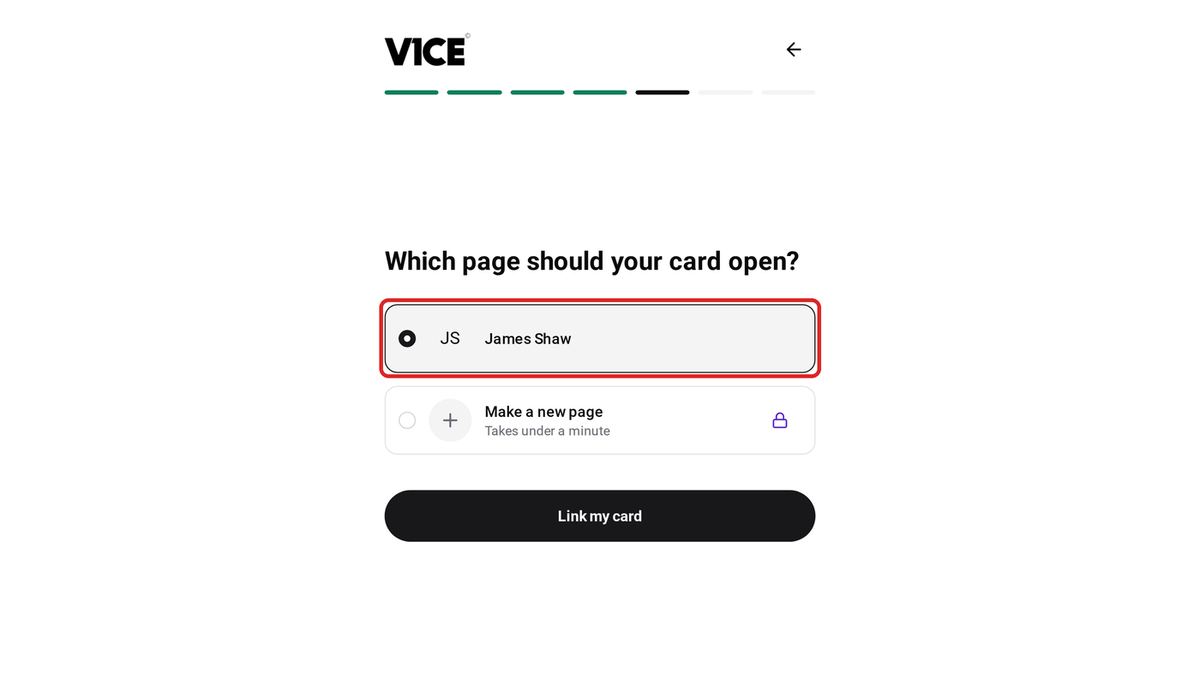
Step 10: Press Link my card
Press Link my card.
Step 11: Build your page
Before you test the card, build your page so there's something to see when it opens. Add your photo, bio and links from My page, then Pages.
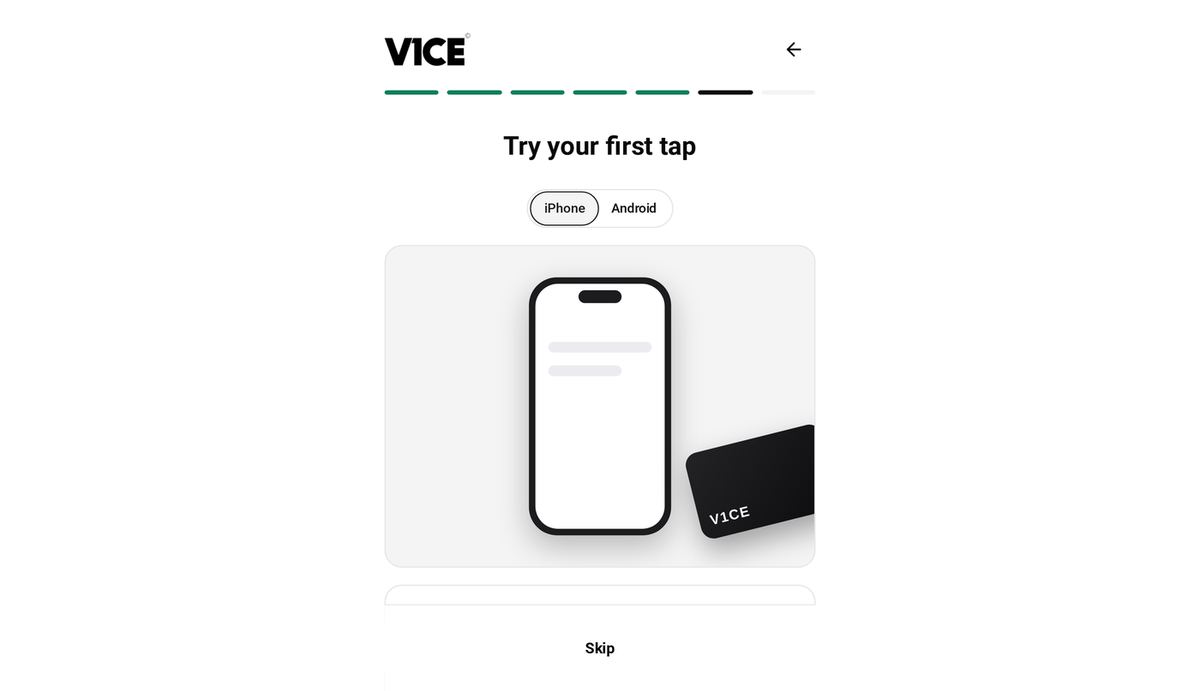
Step 12: Tap your card on your phone
Hold the middle of your card near the top of your phone, as the on-screen steps show.
Step 13: Go to your dashboard
As soon as V1CE sees the tap, you'll see Your card works. Select Go to dashboard and you're done.
Good to know
- The link on your card is unique to that card, so keep the card handy while you set it up.
- You can change the page your card opens at any time from Cards.
- Setting up cards for a team? Choose My team and link them one by one.
What to do next
Your card is now linked to your page. To get more from it, you can order more V1CE NFC business cards for your team, use two-way contact exchange so people send you their details, and keep every contact in the built-in CRM.
You can also let people book you straight from your page with booking links. The software is free for life with every card; see V1CE pricing for the optional upgrade.
V1CE is used by more than 510,000 professionals and is rated 4.4 on Trustpilot from 1,098 reviews. Read what customers say in the V1CE digital business card reviews.
Frequently asked questions
What if I don't have a V1CE account yet?
This guide is for people who already have a V1CE account. If you've just received your card and don't have an account yet, read "You've received your V1CE card: what to do next" first, then come back here.
Where do I find the link to type in?
The link is printed on your card. It's unique to that card, so keep the card handy while you set it up.
Can I change the page my card opens later?
Yes. You can change the page your card opens at any time from Cards.
How do I activate cards for my team?
Choose My team instead of Me, then link the cards one by one.
Should I build my page before I tap my card?
Yes. Add your photo, bio and links from My page, then Pages, so there's something to see when your card opens.