How to send and sign agreements online
Agreements is where you send, track and get documents signed, all in one place. Instead of emailing a document back and forth, you tell Co-Work what you need and it drafts the agreement for you from a ready-made template. You read it through, choose who it is for, and send it by email in a few clicks.
Your contact opens the link, reads the agreement on a secure page, and signs from any phone or computer. You can see at a glance what is waiting for a signature, what has been opened, and what has been signed, and every agreement keeps an audit trail showing who viewed it and when it was signed.
Watch the video
Step 1: Open Agreements
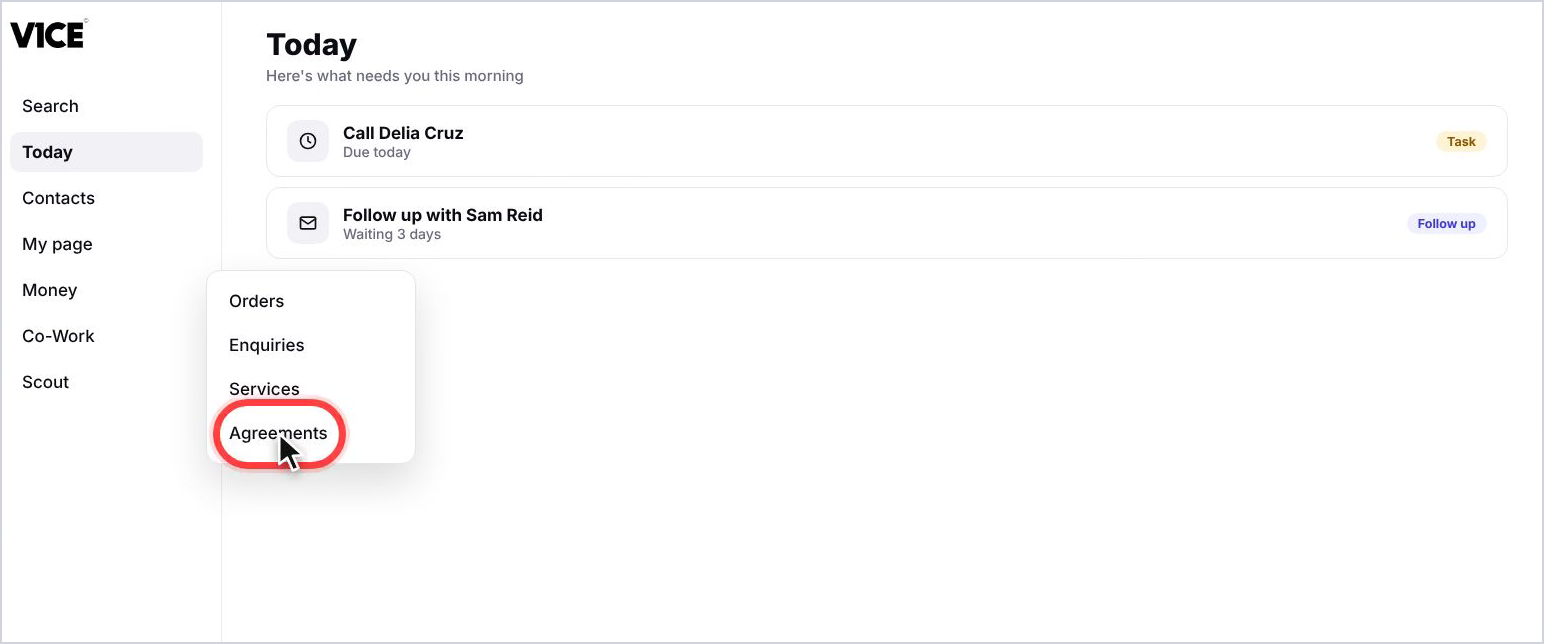
Select Money in the left menu, then choose Agreements.
Step 2: See what's waiting
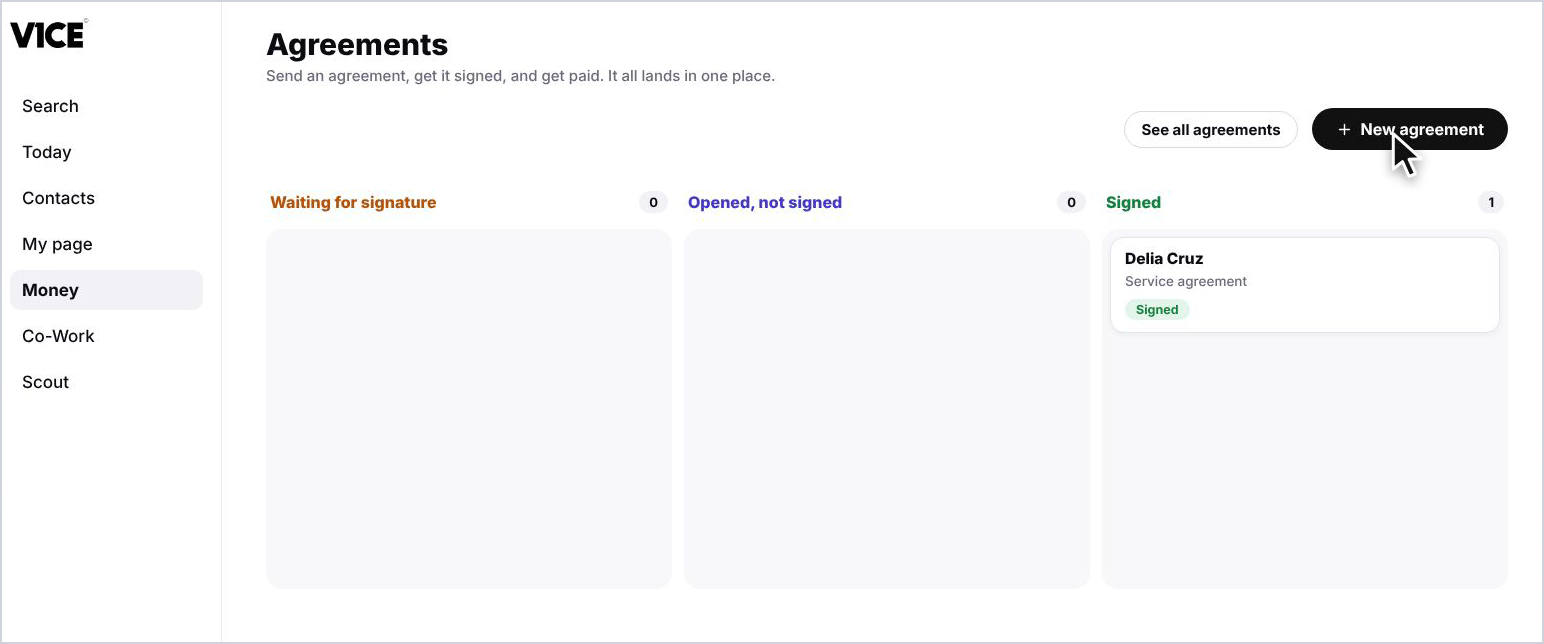
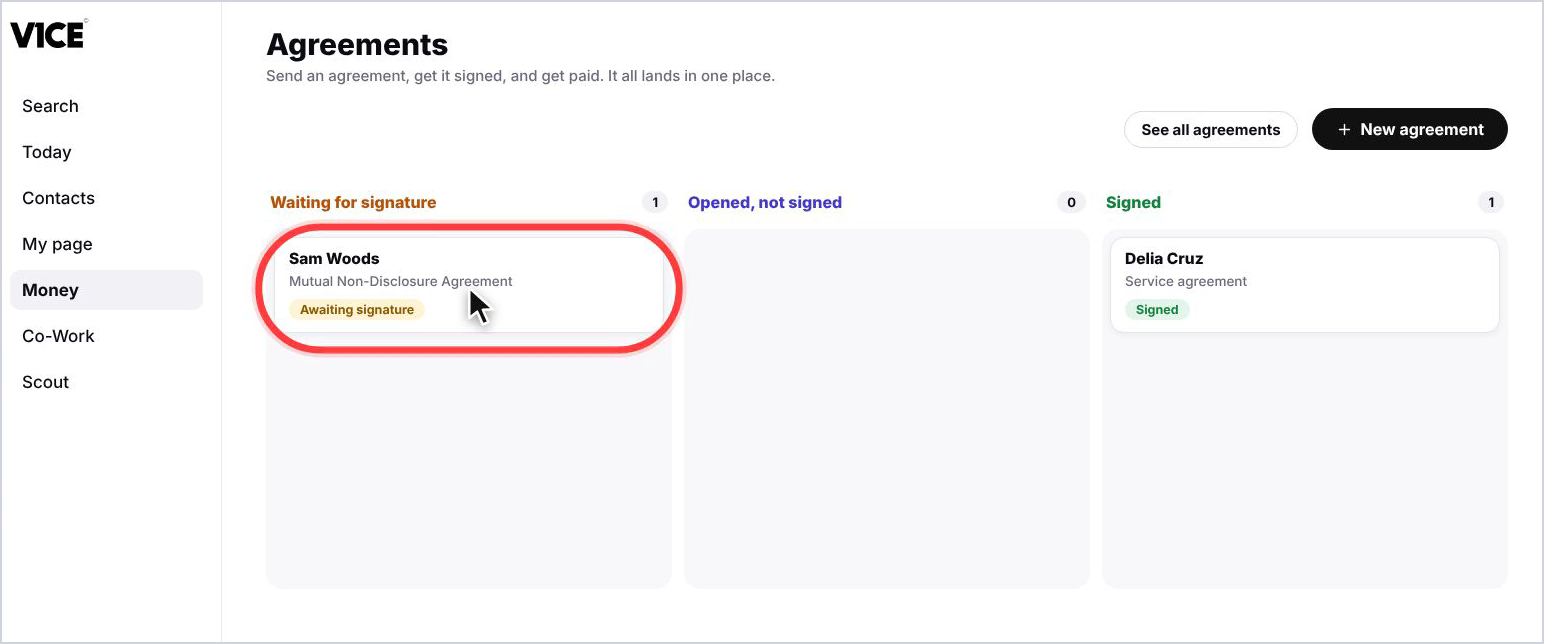
The board shows what's waiting for a signature, what's been opened but not signed, and what's signed.
Send a new agreement
Step 3: Start a new agreement
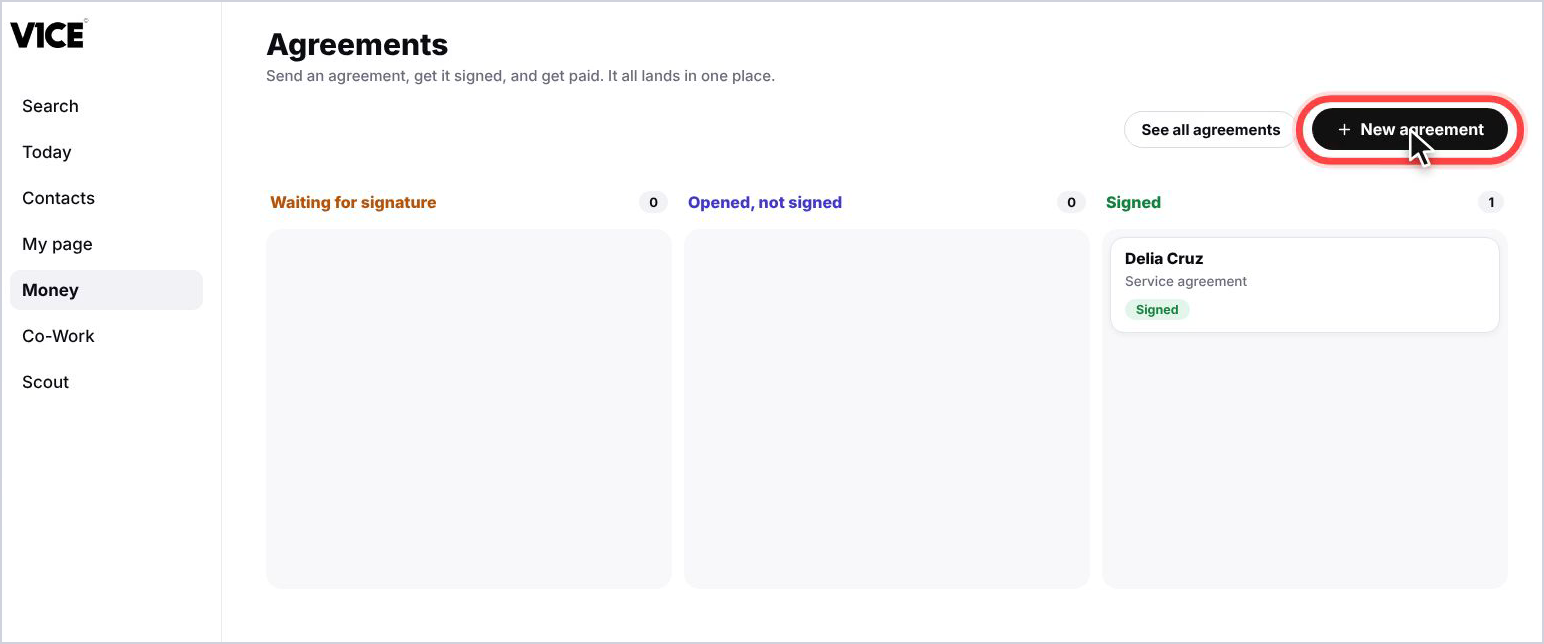
Select New agreement. Co-Work opens and asks what the agreement is for.
Step 4: Tell Co-Work what you need
Describe what it's for and who it's with. Here, an NDA for a buyer viewing a property.
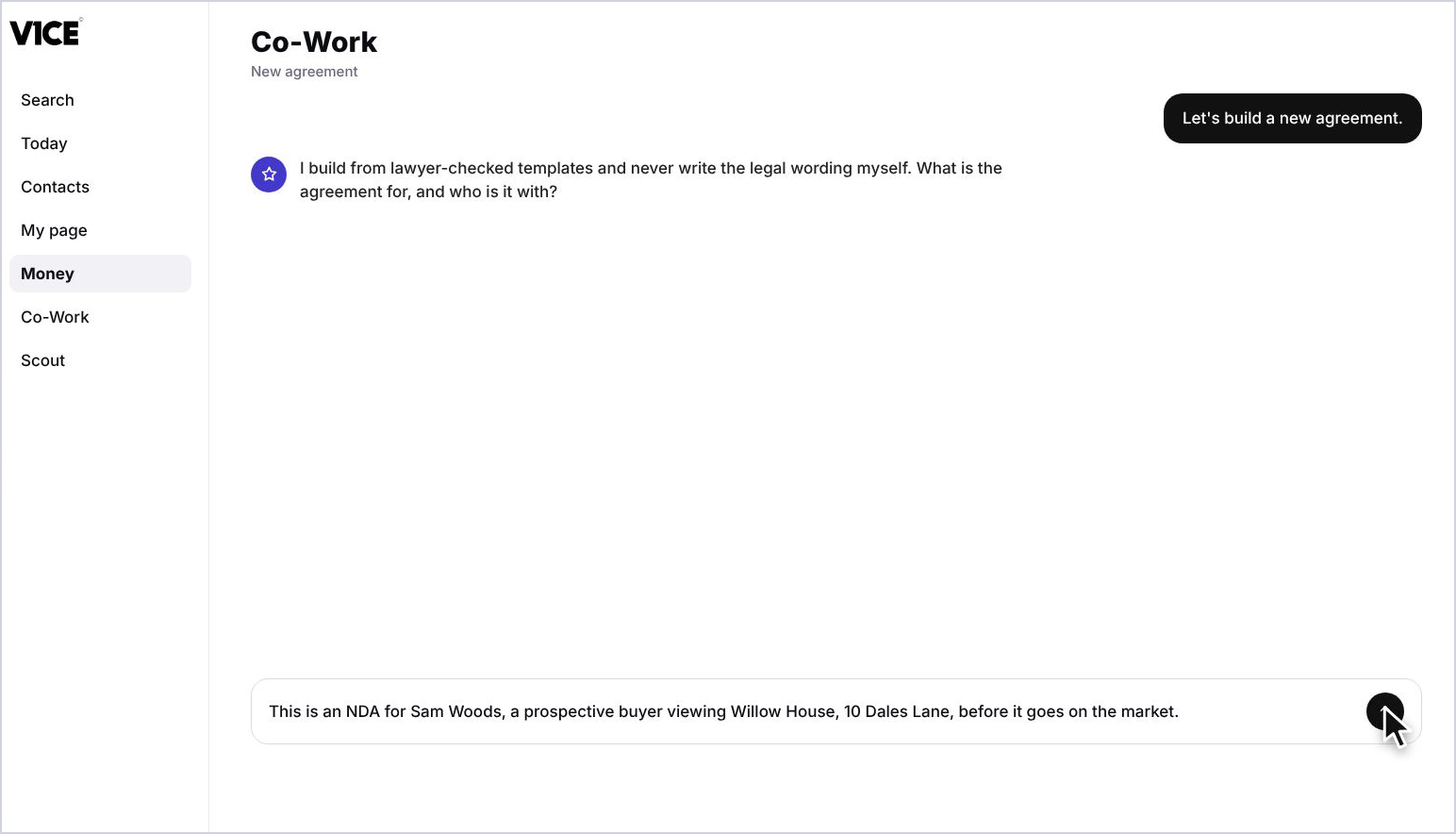
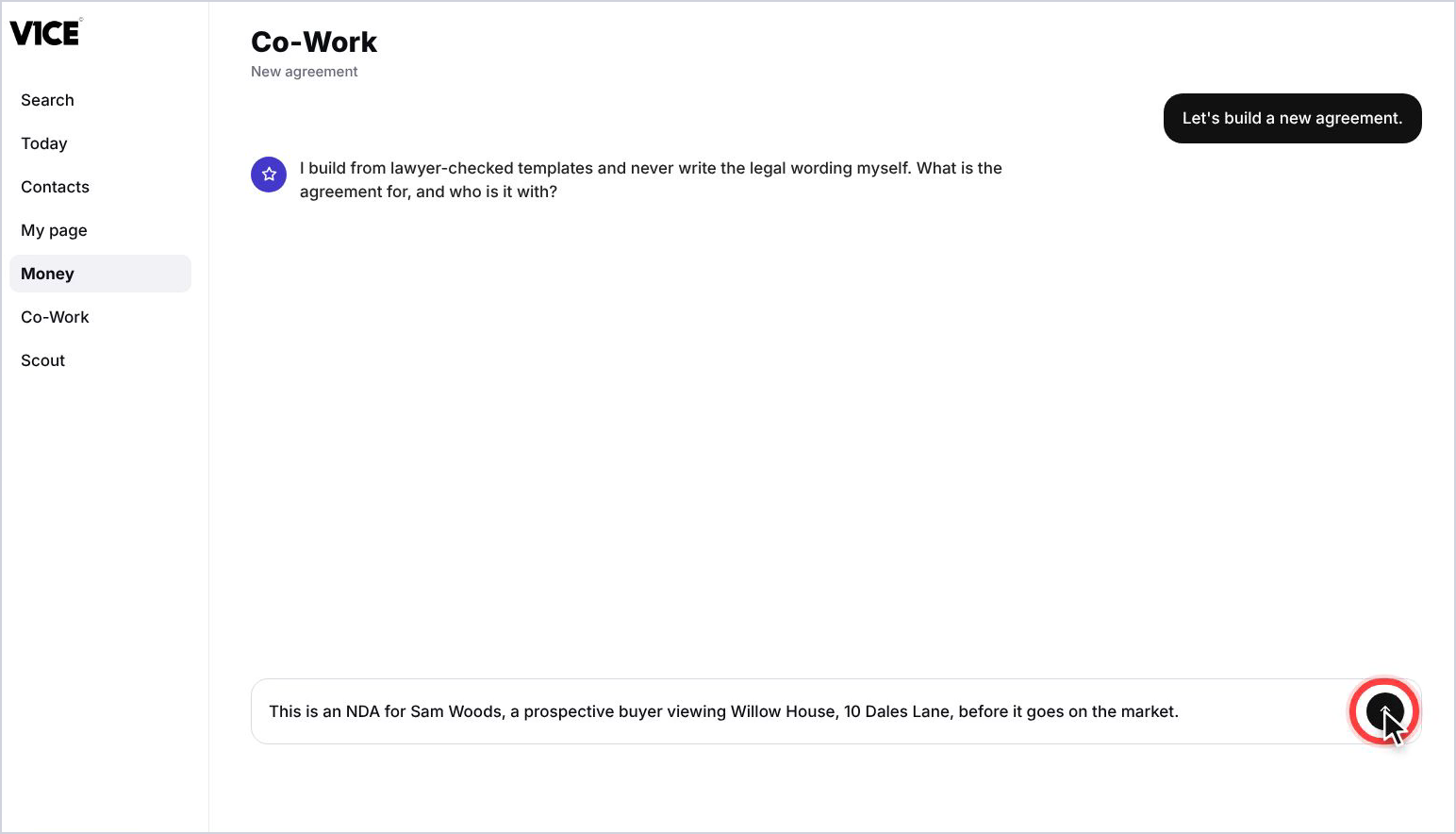
Step 5: Send it to Co-Work
Press send. Co-Work drafts the agreement from a template and shows you each section.
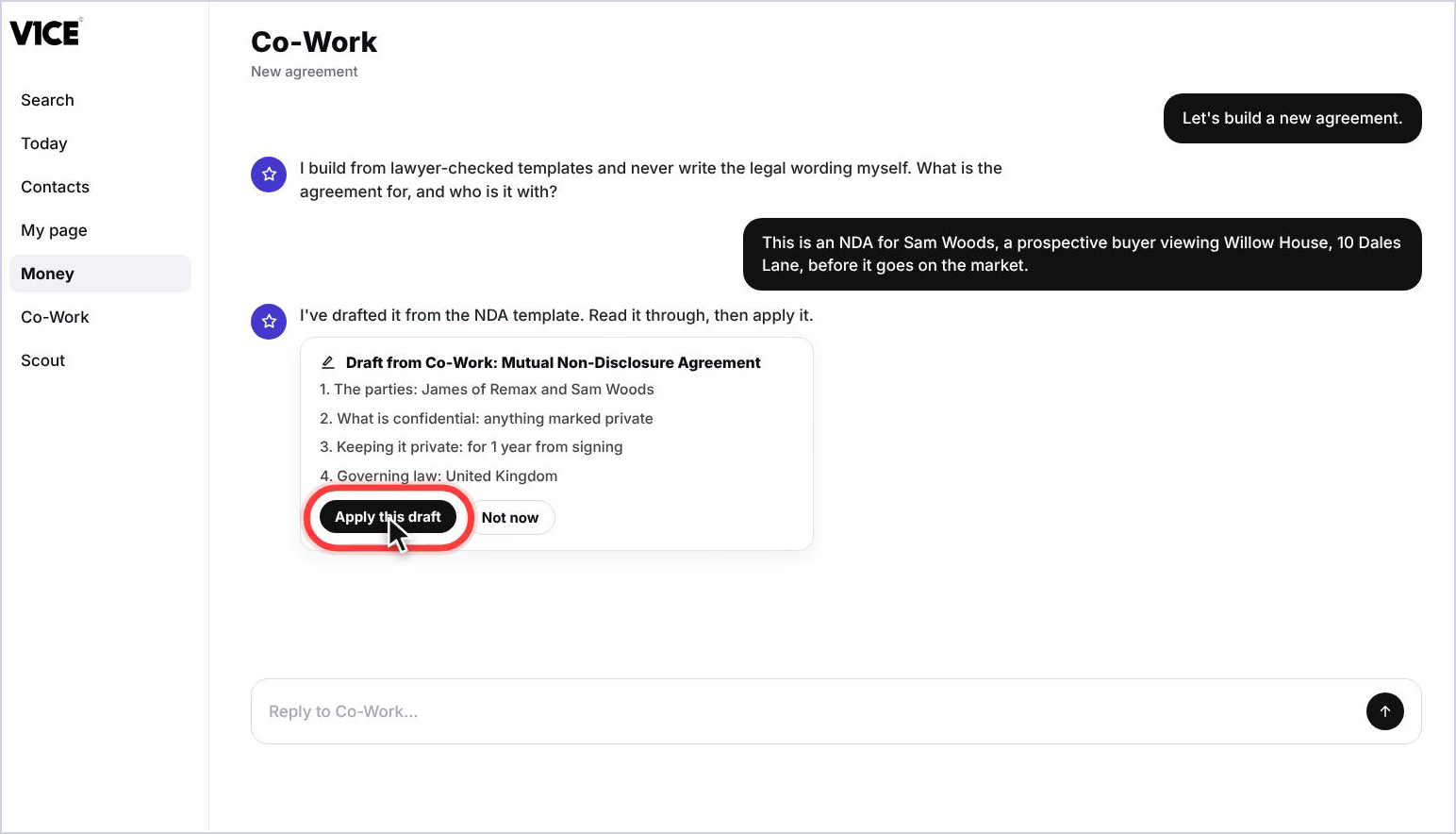
Step 6: Apply the draft
Read the draft through, then select Apply this draft.
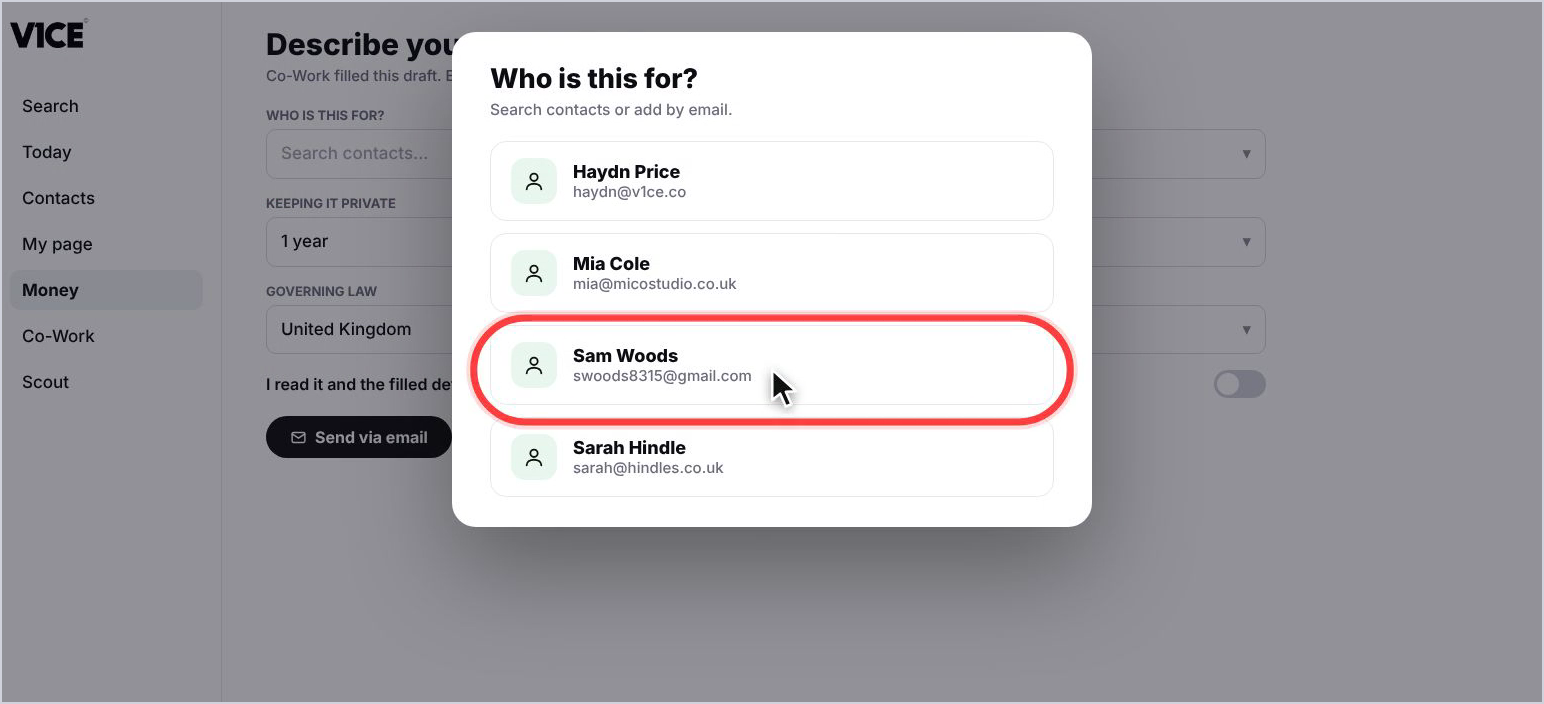
Step 7: Choose who it's for
Search your contacts and pick the person. Here, Sam Woods.
Step 8: Confirm the details
Check the details Co-Work filled in, such as how long the agreement stays private and which law applies. Then tick that you have read it and the details are right.
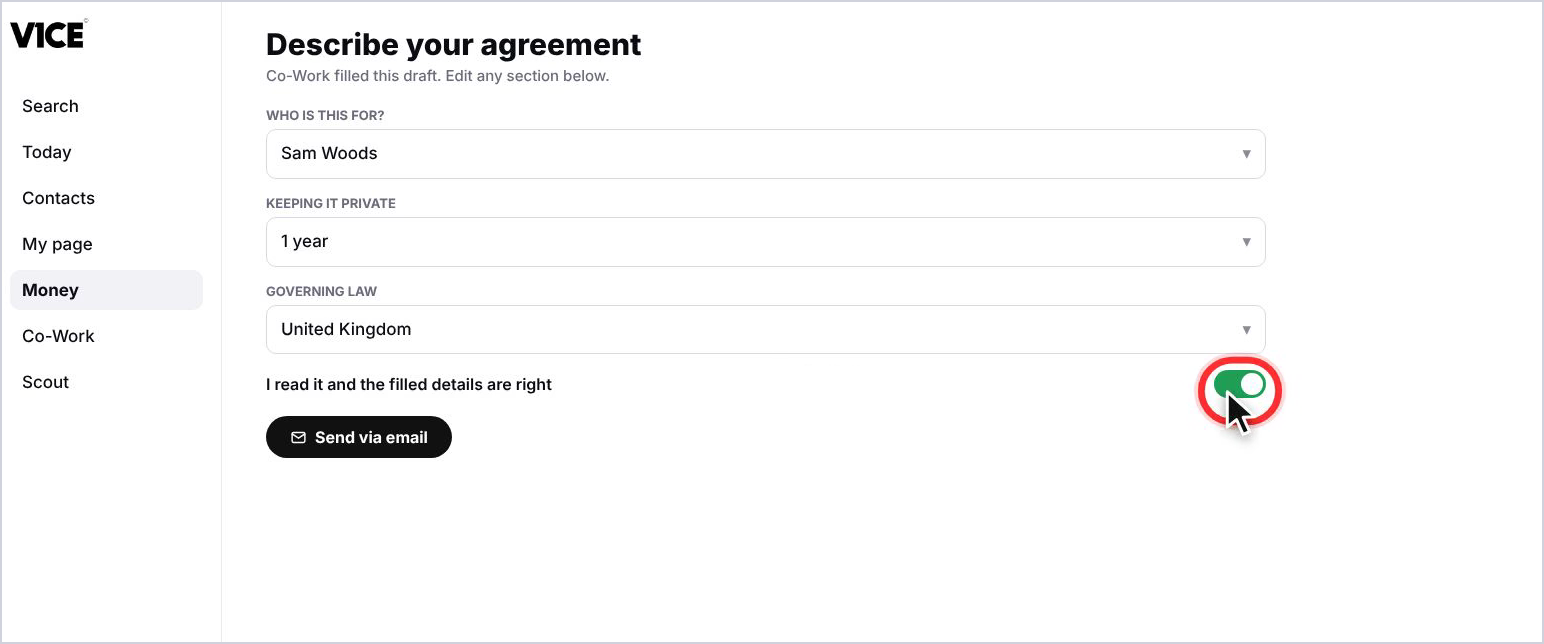
Step 9: Send it by email
Select Send via email. Your contact receives an email with a link to review and sign.
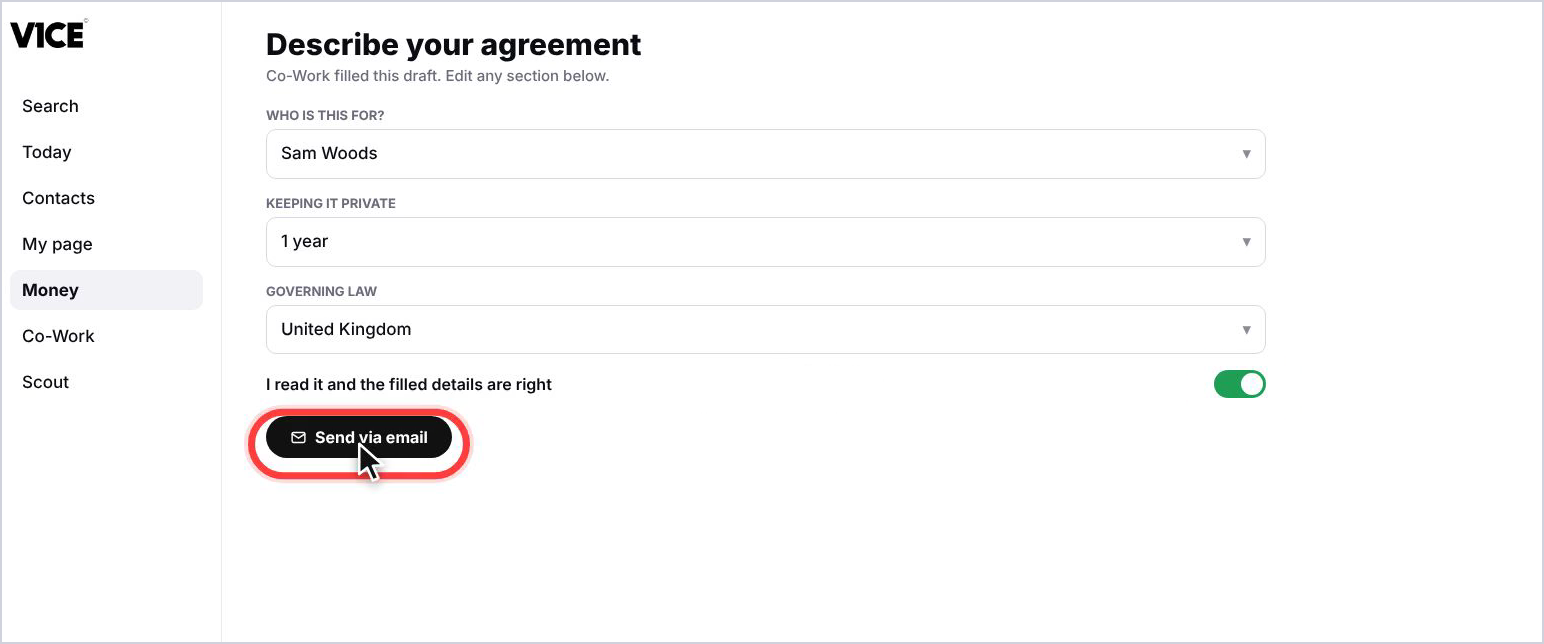
Step 10: Check it has been sent
You'll see a confirmation that your agreement is sent and now waiting for a signature. Select Go to agreements.
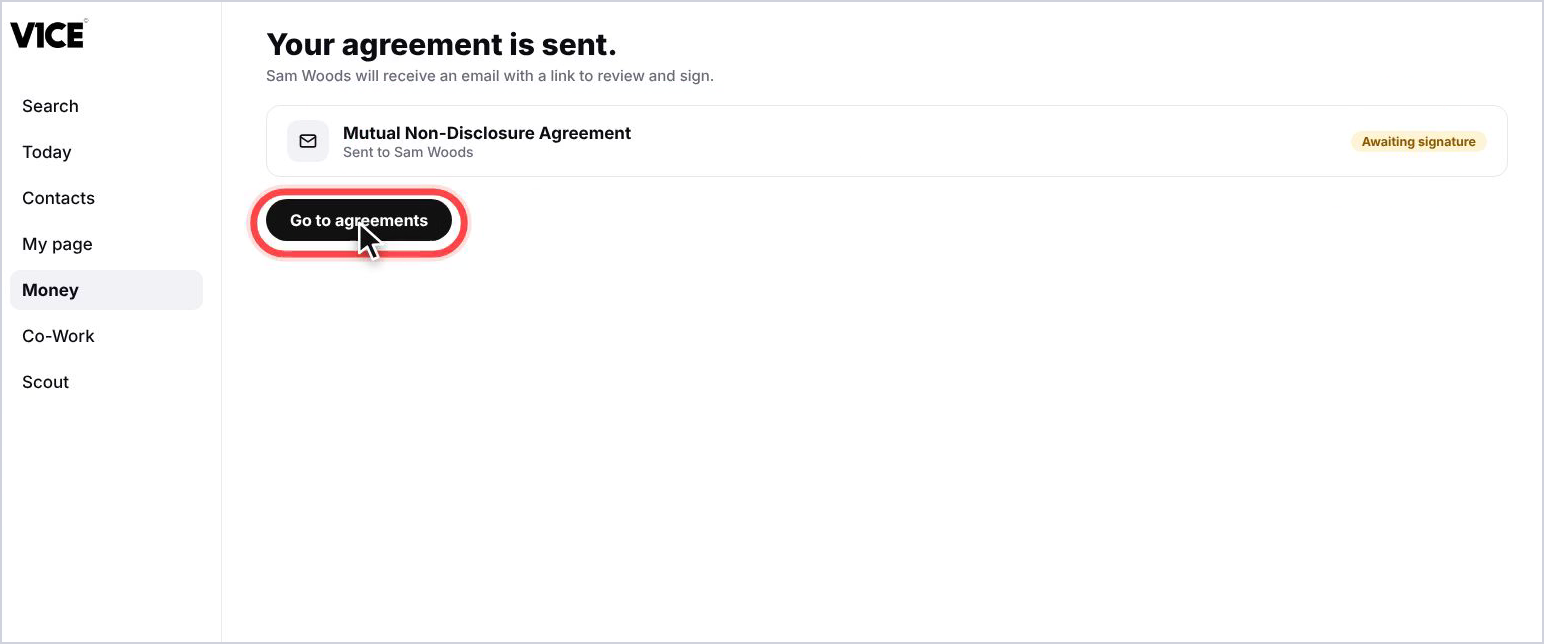
Step 11: See it waiting
Your agreement now sits under Waiting for signature. If your contact doesn't sign, a reminder goes out after a couple of days.
What your contact sees
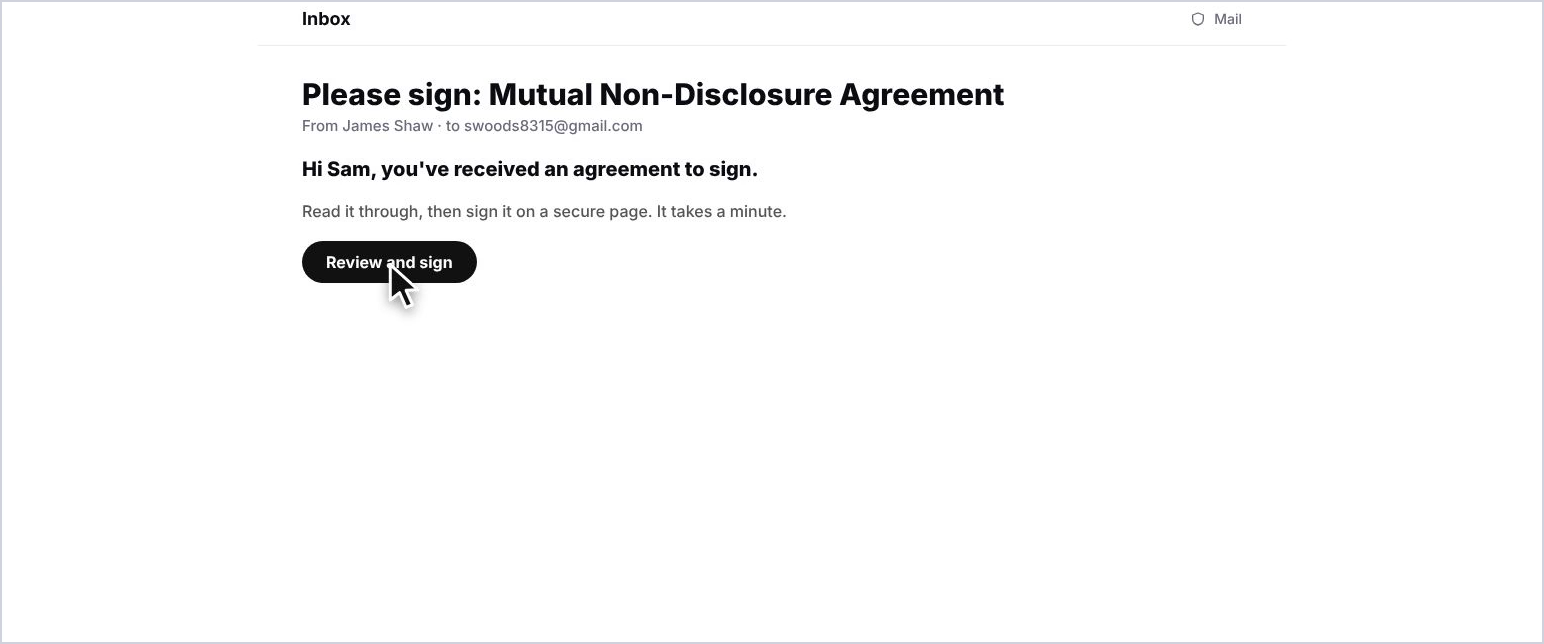
Step 12: They get an email
Your contact gets an email with a link to review and sign.
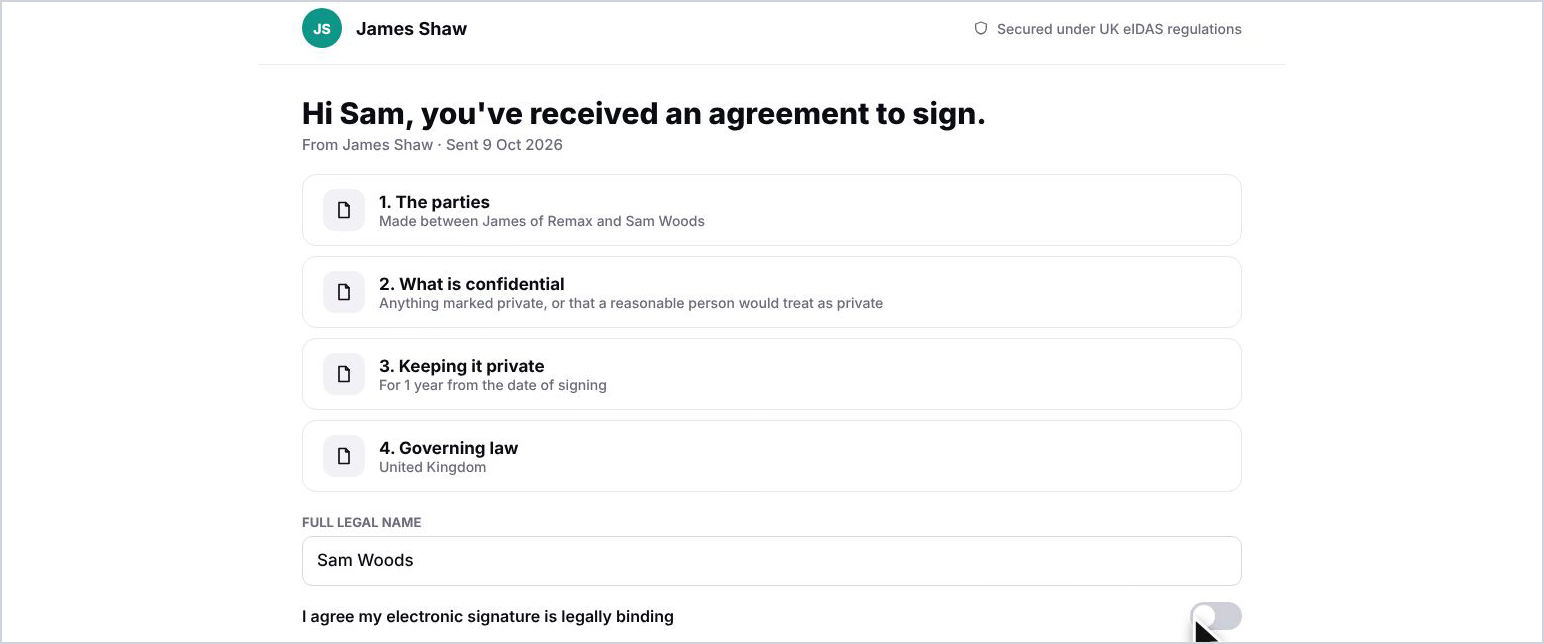
Step 13: They add their details
On a secure signing page they read each section, then type their full legal name.
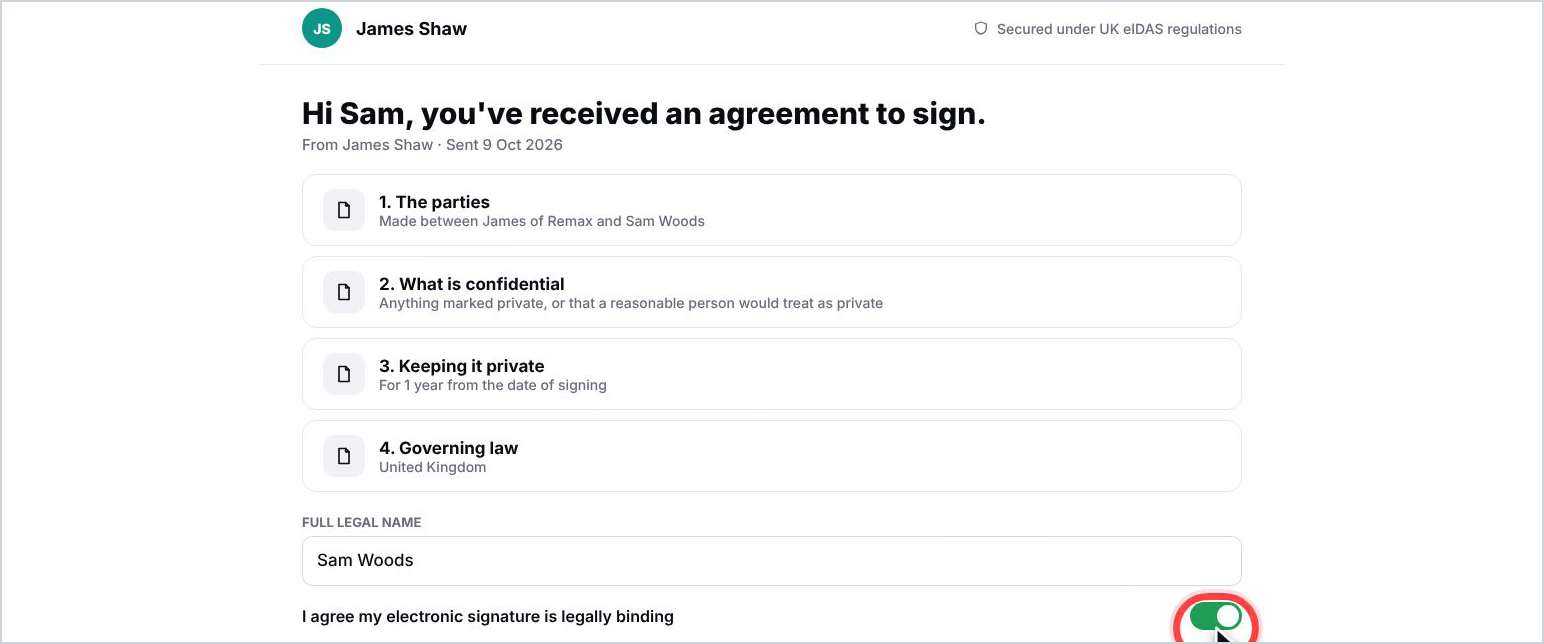
Step 14: They agree to sign
They tick the box to confirm their electronic signature is legally binding.
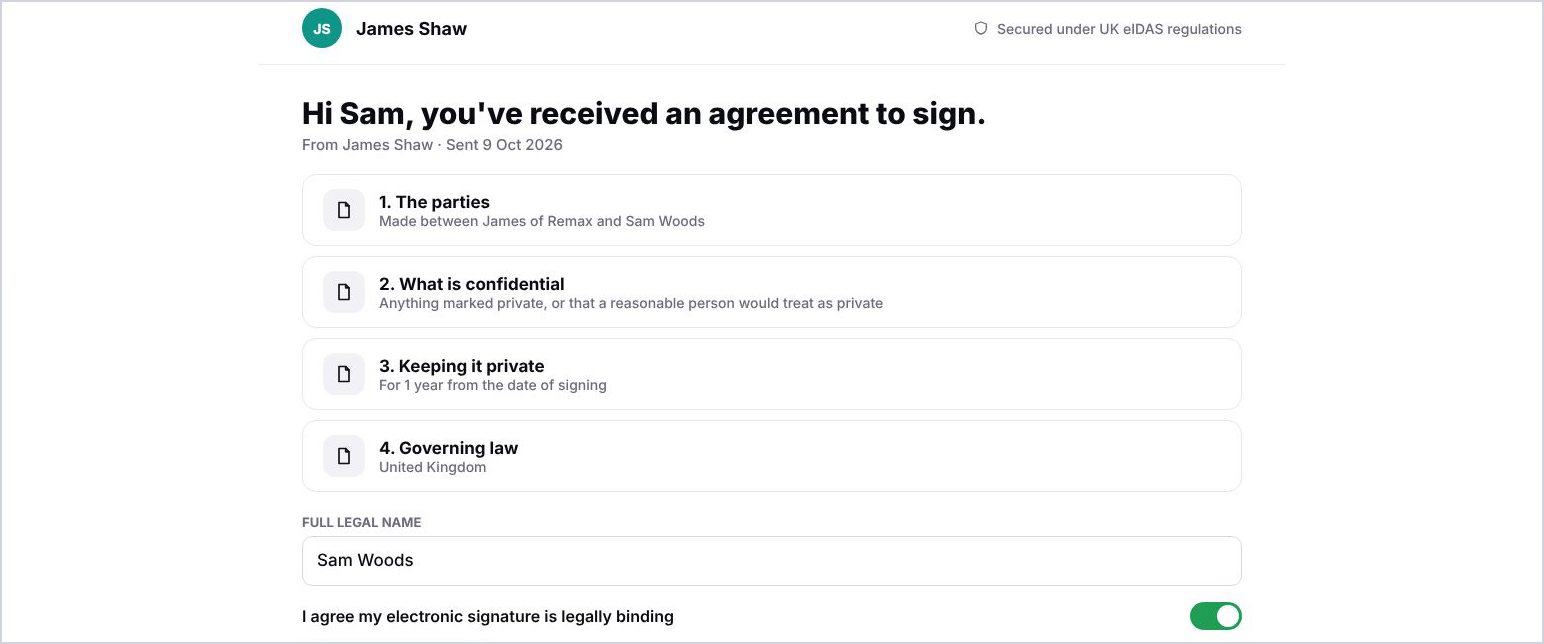
Step 15: They sign
They select Sign agreement.
Step 16: It's done
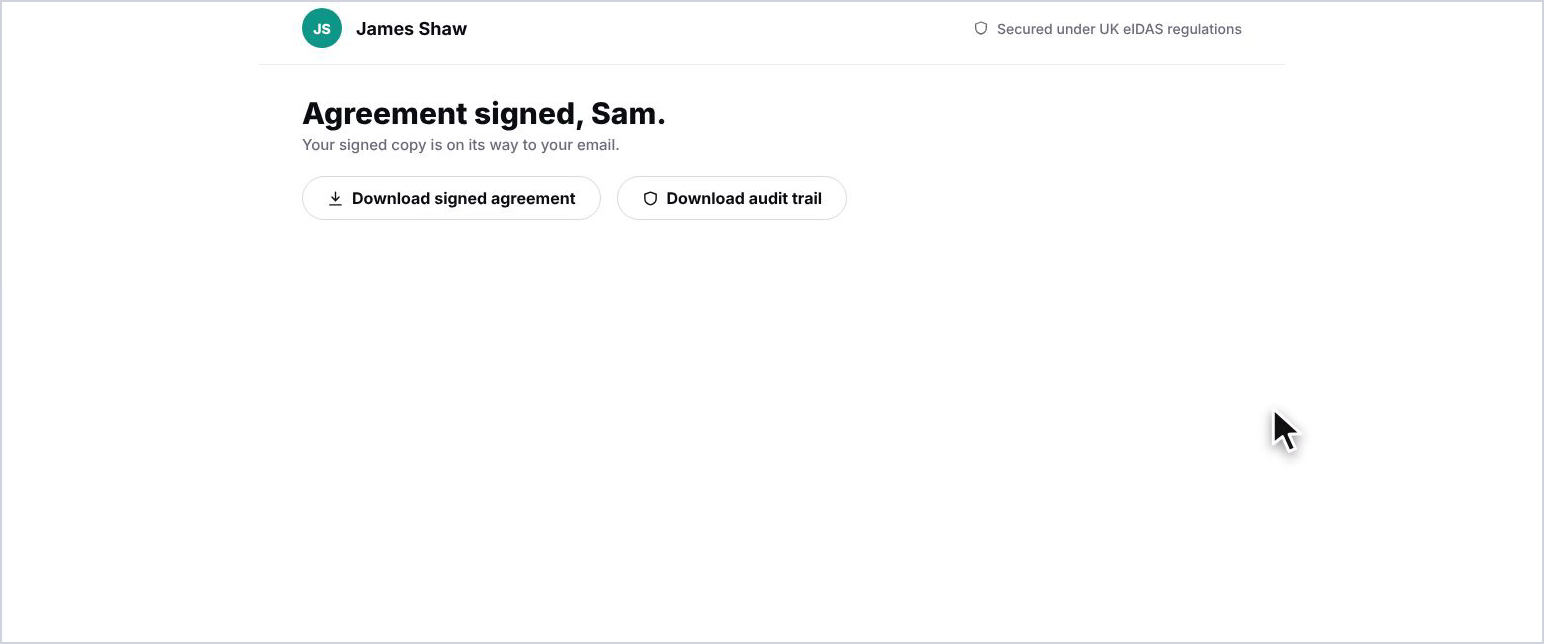
They see a confirmation, and can download the signed agreement and its audit trail. A copy is also emailed to them.
Track it
Step 17: See it signed
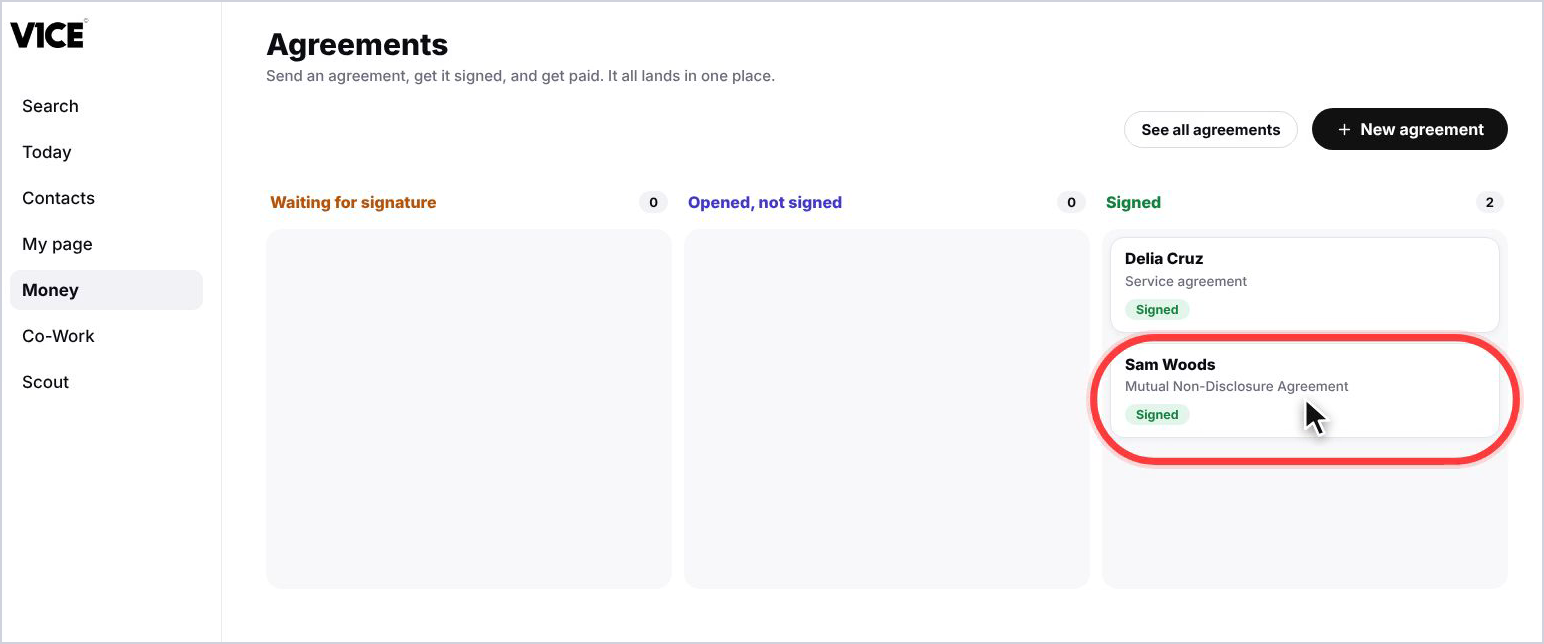
Back in V1CE, the agreement moves from Waiting for signature to Signed.
Step 18: See all your agreements
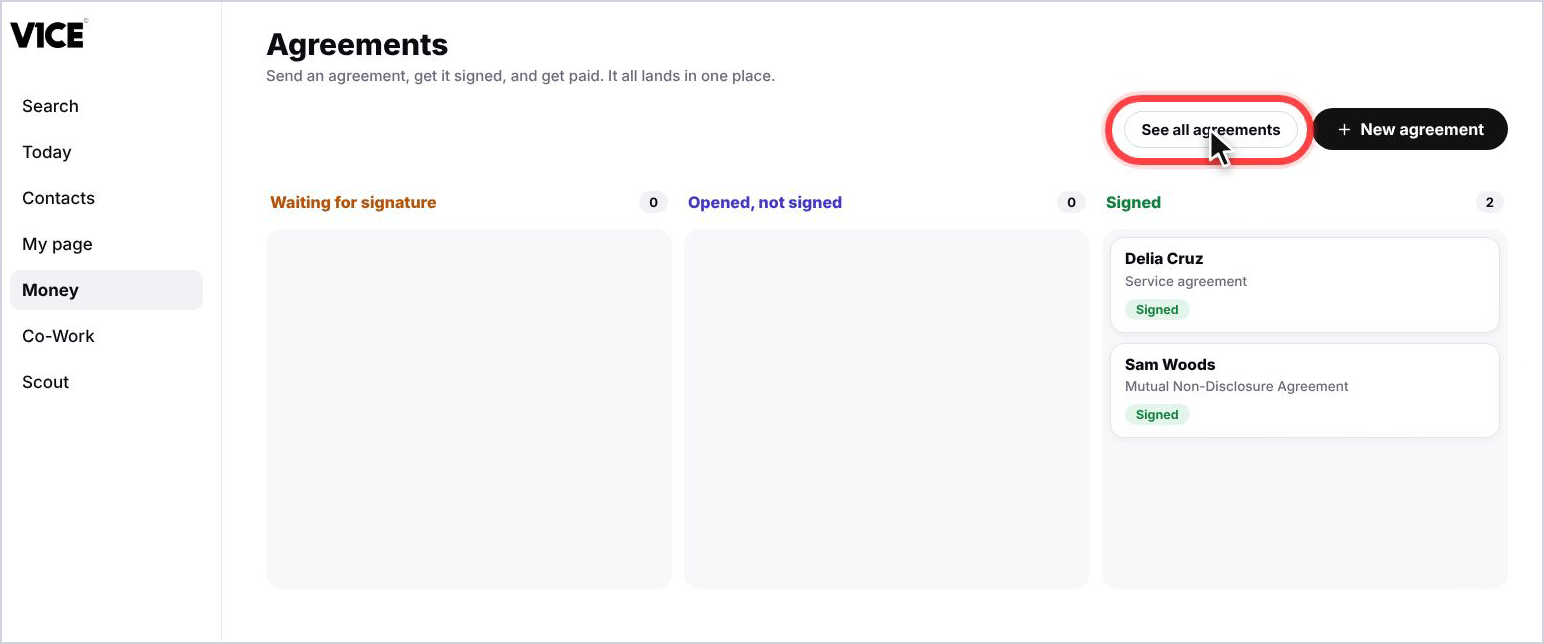
Select See all agreements to see everything you have sent, with its status.
Step 19: Open the menu
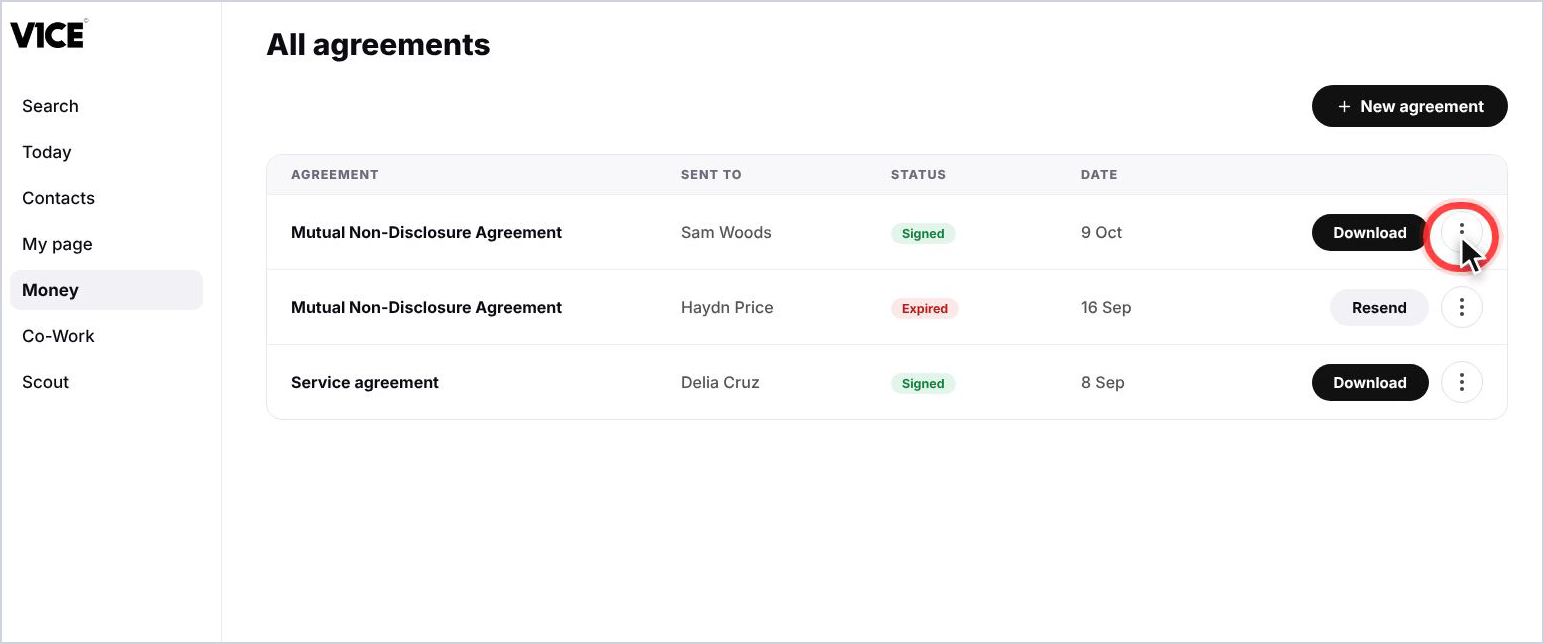
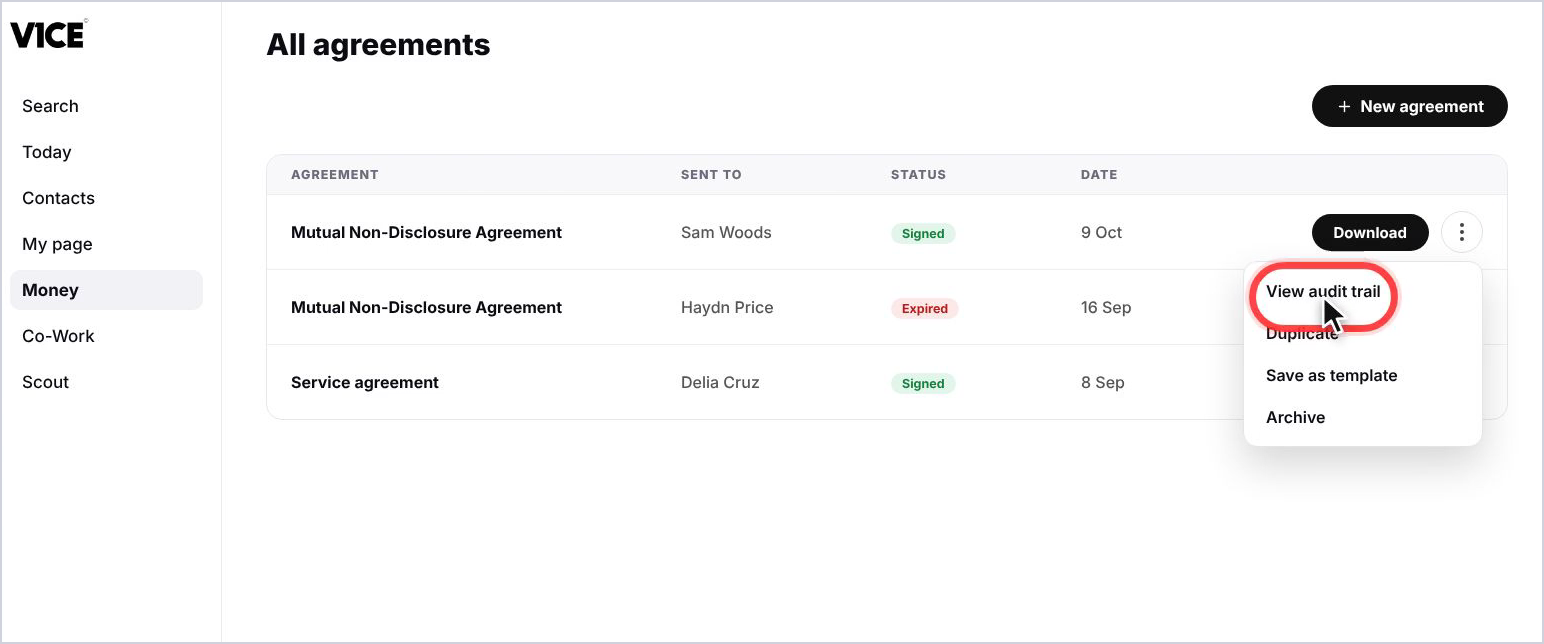
Signed agreements have a Download button and a three dots menu. Select the three dots.
Step 20: Choose View audit trail
Select View audit trail. The menu also lets you duplicate an agreement, save it as a template, or archive it.
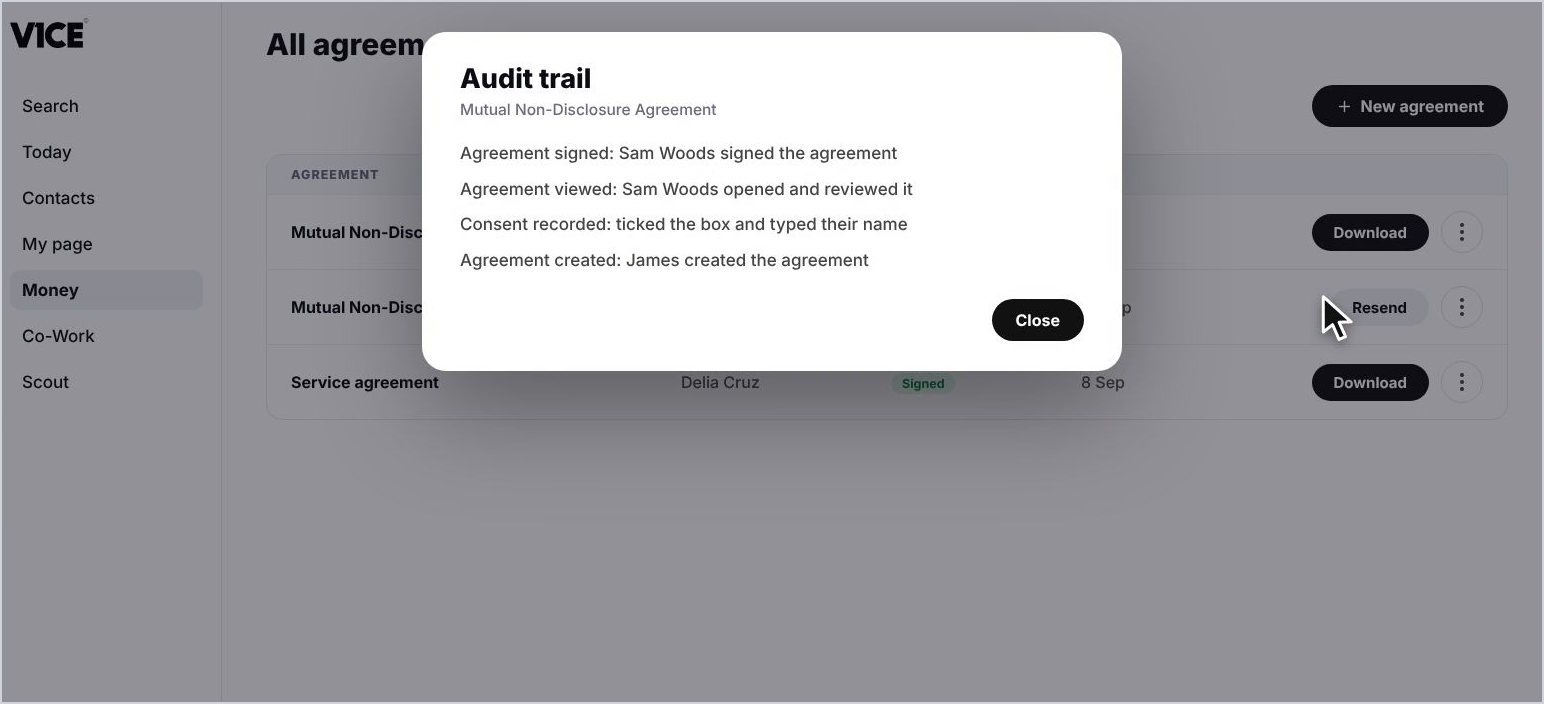
Step 21: Read the audit trail
The audit trail records when the agreement was created, viewed, agreed to and signed, and by whom.
Good to know
- Use Resend on the All agreements list if your contact has not signed yet.
- Signed agreements can be downloaded at any time, along with their audit trail.
- Save any agreement as a template to reuse it next time.