Features
How To Use Your V1CE Features
21 articles · 25 videos
-
→Can some team members use CCOS and others stay on Free Forever?CCOS is per user/cardholder. You can mix CCOS and Free Forever across a team — only the users who need contact…
-
→What happens to a V1CE card when an employee leaves?When a team member leaves, you can reassign their V1CE card and page to a new employee. Here is how to handle …
-
→How do I set up a team on ClientCapture OS?Step-by-step guide to adding team members on ClientCapture OS. Each person gets their own card and V1CE page, …
-
→Does V1CE support an offline QR code?Standard Dynamic QR codes work on Free Forever and ClientCapture OS. The legacy Offline QR feature is part of …
-
→How do I import contacts from a CSV?Yes — you can import contacts from a CSV file directly in your V1CE CRM dashboard, with no Zapier needed. You …
-
→How do I send emails to all my contacts at once?Check-ins (formerly Email Broadcasts) is V1CE's built-in bulk email tool. Send a one-off email to all your con…
-
→How do I capture contact details from people who view my V1CE page?V1CE Two-Way Exchange turns your V1CE page into a real exchange. Visitors fill in a form to give you their det…
-
→How do I let people book meetings with me through V1CE?V1CE Bookings is V1CE's built-in scheduling tool, like Calendly. Add it to your V1CE page so contacts can book…
-
→How do I sell coaching, downloads, or services from my V1CE page?V1CE Services lets you sell digital products, coaching, or services directly from your V1CE page. Customers pa…
-
→How do I send a contract for e-signature with V1CE?V1CE Agreements is V1CE's built-in e-signature tool. Send contracts, get them signed, and store the signed cop…
-
→How do I use V1CE as a Link-in-Bio (instead of Linktree)?V1CE can replace Linktree as your single bio link. Set up the page, drop the URL into your Instagram/TikTok/X …
-
→How do I manage my contacts in V1CE?V1CE CRM stores every contact you capture in one place with notes, tags, and history. Here's how to open it an…
-
→How to use V1CE InsightsSee which events, coffees and introductions turn into actual clients. Know what's working.
-
→How do I research someone before a meeting?V1CE Scout is V1CE's AI research assistant. Tell it who you're meeting and it gives you a quick brief.
-
→How do I add a V1CE link to my email signature?V1CE's Email signature tool builds a signature with your photo, name, and a link to your V1CE page. Paste it i…
-
→How do I send automatic follow-up emails to new contacts?Smart follow-ups is V1CE's automated email sequence for new contacts. Set it once and every new contact gets a…
-
→What appears when someone taps my V1CE card?Tapping your V1CE card opens your V1CE page: your photo, bio, contact details, and any blocks you add. Here's …
-
→How do I make a QR code for my V1CE page?V1CE's QR code generator creates a branded QR code that opens your V1CE page. Customize it, download it, put i…
-
→Can I customize the follow up email sent to contacts?V1CE has TWO email mechanisms on Contact Capture: a Welcome email (instant) and a Smart follow-up (delayed). H…
-
→Can I use my QR code on flyers or printed materials?Yes, you can use your V1CE QR code on flyers and printed materials. Contact V1CE for the high-resolution PNG o…
-
→How do I create a virtual background with V1CE?Build a branded V1CE virtual background with your details, logo, and QR code, then download it and upload to Z…
▶
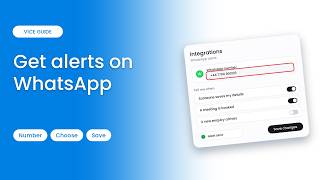
How to Get Notifications on WhatsApp
Get your V1CE notifications on WhatsApp, including when someone saves your details or books a meeting.
▶
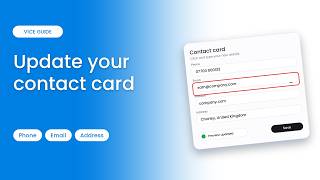
How to Update the Details on Your Digital Contact Card
Update the phone number, email, website and address on your digital contact card.
▶
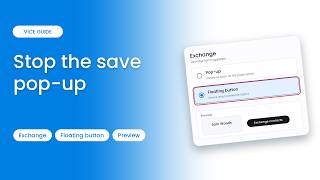
How to Stop the Save Contact Popup Showing Straight Away
Stop the save contact form popping up as soon as someone opens your page by switching to a floating button.
▶
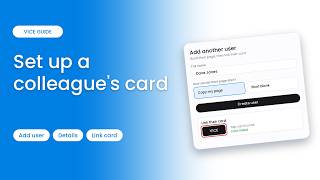
How to Set Up a Digital Business Card for a Colleague
Set up a digital business card for a colleague: build their page, then link their physical card to it.
▶
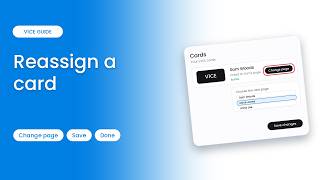
How to Reassign an NFC Business Card to a Different Person
Reassign an NFC card so it opens a different page, handy when a card moves to another person.
▶
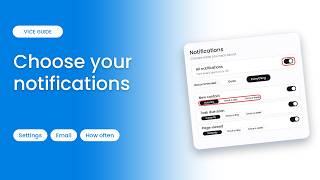
How to Choose Which Notifications You Get
Choose which notifications and emails you get from V1CE, and how often you hear about each one.
▶
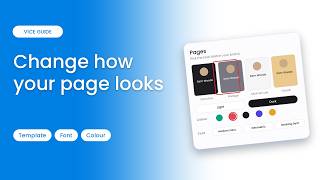
How to Change the Look of Your Page: Template, Font & Colours
Change how your page looks: pick a template, light or dark mode, a font and a colour preset.
▶
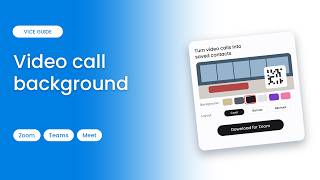
How to Use Your Page as a Zoom & Teams Video Call Background
Put your page behind you on every video call so people can save your details from a QR code. Works with Zoom, Teams and Meet.
▶
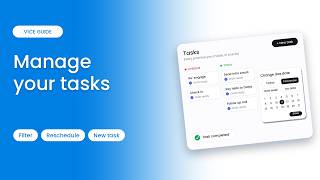
How to Create and Manage Tasks and Follow-Up Reminders
Manage your tasks so nothing slips through: reschedule, filter the board, create tasks and use the detail panel.
▶
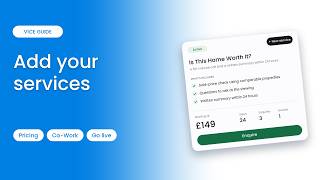
How to Add Services With Prices to Your Page
Package what you do into services clients can see, ask about and pay for, then build a new service with Co-Work.
▶
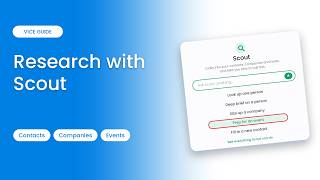
How to Use Scout to Research Contacts and Companies
Use Scout to research contacts and companies, get a deep brief on a person, prep for an event and see exactly who to call first.
▶
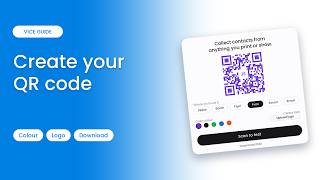
How to Create and Download a Branded QR Code for Your Business Card
Create a branded QR code that opens your page: choose where it points, pick a colour, test it and download it.
▶
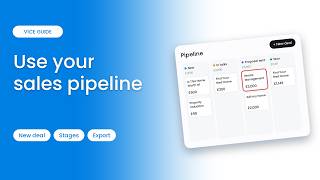
How to Use a Sales Pipeline: Create Deals and Track Stages
Track every deal from first chat to signed and paid: see deals by stage, add a new deal, move it forward, and set your own custom stages.
▶
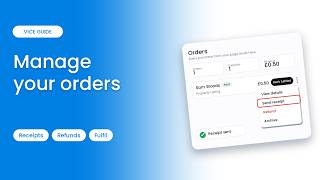
How to View and Manage Orders and Send Receipts
View every order from your page, check the timeline, send customers a receipt, and mark orders fulfilled once the service is complete.
▶
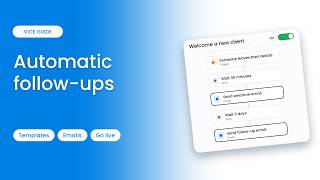
How to Set Up Automatic Follow-Ups (Welcome a New Client)
Set up automatic follow-ups so nobody you meet goes cold: check activity, then build and switch on the Welcome a new client template.
▶
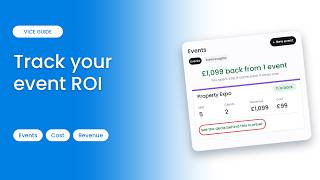
How to Track Networking Events and Their ROI
Track the return on every expo, conference or meetup you attend, see the deals behind the number, and set up a new event from scratch.
▶
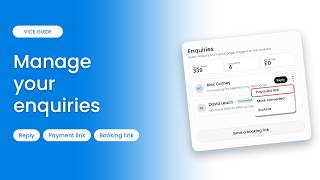
How to Manage Enquiries From Your Page
See every enquiry from your page in one place: view your numbers, reply with help from Co-Work, and send payment or booking links.
▶
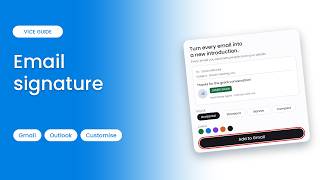
How to Add a Digital Business Card to Your Email Signature (Gmail & Outlook)
Add your digital business card to your Gmail or Outlook email signature so every email you send lets people save your details or book time with you.
▶
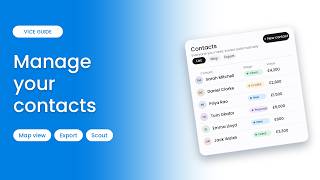
How to Manage Your Contacts, Map View & Export
Learn how to manage the contacts you meet, view the full profile, use Map view, export, and add someone new with Scout.
▶
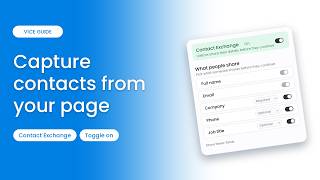
How to Capture Contacts From Your Page (Contact Exchange)
Learn how to switch on contact capture so visitors can swap details with you straight from your page.
▶
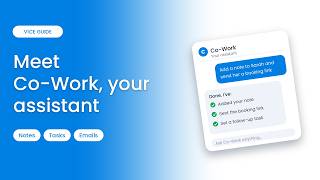
How to Use Co-Work: Your AI Business Assistant
Learn how to use Co-Work, your AI assistant inside V1CE that adds notes, creates tasks, drafts emails, sends booking links and more.
▶
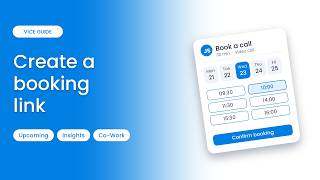
How to Create a Booking Link So Clients Can Book You
Learn how to create a booking link so contacts can pick a time that works for them, with no back-and-forth.
▶
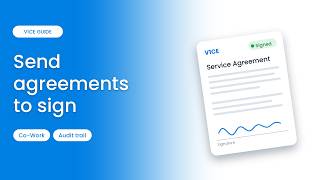
How to Send and Sign Agreements Online
Learn how to send, track and get documents signed online, including creating an agreement with Co-Work.
▶
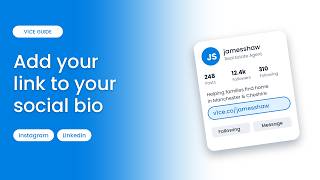
How to Add Your Link to Instagram, LinkedIn & Social Media Bios
Learn how to add your link to your social media bios, starting with Instagram, then LinkedIn and others.
▶
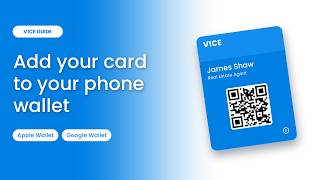
How to Add Your Business Card to Apple & Google Wallet
Learn how to add your digital business card to Apple Wallet or Google Wallet, so you can share it with a scan, no physical card needed.