How to read your Insights

To read your Insights, open Insights to see page views, people who saved you, meetings booked and money in, in plain words. Compare this month with last month, see which page is working, then press Export to download your numbers.
| Time needed | 2 minutes |
|---|---|
| What you need | Your V1CE account |
| Where in the app | Insights |
Video transcript and chapters
Chapters
0:00 Introduction
0:11 Open Insights
0:27 Which page is working
0:35 Go deeper
0:40 See how people found you
0:46 See how people saved and paid you
0:55 Check your next win
1:05 Export your numbers
1:19 Download it
1:24 You're done

Transcript
Here's how to see what's working on your pages with Insights.
Insights shows how many people looked, saved you, booked and paid, in plain words.
Open Insights, your month is at a glance.
Page views, people who saved you, meetings booked and money in.
The line at the top says it in plain words and how it compares with last month.
Use this month to look at last month or all time instead.
Which page is working shows every page you own side by side.
You can see which one brings the most looks, saves and money.
Go deeper keeps the detail tucked away until you want it.
Open how people found you to see page views, link taps, QR scans and email clicks.
On a paid plan you also see how people saved you and how people paid you.
Bookings, payments, services sold and agreements signed.
Your next win shows your milestones with what's left to do on each one.
And what happened lately lists every new contact booking and payment.
To keep a copy of your numbers, press Export.
Pick a time, this month, the last three months, this year or your own dates.
Then choose what you want, your contacts, pages, meetings, money, follow-ups or agreements.
Press Download and open it in Excel or Google Sheets.
That's it.
Insights shows you what's working so you can do more of it.
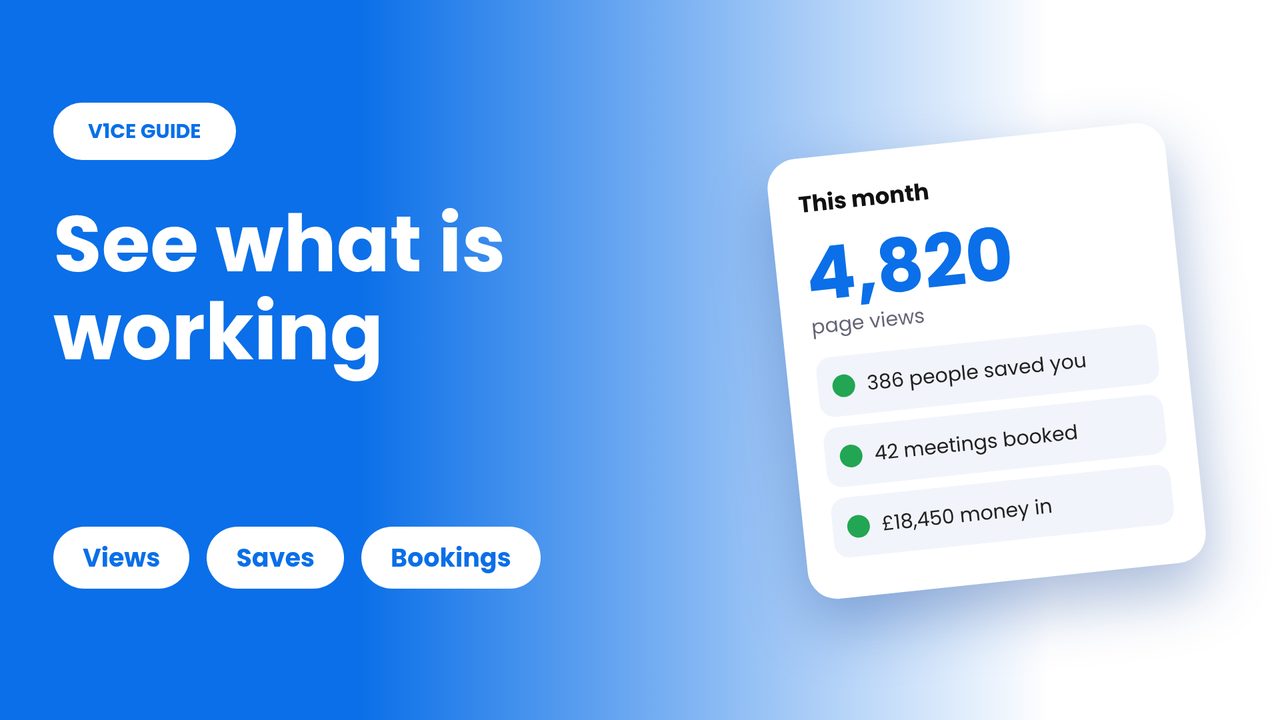
Insights shows how many people looked at your pages, saved your details, booked and paid, in plain words.
Use it to see which of your pages is working, then do more of it.
Watch the video
Step 1: Open Insights
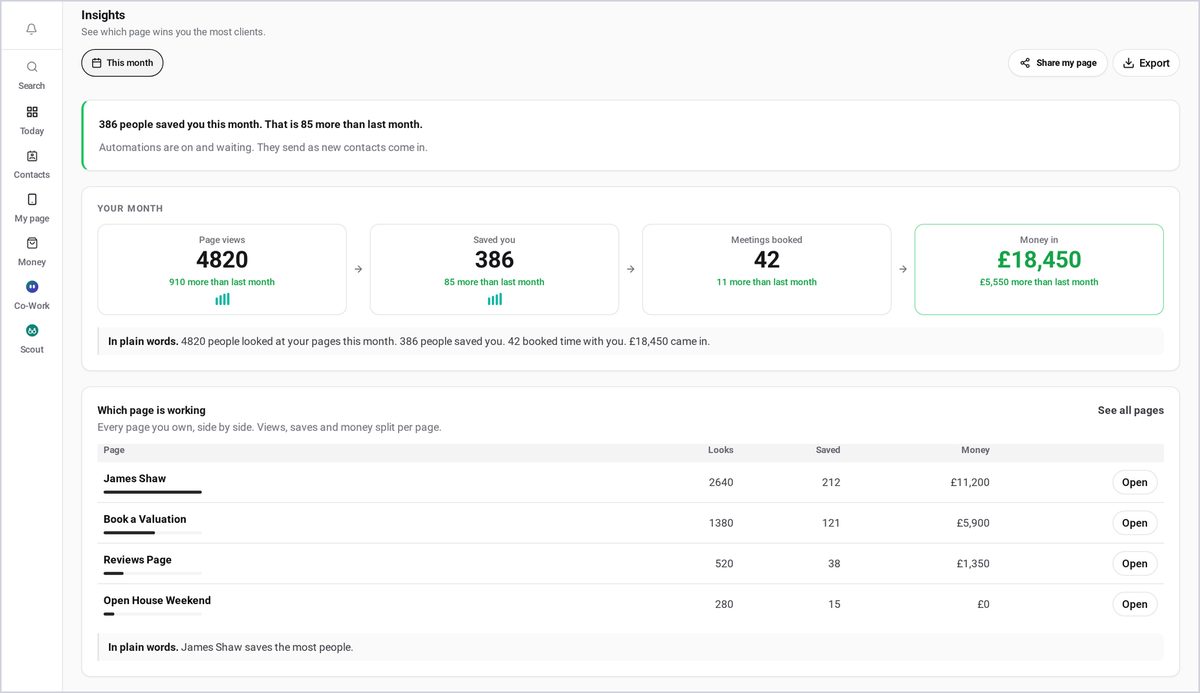
Open Insights. Your month is at a glance: page views, people who saved you, meetings booked, and money in. The line at the top says it in plain words, and how it compares with last month. Use This month to look at last month, or all time, instead. Which page is working shows every page you own, side by side. You can see which one brings the most looks, saves and money.
Step 2: Go deeper
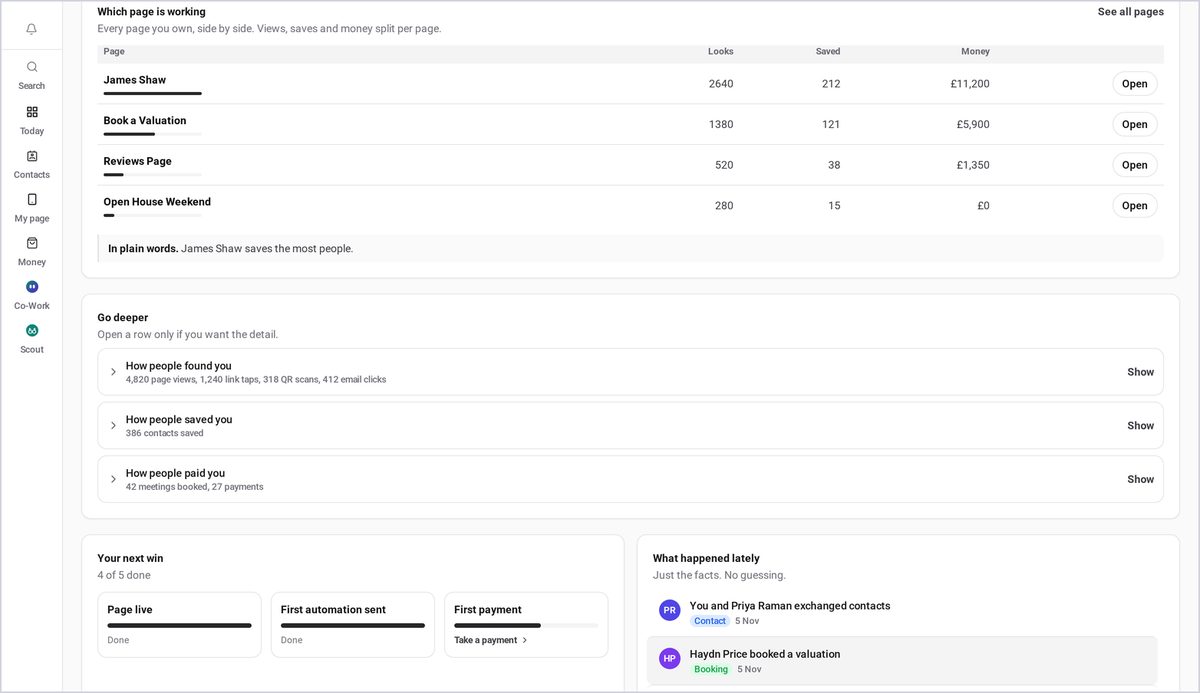
Go deeper keeps the detail tucked away, until you want it.
Step 3: See how people found you
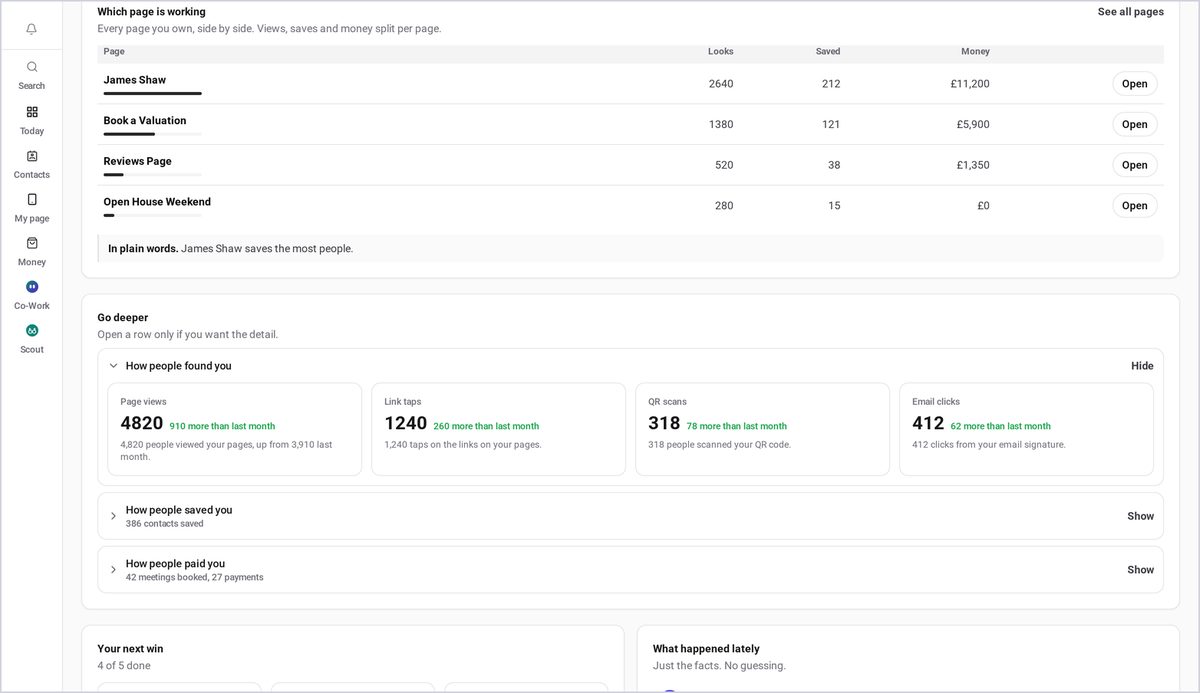
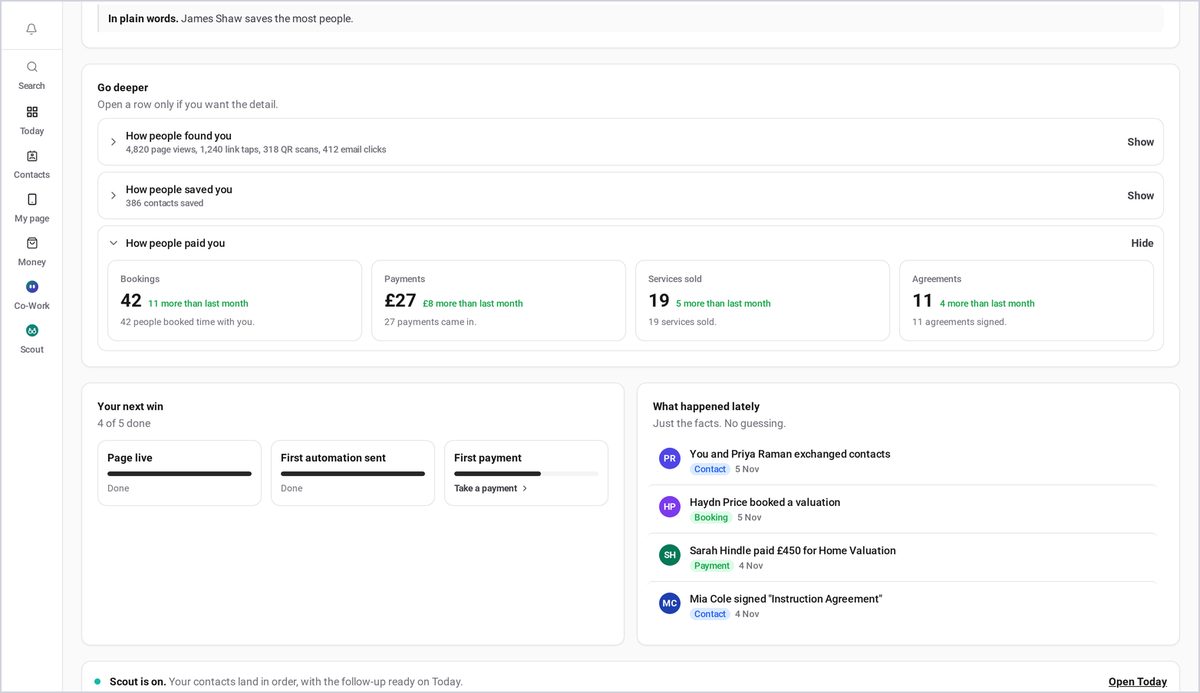
Open How people found you, to see page views, link taps, QR scans and email clicks.
Step 4: See how people saved and paid you
On a paid plan, you also see how people saved you, and how people paid you: bookings, payments, services sold and agreements signed.
Step 5: Check your next win
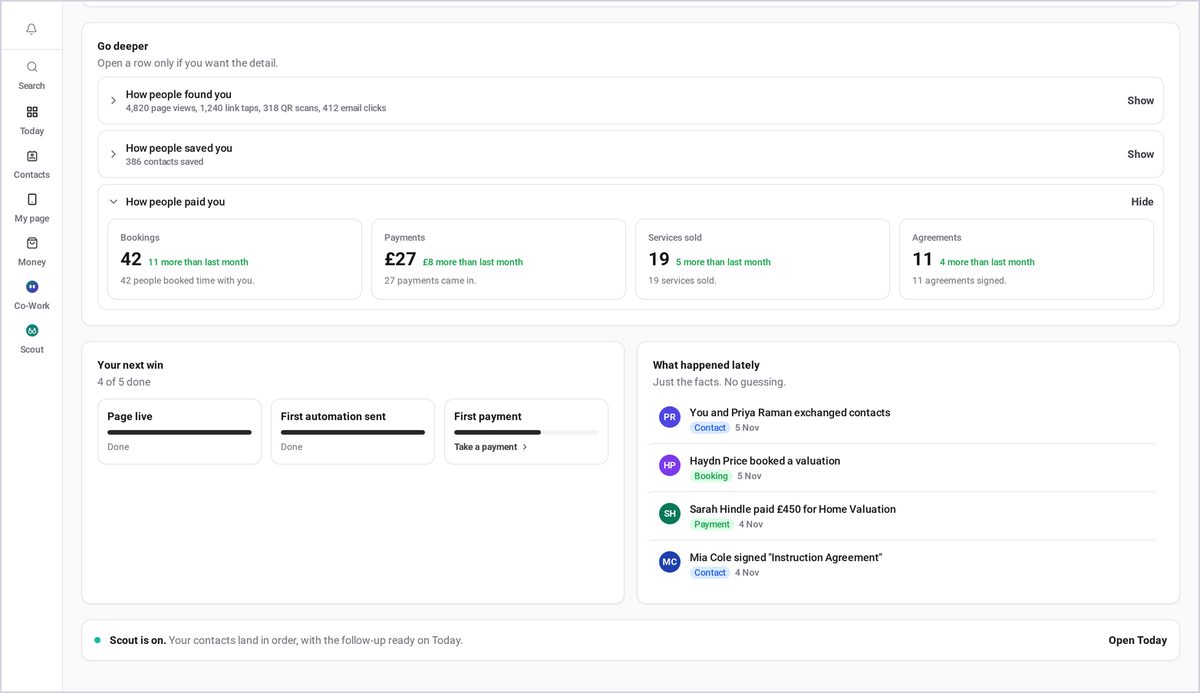
Your next win shows your milestones, with what's left to do on each one. And What happened lately lists every new contact, booking and payment.
Step 6: Export your numbers
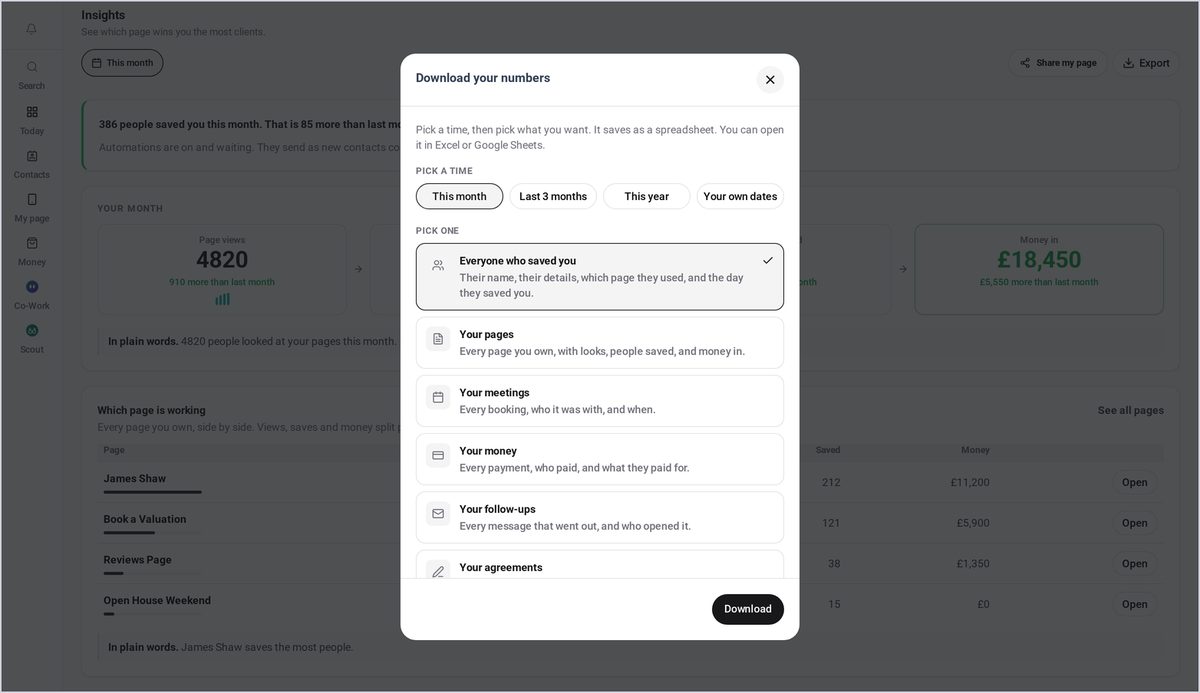
To keep a copy of your numbers, press Export. Pick a time: this month, the last three months, this year, or your own dates.
Step 7: Choose what to export
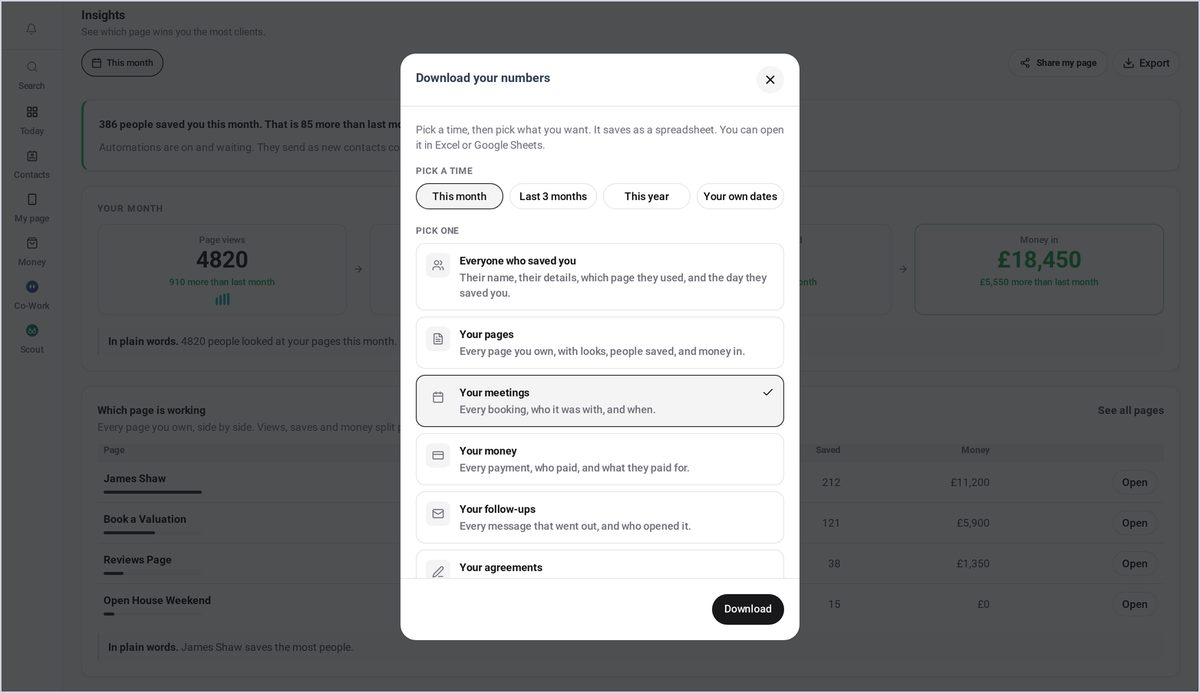
Then choose what you want: your contacts, pages, meetings, money, follow-ups or agreements. Press Download, and open it in Excel or Google Sheets.
Good to know
- How people saved you and how people paid you are shown on paid plans.
- Exports open in Excel or Google Sheets.
Frequently asked questions
What does Insights show?
How many people looked at your pages, saved your details, booked and paid, in plain words, and how that compares with last month.
Can I look at last month instead?
Yes. Use This month to look at last month, or all time, instead.
Can I export my numbers?
Yes. Press Export, pick a time and what you want, then press Download and open it in Excel or Google Sheets.
What else do I see on a paid plan?
How people saved you, and how people paid you: bookings, payments, services sold and agreements signed.