How to make and download your QR code

To make a QR code, open My page, then Pages and Sharing, find QR code and press Add. Press Customize appearance to choose the page it opens, pick a colour and upload your logo, then press Download PNG.
| Time needed | 2 minutes |
|---|---|
| What you need | Your V1CE account; a logo file is optional |
| Where in the app | My page > Pages > Sharing > QR code |
Video transcript and chapters
Chapters
0:00 Introduction
0:15 Open Sharing
0:22 Add a QR code
0:32 Customize appearance
0:35 Choose where it points
0:45 Pick a colour
0:57 Upload your logo
1:06 Download it
1:10 Test it
1:15 You're done

Transcript
Here's how to make, style, and download your QR code in V1CE.
Your QR code opens one of your pages when someone scans it.
Choose the page, pick a colour, add your logo, then download it for posters, flyers and slides.
From My Page, open Pages, then select Sharing.
This shows every place you can use your link.
Find QR code and press Add.
This is your QR code.
Anyone who scans it lands on your page and can save your details.
Press Customize Appearance to style it.
Under where it points, open the list.
Choose which page the code opens.
Say your booking page, the code redraws straight away.
Now pick a colour, press green and the whole code turns green.
Press blue and it changes again.
Or go back to Violet to match your brand.
For your own logo in the middle, press Upload Logo.
Drop in your logo file and it sits in the centre of the code.
When you're happy, press Download PNG.
You can scan it with your phone to check it opens the right page.
Then press Done.
That's it. Your QR code is ready to print or share.
Your QR code opens one of your pages when someone scans it. Choose the page, pick a colour, add your logo, then download it for flyers, posters and slides.
Anyone who scans it lands on your page and can save your details.
Watch the video
Step 1: Open Sharing
From My page, open Pages, then select Sharing. This shows every place you can use your link.
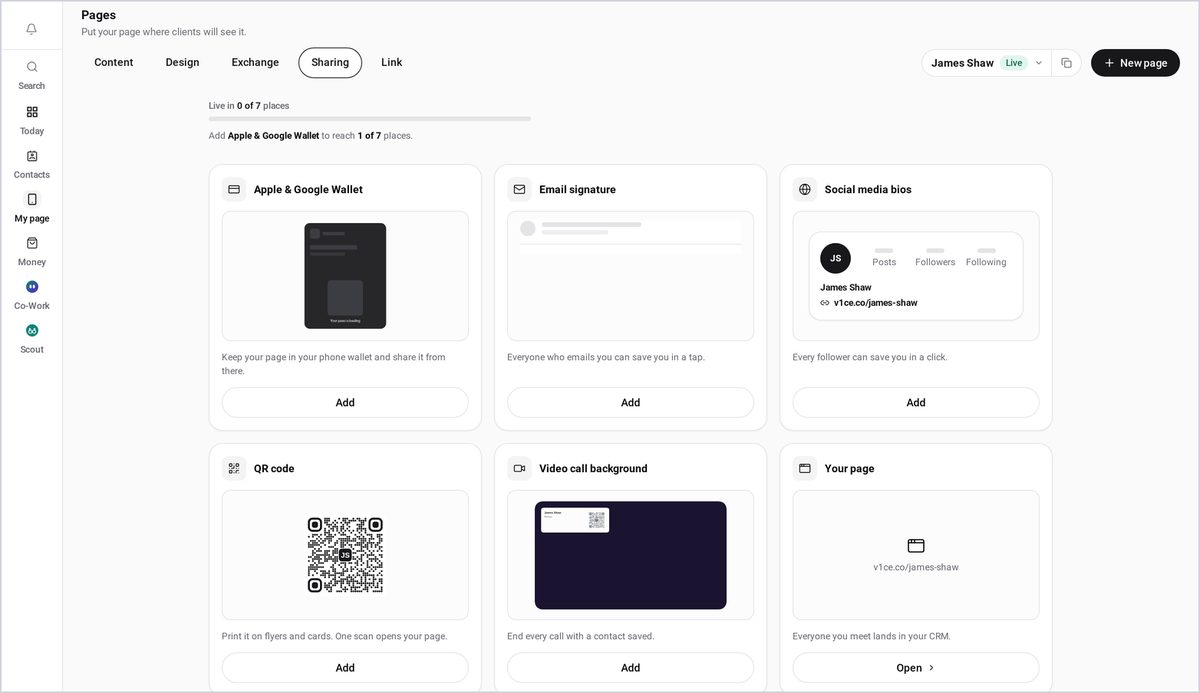
Step 2: Add a QR code
Find QR code, and press Add. This is your QR code. Anyone who scans it lands on your page, and can save your details.
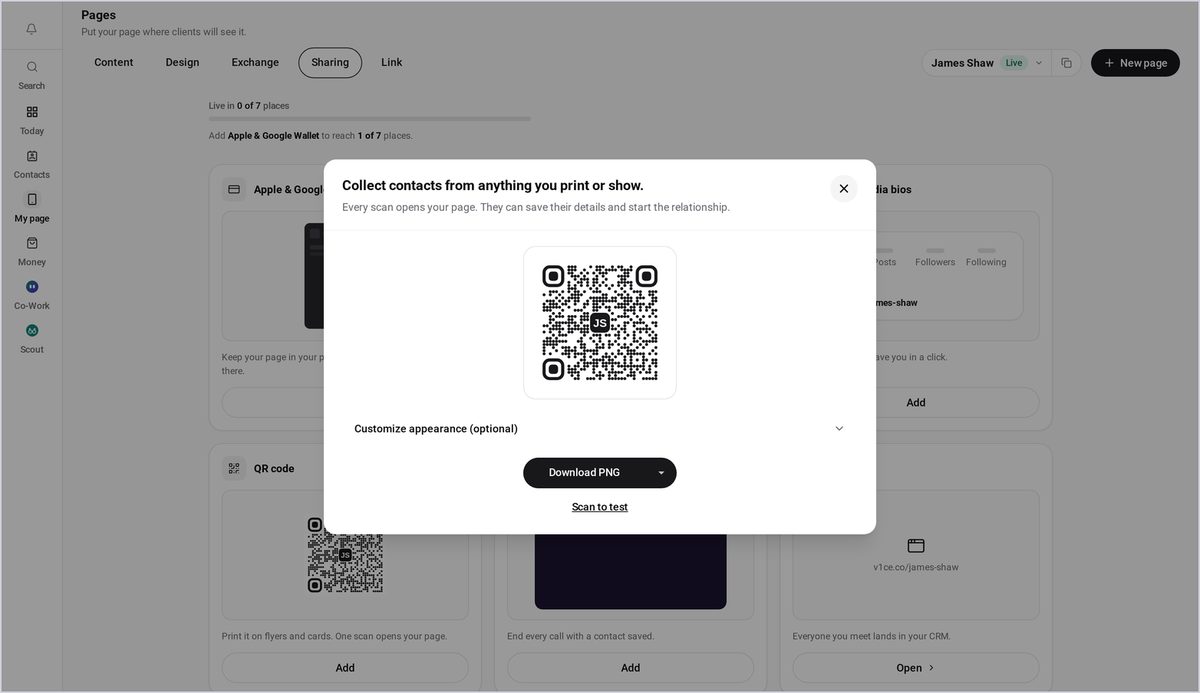
Step 3: Open Customize appearance
Press Customize appearance, to style it.
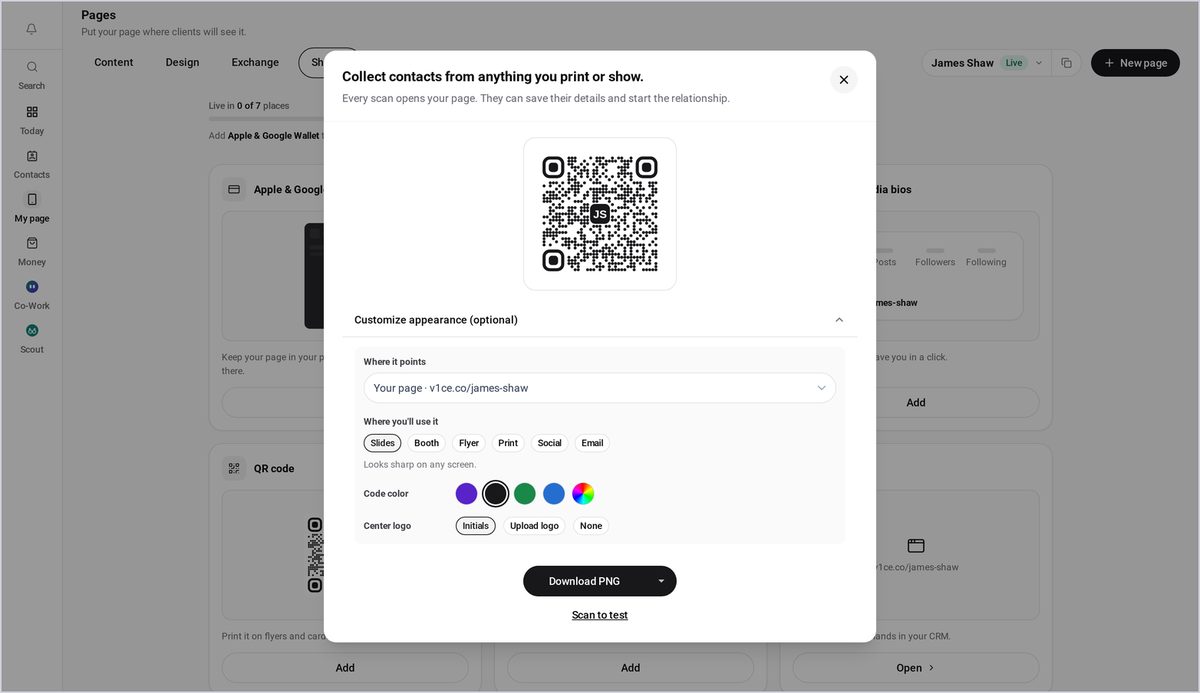
Step 4: Open the Where it points list
Under Where it points, open the list.
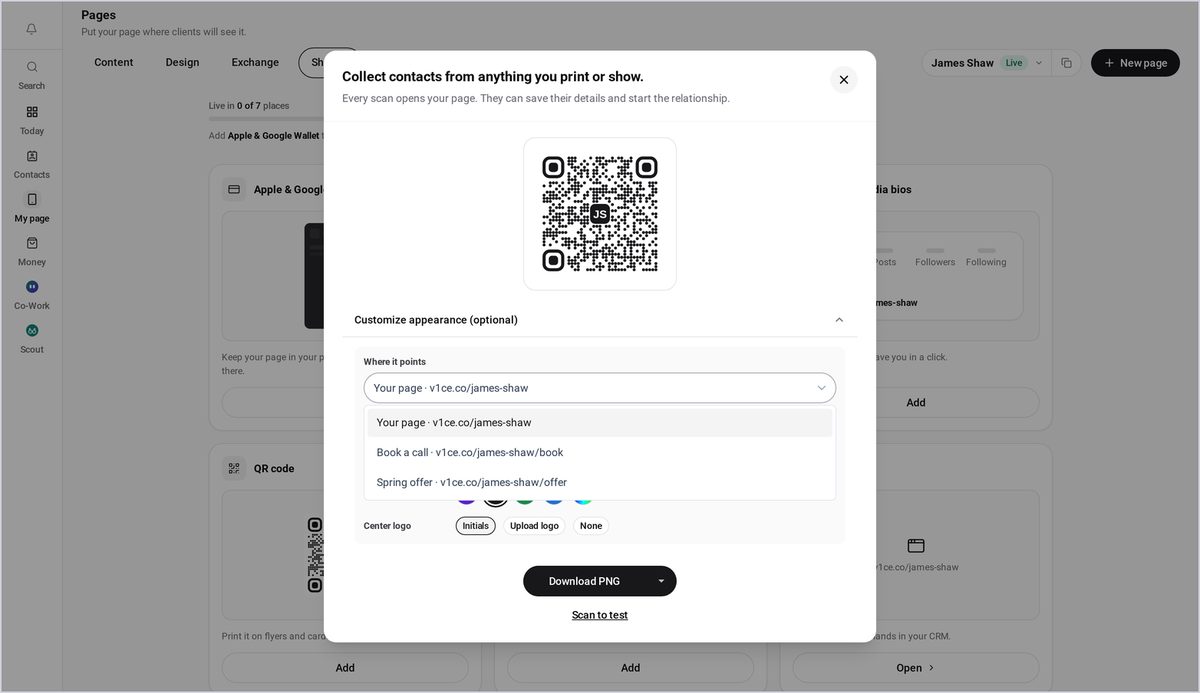
Step 5: Choose a page
Choose which page the code opens. Say, your booking page. The code redraws straight away.
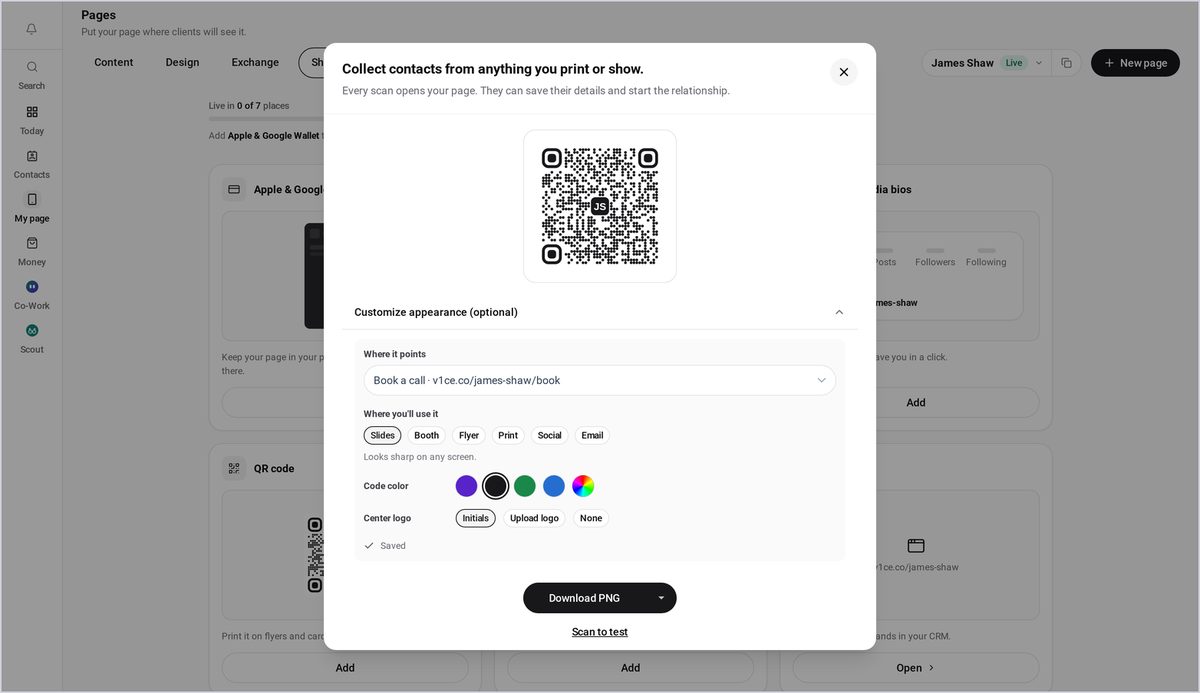
Step 6: Pick a colour
Now pick a colour. Press green, and the whole code turns green.
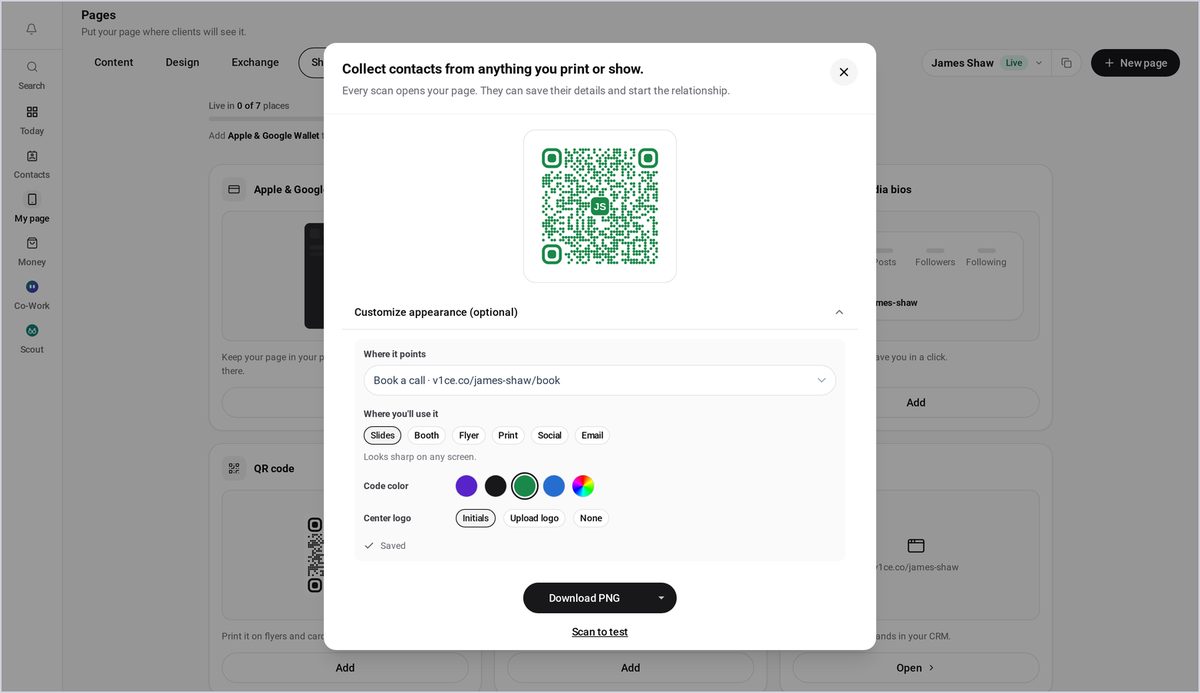
Step 7: Try another colour
Press blue, and it changes again.
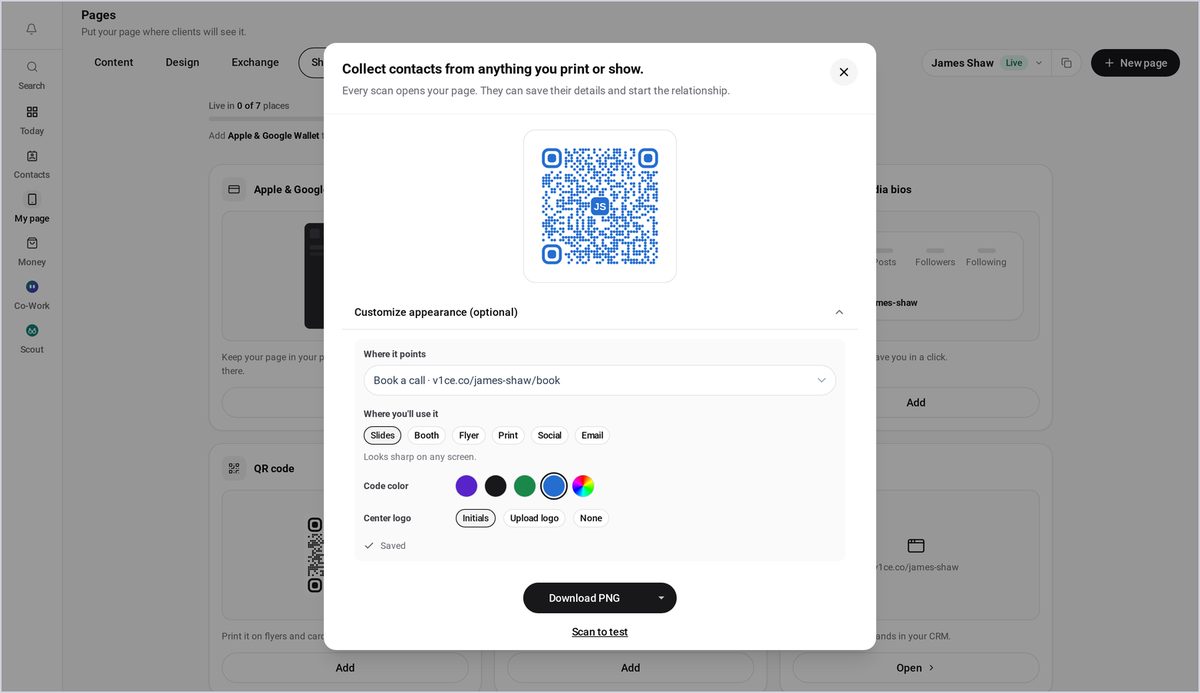
Step 8: Match your brand
Or go back to violet, to match your brand.
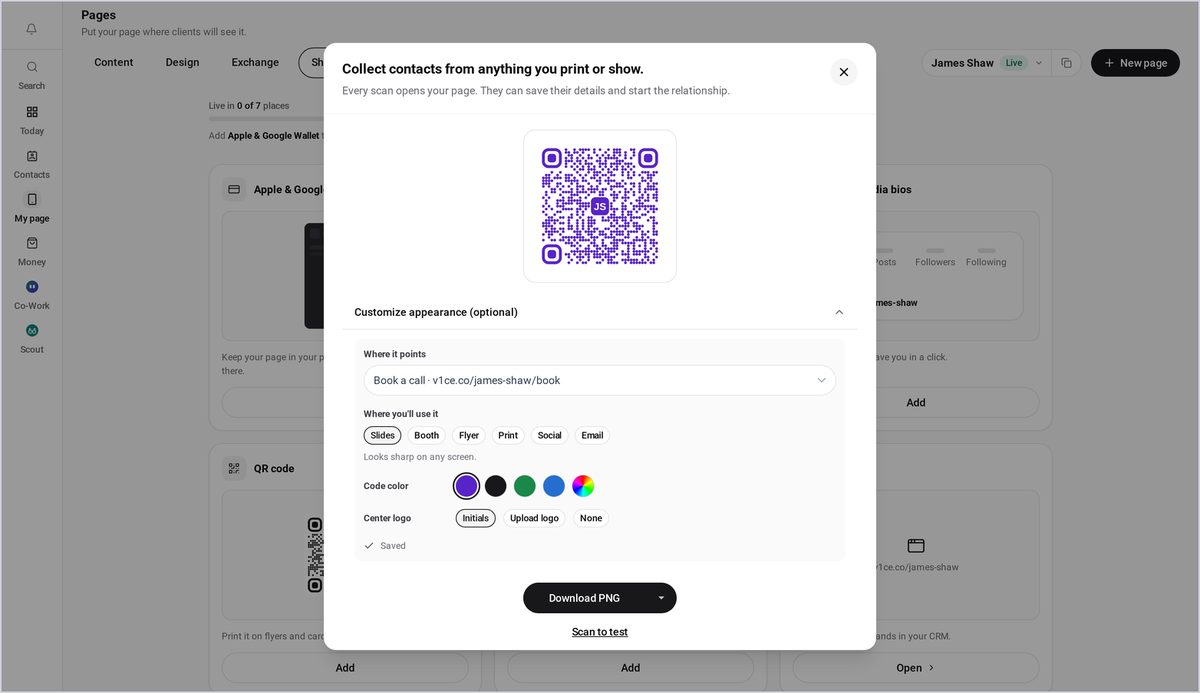
Step 9: Upload your logo
For your own logo in the middle, press Upload logo.
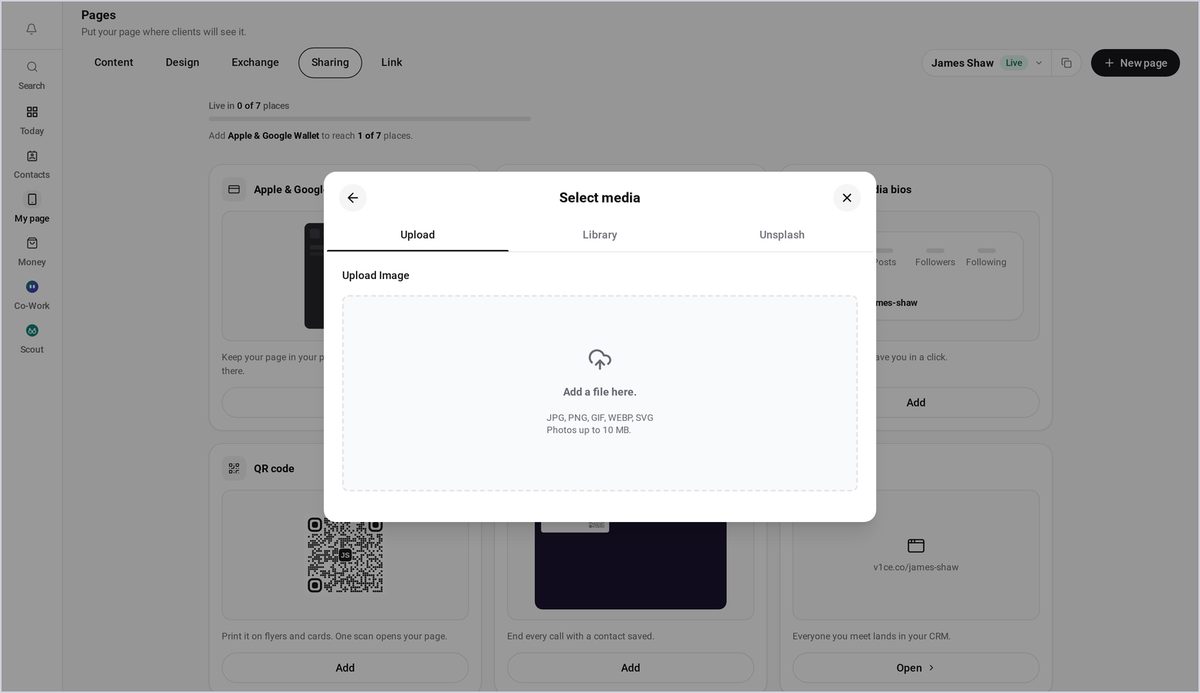
Step 10: Add your logo file
Drop in your logo file, and it sits in the centre of the code.
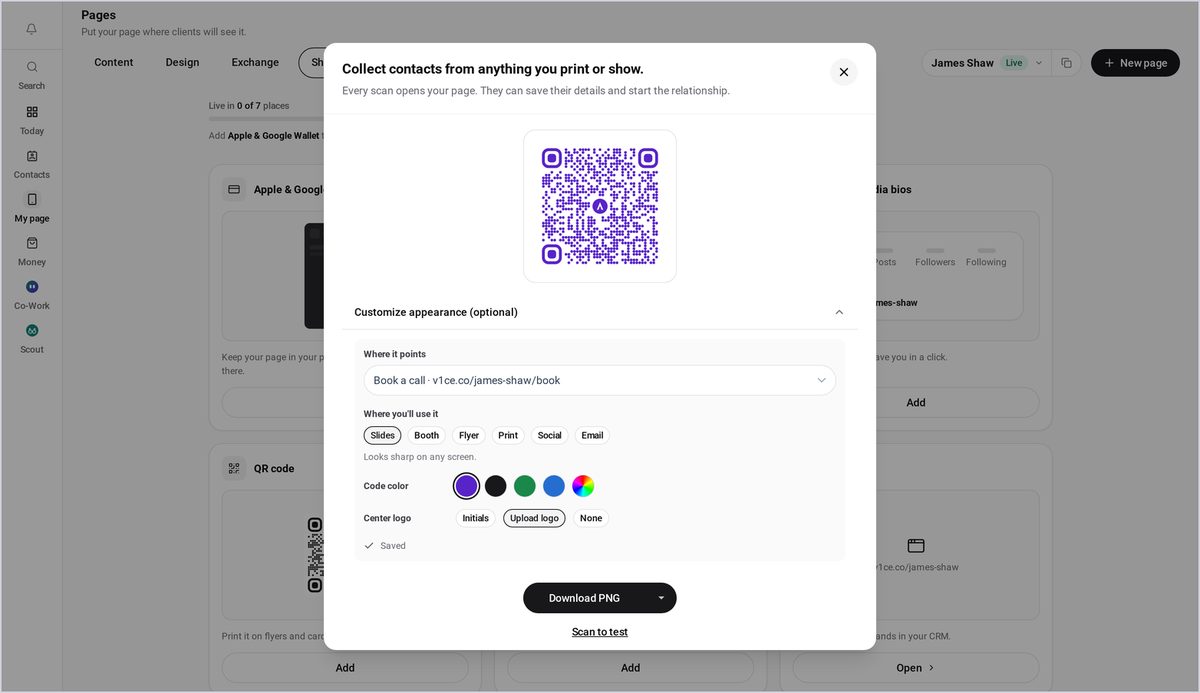
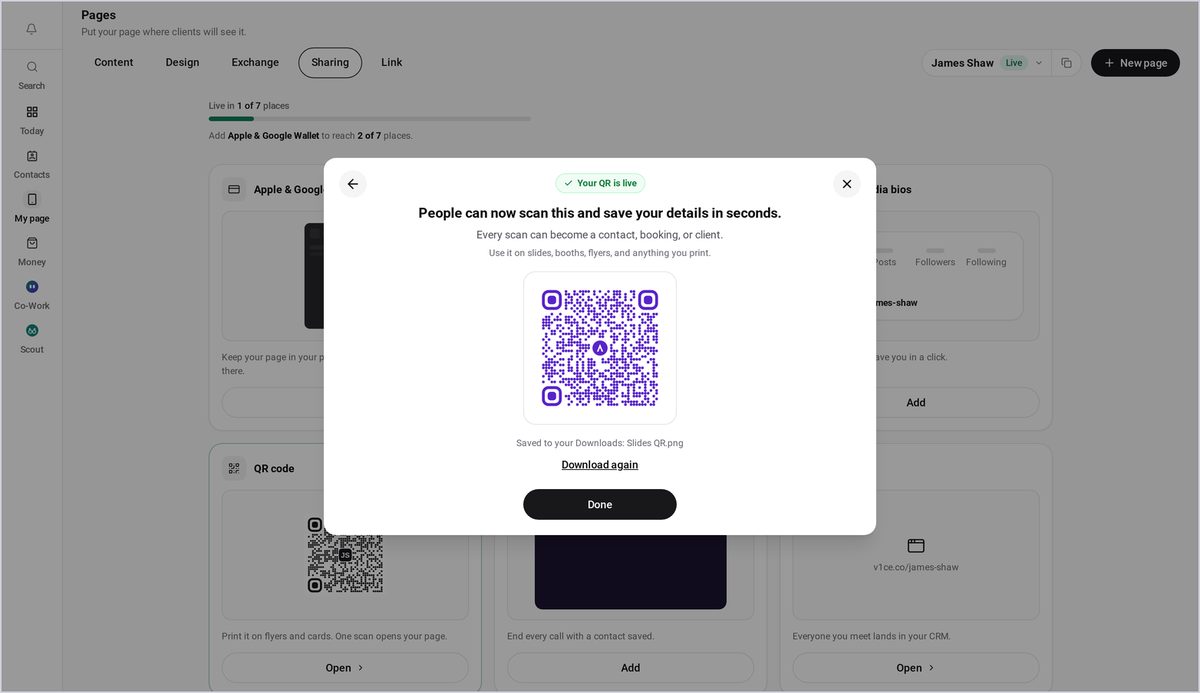
Step 11: Download it
When you're happy, press Download PNG.
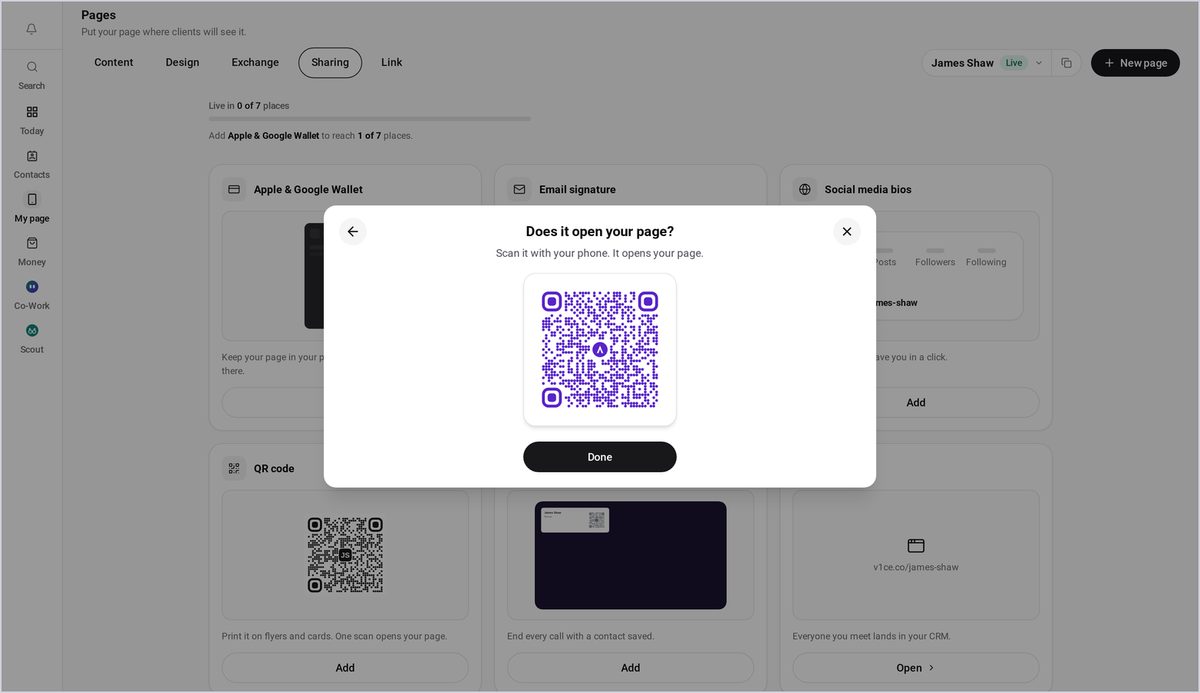
Step 12: Test it, then press Done
You can scan it with your phone to check it opens the right page. Then press Done.
Good to know
- Pick a dark colour so the code scans well.
- Choose where you will use it (slides, flyer, print) and the file is made the right quality.
Frequently asked questions
How do I make a QR code for my V1CE page?
From My page, open Pages, then select Sharing. Find QR code and press Add.
Can I choose which page it opens?
Yes. Press Customize appearance, then under Where it points choose the page. The code redraws straight away.
Can I add my logo?
Yes. Press Upload logo and drop in your logo file. It sits in the centre of the code.
Which colour scans best?
Pick a dark colour so the code scans well.