How to embed your V1CE page on your website

To embed V1CE on your website, open My page, then Pages and the Sharing tab. Open the Your website card, choose a style, click Copy code and paste it into your website editor. Visitors can then save your details straight into your contacts.
| Time needed | 1 minute |
|---|---|
| What you need | Your V1CE account and access to your website editor |
| Where in the app | My page > Pages > Sharing > Your website |
Video transcript and chapters
Chapters
0:00 Introduction
0:13 Open Sharing
0:18 Open Your website
0:23 Choose a style
0:35 Copy the code
0:40 Paste it into your site
0:47 You're done

Transcript
Add your V1CE form to your own website so visitors can save your details and land straight
in your contacts.
You copy a short piece of code from V1CE and paste it into your website.
Click My Page, then Pages, and click the Sharing tab at the top of the page.
Scroll down to the Your Website card and click Open.
A window opens with a preview.
Click the arrow next to Copy Code to see your options.
Pop-up button suits most sites.
Form on the page sits right in your page.
Click the one you want and the preview updates.
Click Copy Code to copy the embed code.
You'll see a message saying the code is copied.
Now head to your website editor and paste in the embed.
Back in V1CE, click It's On My Site.
That's how to embed your page.
Add your V1CE form to your own website, so visitors can save your details and land straight in your contacts.
You copy a short piece of code from V1CE and paste it into your website.
Watch the video
Follow the steps
Step 1: Open My page
Click My page, then Pages, and click the Sharing tab at the top of the page.
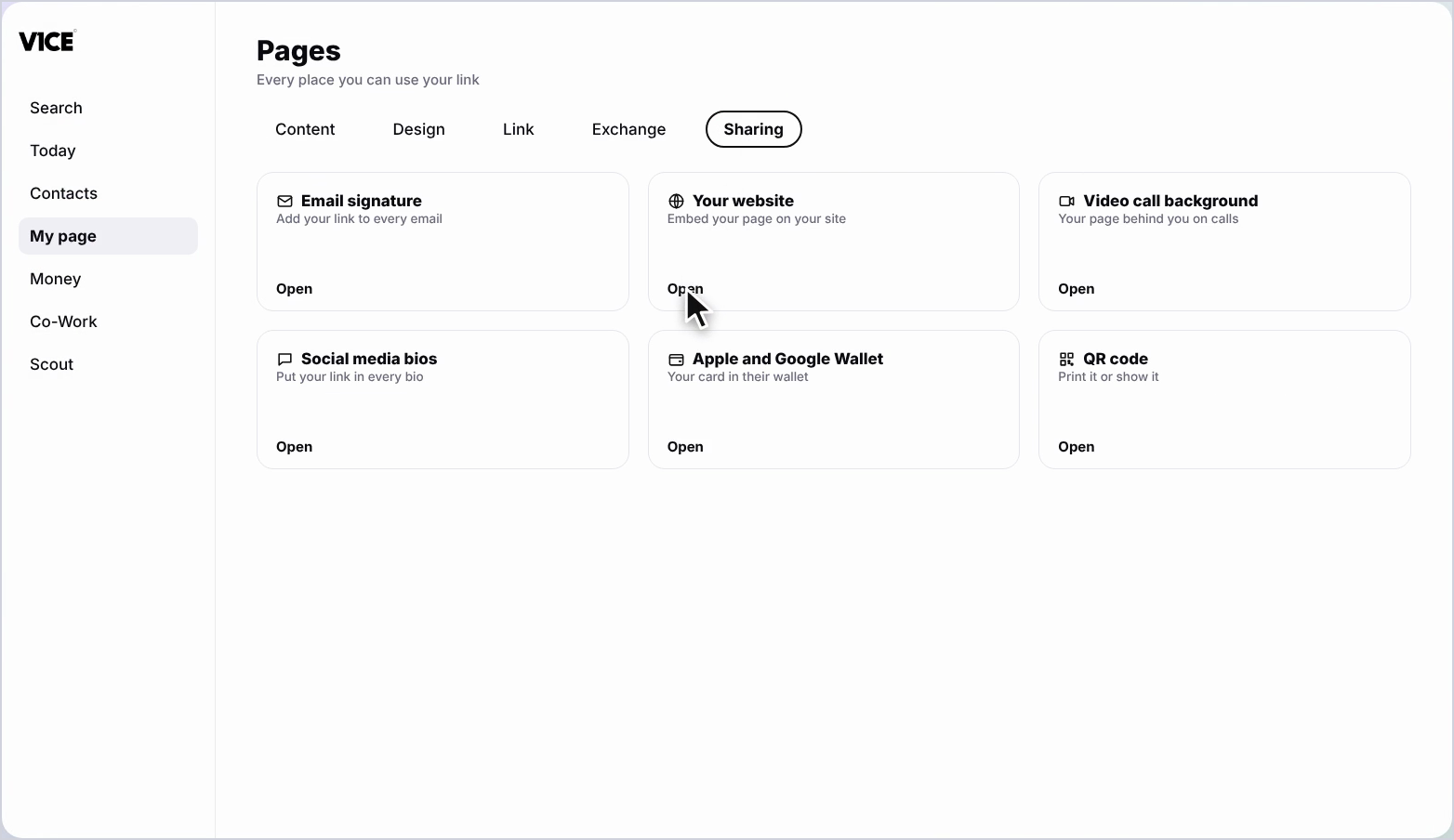
Step 2: Open Your website
Scroll down to the Your website card and click Open.
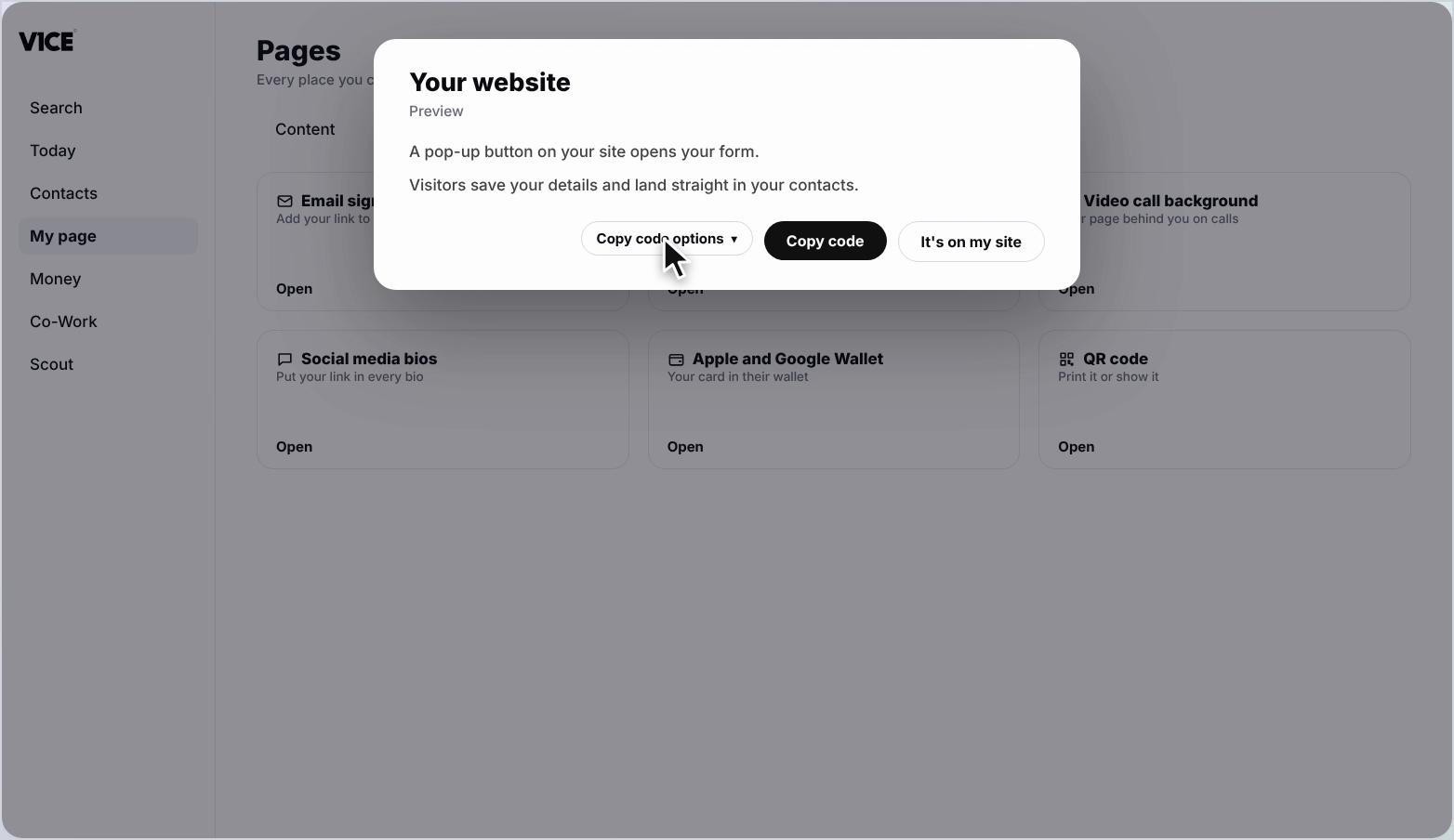
Step 3: Open the embed options
A window opens with a preview. Click the arrow next to Copy code to see your options.
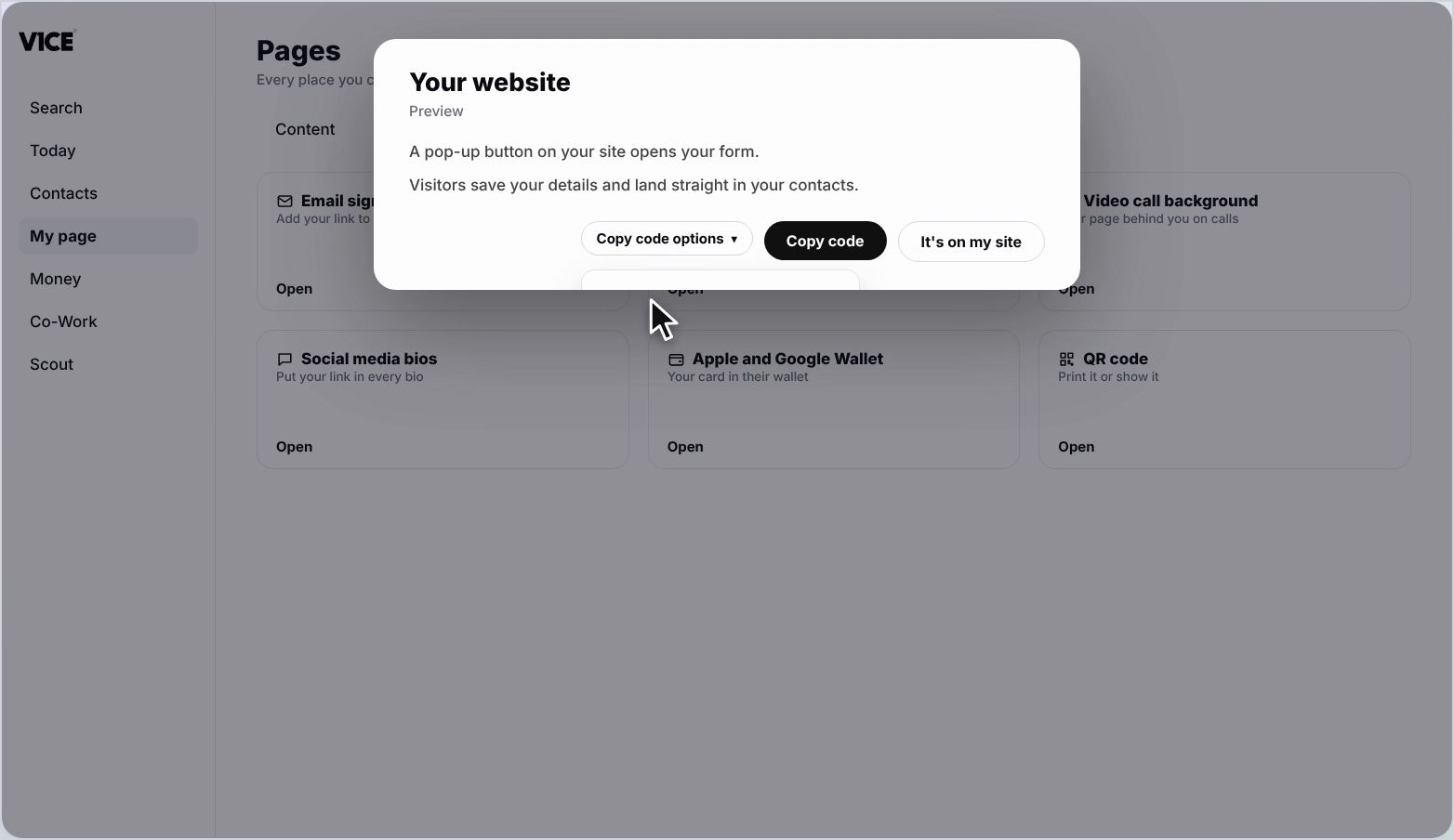
Step 4: Choose a style
Pop-up button suits most sites. Form on the page sits right in your page. Click the one you want and the preview updates.
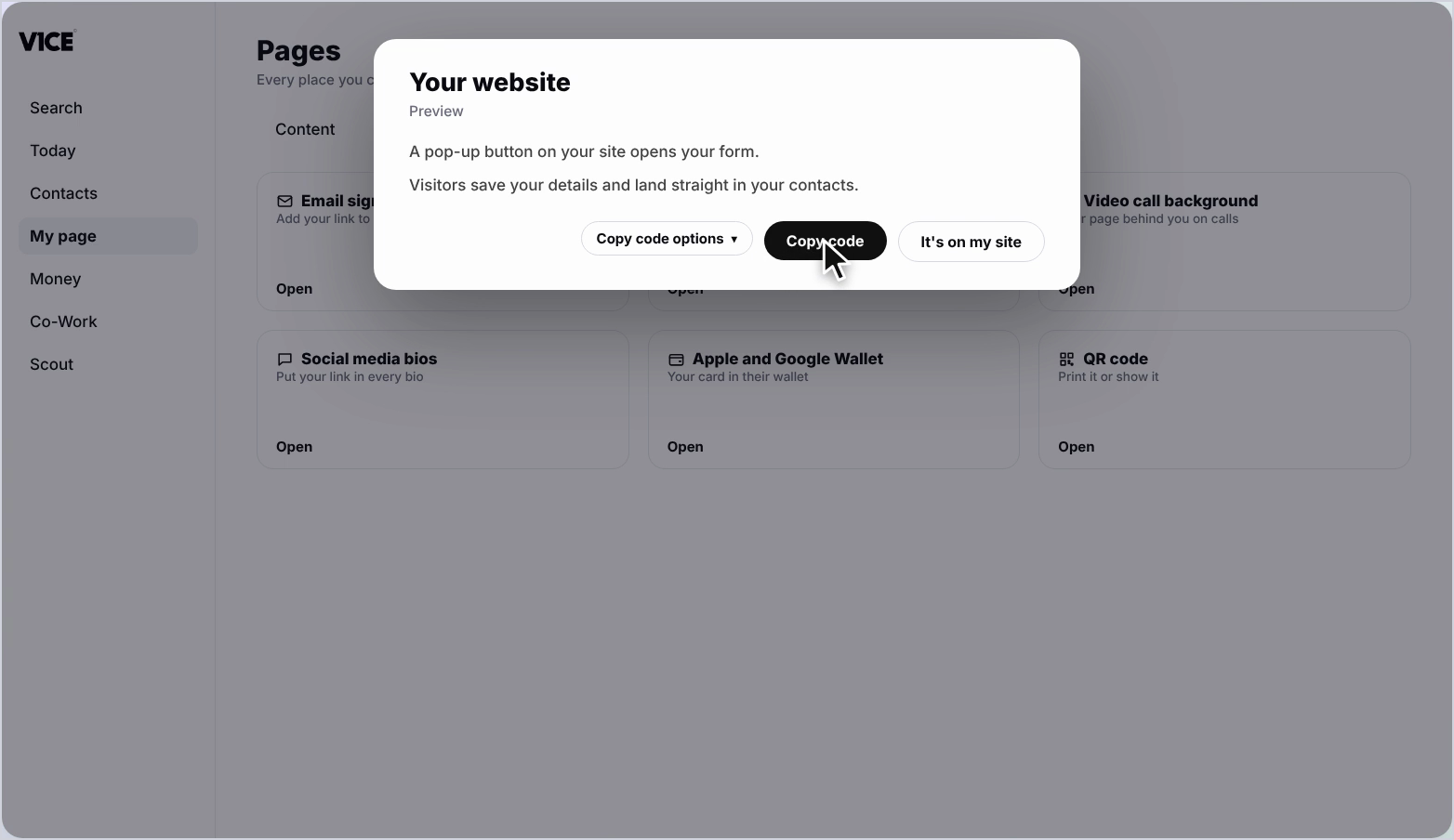
Step 5: Copy the code
Click Copy code to copy the embed code. You'll see a message saying the code is copied.
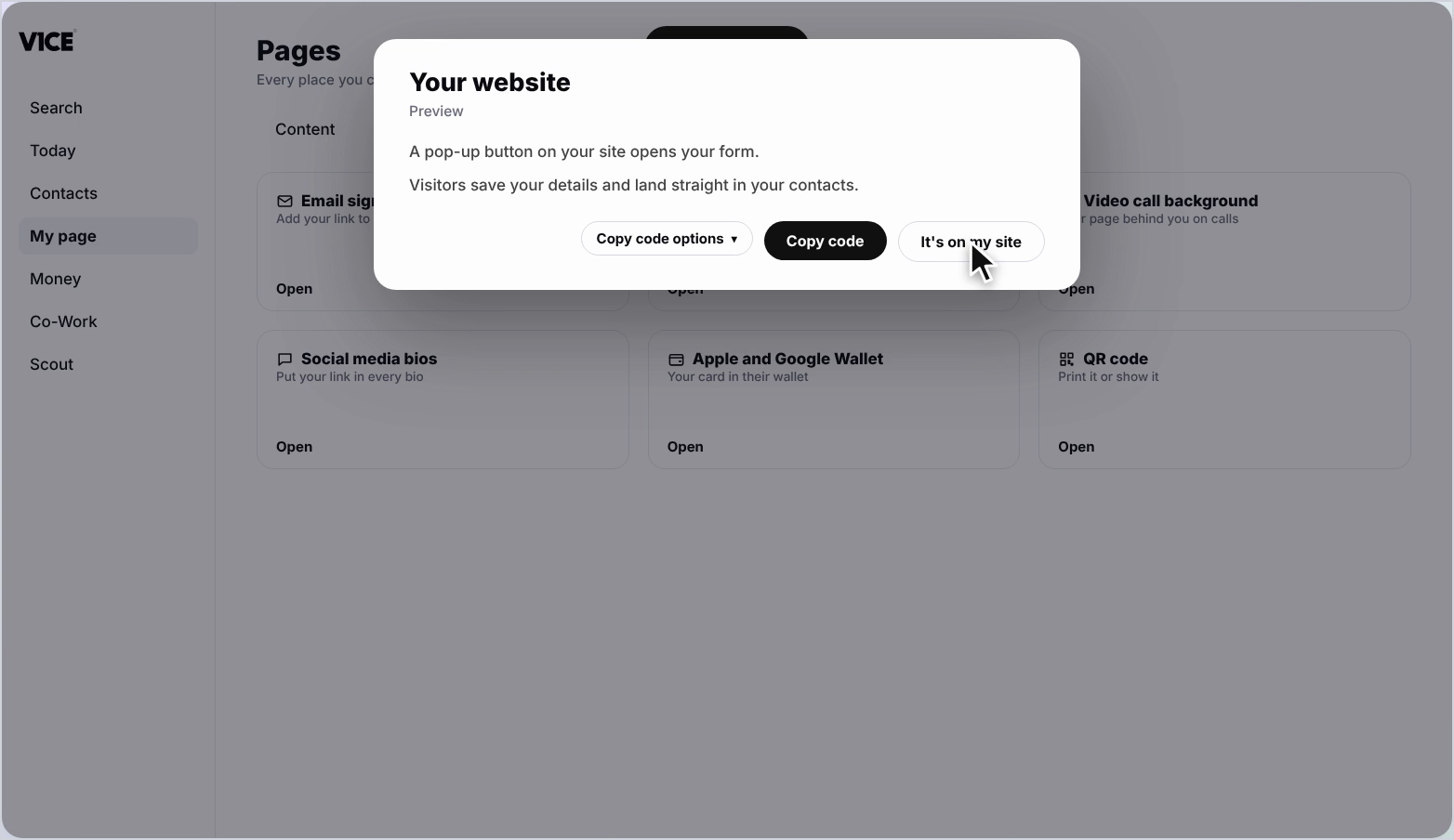
Step 6: Paste it into your site
Now head to your website editor and paste in the embed. Back in V1CE, click It's on my site.
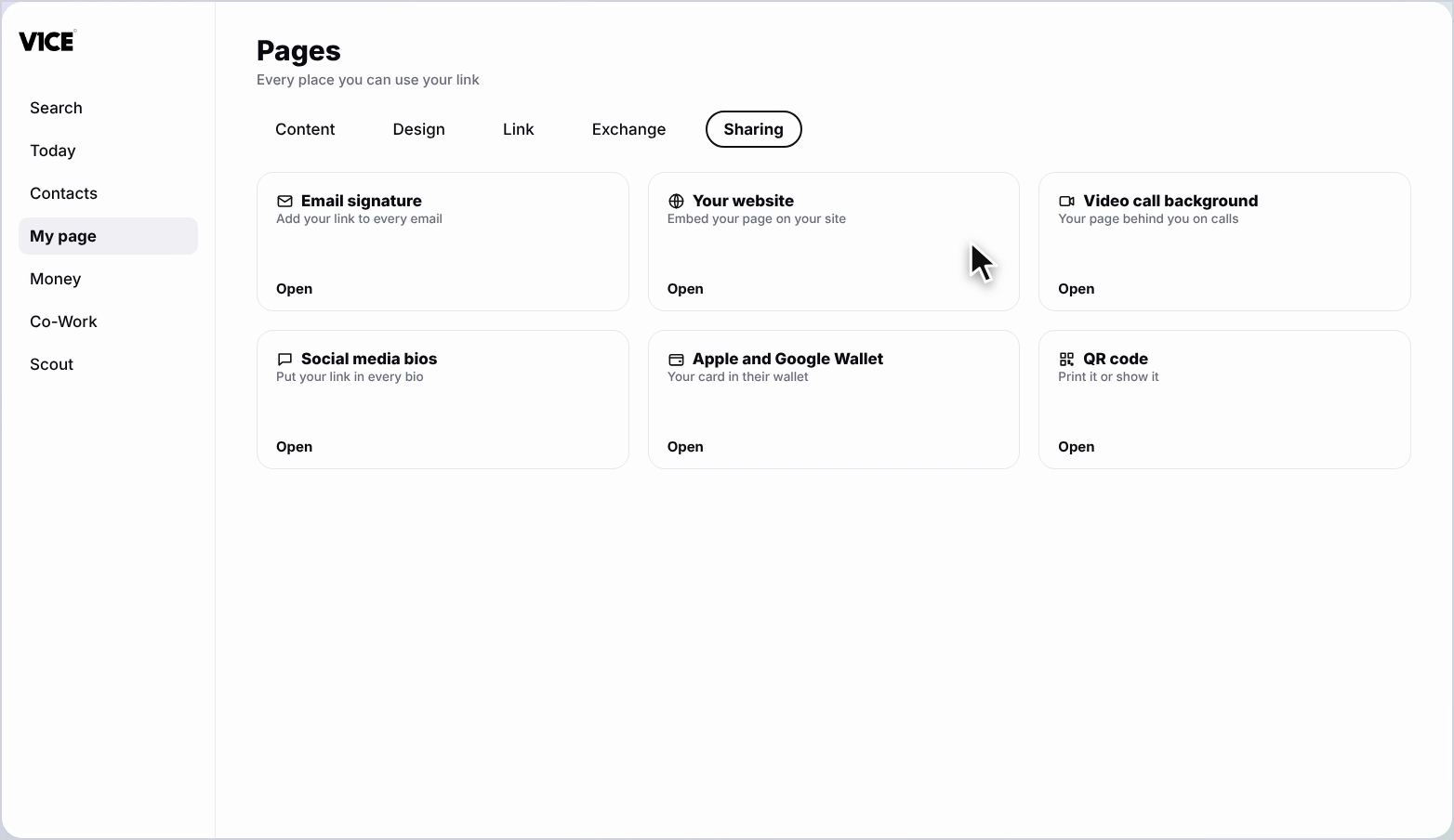
Frequently asked questions
How do I embed my V1CE form on my website?
Open the Your website card in Pages, then Sharing. Choose a style, click Copy code and paste the code into your website editor.
What embed styles are there?
Pop-up button, which suits most sites, and Form on the page, which sits right in your page.
What happens when a visitor uses the form?
Visitors can save your details and land straight in your contacts.