How to edit your V1CE page

To edit your V1CE page, open My page, then Pages. Click About you to update your photo, name, job title and contact card, click any block to change what it shows, and use the Design tab to pick a look. Changes save automatically.
| Time needed | 2 minutes |
|---|---|
| What you need | Your V1CE account |
| Where in the app | My page > Pages |
Video transcript and chapters
Chapters
0:00 Introduction
0:13 Open My page
0:18 Open About you
0:22 Update your details
0:37 Review your blocks
0:46 Edit a block
0:54 Choose a design
1:00 Check it has saved
1:04 You're done

Transcript
You edit your V1CE page from one place, pages in your account.
Change the details you share, edit the blocks on your page and change how it looks.
Changes save automatically.
Click my page in the menu, then Pages, this is where you edit your page.
Click the About You card at the top of the page.
Update your photo, name, job title, company and bio.
Scroll down to change the phone numbers, emails, websites and address on your contact card.
Click the back arrow when you are done. Your changes save automatically.
Scroll below about you to see your blocks.
Click Add a block at the bottom to add a new one and use the switch on the right of a block to show or hide it.
Click any block to change what it shows.
Update the title, photos, descriptions or links, then click the back arrow.
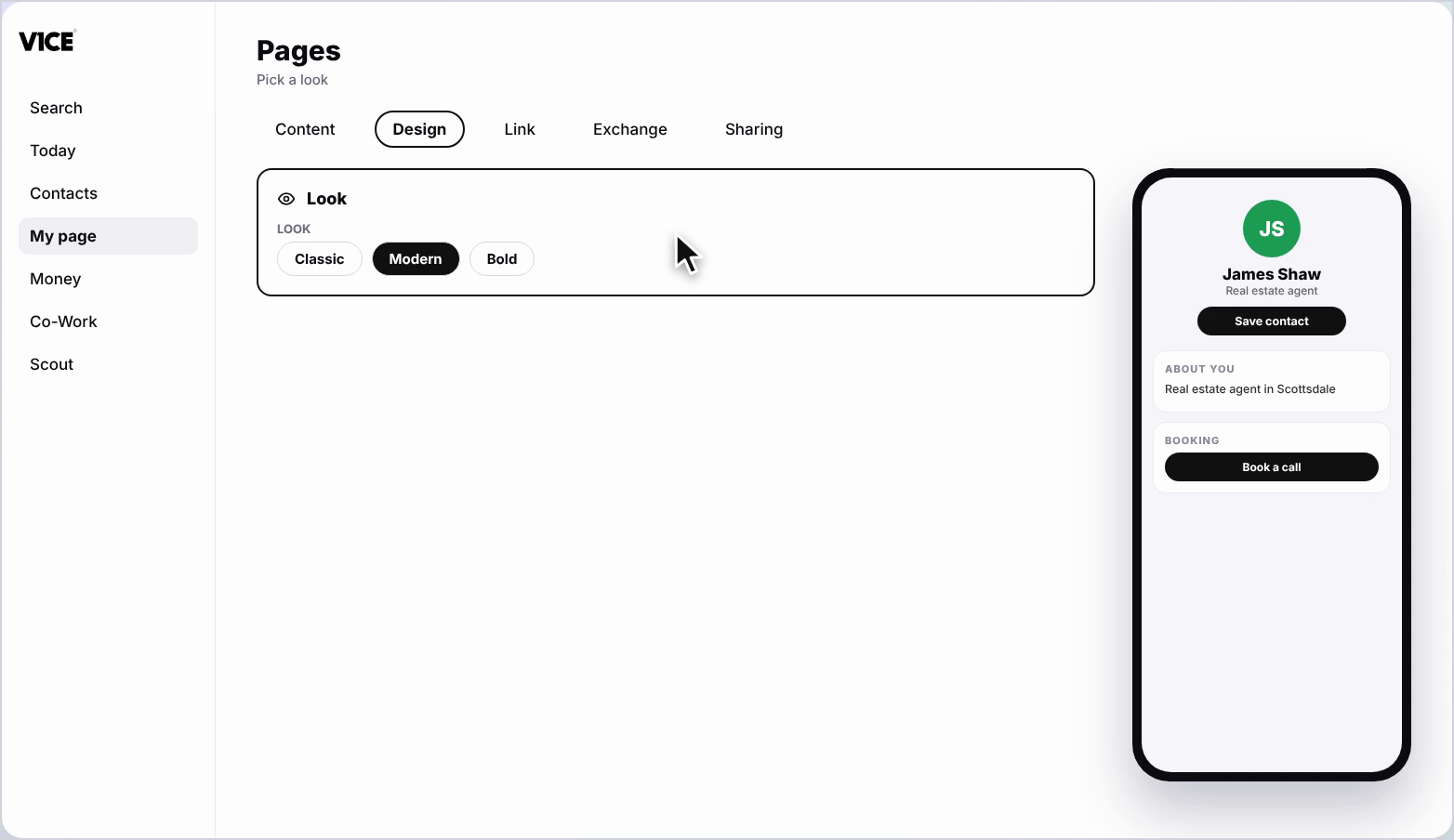
Click the Design tab and pick a look for your page, the preview updates straight away.
You'll see Saved at the top, there is no Save button to press.
That's how to edit your page.
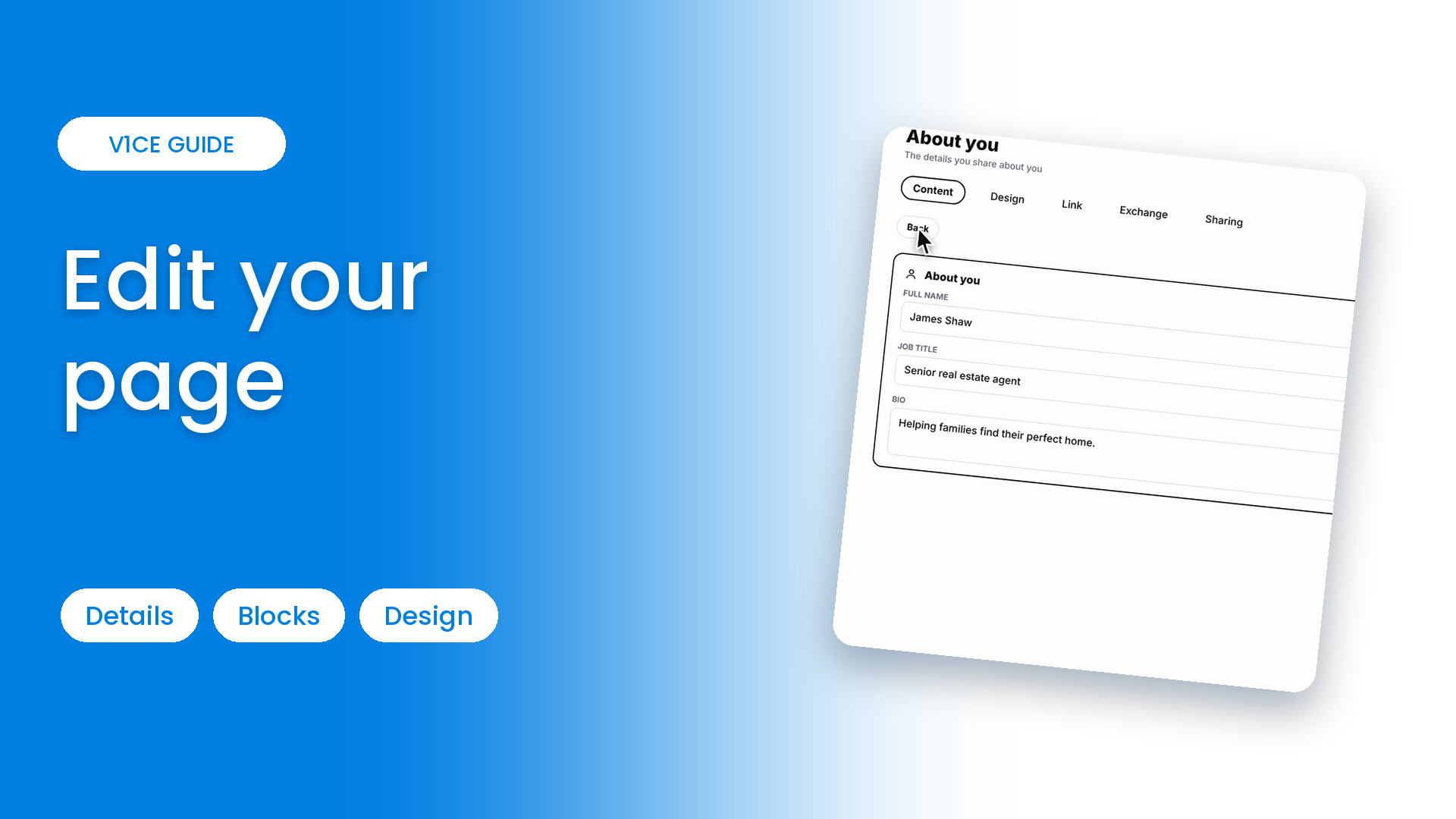
You edit your V1CE page from one place: Pages in your account.
Change the details you share, edit the blocks on your page, and change how it looks. Changes save automatically.
Watch the video
Follow the steps
Step 1: Open My page
Click My page in the menu, then Pages. This is where you edit your page.
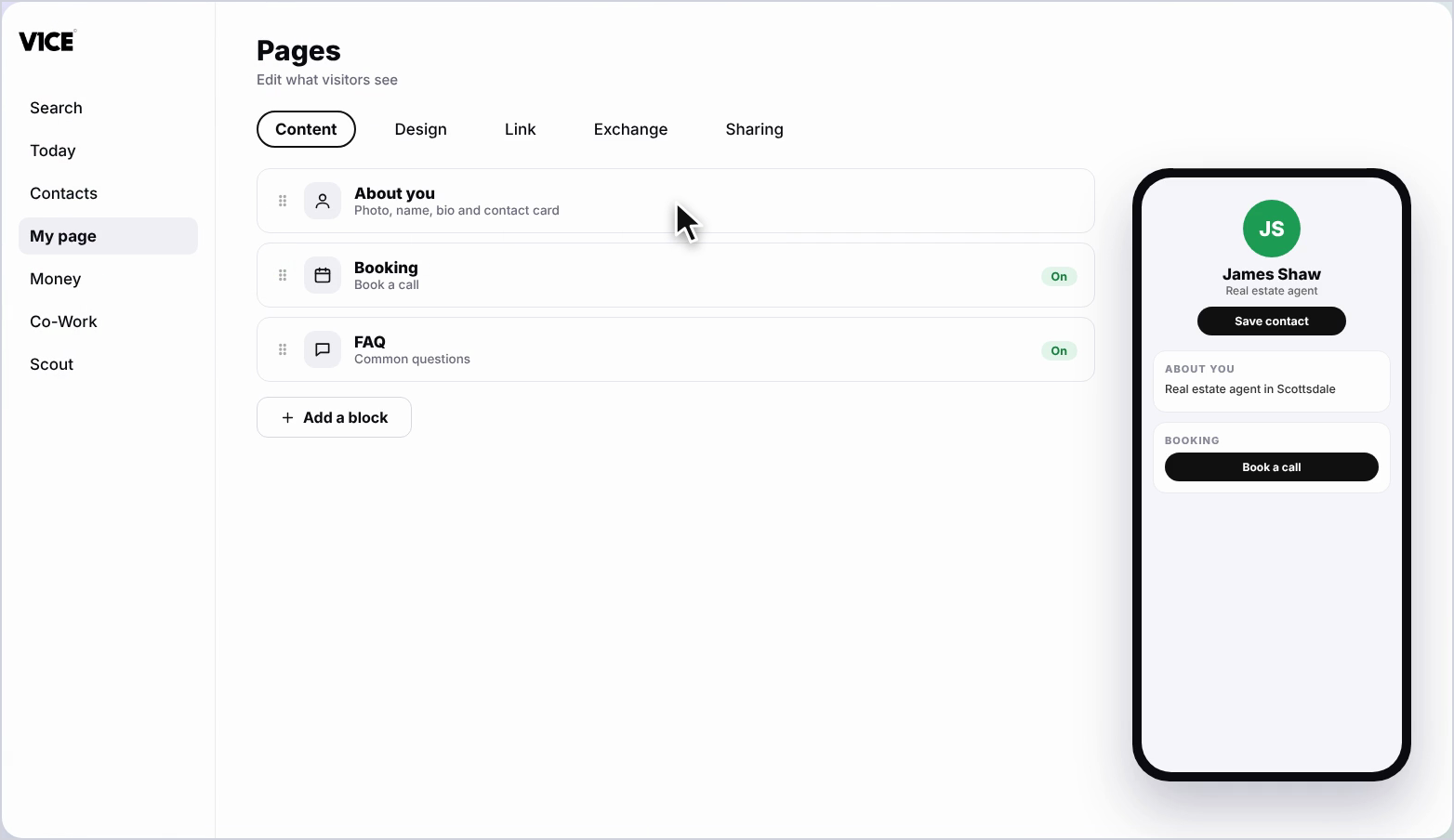
Step 2: Open About you
Click the About you card at the top of the page.
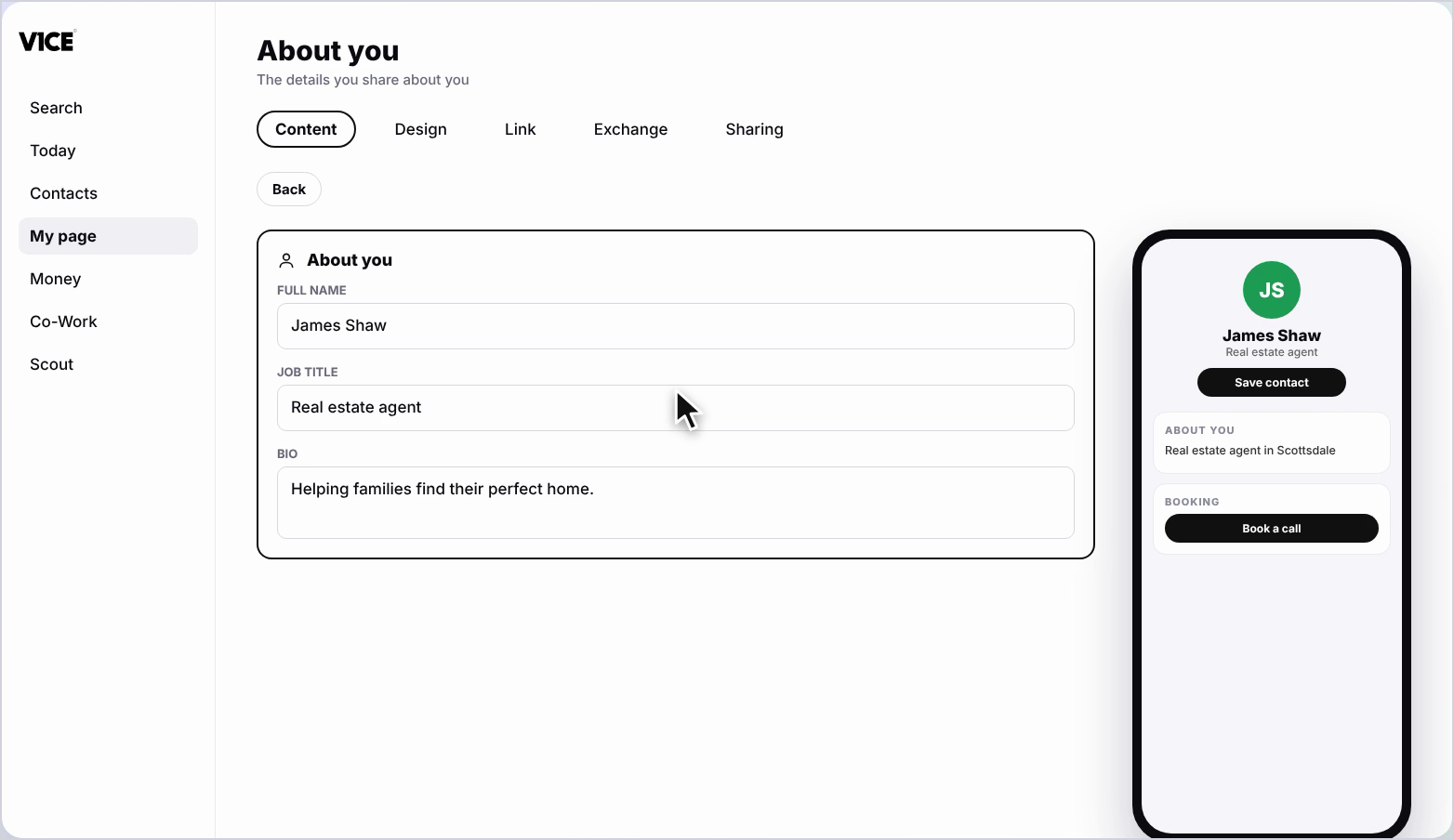
Step 3: Update your details
Update your photo, name, job title, company and bio. Scroll down to change the phone numbers, emails, websites and address on your contact card.
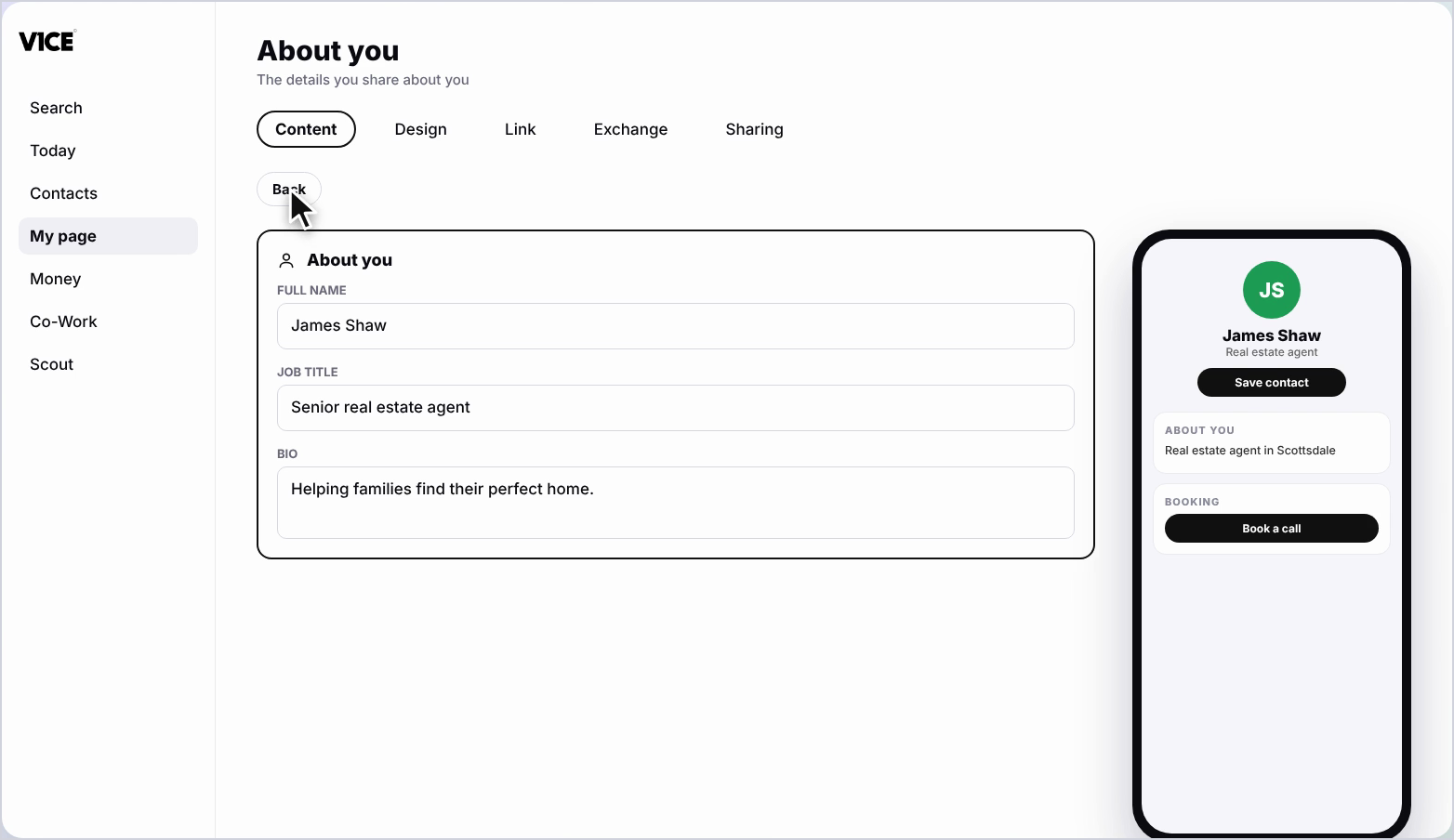
Step 4: Save your changes
Click the back arrow when you are done. Your changes save automatically.
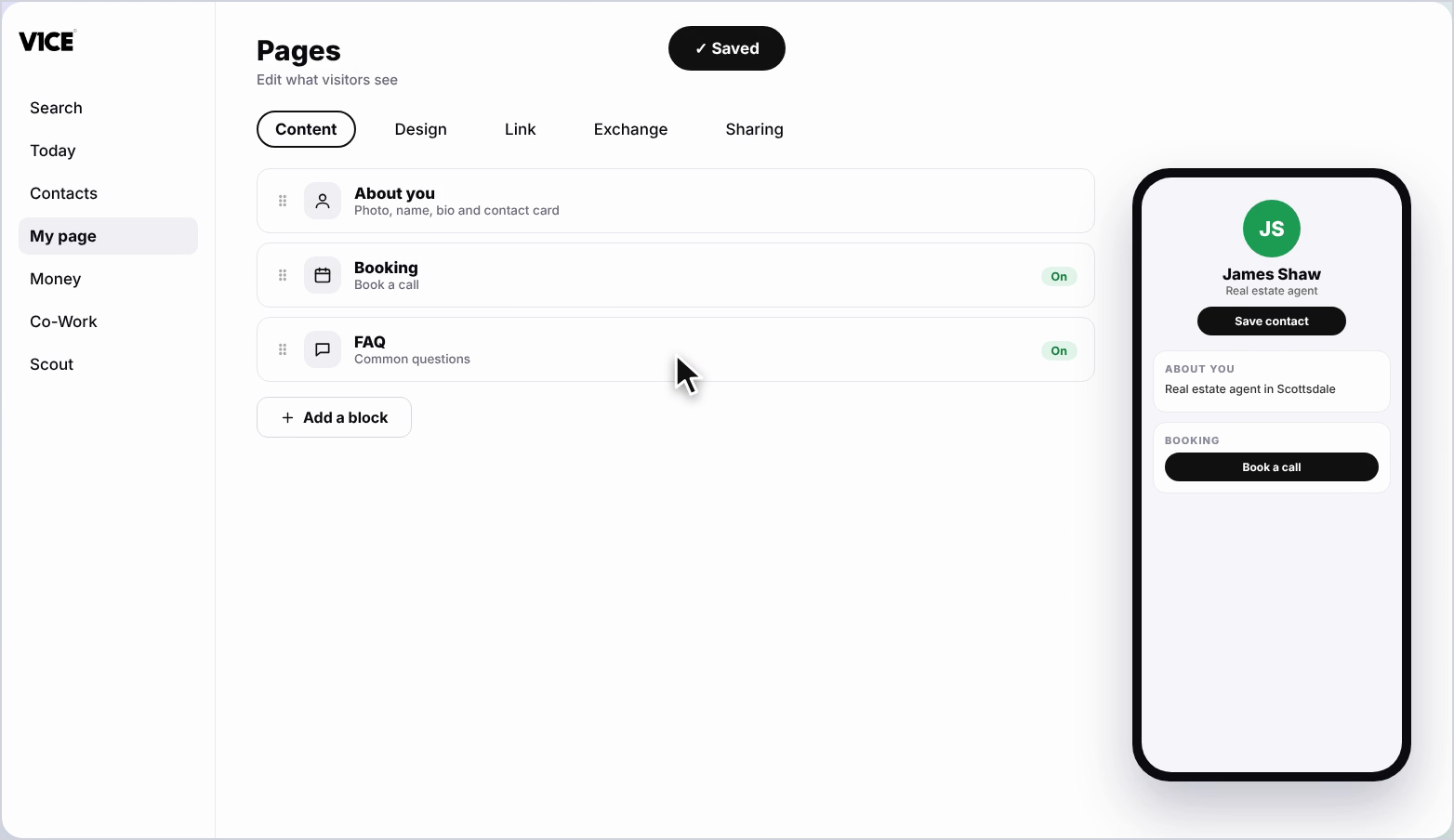
Step 5: Review your blocks
Scroll below About you to see your blocks. Click Add a block at the bottom to add a new one, and use the switch on the right of a block to show or hide it.
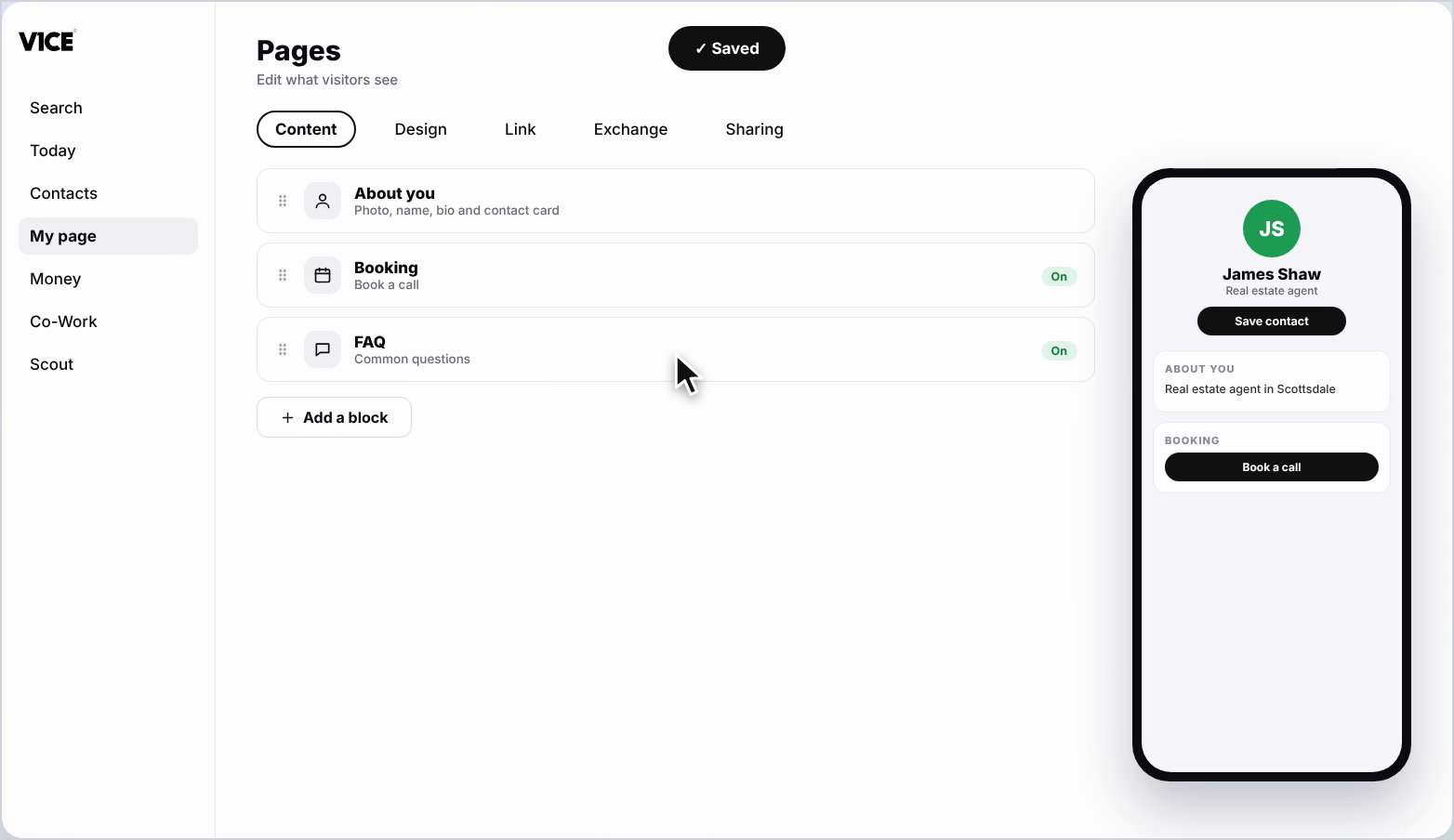
Step 6: Edit a block
Click any block to change what it shows. Update the title, photos, descriptions or links, then click the back arrow.
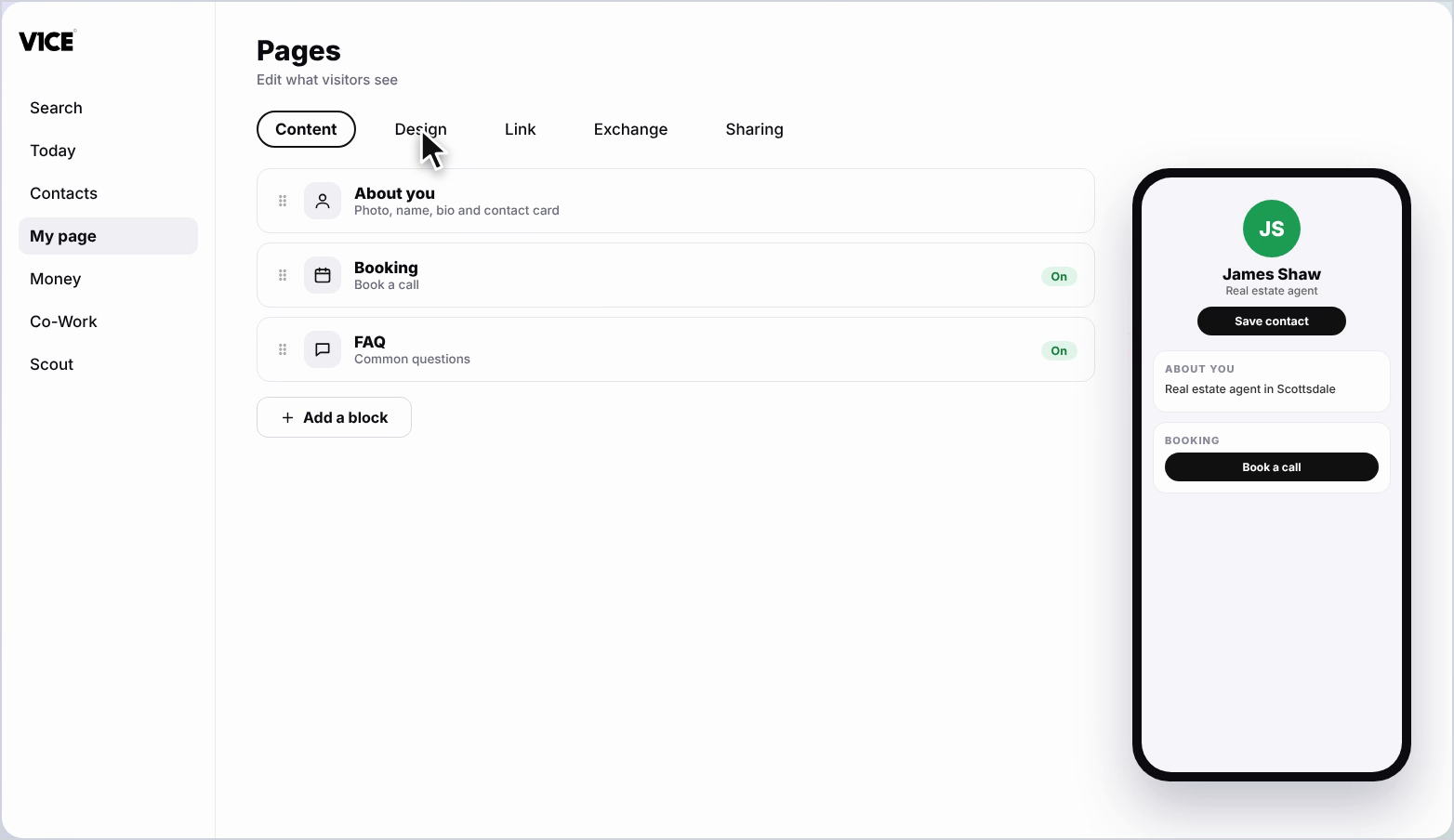
Step 7: Choose a design
Click the Design tab, and pick a look for your page. The preview updates straight away.
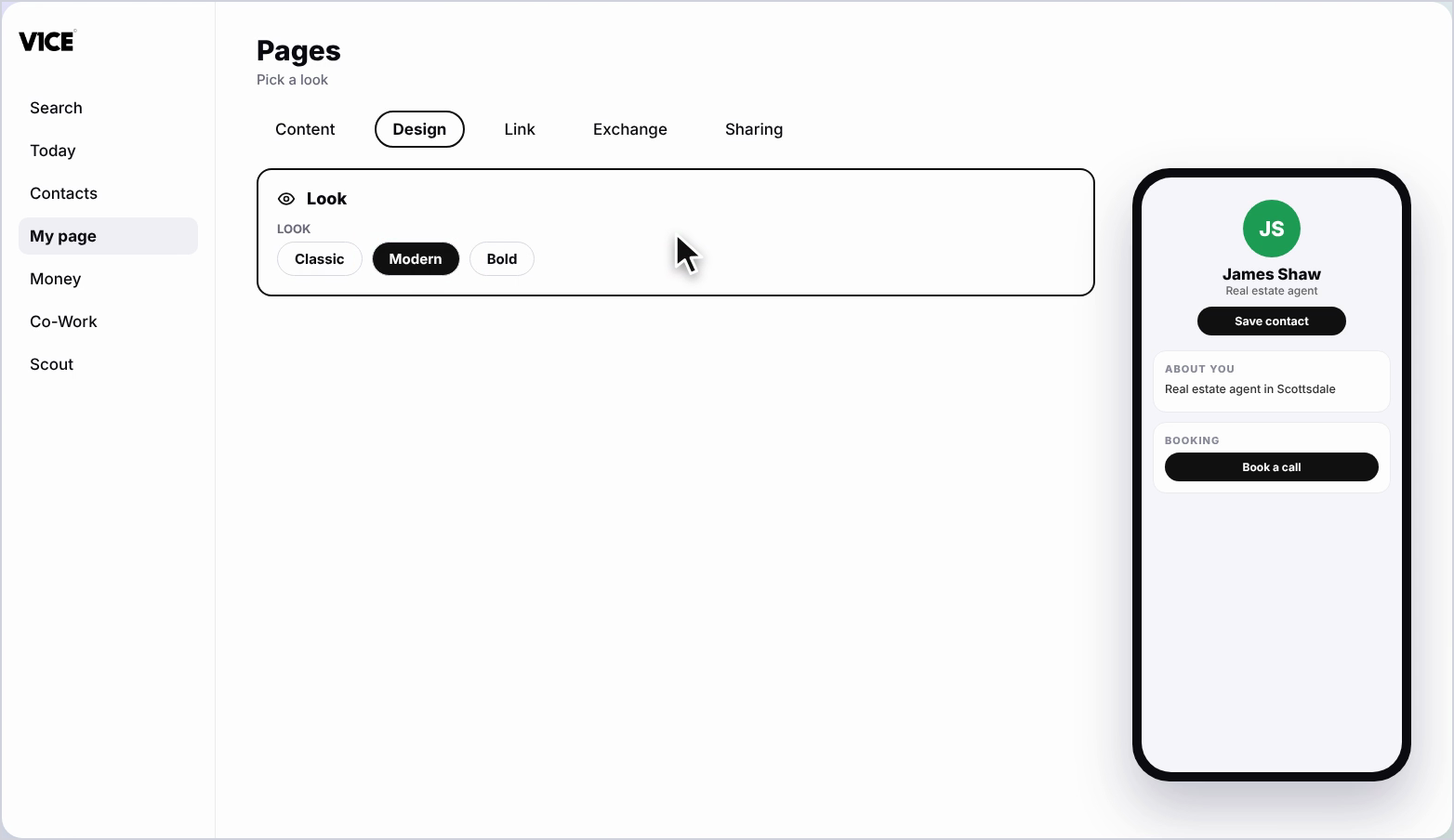
Step 8: Check it has saved
You'll see Saved at the top. There is no save button to press.
Frequently asked questions
Do I need to press save when I edit my page?
No. Changes save automatically, and you'll see Saved at the top of the page. There is no save button to press.
Where do I change my photo, name and bio?
Click My page, then Pages, then the About you card at the top. Update your photo, name, job title, company and bio there.
How do I change my contact card details?
In About you, scroll down to change the phone numbers, emails, websites and address on your contact card.
How do I change how my page looks?
Click the Design tab and pick a look for your page. The preview updates straight away.