What size should my V1CE page images be?

Your V1CE page photo should be square (1 to 1), at least 400 by 400 pixels, in JPG or PNG, and under 5 megabytes. Open My page, then Pages, click About you, remove your photo and upload a new one, or import it from LinkedIn.
| Time needed | 2 minutes |
|---|---|
| What you need | A square JPG or PNG photo, at least 400 by 400 pixels |
| Where in the app | My page > Pages > About you |
Video transcript and chapters
Chapters
0:00 Introduction
0:16 Open About you
0:22 Remove your current photo
0:28 Upload a new photo
0:36 Crop your photo
0:44 See it on your page
0:47 Import from LinkedIn
0:59 You're done

Transcript
Upload a square image one-to-one ratio of at least 400 by 400 pixels in JPG or PNG format.
This keeps your V1CE page photo sharp on every device.
Use a clear headshot or logo under 5 megabytes.
To change your photo, click My Page, then Pages, and click about you at the top of your
page.
Click Remove under your current photo, then click the empty photo box to choose a new
photo.
Use the Upload tab to add your own file, or open the library to choose an image.
Click the image you want to use.
The crop area is fixed.
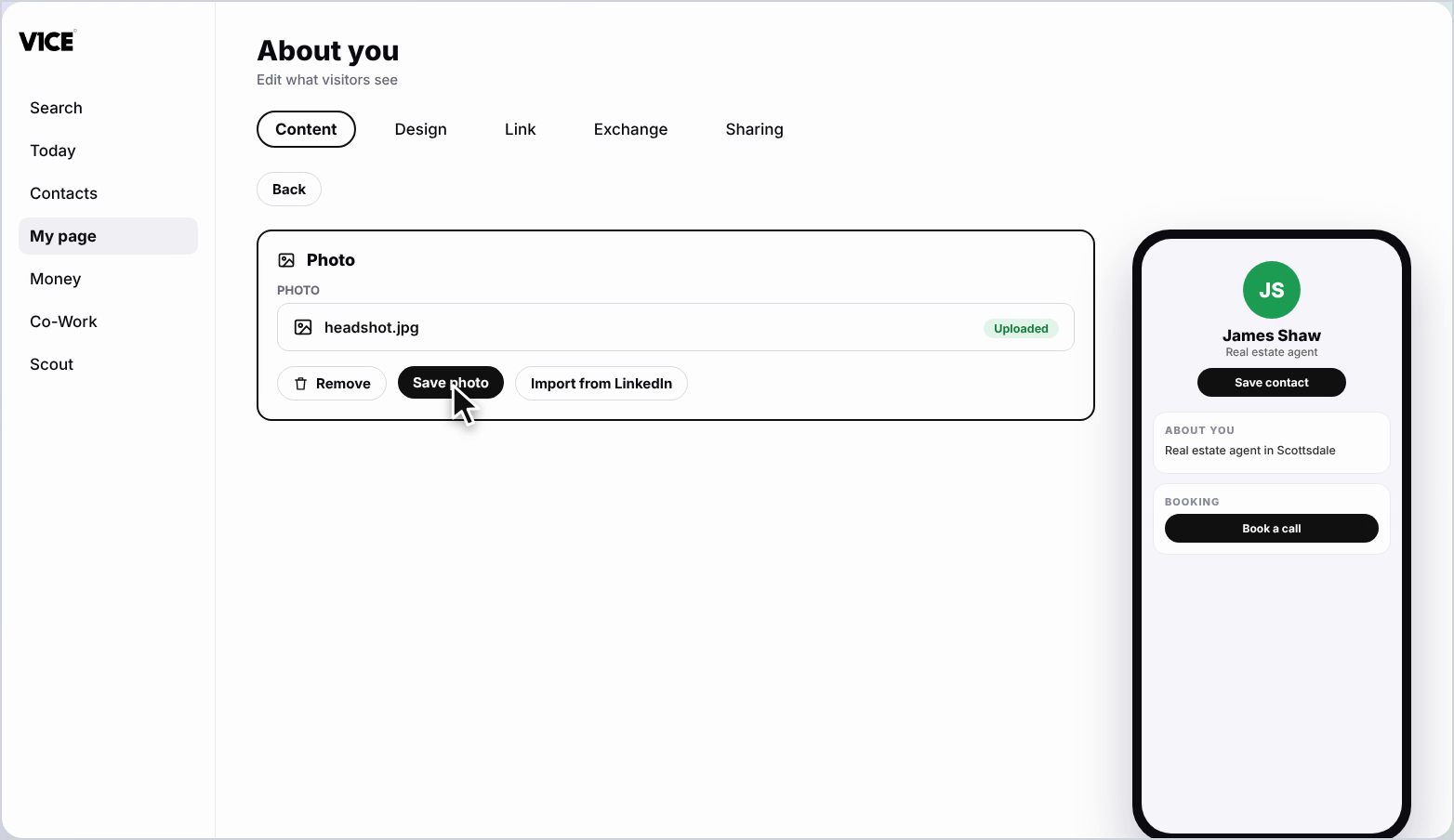
Drag the image to reposition it, or use the slider to zoom, then click Save photo.
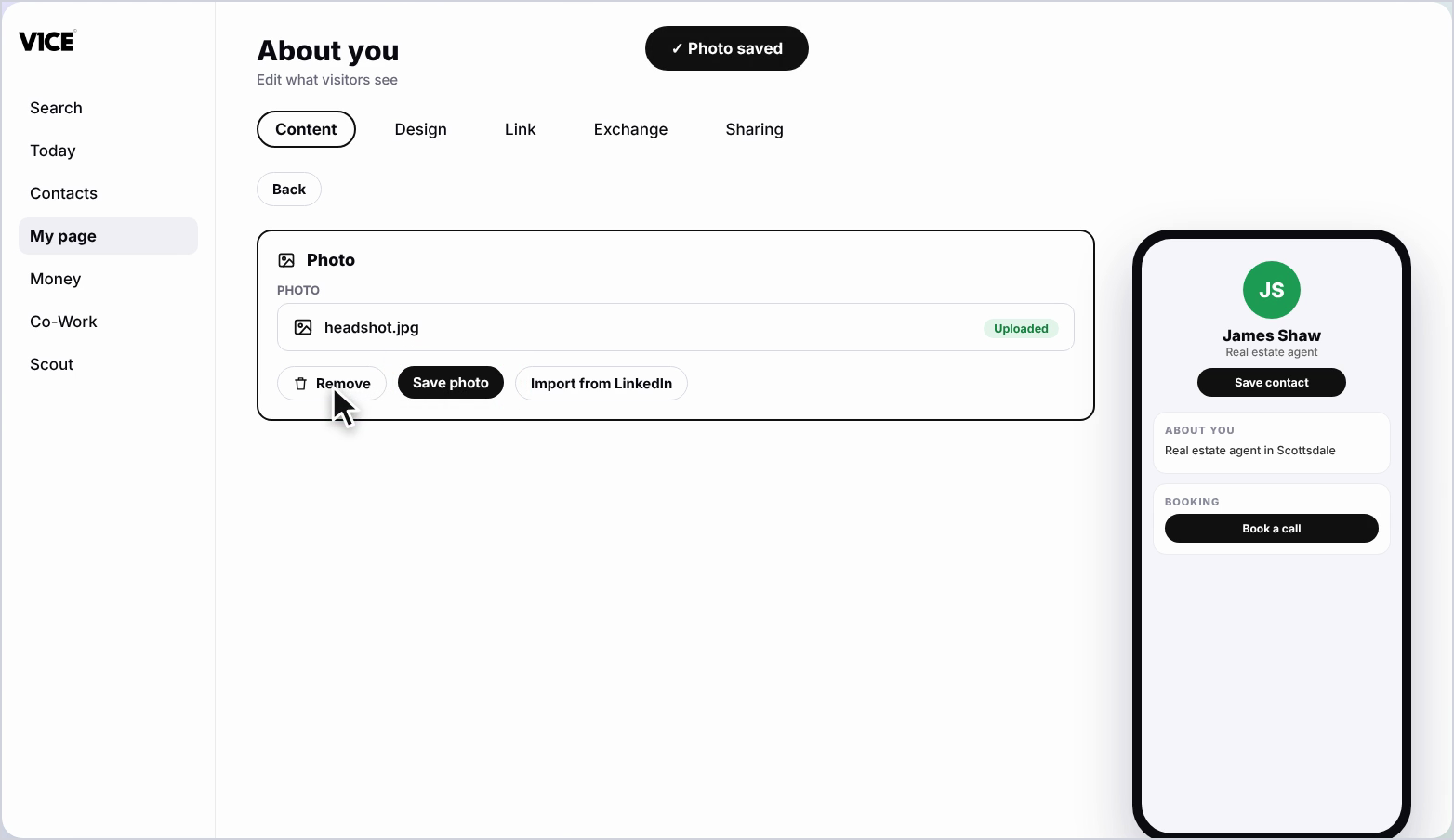
Your new photo now shows on your page.
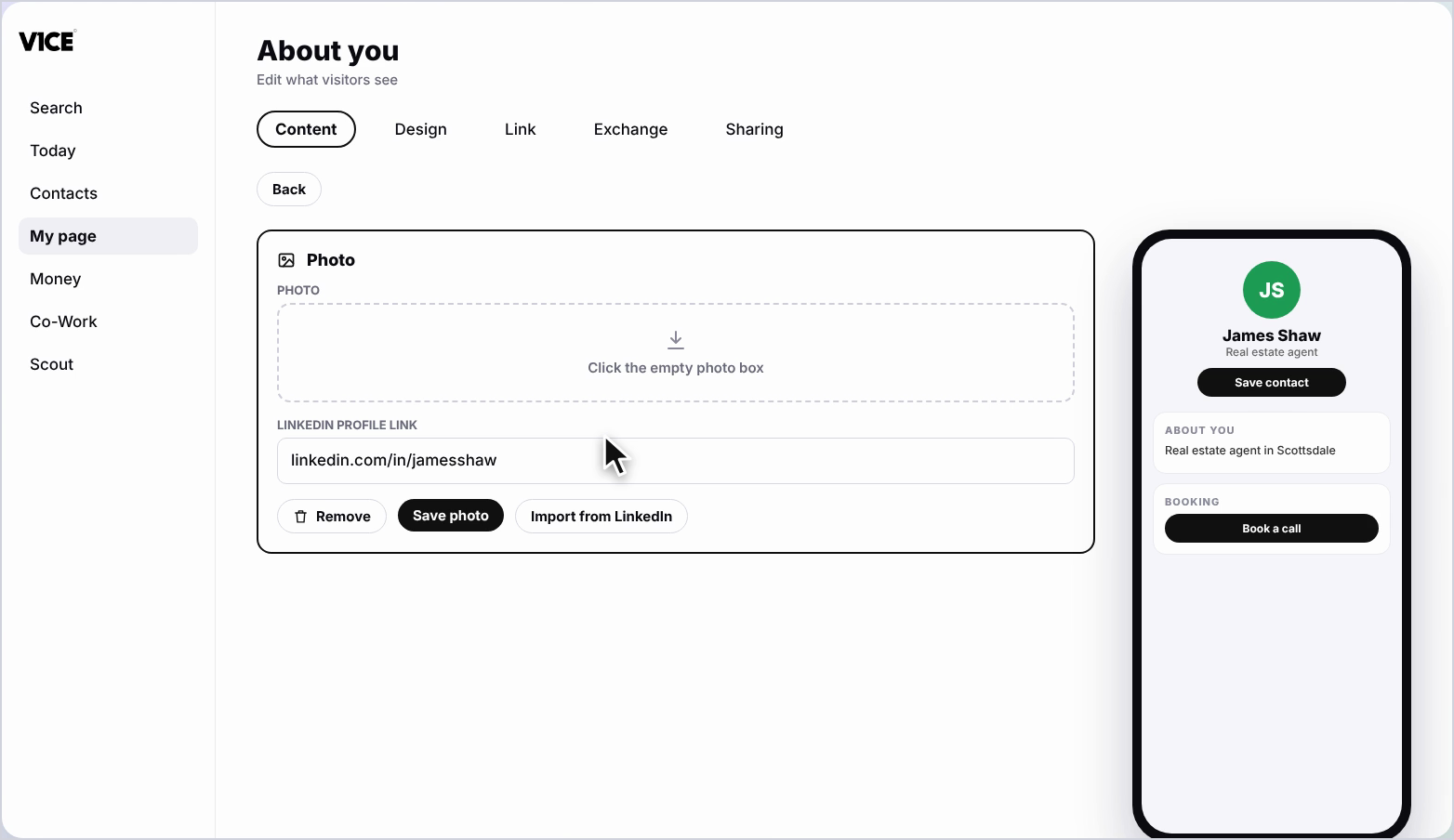
Or with the photo removed, click Import from LinkedIn, paste the link to your profile,
and click Import from LinkedIn again.
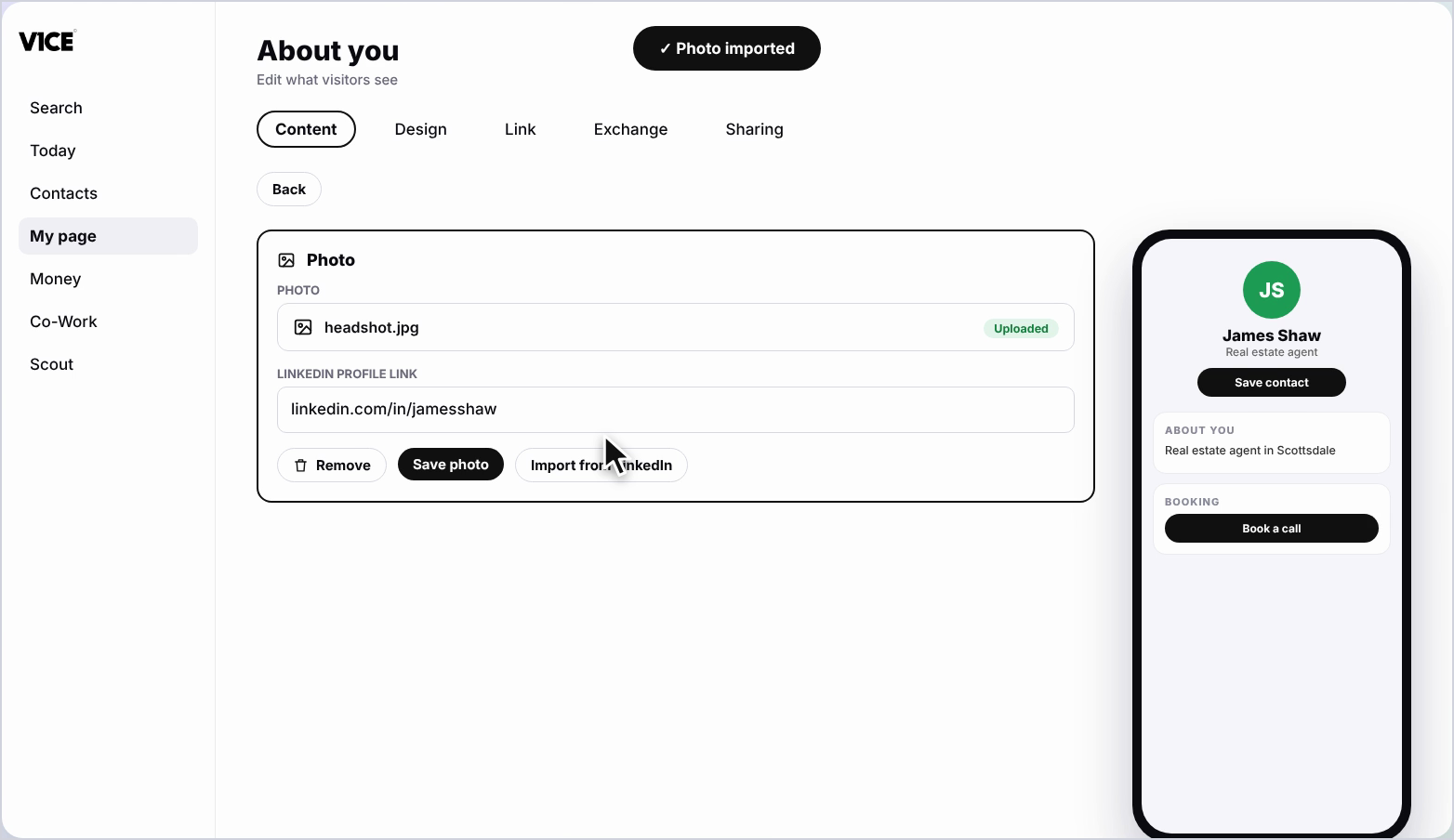
The LinkedIn photo is pulled in and shows on your page.
That's how to choose and change your page photo.
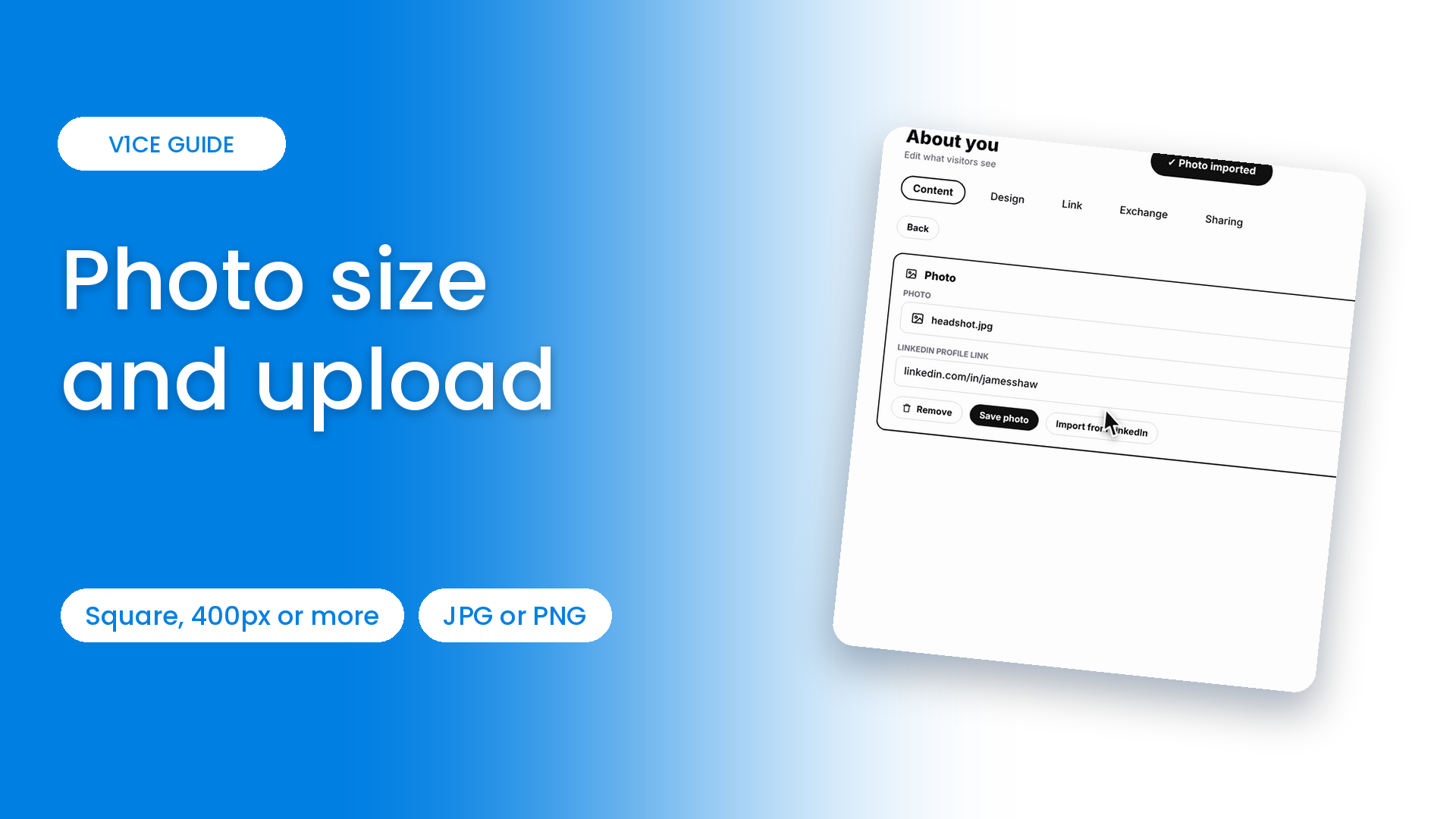
Upload a square image, 1 to 1 ratio, of at least 400 by 400 pixels, in JPG or PNG format.
This keeps your V1CE page photo sharp on every device. Use a clear headshot or logo, under 5 megabytes.
Watch the video
Follow the steps
Step 1: Open About you
To change your photo, click My page, then Pages, and click About you at the top of your page.
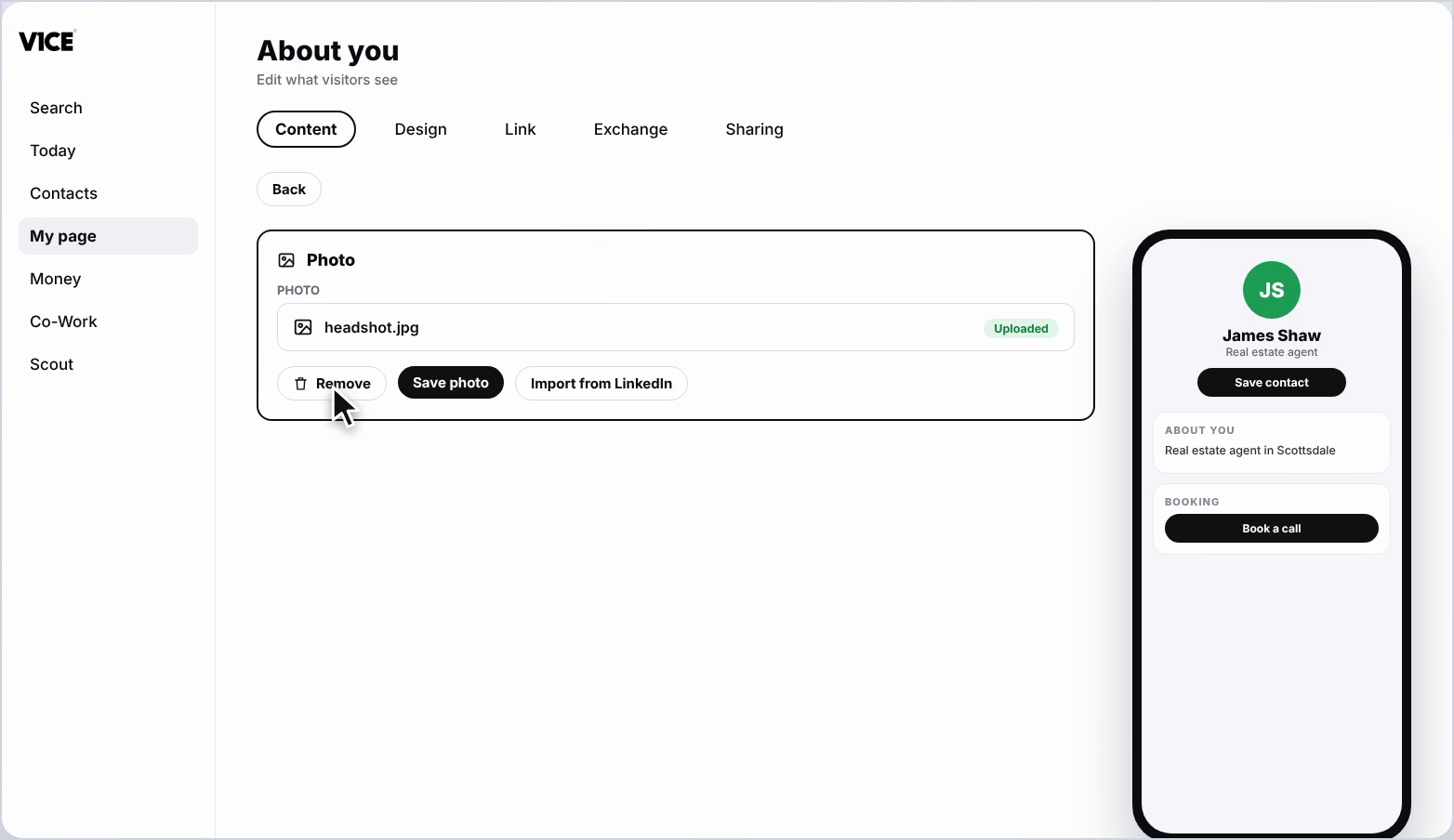
Step 2: Remove your current photo
Click Remove under your current photo, then click the empty photo box to choose a new photo.
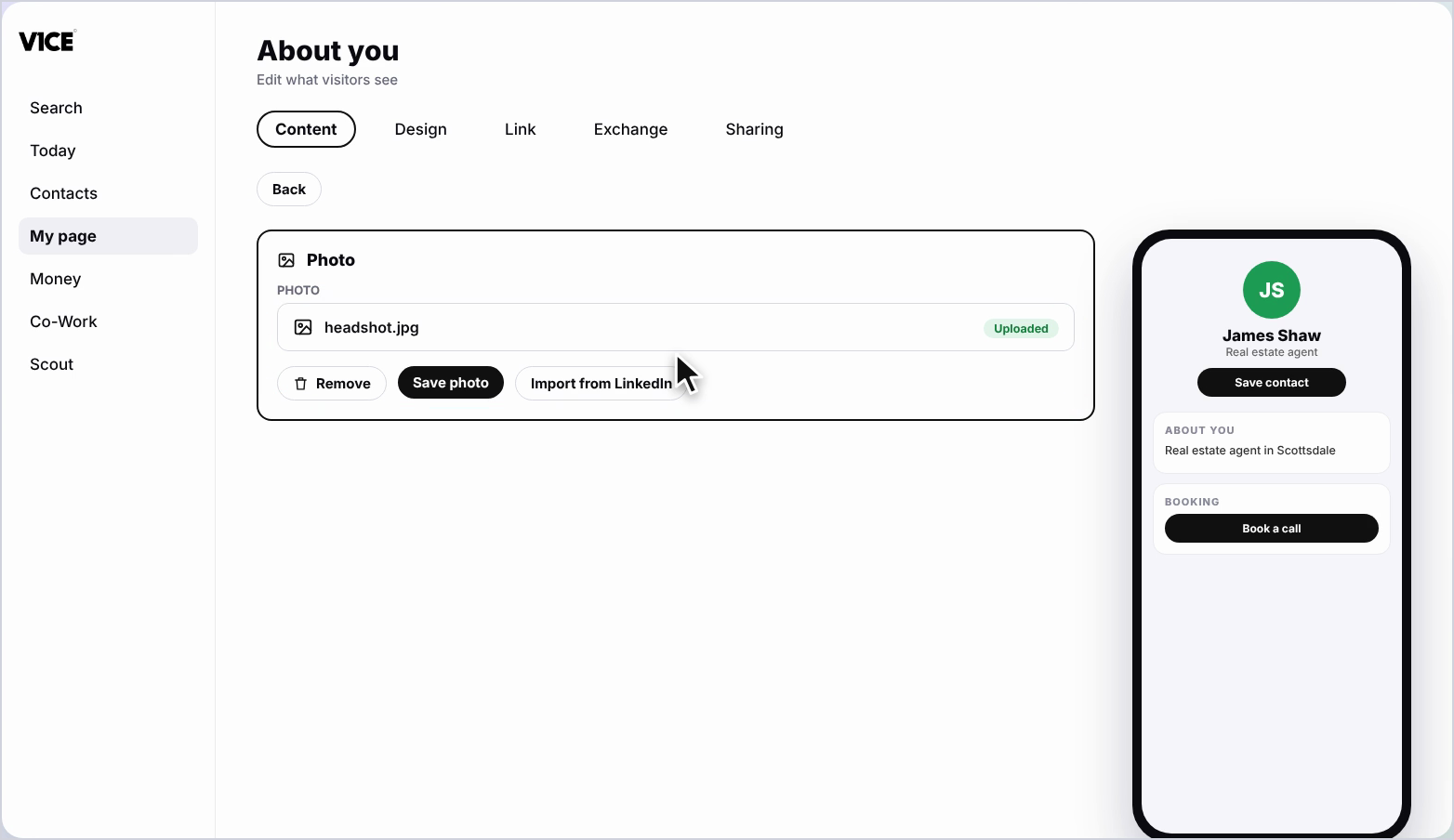
Step 3: Upload a new photo
Use the Upload tab to add your own file, or open the Library to choose an image. Click the image you want to use.
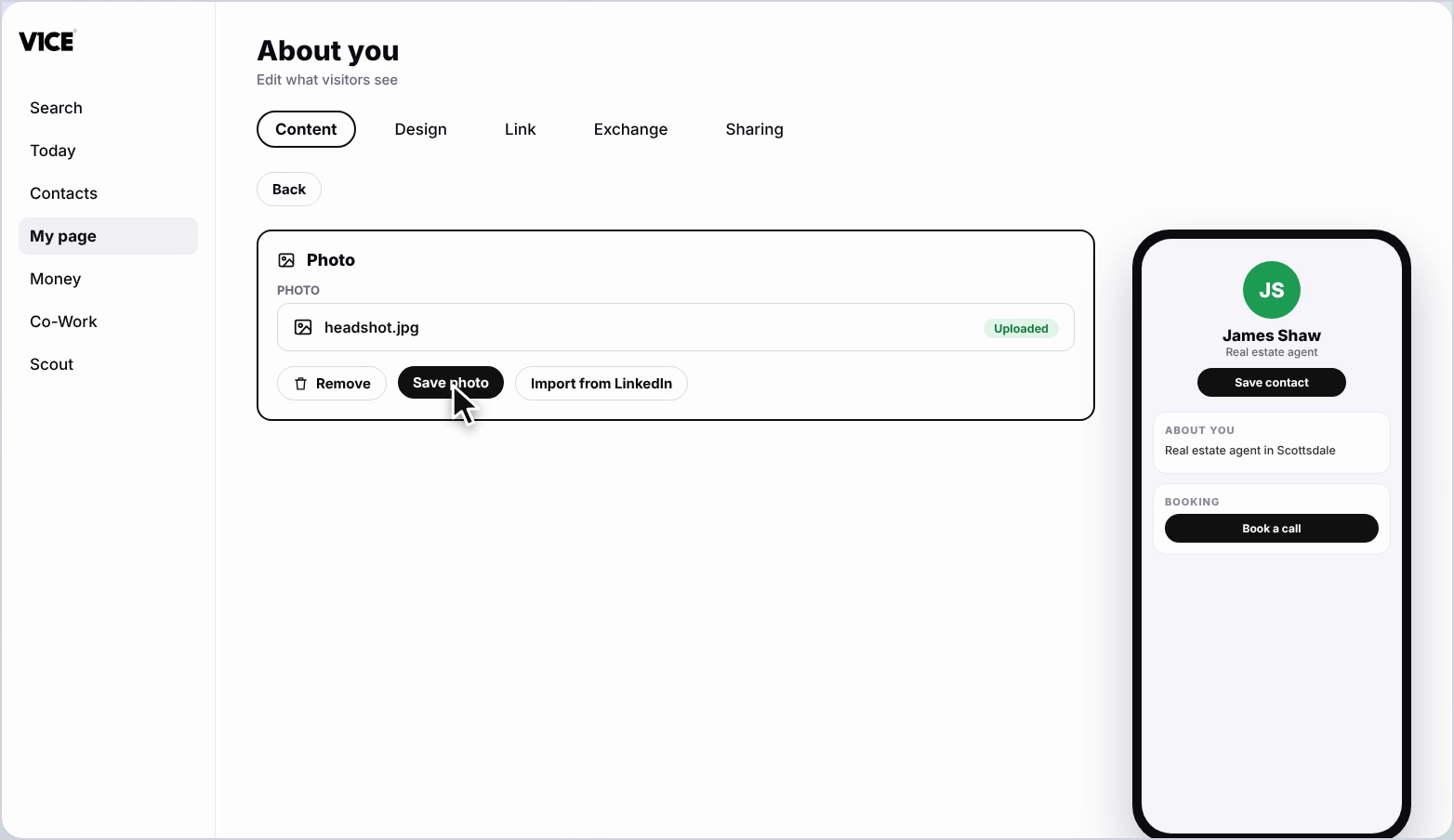
Step 4: Crop your photo
The crop area is fixed. Drag the image to reposition it, or use the slider to zoom. Then click Save photo.
Step 5: See it on your page
Your new photo now shows on your page.
Step 6: Import from LinkedIn
Or, with the photo removed, click Import from LinkedIn, paste the link to your profile, and click Import from LinkedIn again.
Step 7: See your LinkedIn photo
Your LinkedIn photo is pulled in and shows on your page.
Frequently asked questions
What size should my V1CE page photo be?
Upload a square image, 1 to 1 ratio, of at least 400 by 400 pixels, in JPG or PNG format.
What is the maximum file size?
Use a clear headshot or logo under 5 megabytes.
Can I import my photo from LinkedIn?
Yes. With your photo removed, click Import from LinkedIn, paste the link to your profile and click Import from LinkedIn again.
Can I reposition my photo?
Yes. The crop area is fixed, so drag the image to reposition it or use the slider to zoom, then click Save photo.