How to rearrange the sections on your page

To rearrange your V1CE page, open My page, then Pages. Click and hold the handle on the left of a block, drag it up or down, and let go. The new order saves automatically and goes live straight away.
| Time needed | 1 minute |
|---|---|
| What you need | Your V1CE account |
| Where in the app | My page > Pages |
Video transcript and chapters
Chapters
0:00 Introduction
0:12 Open My page
0:15 Pick a block to move
0:20 Drag it into place
0:29 Check the order updated
0:40 Locked blocks
0:46 You're done

Transcript
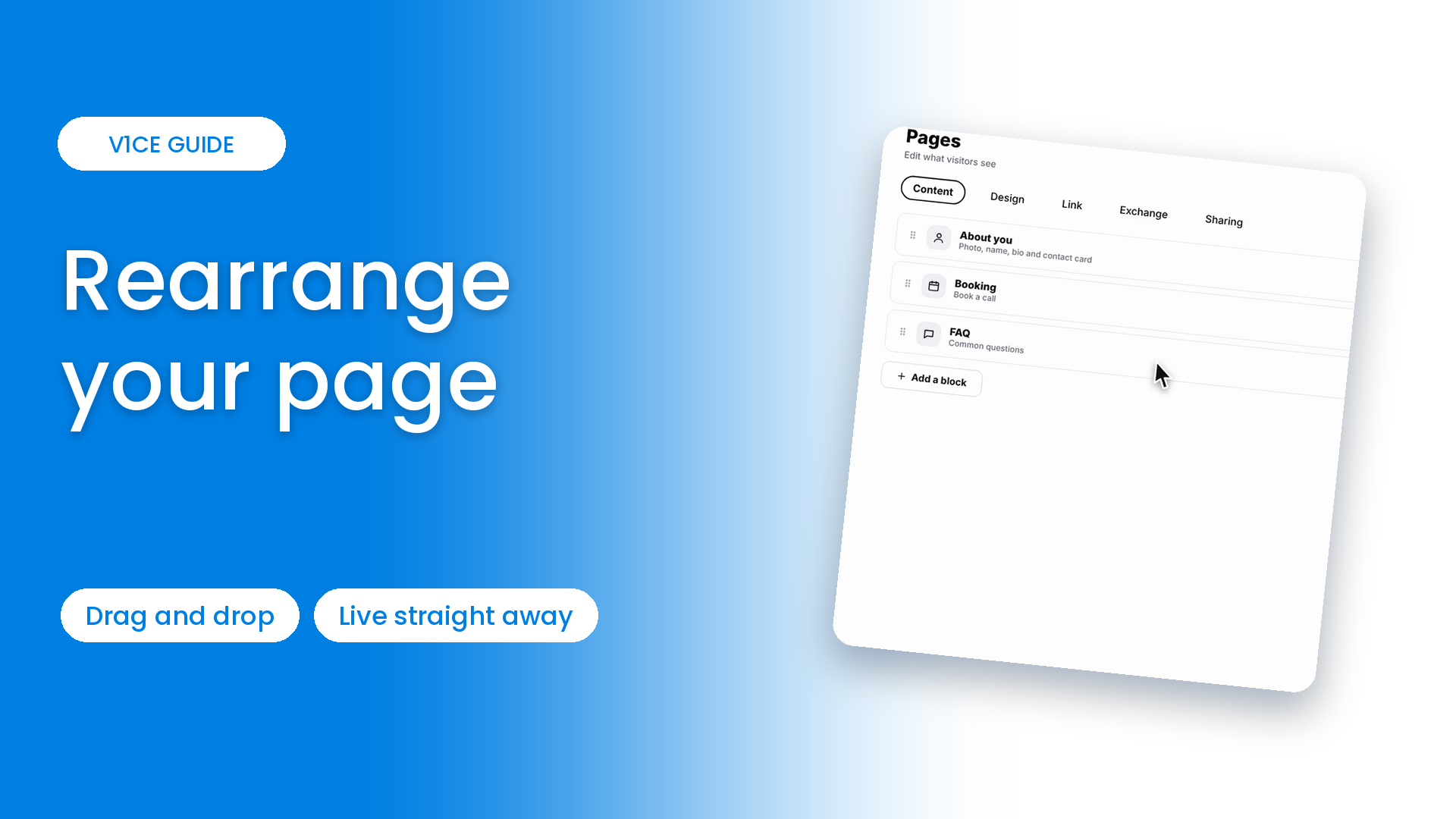
To rearrange the sections on your V1CE page, drag and drop your blocks into the order you want.
The new order saves on its own and goes live straight away.
Click my page in the menu, then click Pages.
Find the block you want to move, click and hold the handle on its left.
Drag the block up or down to the position you want, then let go.
Repeat for any other blocks you want to move until they are in the order you want.
Each time you drop a block, you'll see Order updated and your page preview changes straight away.
Your new order is saved automatically. There is no Save button to press.
Blocks with a lock icon are pinned in place by your template. Everything else can move.
That's how to rearrange your page.
To rearrange the sections on your V1CE page, drag and drop your blocks into the order you want.
The new order saves on its own and goes live straight away.
Watch the video
Follow the steps
Step 1: Open My page
Click My page in the menu, then click Pages.
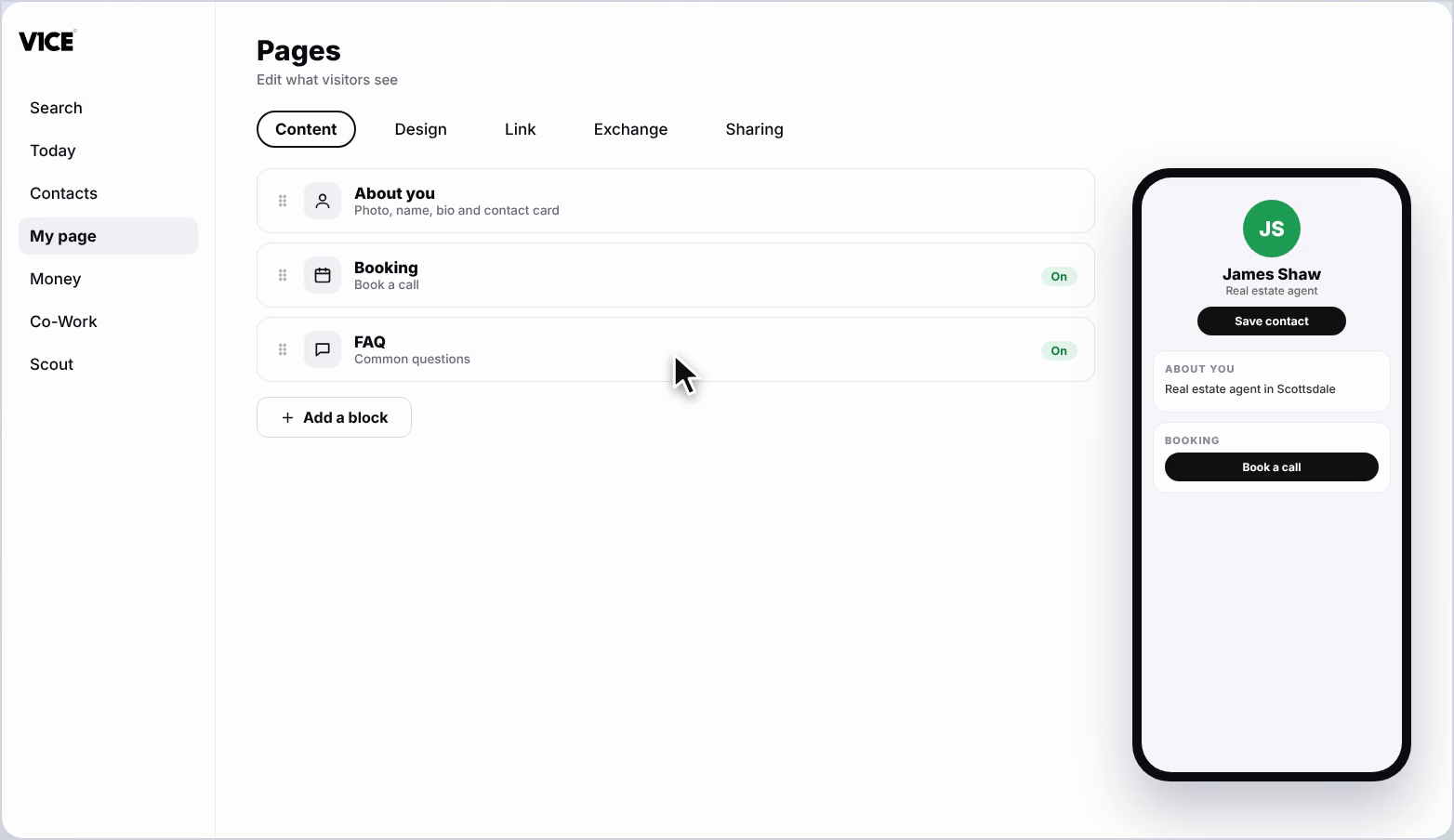
Step 2: Pick a block to move
Find the block you want to move. Click and hold the handle on its left.
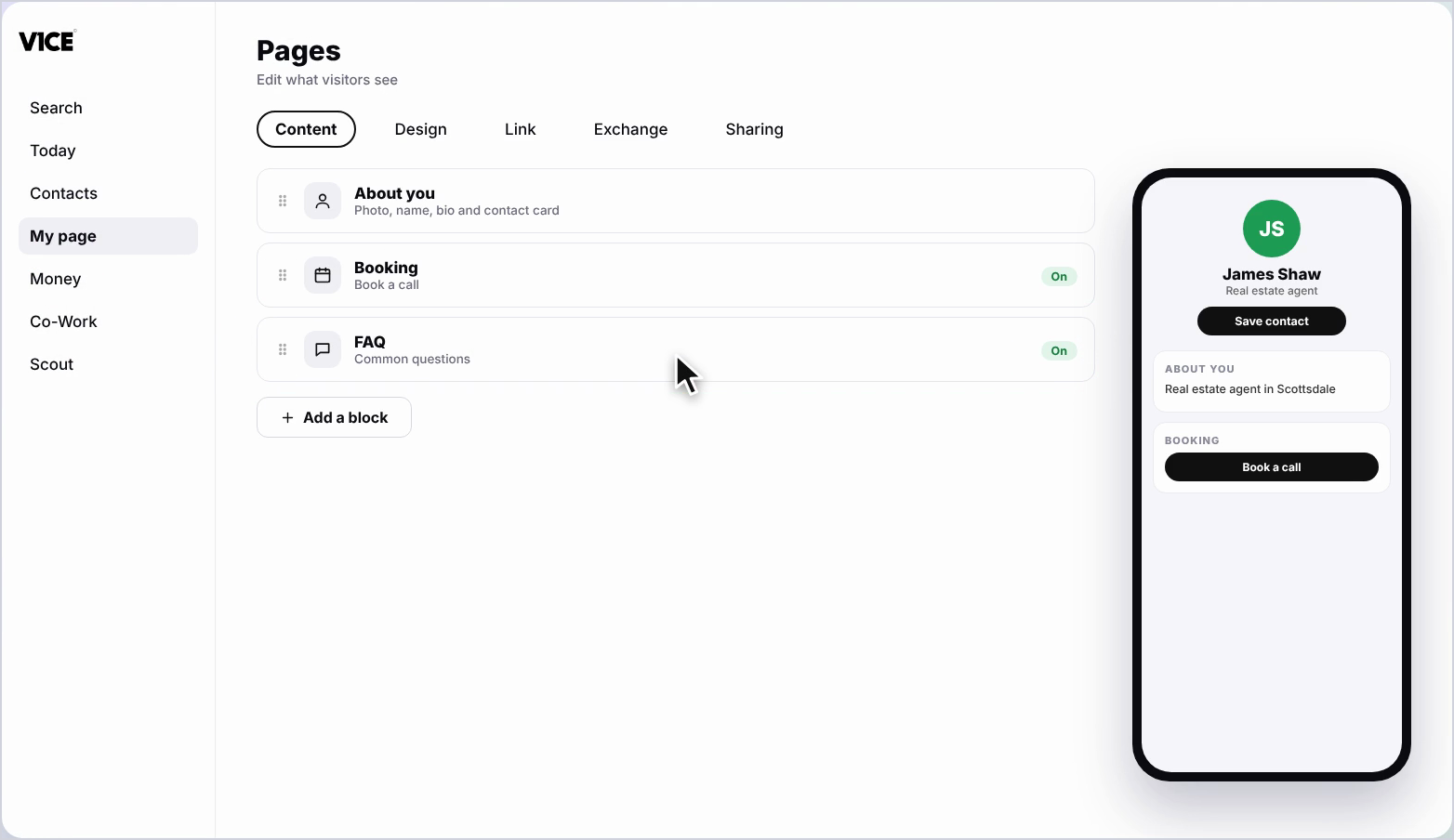
Step 3: Drag it into place
Drag the block up or down to the position you want, then let go.
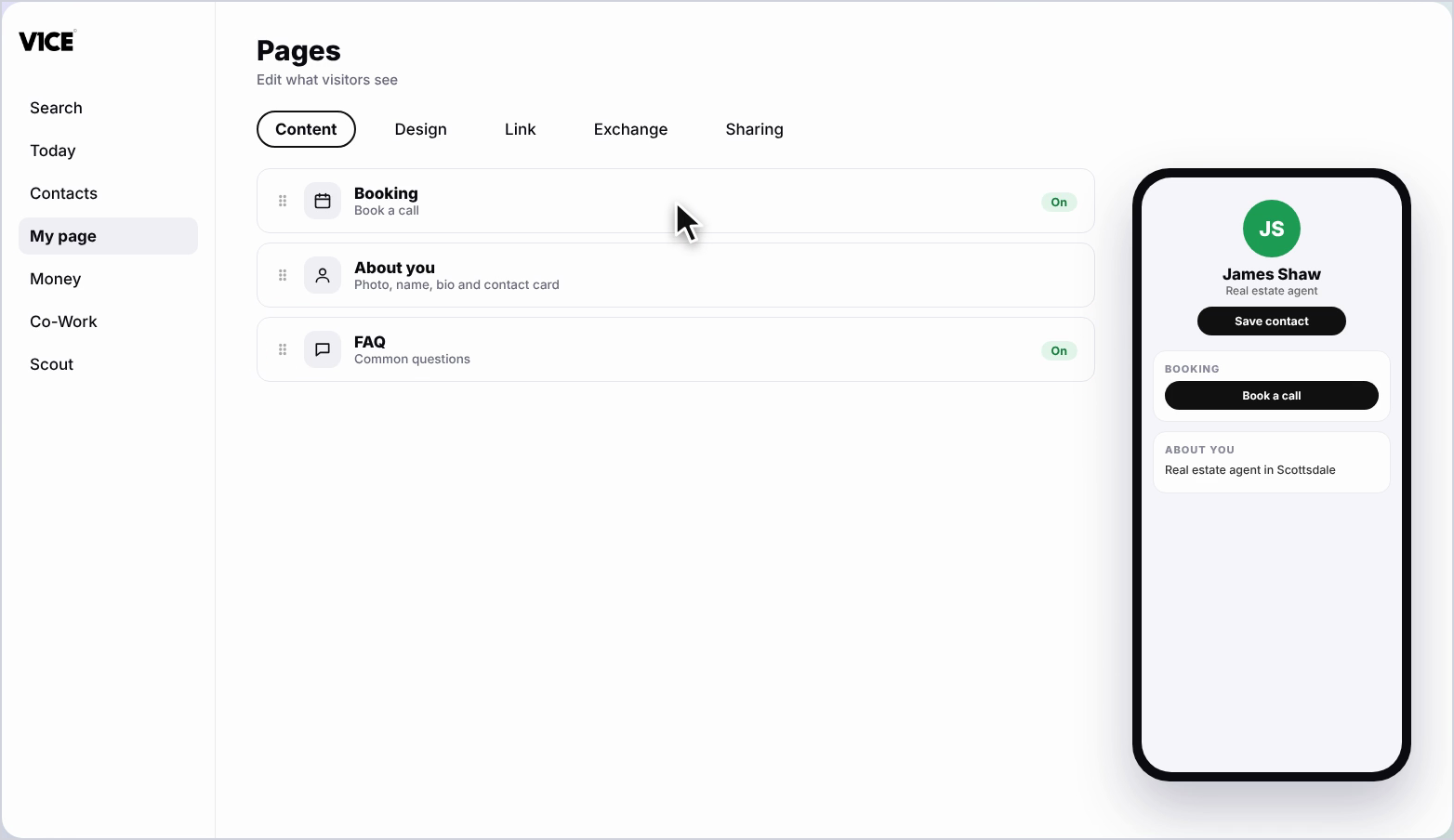
Step 4: Repeat for other blocks
Repeat for any other blocks you want to move, until they are in the order you want.
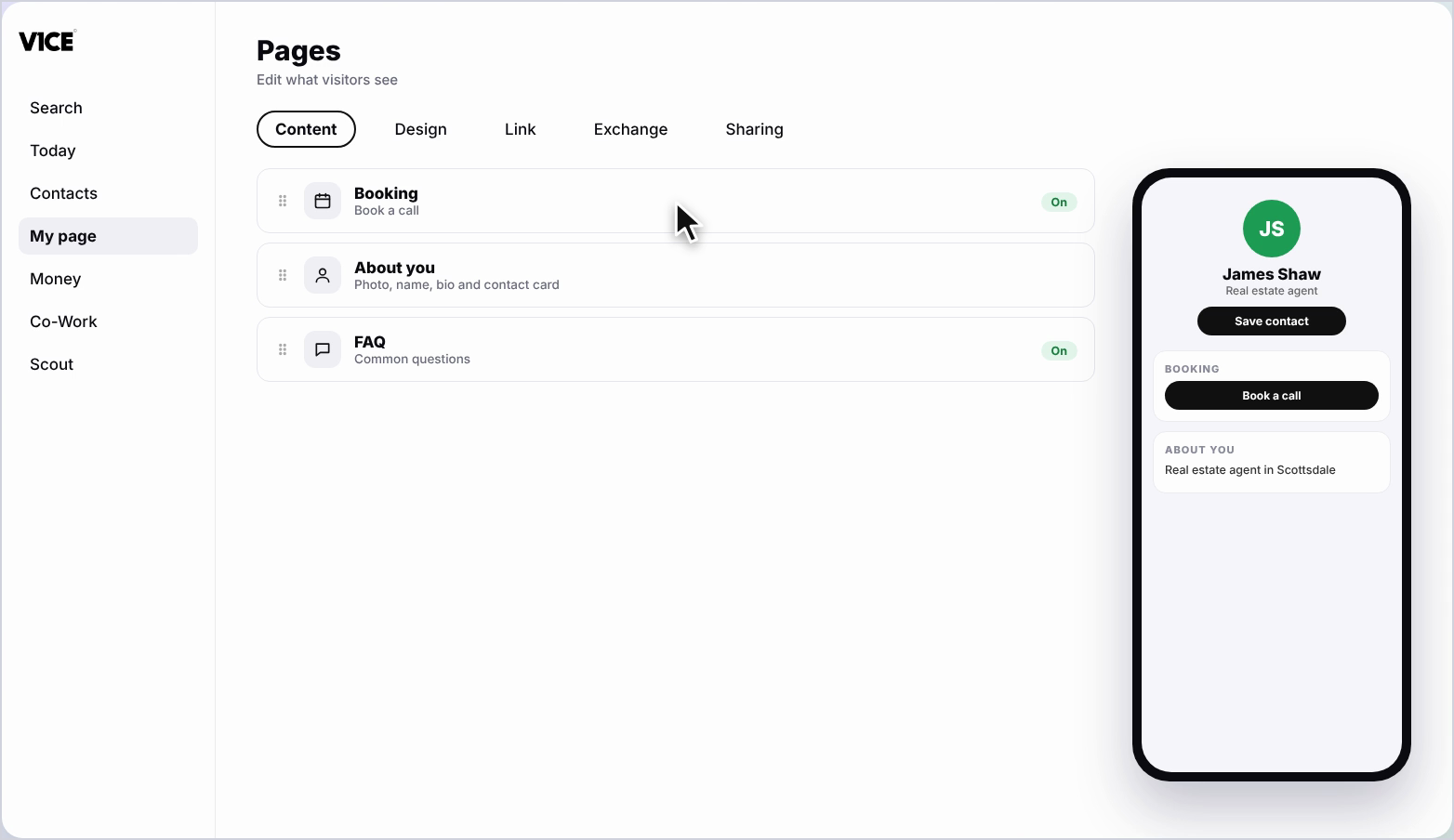
Step 5: Check the order updated
Each time you drop a block, you'll see Order updated, and your page preview changes straight away.
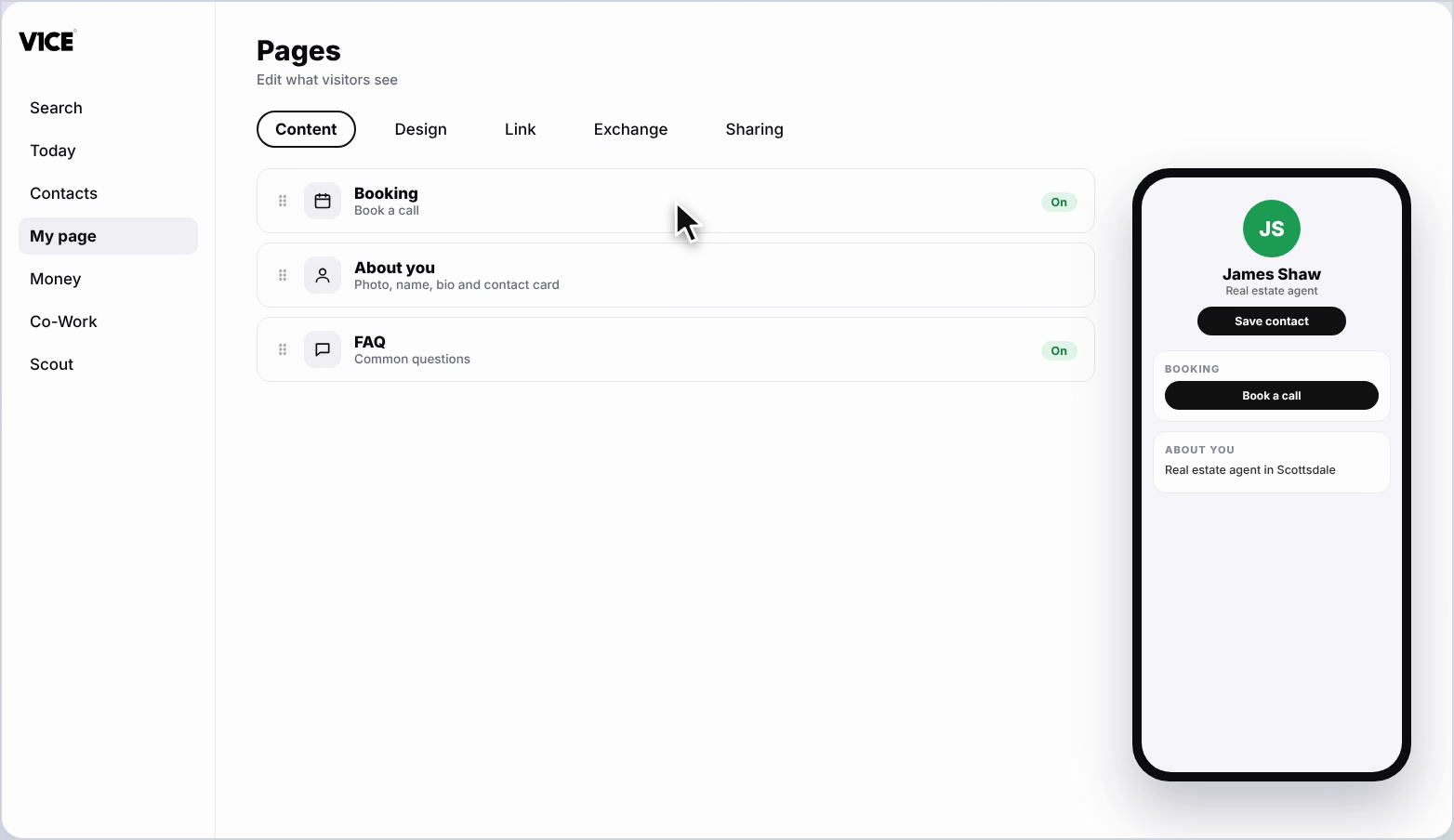
Step 6: Nothing to save
Your new order is saved automatically. There is no save button to press.
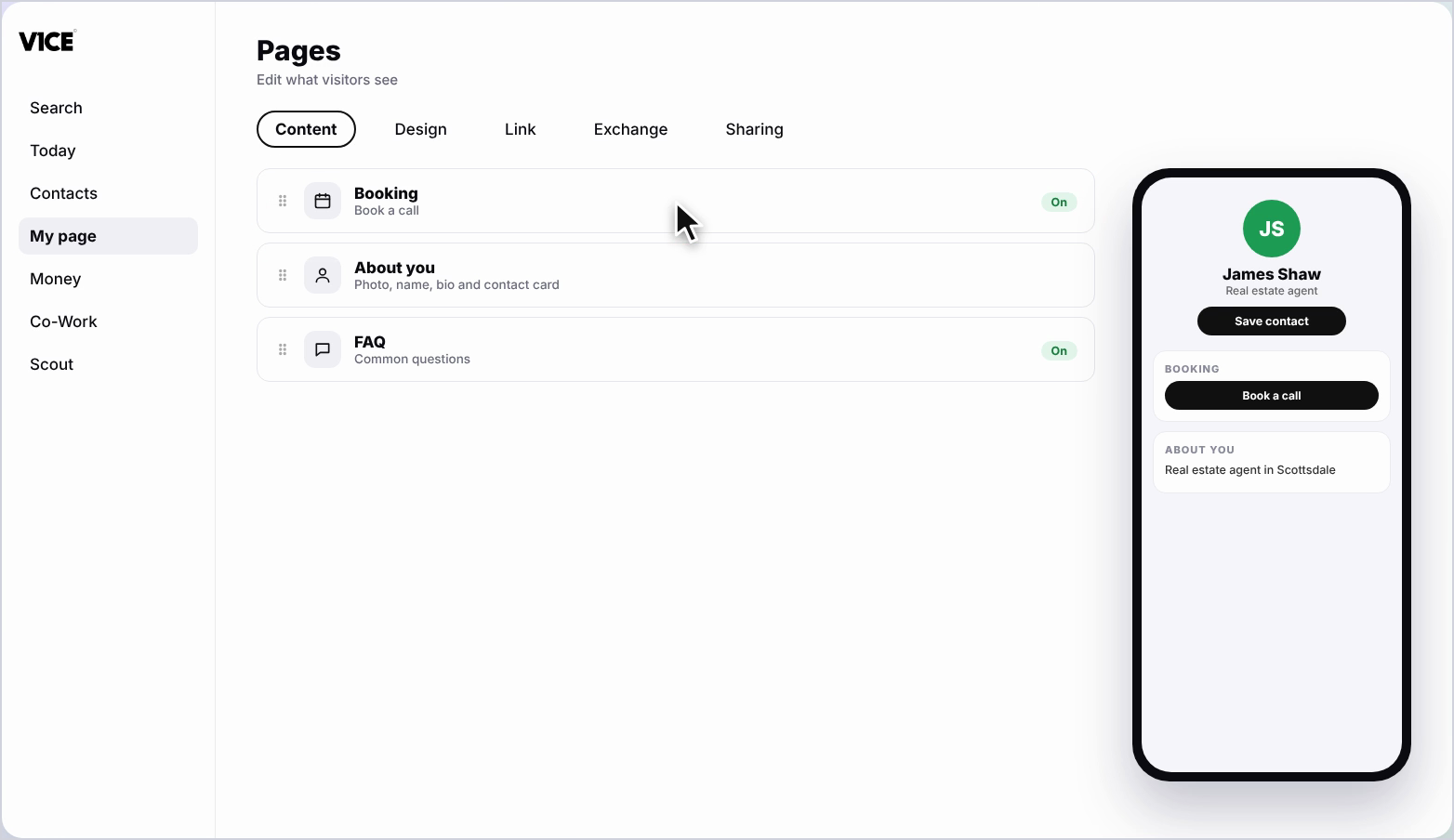
Step 7: Locked blocks
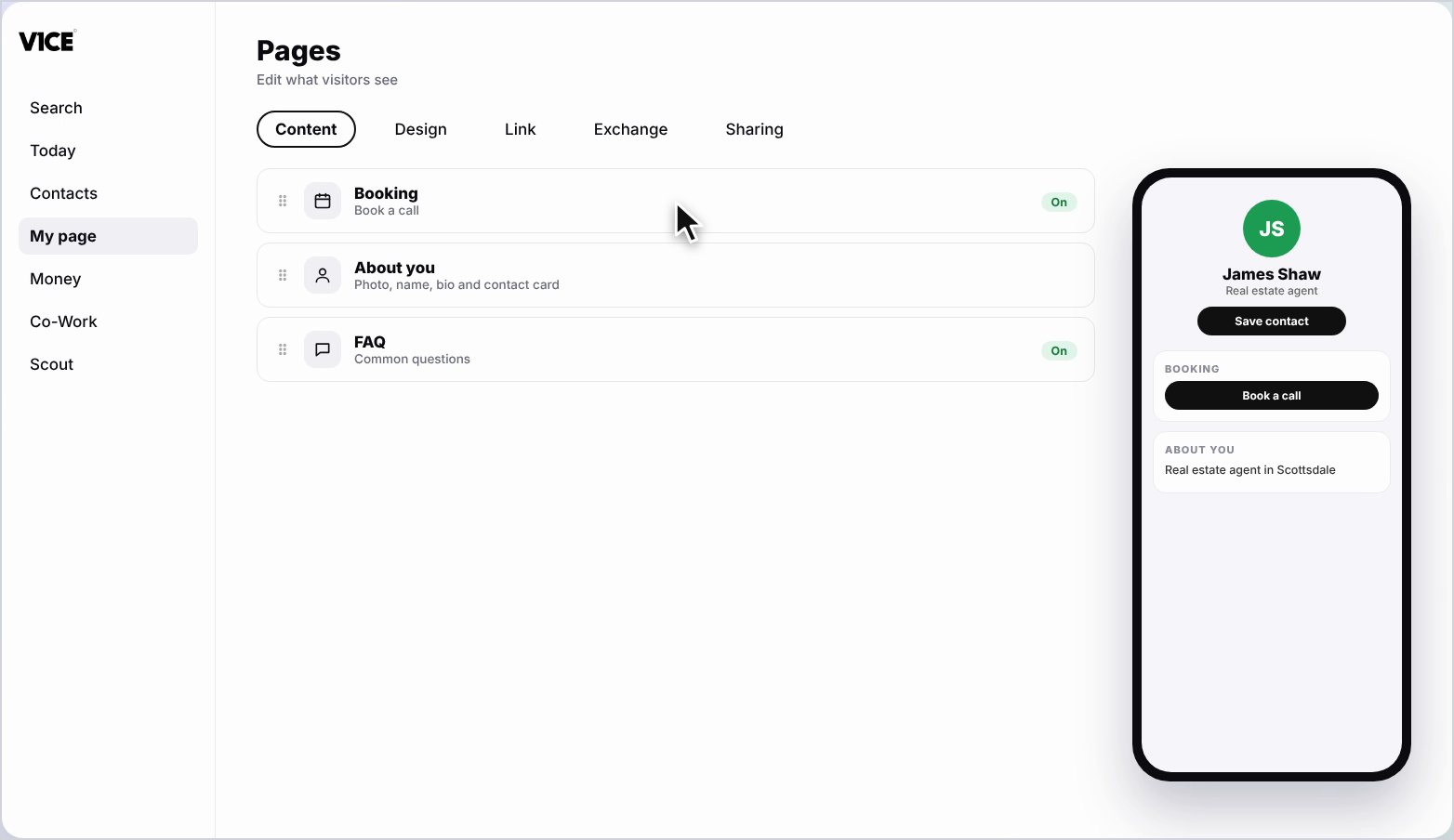
Blocks with a lock icon are pinned in place by your template. Everything else can move.
Frequently asked questions
How do I rearrange the sections on my V1CE page?
Click My page, then Pages. Click and hold the handle on the left of a block, drag it up or down to where you want it, then let go.
Do I need to save the new order?
No. You'll see Order updated each time you drop a block, and your new order is saved automatically.
Why can't I move some blocks?
Blocks with a lock icon are pinned in place by your template. Everything else can move.