What fields and sections can I add to my V1CE page?

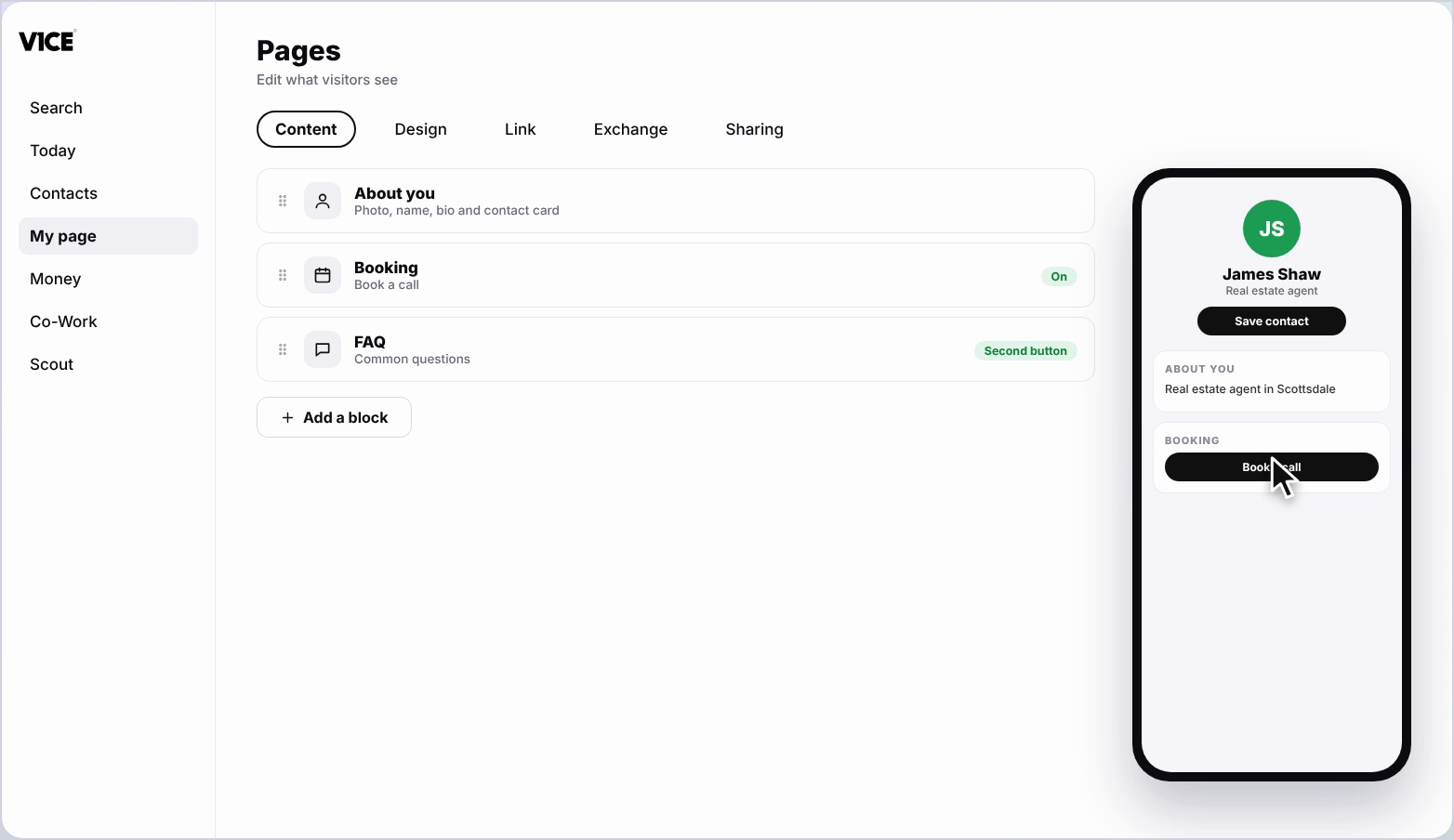
To add a block to your V1CE page, open My page, choose Pages, scroll to the bottom and click Add a block. Blocks cover trust, what you offer, how people reach you and growing your contacts. You can show, hide, reorder or star any block.
| Time needed | 2 minutes |
|---|---|
| What you need | Your V1CE account |
| Where in the app | My page > Pages |
Video transcript and chapters
Chapters
0:00 Introduction
0:14 Open My page
0:19 Click Add a block
0:26 Blocks that build trust
0:34 Blocks that show what you offer
0:40 Blocks that help people reach you
0:52 Show or hide a block
0:59 Make it your second button
1:11 You're done

Transcript
Your V1CE page is built from blocks.
Each block is a section of your page, such as your services, reviews or a map.
You can add, hide, reorder and edit them whenever you like.
Here is everything you can add.
Click My Page in the menu, then click Pages.
Your blocks are listed down the page.
Scroll to the bottom of the list and click Add a Block.
A list of everything you can add opens on the right.
Blocks that build trust, portfolio, reviews, qualifications, your numbers, featured in Why Trust You and Articles.
Blocks that show what you offer, heading, services, booking, website and FAQ.
Blocks that help people reach you, contact details, social links, map and your story.
And blocks that grow your contacts, free download, mailing list and intro video.
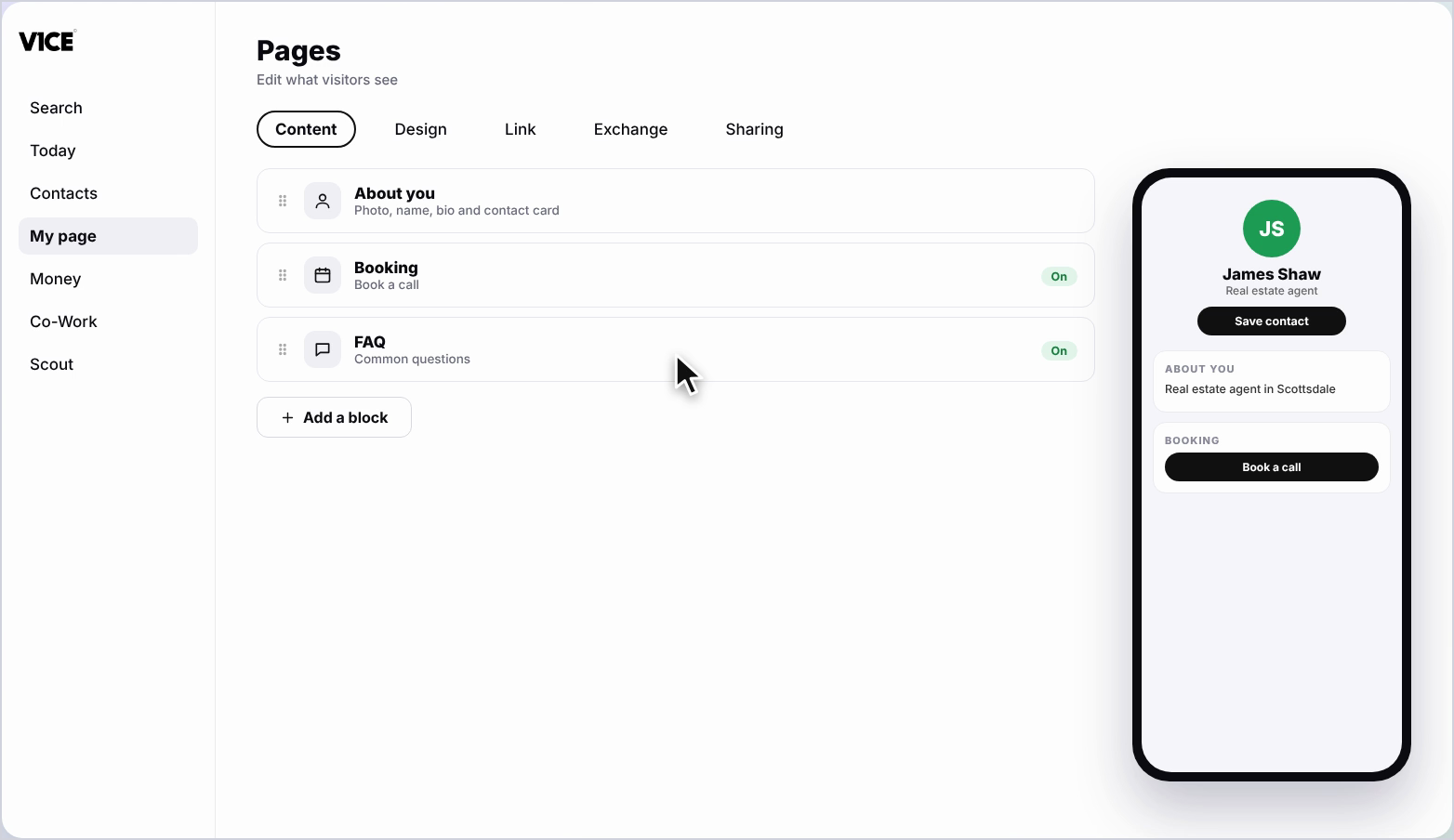
Use the switch on the right of a block to show or hide it on your page.
Hiding keeps the block so you can turn it back on later.
Click the star on a block to make it the second button at the top of your page, next to Save Contact.
Your chosen block now shows as the second button at the top of your page.
That's everything you can add.
Your V1CE page is built from blocks. Each block is a section of your page, such as your services, reviews or a map.
You can add, hide, reorder and edit them whenever you like. Here is everything you can add.
Watch the video
Follow the steps
Step 1: Open My page
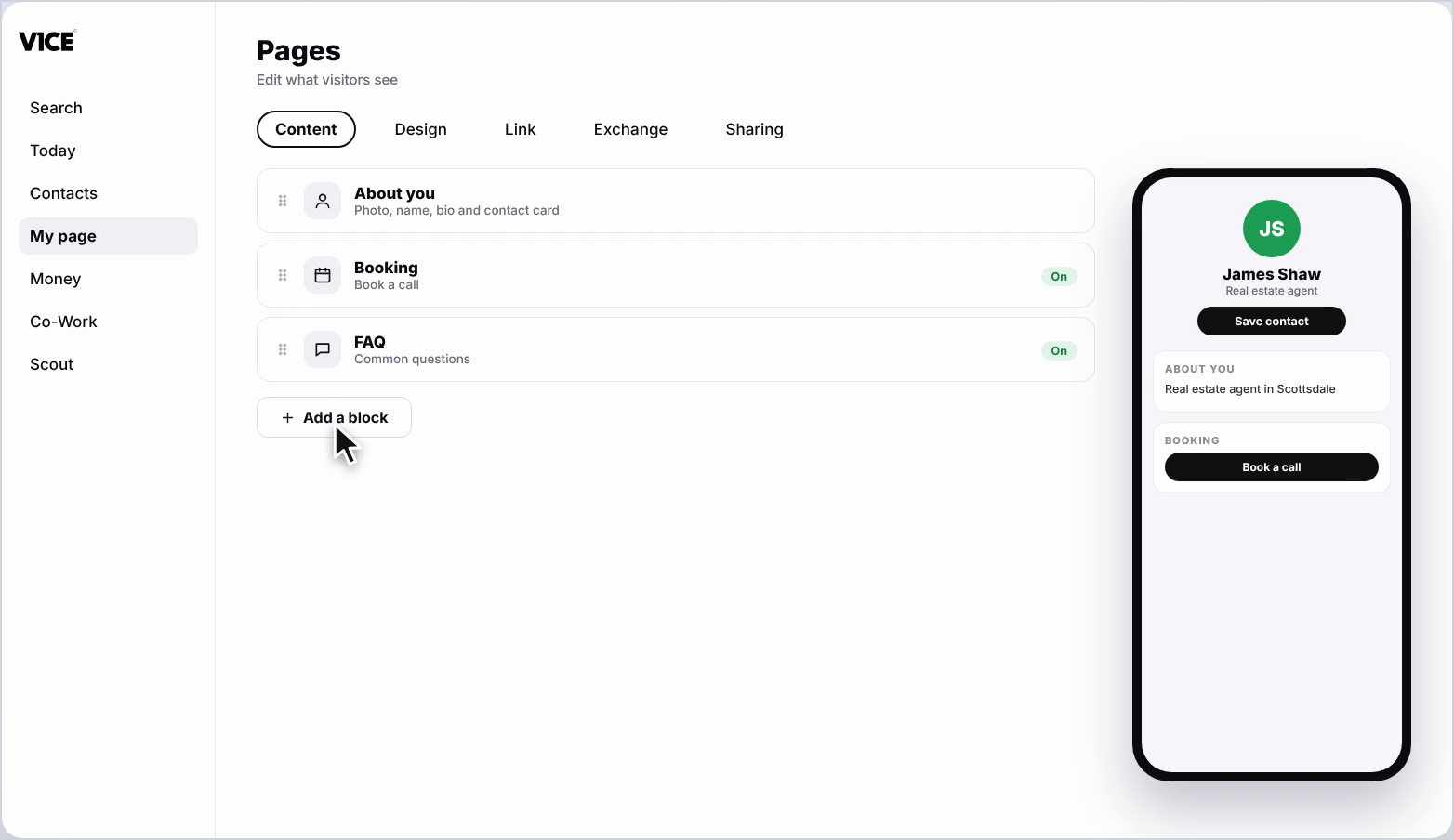
Click My page in the menu, then click Pages. Your blocks are listed down the page.
Step 2: Click Add a block
Scroll to the bottom of the list and click Add a block. A list of everything you can add opens on the right.
Step 3: Blocks that build trust
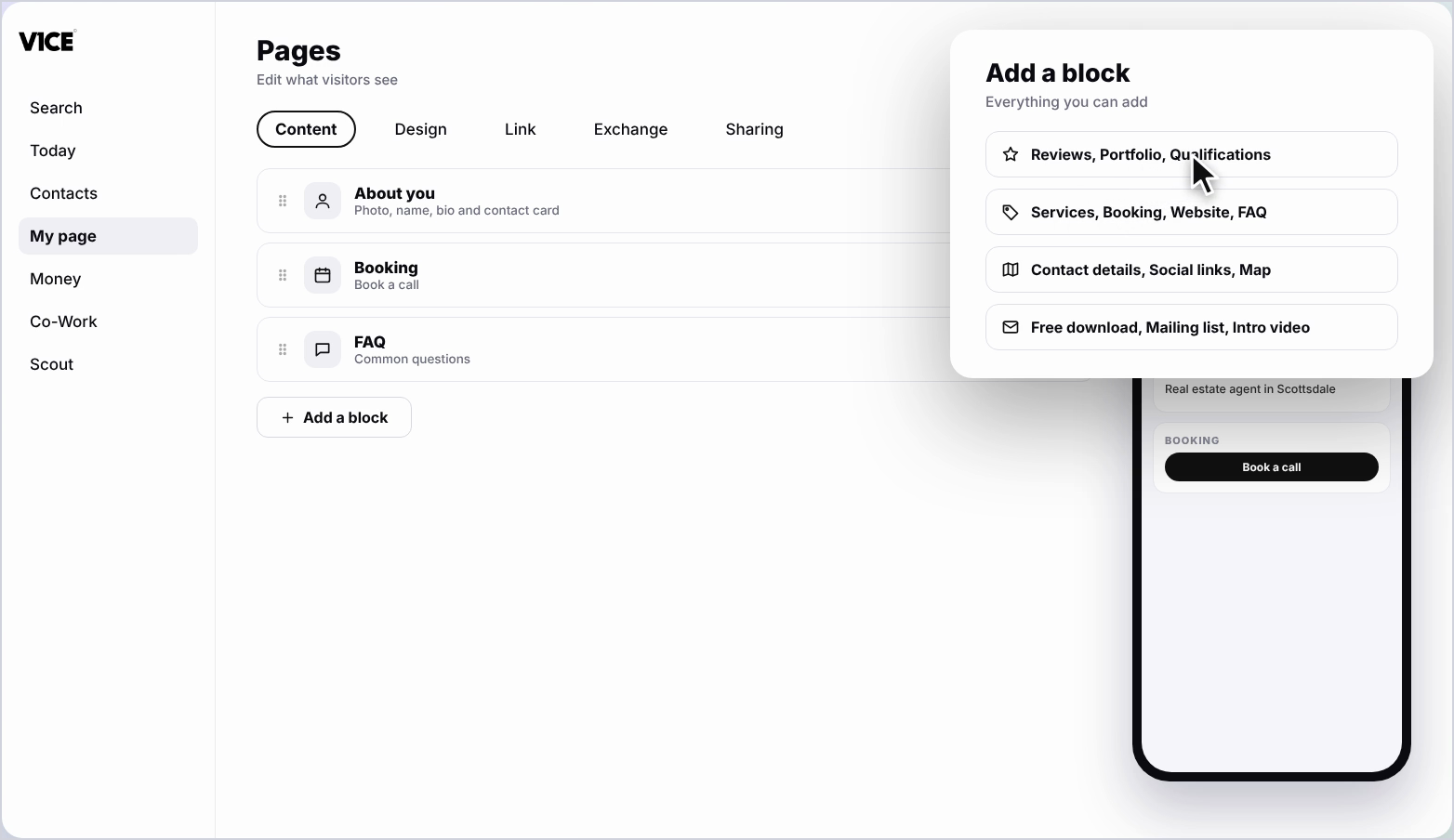
Blocks that build trust: portfolio, reviews, qualifications, your numbers, featured in, why trust you, and articles.
Step 4: Blocks that show what you offer
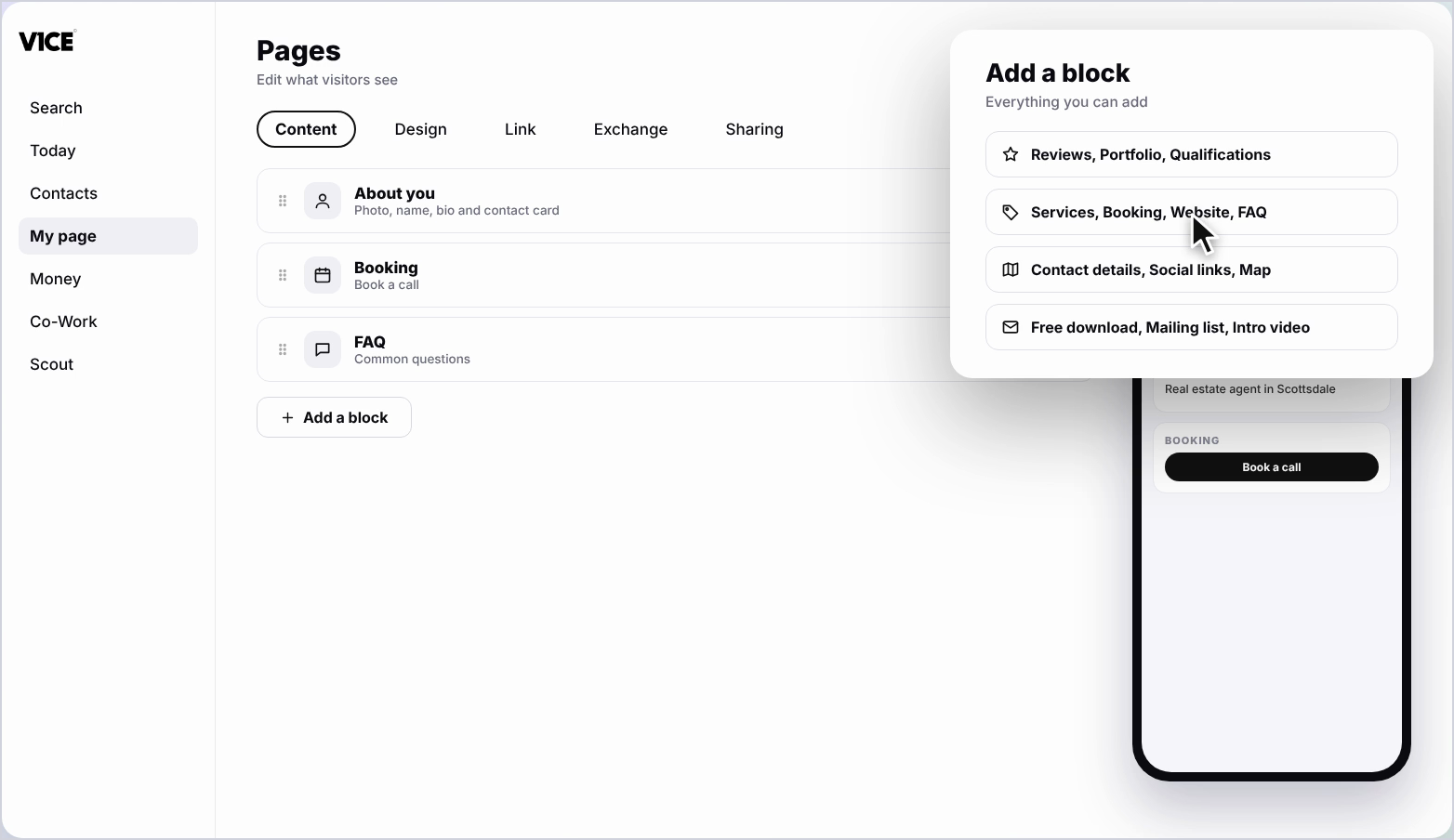
Blocks that show what you offer: heading, services, booking, website, and FAQ.
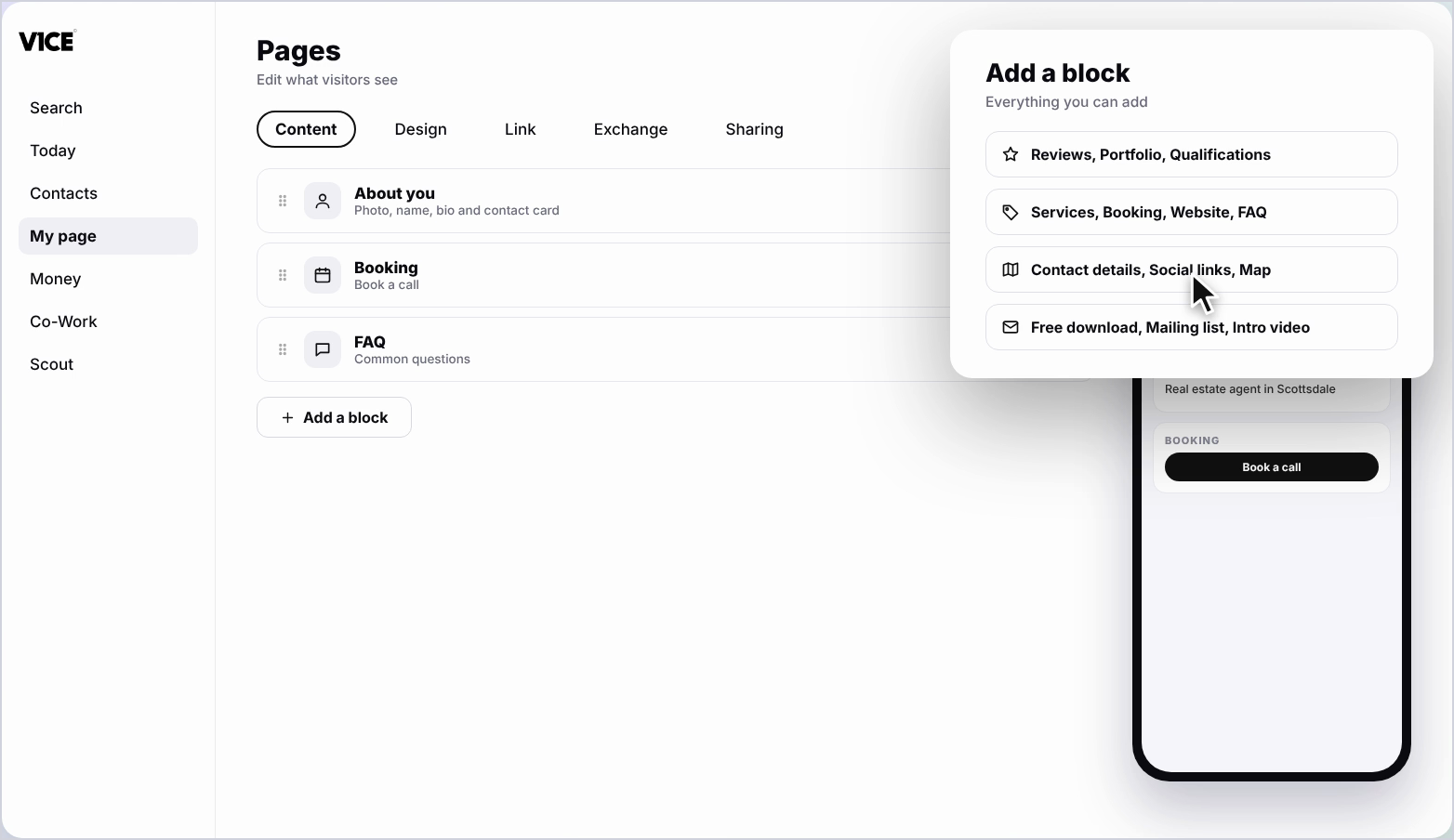
Step 5: Blocks that help people reach
Blocks that help people reach you: contact details, social links, map, and your story. And blocks that grow your contacts: free download, mailing list, and intro video.
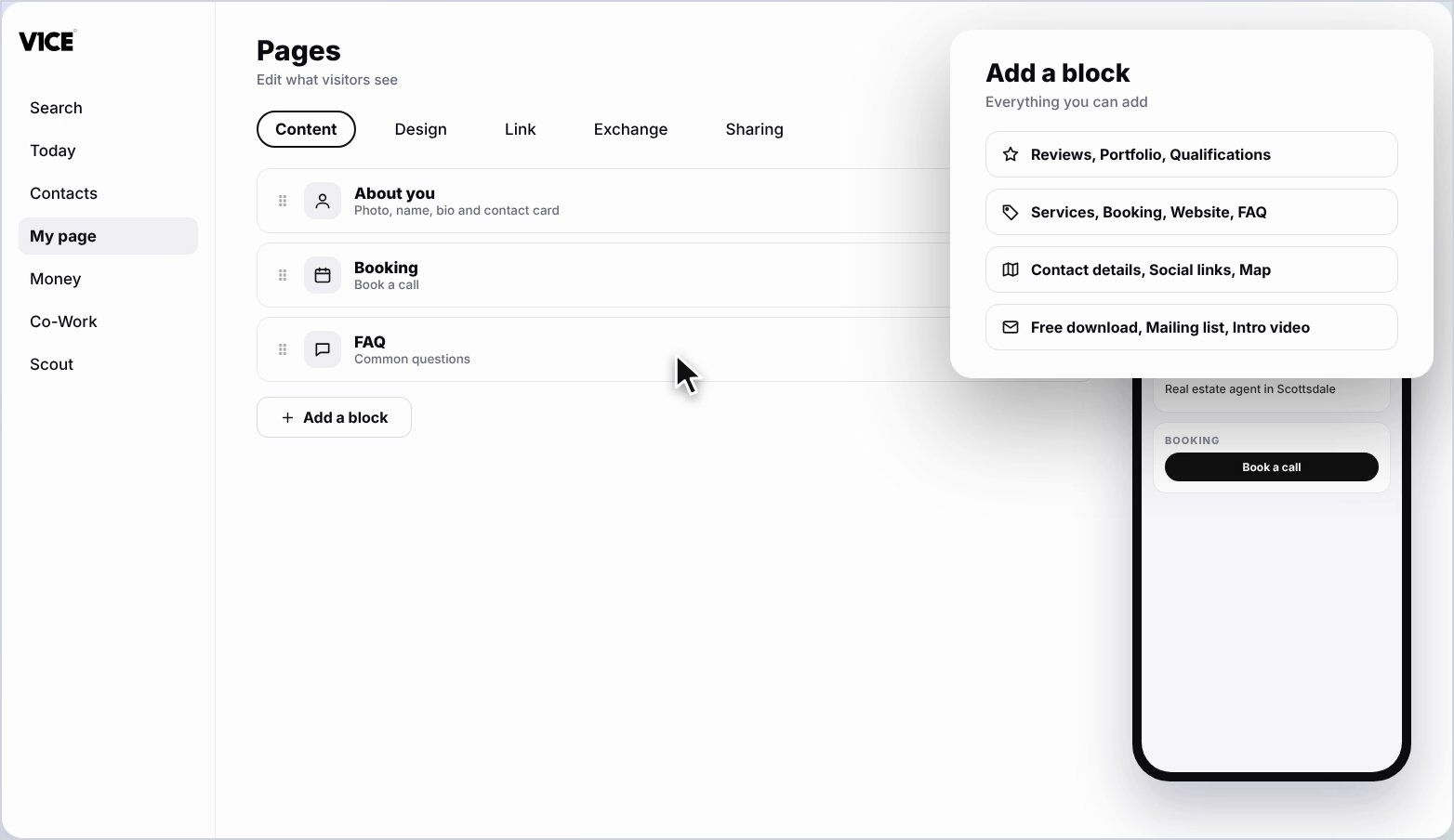
Step 6: Show or hide a block
Use the switch on the right of a block to show or hide it on your page. Hiding keeps the block, so you can turn it back on later.
Step 7: Make it your second button
Click the star on a block to make it the second button at the top of your page, next to Save Contact.
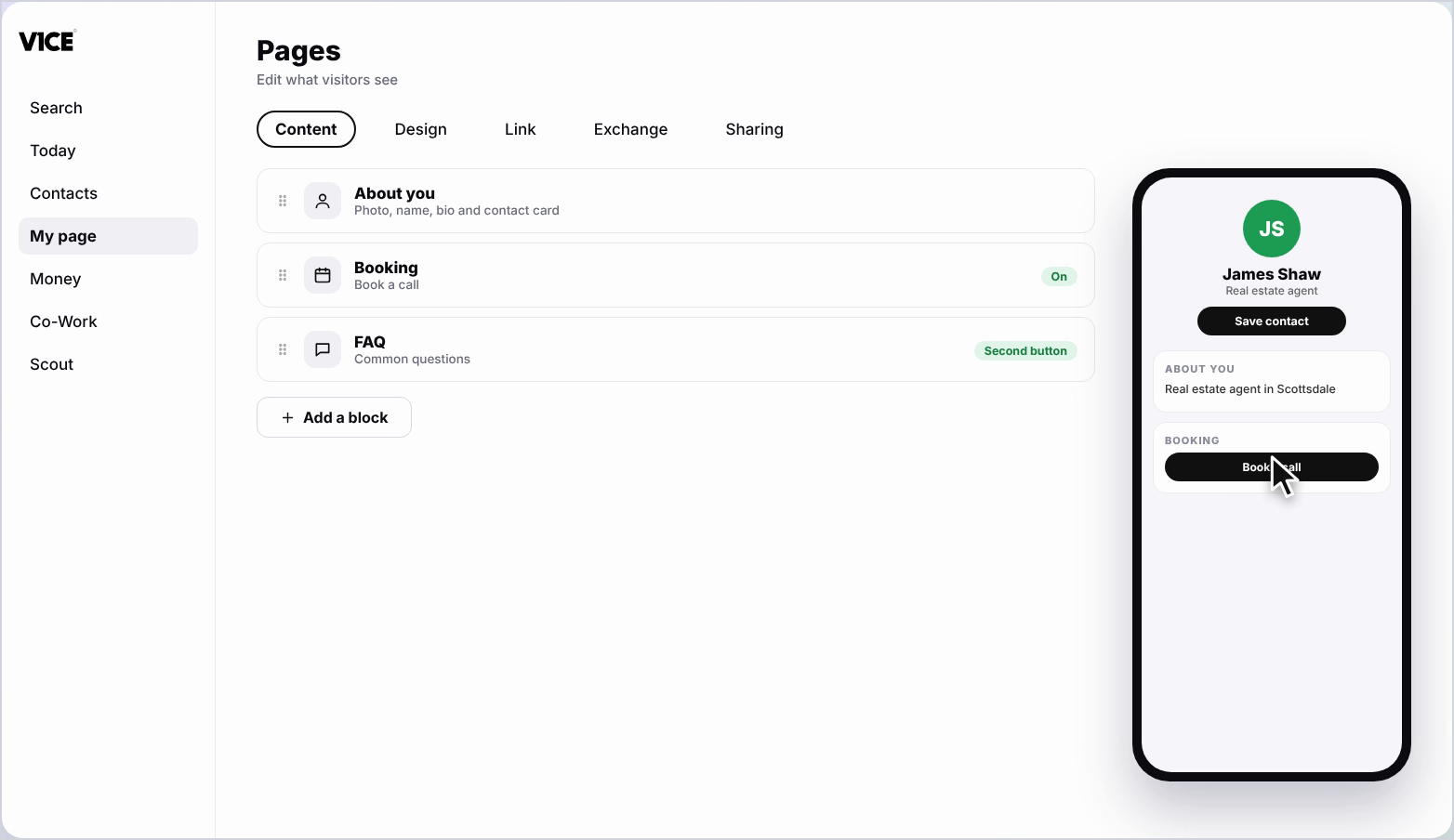
Step 8: See the second button
Your chosen block now shows as the second button at the top of your page.
Frequently asked questions
How do I add a block to my V1CE page?
Click My page, then Pages, scroll to the bottom and click Add a block. A list of everything you can add opens on the right.
Can I hide a block without deleting it?
Yes. Use the switch on the right of a block to show or hide it on your page. Hiding keeps the block, so you can turn it back on later.
What is the second button at the top of my page?
It's the block you star. Click the star on a block to make it the second button at the top of your page, next to Save Contact.
Which blocks help build trust?
Portfolio, reviews, qualifications, your numbers, featured in, why trust you, and articles.