How to add a mailing list to your page

To add a mailing list, open My page, then Pages, click Add a block and choose Mailing list. Write a short description and button text, choose a tag for sign-ups, and add the Welcome new subscribers recipe to send an automatic welcome email.
| Time needed | 2 minutes |
|---|---|
| What you need | Your V1CE account |
| Where in the app | My page > Pages > Add a block > Mailing list |
Video transcript and chapters
Chapters
0:00 Introduction
0:12 Open My page
0:19 Find Mailing list
0:22 Add a description
0:27 Add your own button text
0:31 Edit the thank you message
0:36 Collect phone numbers
0:41 Choose a tag
0:46 Add a welcome email
0:53 See it on your page
0:59 You're done

Transcript
Let visitors join your mailing list straight from your V1CE page and send them an automatic welcome email.
Write a short pitch, choose a tag, and add a welcome email recipe.
Open my page, then Pages.
Scroll to the bottom of your page and click Add a block.
Find mailing list in the list and click it.
Click the description and type a short line to encourage sign-ups.
Add your own button text, such as Subscribe Now.
The thank you message is what people see after they sign up.
Edit it if you like.
To collect phone numbers too, switch on Also collect phone number.
Choose a tag or type a new one so you can find these sign-ups in your contacts.
To send an automatic welcome email, click Add a recipe.
Click Welcome New Subscribers.
Your mailing list now shows on your page and new subscribers get your welcome email.
That's how to add a mailing list to your page.
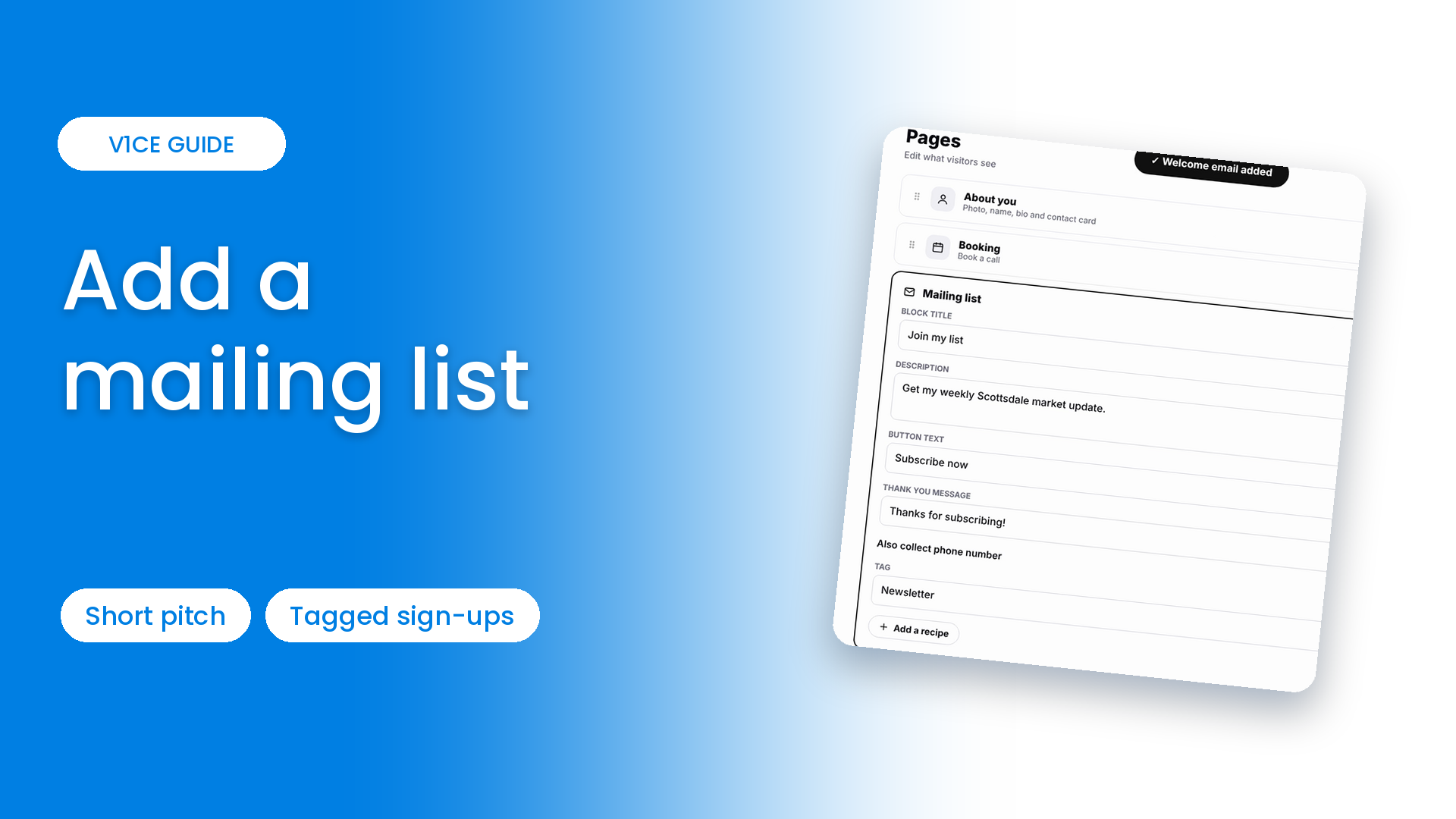
Let visitors join your mailing list straight from your V1CE page, and send them an automatic welcome email.
Write a short pitch, choose a tag, and add a welcome email recipe.
Watch the video
Follow the steps
Step 1: Open My page
Open My page, then Pages.
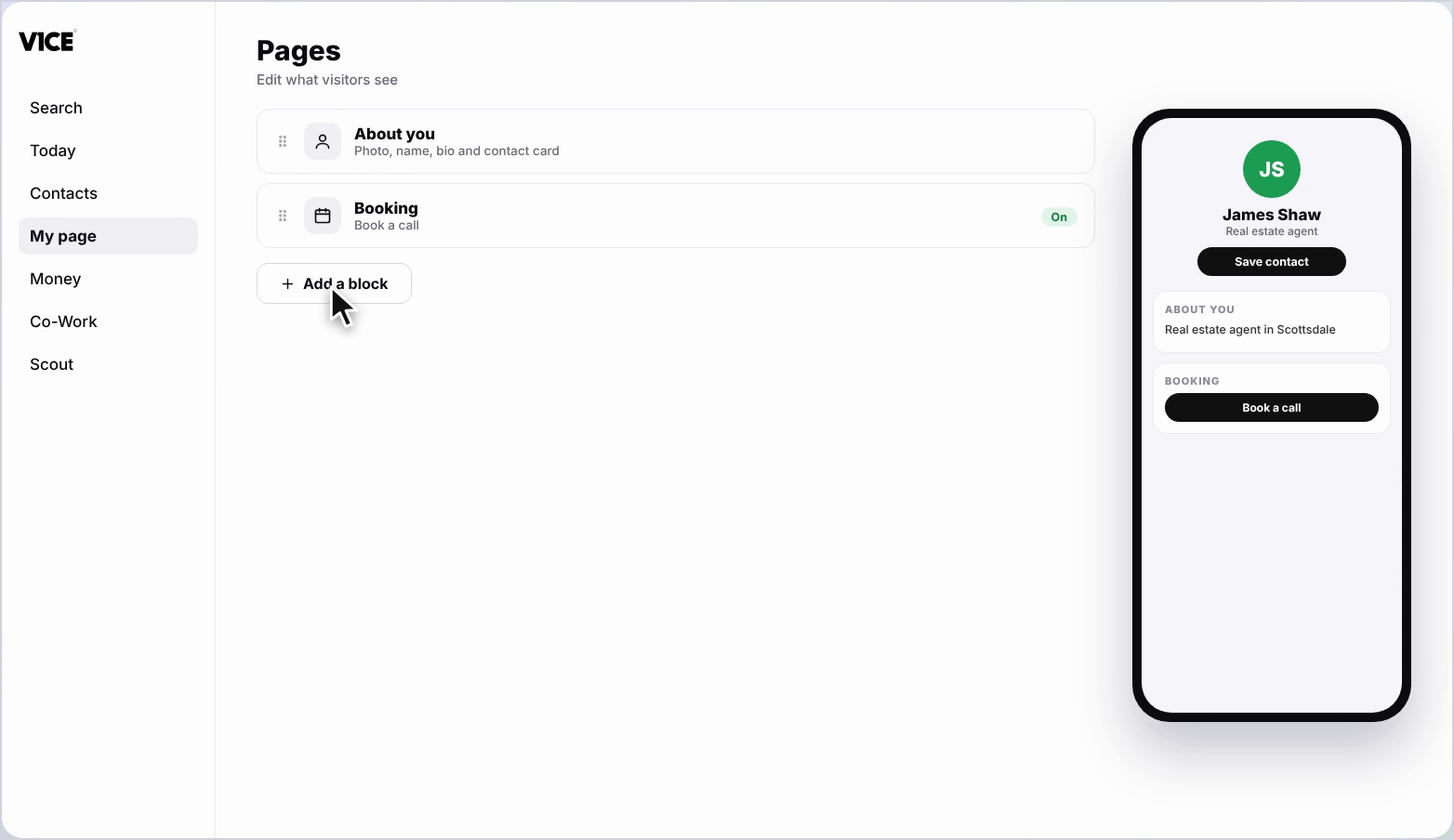
Step 2: Click Add a block
Scroll to the bottom of your page and click Add a block.
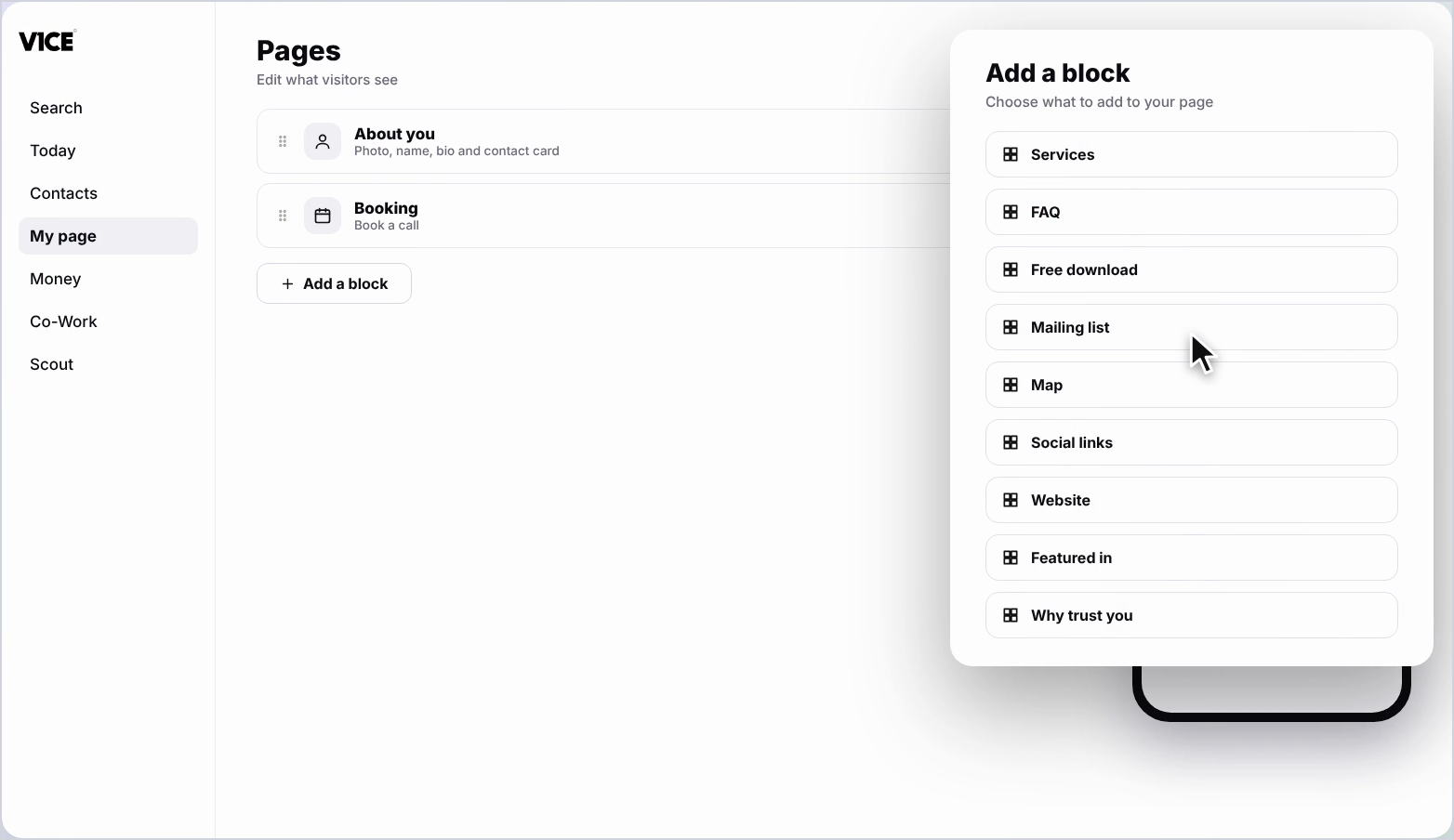
Step 3: Find Mailing list
Find Mailing list in the list and click it.
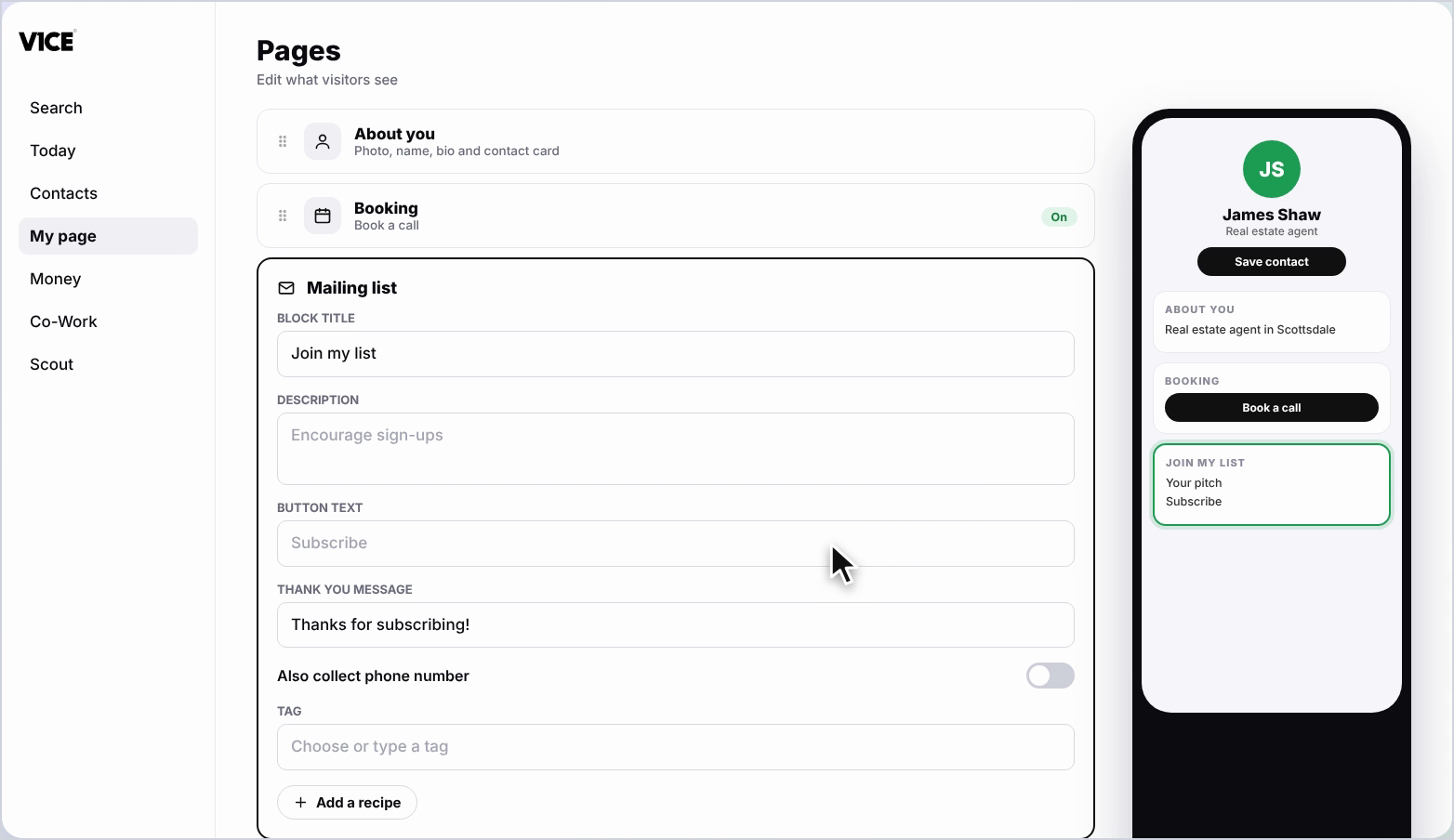
Step 4: Add a description
Click the Description and type a short line to encourage sign-ups.
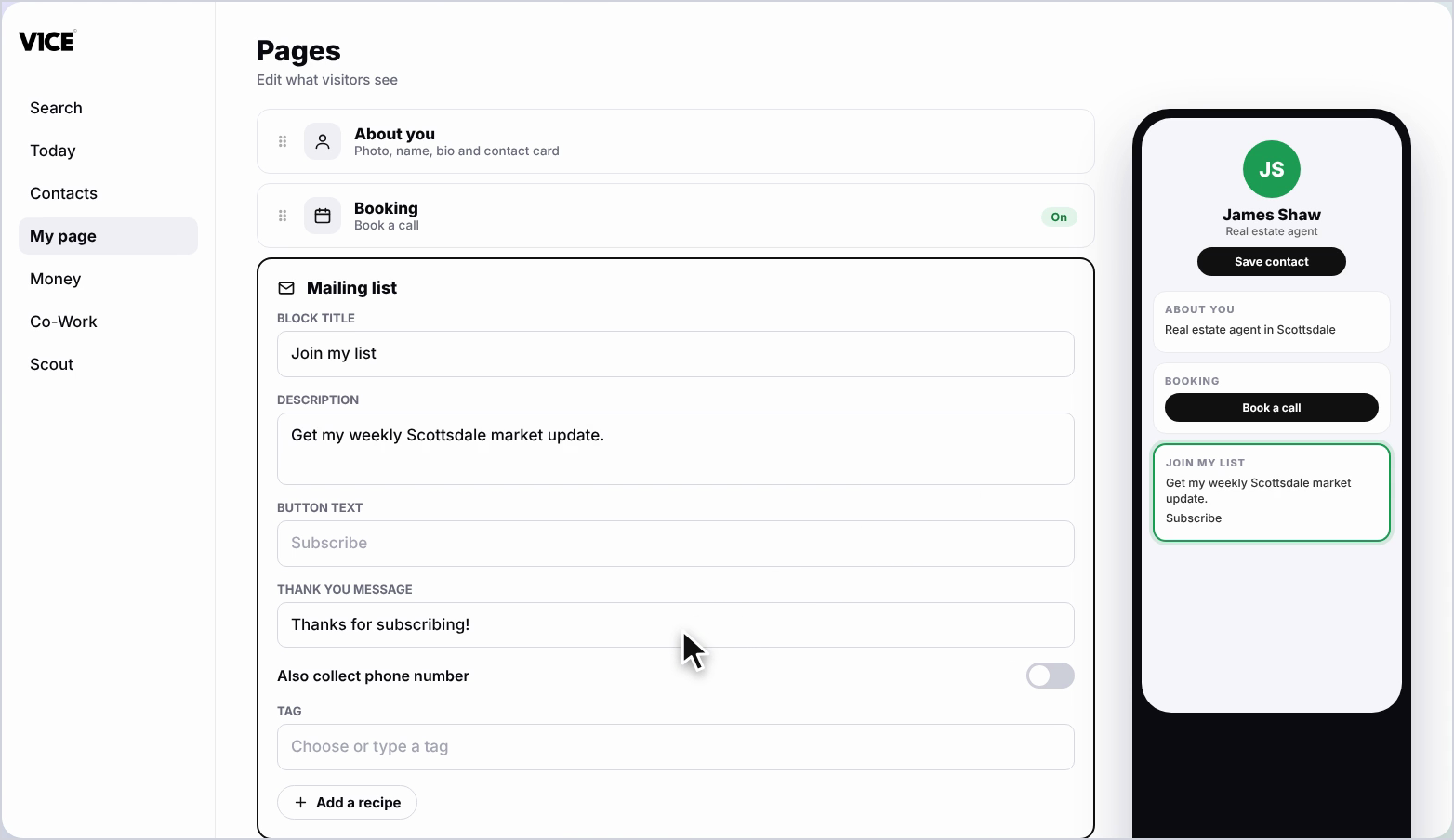
Step 5: Add your own button text
Add your own button text, such as Subscribe now.
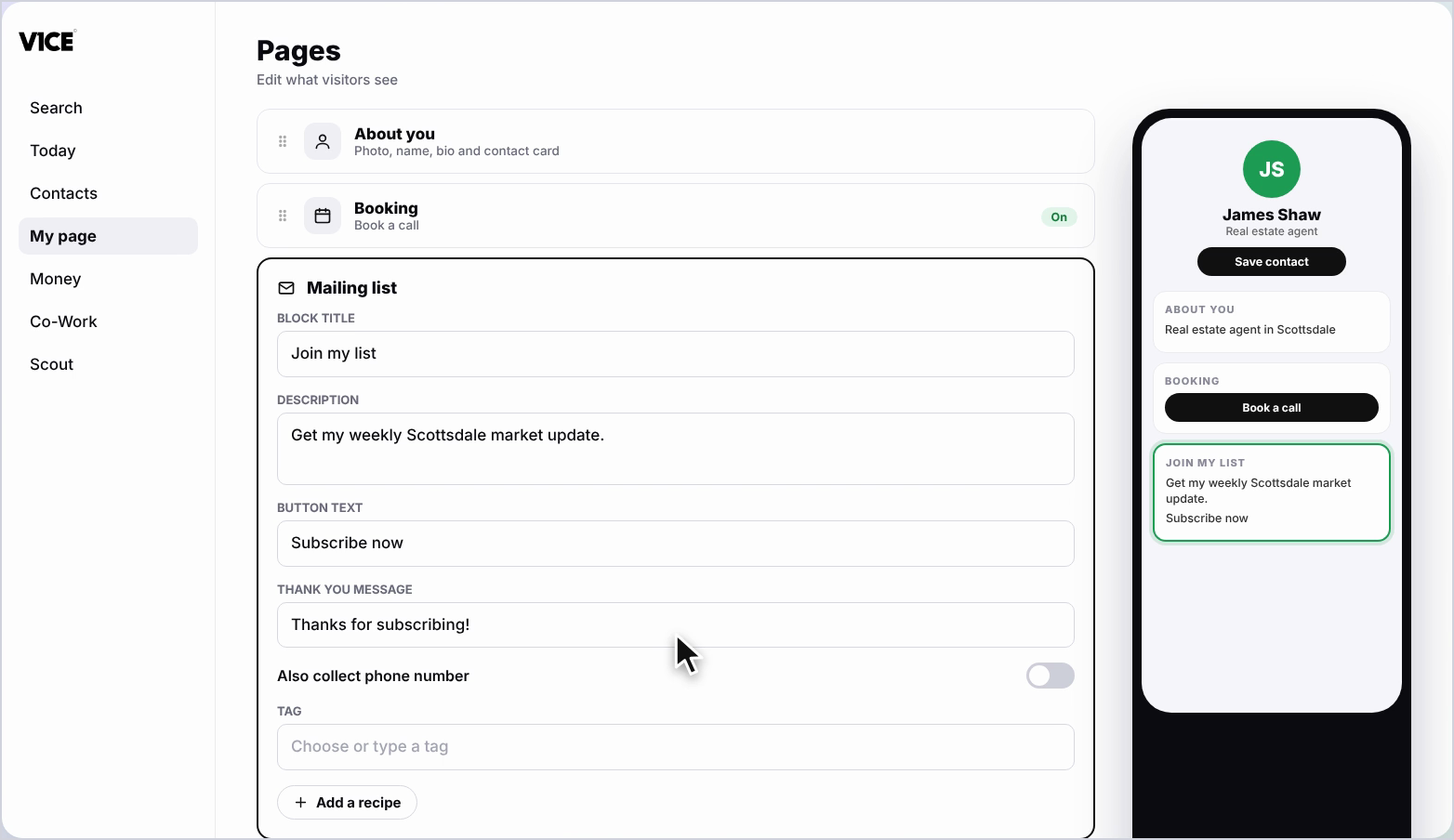
Step 6: Edit the thank you message
The thank you message is what people see after they sign up. Edit it if you like.
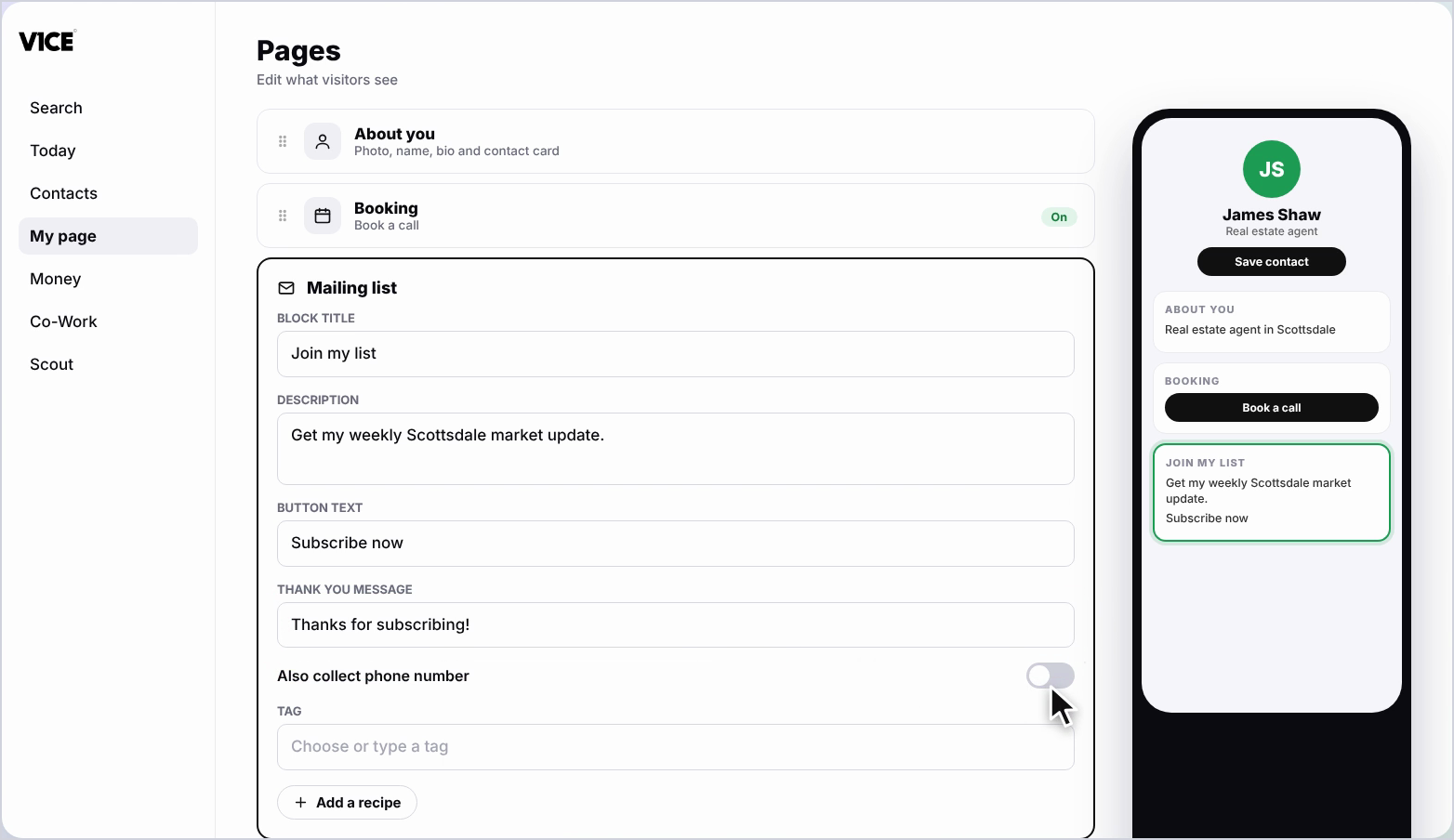
Step 7: Collect phone numbers
To collect phone numbers too, switch on Also collect phone number.
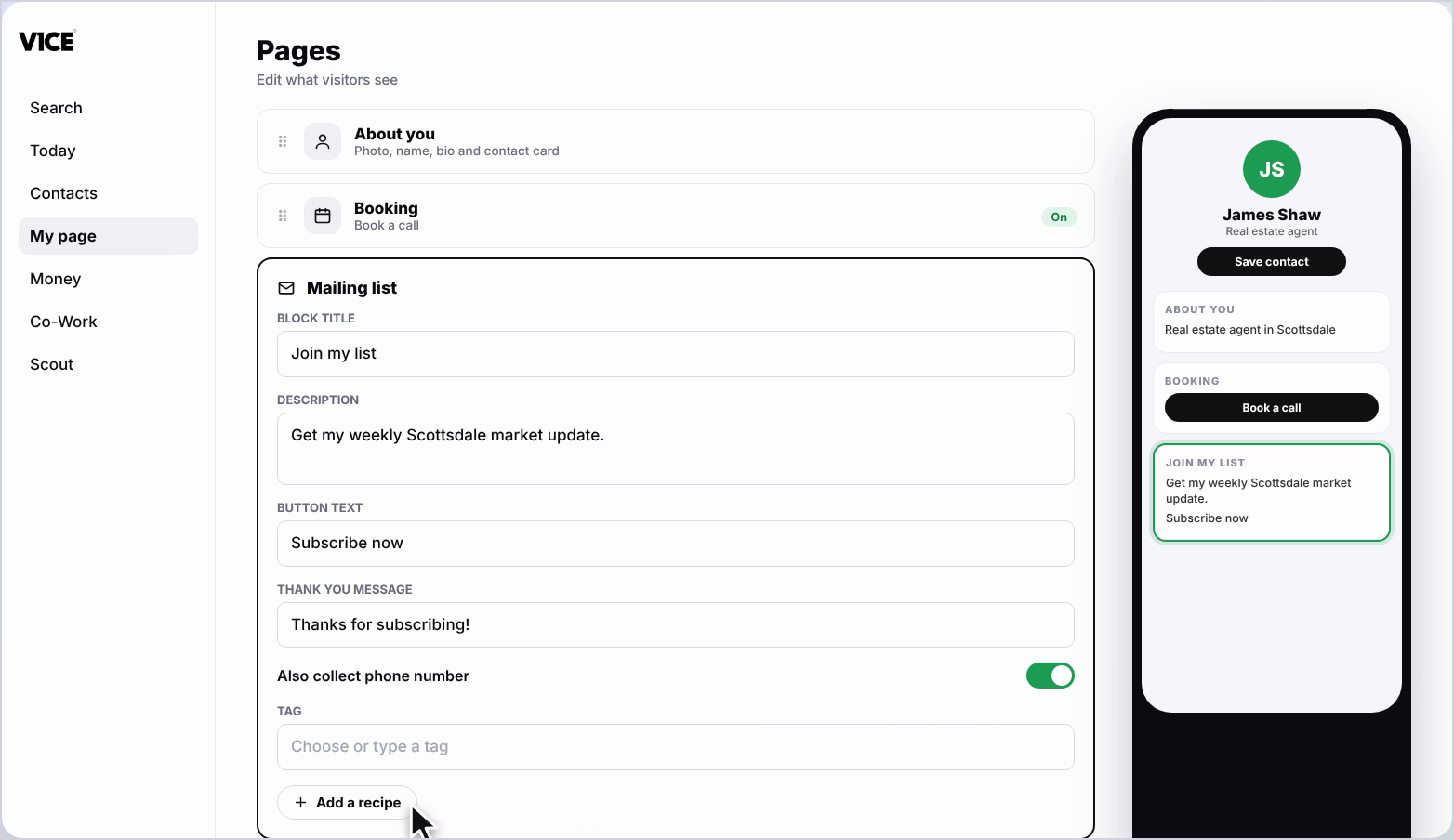
Step 8: Choose a tag
Choose a tag, or type a new one, so you can find these sign-ups in your Contacts.
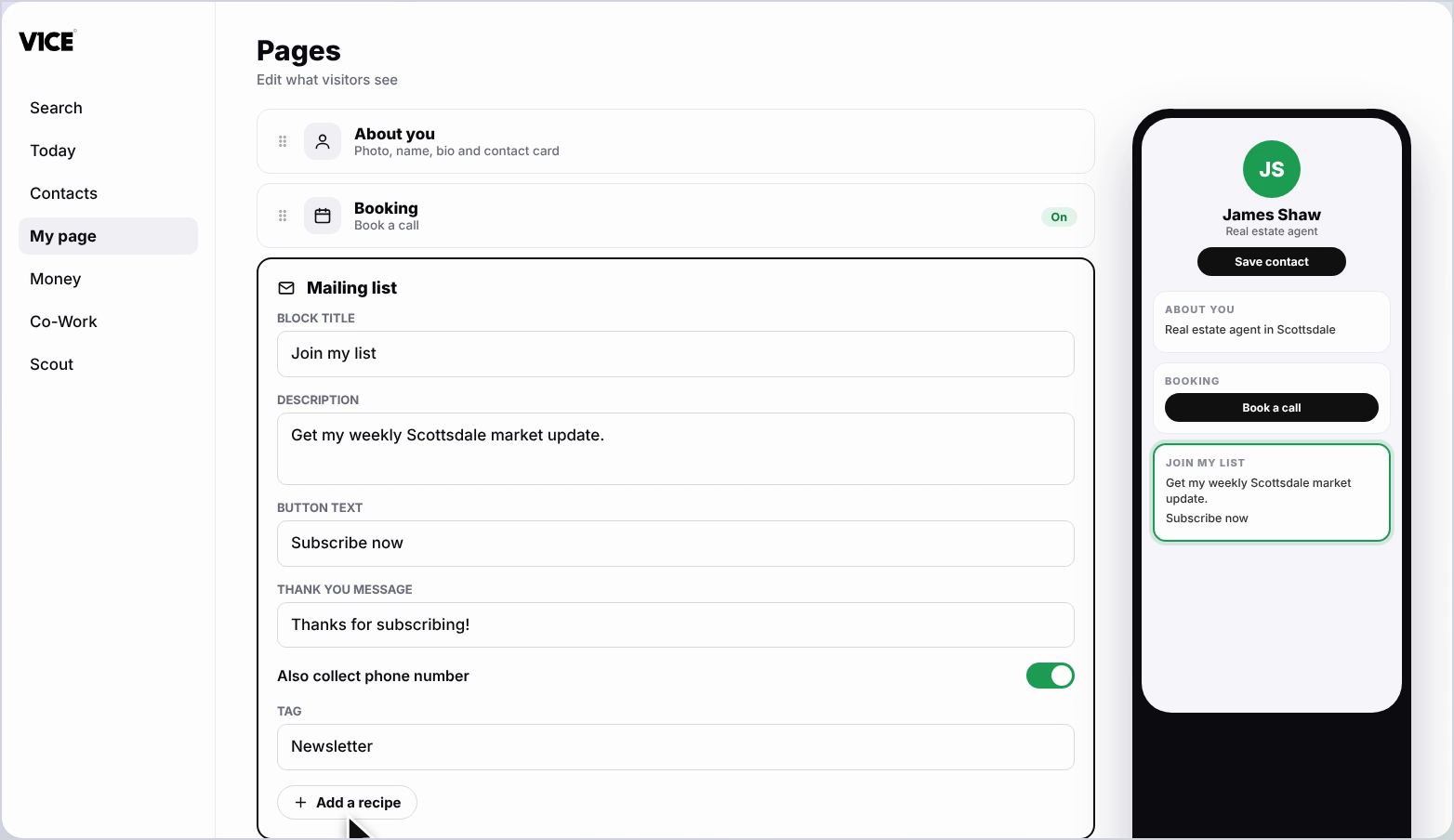
Step 9: Add a welcome email
To send an automatic welcome email, click Add a recipe.
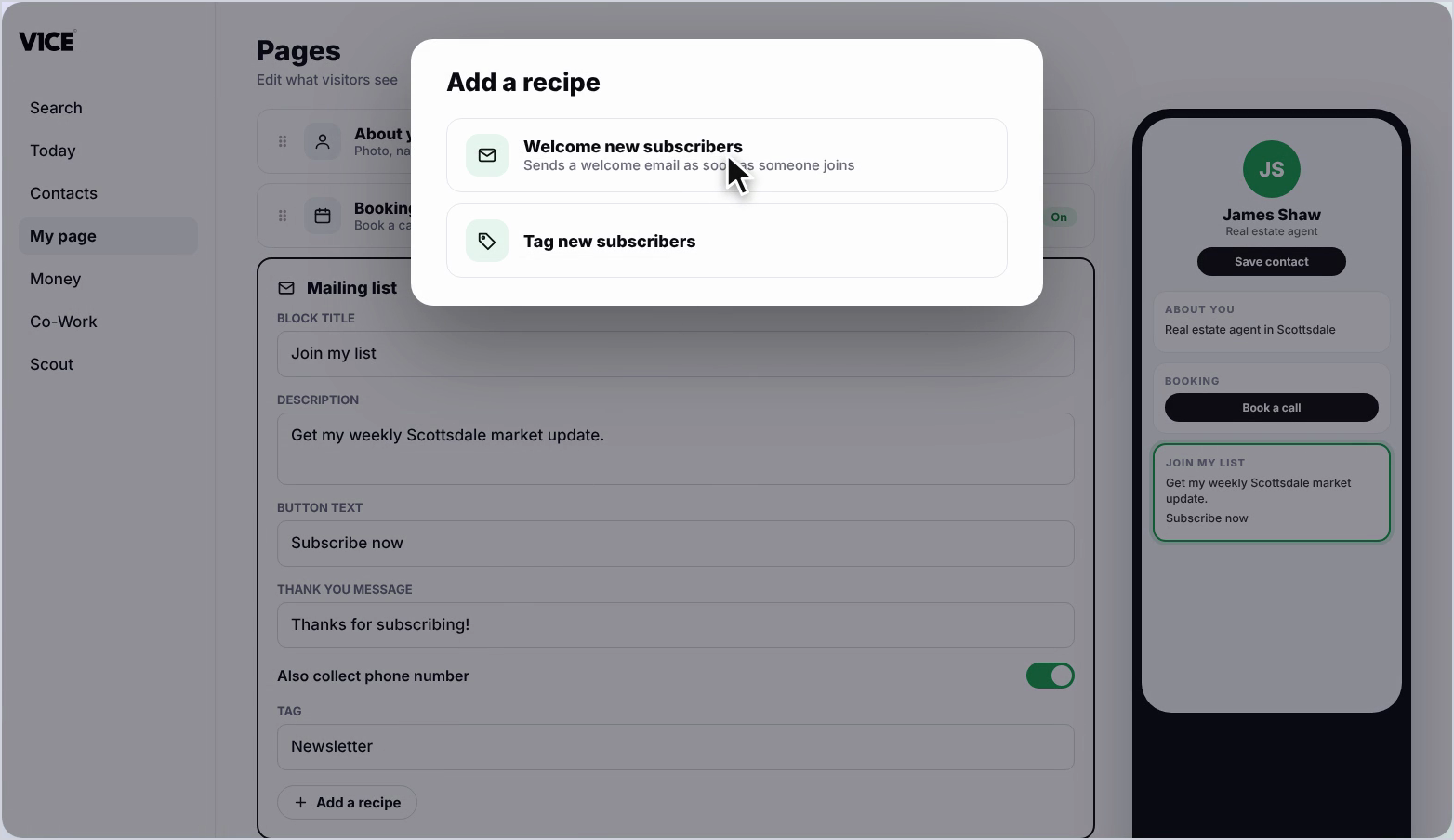
Step 10: Pick Welcome new subscribers
Click Welcome new subscribers.
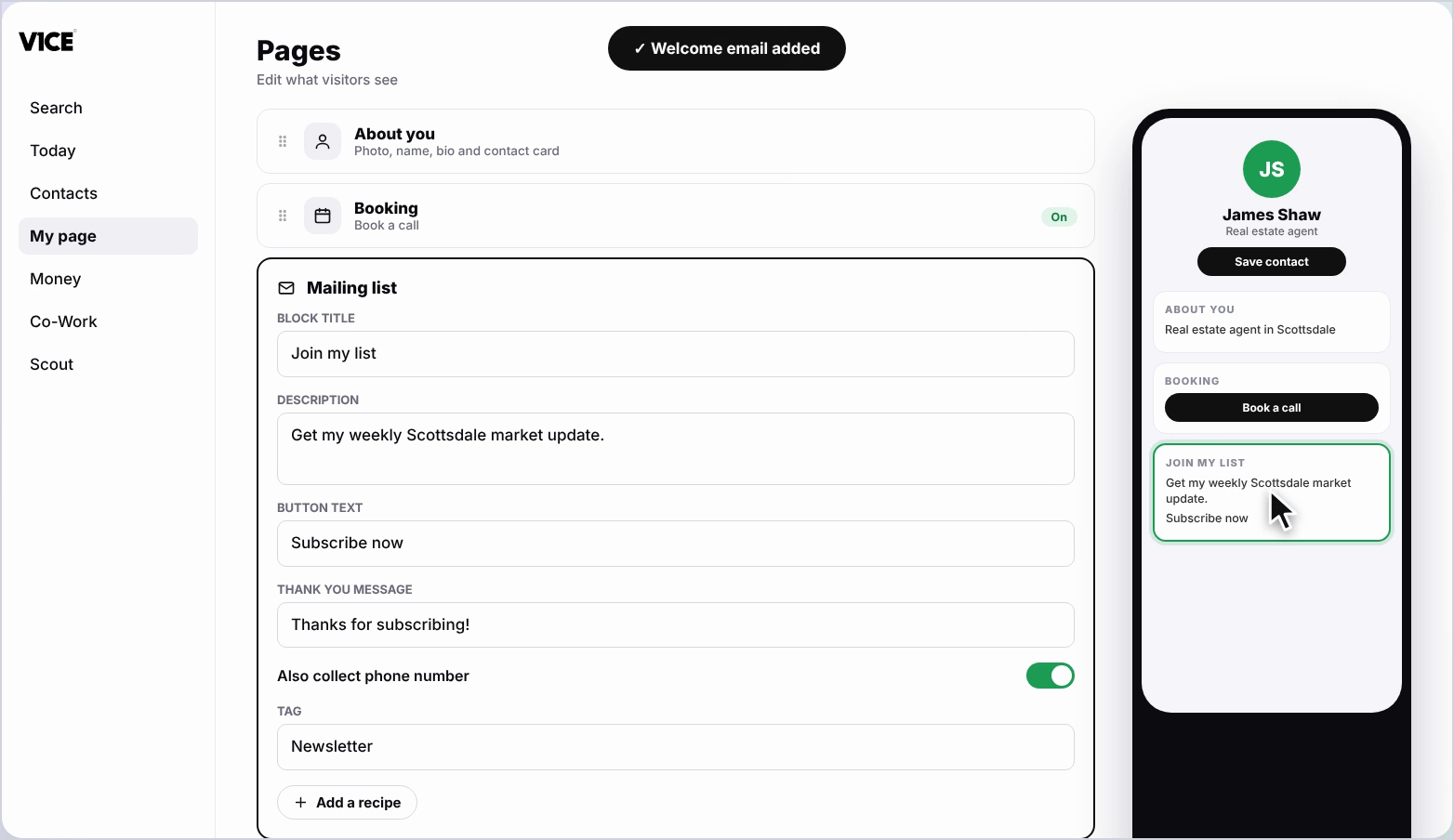
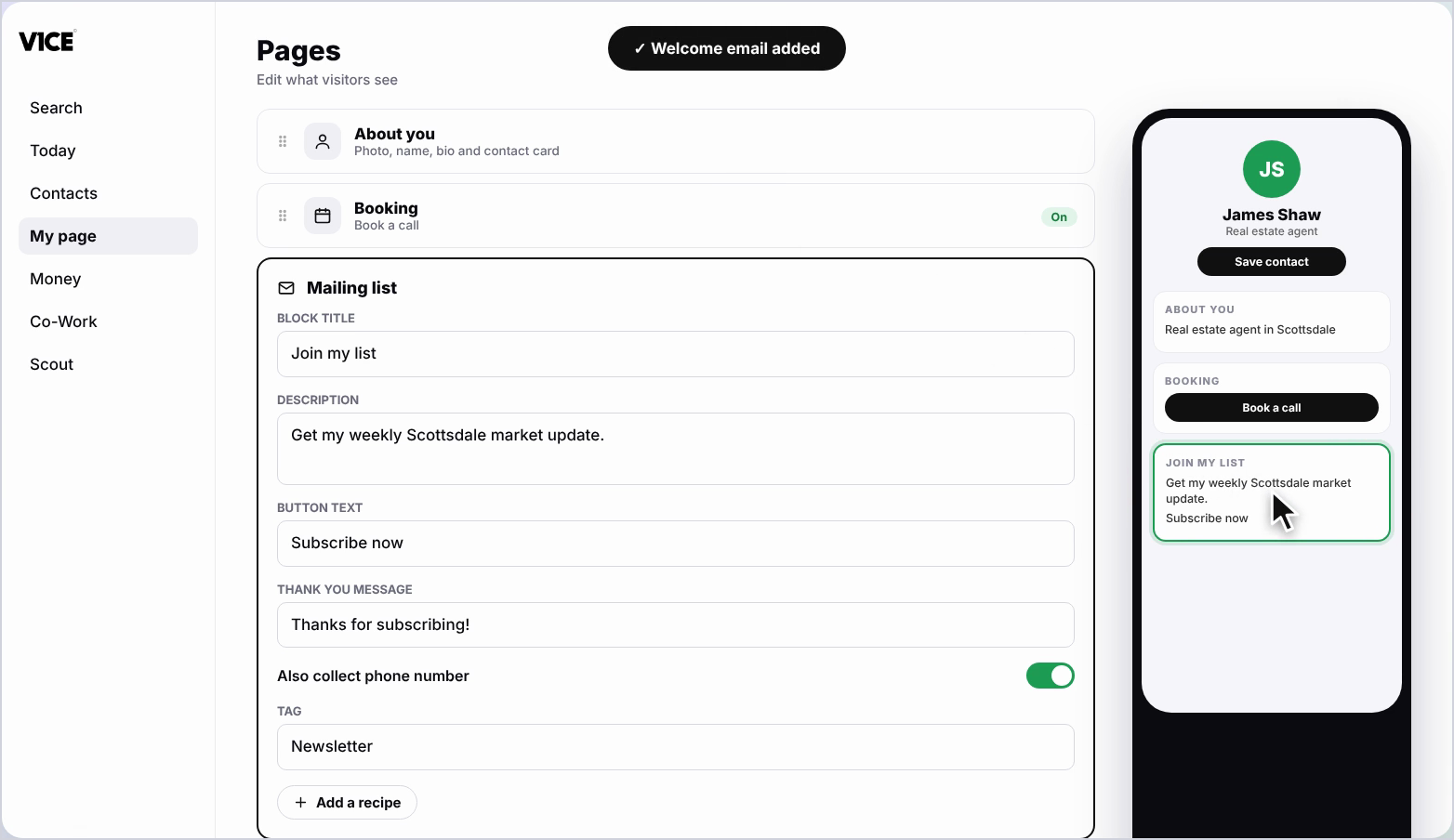
Step 11: See it on your page
Your mailing list now shows on your page, and new subscribers get your welcome email.
Frequently asked questions
How do I add a mailing list to my V1CE page?
Click Add a block, find Mailing list and click it. Type a short description to encourage sign-ups and add your own button text, such as Subscribe now.
Can I collect phone numbers too?
Yes. Switch on Also collect phone number.
How do I find my sign-ups?
Choose a tag, or type a new one, so you can find these sign-ups in your Contacts.
Can I send an automatic welcome email?
Yes. Click Add a recipe, then click Welcome new subscribers. New subscribers get your welcome email.