How to add services to your page and choose what shows

To add services to your V1CE page, open My page, then Pages, click Add a block and choose Services. Tick the services you want to show, drag to reorder them, rename the block, and add a Welcome a new buyer follow-up if you like.
| Time needed | 2 minutes |
|---|---|
| What you need | Your V1CE account |
| Where in the app | My page > Pages > Add a block > Services |
Video transcript and chapters
Chapters
0:00 Introduction
0:10 Open My page
0:13 Click Add a block
0:17 Find Services
0:20 Choose which services show
0:28 Drag to reorder
0:34 Rename the block
0:41 Add a follow-up
0:54 Choose your email
1:01 See it on your page
1:05 You're done

Transcript
Show what you offer on your page.
Choose which services show.
Rearrange them, rename the block,
and add a follow-up for new buyers.
Open my page, then Pages.
Scroll to the bottom of your page and click Add a block.
Find services in the list and click it.
Under Show on this page, tick a service
to show it on your page or untick it to hide it.
Ticked services move to the top.
Grab a service by its handle on the left
and drag it up or down to change the order.
Click the section title box and type your own.
Your preview updates as you type,
and it saves automatically.
To follow up automatically when someone buys,
scroll to the bottom of the services block
and click Add a recipe.
Pick Welcome a New Buyer.
This sends an email 30 minutes
after someone pays for your service.
Click Send Welcome Email to see the message,
then use this email or choose Write My Own to change it.
Your services block now shows on your page.
That's how to add services to your page.
Show what you offer on your page.
Choose which services show, rearrange them, rename the block, and add a follow-up for new buyers.
Watch the video
Follow the steps
Step 1: Open My page
Open My page, then Pages.
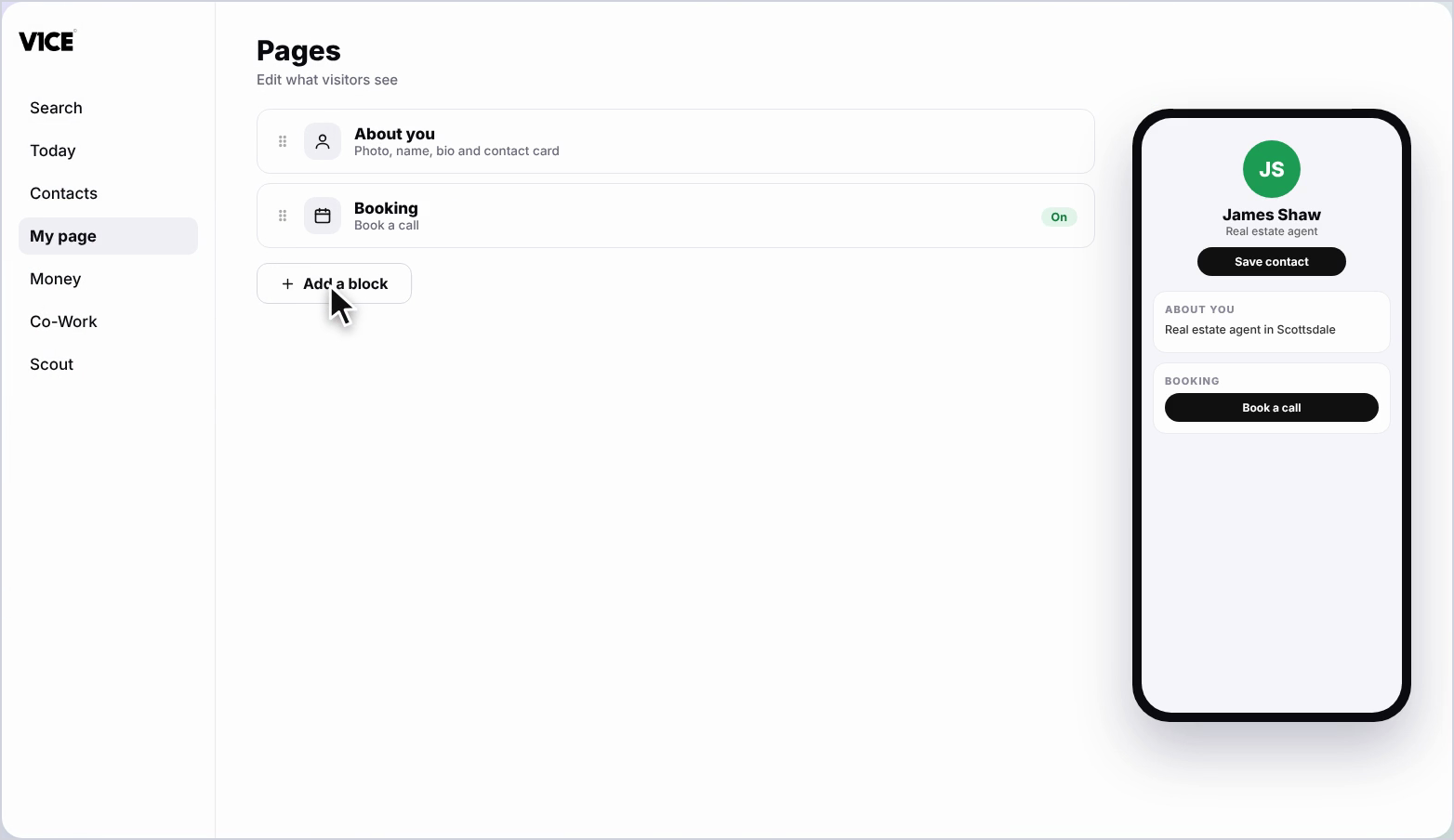
Step 2: Click Add a block
Scroll to the bottom of your page and click Add a block.
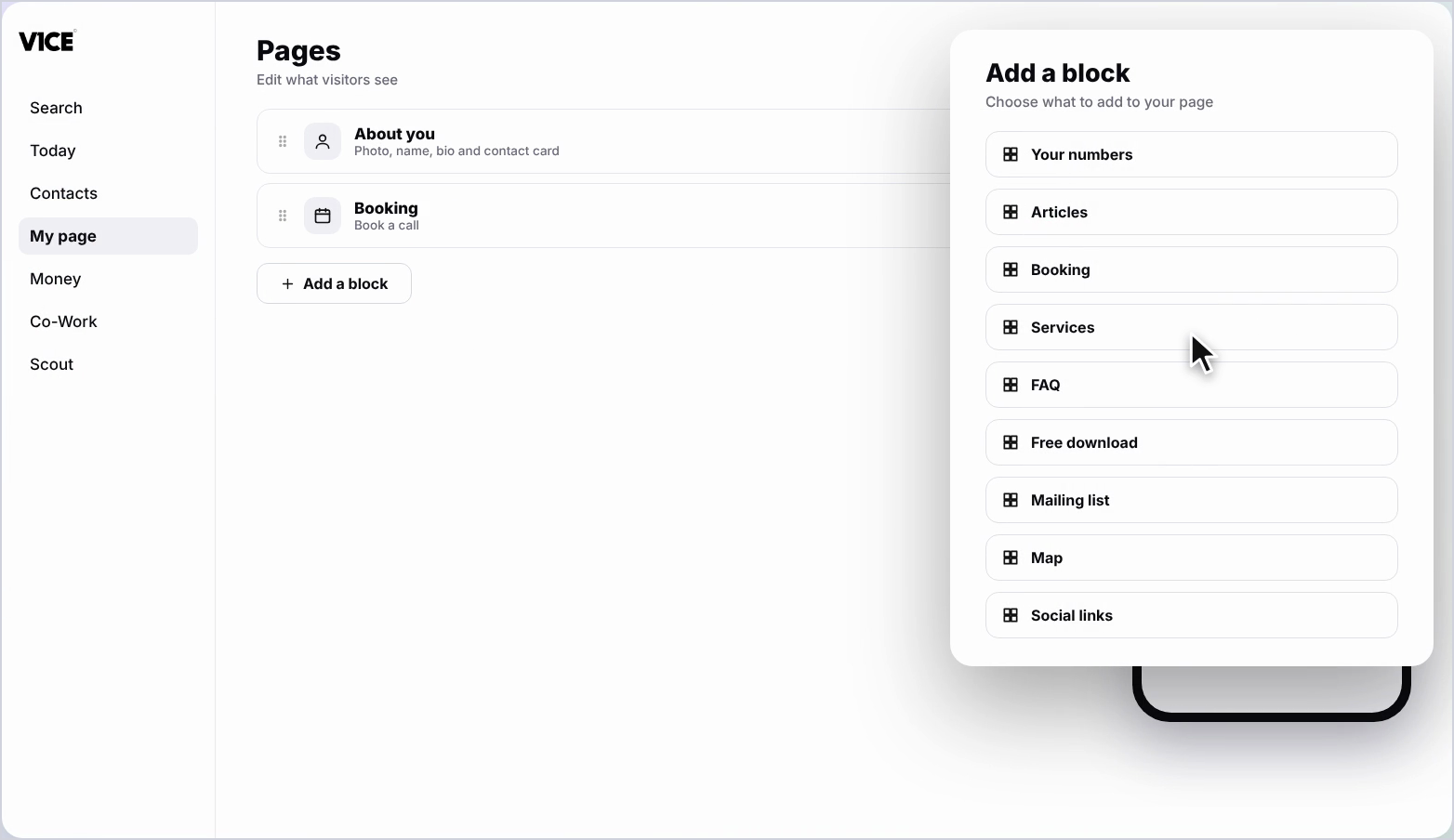
Step 3: Find Services
Find Services in the list and click it.
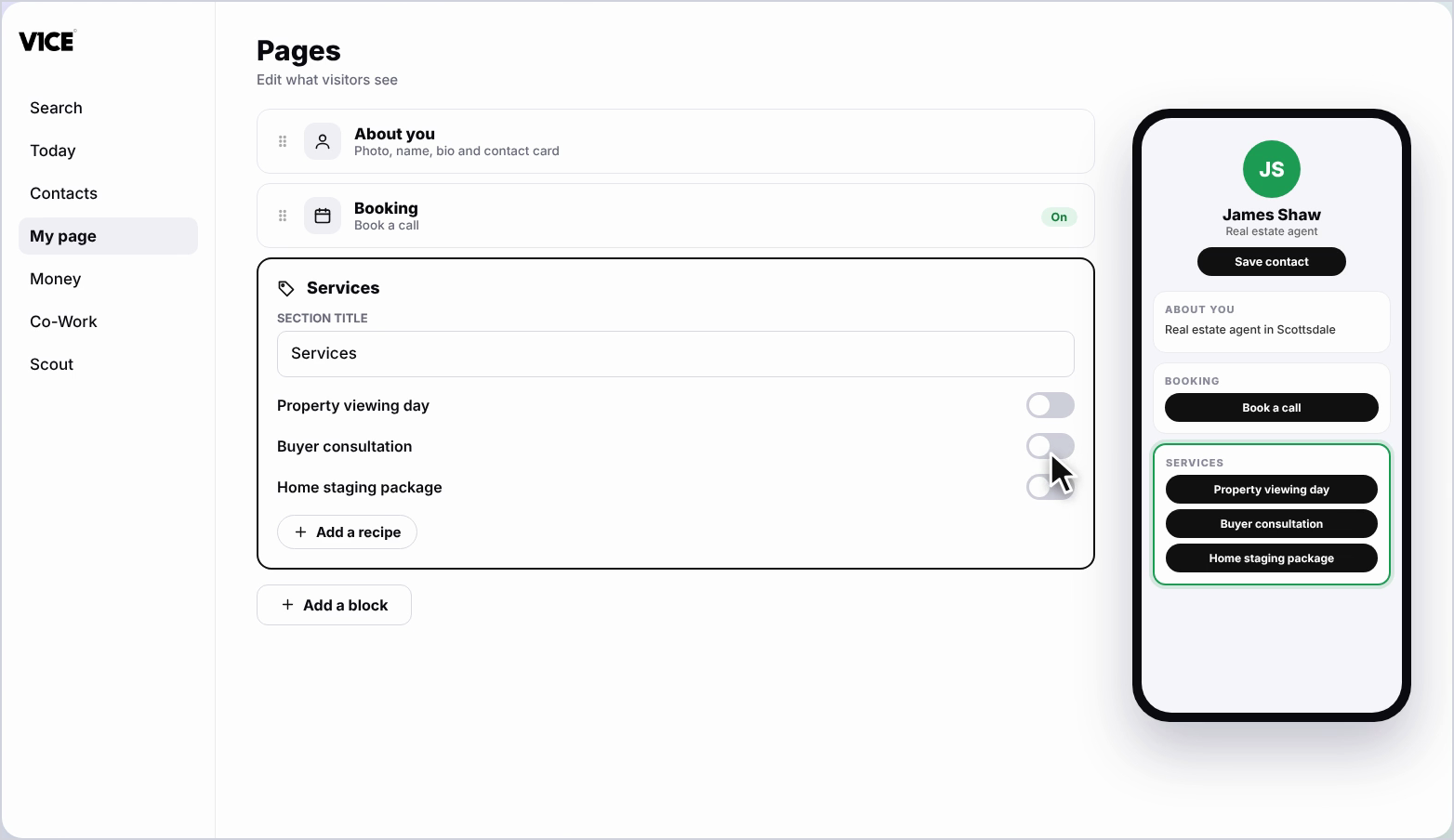
Step 4: Choose which services show
Under Show on this page, tick a service to show it on your page, or untick it to hide it. Ticked services move to the top.
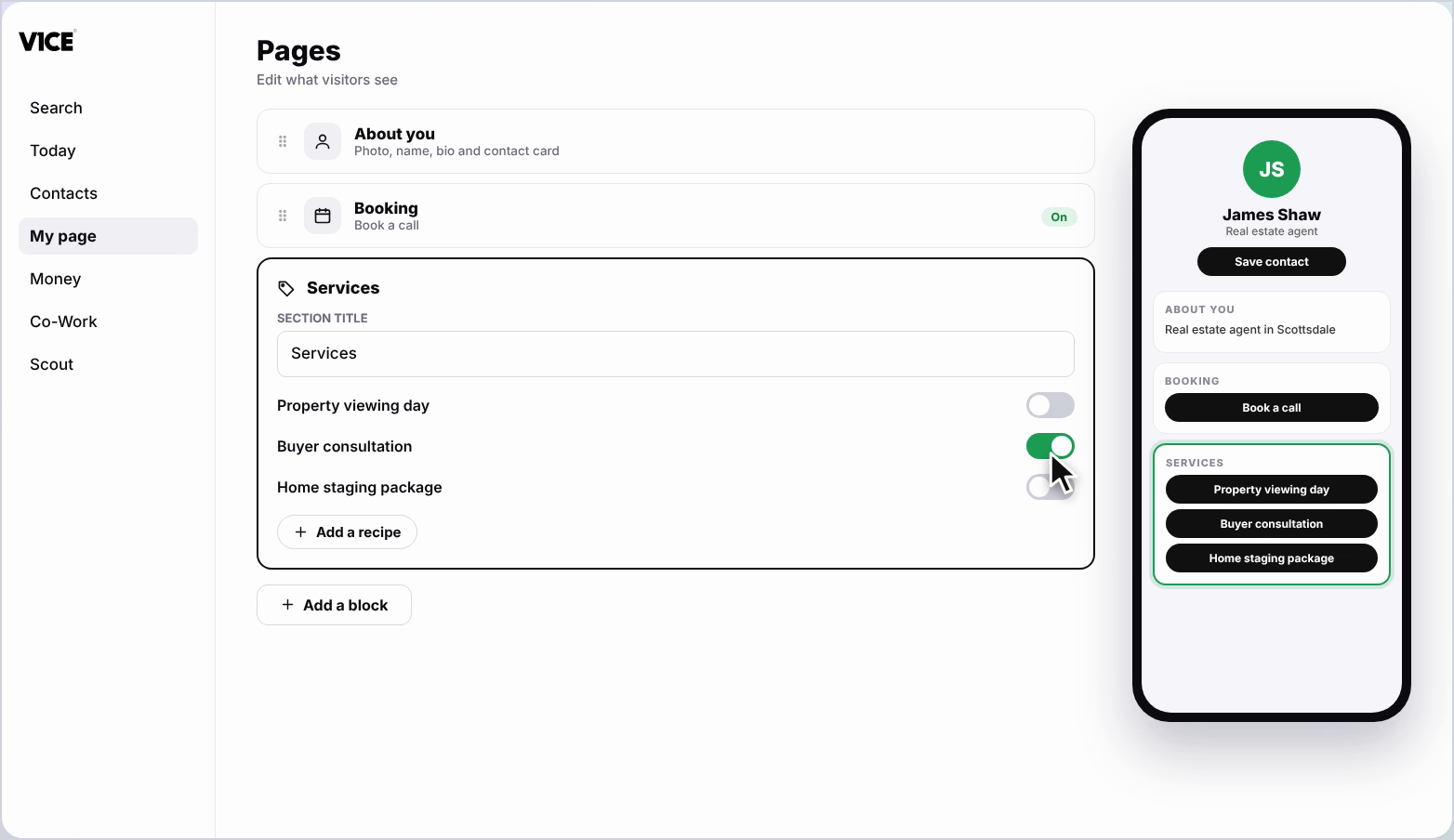
Step 5: Drag to reorder
Grab a service by its handle on the left and drag it up or down to change the order.
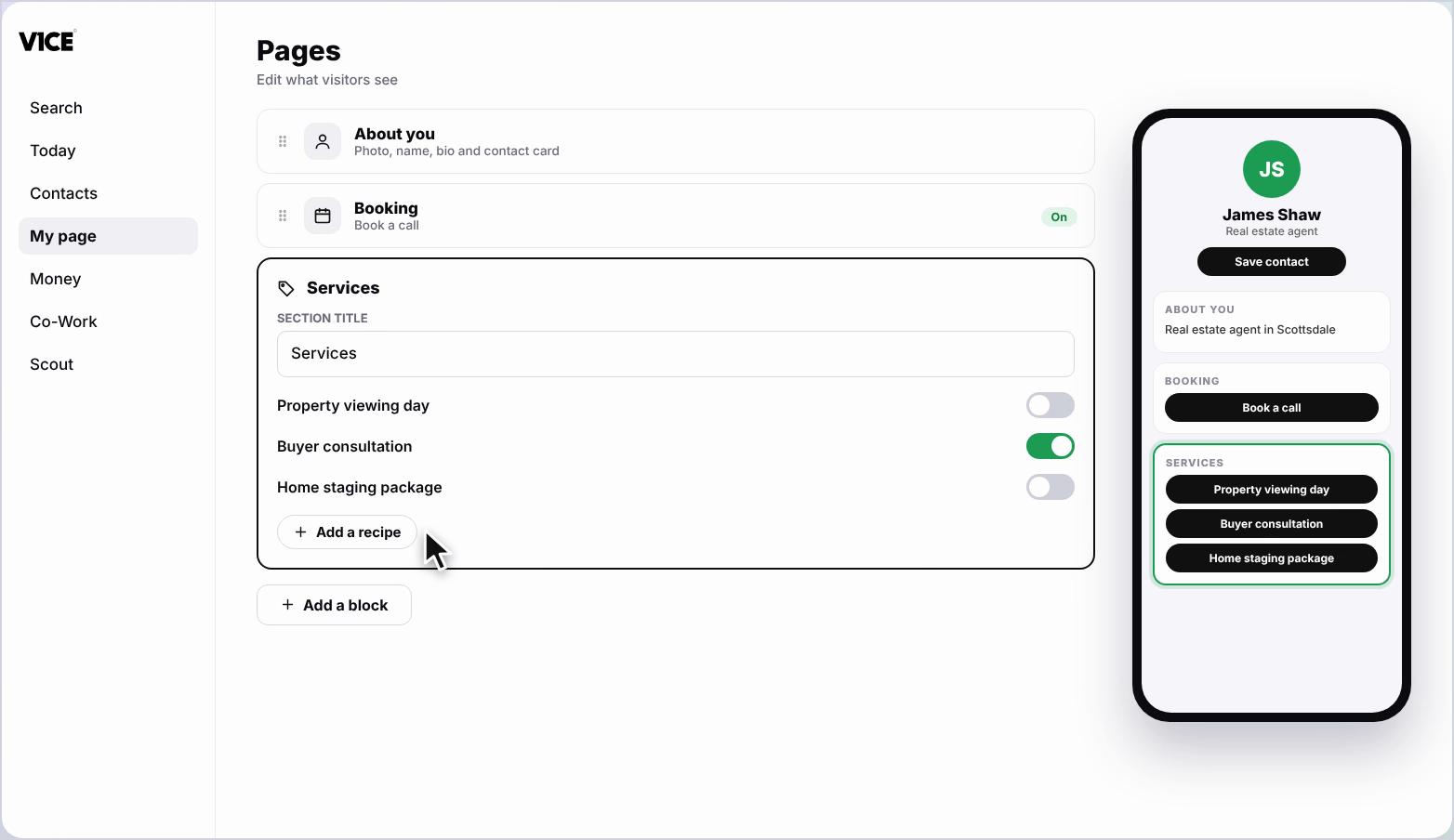
Step 6: Rename the block
Click the Section title box and type your own. Your preview updates as you type, and it saves automatically.
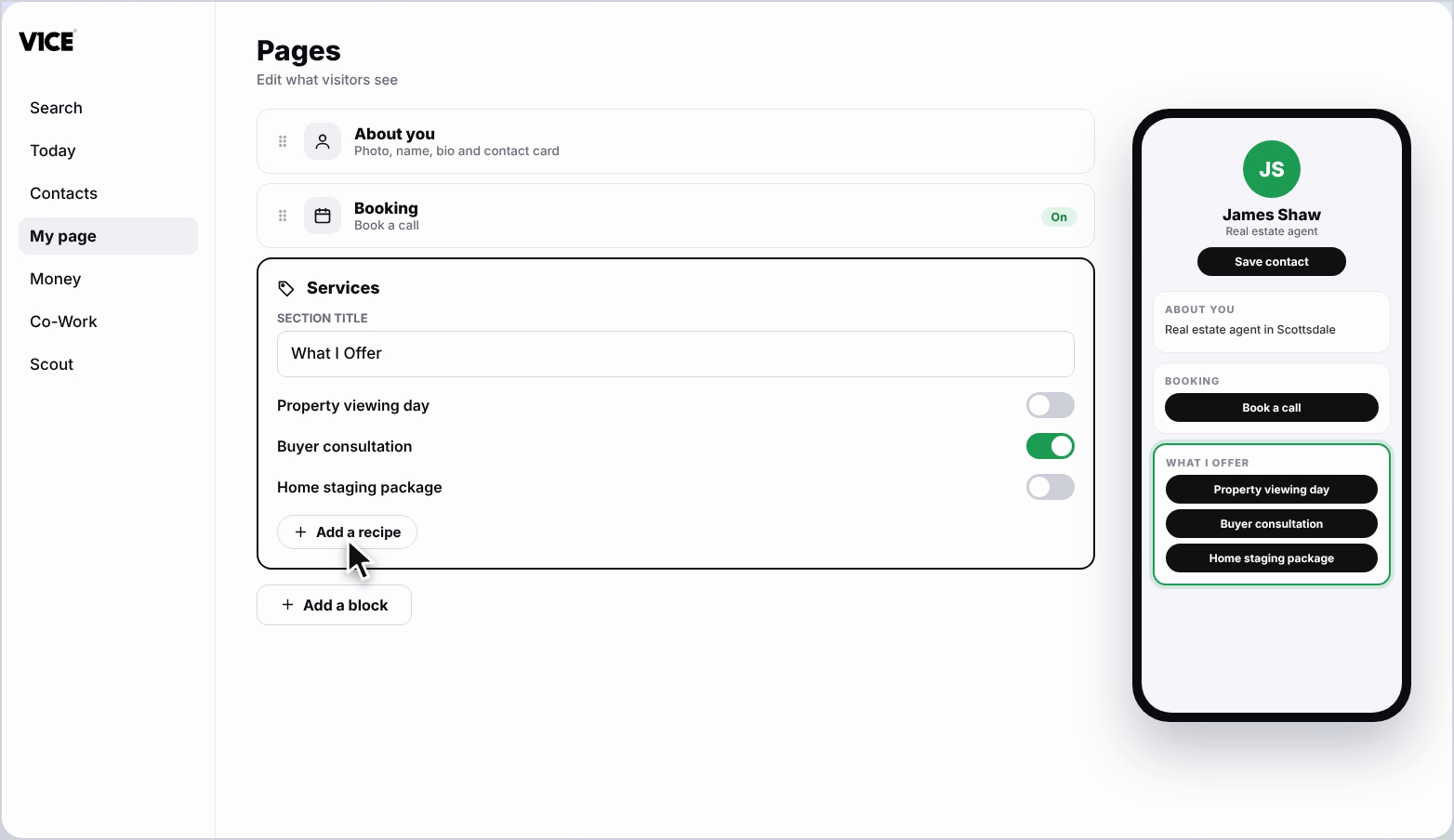
Step 7: Add a follow-up
To follow up automatically when someone buys, scroll to the bottom of the Services block and click Add a recipe.
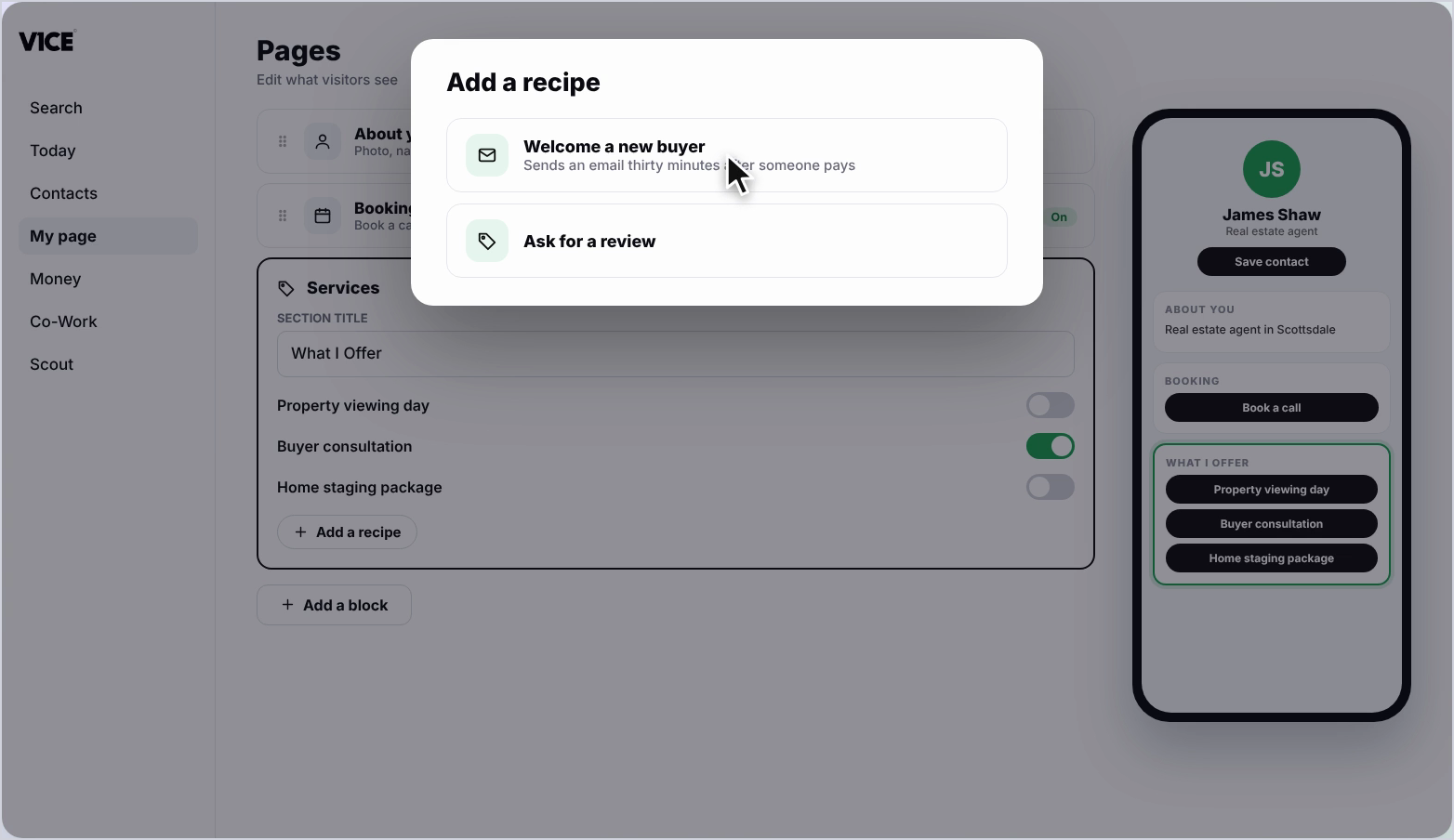
Step 8: Pick Welcome a new buyer
Pick Welcome a new buyer. This sends an email thirty minutes after someone pays for your service.
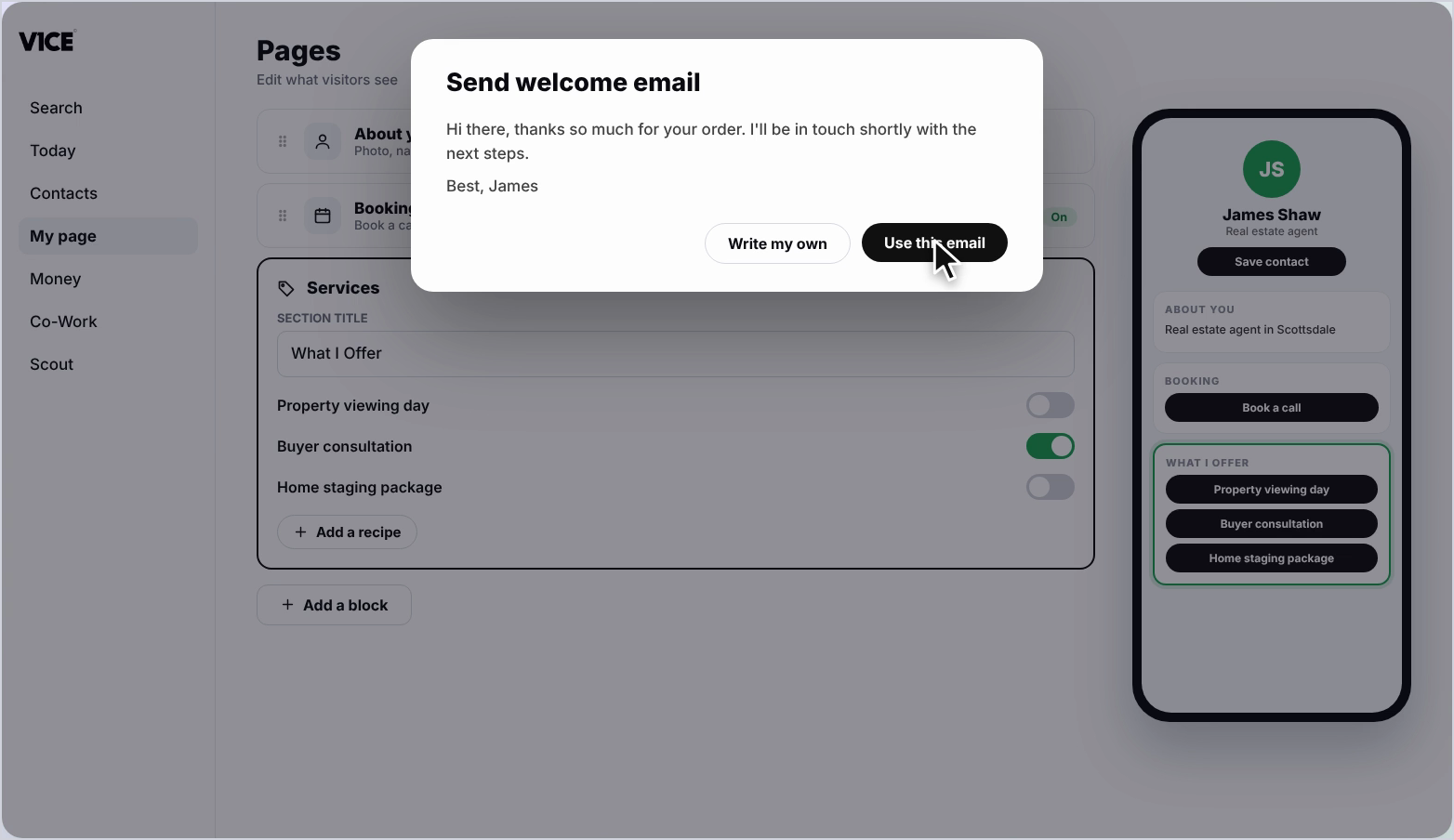
Step 9: Choose your email
Click Send welcome email to see the message, then Use this email, or choose Write my own to change it.
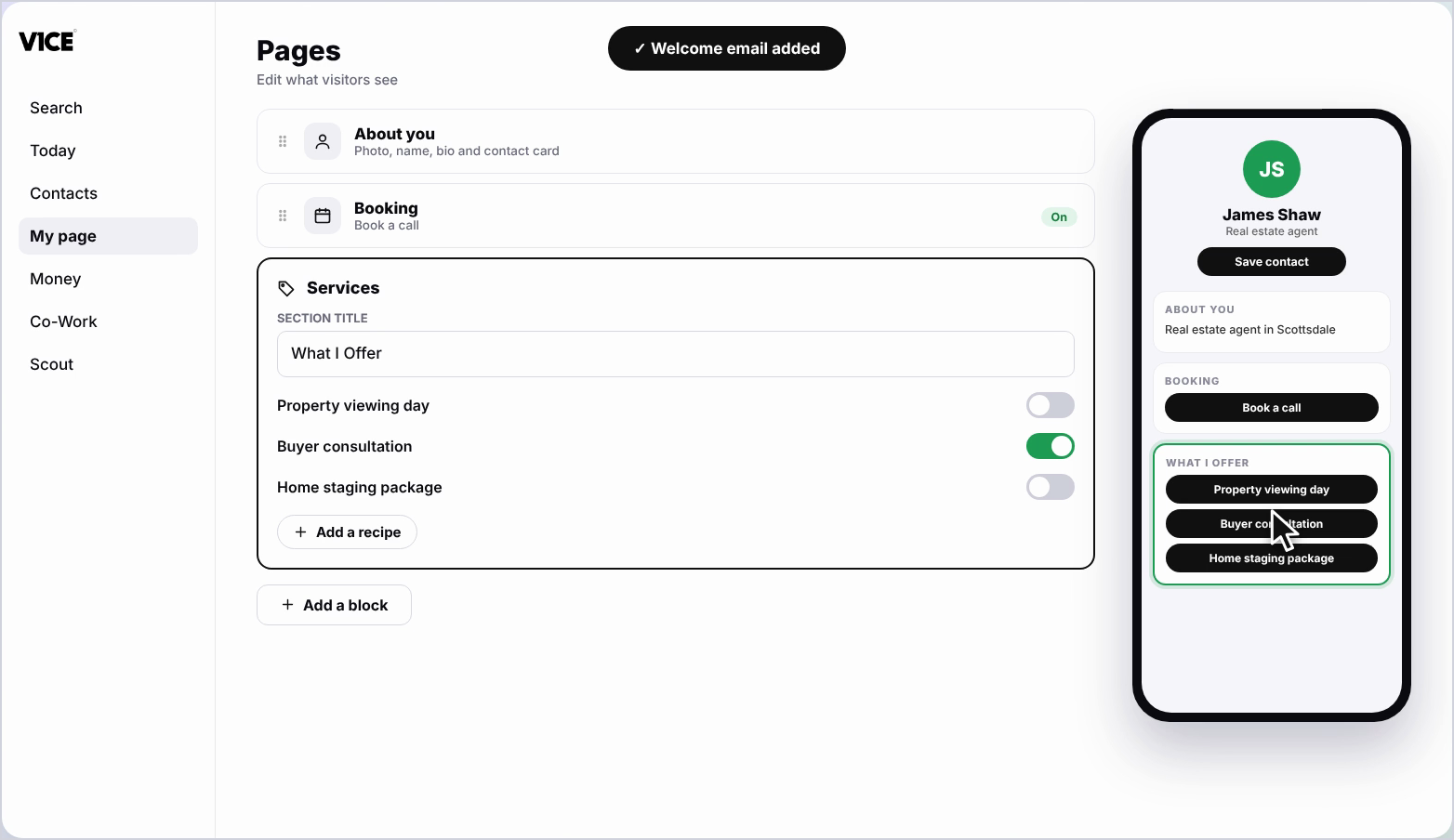
Step 10: See it on your page
Your Services block now shows on your page.
Frequently asked questions
How do I choose which services show?
Under Show on this page, tick a service to show it on your page, or untick it to hide it. Ticked services move to the top.
Can I change the order of my services?
Yes. Grab a service by its handle on the left and drag it up or down.
Can I rename the Services block?
Yes. Click the Section title box and type your own. Your preview updates as you type, and it saves automatically.
What does the Welcome a new buyer follow-up do?
It sends an email thirty minutes after someone pays for your service. You can use the suggested email or write your own.