How to add a booking link to your page

To add a booking link, open My page, then Pages, click Add a block and choose Booking. Pick your booking link, name the block, and check the two follow-ups already switched on. You can add another, such as turning a booking into a deal.
| Time needed | 2 minutes |
|---|---|
| What you need | Your V1CE account and a booking link |
| Where in the app | My page > Pages > Add a block > Booking |
Video transcript and chapters
Chapters
0:00 Introduction
0:09 Open My page
0:16 Find Booking
0:19 Choose your booking link
0:24 Name the block
0:29 Add your own button text
0:33 Check your follow-ups
0:41 Add another follow-up
0:51 See it on your page
0:57 You're done

Transcript
Let people book a call straight from your page.
Choose your booking link, name the block and set up follow-ups for new bookings.
Open my page, then Pages.
Scroll to the bottom of your page and click Add a Block.
Find booking in the list and click it.
Choose the booking link you want to show by clicking the circle next to it.
Click the title box and type your own name for the block, like Book a Call.
Add your own button text or leave it blank to show Book Now.
Two follow-ups are already switched on, a nudge if someone opens your link but doesn't book,
and a reminder an hour before the call.
To add another follow-up, click Add a Recipe.
Pick turn a booking into a deal.
This adds a deal to your pipeline whenever someone books.
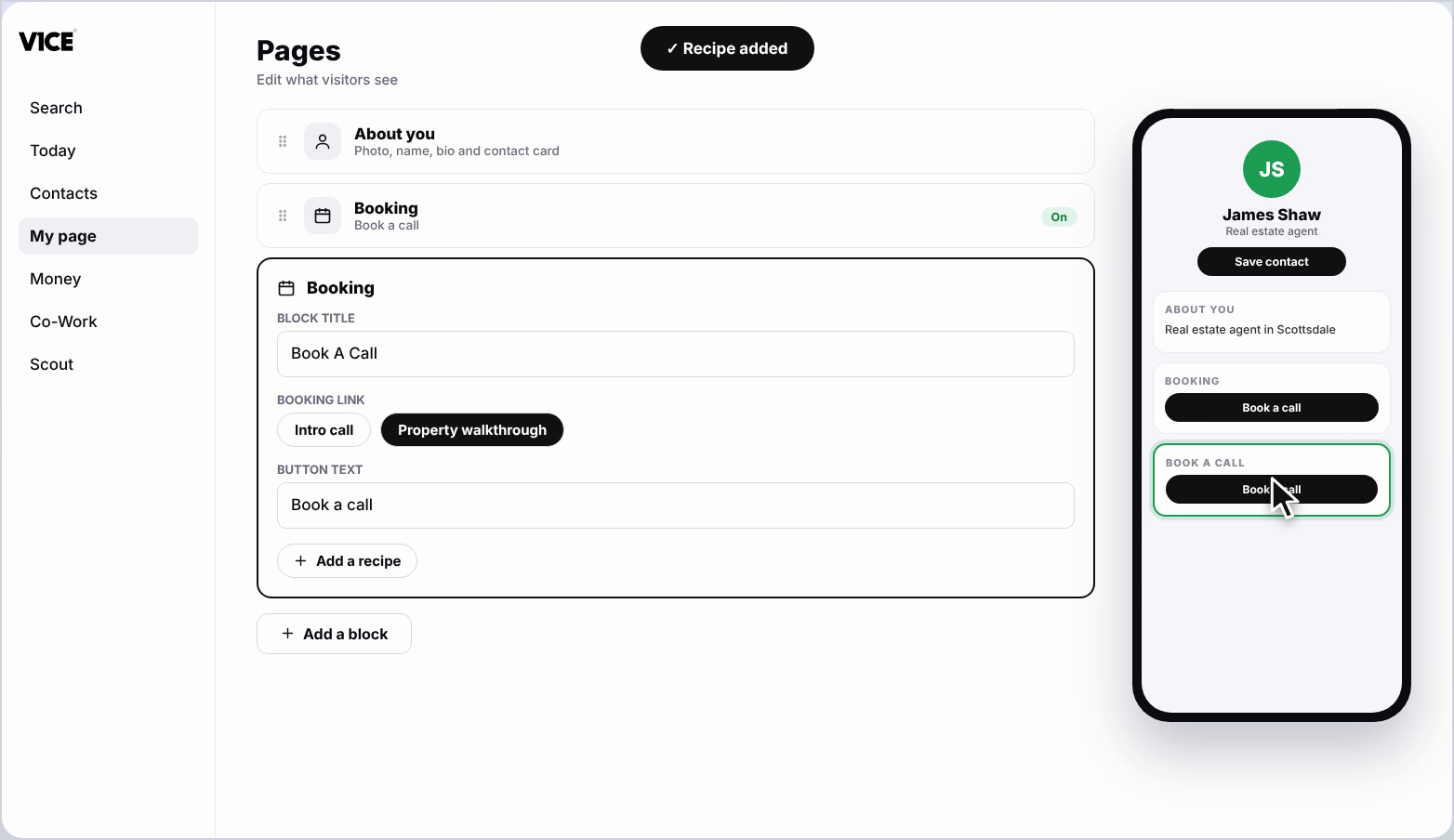
Your booking block now shows on your page and anyone can book a call in a couple of taps.
That's how to add a booking link to your page.
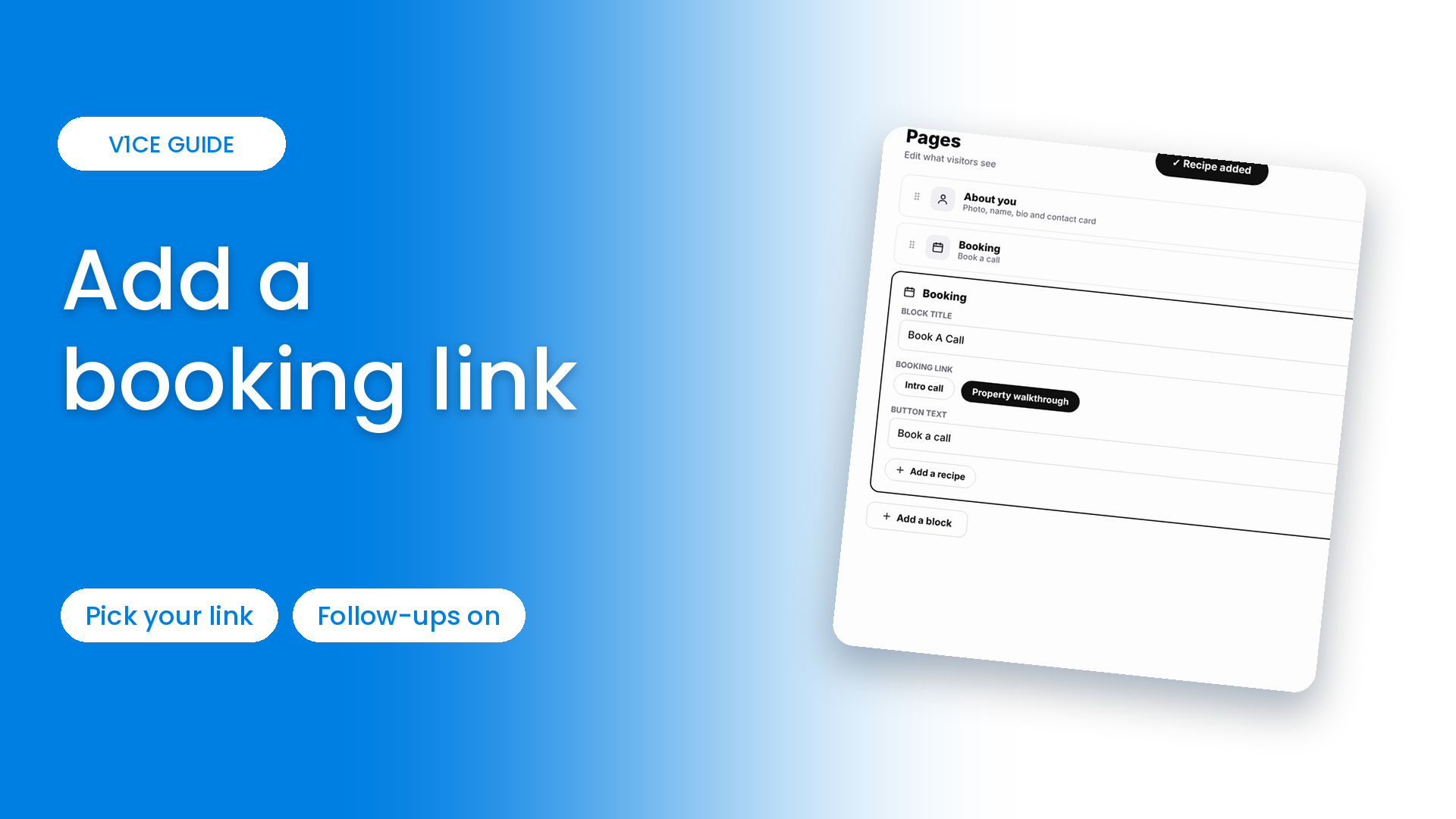
Let people book a call straight from your page.
Choose your booking link, name the block, and set up follow-ups for new bookings.
Watch the video
Follow the steps
Step 1: Open My page
Open My page, then Pages.
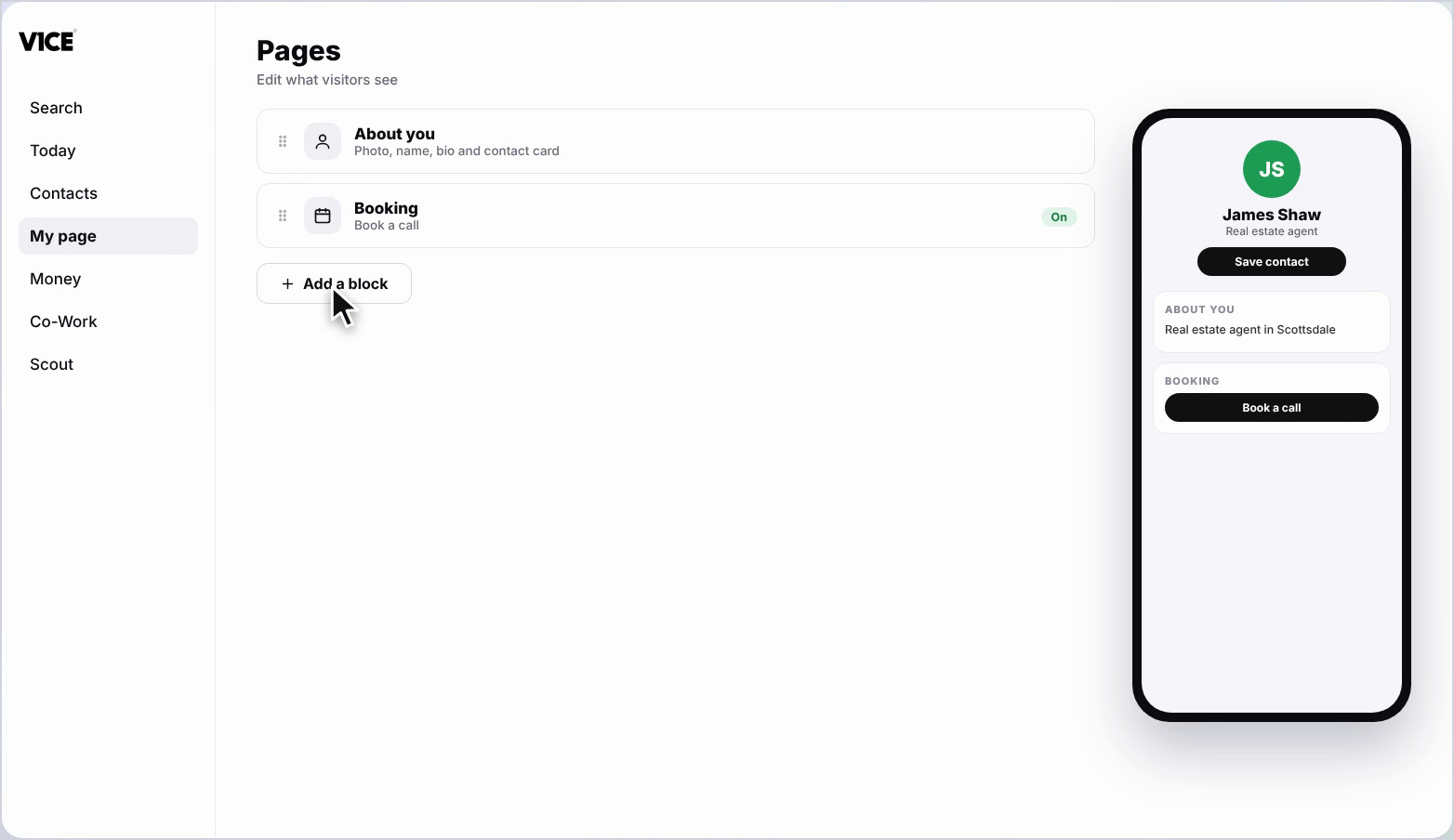
Step 2: Click Add a block
Scroll to the bottom of your page and click Add a block.
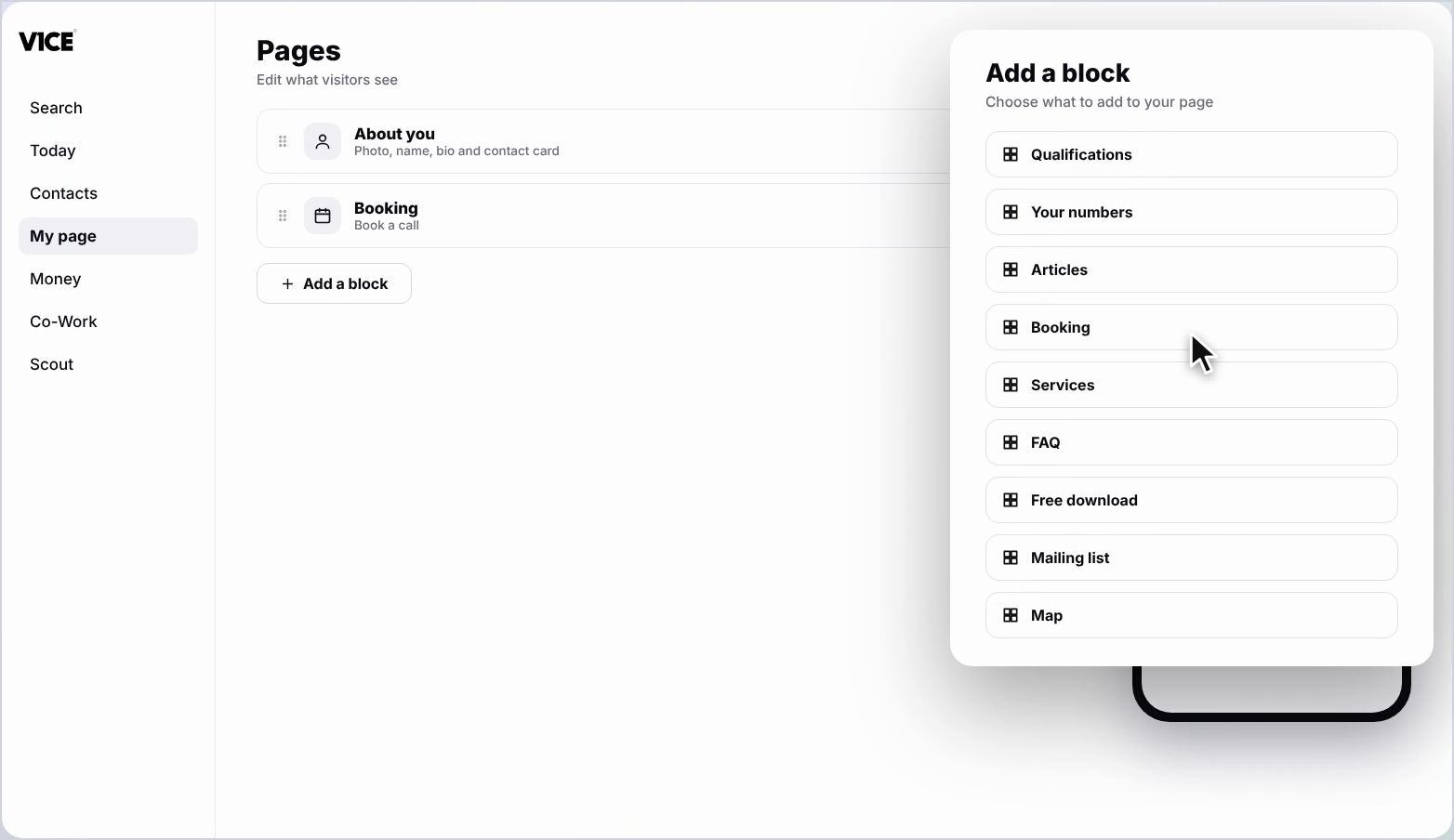
Step 3: Find Booking
Find Booking in the list and click it.
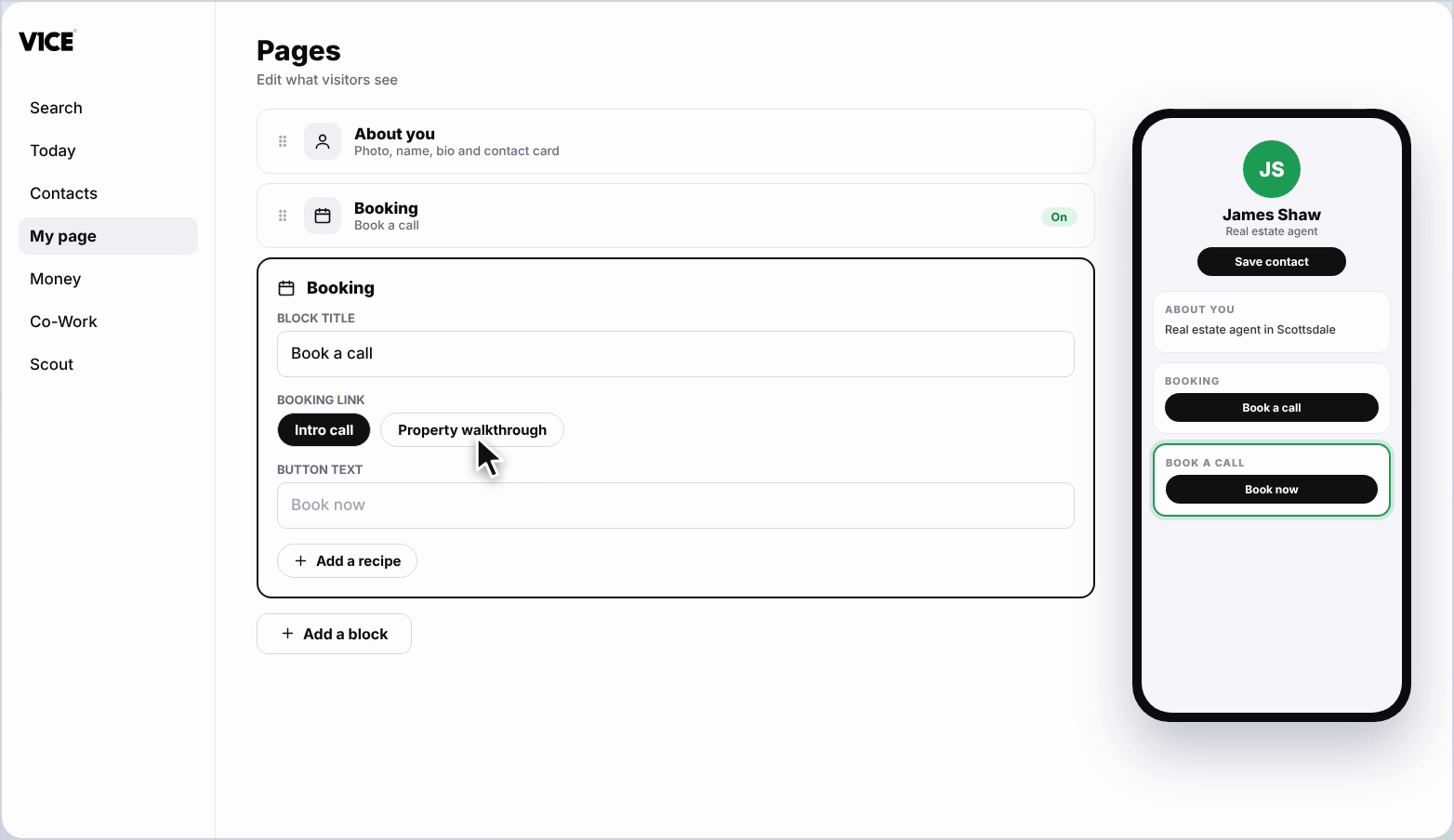
Step 4: Choose your booking link
Choose the booking link you want to show by clicking the circle next to it.
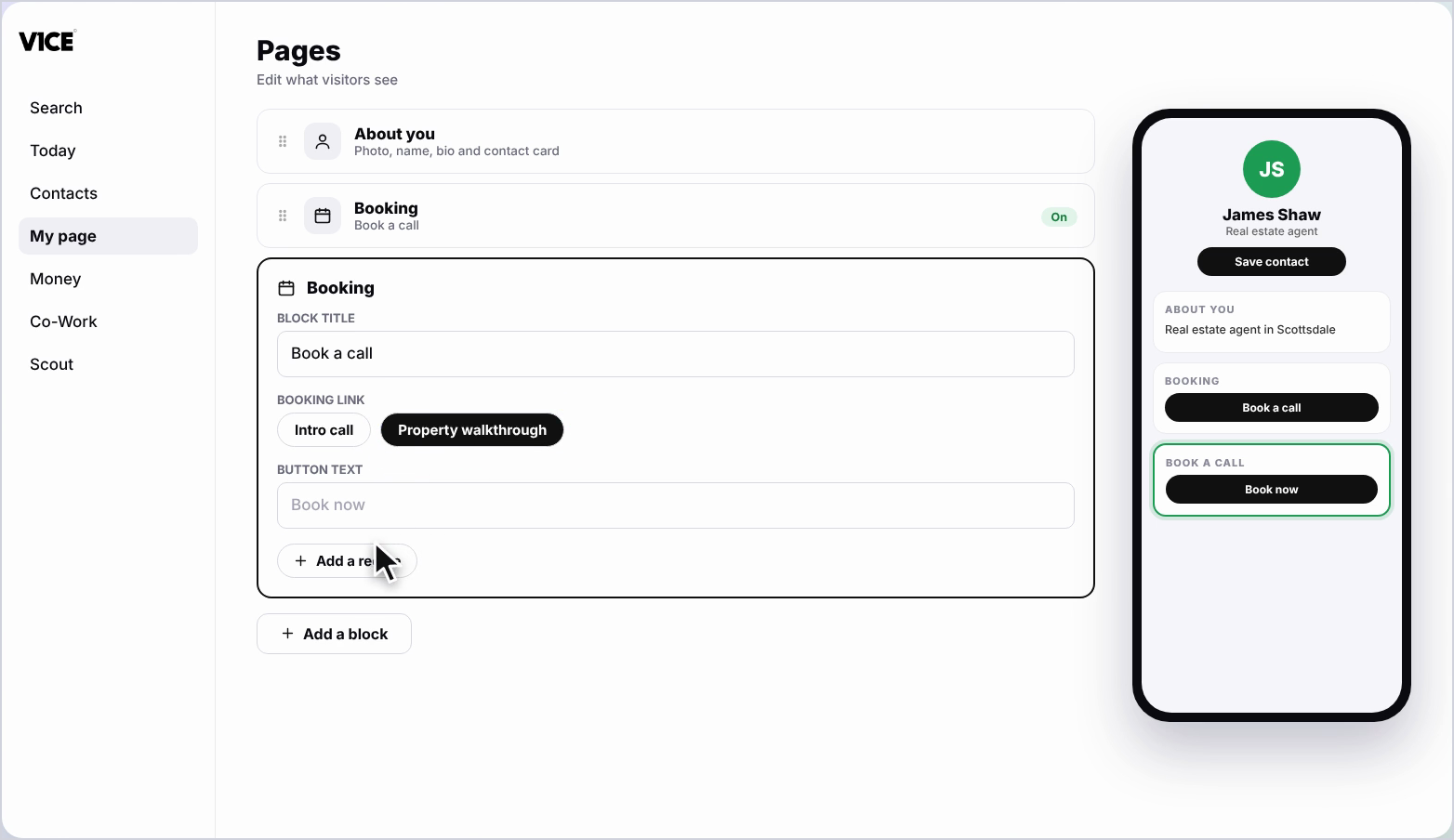
Step 5: Name the block
Click the Title box and type your own name for the block, like Book A Call.
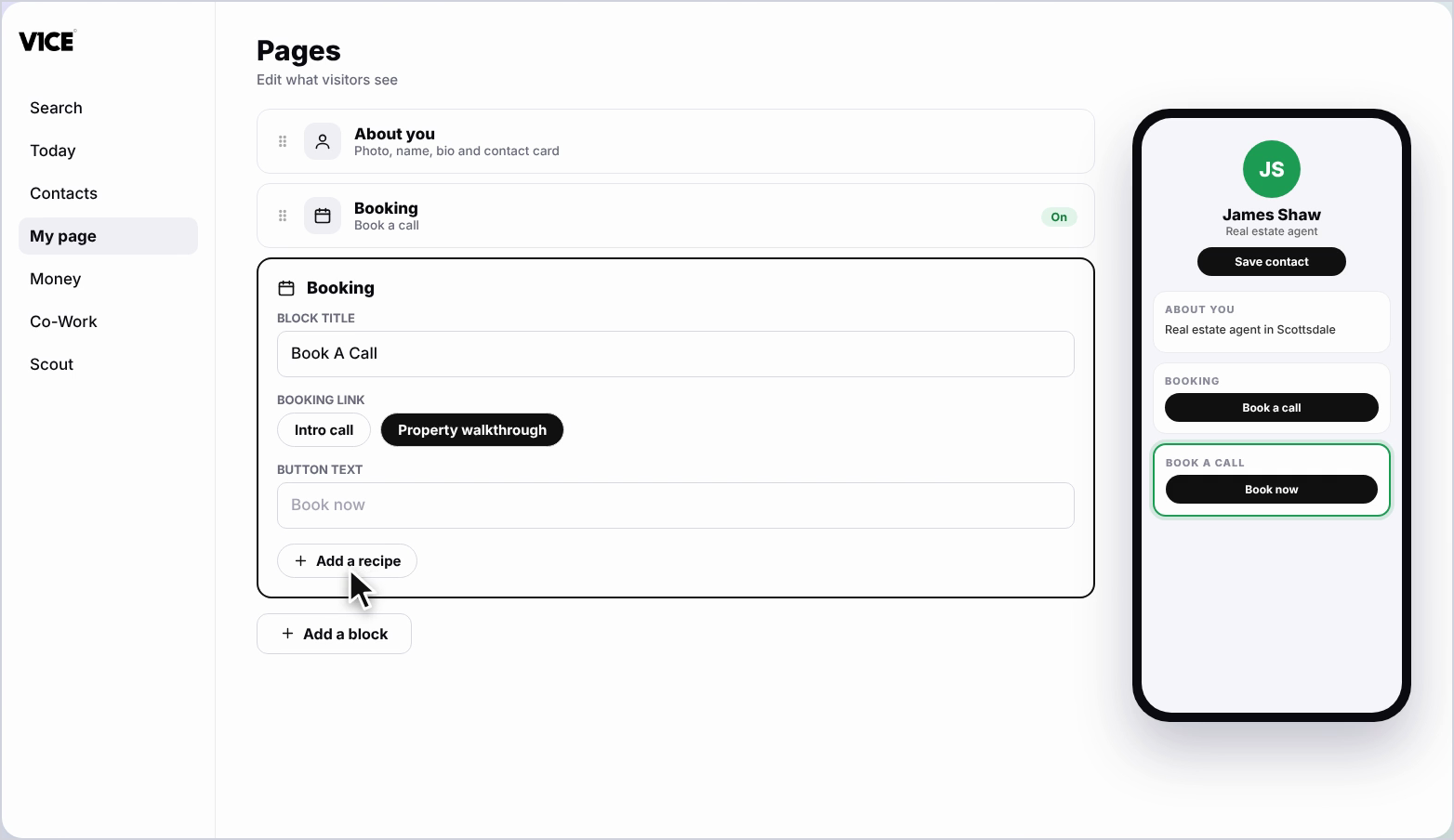
Step 6: Add your own button text
Add your own button text, or leave it blank to show Book now.
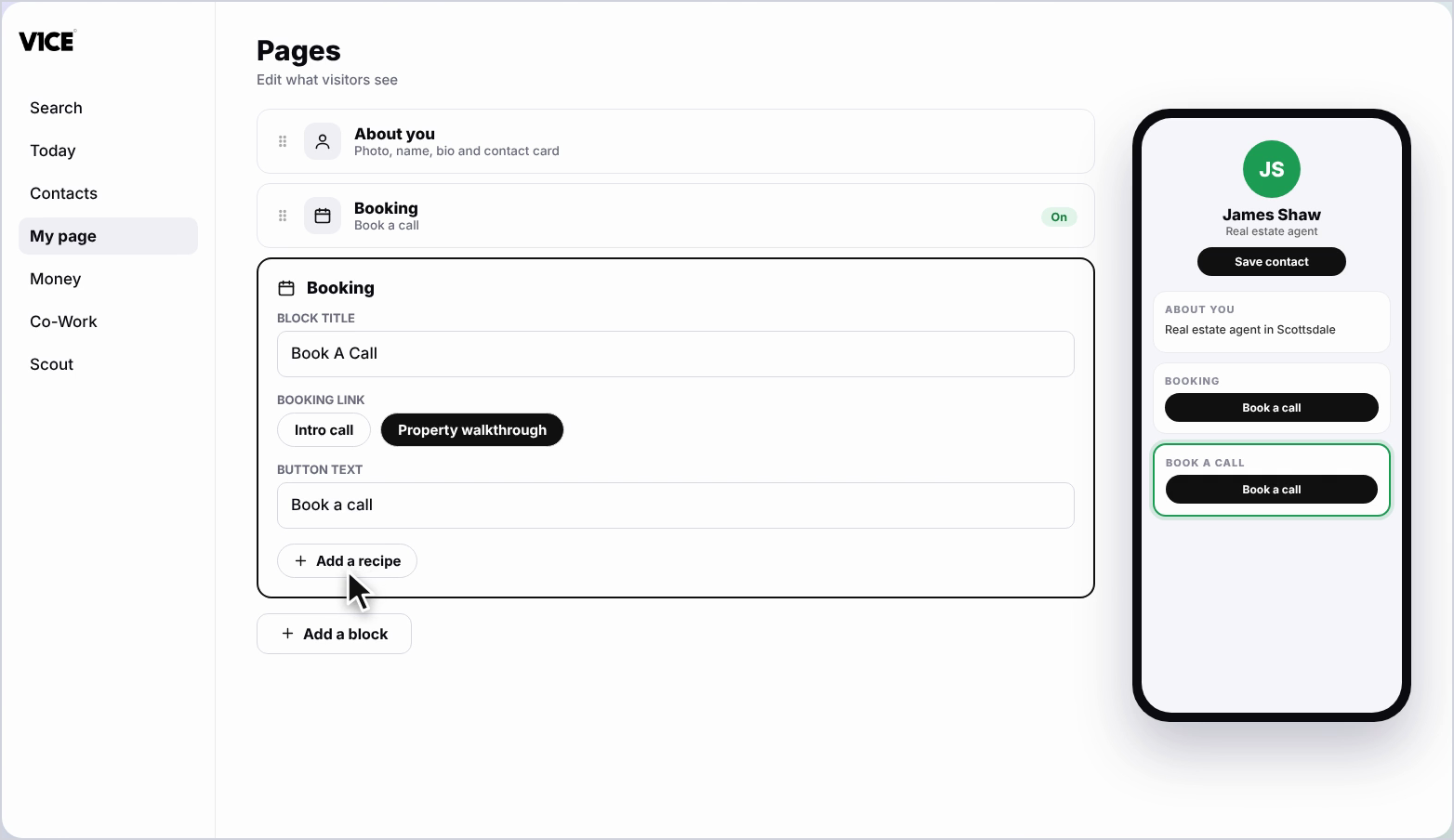
Step 7: Check your follow-ups
Two follow-ups are already switched on: a nudge if someone opens your link but doesn't book, and a reminder an hour before the call.
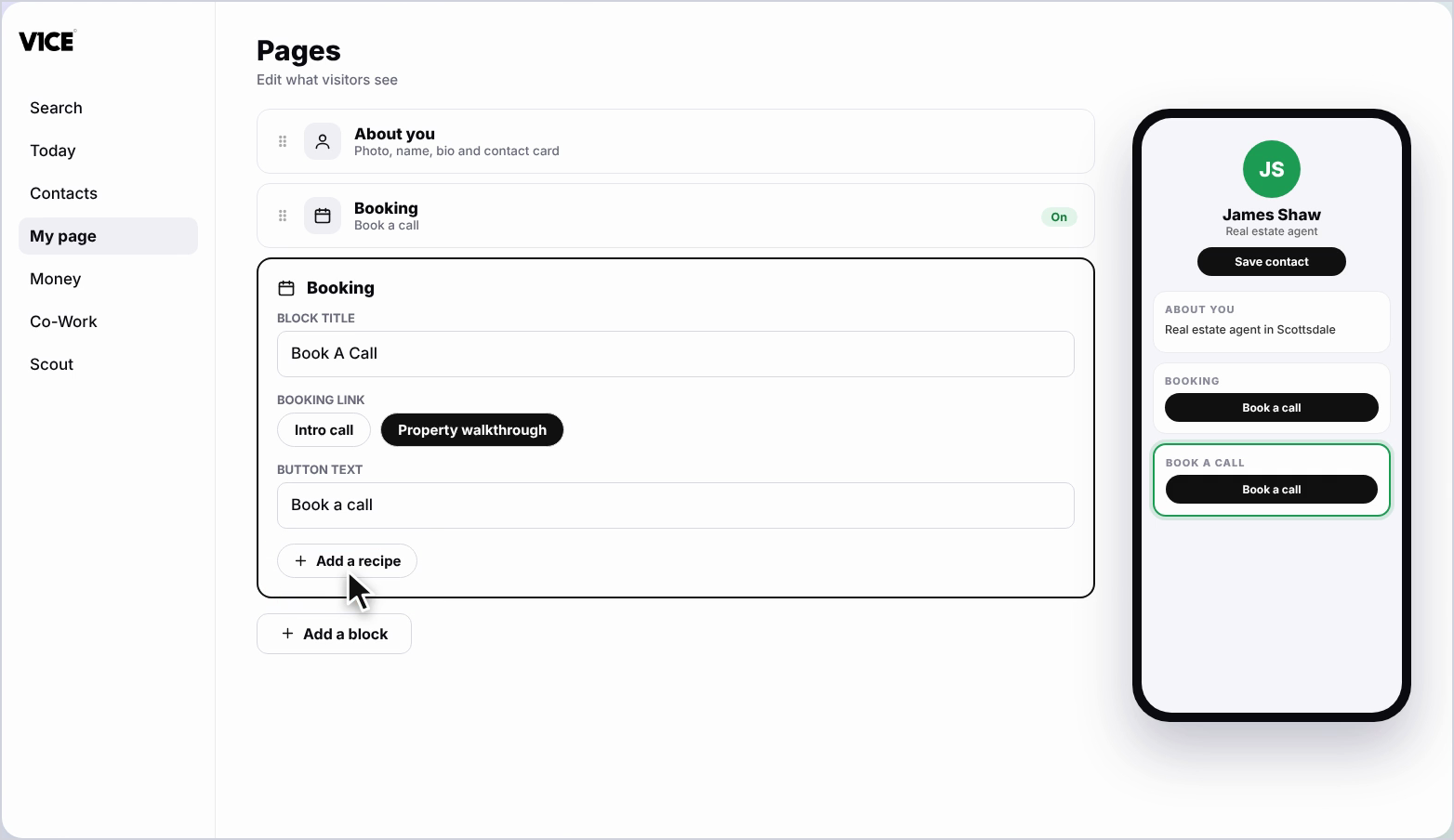
Step 8: Add another follow-up
To add another follow-up, click Add a recipe.
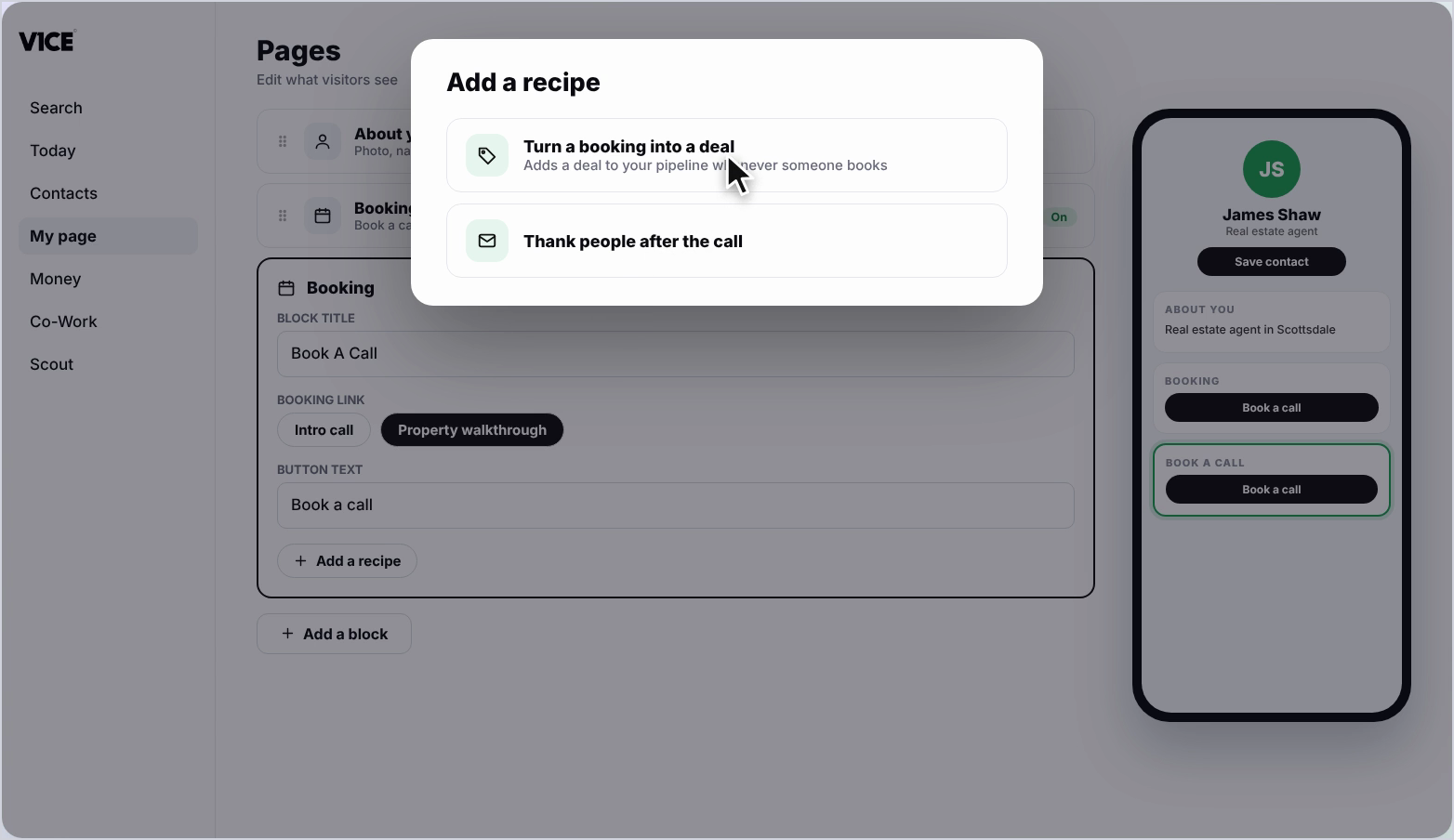
Step 9: Pick Turn a booking into a deal
Pick Turn a booking into a deal. This adds a deal to your pipeline whenever someone books.
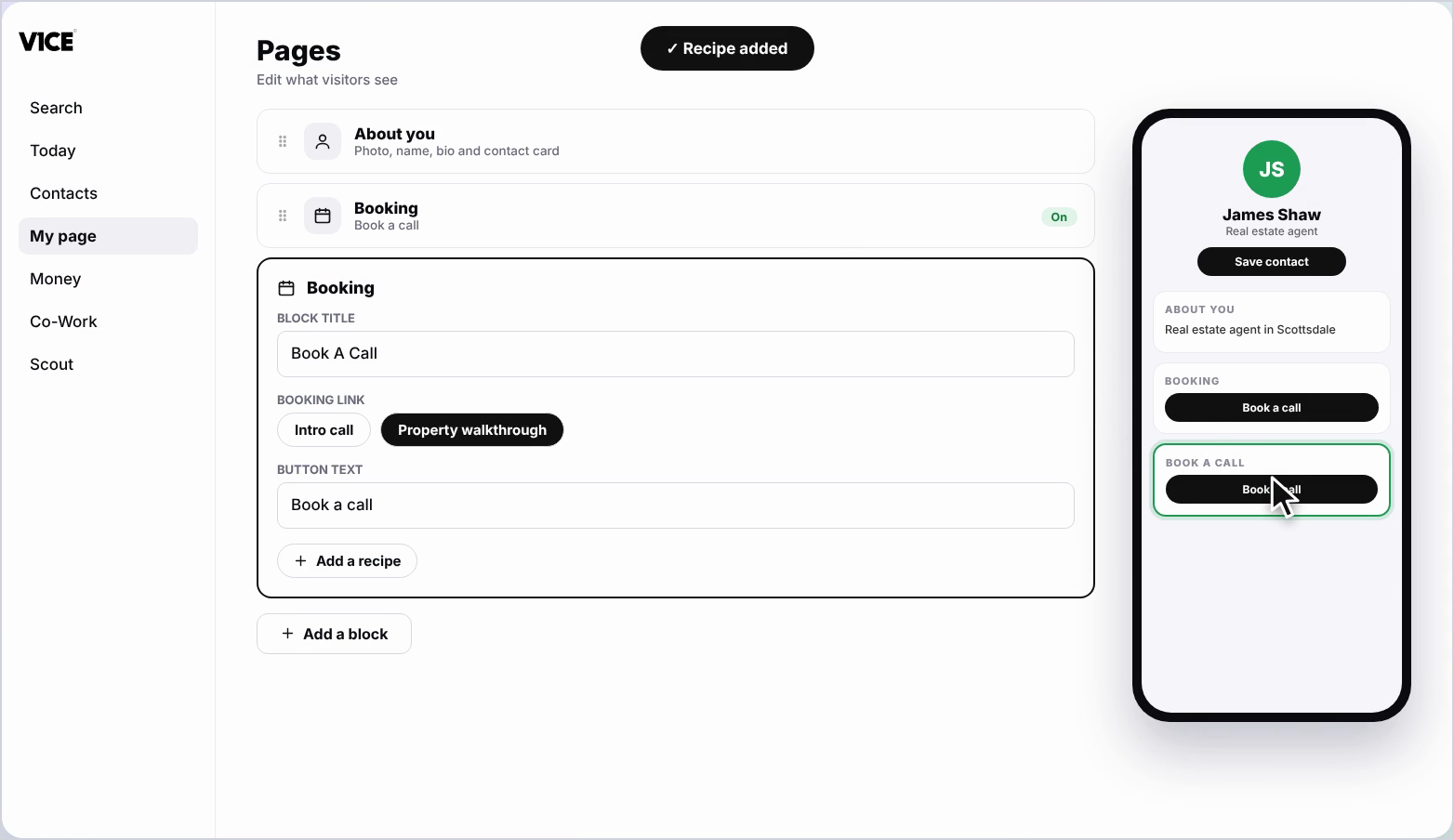
Step 10: See it on your page
Your booking block now shows on your page, and anyone can book a call in a couple of taps.
Frequently asked questions
How do I add a booking link to my page?
Click Add a block, find Booking and click it. Choose the booking link you want to show by clicking the circle next to it.
What does the booking button say?
It shows Book now unless you add your own button text.
Which follow-ups are switched on by default?
Two: a nudge if someone opens your link but doesn't book, and a reminder an hour before the call.
Can a booking become a deal in my pipeline?
Yes. Add the Turn a booking into a deal recipe and a deal is added to your pipeline whenever someone books.