How to choose which notifications you get in V1CE
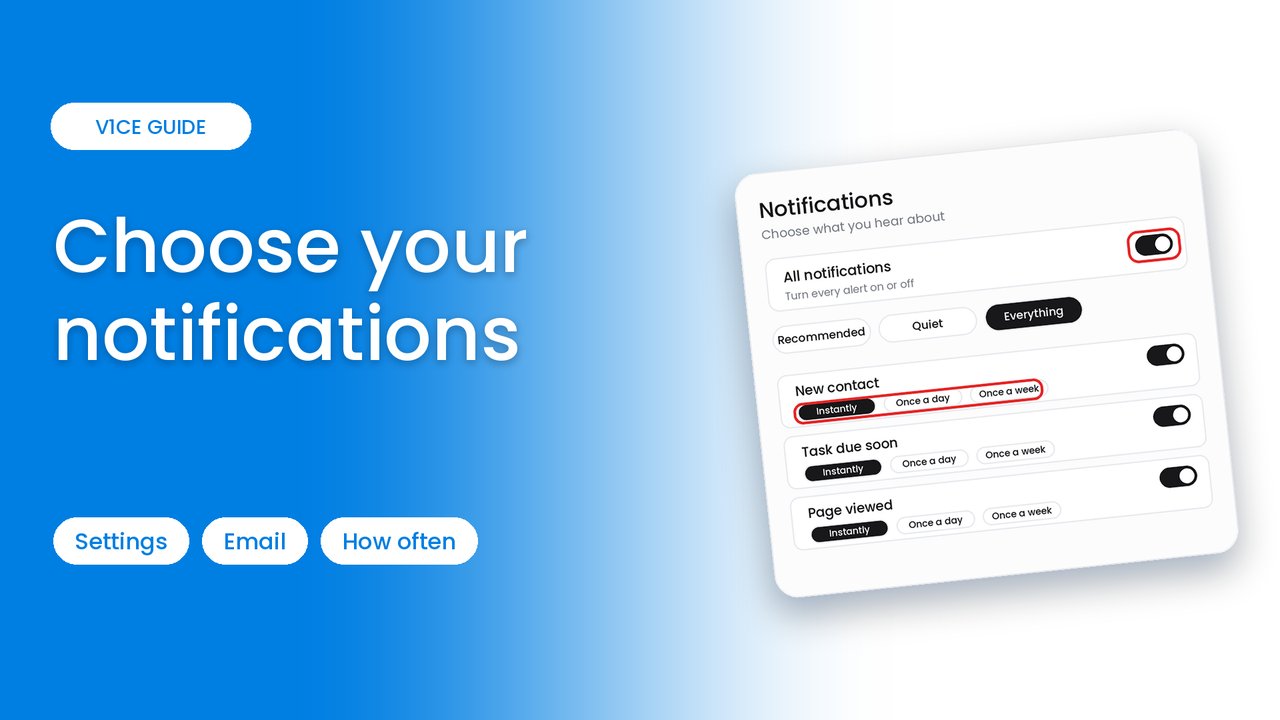
V1CE can tell you when someone saves your details, a task is due, a meeting is booked or a payment comes in. Here is how to choose which alerts you get, and how often you hear about them.
Watch the video
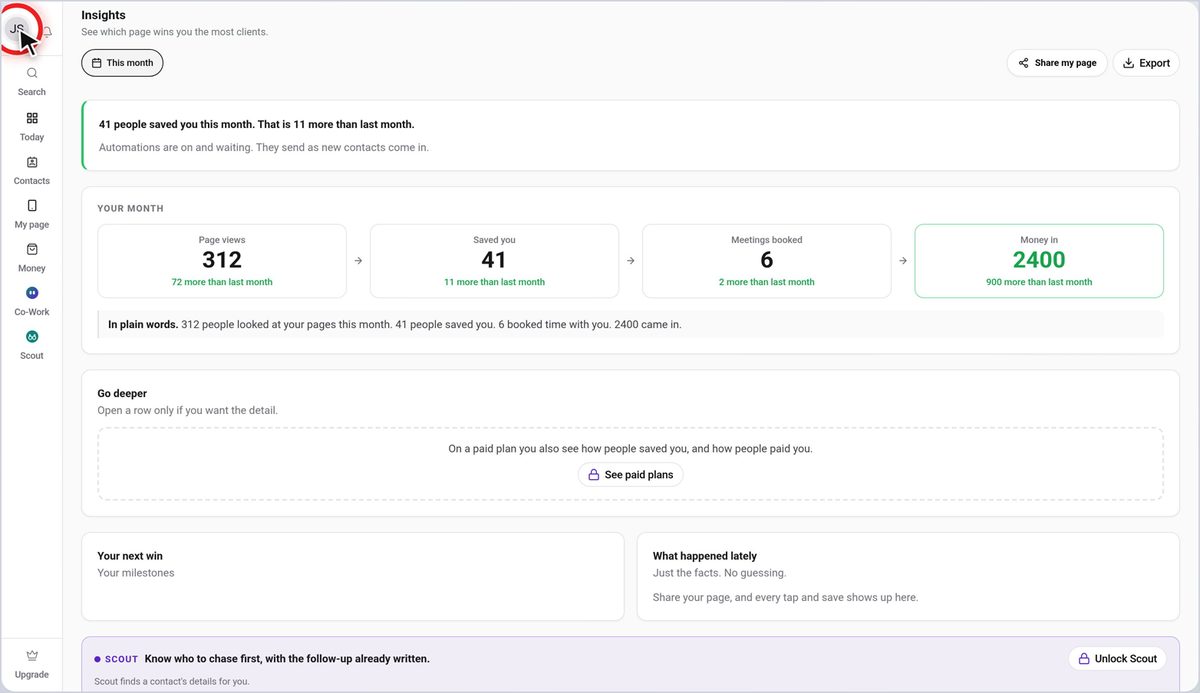
Step 1: Click your profile picture
Click your profile picture at the top left of V1CE.
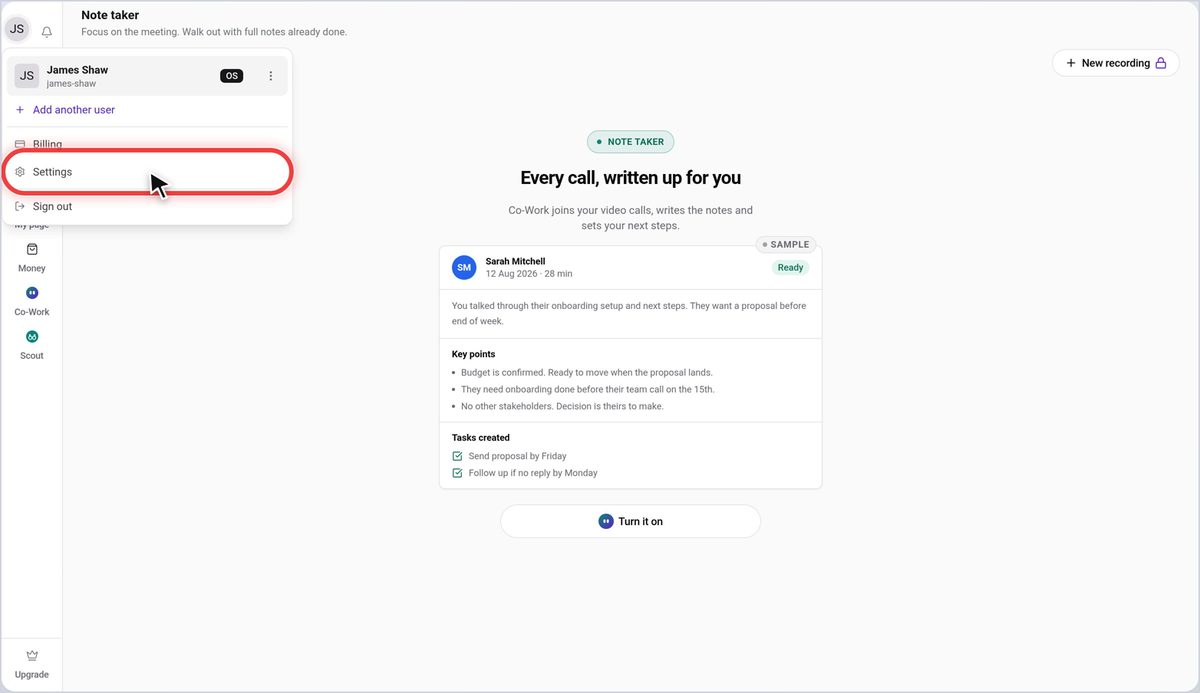
Step 2: Choose Settings
In the menu, choose Settings.
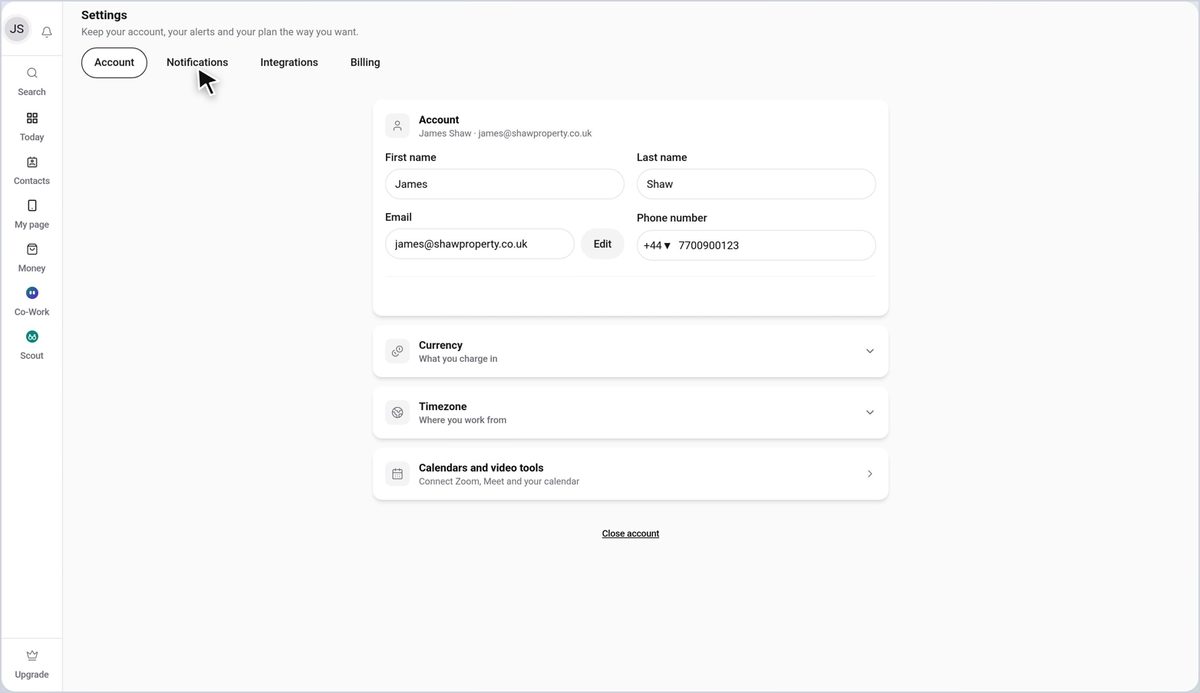
Step 3: Open the Notifications tab
Then open the Notifications tab.
Step 4: Switch everything on or off
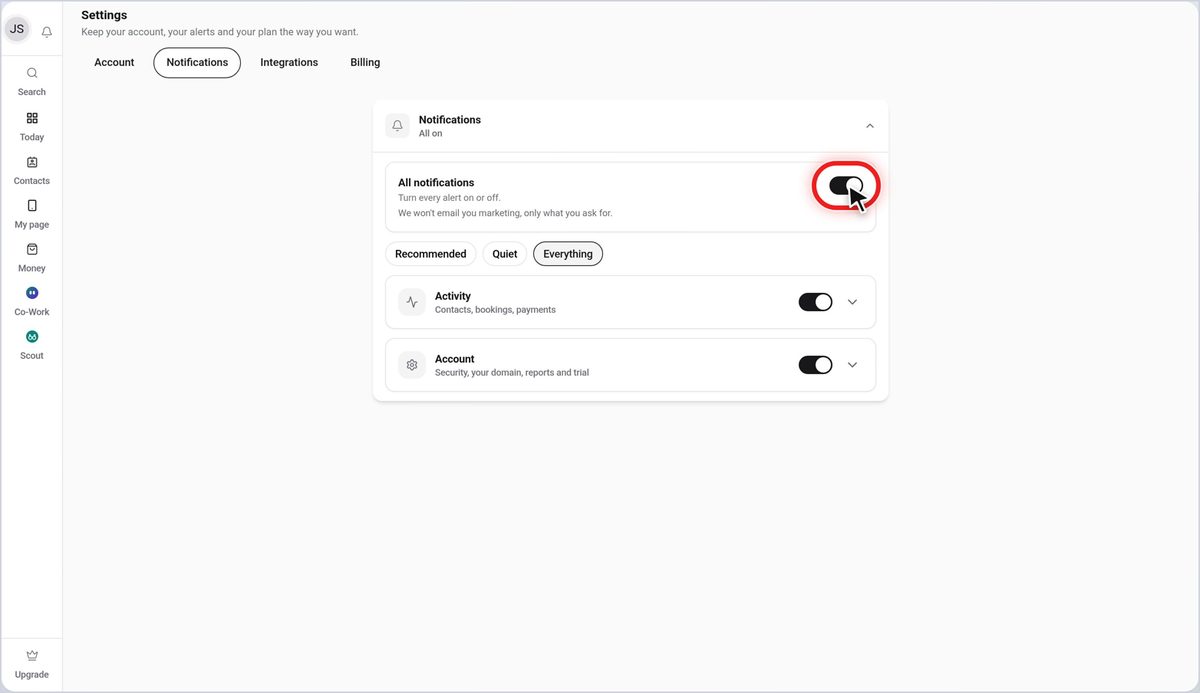
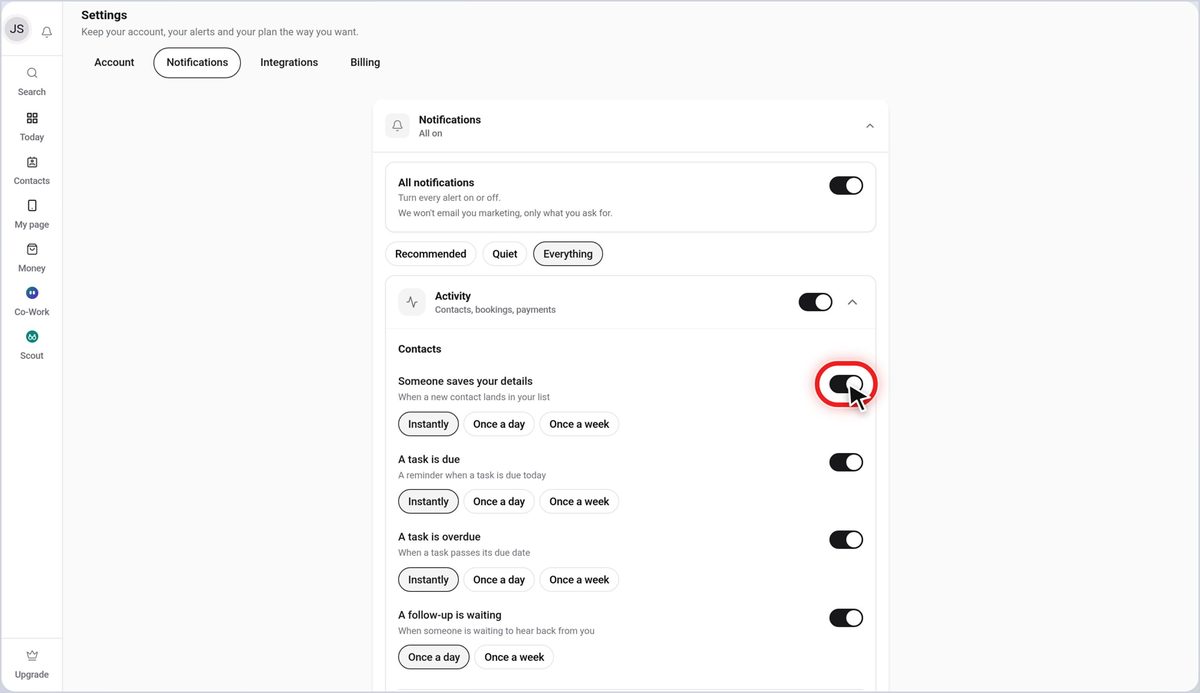
To switch every notification on or off, use the All notifications switch.
Step 5: Pick a preset
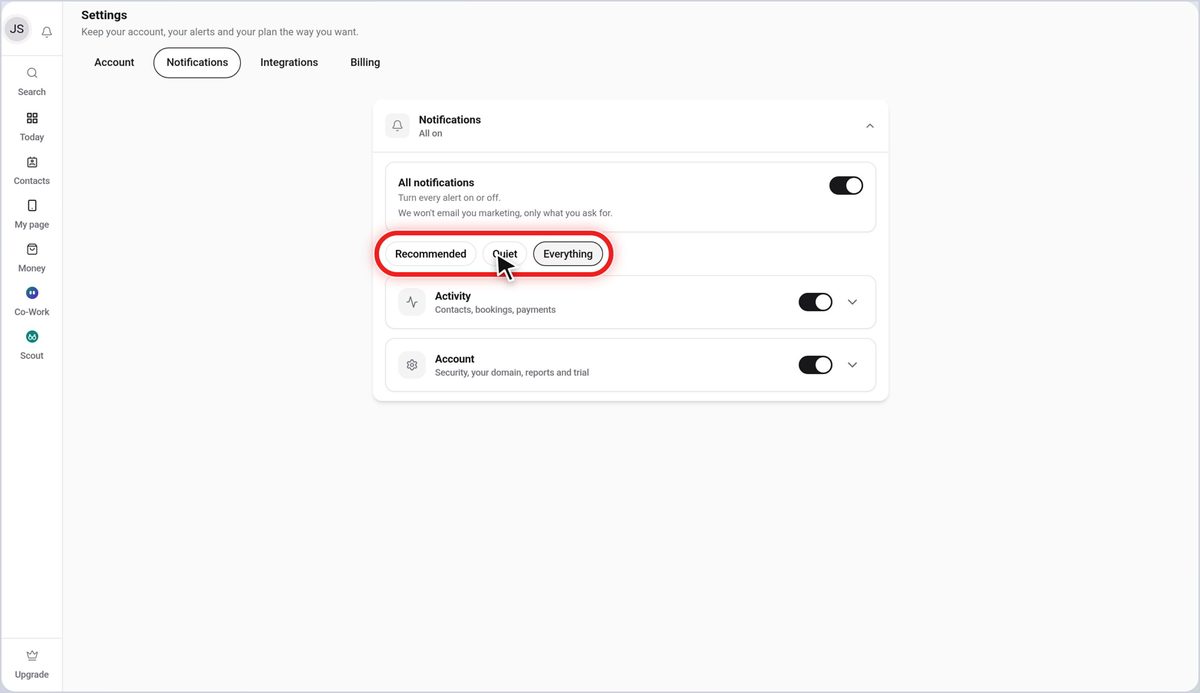
Or pick a preset: Recommended, Quiet or Everything.
Step 6: Open a group
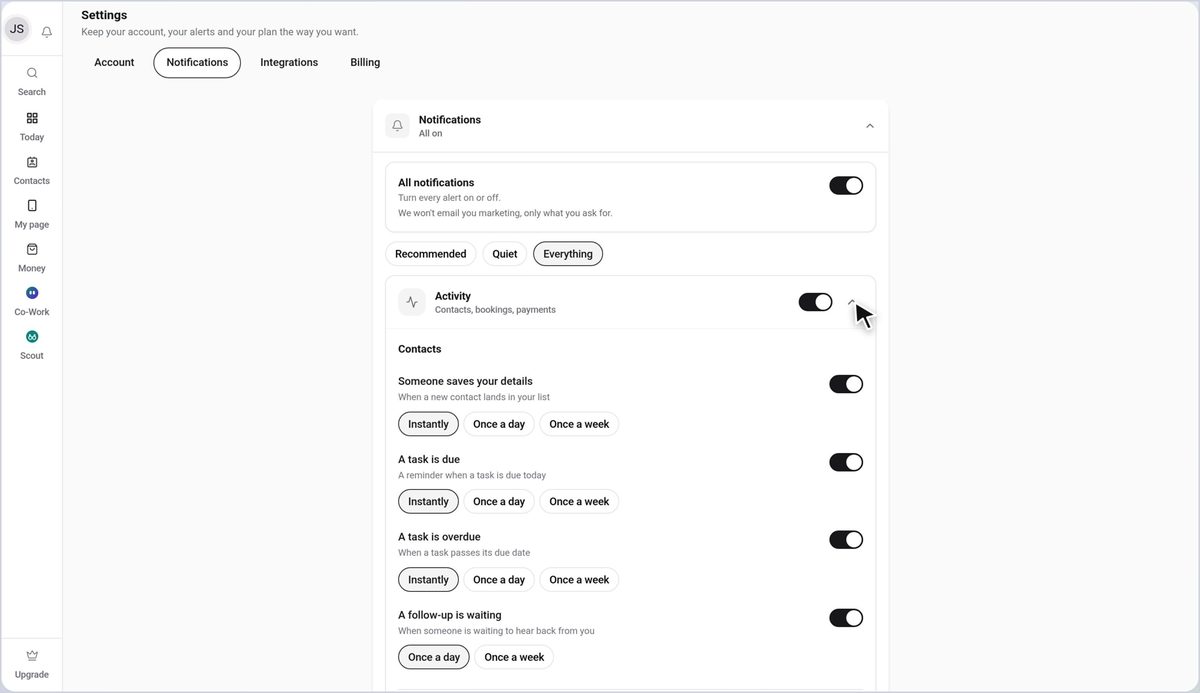
Open a group, like Activity, to see each notification inside it.
Step 7: Choose how often you hear
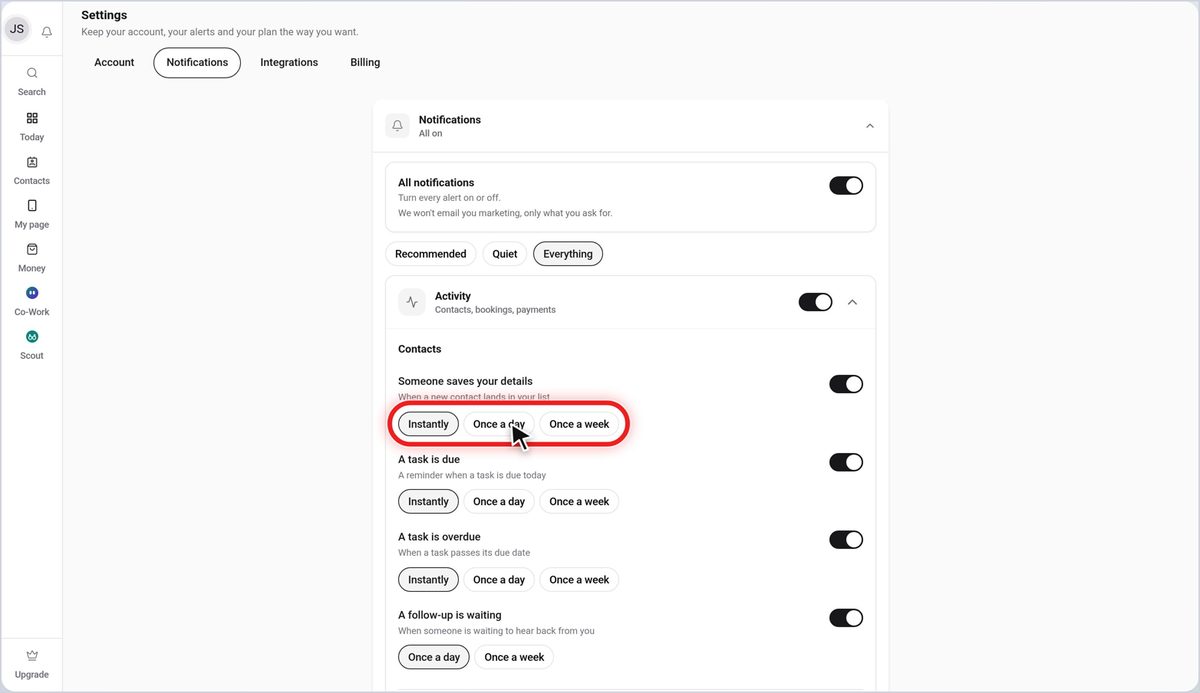
Under each notification, choose how often you hear about it: instantly, once a day or once a week.
Step 8: Switch a single notification off
Use the switch on the right of any notification to turn just that one on or off.
Step 9: Keep scrolling
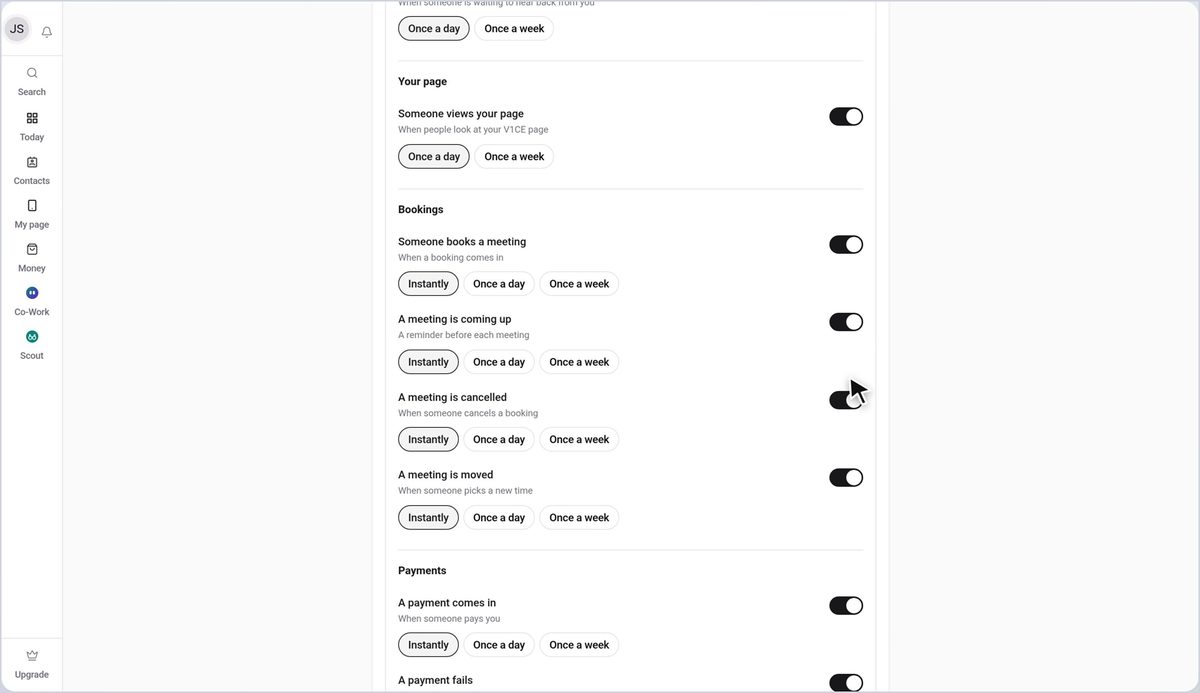
Keep scrolling for the rest, from bookings and payments to signatures and connected apps.
Step 10: Check the Account group
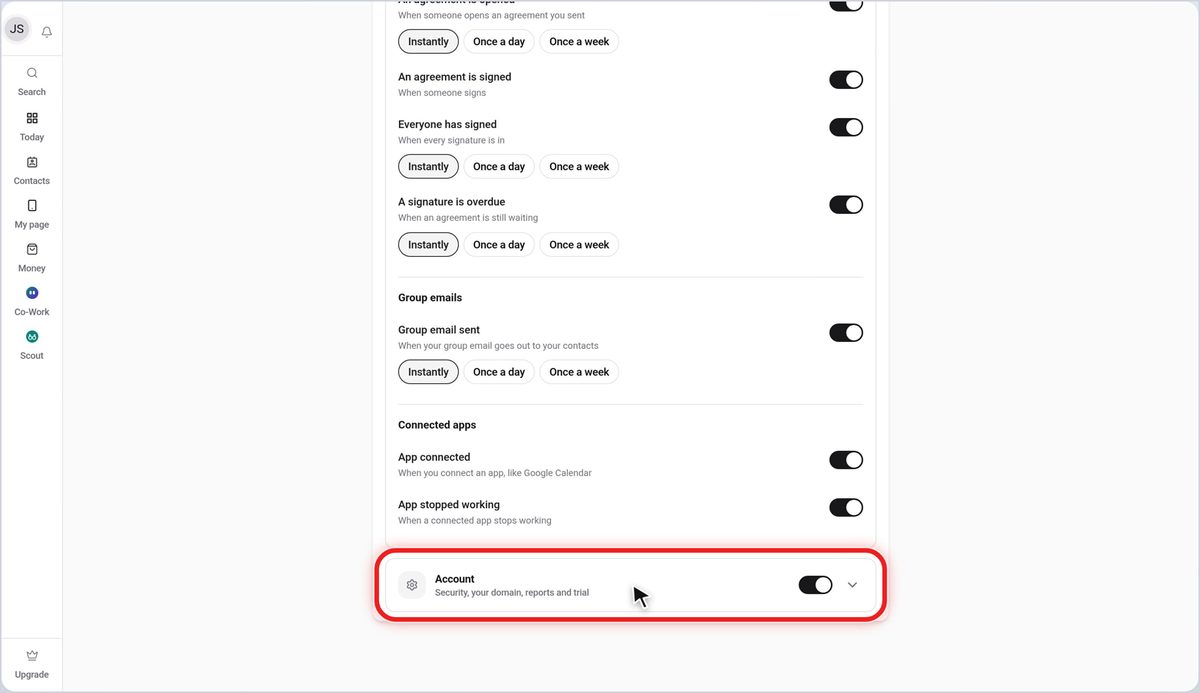
The Account group below covers security, your domain, reports and your trial.
Good to know
- Your changes save as you make them, so there is no Save button to press.
- Pick Quiet first if you want fewer emails, then switch individual alerts back on.
- If you are not hearing from V1CE at all, check that All notifications is switched on.