How to get your V1CE notifications on WhatsApp

To get V1CE alerts on WhatsApp, open Automations, click Integrations, then open Alerts to your phone. Enter your WhatsApp number, switch WhatsApp on for each alert you want, and press Save changes.
| Time needed | 1 minute |
|---|---|
| What you need | Your V1CE account and a WhatsApp number |
| Where in the app | Automations > Integrations > Alerts to your phone |
Video transcript and chapters
Chapters
0:00 Introduction
0:10 Open Integrations
0:14 Open Alerts to your phone
0:16 Add your number
0:21 Switch on your alerts
0:30 Turn all on
0:34 Save changes
0:37 You're done

Transcript
Here's how to get your V1CE notifications on WhatsApp.
Add your WhatsApp number, choose which alerts you want, and save.
Open Automations, then click the Integrations tab.
Open Alerts to your phone.
Under What pings you, enter the WhatsApp number you want your alerts sent to.
Switch WhatsApp on for each alert you want, like when someone saves your details.
Do the same for when someone books a meeting.
Or press Turn all on to switch every alert on at once.
Then scroll down and press Save changes.
That's it. V1CE will now message you on WhatsApp.
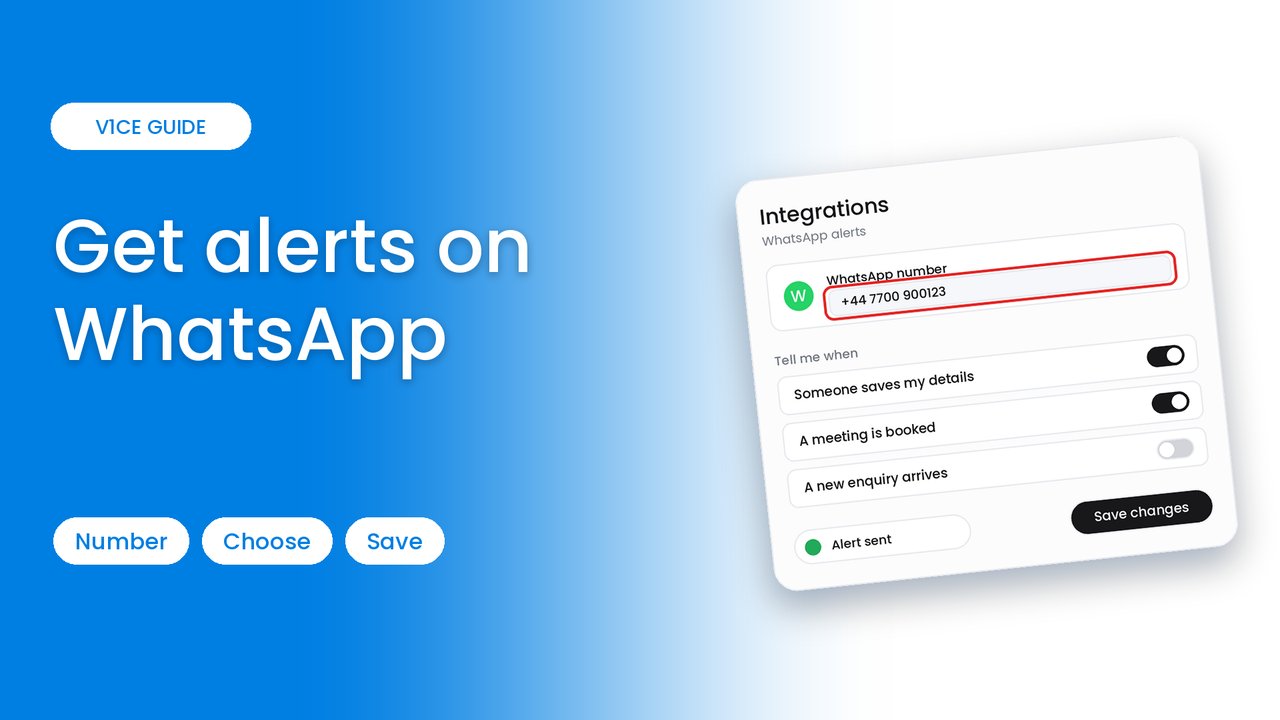
V1CE can message you on WhatsApp the moment someone saves your details, books a meeting, or when your daily report is ready. Here is how to add your number and choose which alerts you get.
Watch the video
Step 1: Open Automations
Open Automations, then look for the tabs along the top of the page.
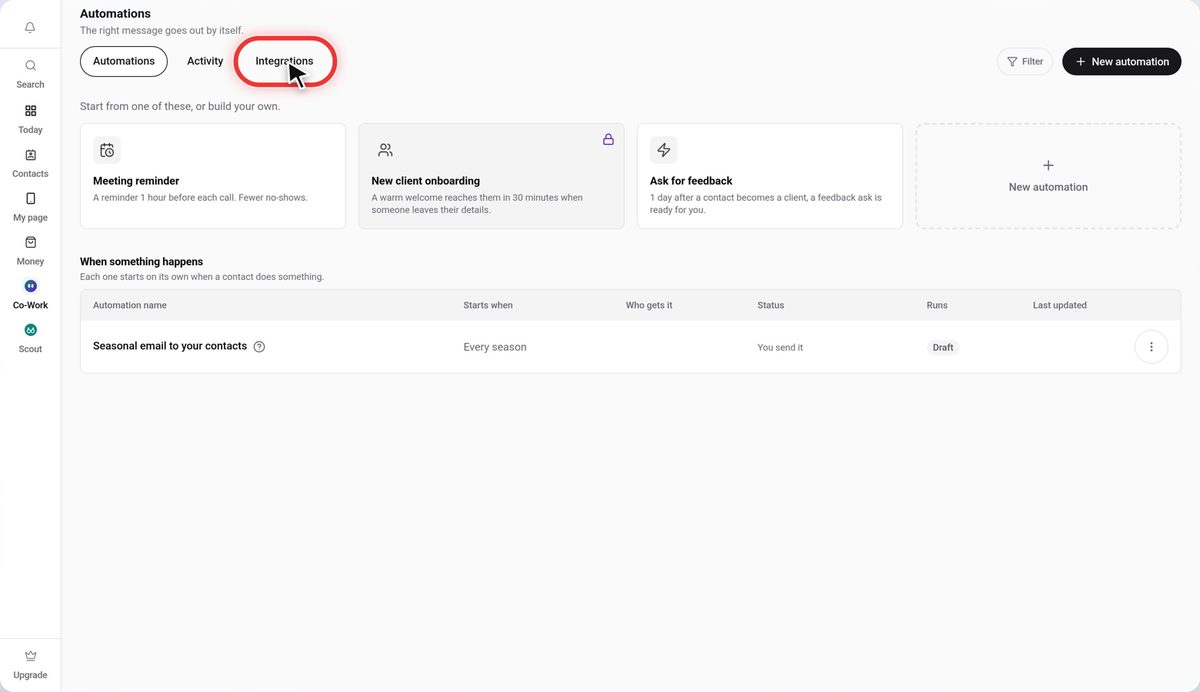
Step 2: Click the Integrations tab
Click Integrations.
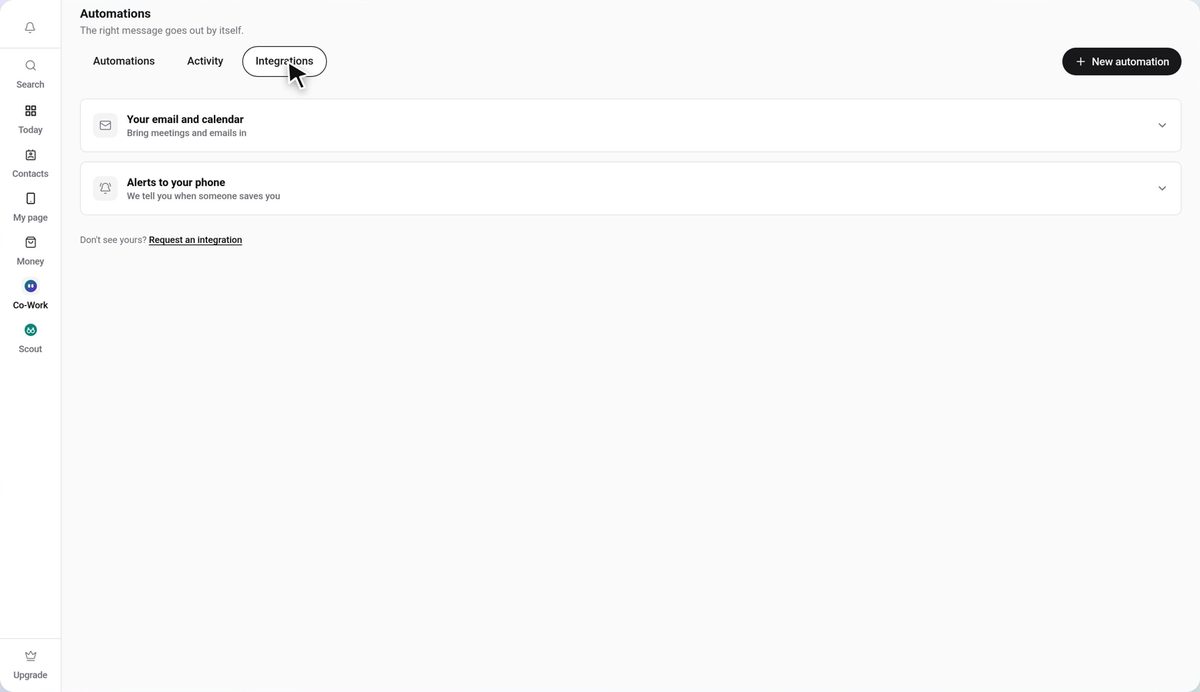
Step 3: Open Alerts to your phone
Open the Alerts to your phone card.
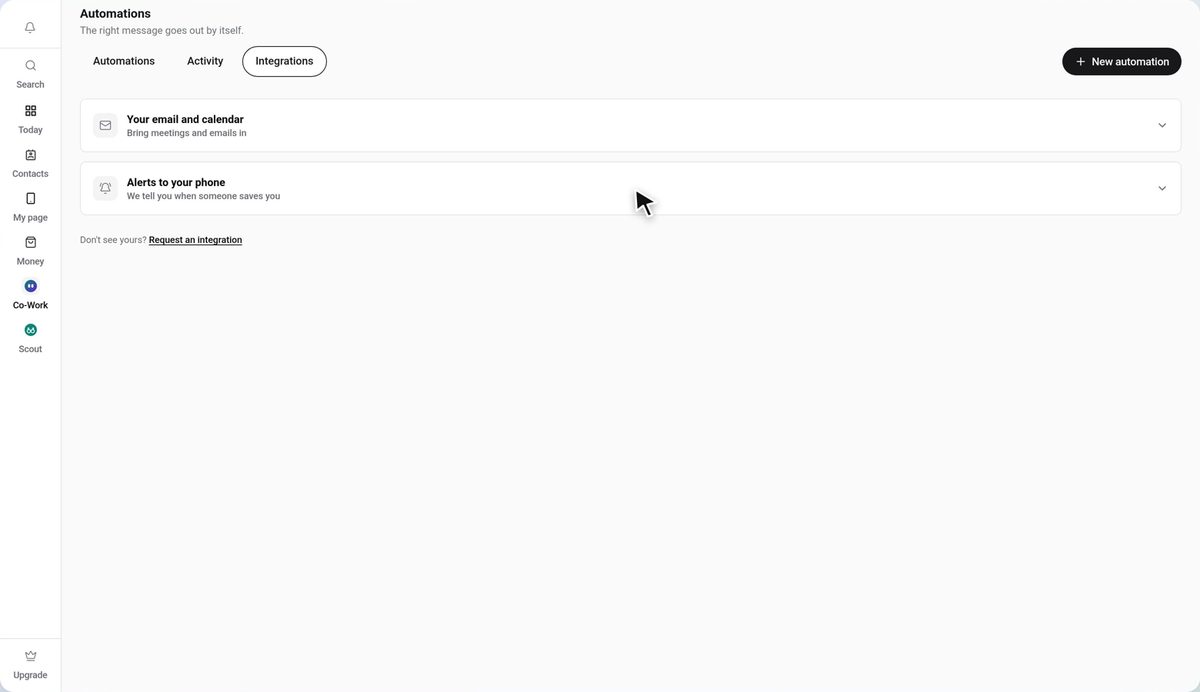
Step 4: Enter your WhatsApp number
Under What pings you, enter the WhatsApp number you want your alerts sent to.
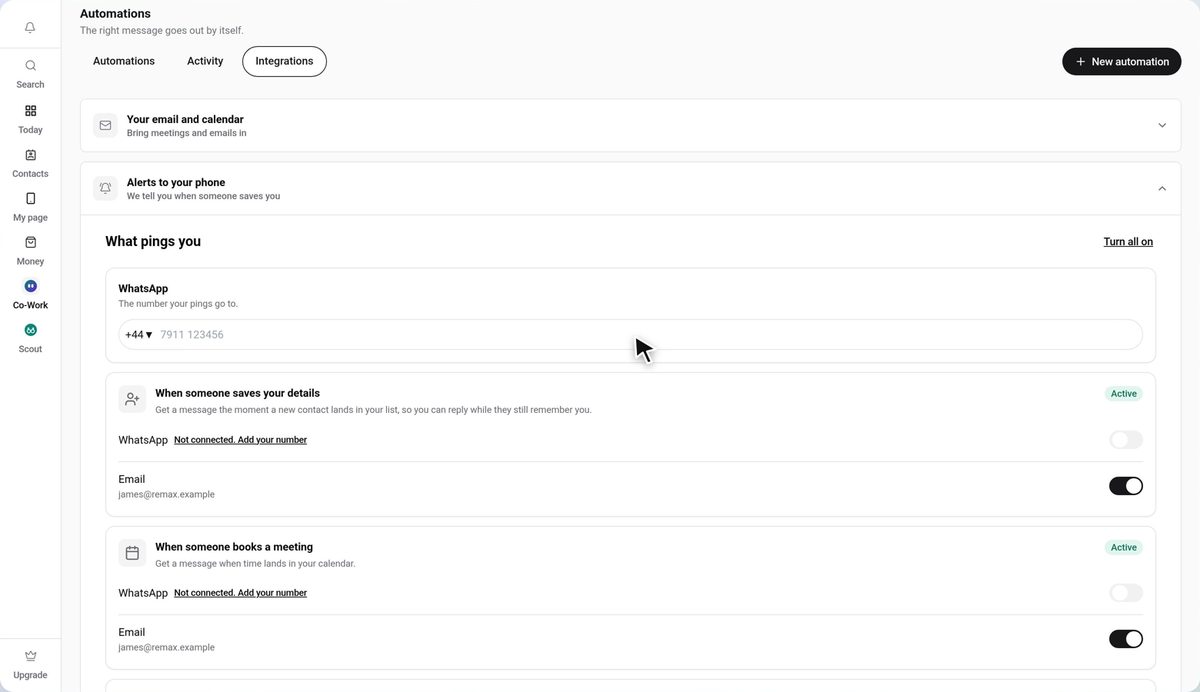
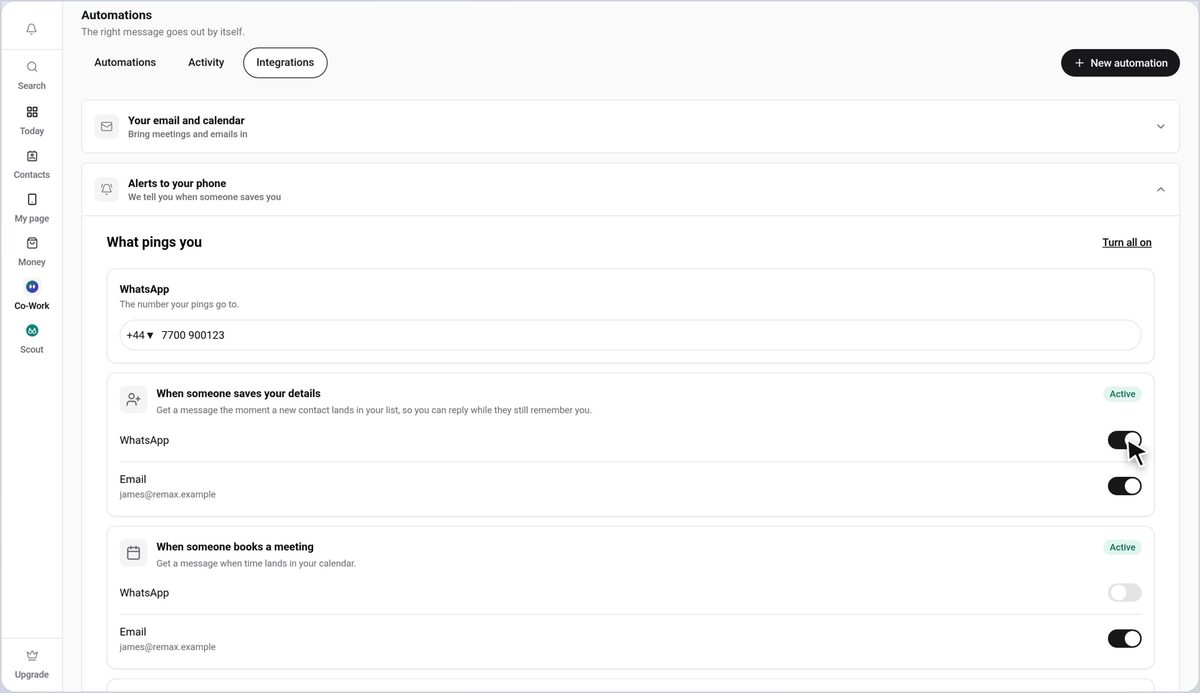
Step 5: Switch WhatsApp on for each alert
Switch WhatsApp on for each alert you want, like when someone saves your details.
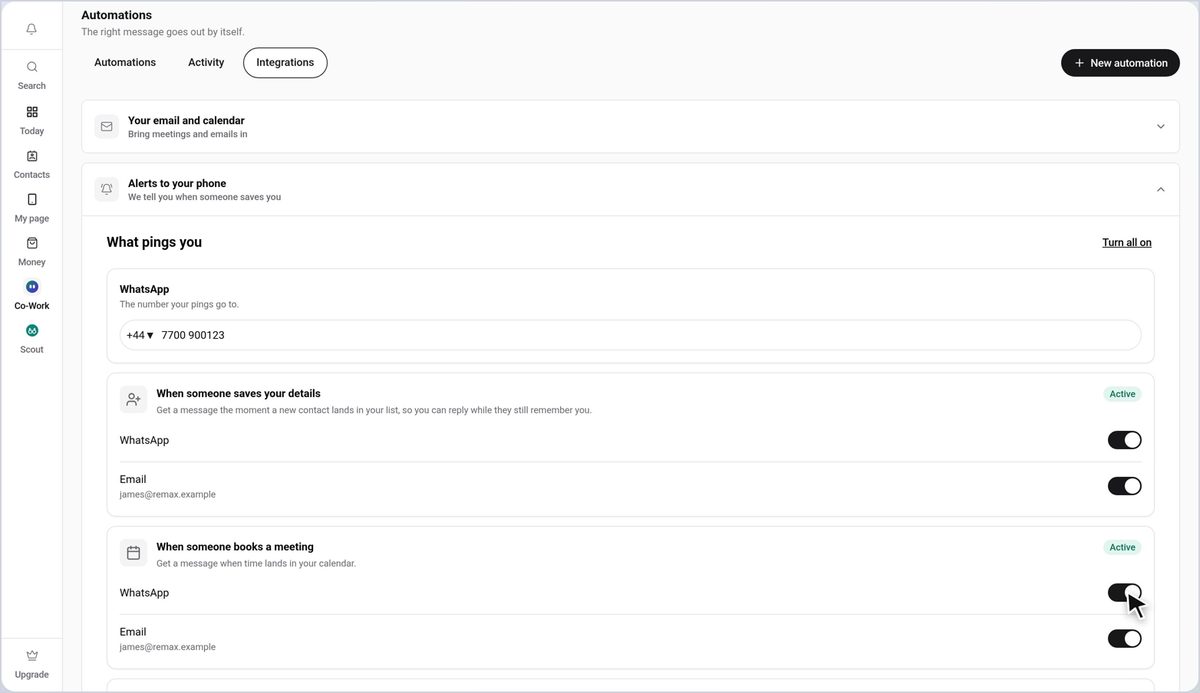
Step 6: Do the same for meetings
Do the same for when someone books a meeting, and for your daily report if you want it.
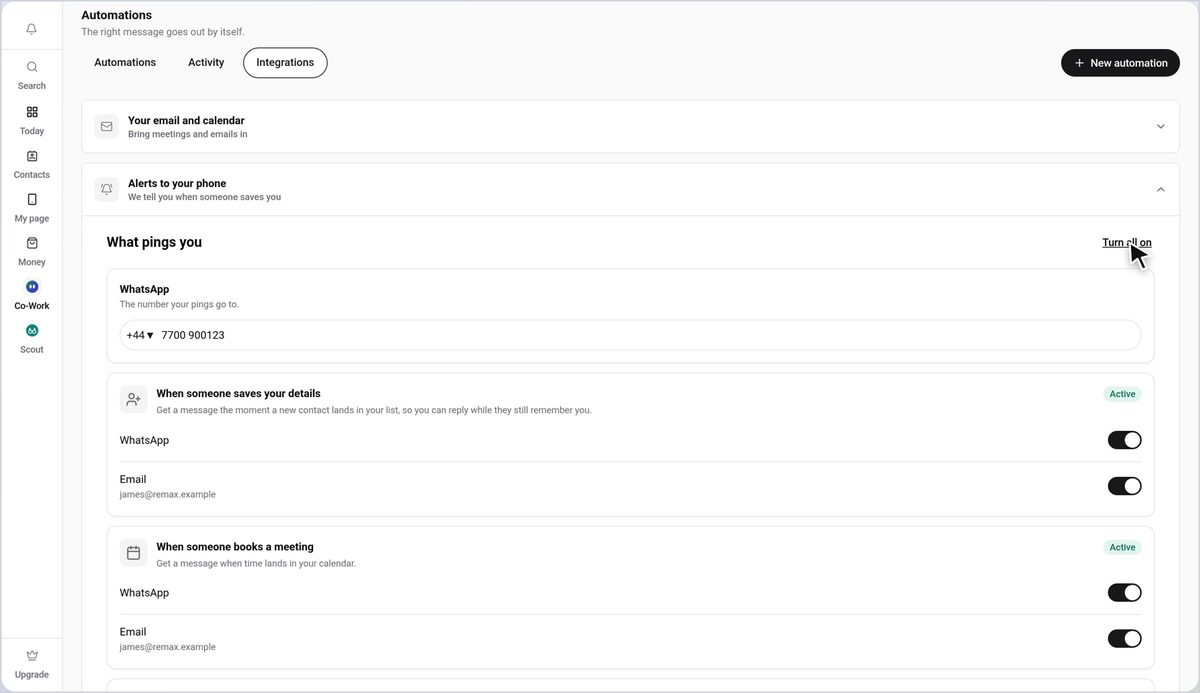
Step 7: Or turn everything on
Press Turn all on to switch every alert on at once.
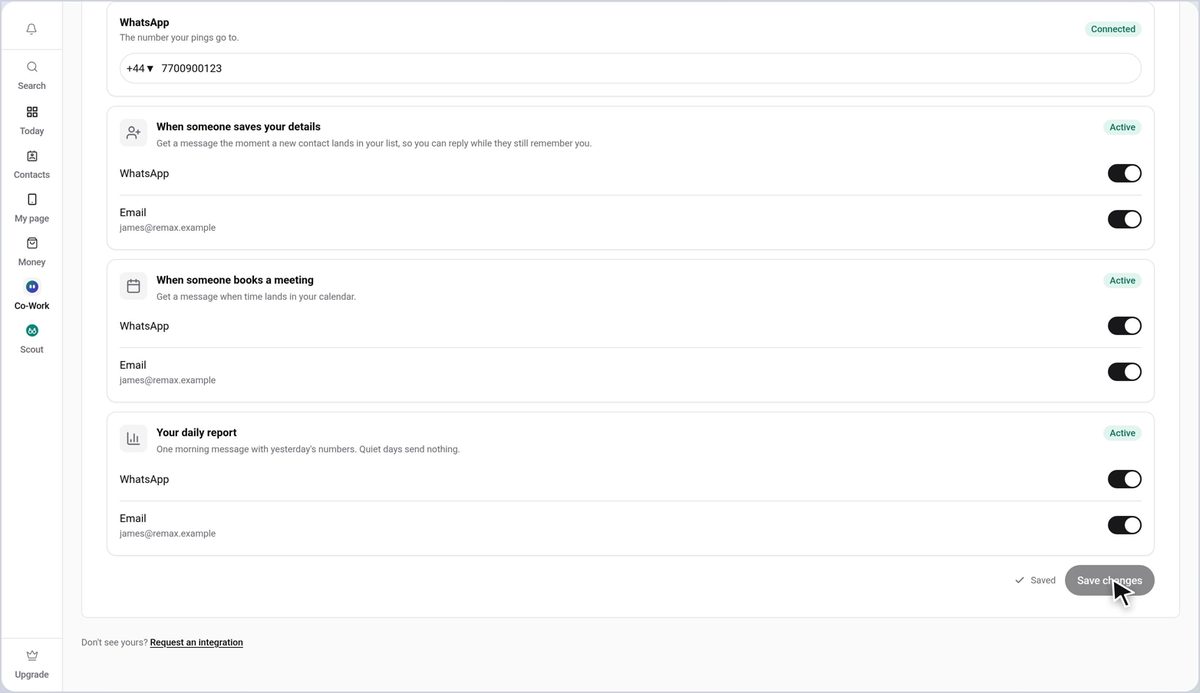
Step 8: Save your changes
Scroll down and press Save changes. You will see Saved when it has worked.
Good to know
- WhatsApp switches stay off until you add a number, so enter your number first.
- Email alerts are separate switches under each alert, so you can keep email on too.
- Use the full number with its country code, like +44 7700 900123.
Frequently asked questions
Where do I turn on WhatsApp alerts in V1CE?
Open Automations, click the Integrations tab, then open Alerts to your phone.
Which alerts can V1CE send to WhatsApp?
When someone saves your details, when someone books a meeting, and your daily report.
Why is the WhatsApp switch greyed out?
It stays off until you add a WhatsApp number. Enter your number first, then switch it on.
Can I get the same alerts by email too?
Yes. Each alert has its own Email switch under the WhatsApp one, so you can use both.