How to use Scout to research contacts and companies

To use Scout, select Scout in the left menu and type what you want to know in plain words. Confirm the details and press Look them up, or choose Prep for an event, drop in your guest list and press Rank to see everyone scored.
| Time needed | 2 minutes |
|---|---|
| What you need | Your V1CE account; a guest list if you are prepping for an event |
| Where in the app | Scout |
Video transcript and chapters
Chapters
0:00 Introduction
0:14 Open Scout
0:20 Look up a person
0:28 Read the result
0:34 Prep for an event
0:44 Rank your guest list
0:49 Open a guest's brief
0:57 Export the list
1:02 You're done

Transcript
Scout is your research assistant inside V1CE.
It looks into your contacts, companies and rivals
and tells you who to call first.
Look up one person or prep for an event
and rank every guest.
Select Scout in the sidebar.
You'll see a box to type into
and suggestions to start from.
Ask in plain words,
here I've asked it to look up a person.
Confirm the details are right,
then press look them up.
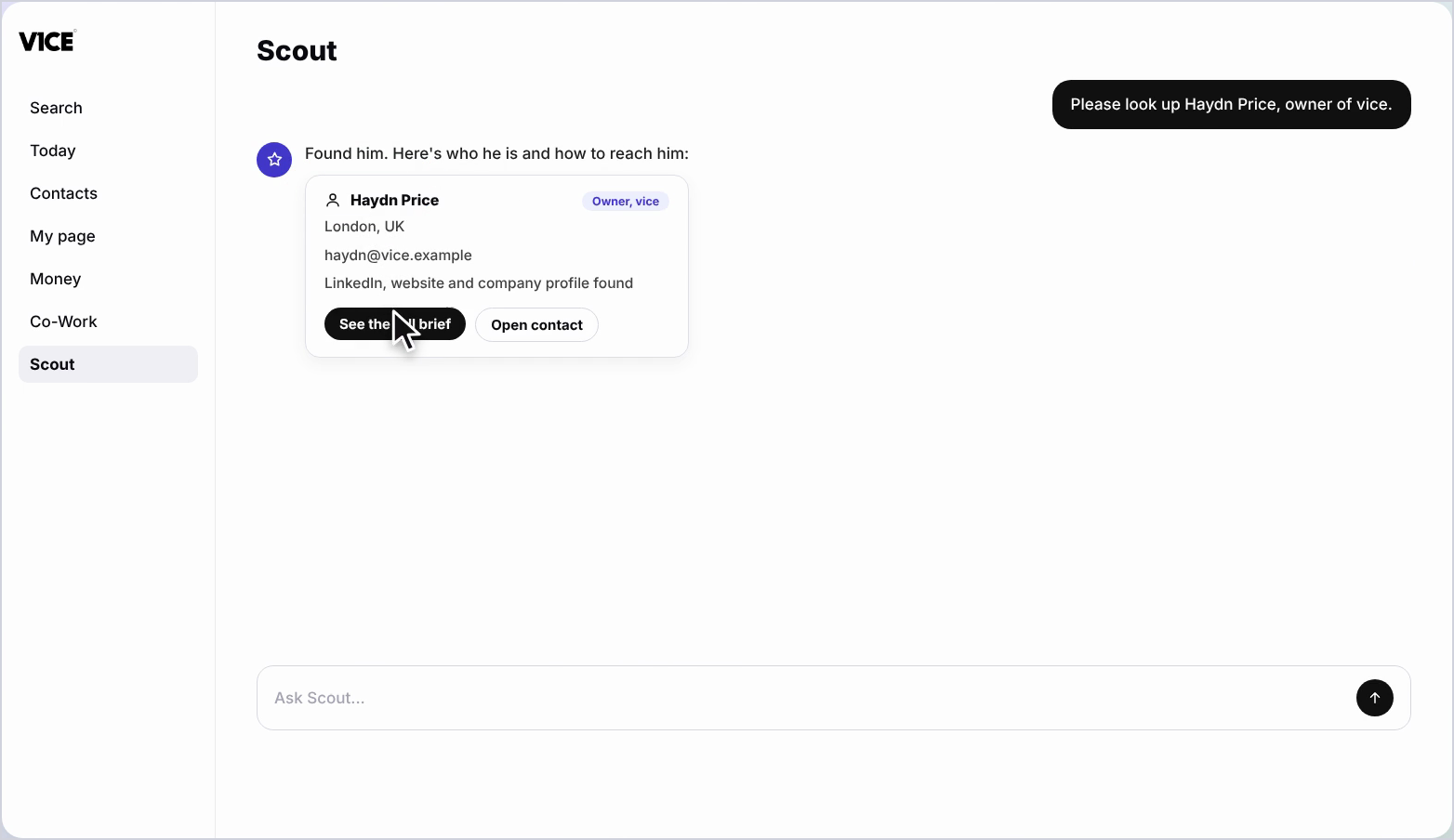
Scout shows who he is and where he works.
Open the full brief to see every source.
Now let's prep for an event.
Choose prep for an event from the suggestions.
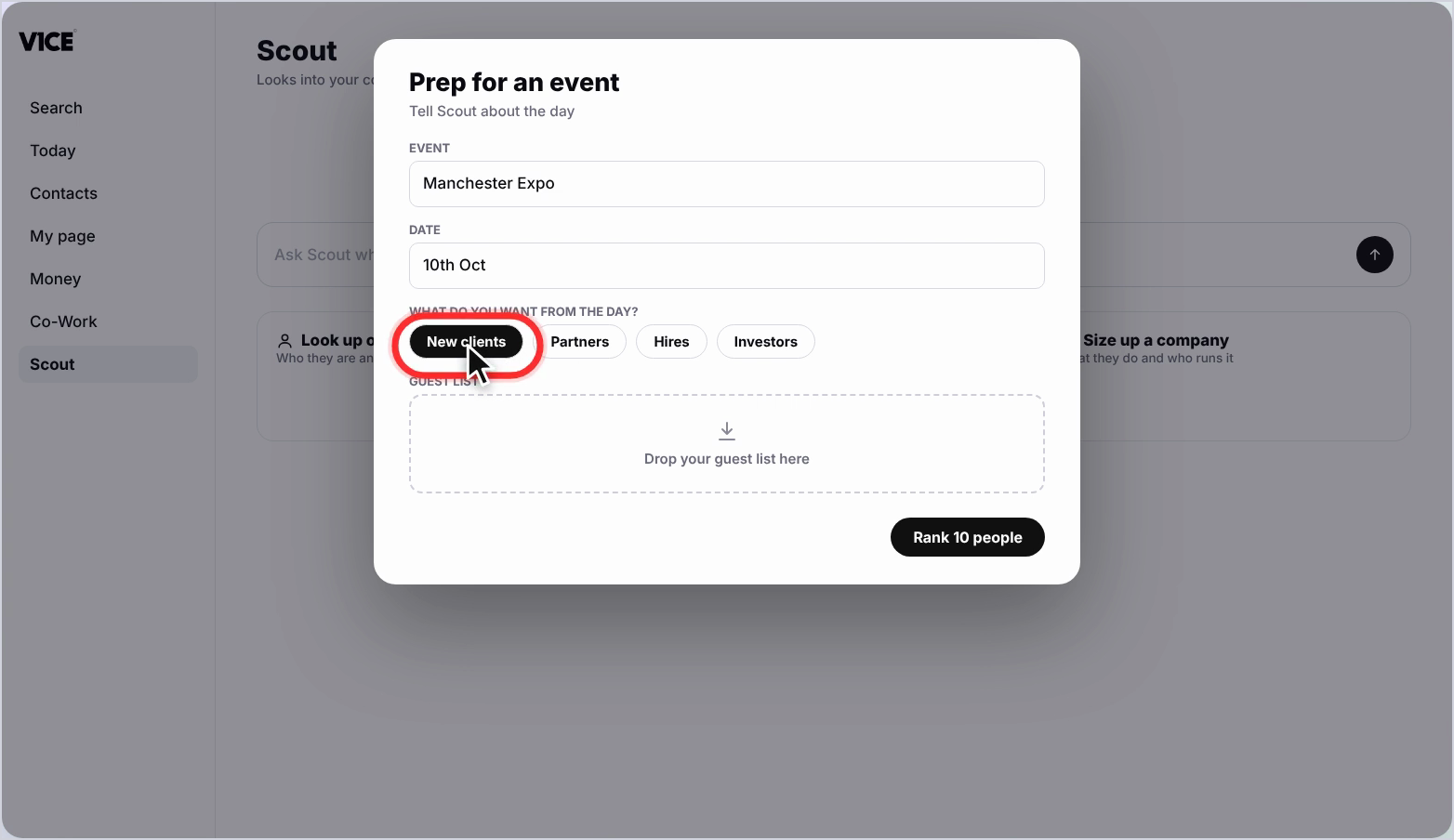
Name the event, give the date
and say what you want from the day.
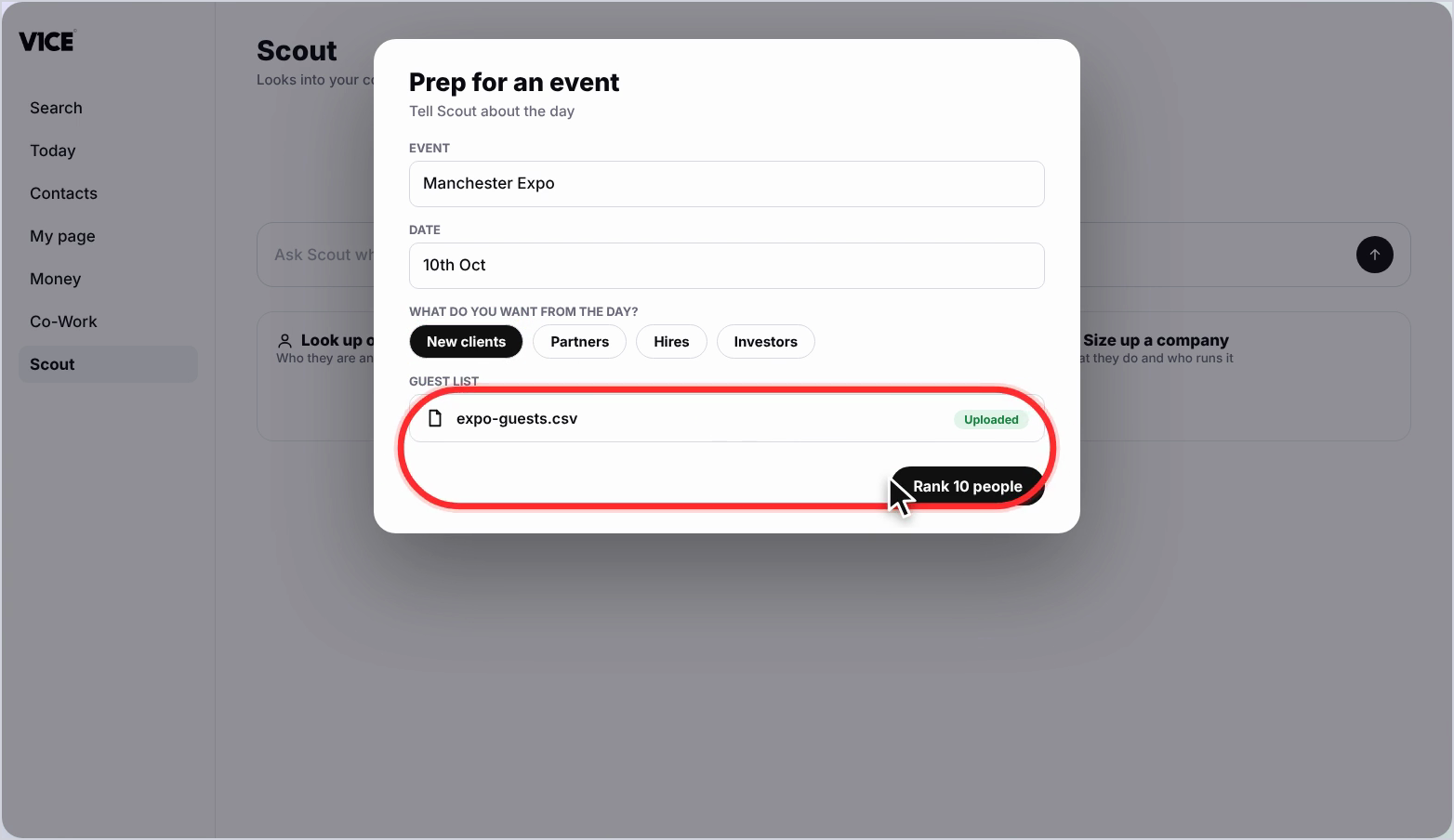
Drop in your guest list, any list works,
then press rank, it takes about two minutes.
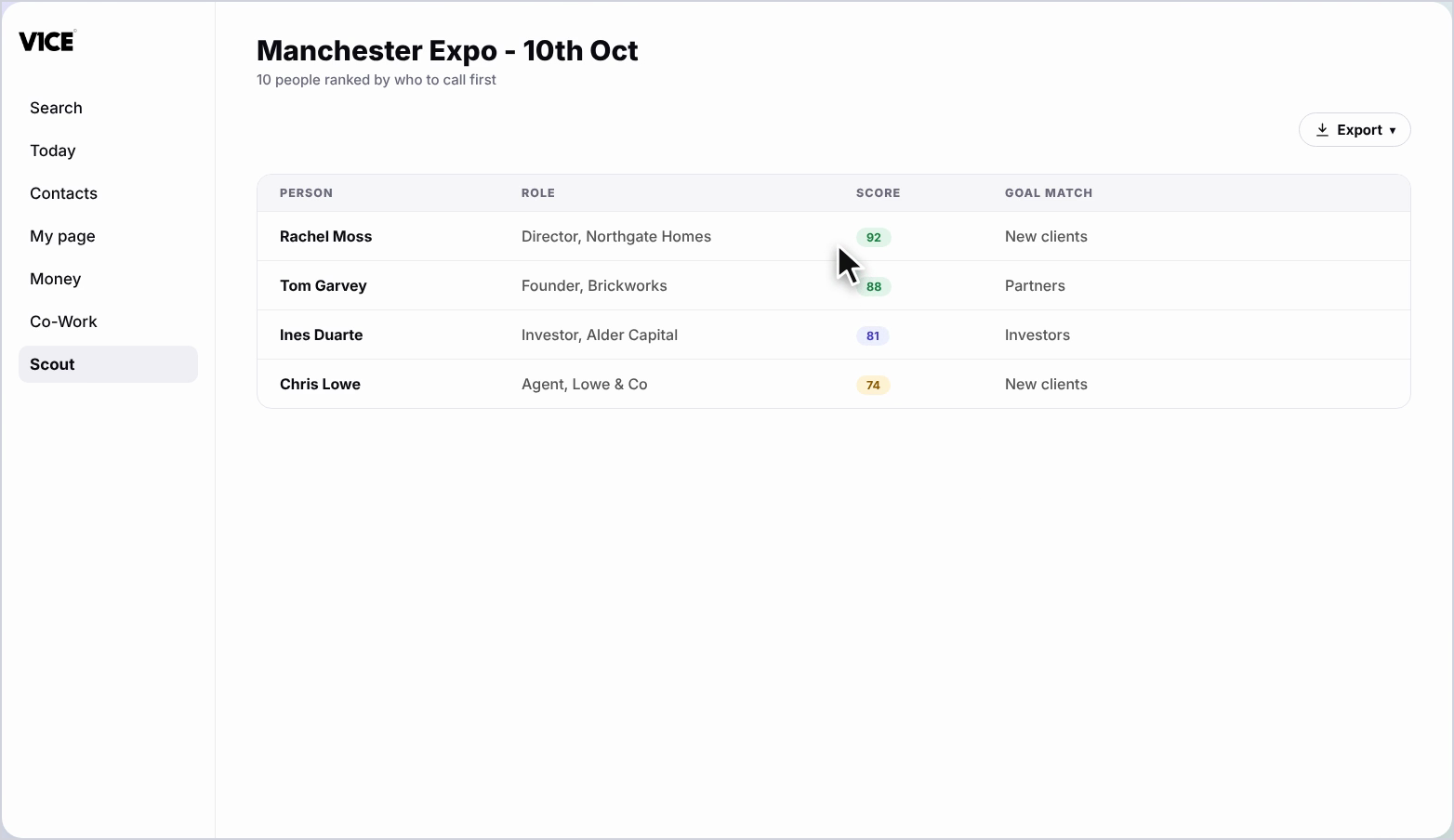
Everyone is ranked with a score.
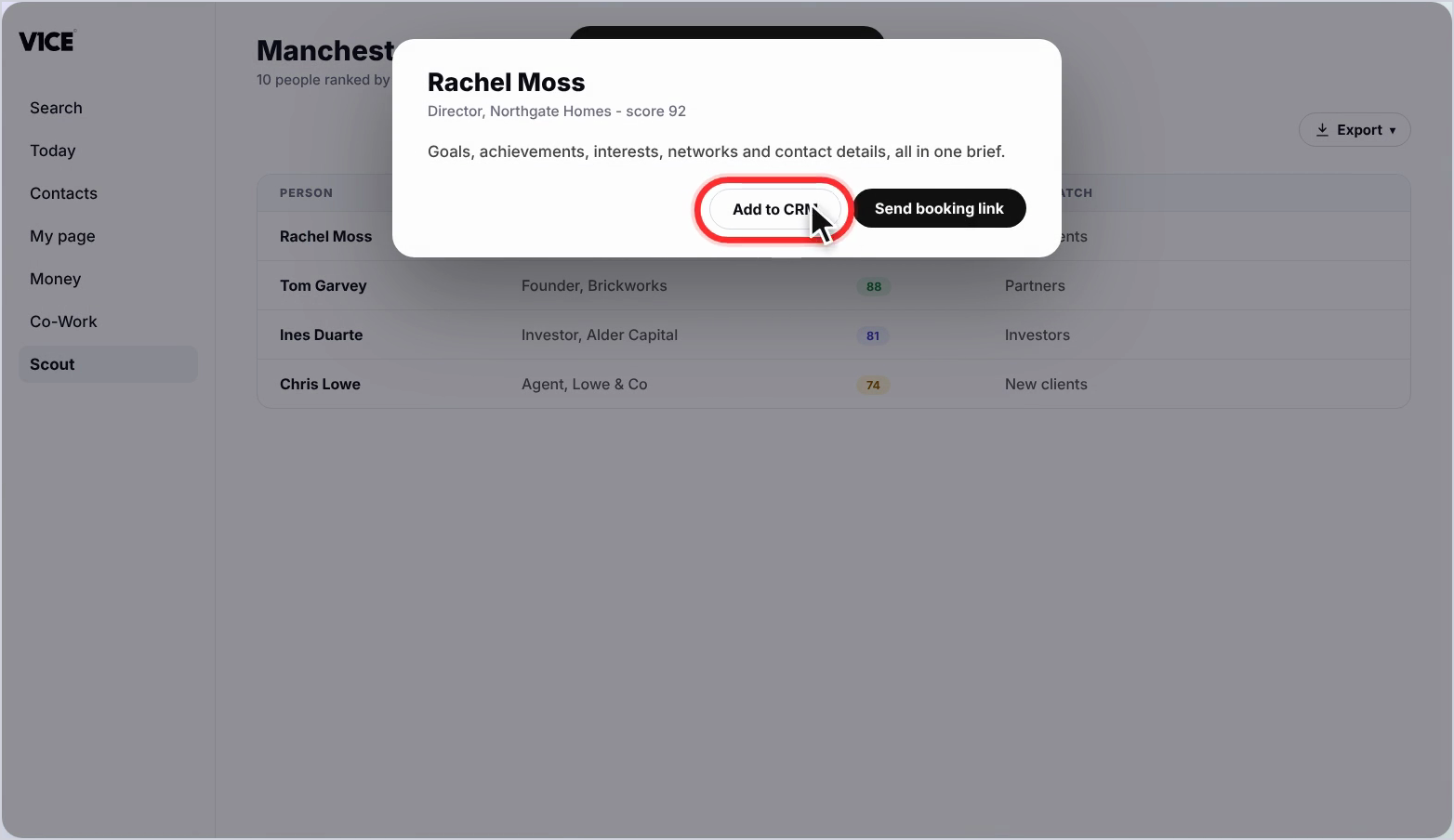
Open anyone for their brief,
add them to your CRM or send a booking link.
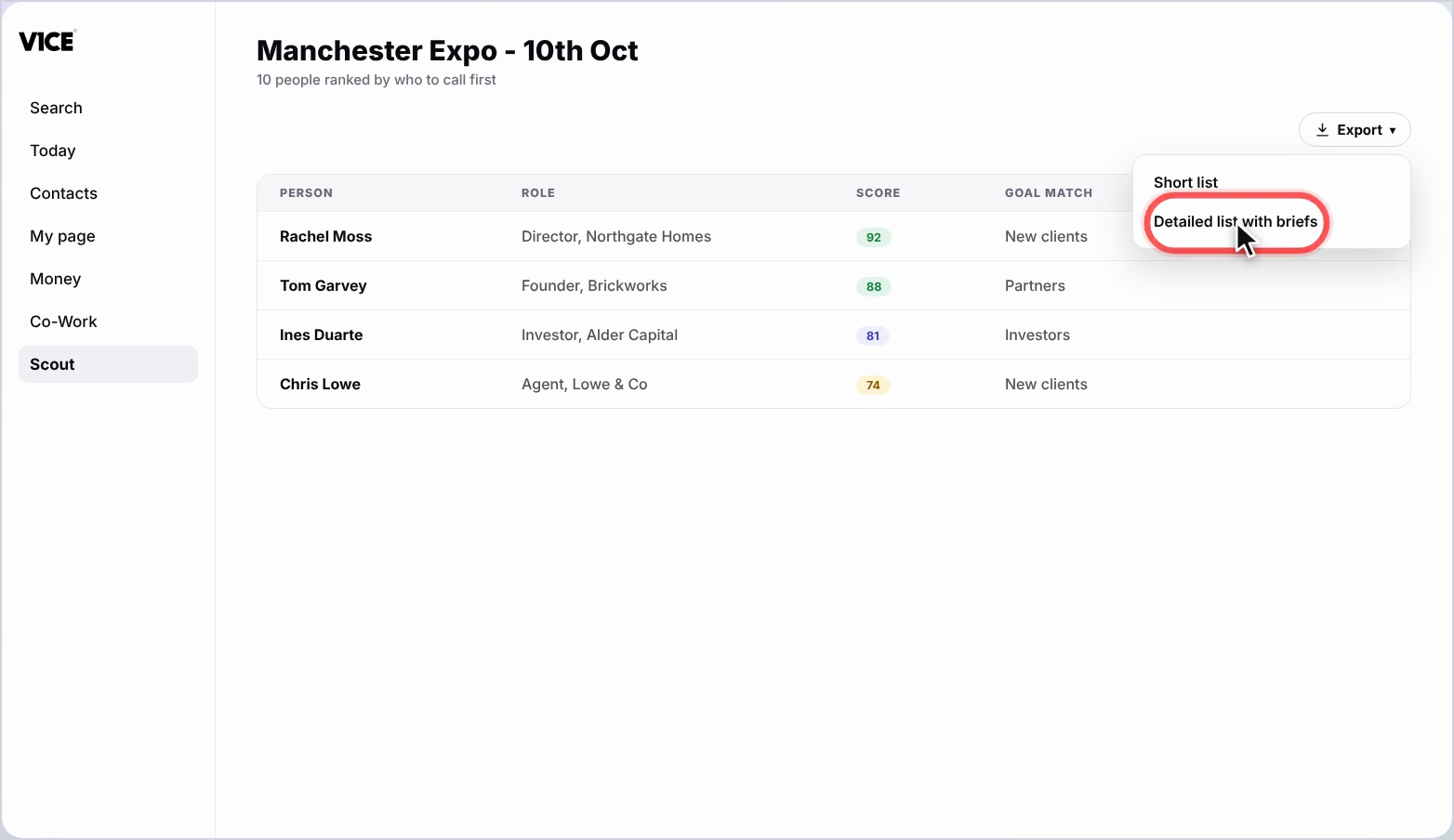
Export the list as a short list or a detailed list
ready to take to the event.
That's Scout, know exactly who to call first.
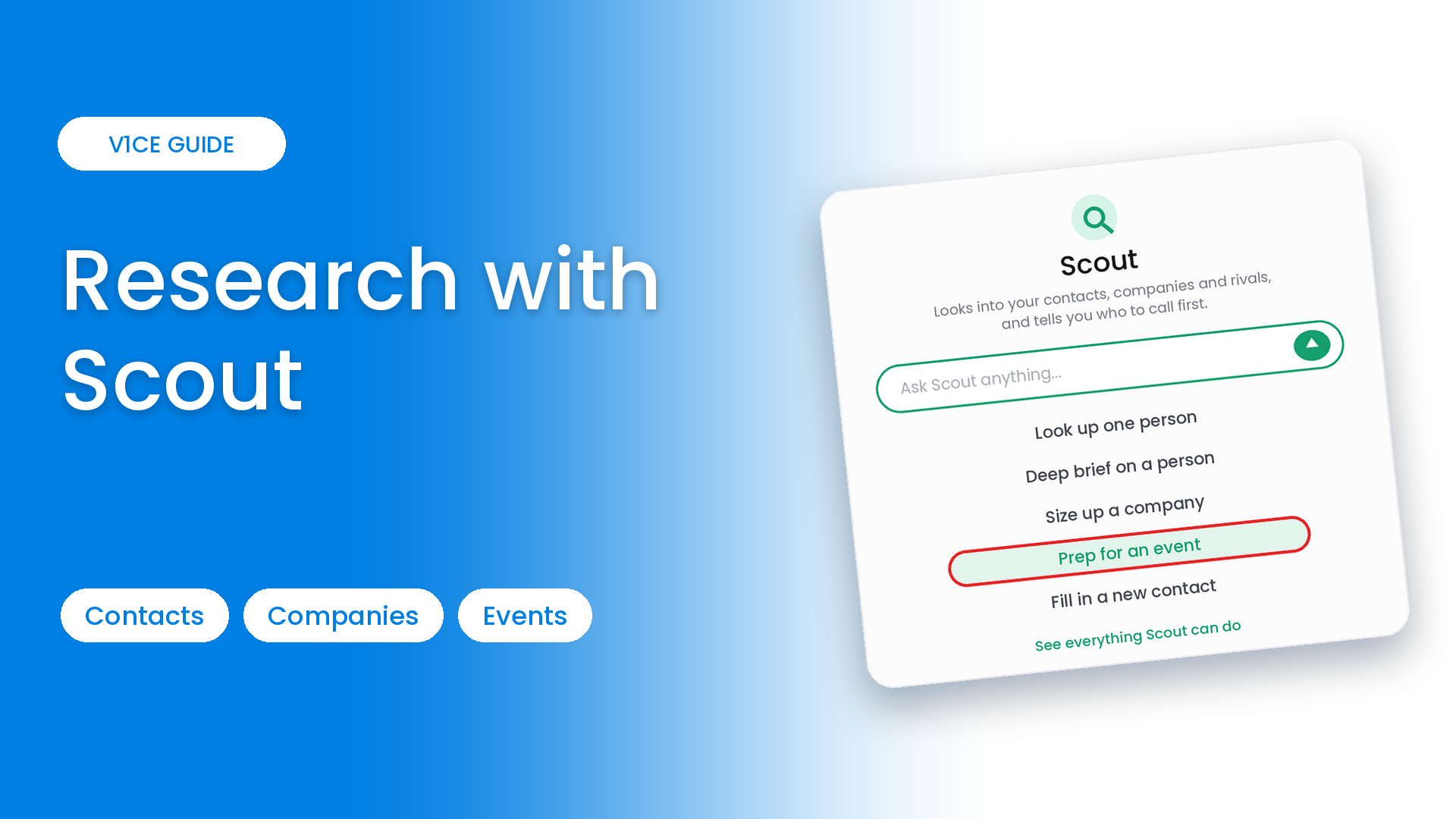
Scout is your research assistant inside V1CE. It looks into your contacts, companies and rivals, and tells you who to call first.
Look up one person in plain words, or prep for an event by dropping in a guest list and letting Scout rank everyone, with a brief and sources for each.
Watch the video
Look up a person
Step 1: Open Scout
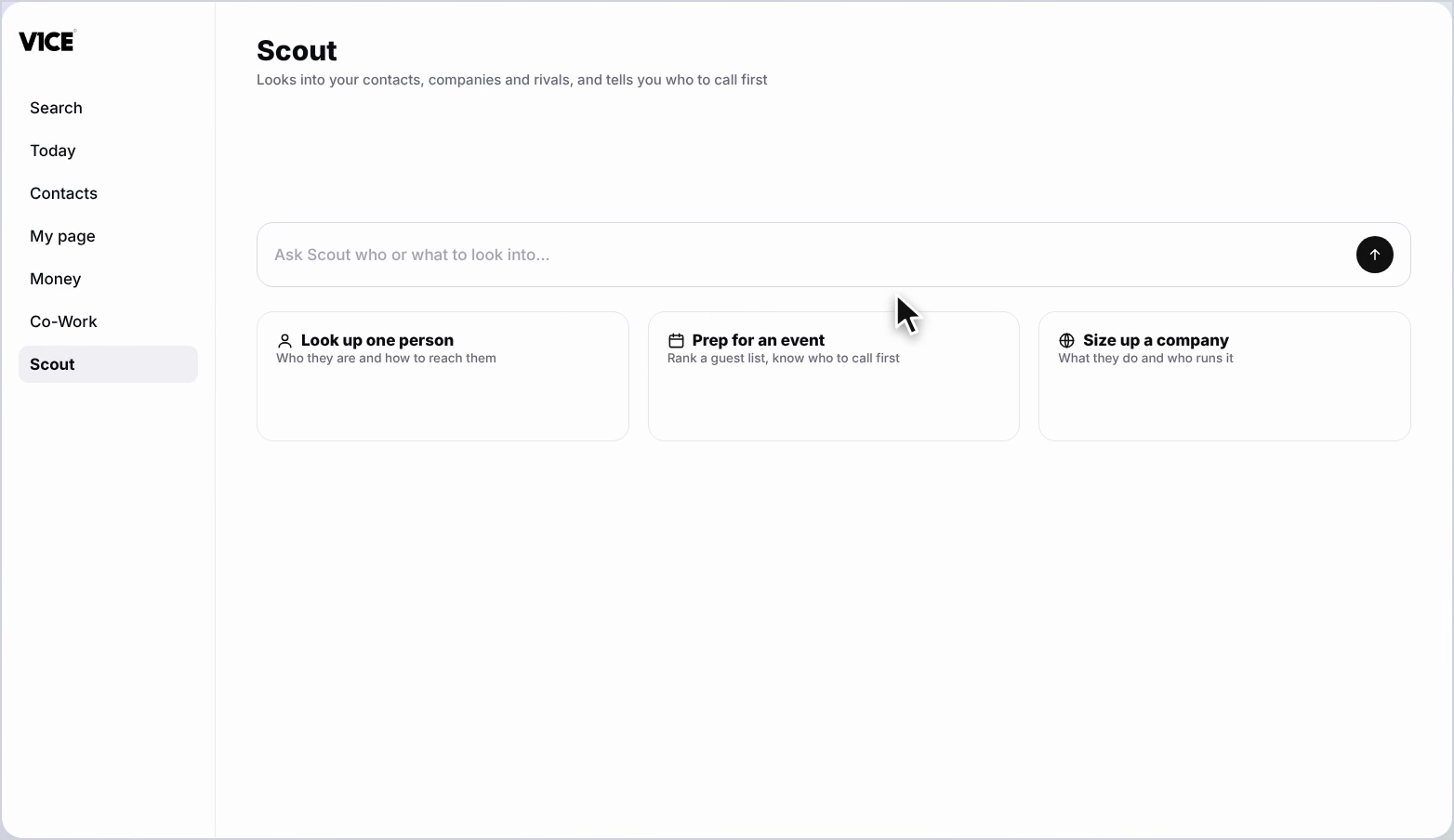
Select Scout in the left menu. You will see a box to type into and suggestions to start from.
Step 2: Ask in plain words
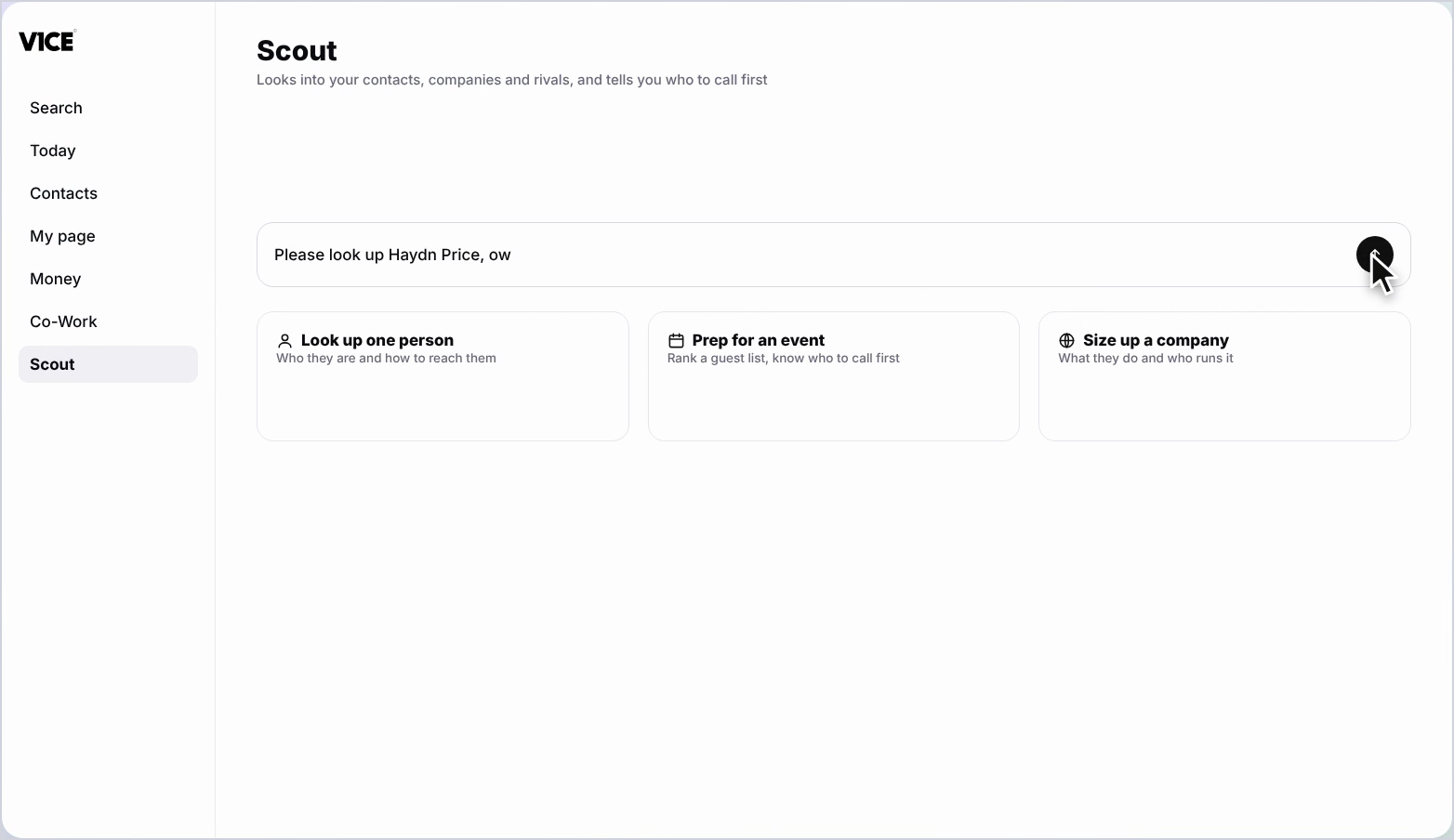
Type what you want to know. Here, a look-up on a person.
Step 3: Confirm the details
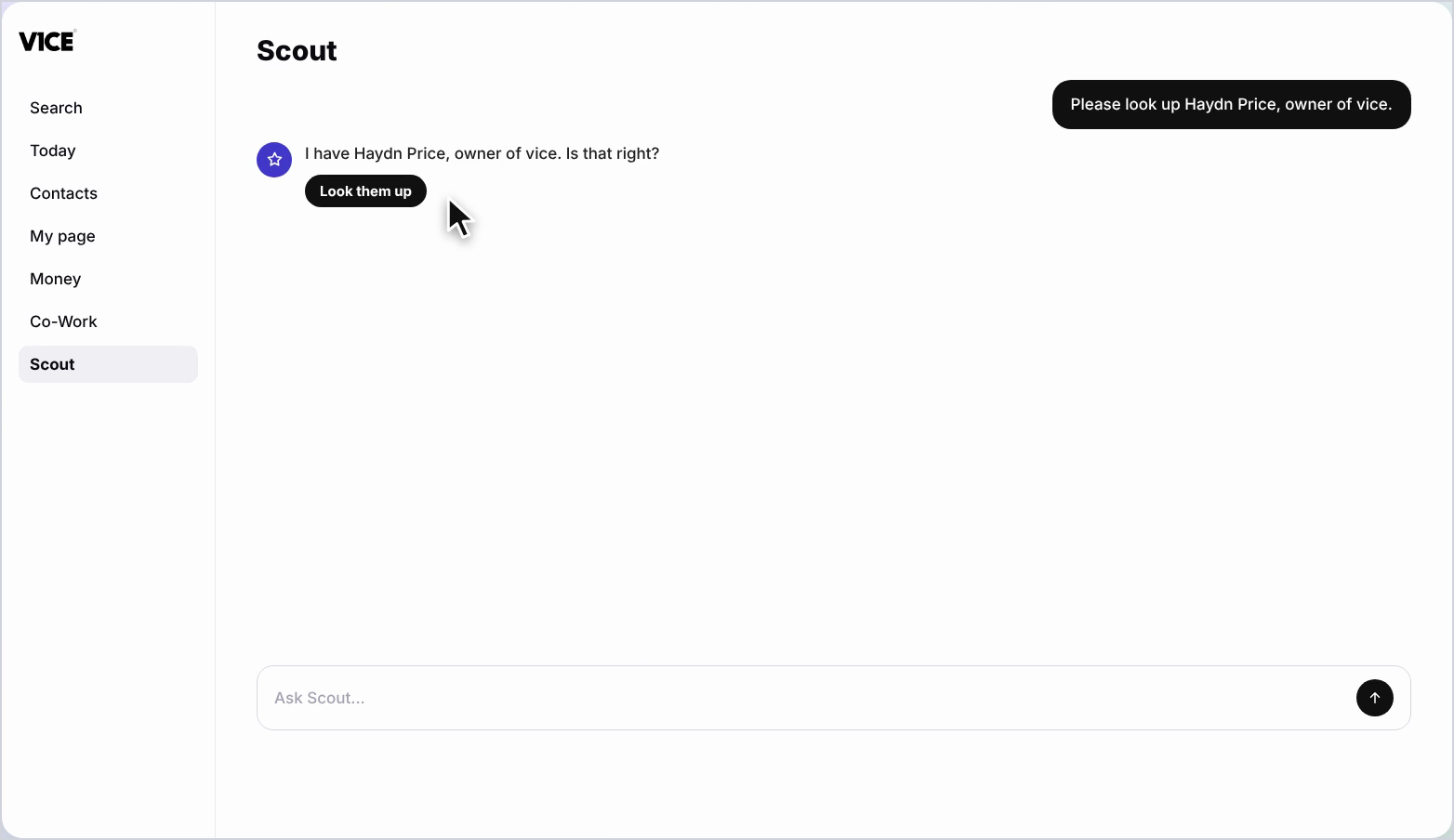
Check the details are right, then select Look them up.
Step 4: Read the result
Scout shows who they are and where they work. Open the full brief to see every source.
Prep for an event
Step 5: Choose Prep for an event
From the suggestions, choose Prep for an event. Name the event, give the date and say what you want from the day.
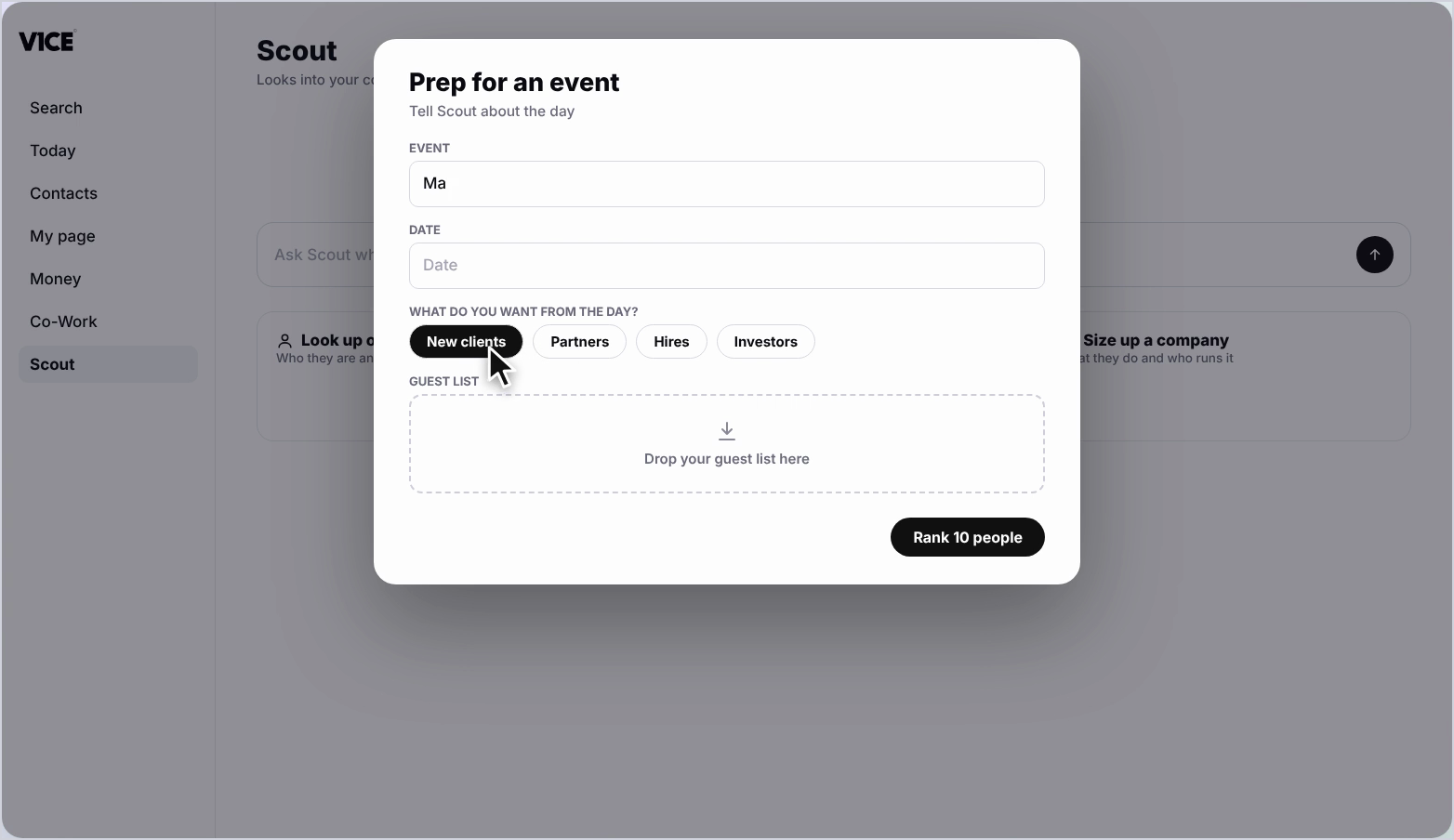
Step 6: Say what you want
Choose your goals, such as new clients, partners, hires or investors.
Step 7: Add your guest list
Drop in your guest list. Any list works. Then select Rank. It takes about two minutes.
Step 8: See the ranking
Everyone is ranked with a score and how well they match your goal.
Step 9: Open anyone
Open a person for their brief, add them to your CRM, or send a booking link.
Step 10: Export the list
Select Export for a short list or a detailed list with briefs, ready to take to the event.
Good to know
- Scout works for one person, a company or a whole guest list.
- Every brief shows its sources so you can check them.
- Add anyone straight to your CRM or send a booking link from their brief.
Frequently asked questions
How do I look up a person with Scout?
Select Scout in the left menu, ask in plain words, confirm the details are right and press Look them up. Open the full brief to see every source.
How do I prep for an event with Scout?
Choose Prep for an event, name the event, give the date and say what you want from the day. Drop in your guest list, any list works, and press Rank.
How long does ranking take?
About two minutes. Everyone is ranked with a score.
What can I do with a ranked guest?
Open anyone for their brief, add them to your CRM or send a booking link. You can also export the list as a short list or a detailed list.