How to manage your contacts, use Map view and export

To manage your contacts, select Contacts in the left menu. Open anyone for their full profile, switch to Map to see where contacts are, or select Export to send them to other tools. Select New contact to add someone and let Scout fill in the rest.
| Time needed | 2 minutes |
|---|---|
| What you need | Your V1CE account |
| Where in the app | Contacts |
Video transcript and chapters
Chapters
0:00 Introduction
0:14 Open Contacts
0:25 Open a profile
0:32 Explore the profile
0:40 Switch to Map view
0:45 Export your contacts
0:50 Add a new contact
0:57 See the full profile
1:01 You're done

Transcript
Contacts is where everyone you meet is saved automatically,
so you can follow up while you're still fresh in their mind.
See your full list, open a profile, switch to the map,
export and add someone new with Scout's help.
Head to contacts in the sidebar.
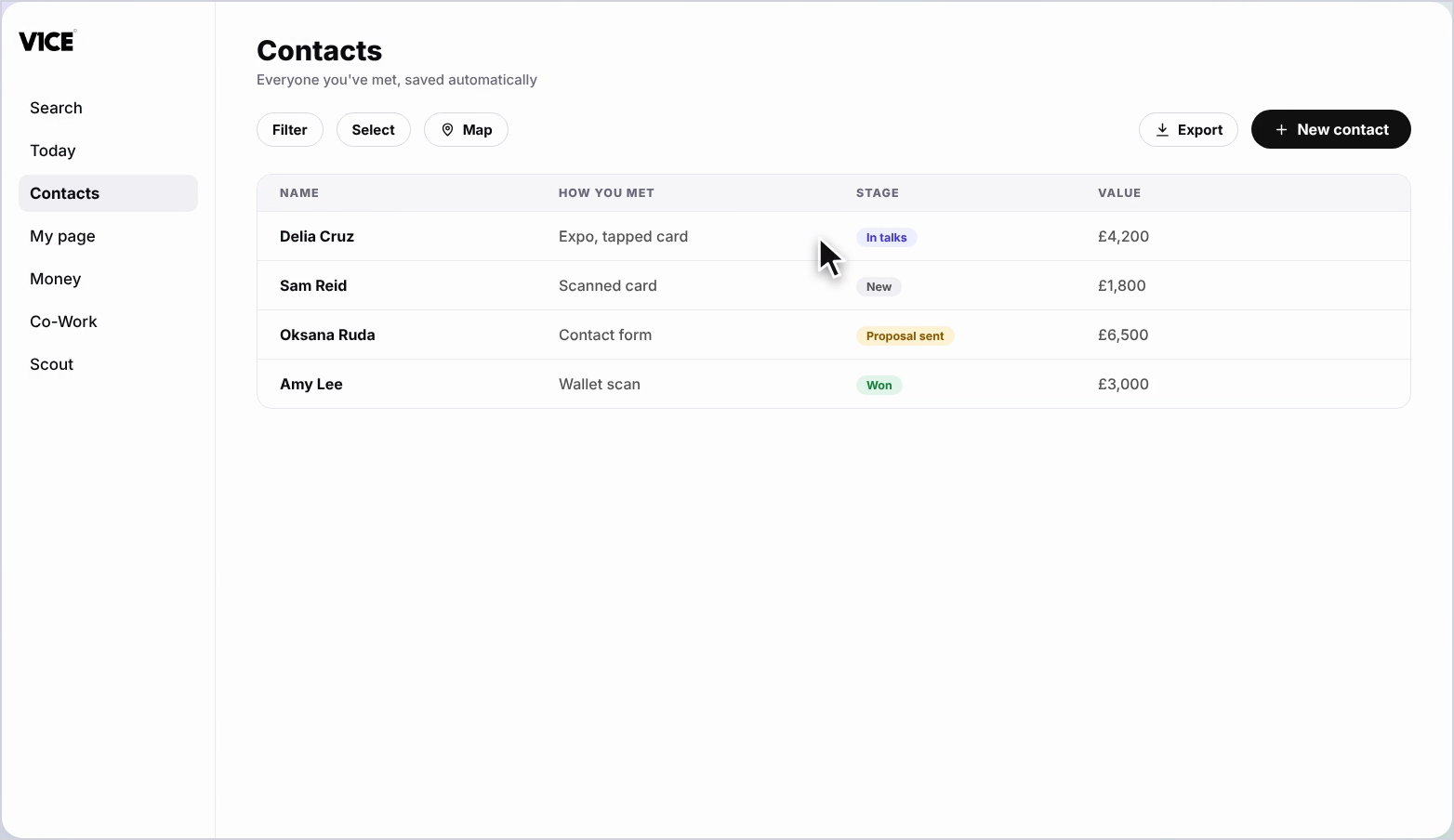
Every row shows how you met them, their stage and what they're worth.
Filter, select, export or add a contact from the top.
Select anyone to see their full profile.
It shows why now matters, right alongside their tasks.
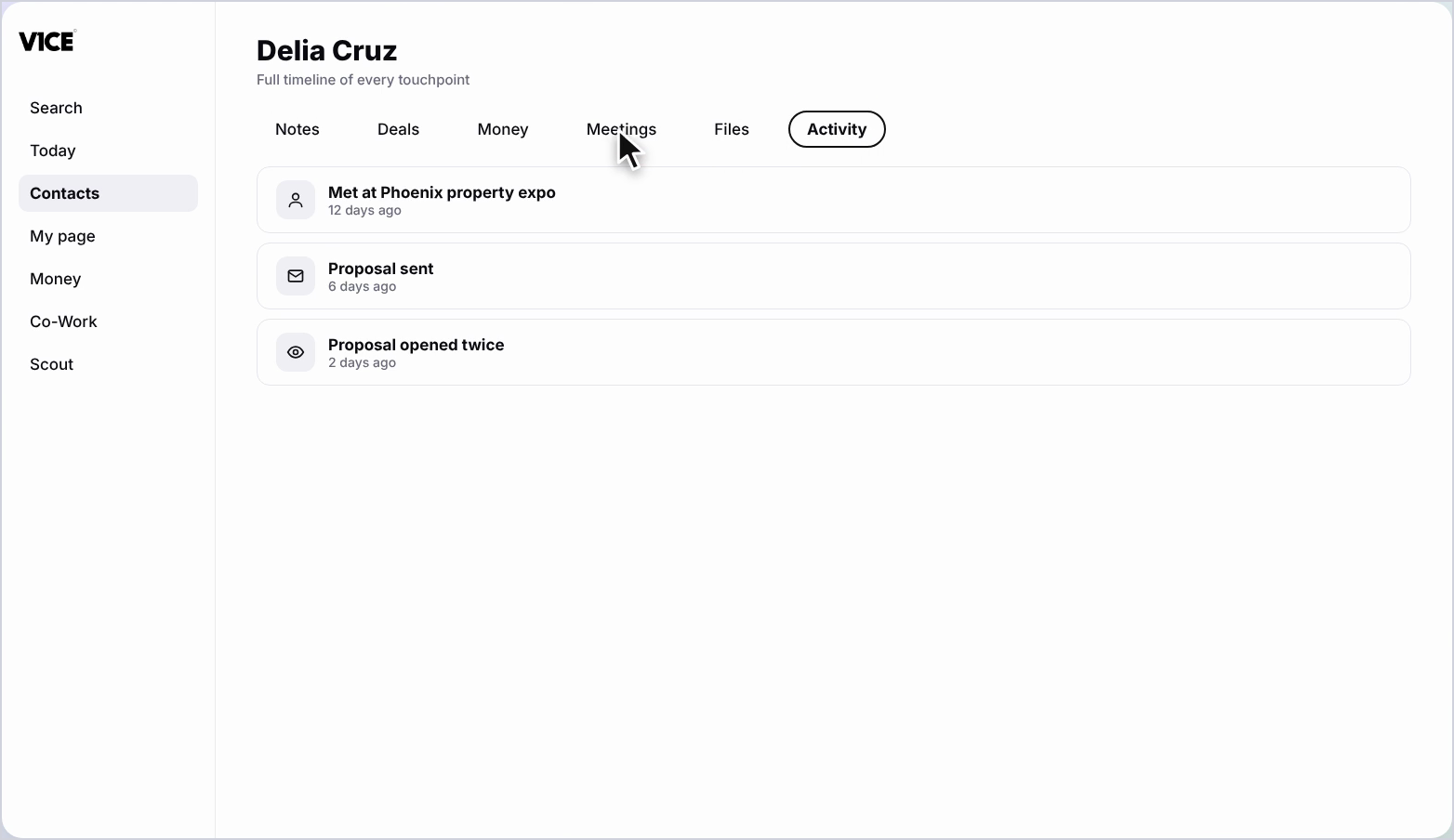
Flick through notes, deals, money, meetings and files
right down to a timeline of every touchpoint.
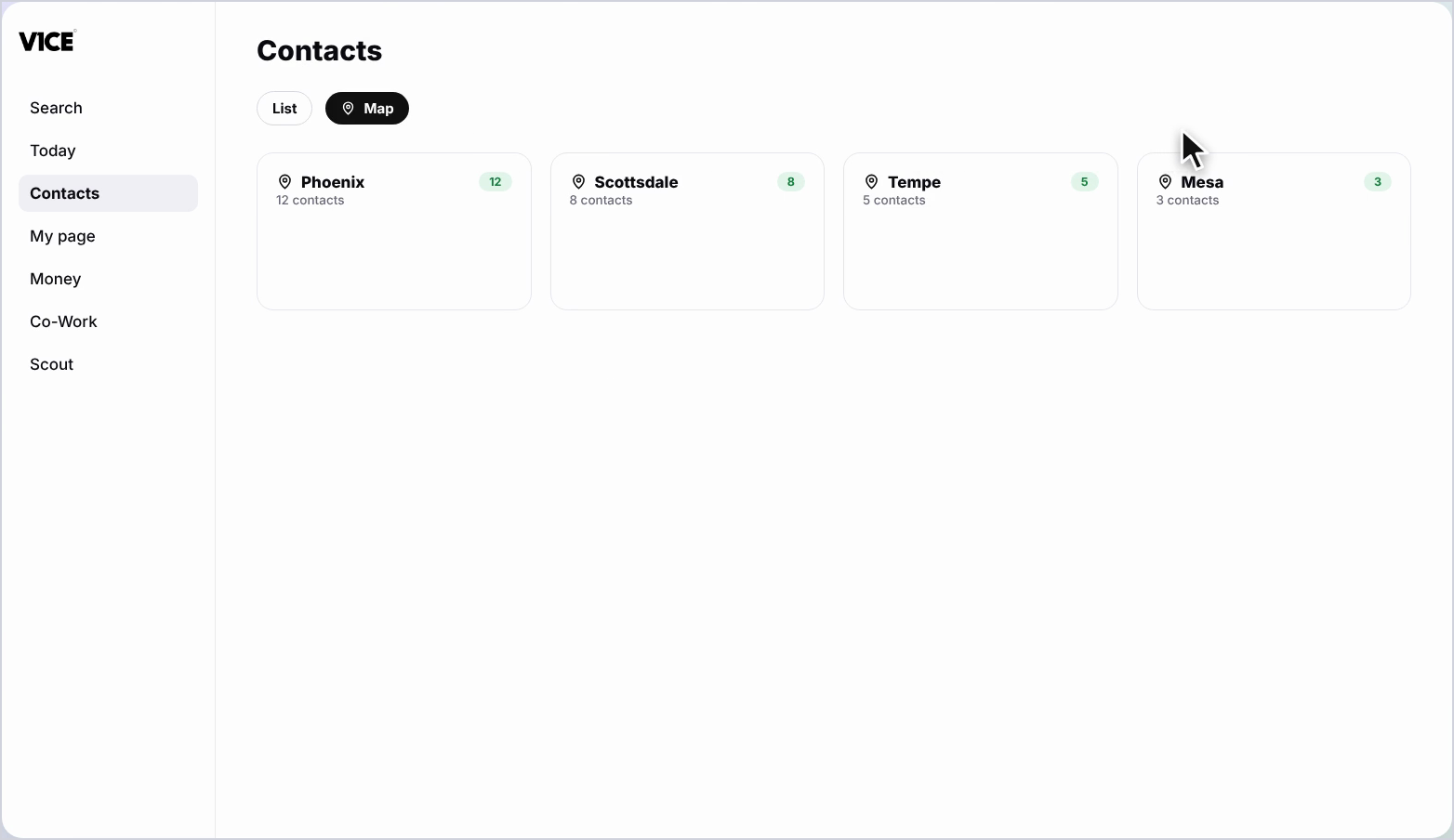
Select map to see where your contacts are, clustered by location.
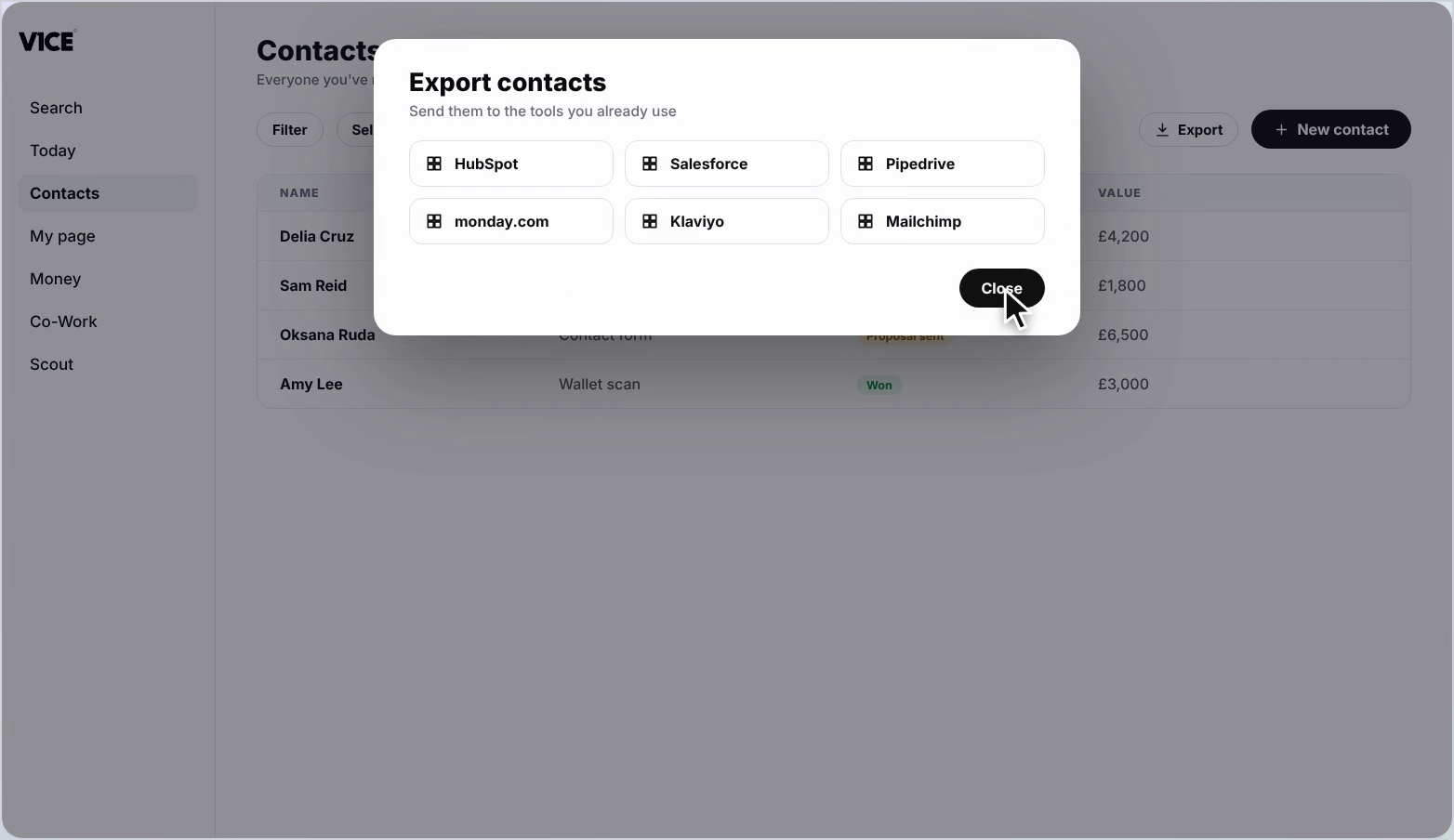
Select export to send your contacts to HubSpot, Salesforce, Pipe Drive and more.
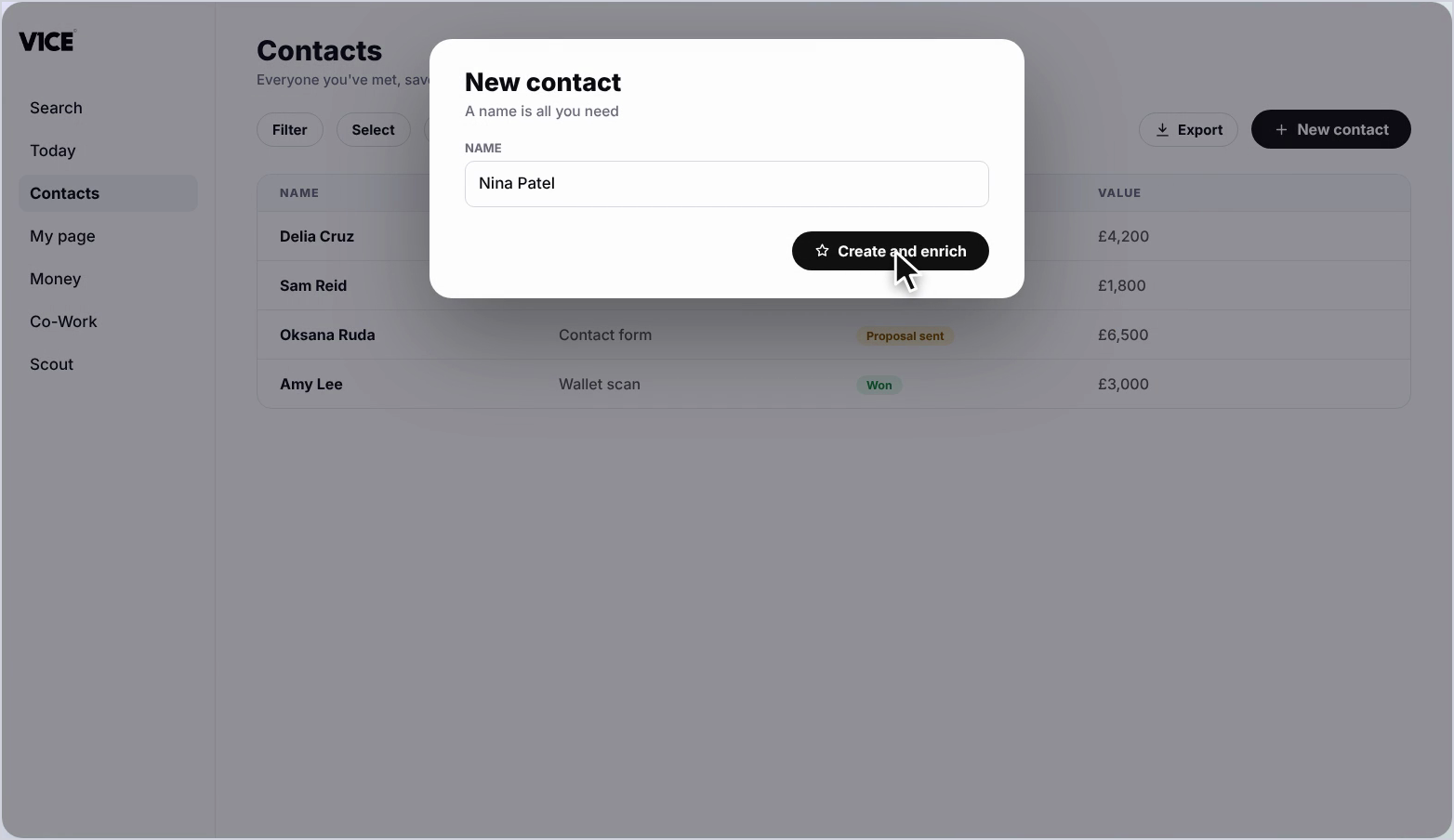
To add someone, select new contact and type a name.
Hit create and enrich and Scout finds the rest.
In seconds you've got a full profile, ready to work from.
That's contacts, everyone you meet ready to follow up.
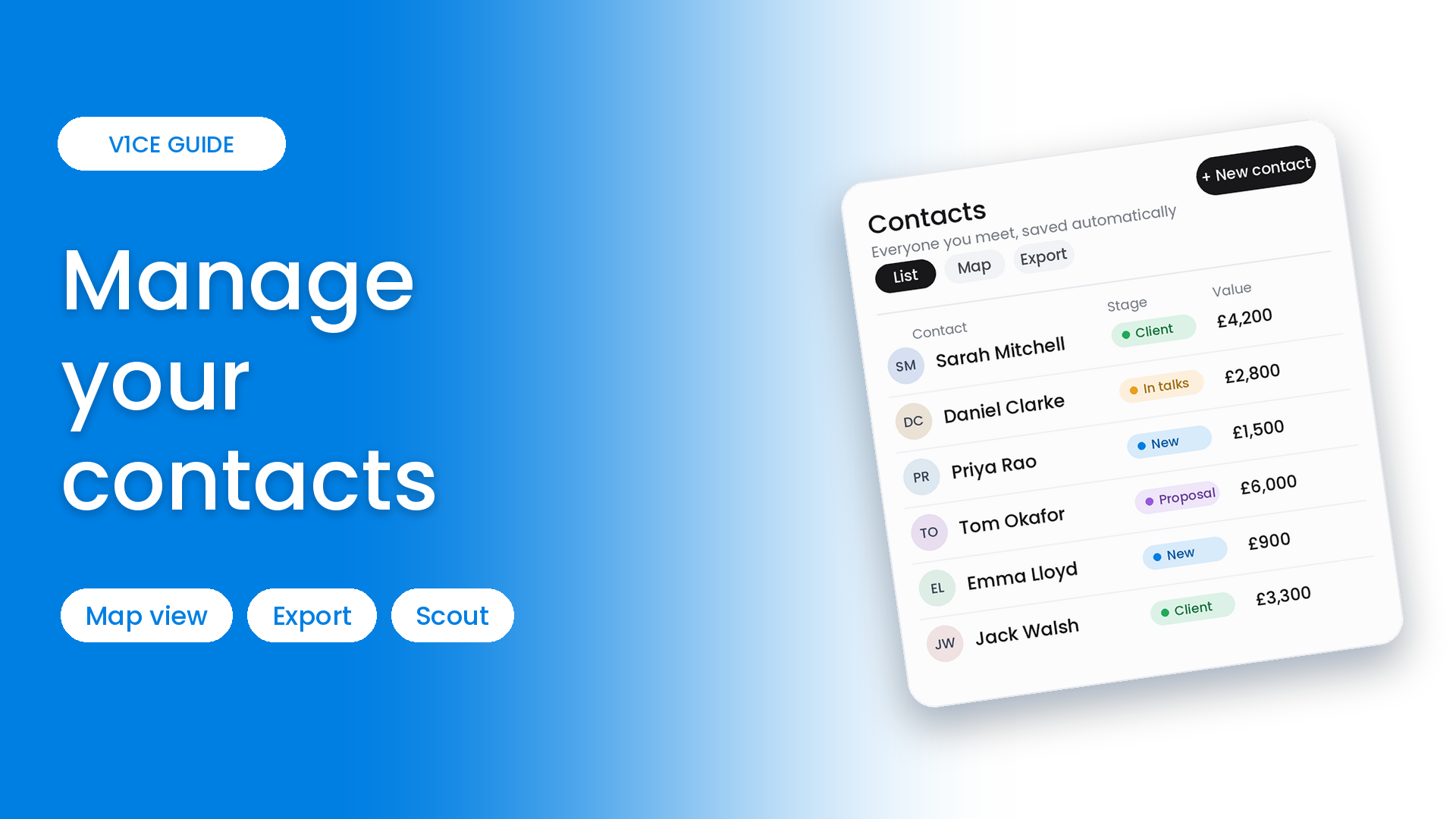
Contacts is where everyone you meet is saved automatically, so you can follow up while you are still fresh in their mind.
See your full list, open a profile, switch to the map, export, and add someone new with Scout's help.
Watch the video
Find and review your contacts
Step 1: Open Contacts
Select Contacts in the left menu.
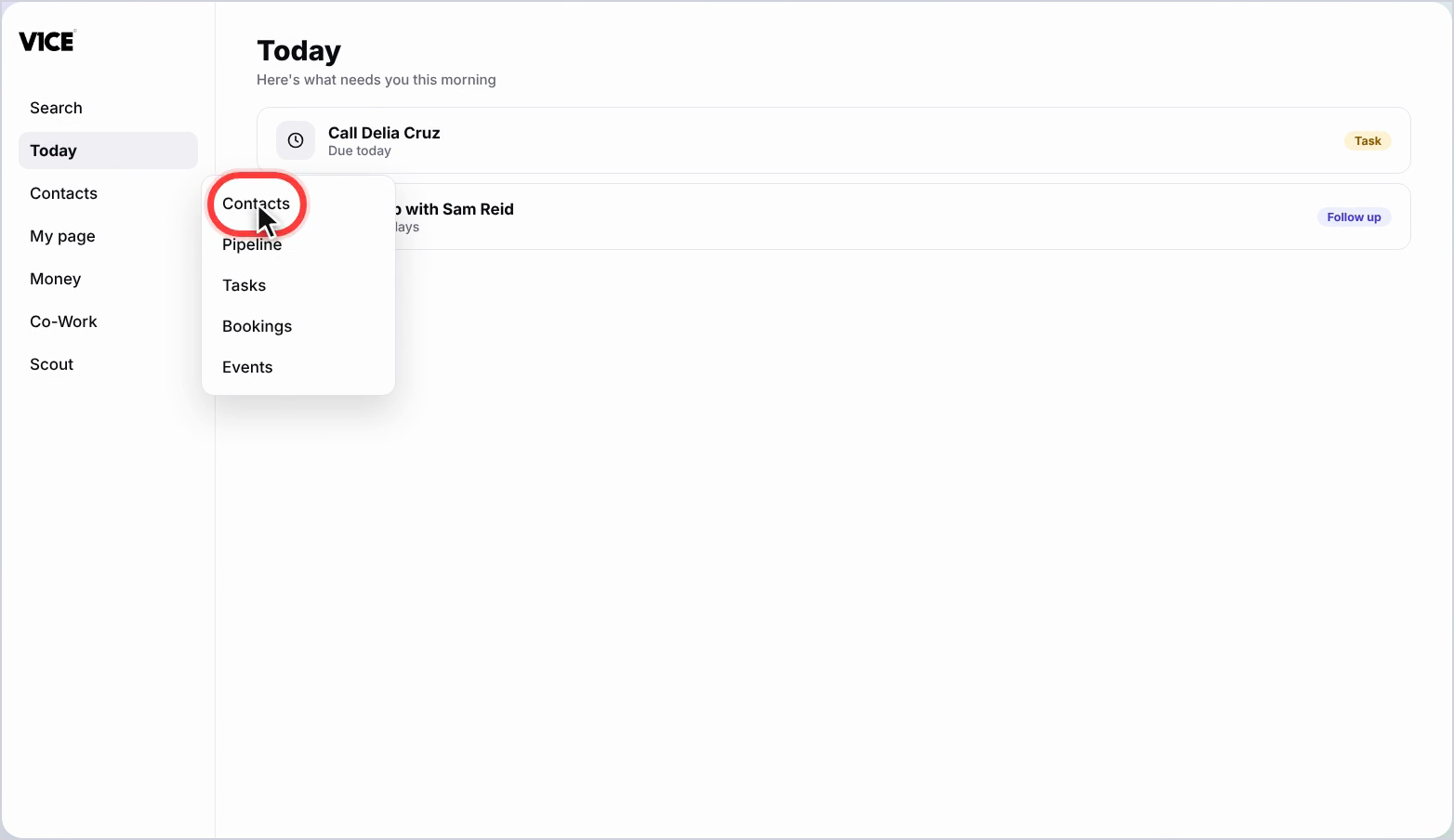
Step 2: Read your list
Every row shows how you met them, their stage and what they are worth. Filter, select, export or add a contact from the top.
Step 3: Open a profile
Select anyone to see their full profile. Scout shows why now matters, right alongside their tasks.
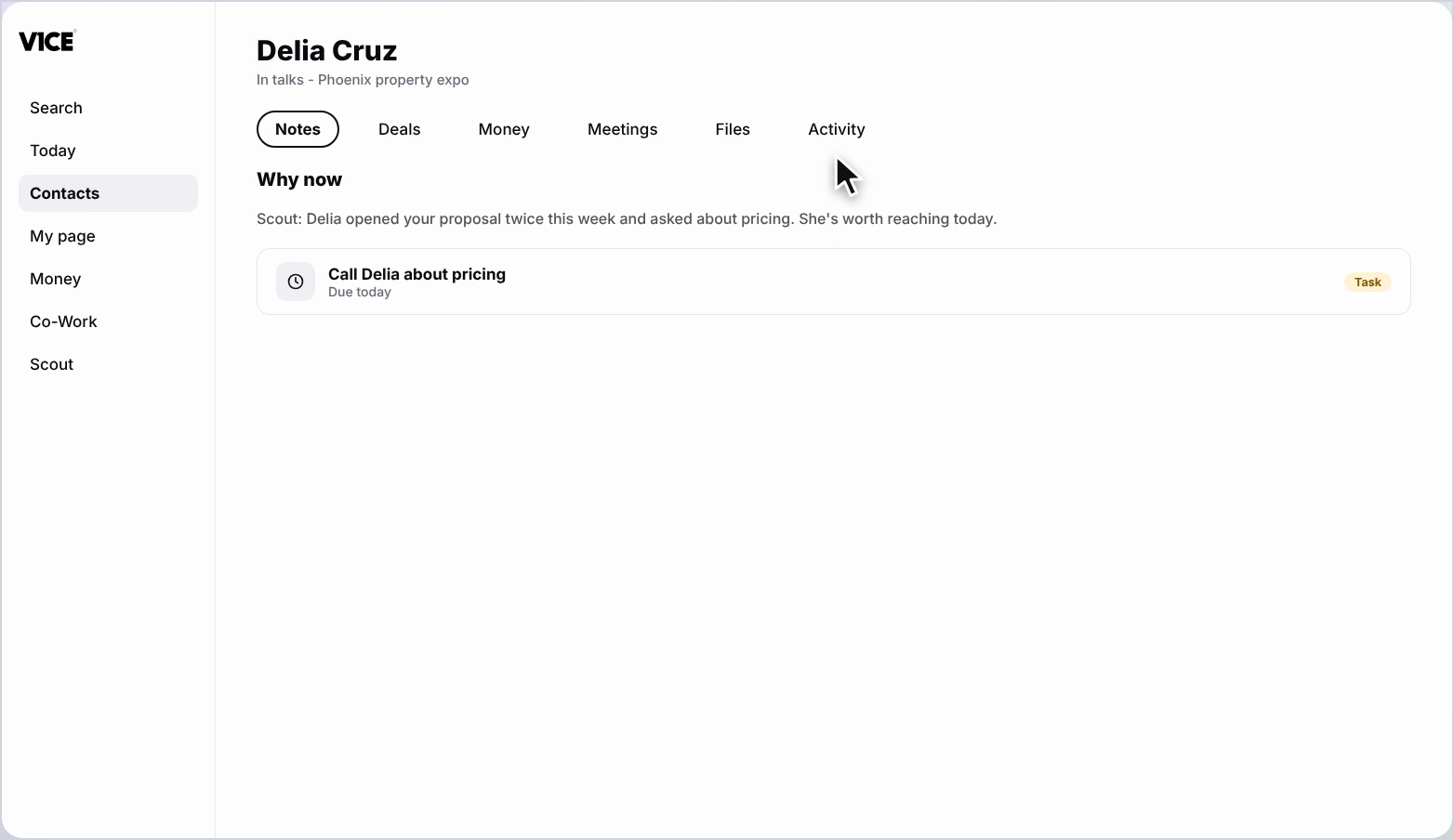
Step 4: Explore the profile
Flick through notes, deals, money, meetings and files, right down to a timeline of every touchpoint.
Map view and export
Step 5: Switch to Map view
Select Map to see where your contacts are, clustered by location.
Step 6: Export your contacts
Select Export to send your contacts to HubSpot, Salesforce, Pipedrive and more.
Add someone new
Step 7: Create a contact
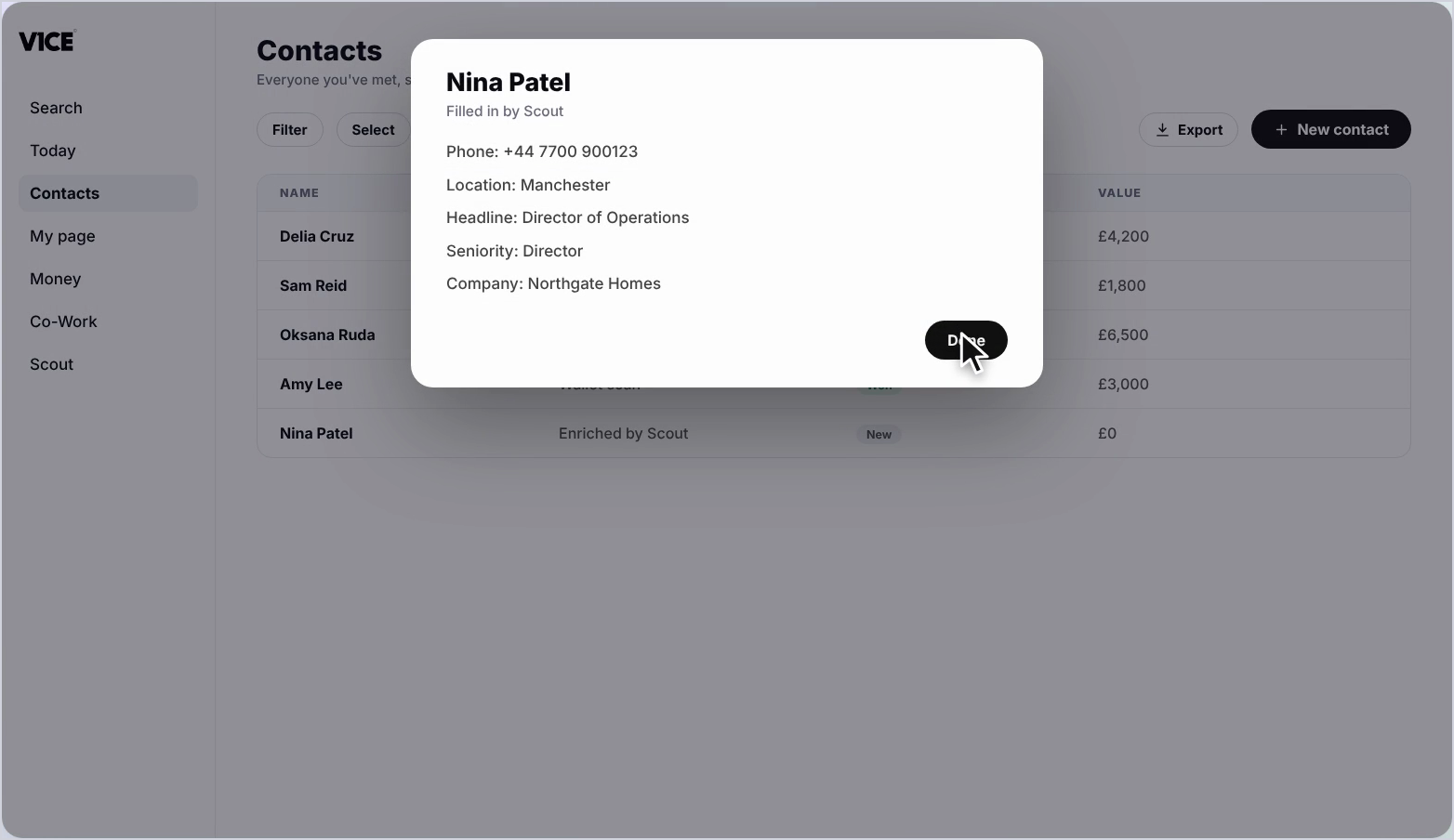
Select New contact and type a name. Select Create and enrich, and Scout finds the rest.
Step 8: See the full profile
In seconds you have a full profile, ready to work from.
Good to know
- Contacts are saved automatically when someone shares their details with you.
- Scout adds details like role, company and location when you create a contact.
- Use Export to move your list into the tools you already use.
Frequently asked questions
Where do I find my contacts?
Select Contacts in the left menu. Every row shows how you met them, their stage and what they are worth.
What can I see on a contact's profile?
Notes, deals, money, meetings and files, right down to a timeline of every touchpoint. Scout also shows why now matters, alongside their tasks.
Can I export my contacts?
Yes. Select Export to send your contacts to tools like HubSpot, Salesforce and Pipedrive.
How do I add a new contact?
Select New contact and type a name, then hit Create and enrich and Scout finds the rest.