How to create and manage tasks and follow-up reminders

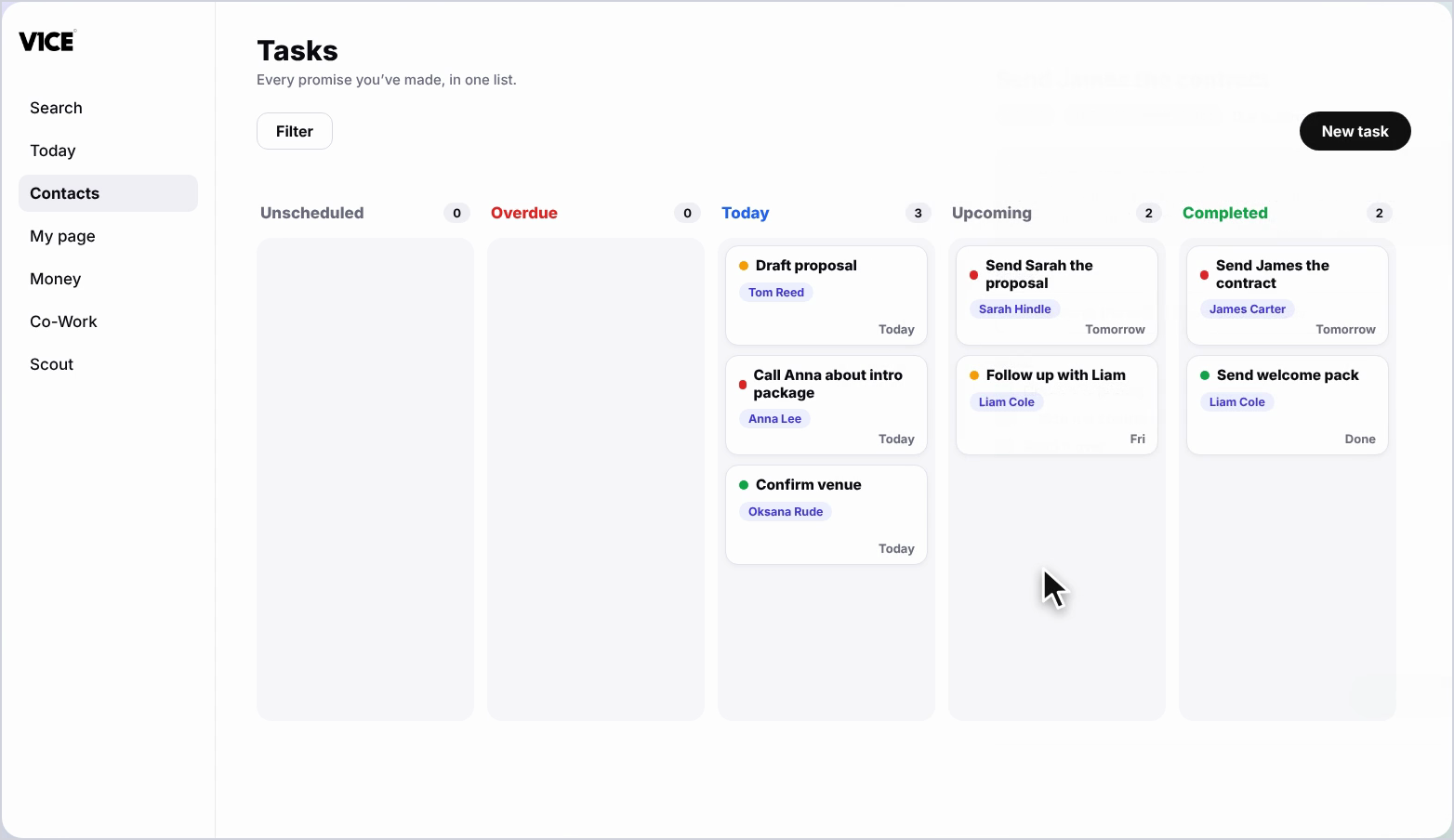
To manage tasks, open Contacts, then Tasks. Your board sorts everything into Unscheduled, Overdue, Today, Upcoming and Completed. Drag a task to reschedule it, filter the board, or select New task to add one linked to a contact.
| Time needed | 1 minute |
|---|---|
| What you need | Your V1CE account |
| Where in the app | Contacts > Tasks |
Video transcript and chapters
Chapters
0:00 Introduction
0:13 Open Tasks
0:18 Reschedule a task
0:25 Filter your board
0:29 Add a new task
0:35 See it linked
0:39 Open a task
0:46 You're done

Transcript
Tasks is every promise you've made, kept in one list so nothing slips through.
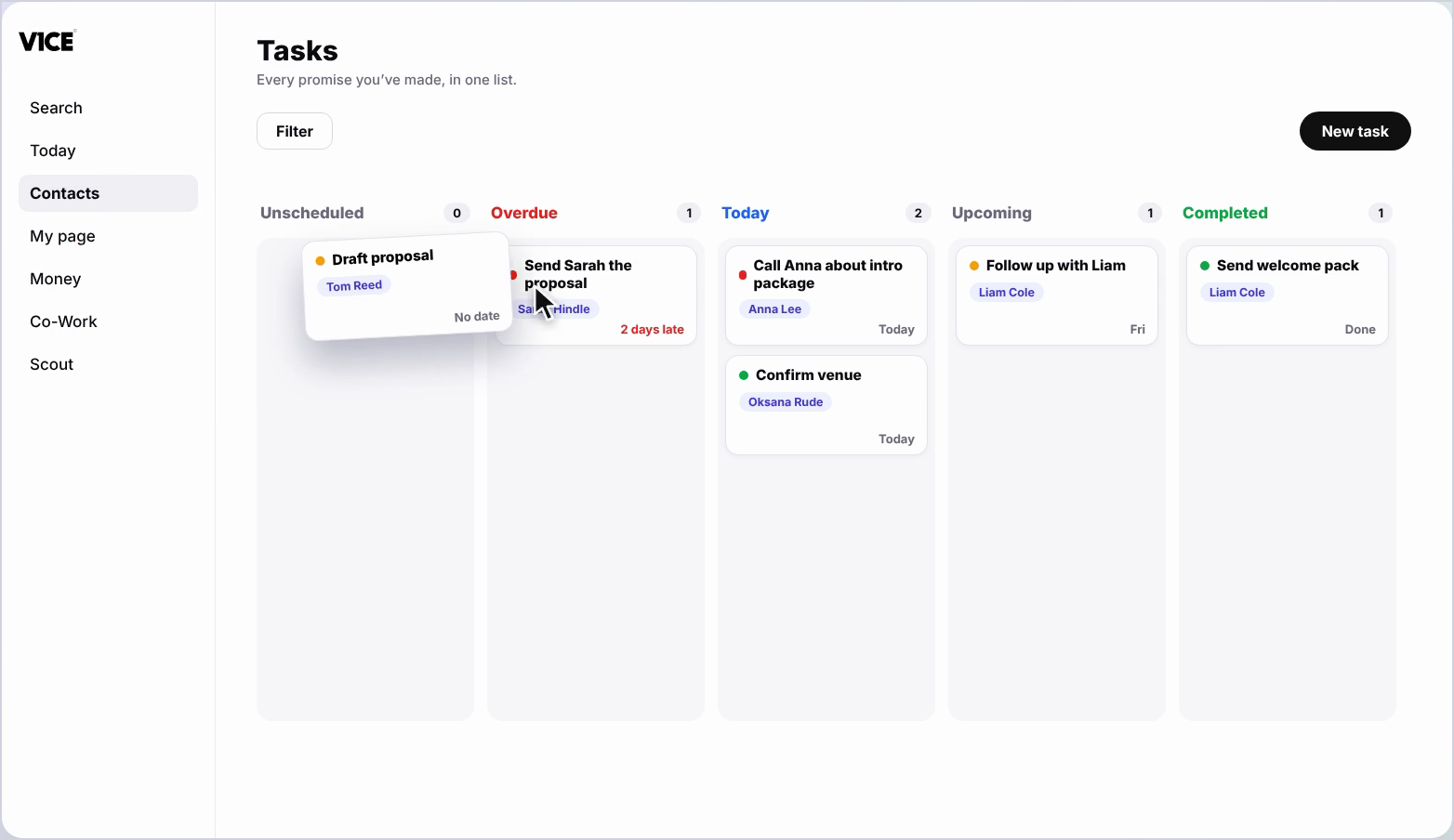
Everything is sorted for you, unscheduled, overdue, today, upcoming and completed,
so you always know what's next.
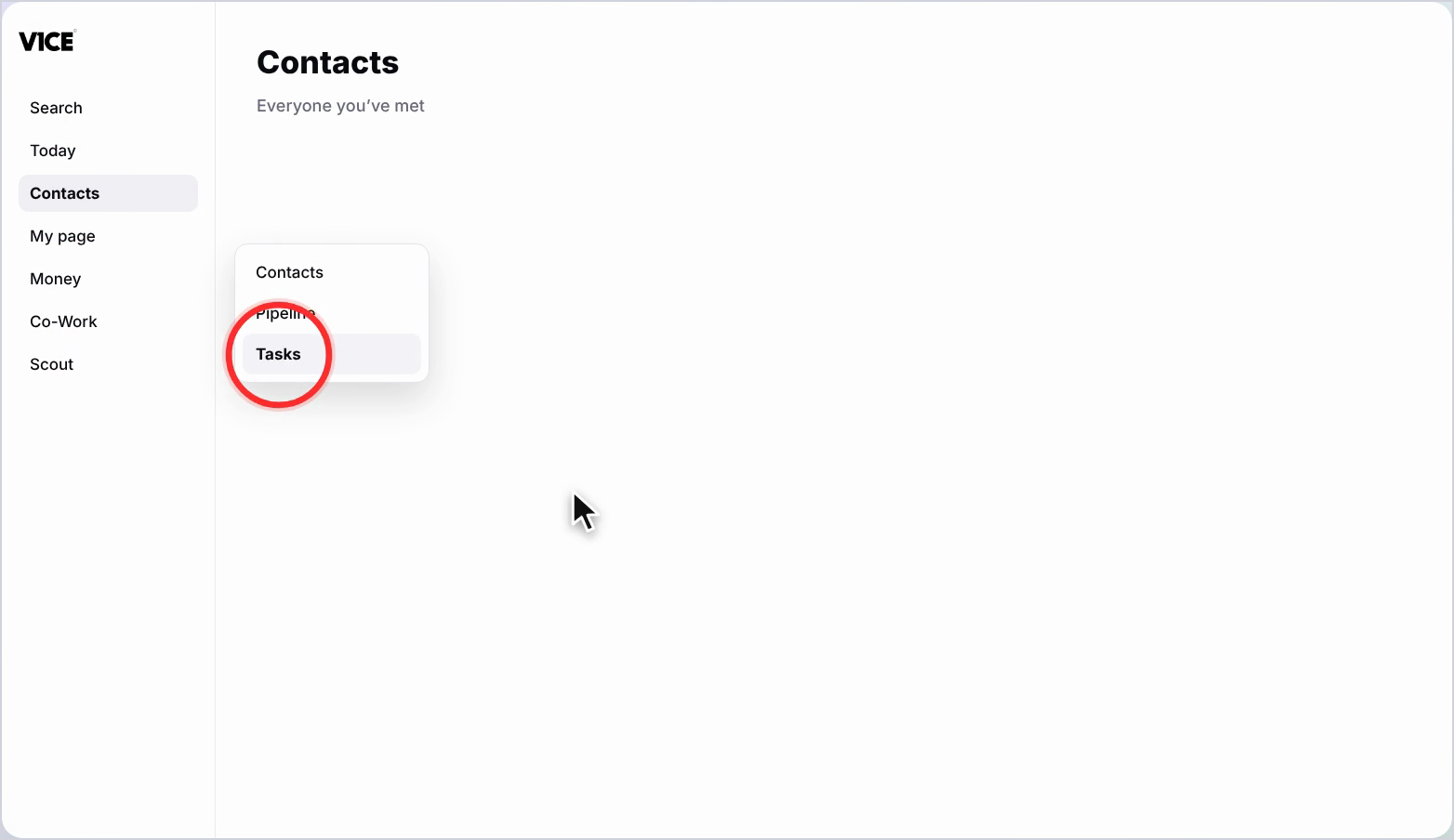
Head to Contacts then Tasks to see every promise in one place.
Drag any task to reschedule it or open the date picker for quick options like today,
tomorrow or next week.
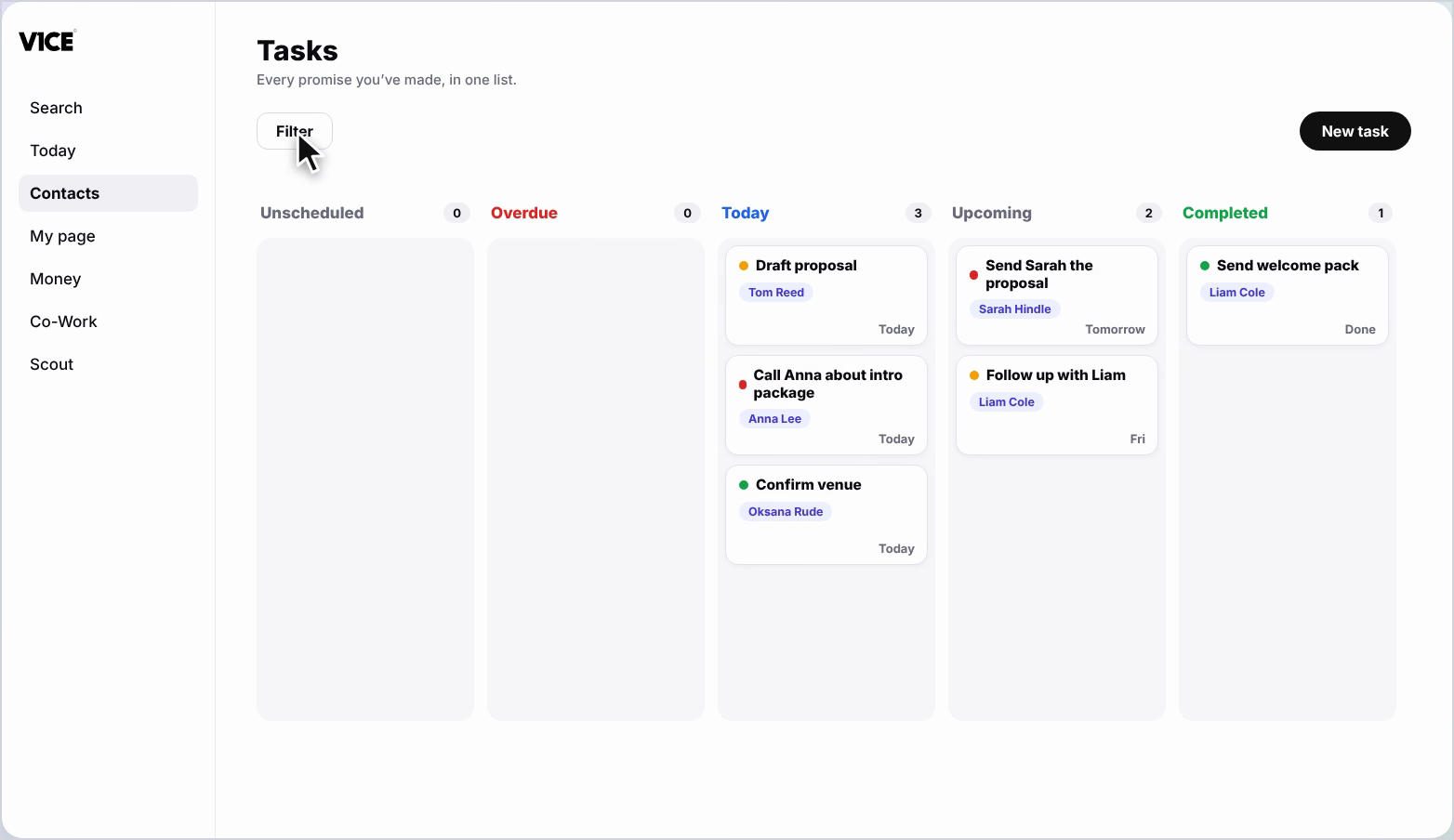
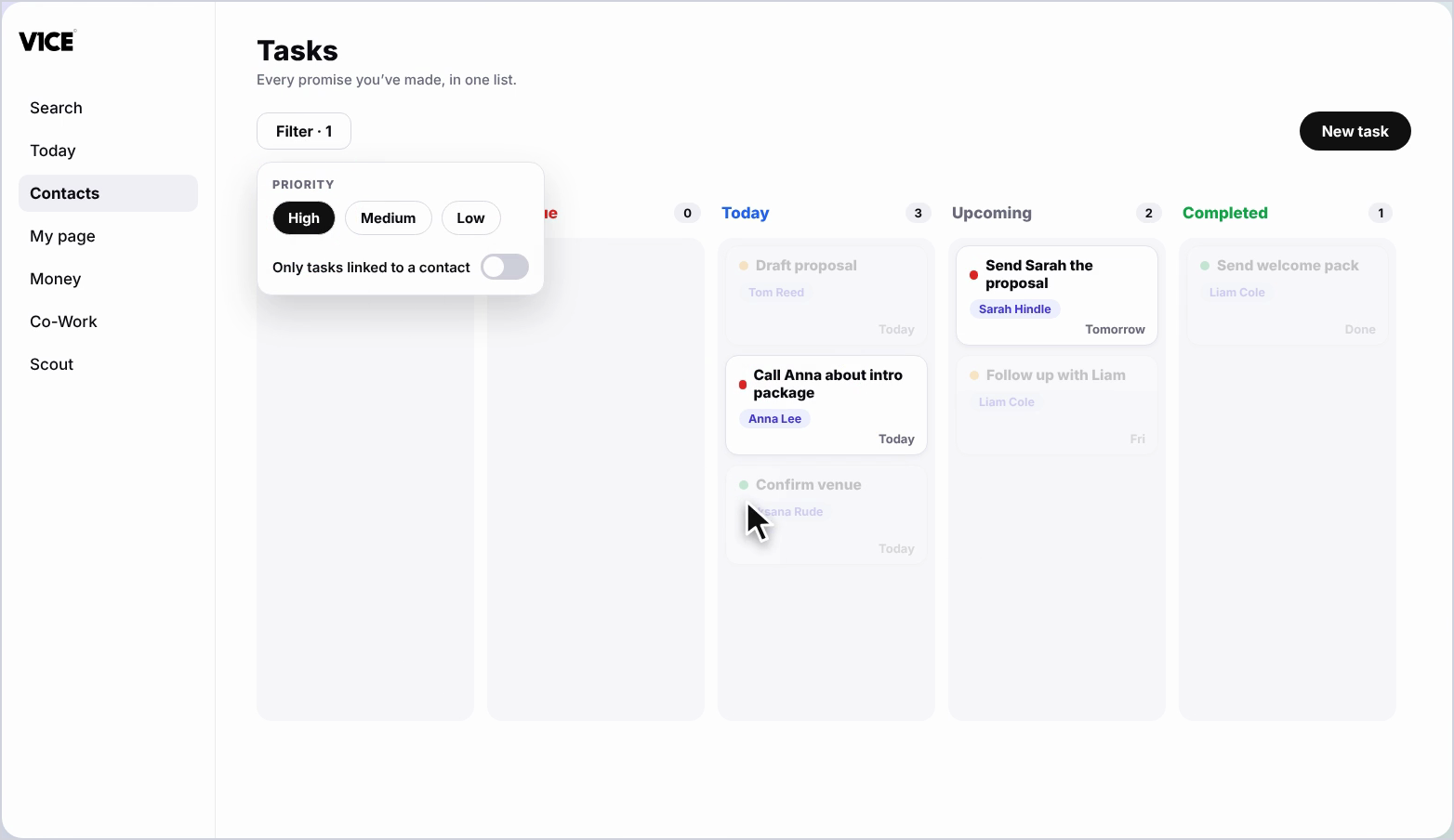
Filter by priority or show only the tasks linked to a contact.
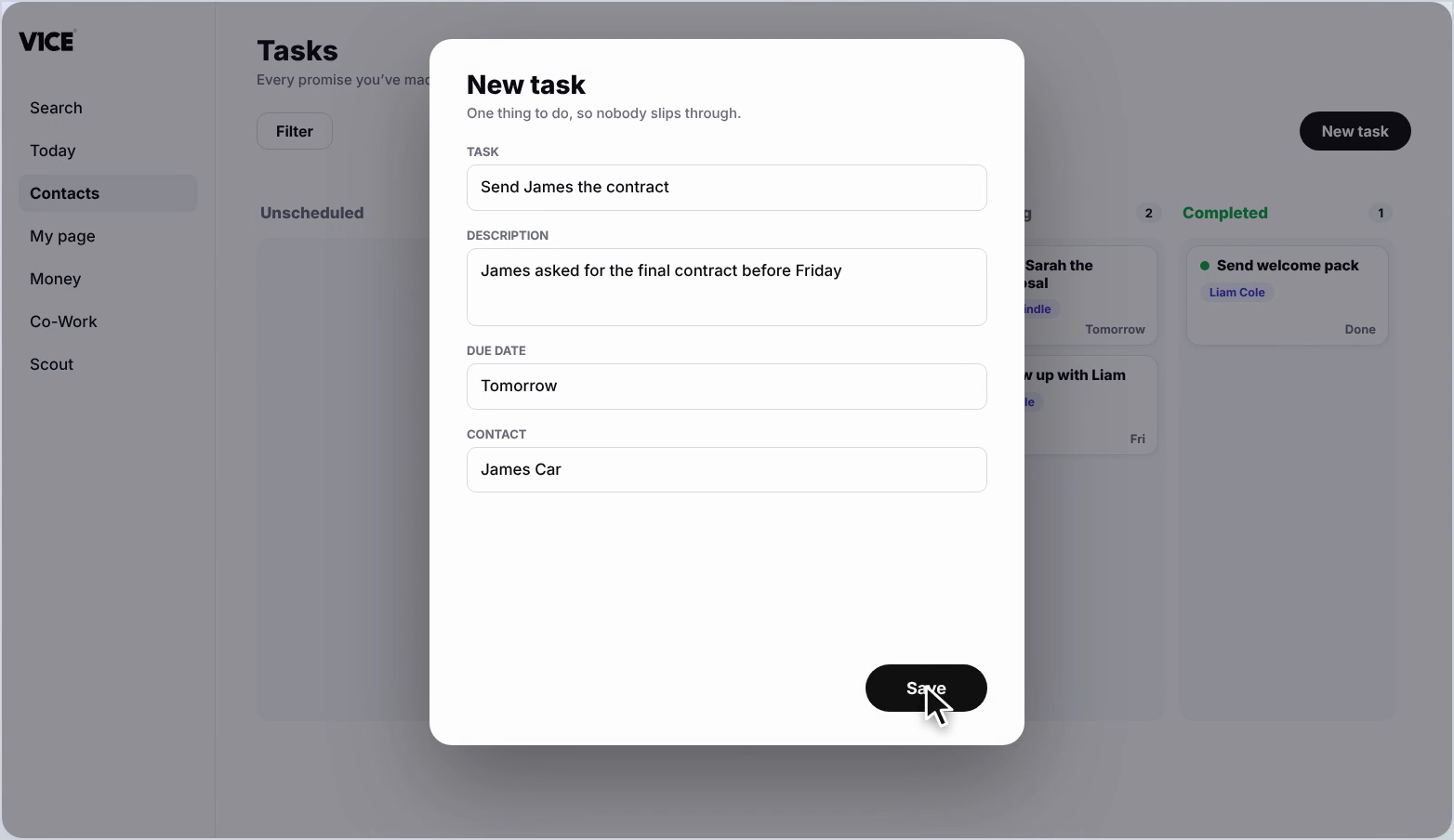
To add one, select New Task.
Give it a name, a description, a due date and who it's with.
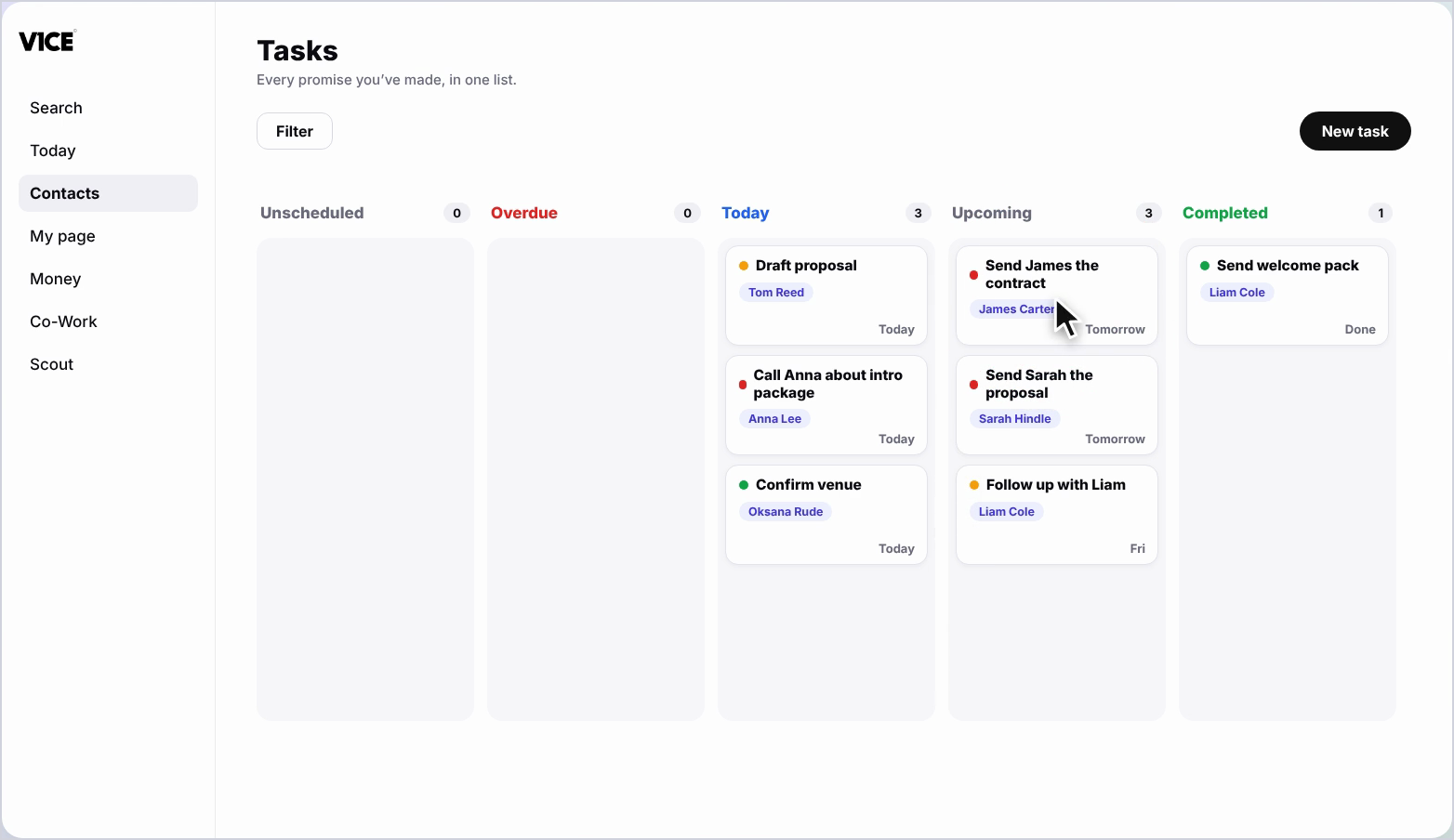
Save it and it's already linked to that contact, ready to action.
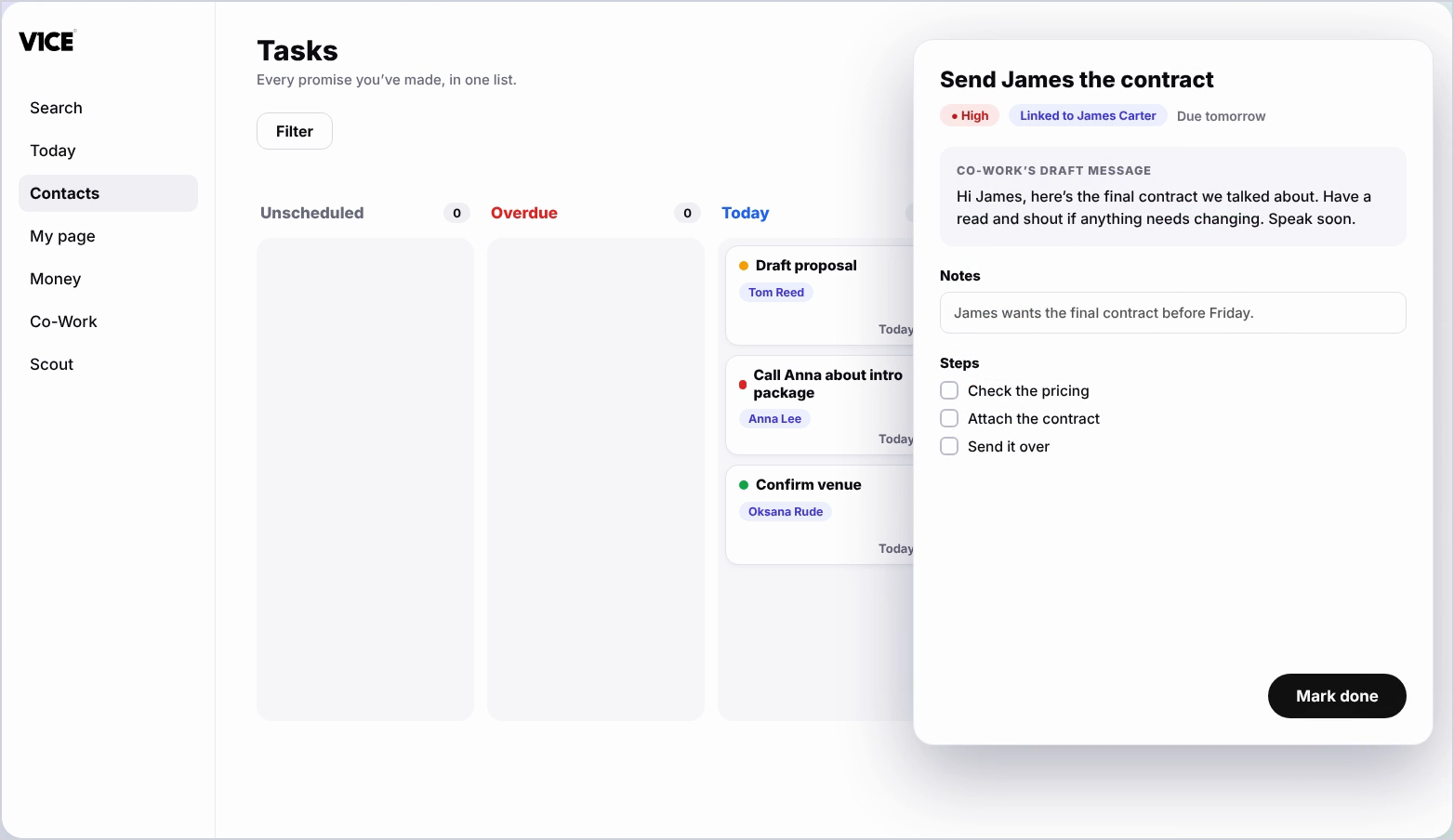
Open any task to see Co-Work's drafted message, set the priority,
add notes and steps or mark it done.
Now nothing slips through the cracks.
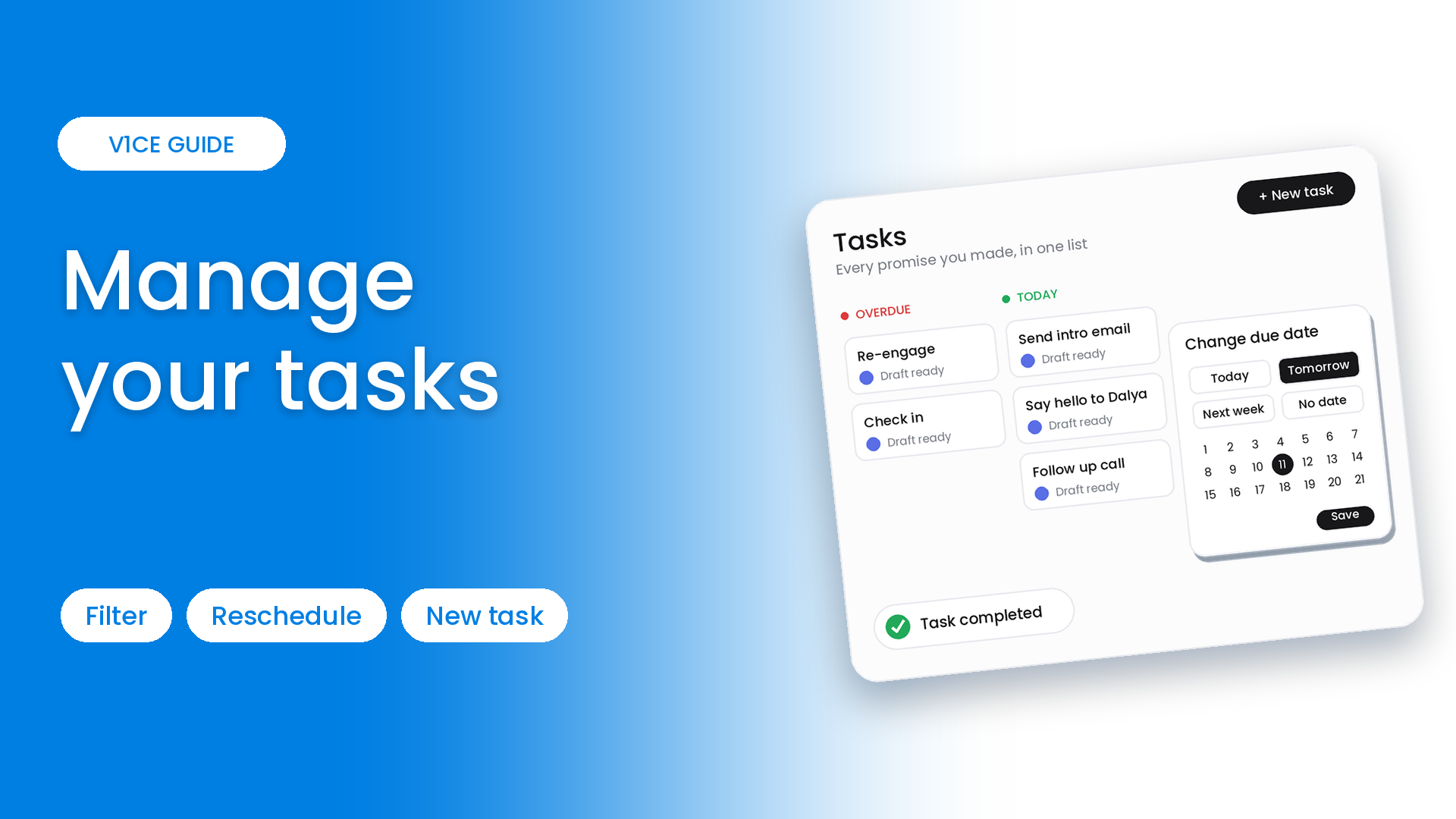
Tasks is every promise you have made, kept in one list, so nothing slips through.
This guide walks through your task board, rescheduling, filtering, creating a task and using the detail panel.
Watch the video
See everything you owe people
Step 1: Open Tasks
Select Contacts in the left menu, then choose Tasks to see every promise you have made in one place.
Step 2: Read your board
Everything is sorted into Unscheduled, Overdue, Today, Upcoming and Completed, so you always know what is next.
Reschedule and filter
Step 3: Change a due date
Drag any task to reschedule it, or open the date picker for quick options like today, tomorrow or next week.
Step 4: Filter the board
Filter by priority, or show only tasks linked to a contact.
Create and complete a task
Step 5: Add a new task
Select New task, then add a name, a description, a due date and who it is with.
Step 6: See it linked
Save it and it is already linked to that contact, ready to action.
Step 7: Open the full detail
Open any task to see Co-Work's drafted message, set its priority, add notes and steps.
Step 8: Mark it done
Select Mark done when you have finished. The task moves to Completed.
Good to know
- Co-Work can draft the message for a task, so it is ready when you open it.
- Use the priority filter to focus on what matters most today.
- Tasks created from a follow-up are linked to the right contact automatically.
Frequently asked questions
Where do I find my tasks?
Open Contacts, then Tasks, to see every promise you have made in one place.
How is the task board organised?
Everything is sorted into Unscheduled, Overdue, Today, Upcoming and Completed, so you always know what is next.
How do I change a due date?
Drag any task to reschedule it, or open the date picker for quick options like today, tomorrow or next week.
How do I create a task for a contact?
Select New task, then add a name, a description, a due date and who it is with. Save it and it is linked to that contact.