How to use Co-Work, your assistant inside V1CE

To use Co-Work, select Co-Work in the left menu, then New ask. Type what you need in plain words, such as adding a note or setting a reminder. Co-Work prepares it and you review everything before anything is saved or sent.
| Time needed | 2 minutes |
|---|---|
| What you need | Your V1CE account |
| Where in the app | Co-Work > New ask |
Video transcript and chapters
Chapters
0:00 Introduction
0:17 Open Co-Work
0:23 Type what you need
0:30 Pick the right contact
0:37 Review what it prepared
0:45 See what Co-Work can do
0:50 Catch up on a contact
0:57 Review and send the email
1:00 Ask for quick wins on your tasks
1:06 You're done

Transcript
Co-Work is your assistant inside V1CE.
Tell it what you need in plain words and it gets the job done.
It knows your contacts, tasks, meetings and pipeline so it can add notes,
set reminders, draft emails and more,
and you approve everything before it goes anywhere.
To start, select Co-Work in the sidebar.
Then choose New Ask.
Just type what you need.
Here I've asked it to add a note about someone I met
and to remind me to send a booking link.
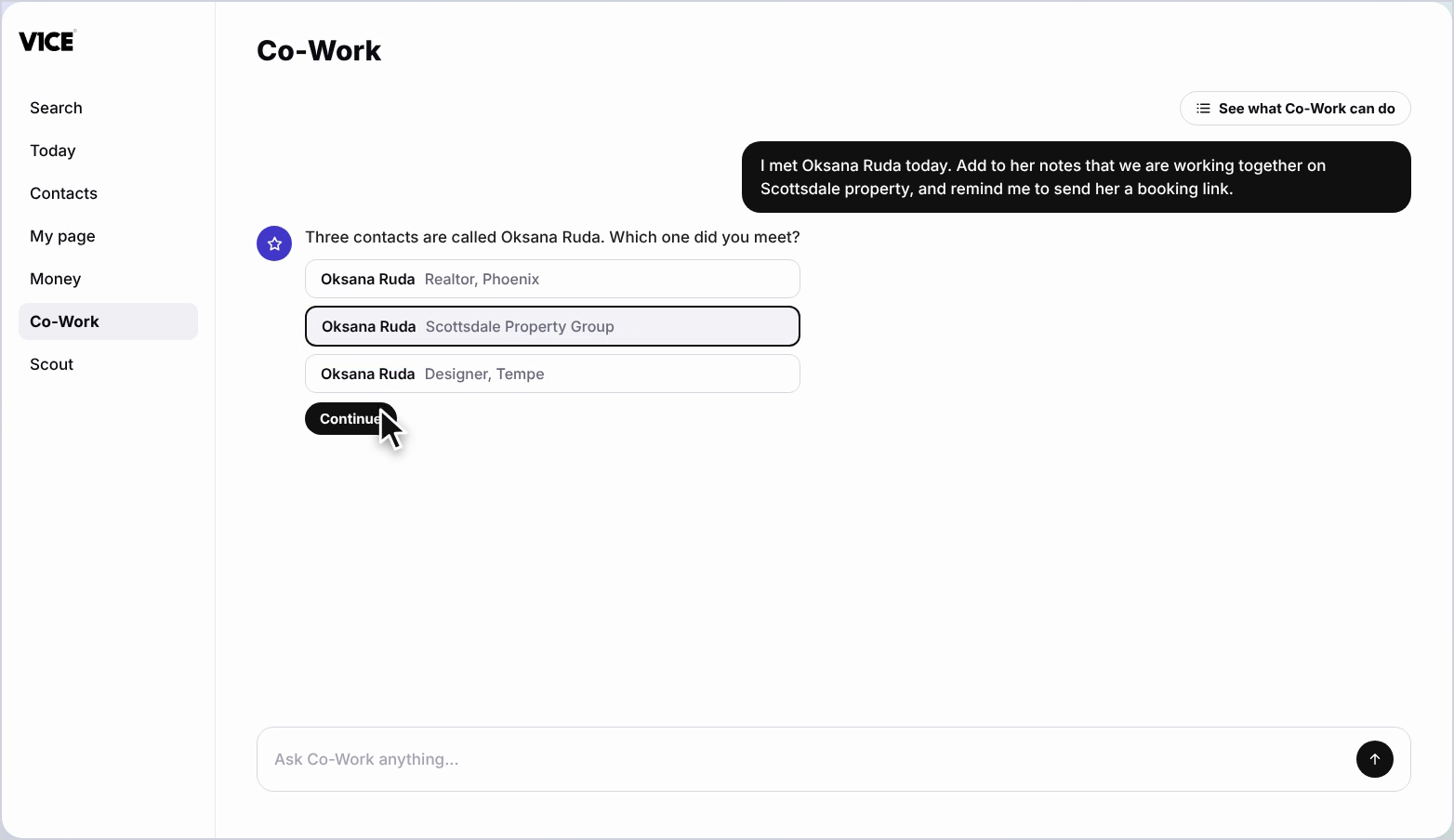
Three contacts share that name so Co-Work asks which one I mean.
Pick the right person and press Continue.
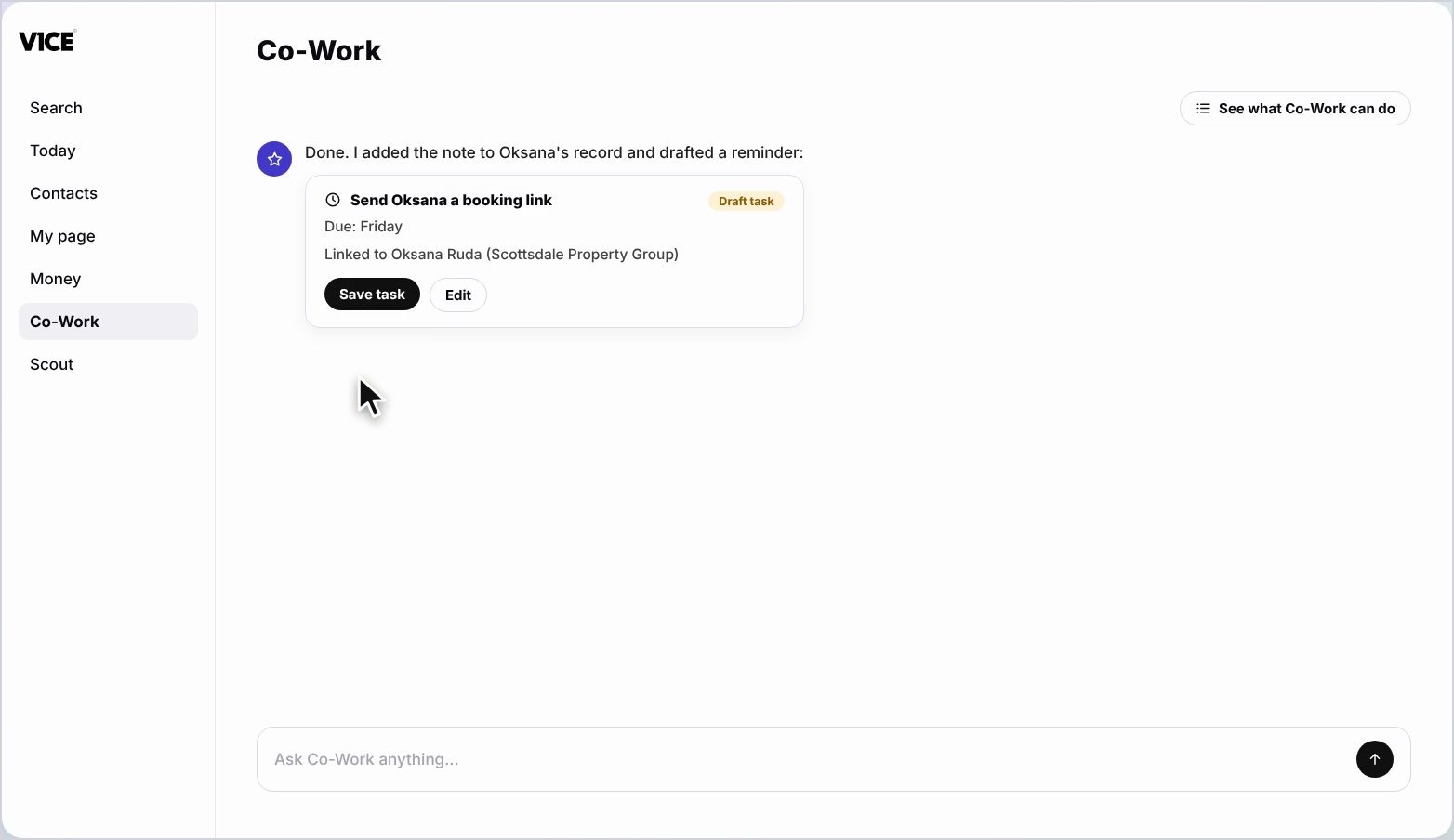
It adds the note to her record and drafts the reminder as a task.
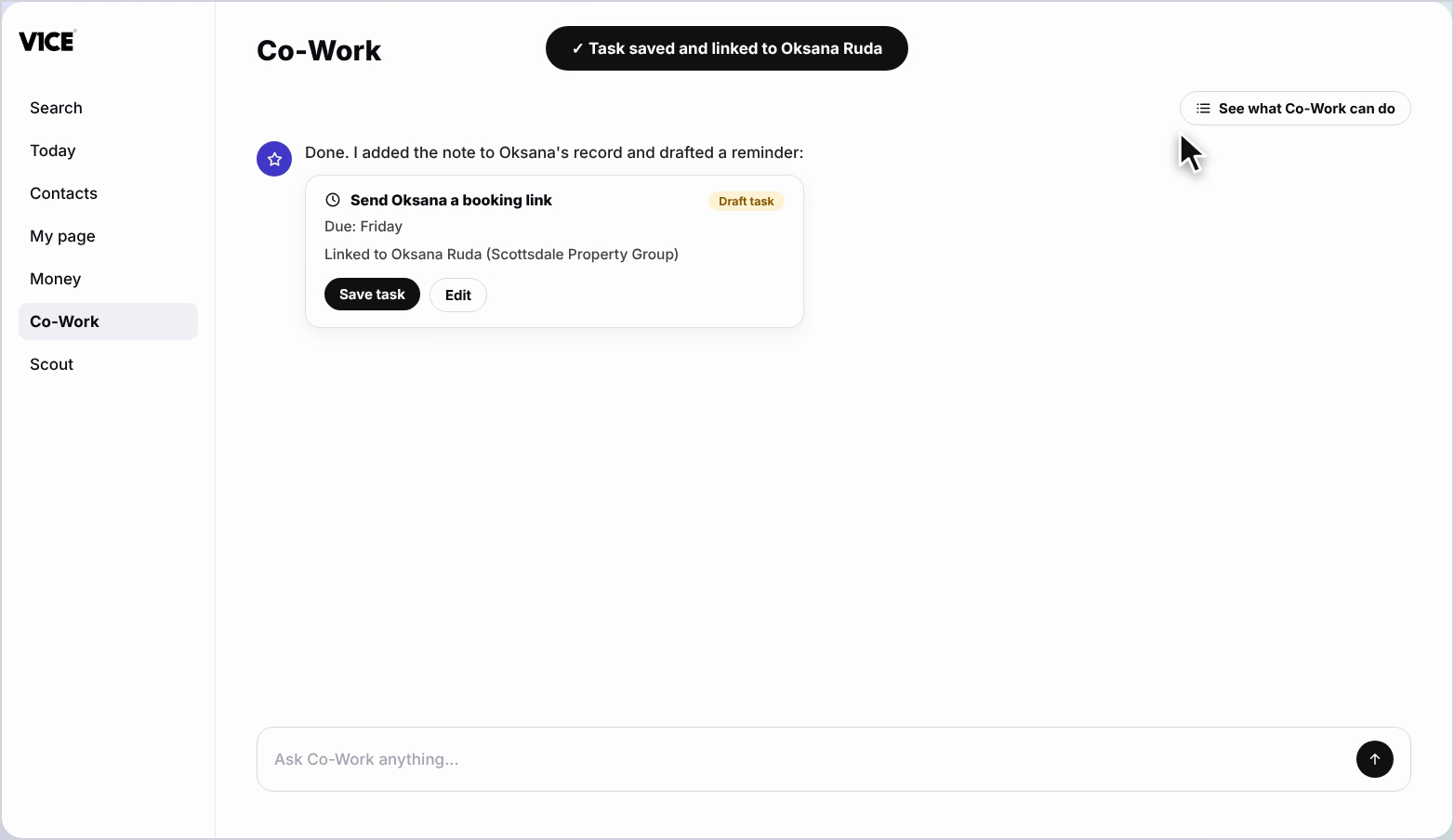
Check it over, then press Save Task.
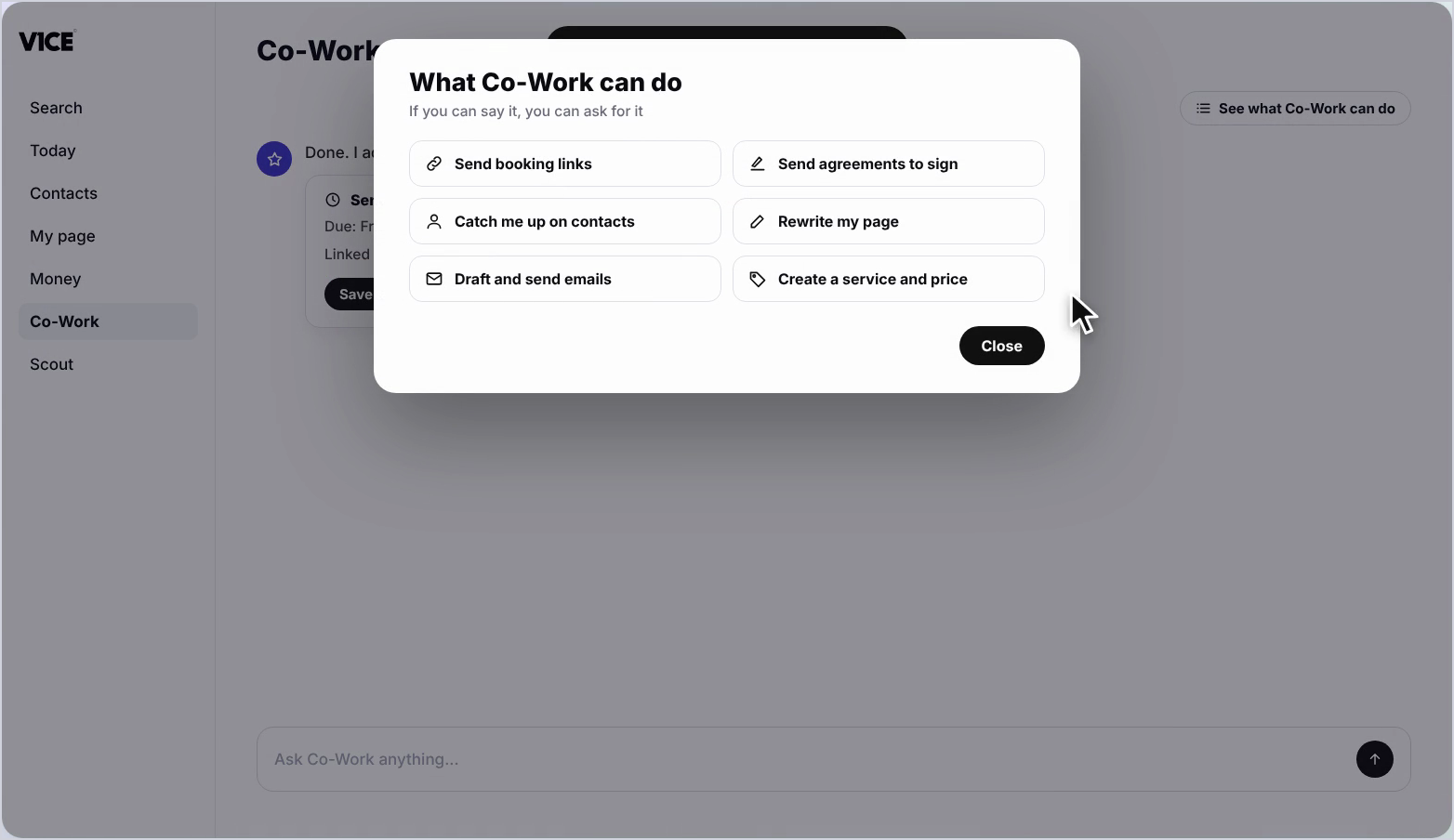
Not sure what to ask?
Open the full list of everything Co-Work can do.
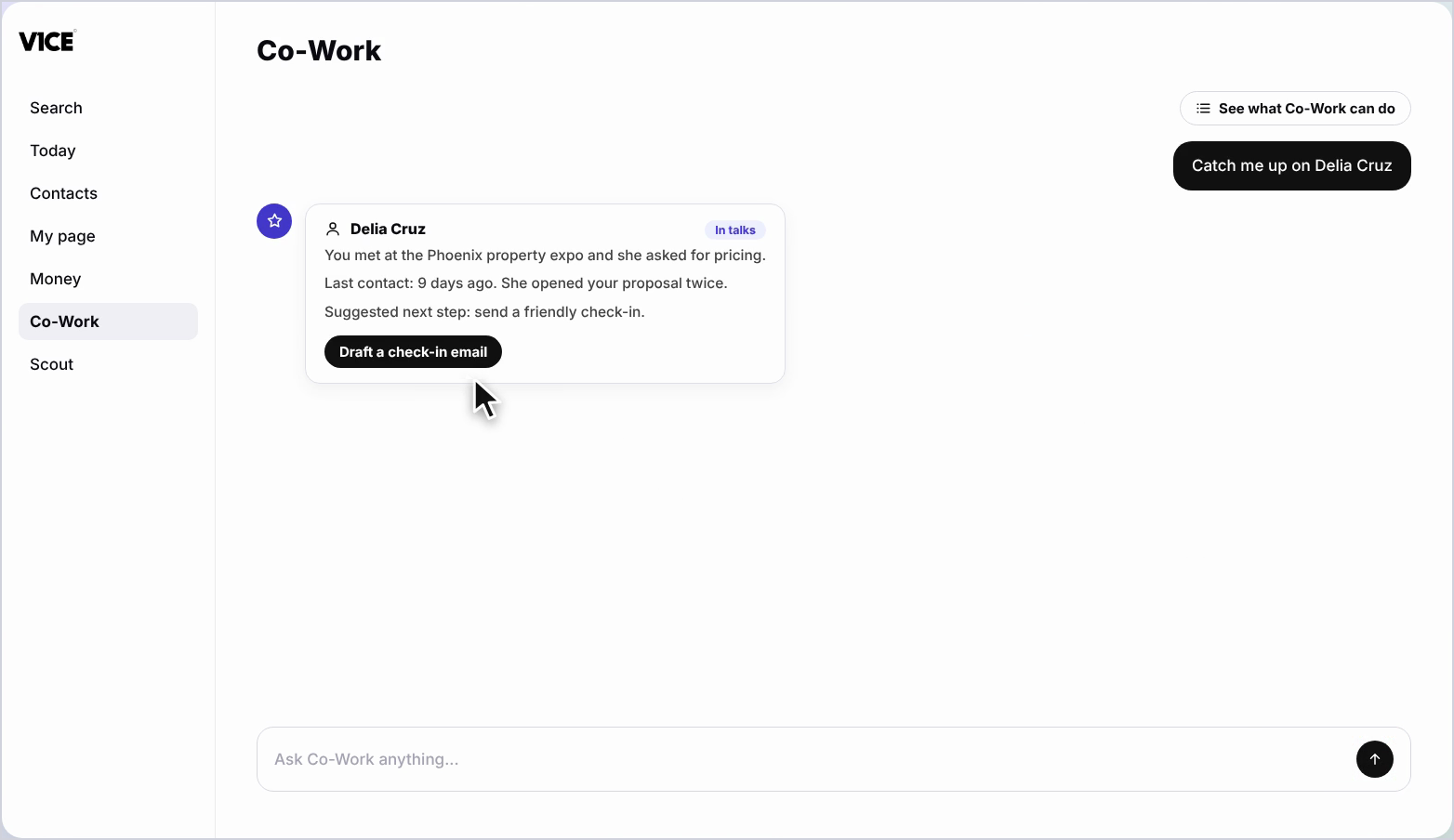
You can also ask it to catch you up on a contact before you meet them.
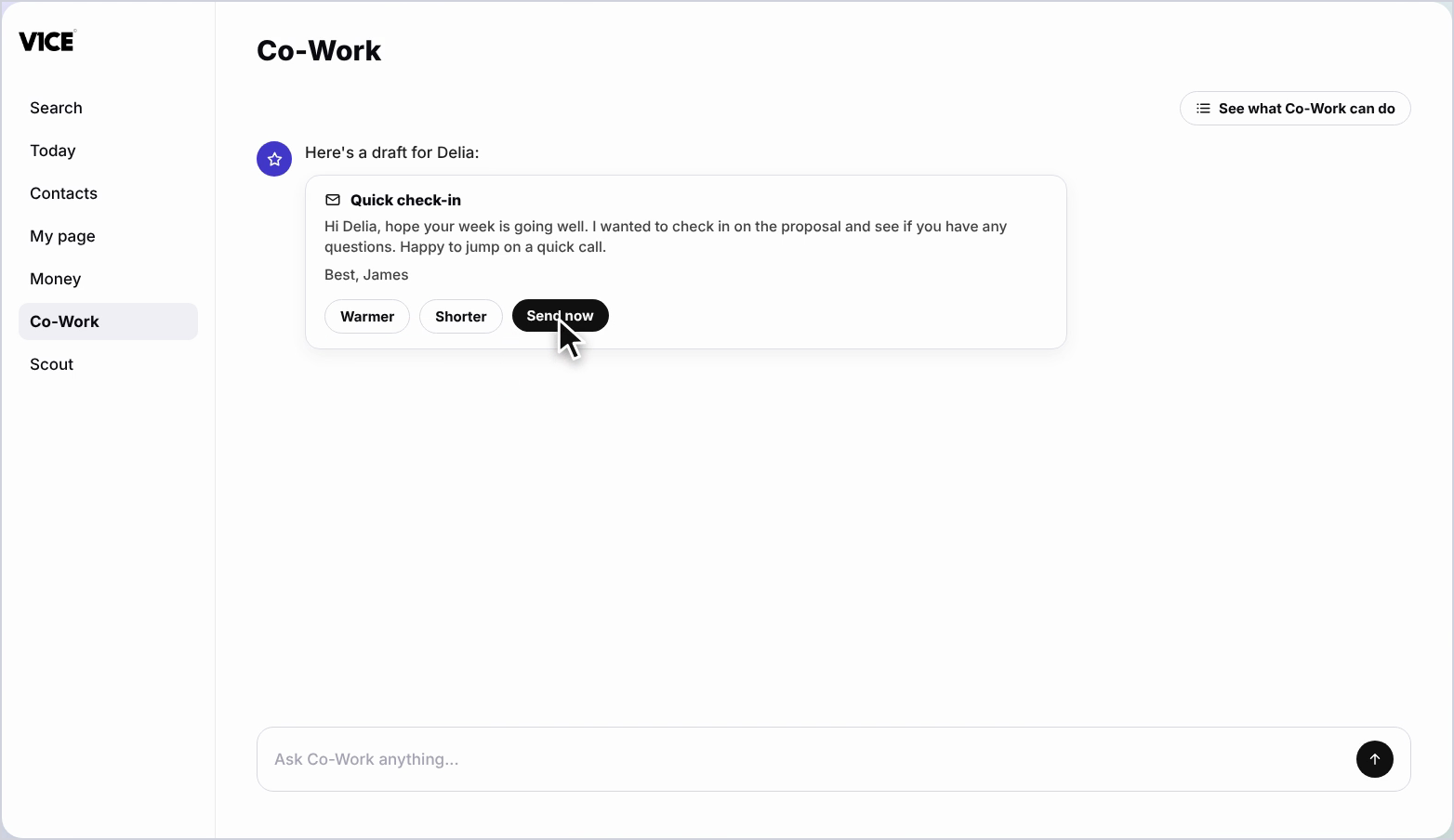
It can draft the follow-up too.
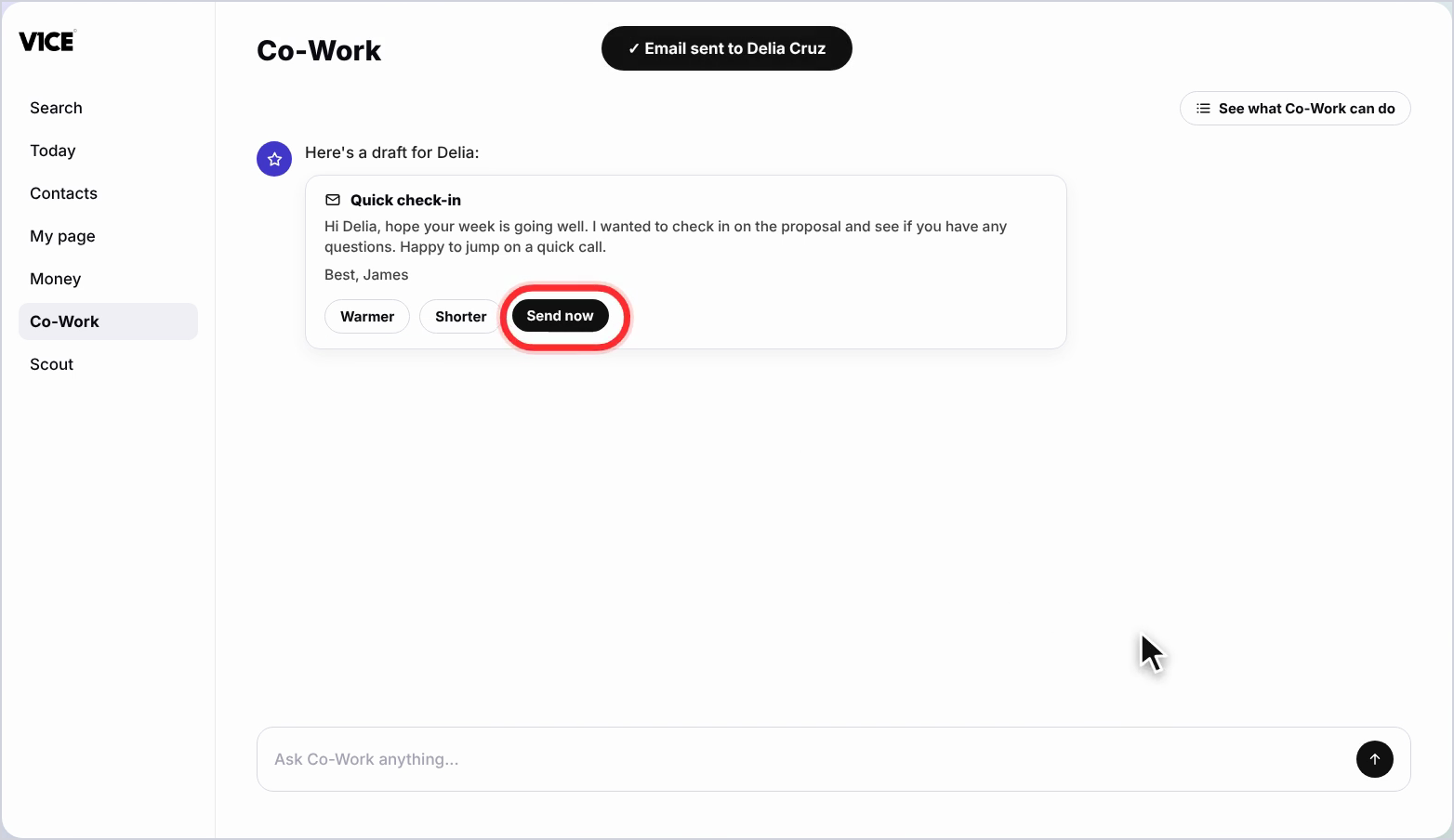
Review the email, then press Send Now.
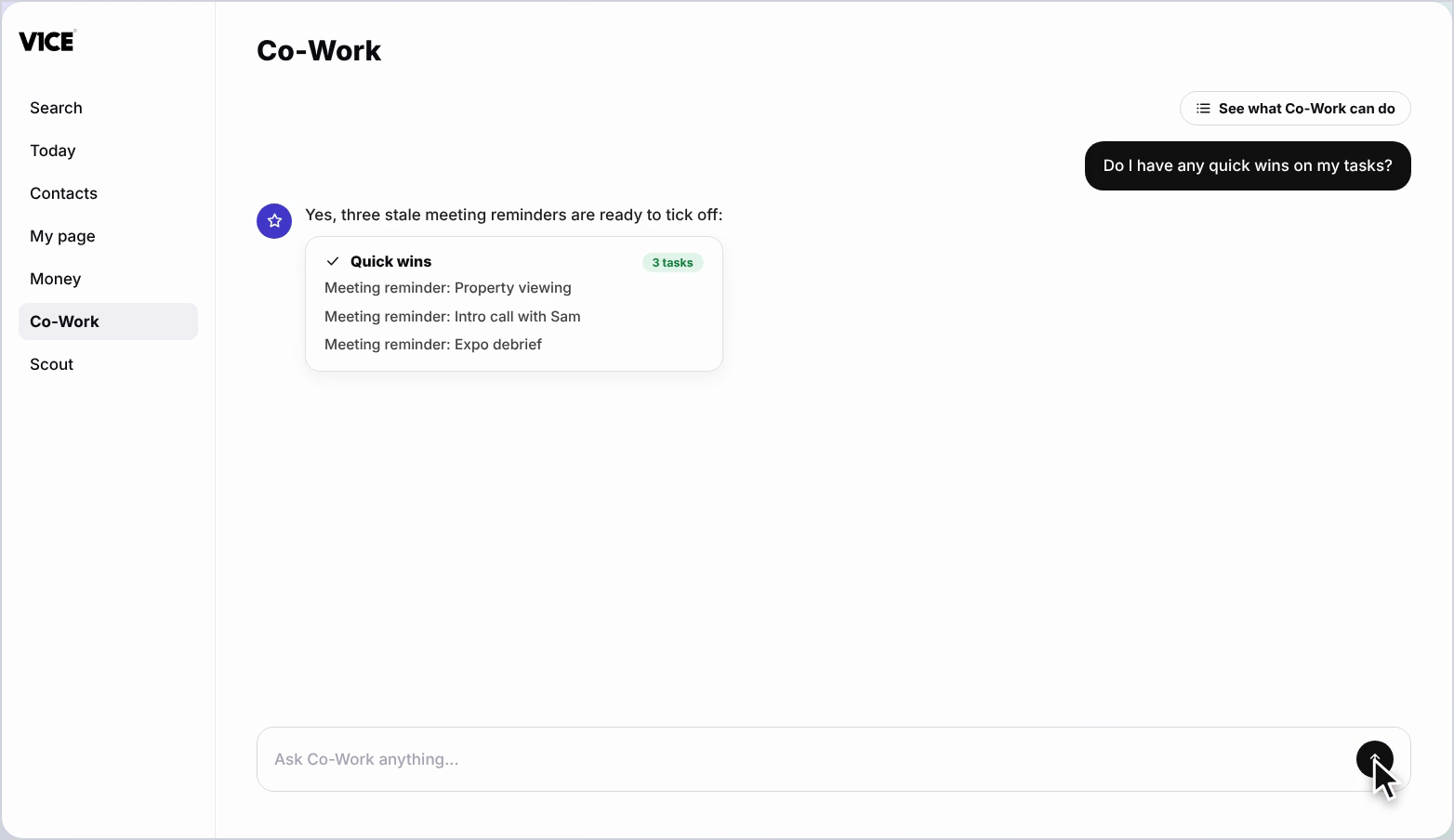
Or ask for quick wins on your tasks and tell it to go ahead.
Done.
That's Co-Work.
Ask in plain words, review what it prepares and let it do the rest.
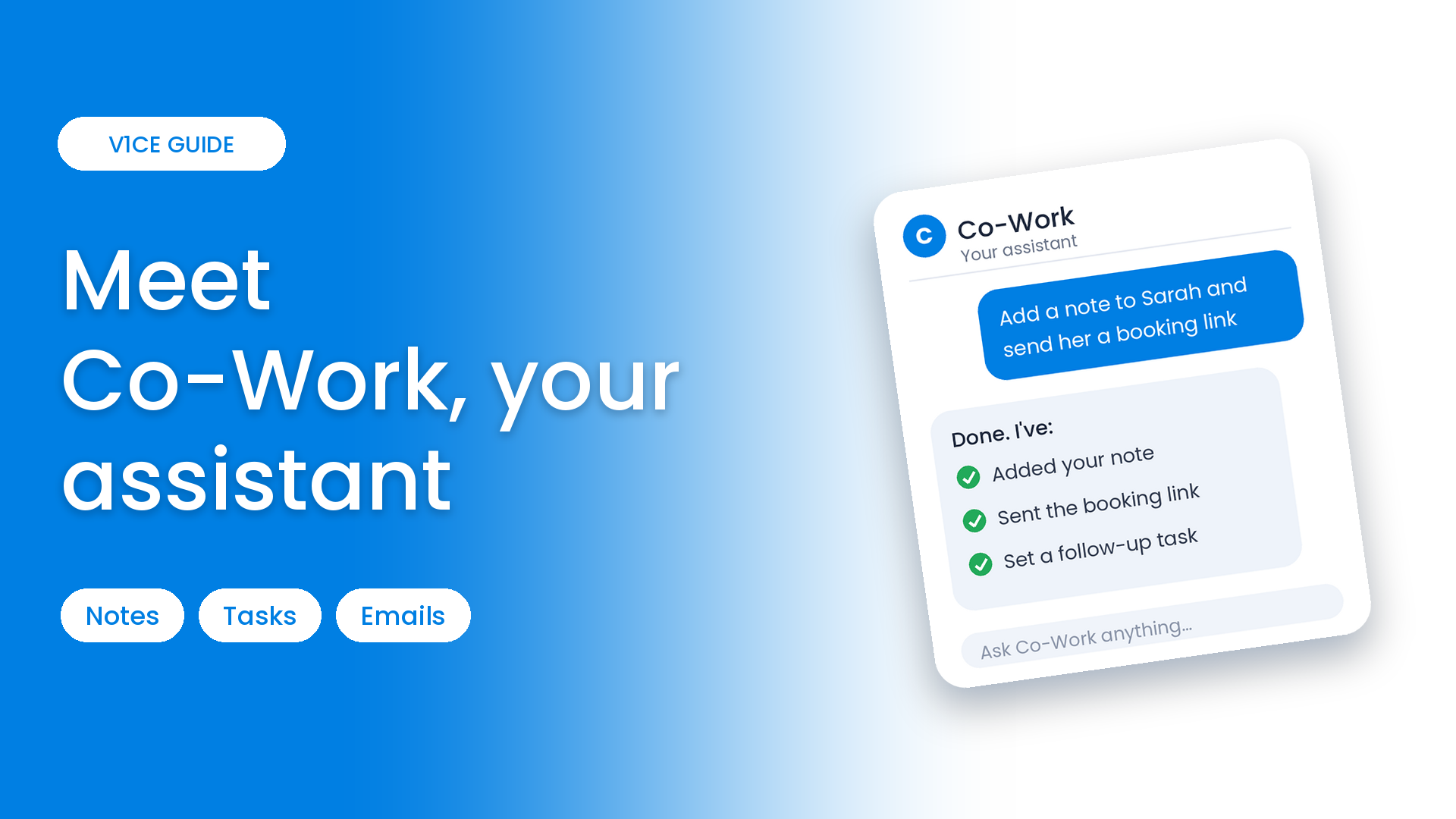
Co-Work is your assistant inside V1CE. Tell it what you need in plain words and it gets the job done, from adding a note to a contact to drafting a follow-up email.
It knows your contacts, tasks, meetings and pipeline, so it can set reminders, catch you up before a meeting and tidy your task list. You approve everything before it goes anywhere.
Watch the video
Ask Co-Work to do something
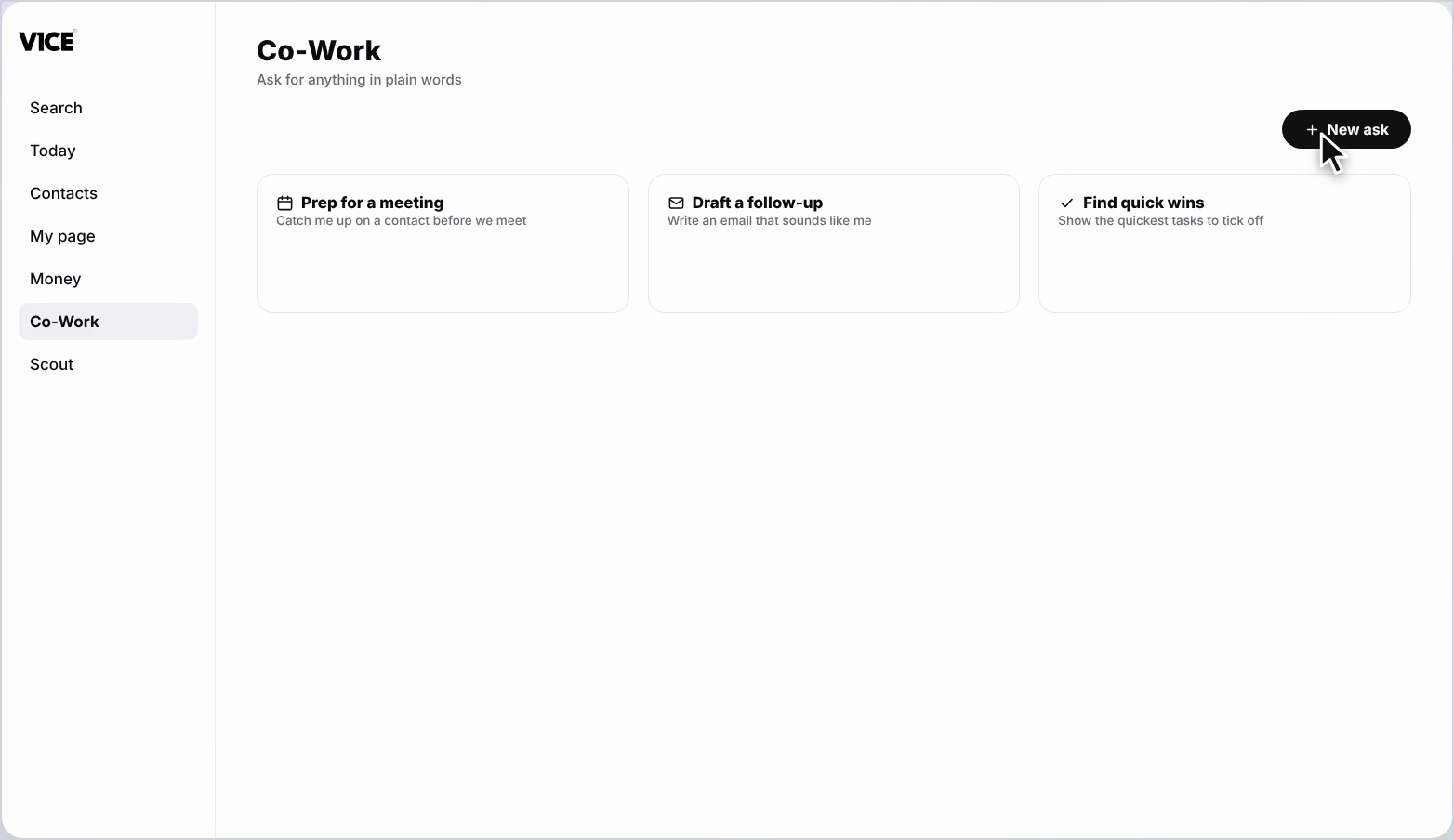
Step 1: Open Co-Work
Select Co-Work in the left menu, then select New ask.
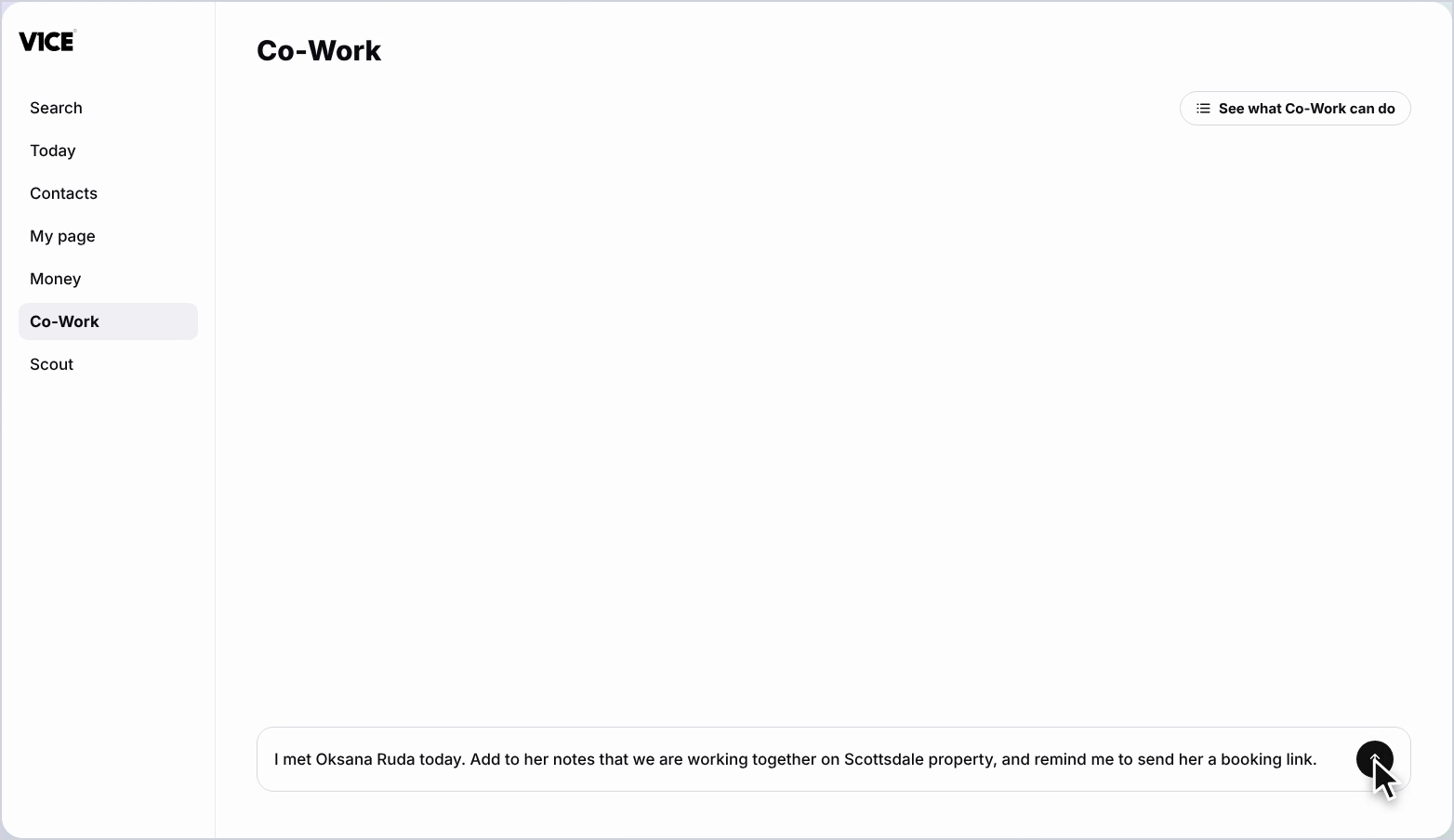
Step 2: Type what you need
Type your request in plain words and send it. Here, a note about someone you met and a reminder to send a booking link.
Step 3: Pick the right contact
If more than one contact shares the name, Co-Work asks which one you mean.
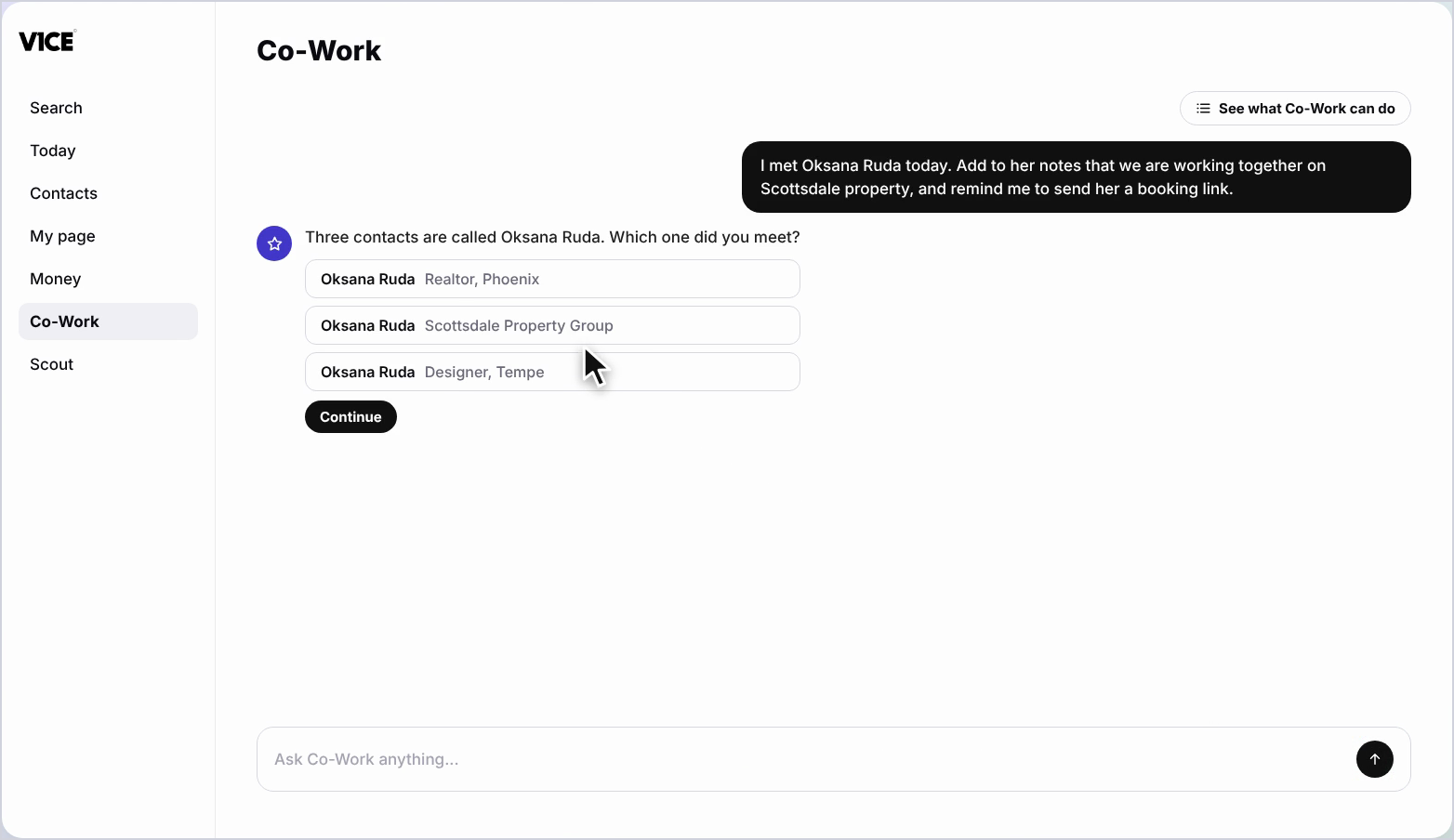
Step 4: Continue
Choose the contact you met, then select Continue so the note goes on the right record.
Step 5: Review what it prepared
Co-Work adds the note to the record and drafts the reminder as a task. Check it over.
Step 6: Save the task
Select Save task. It is saved and linked to the contact.
Find out what else it can do
Step 7: See what Co-Work can do
Not sure what to ask? Select See what Co-Work can do for the full list, from booking links and agreements to emails and page rewrites.
Step 8: Catch up on a contact
Ask Co-Work to catch you up on a contact before you meet them. It shows your history and suggests a next step.
Draft emails and clear tasks
Step 9: Review the draft
Co-Work drafts the follow-up email for you. You can make it warmer or shorter before it goes.
Step 10: Send it
Select Send now when you are happy. The email is sent from your account.
Step 11: Ask for quick wins
Ask Co-Work for quick wins on your tasks and tell it to go ahead. It ticks them off for you.
Good to know
- Co-Work always shows you what it has prepared first, so you stay in control.
- Ask in your own words. There is no special wording to learn.
- Use the full list under See what Co-Work can do whenever you need ideas.
Frequently asked questions
What can I ask Co-Work to do?
Add a note to a contact, set reminders, draft emails, catch you up before a meeting and tidy your task list. Open the full list to see everything it can do.
Will Co-Work send things without asking me?
No. You approve everything before it goes anywhere, for example by pressing Save task or Send now.
What if two contacts share the same name?
Co-Work asks which one you mean. Pick the right person and press Continue so the note goes on the right record.
What does Co-Work know about my business?
It knows your contacts, tasks, meetings and pipeline.