How to track networking events and their return

To track events, open Contacts, then Events. You see your overall return and a card for each event. To set one up, select New event, add its name, dates and cost, switch on how you will meet people and turn on the event form.
| Time needed | 2 minutes |
|---|---|
| What you need | Your V1CE account and the event's name, dates and cost |
| Where in the app | Contacts > Events |
Video transcript and chapters
Chapters
0:00 Introduction
0:13 Open Events
0:16 Check your overall return
0:23 Open an event
0:30 See the deals behind the number
0:35 Create an event
0:41 Choose how you will meet people
0:48 Turn on the event form
0:57 Copy the link
1:01 See new contacts arrive
1:07 You're done

Transcript
Events help you track the return on every expo, conference, or meet-up you attend, so
you always know what paid off.
Review an event you've run, then set up a new one from scratch.
Head to contacts, then events.
Straight away you see your overall return, plus a card for each event showing what
it cost and what came back.
Open an event to see how many people you met, how many became clients, and the revenue
it brought in.
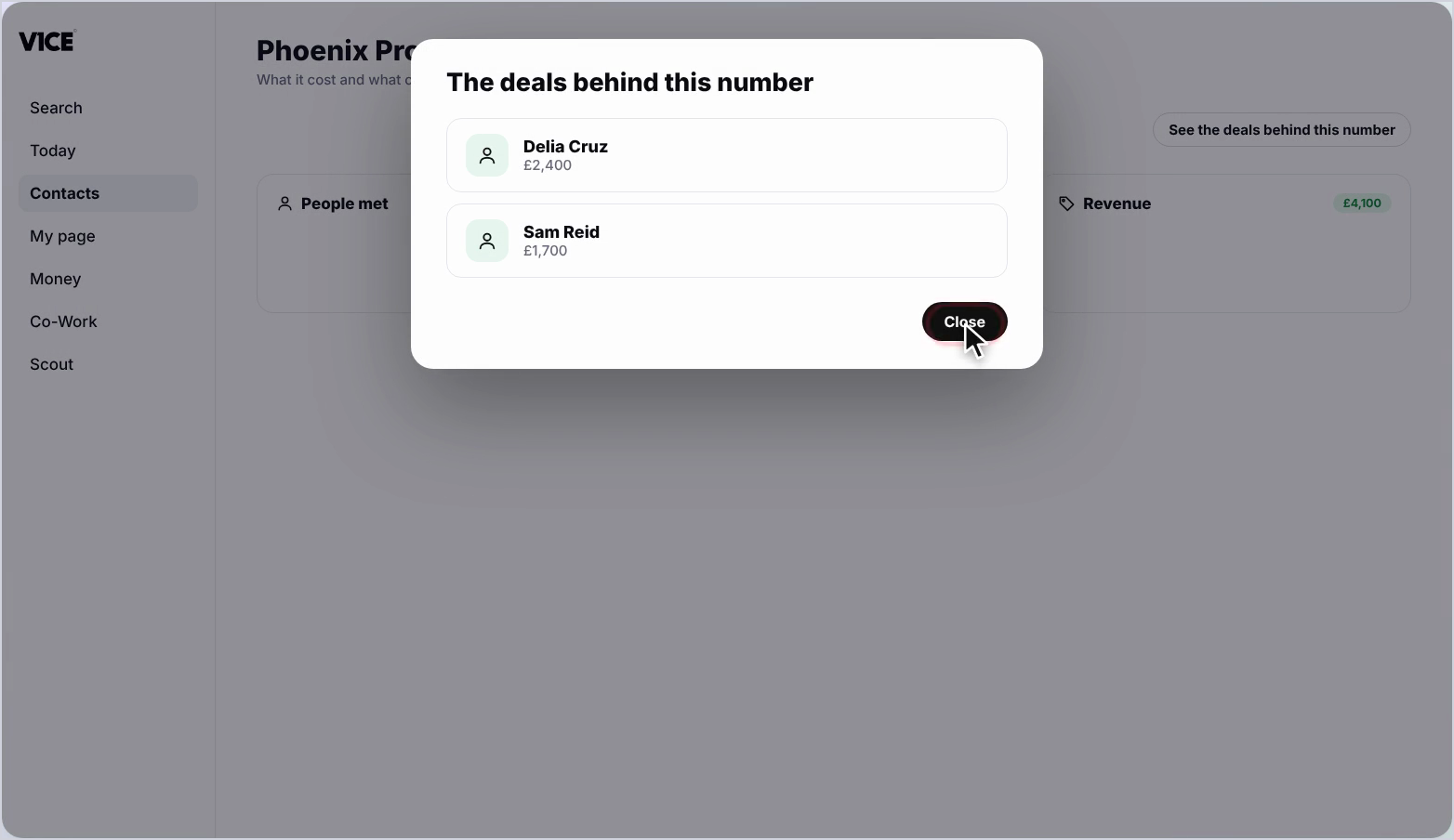
Select See the deals behind this number to view which contacts turned into paying work.
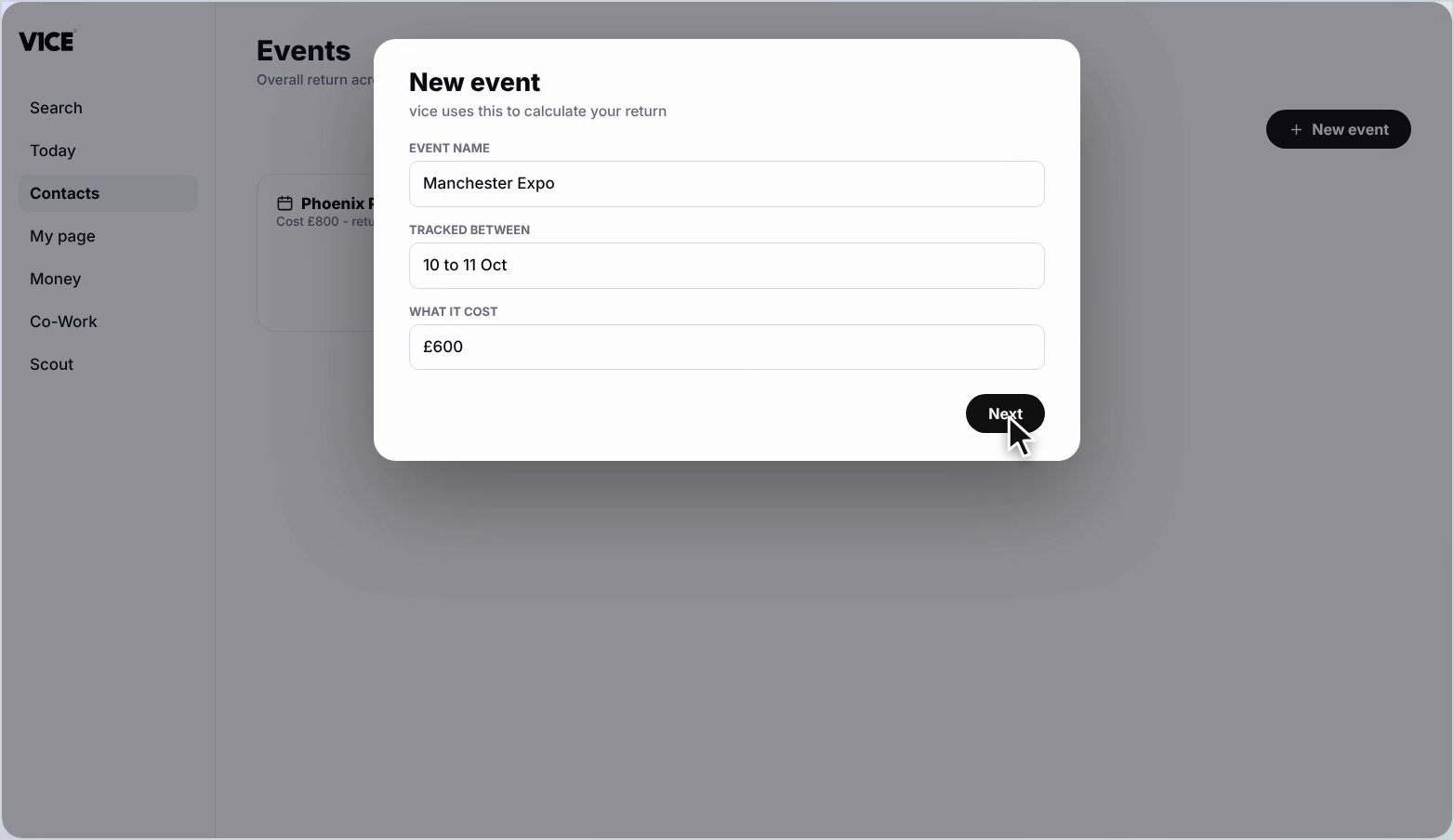
To set one up, select new event, give it a name, set the dates, and add what it cost.
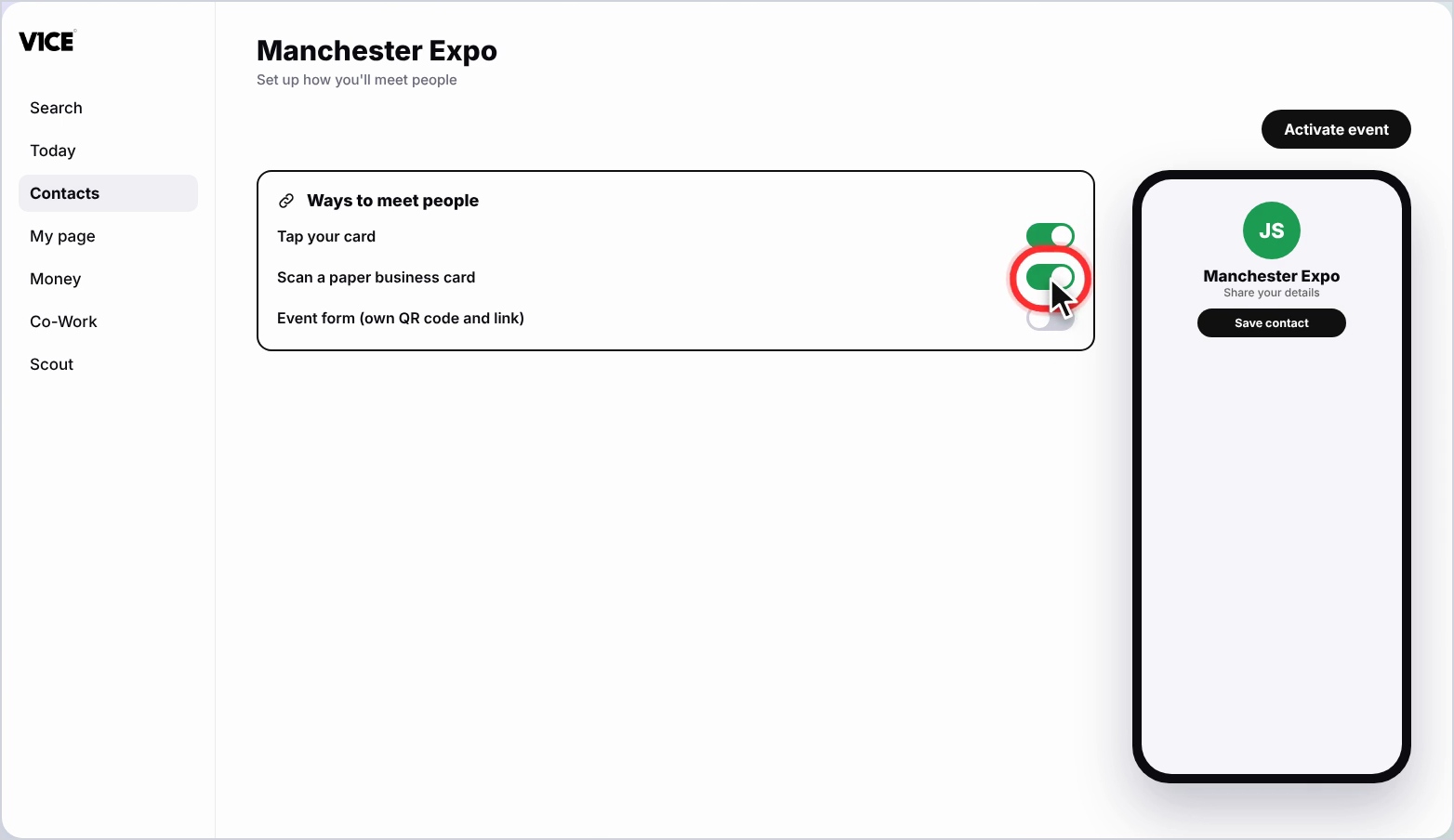
Switch on every way you'll meet people, tapping your cards, scanning a paper card, or a form.
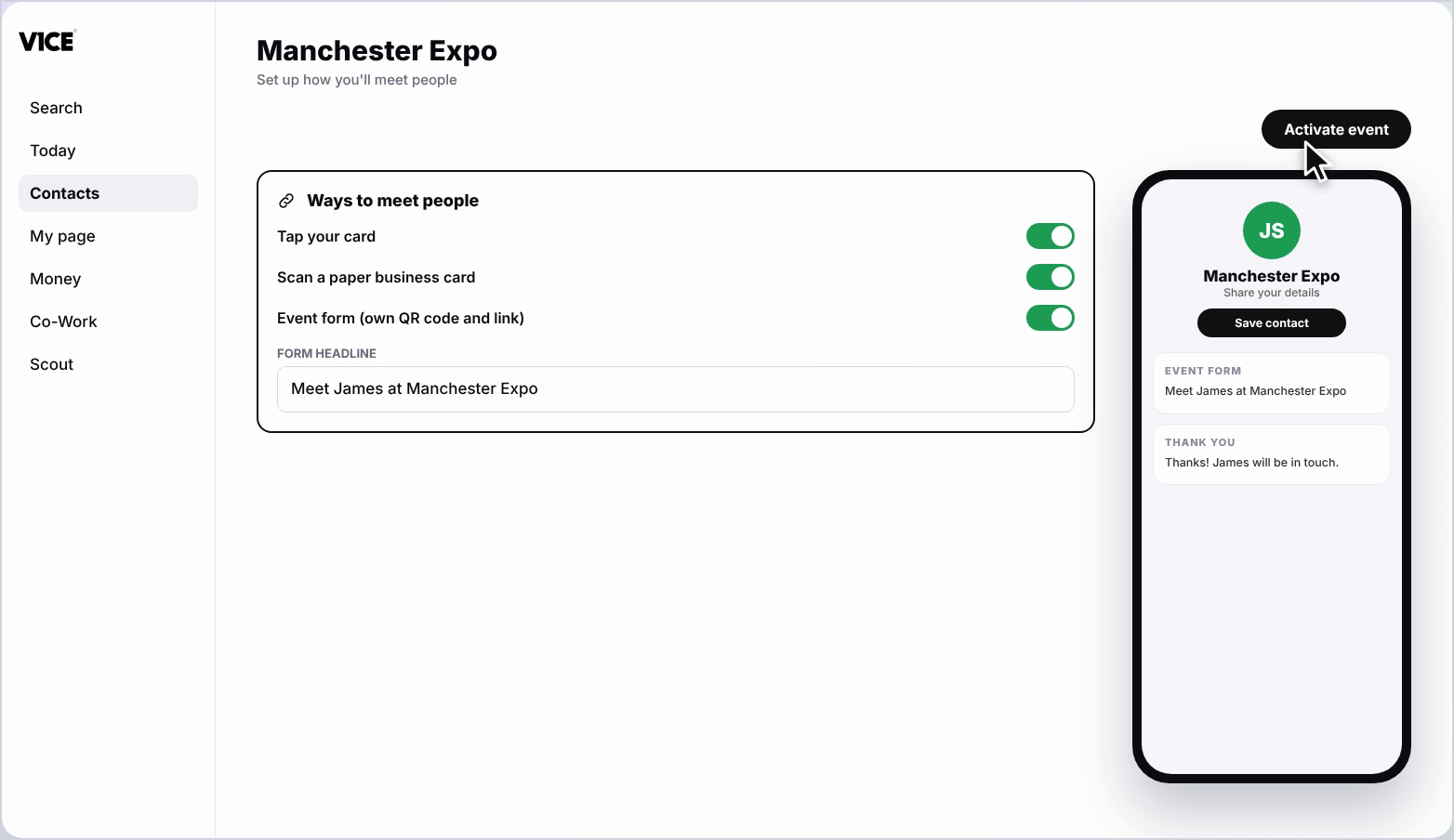
Turn on event form, and V1CE builds a form with its own QR code and link.
Edit the headline and thank you message.
Select the event and copy the link.
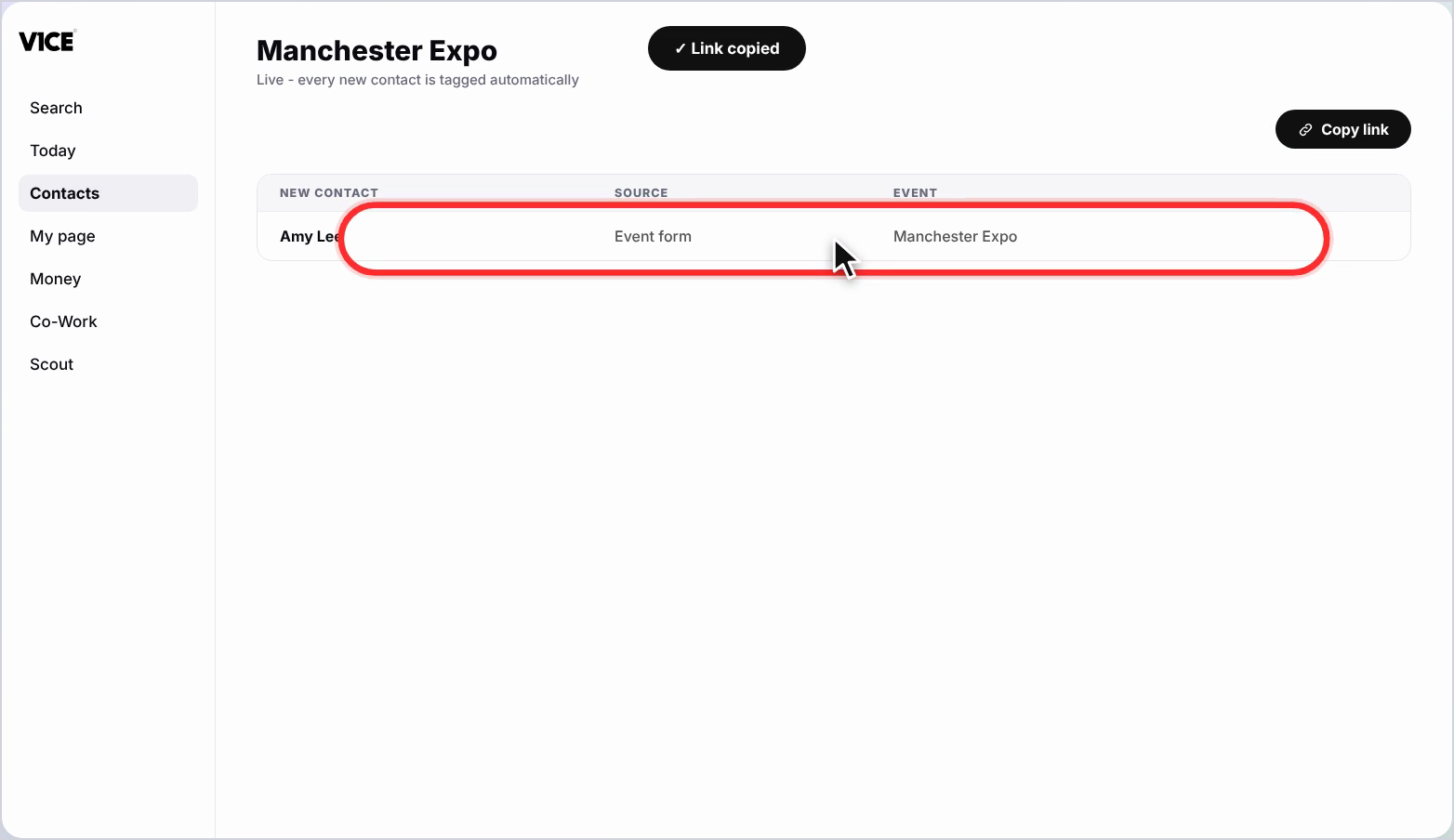
Every new contact is added and tagged automatically.
When someone fills in your form, their details land straight in your contacts.
That's events.
Know exactly what every event is worth.
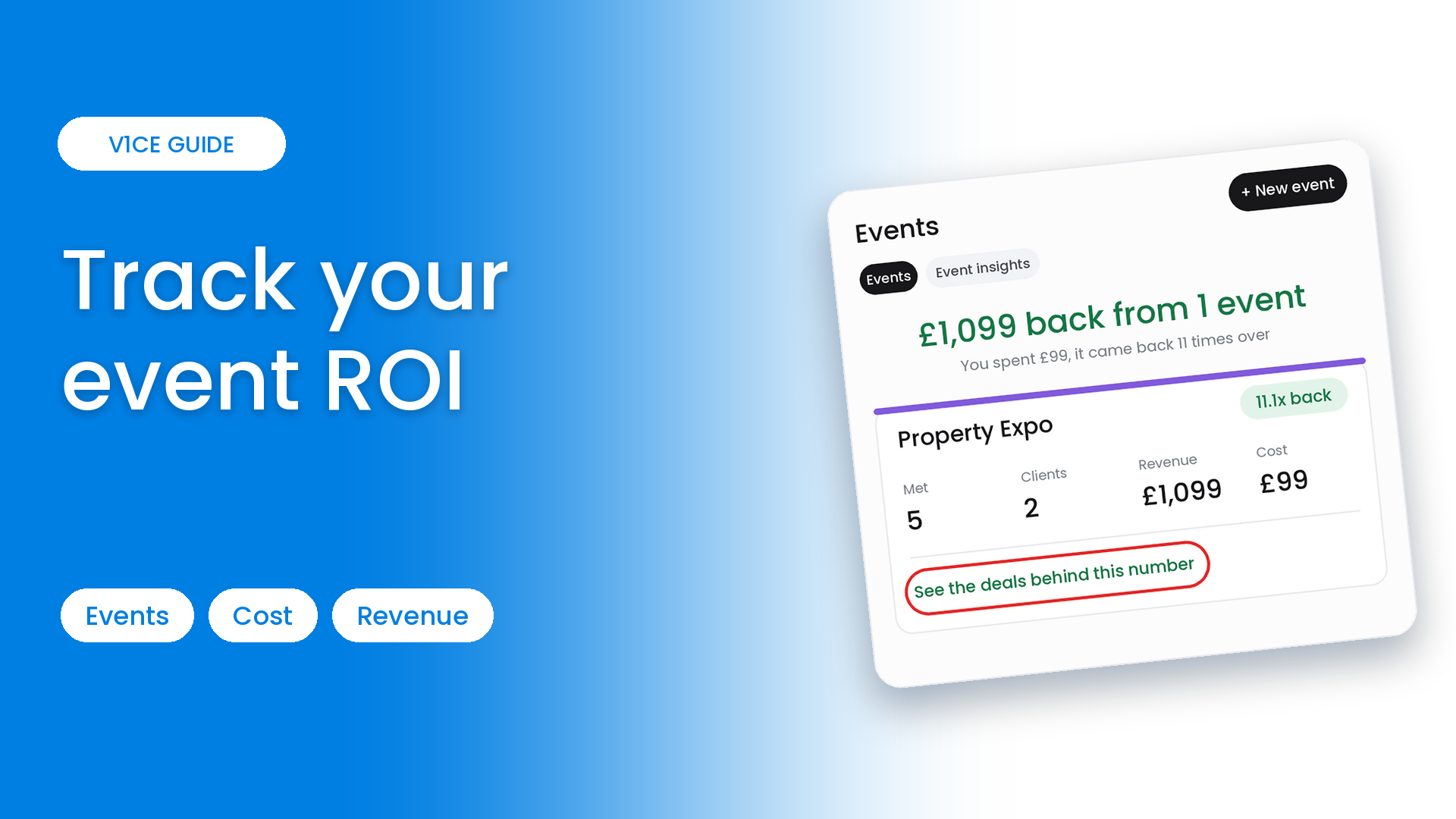
Events help you track the return on every expo, conference or meetup you attend, so you always know what paid off.
Review an event you have run, then set up a new one from scratch, with its own form, QR code and link.
Watch the video
Review your events
Step 1: Open Events
Select Contacts in the left menu, then choose Events.
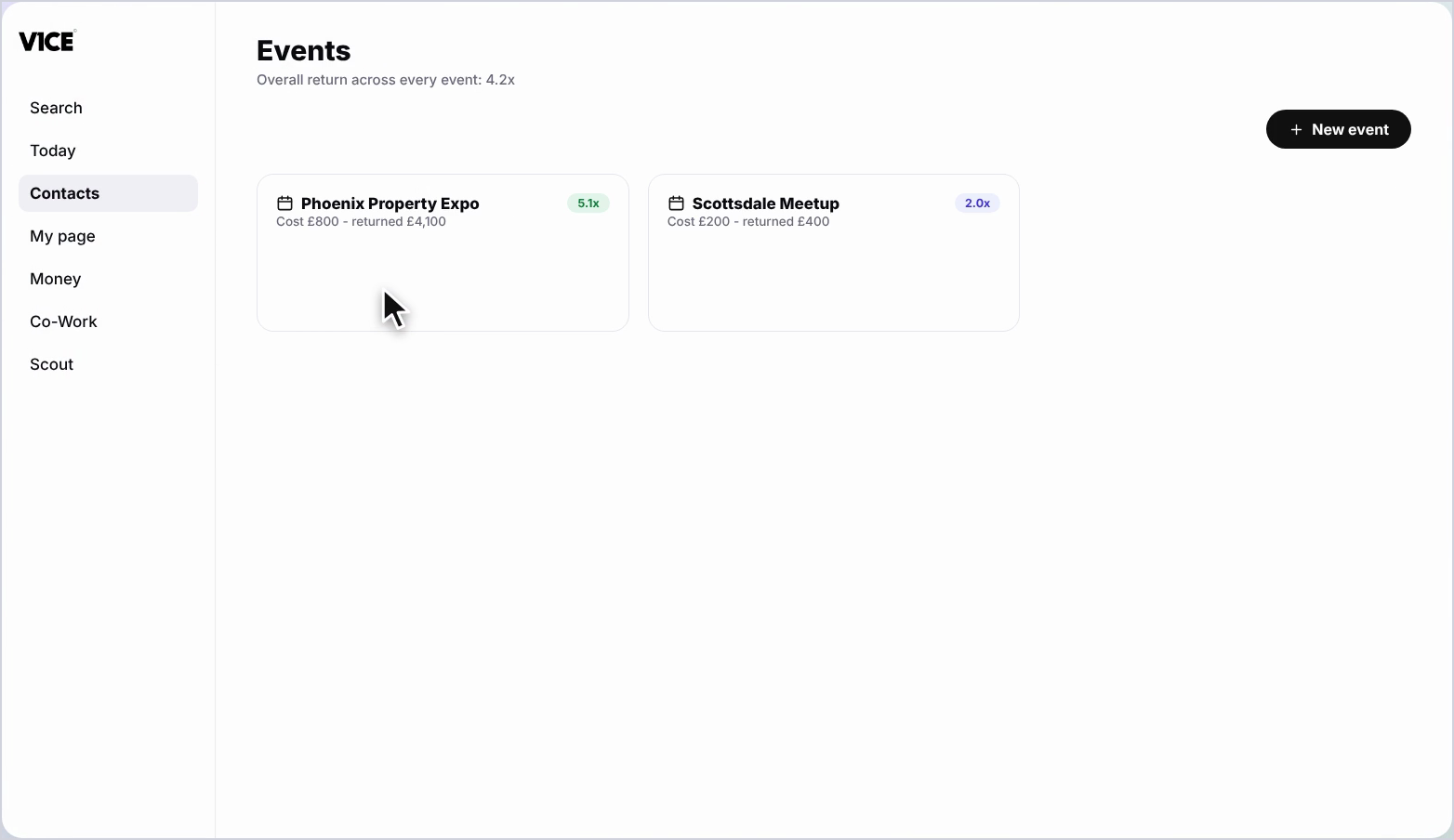
Step 2: Check your overall return
You see your overall return straight away, plus a card for each event showing what it cost and what came back.
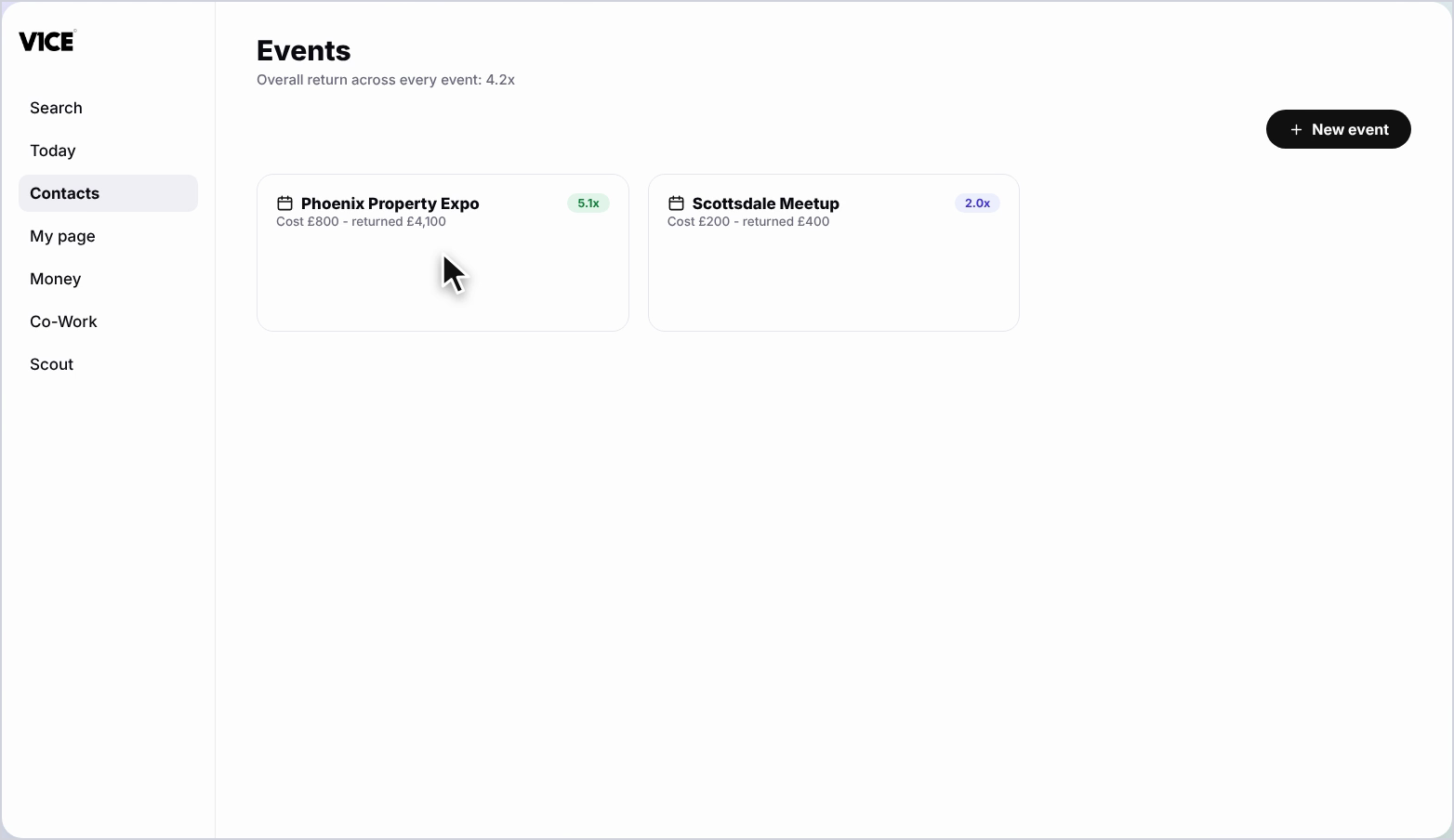
Step 3: Open an event
Open an event to see how many people you met, how many became clients, and the revenue it brought in.
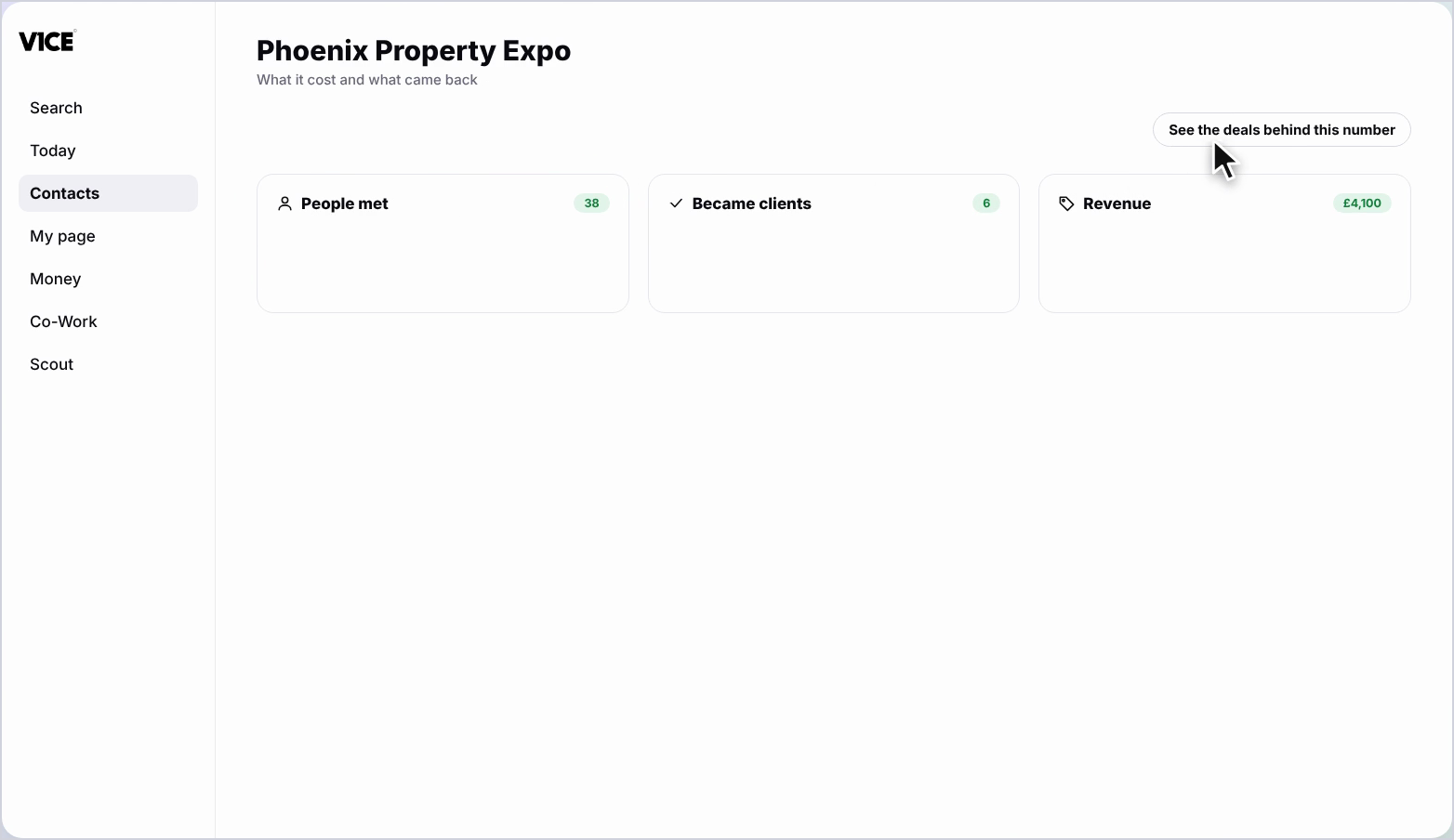
Step 4: See the deals behind the number
Select See the deals behind this number to view which contacts turned into paying work.
Set up a new event
Step 5: Create the event
Select New event. Give it a name, set the dates and add what it cost.
Step 6: Choose how you will meet people
Switch on every way you will meet people: tapping your card, scanning a paper card, or a form.
Step 7: Turn on the event form
Turn on Event form and V1CE builds a form with its own QR code and link. Edit the headline and thank-you message.
Step 8: Activate and share
Select Activate event and copy the link. Every new contact is added and tagged automatically.
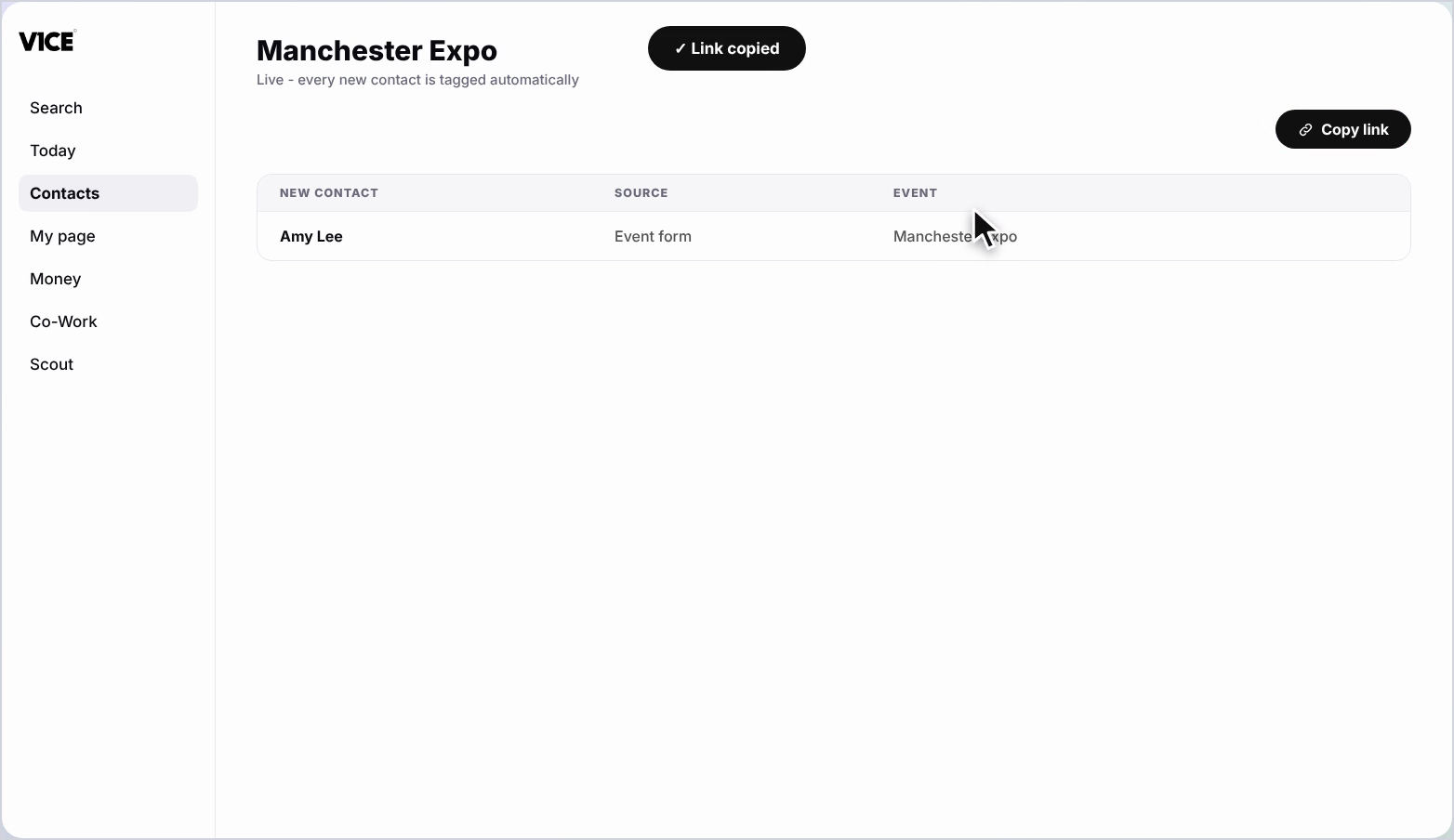
Step 9: See contacts arrive
When someone fills in your form, their details land straight in your contacts, tagged with the event.
Good to know
- Add what an event cost so V1CE can show you your return.
- Use the QR code on your stand so people can swap details without a card.
- Every contact is tagged with the event, so you can follow up with everyone you met there.
Frequently asked questions
How do I see the return on an event?
Open Contacts, then Events. You see your overall return straight away, plus a card for each event showing what it cost and what came back.
Can I see which contacts became clients?
Yes. Open an event, then select See the deals behind this number to view which contacts turned into paying work.
How do I set up a new event?
Select New event, give it a name, set the dates and add what it cost. Switch on every way you will meet people, such as tapping your cards.
What does the event form do?
Turn on the event form and V1CE builds a form with its own QR code and link. When someone fills it in, their details land in your contacts, tagged automatically.