How to set up automatic follow-ups for new clients

To set up follow-ups, open Co-Work, then Automations. Preview the Welcome a new client template, open the builder, write the welcome email and the follow-up, then save and switch the automation on. It then runs quietly in the background.
| Time needed | 1 minute |
|---|---|
| What you need | Your V1CE account |
| Where in the app | Co-Work > Automations |
Video transcript and chapters
Chapters
0:00 Introduction
0:14 Open Automations
0:21 Check Activity
0:28 Preview the template
0:33 See the full flow
0:39 Write the emails
0:46 Switch it on
0:53 You're done

Transcript
Follow-ups make sure the right message goes out by itself, so nobody you meet goes cold.
Set it up once.
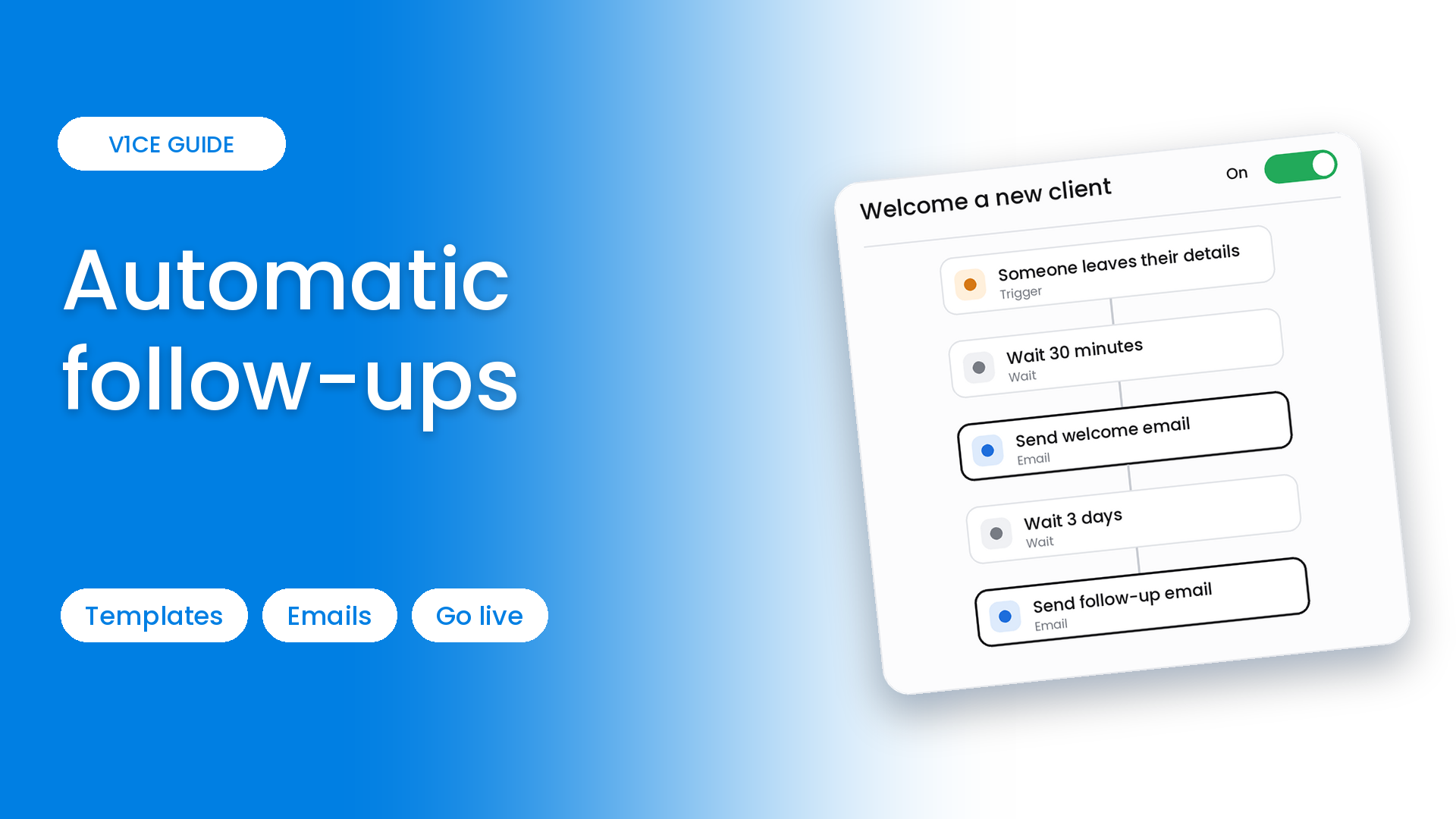
After someone leaves their details, a welcome email goes out in 30 minutes, and a follow-up
lands three days later.
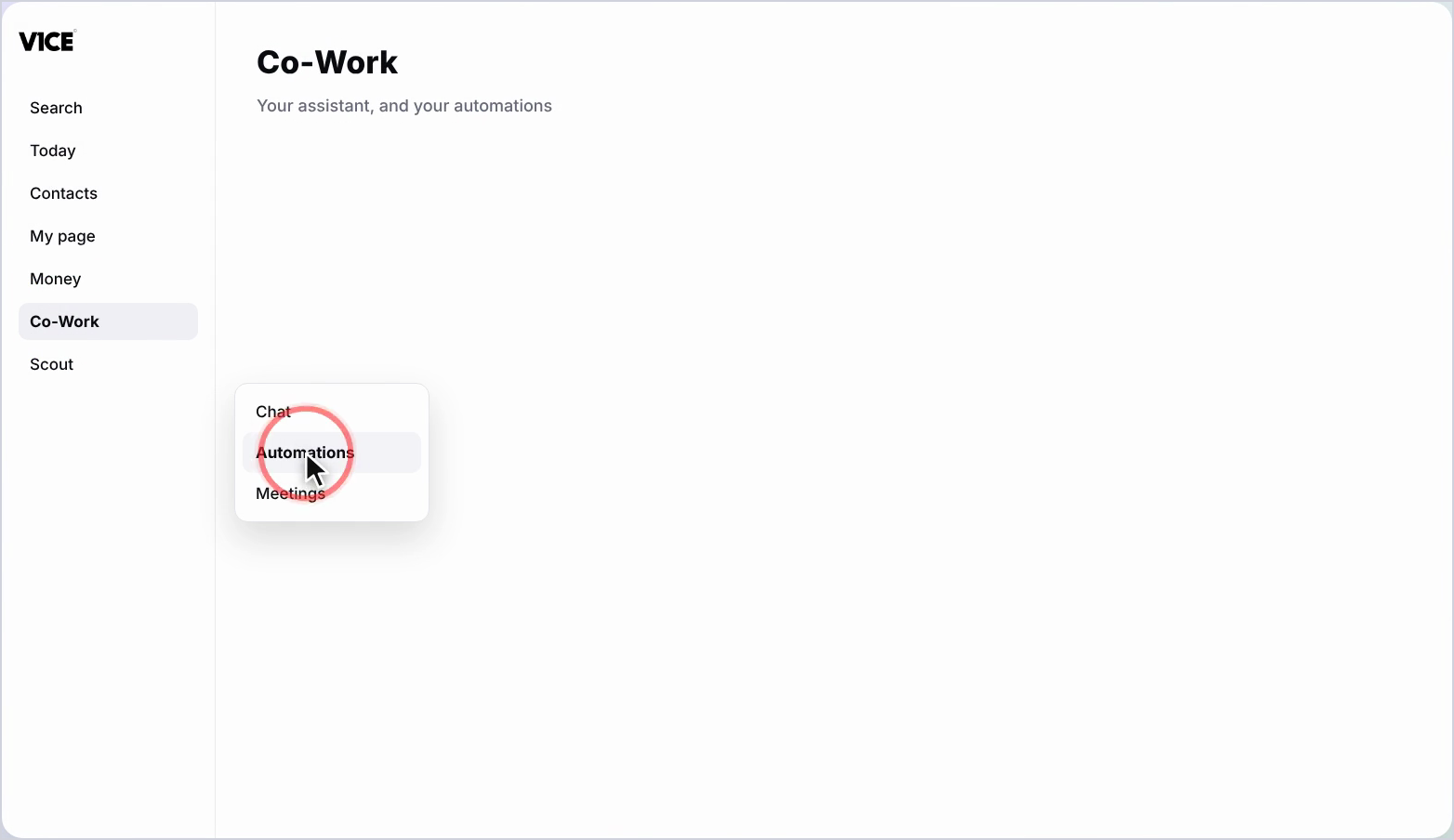
Head to Co-Work, then Automations.
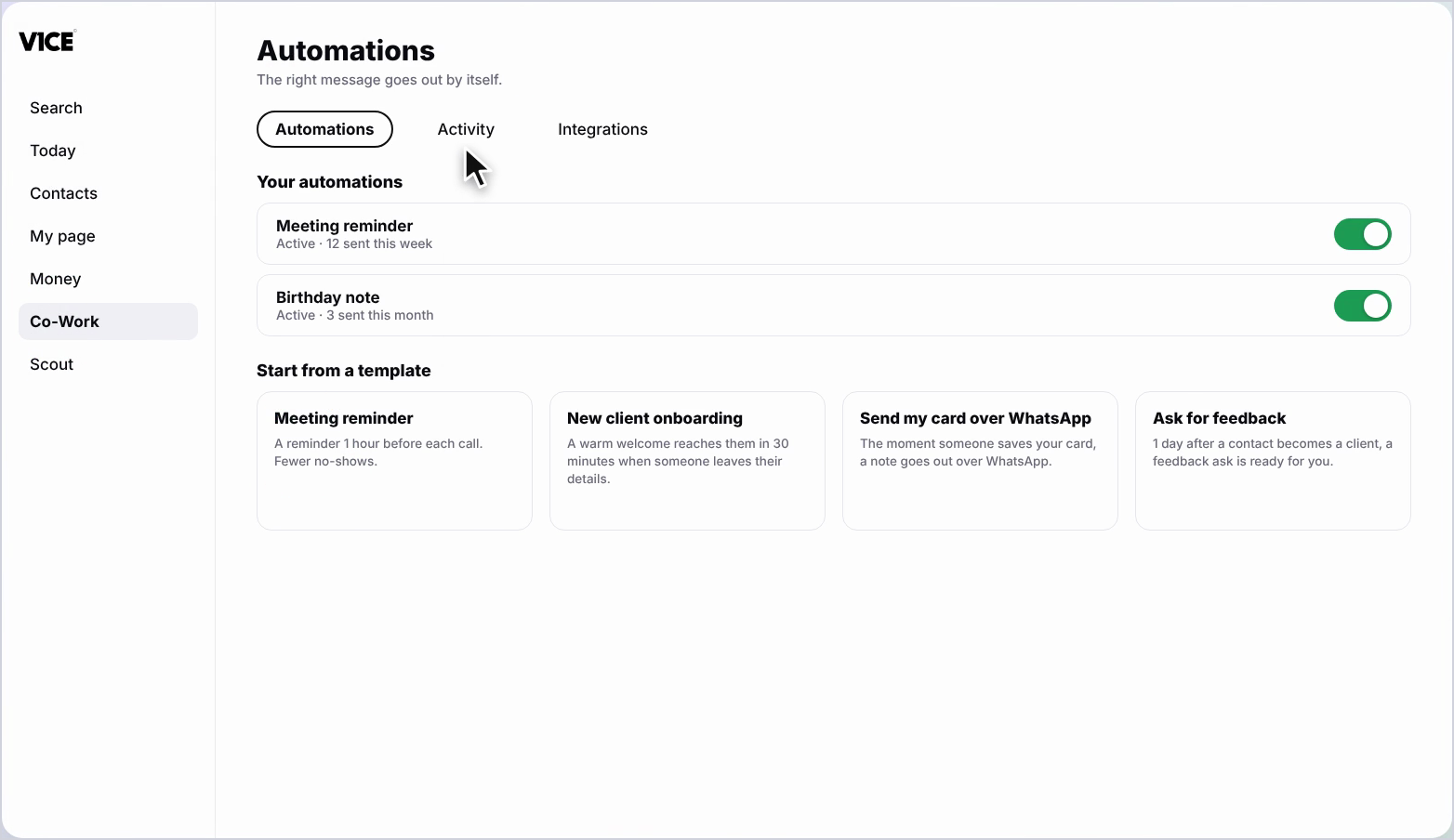
You'll see every automation you have running, and a row of ready-made templates.
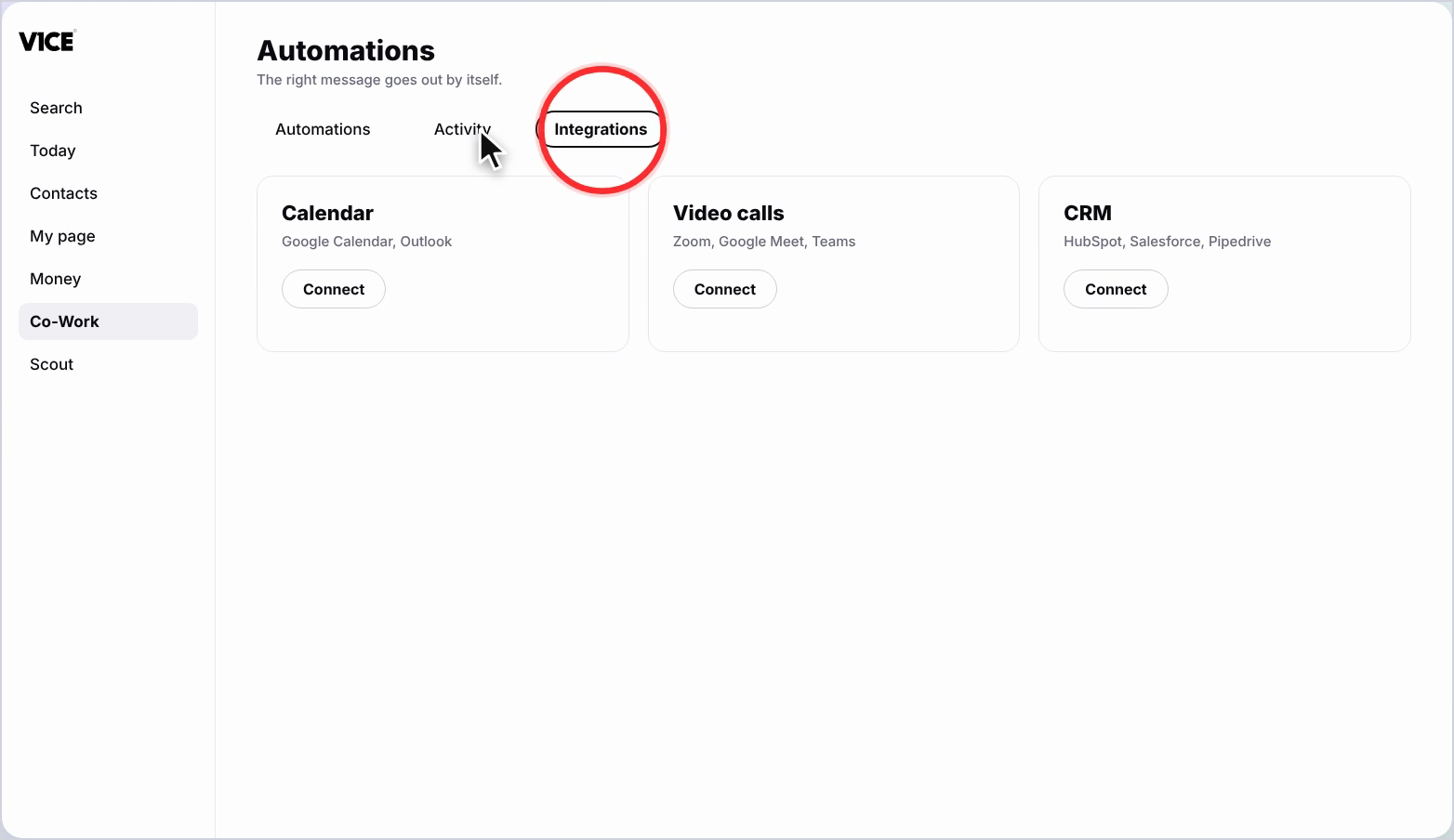
The Activity tab shows what's been sent to each contact, and Integrations connects
your calendar, video calls, and CRM.
Select the Welcome a new client template to preview it, then choose Set it up.
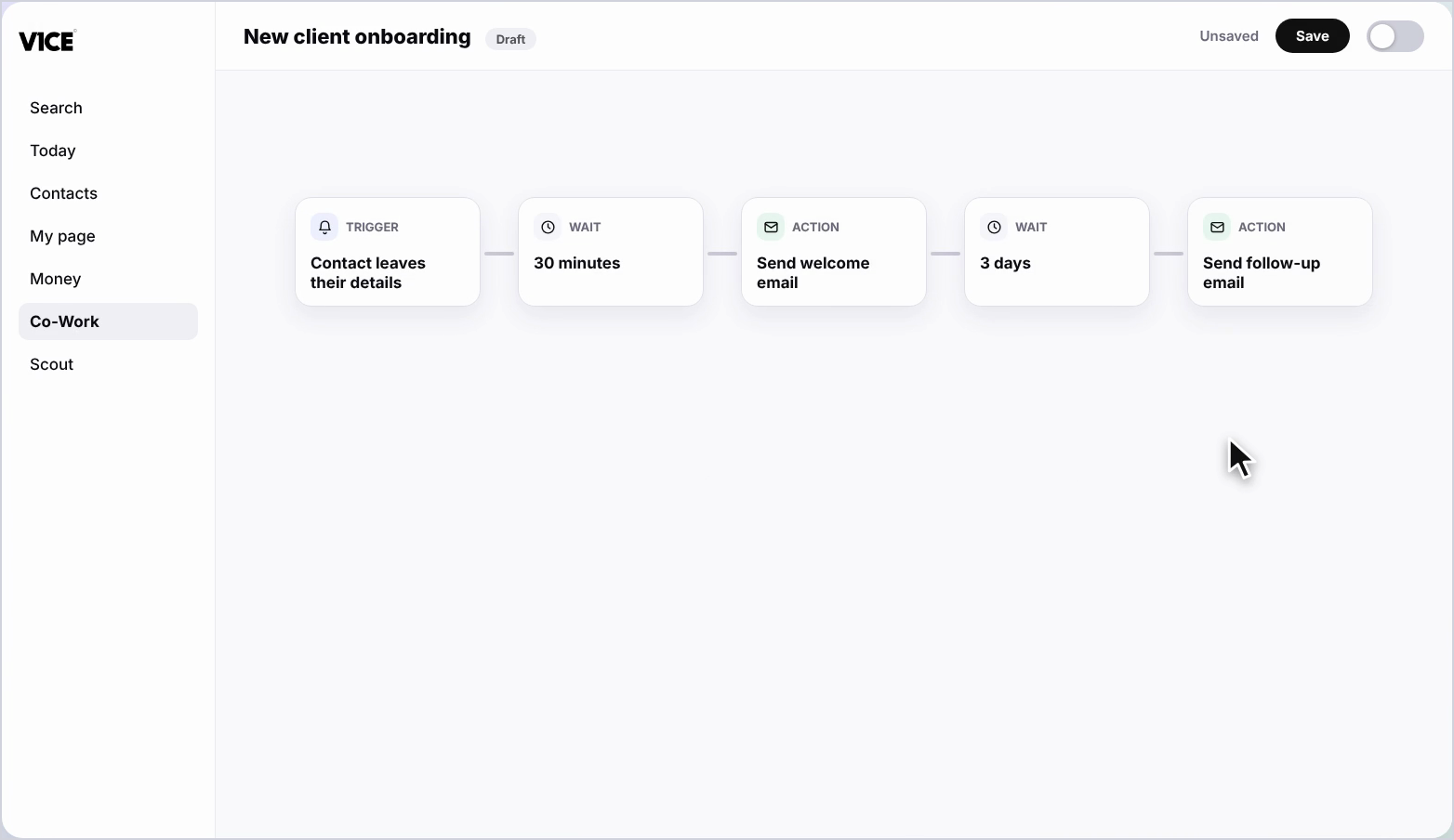
Here's the whole flow.
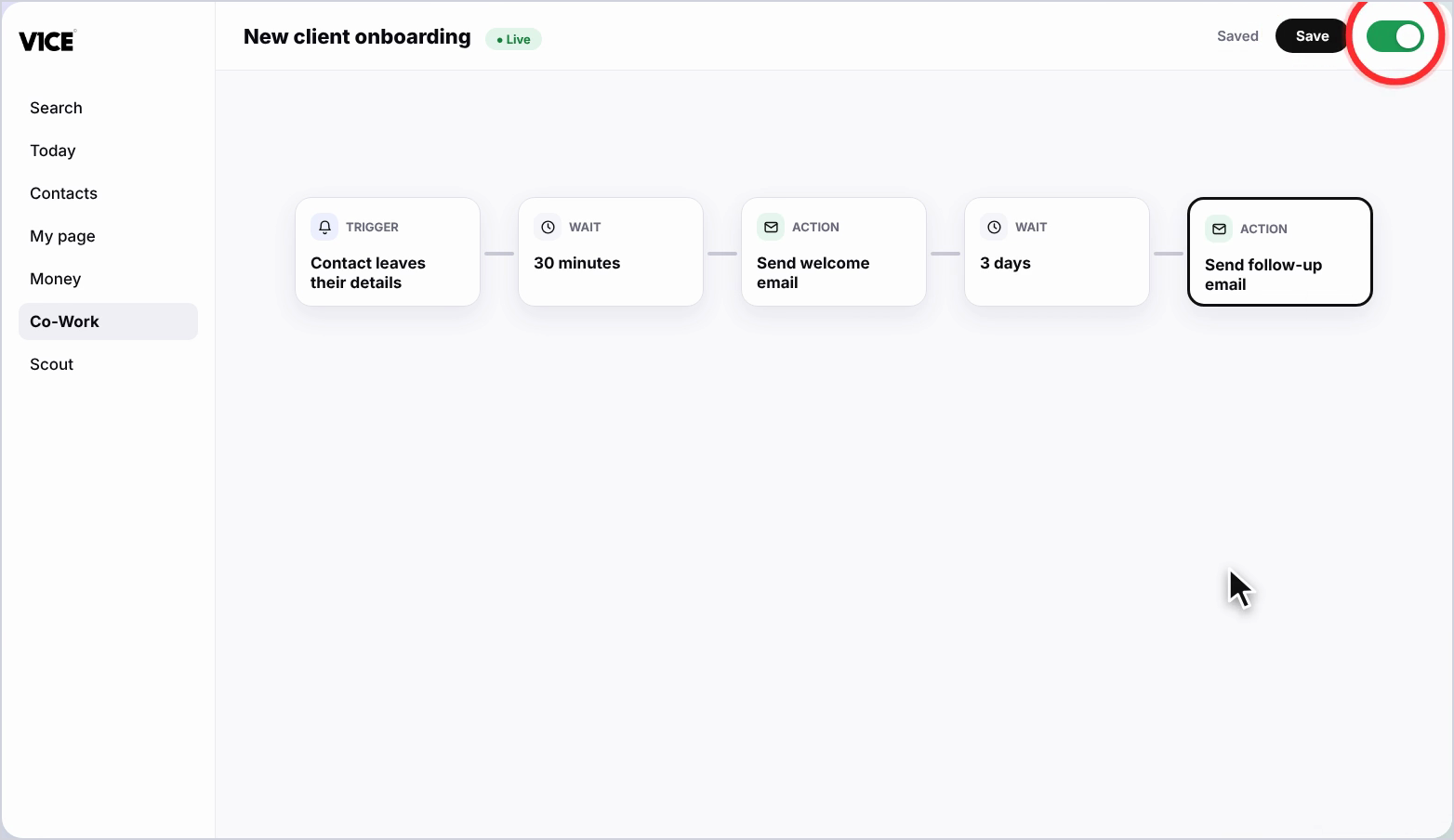
The trigger, a short wait, the welcome email, another wait, and the follow-up.
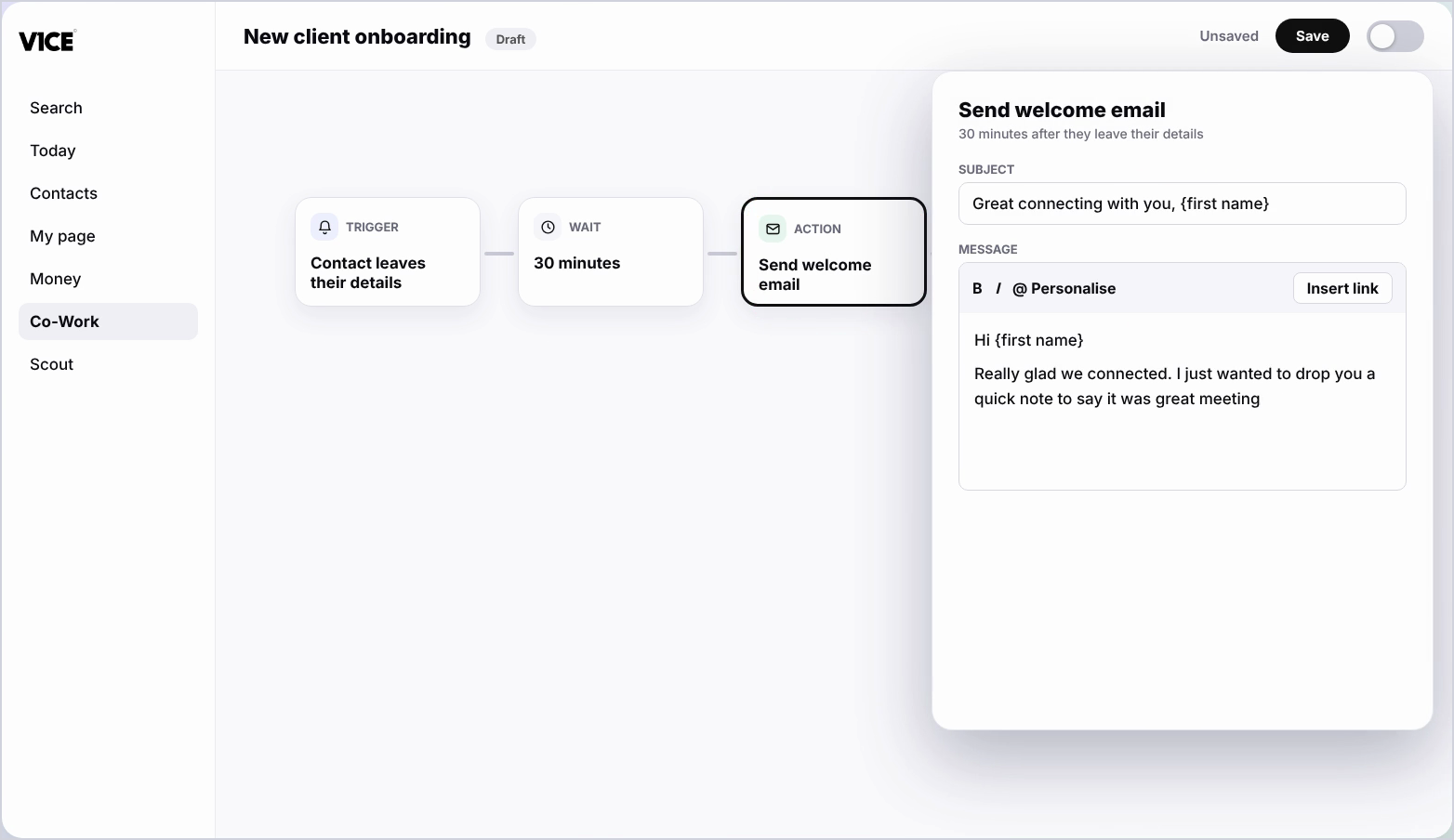
Select the welcome email step, then write email, add a subject and a message, and insert
a link to your booking page.
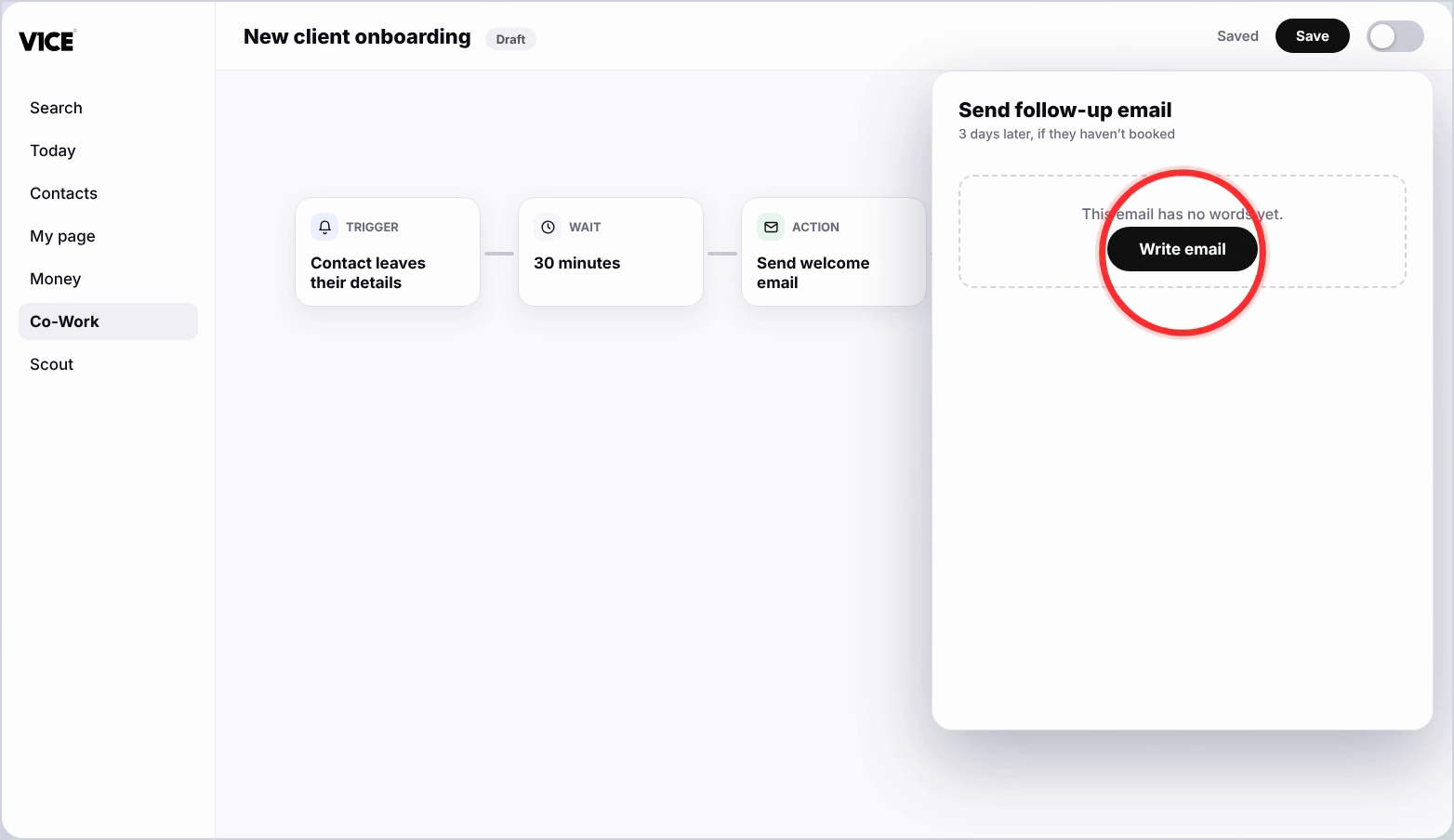
Do the same for the follow-up, save and switch the automation on.
It now runs quietly in the background.
Every new contact is welcomed and followed up, without you lifting a finger.
Follow-ups make sure the right message goes out by itself, so nobody you meet goes cold. You will find them under Automations in Co-Work.
This guide shows where to find your automations, how to start from the Welcome a new client template, and how to write your emails and switch it on.
Watch the video
Find your automations
Step 1: Open Automations
Select Co-Work in the left menu, then choose Automations.
Step 2: See what is running
You will land on a list of every automation you have running, plus ready-made templates to start from.
Step 3: Check Activity
The Activity tab shows what has been sent or skipped for each contact, newest first.
Start from a template
Step 4: Preview the template
Select the Welcome a new client template to preview what it does before you switch it on.
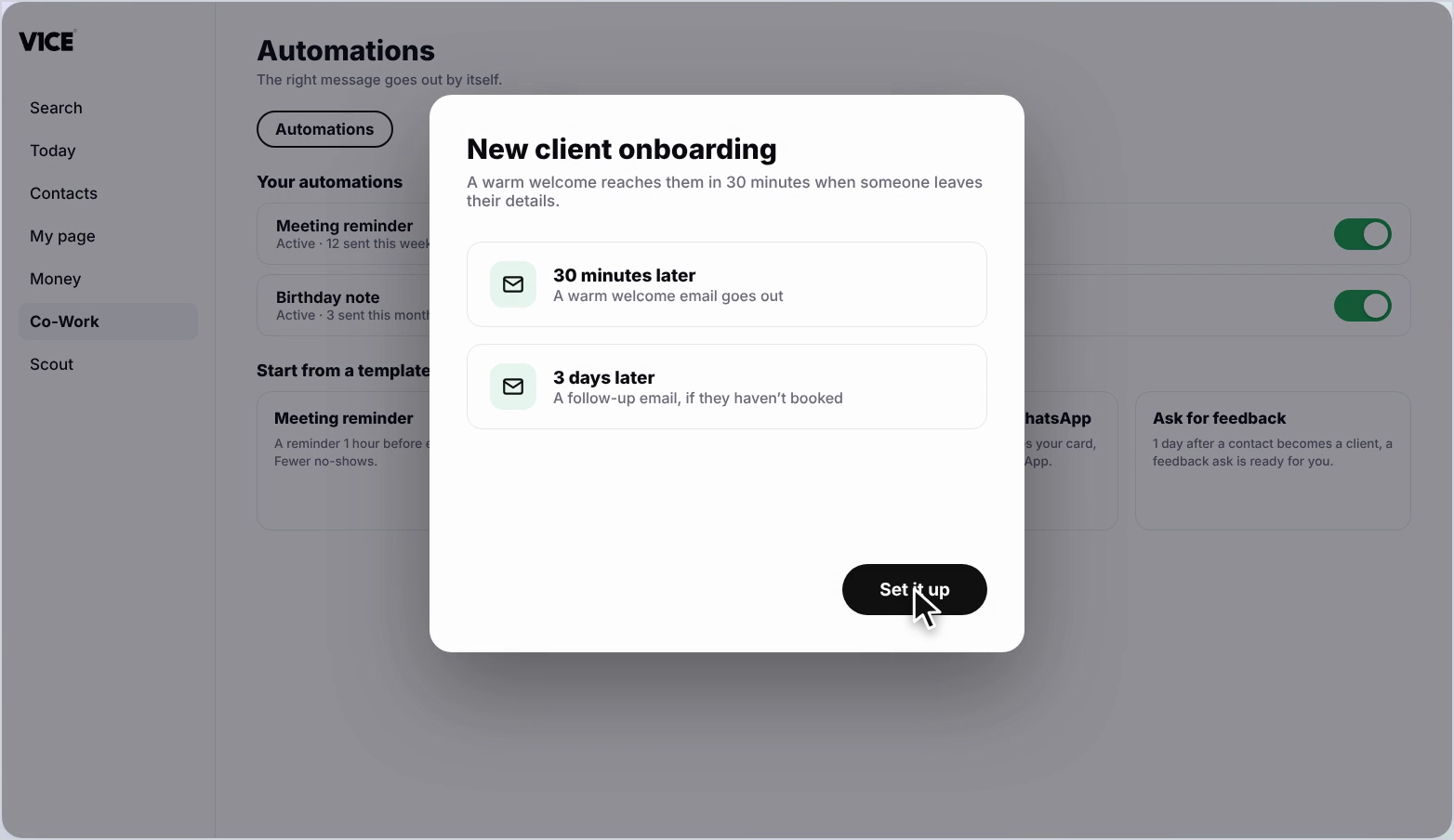
Step 5: See the full flow
Select Set it up to open the builder. You will see the whole flow: the trigger, a short wait, the welcome email, another wait, then the follow-up email.
Write your emails and go live
Step 6: Write the welcome email
Select the welcome email step, then Write email. Add a subject and message, and personalise it with details like their first name.
Step 7: Write the follow-up
Do the same for the follow-up email, a quick nudge that goes out a few days later if they have not booked yet.
Step 8: Switch it on
Once both emails are saved, switch the automation on. It now runs quietly in the background, keeping every new client warm.
Good to know
- Insert a link to a booking page or service straight from the email toolbar.
- Check the Activity tab to see exactly who got what and when.
- Connect your calendar, video call tools and CRM under Integrations so automations can use them.
Frequently asked questions
Where do I find my automations?
Select Co-Work in the left menu, then choose Automations. You see every automation you have running, plus ready-made templates.
What does the Welcome a new client template do?
After someone leaves their details, a welcome email goes out, and a follow-up lands three days later.
Can I write my own emails?
Yes. Select the welcome email step, write the email, add a subject and a link to your booking page. Do the same for the follow-up.
How do I see what has been sent?
The Activity tab shows what has been sent or skipped for each contact, newest first.