How to manage enquiries from your page

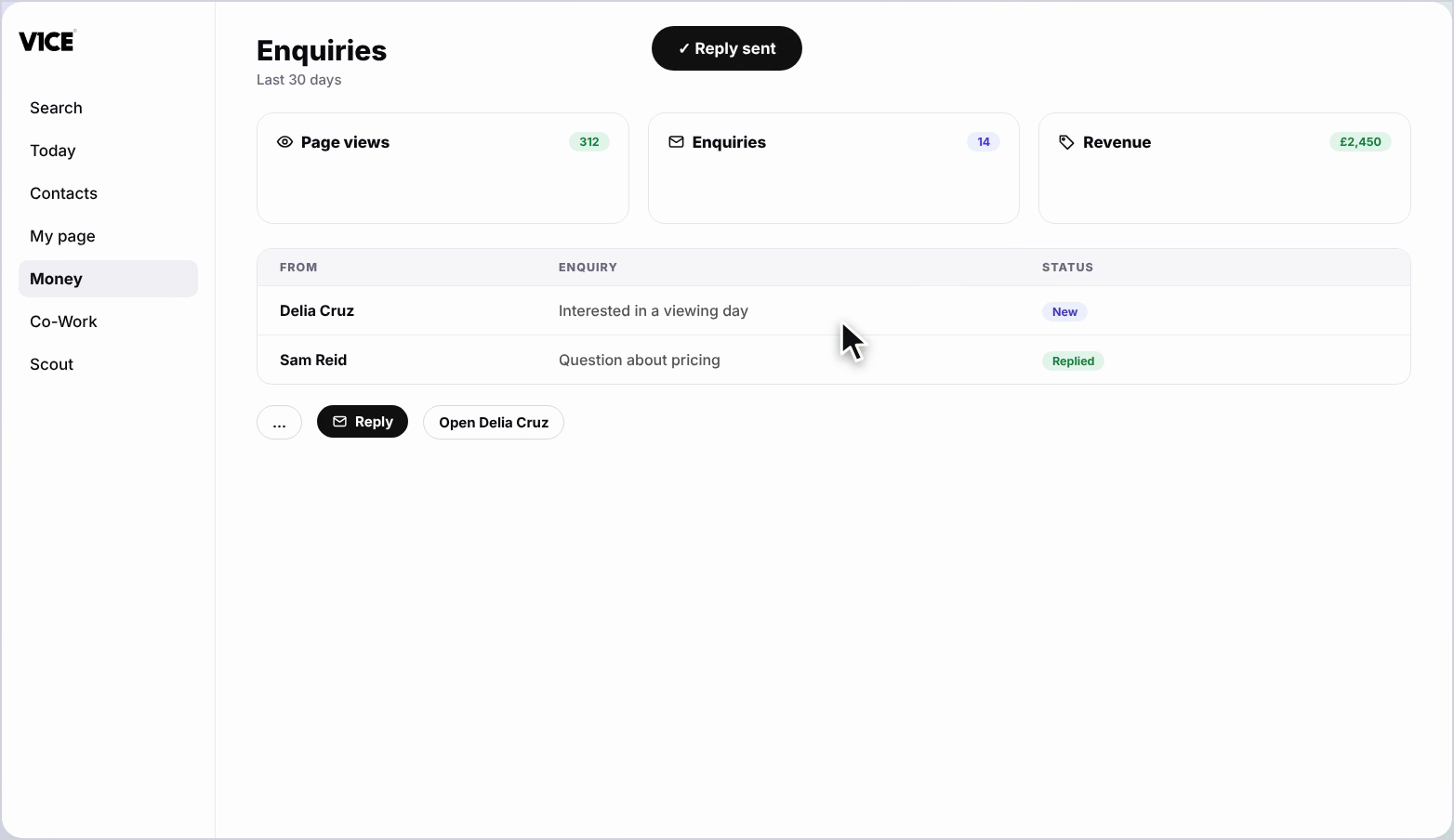
To manage enquiries, open Money, then Enquiries. Every enquiry from your page lands there. Press Reply to answer with Co-Work's help, use the three dots to send a payment link, or open the contact and send a booking link.
| Time needed | 1 minute |
|---|---|
| What you need | Your V1CE account |
| Where in the app | Money > Enquiries |
Video transcript and chapters
Chapters
0:00 Introduction
0:11 Open Enquiries
0:21 Use the three dots
0:27 Reply
0:31 Open the contact
0:37 Send a booking link
0:46 Go back to your enquiries
0:51 You're done

Transcript
Enquiries is where every enquiry from your page lands, tagged to the contact.
View them reply and send a payment link or a booking link.
Open Money Then Enquiries.
Every enquiry from your page lands here, with page views, enquiries and revenue for the
last 30 days.
Press the three dots to send a payment link, mark converted or archive it.
Press reply to answer.
Co-Work can help write your message.
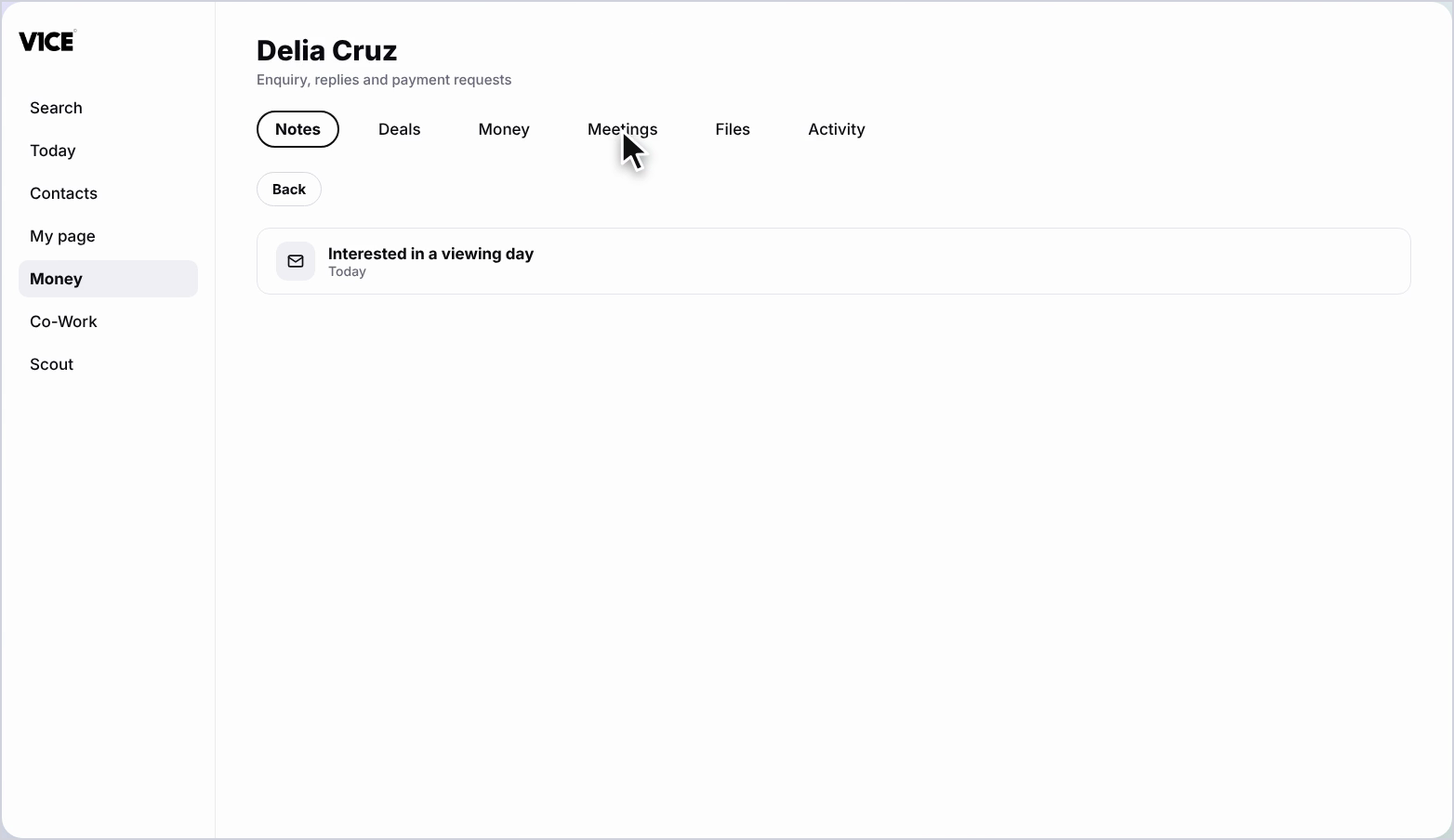
Select a name to open that contact with their enquiry, replies and payment requests.
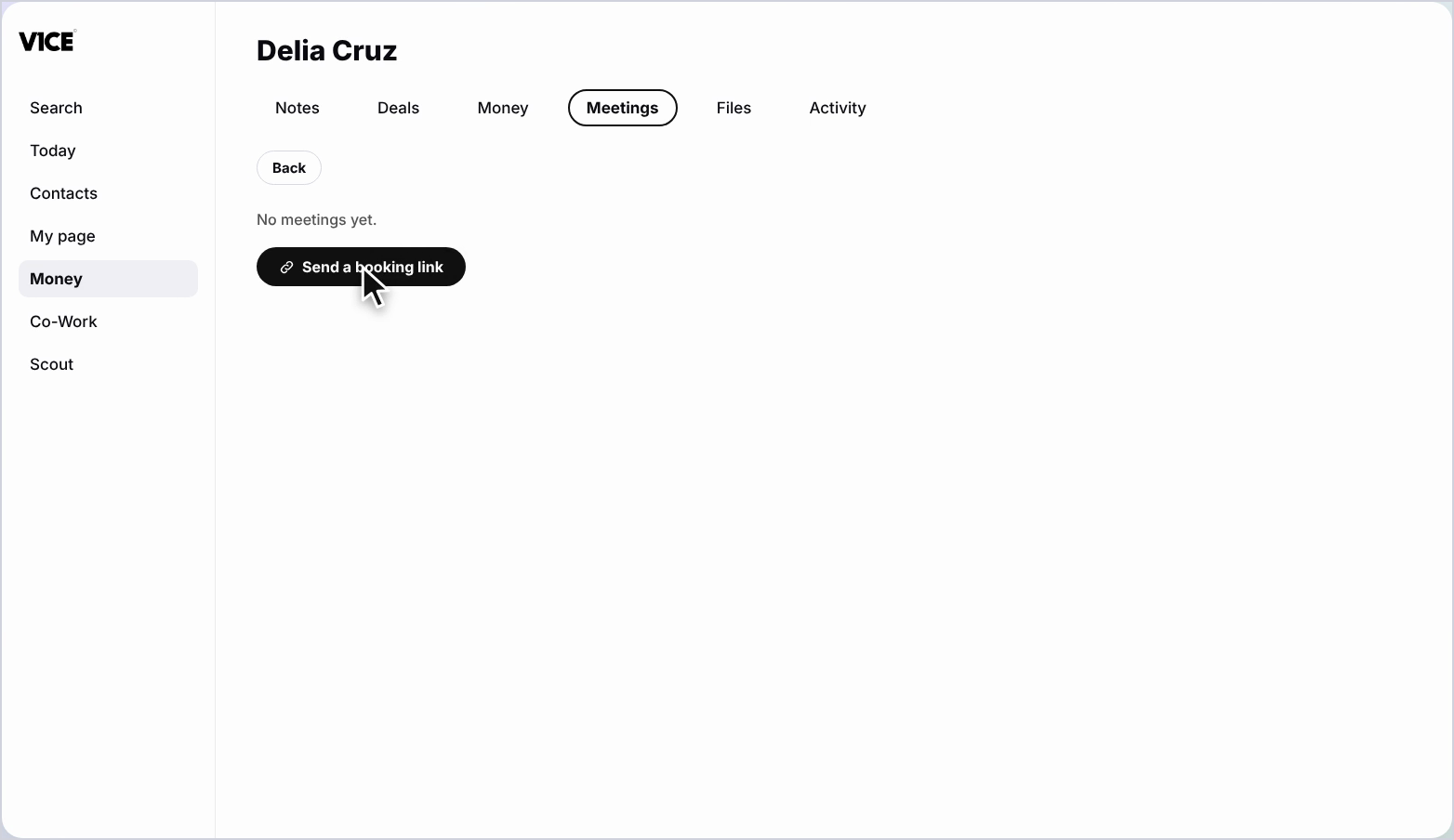
Open the Meetings tab.
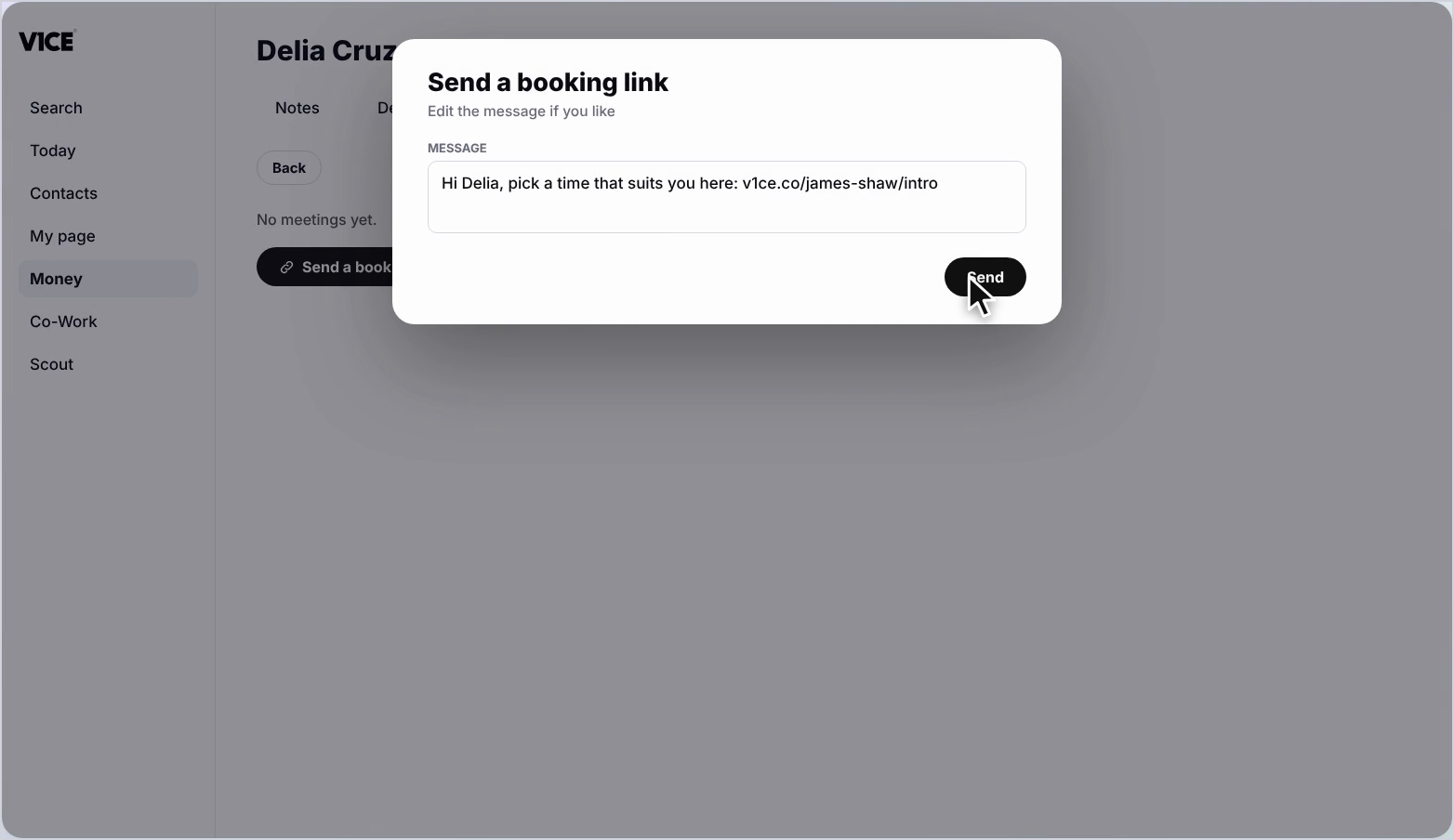
Press send a booking link.
Edit the message if you like, then press send.
A confirmation appears once it's gone.
Press back to return to your enquiries, ready for the next one.
That's enquiries.
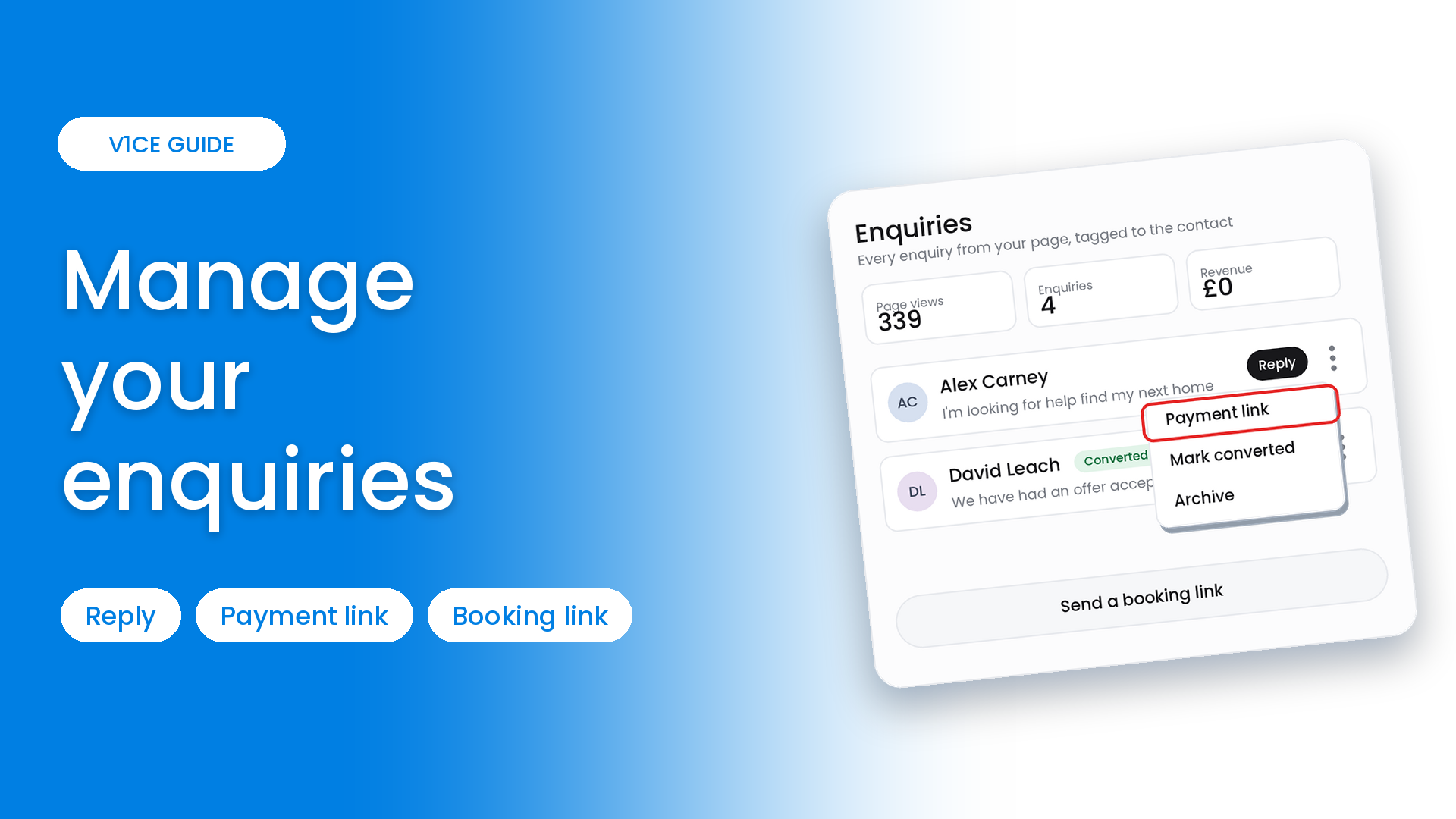
Enquiries is where every enquiry from your page lands, tagged to the contact.
View them, reply, and send a payment link or a booking link without leaving V1CE.
Watch the video
Find your enquiries
Step 1: Open Enquiries
Select Money in the left menu, then choose Enquiries.
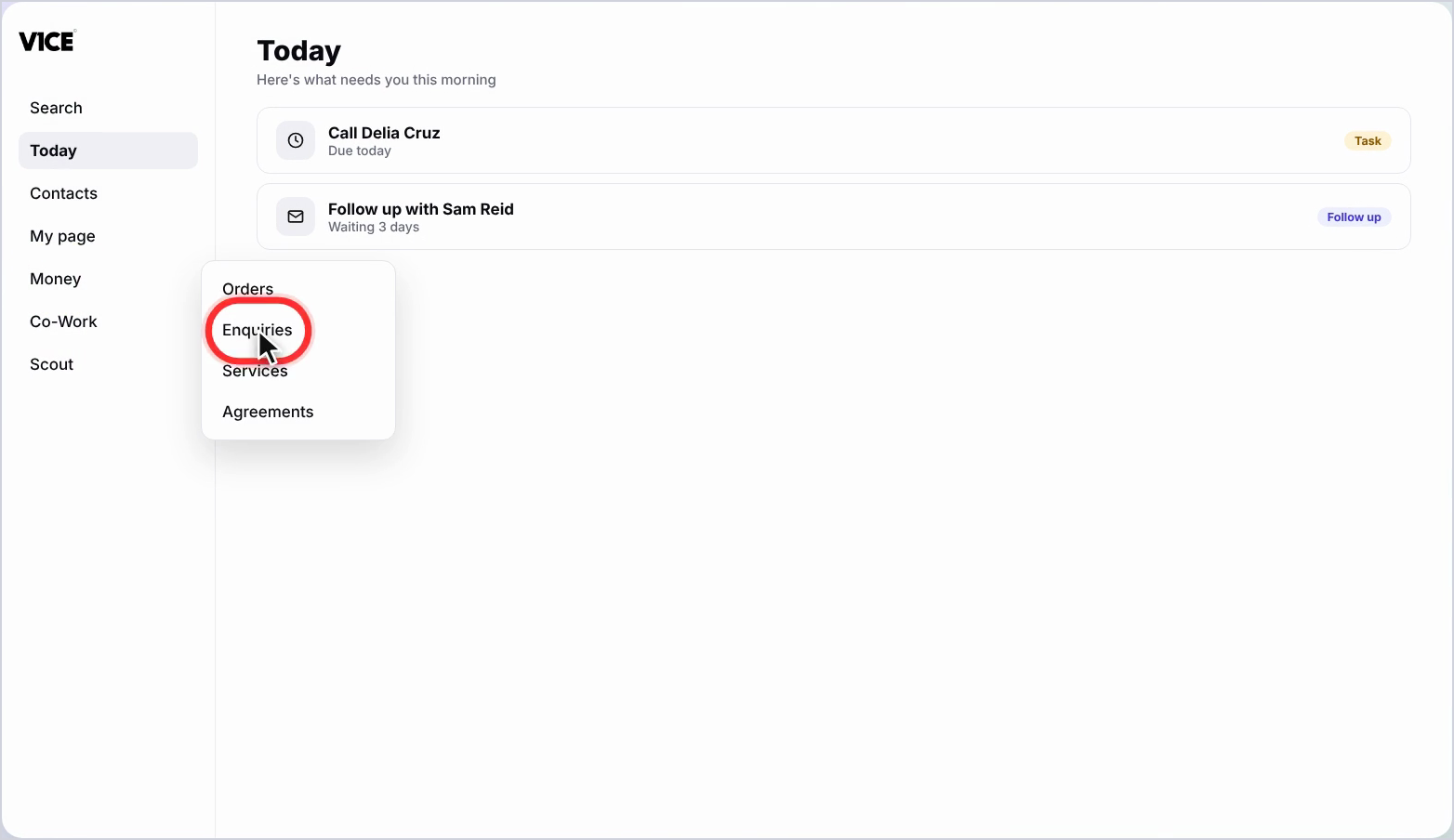
Step 2: Read your numbers
Every enquiry from your page lands here, with page views, enquiries and revenue for the last 30 days.
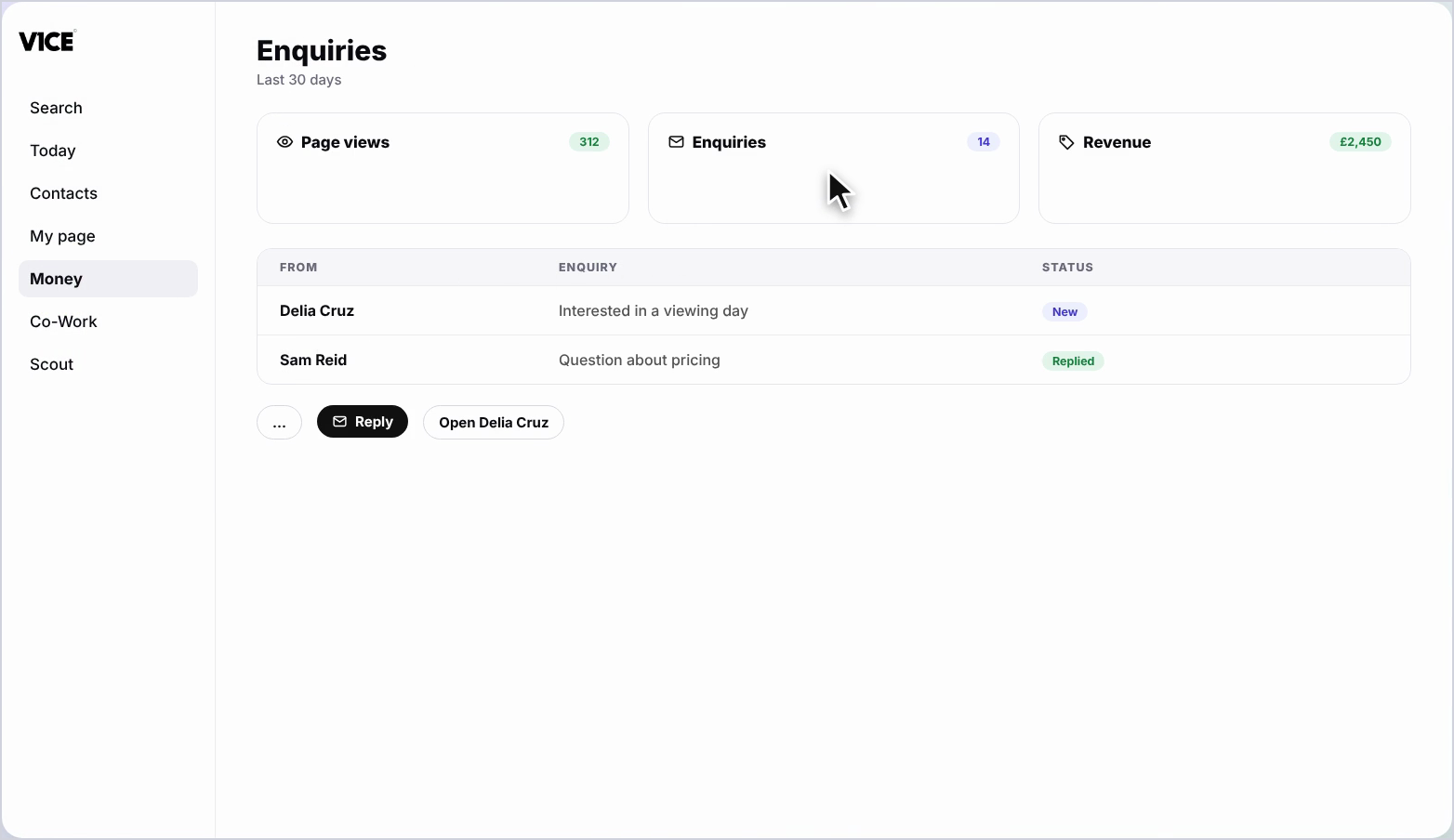
Act on an enquiry
Step 3: Use the three dots
Select the three dots to send a payment link, mark it converted, or archive it.
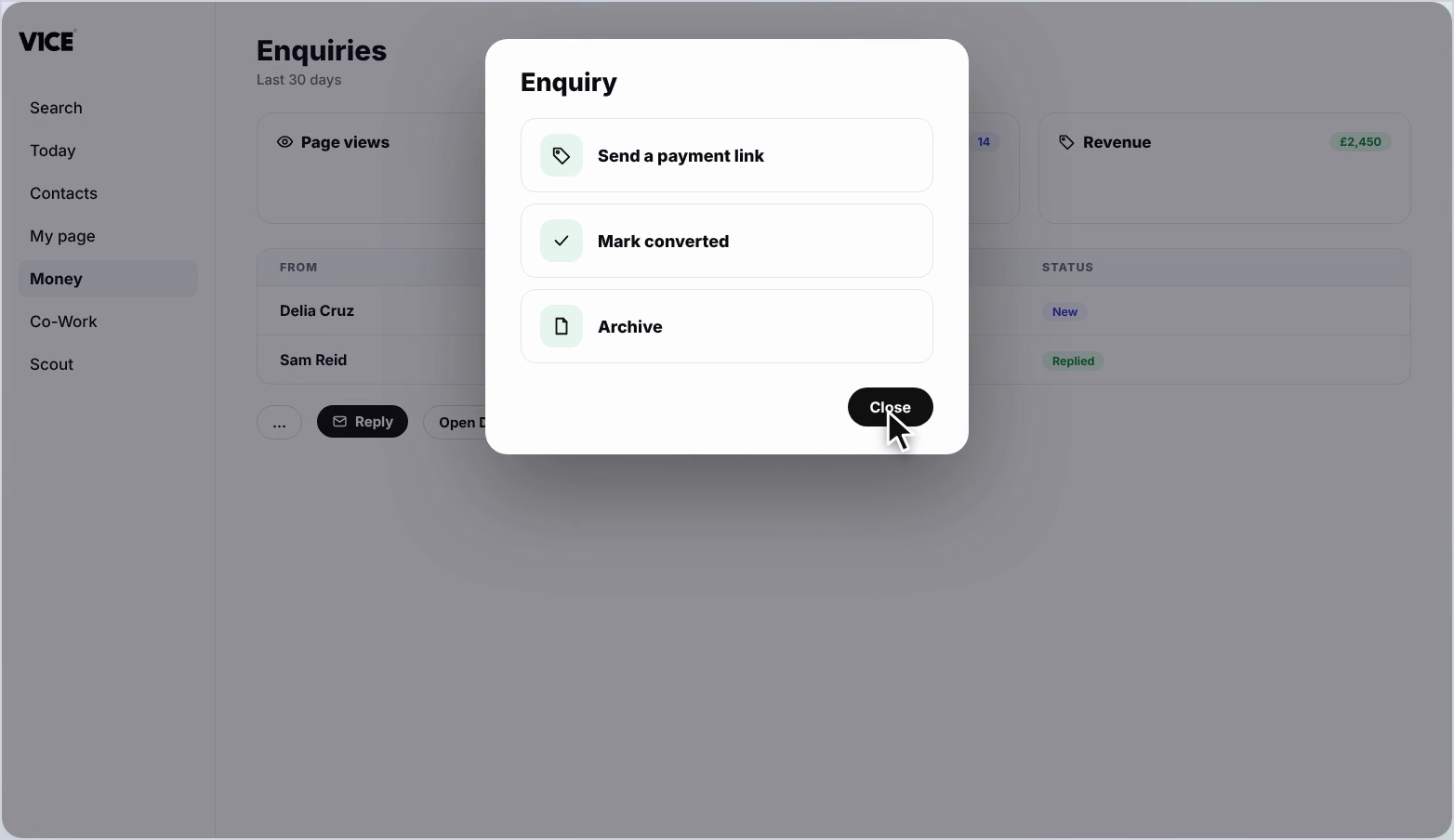
Step 4: Reply
Select Reply to answer. Co-Work can help write your message. Select Send.
Step 5: Open the contact
Select a name to open that contact, with their enquiry, replies and payment requests.
Send a booking link
Step 6: Open the Meetings tab
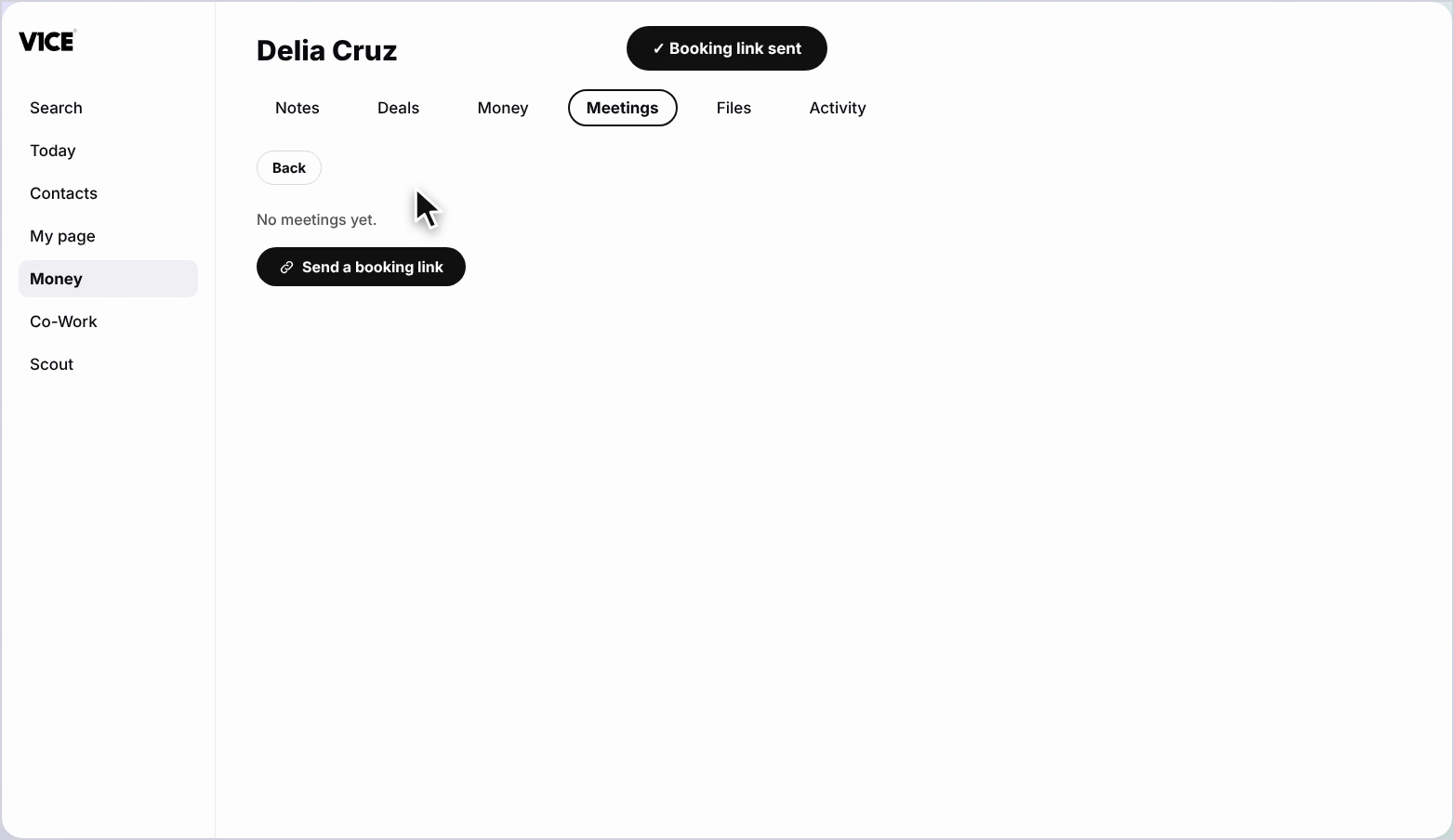
On the contact, select the Meetings tab.
Step 7: Send a booking link
Select Send a booking link. Edit the message if you like, then select Send.
Step 8: See the confirmation
A confirmation appears once it has gone. Select Back to return to your enquiries.
Good to know
- Every enquiry is tagged to the contact, so you can see the whole history in one place.
- Send a payment link straight from the three dots menu.
- Use Co-Work to help write a reply in your own voice.
Frequently asked questions
Where do enquiries from my page land?
Open Money, then Enquiries. Every enquiry lands there, with page views, enquiries and revenue for the last 30 days.
How do I reply to an enquiry?
Press Reply to answer. Co-Work can help write your message, then press Send.
How do I send a payment link?
Press the three dots on an enquiry to send a payment link, mark it converted or archive it.
How do I send a booking link to an enquirer?
Select their name to open the contact, open the Meetings tab, press Send a booking link, edit the message if you like and press Send.