How to add services with prices to your page

To add a service, open Money, then Services, and select New service. Tell Co-Work its name, who it is for and what it costs. Fine-tune the draft in the live preview, press Publish and share it by link or QR code.
| Time needed | 2 minutes |
|---|---|
| What you need | Your V1CE account |
| Where in the app | Money > Services |
Video transcript and chapters
Chapters
0:00 Introduction
0:13 Open Services
0:21 Use the Manage menu
0:28 Build a new service
0:35 Review the draft
0:40 Edit any line
0:46 Publish it
0:51 Share it
0:57 Share the QR code
1:03 You're done

Transcript
Services let you package what you do
into something clients can see,
ask about and pay for right from your page.
See what you already offer,
then build a new service with Co-Work in minutes.
Head to Money, then Services.
Each service shows its own views, enquiries,
and how many times it's been booked.
Use the menu on any service to preview it.
Pause it, add it to your page, duplicate it, or delete it.
To build a new one, select New Service,
tell Co-Work what it's called, who it's for,
and what it costs.
Co-Work drafts the whole service for you,
ready to fine-tune in the live preview.
Tap any line to edit it,
and write your own welcome line for people who enquire.
Publish it, and it appears on your page
instantly right at the top.
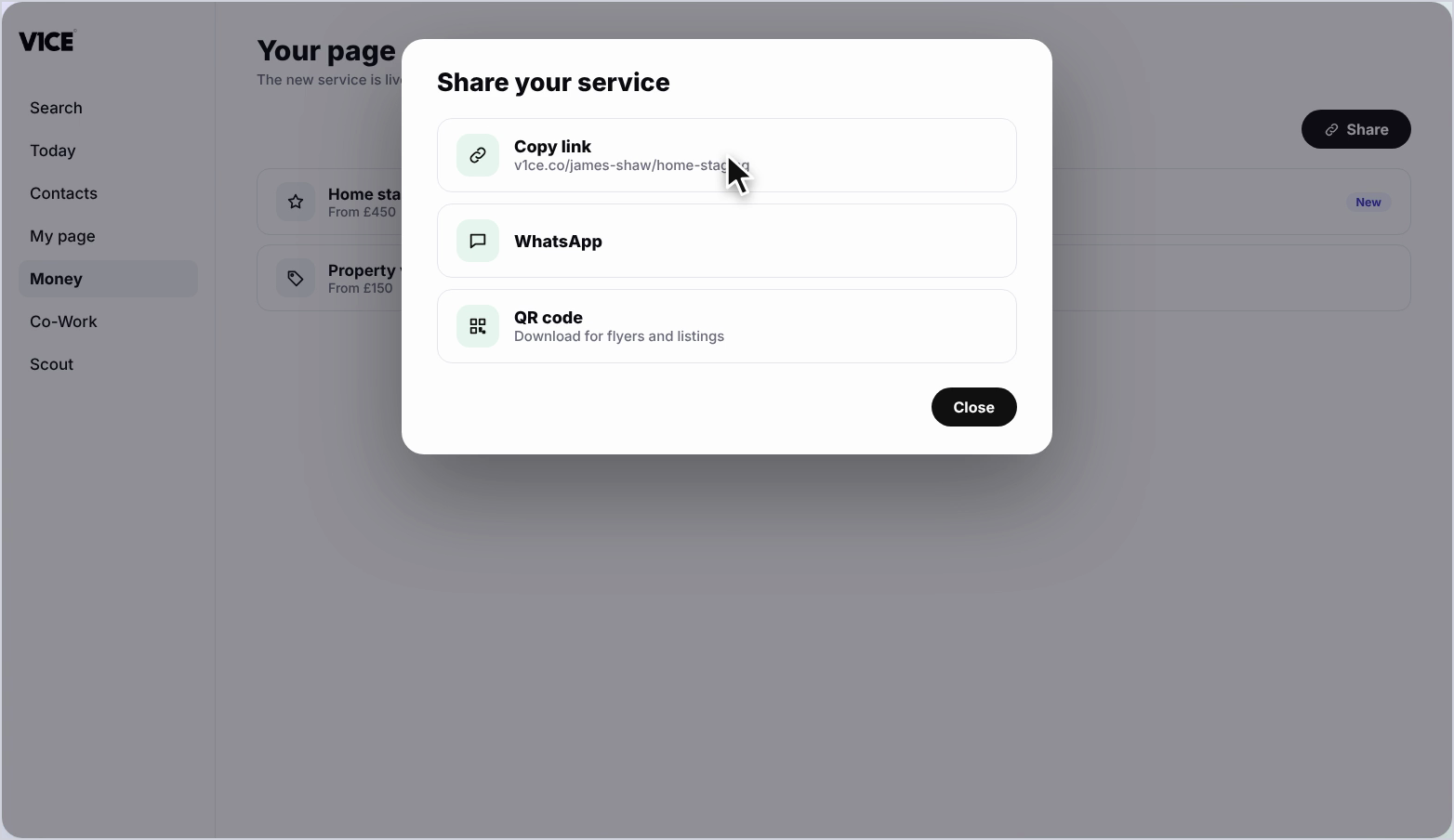
Select Share to copy the link,
or send it straight to WhatsApp, email, or social media.
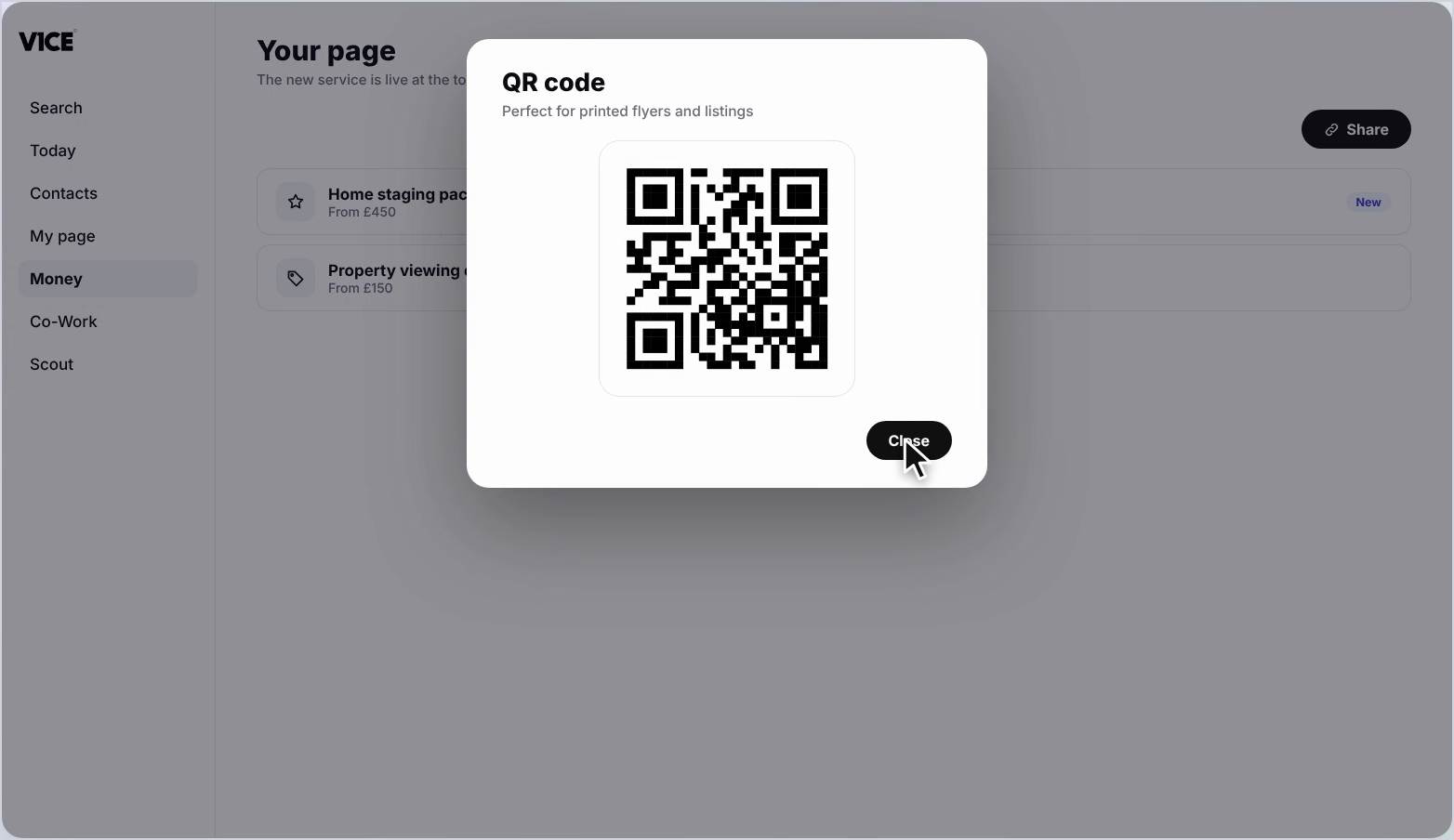
Or share the QR code perfect for flyers,
listings, and in-person conversations.
That's Services, build it, publish it, share it.
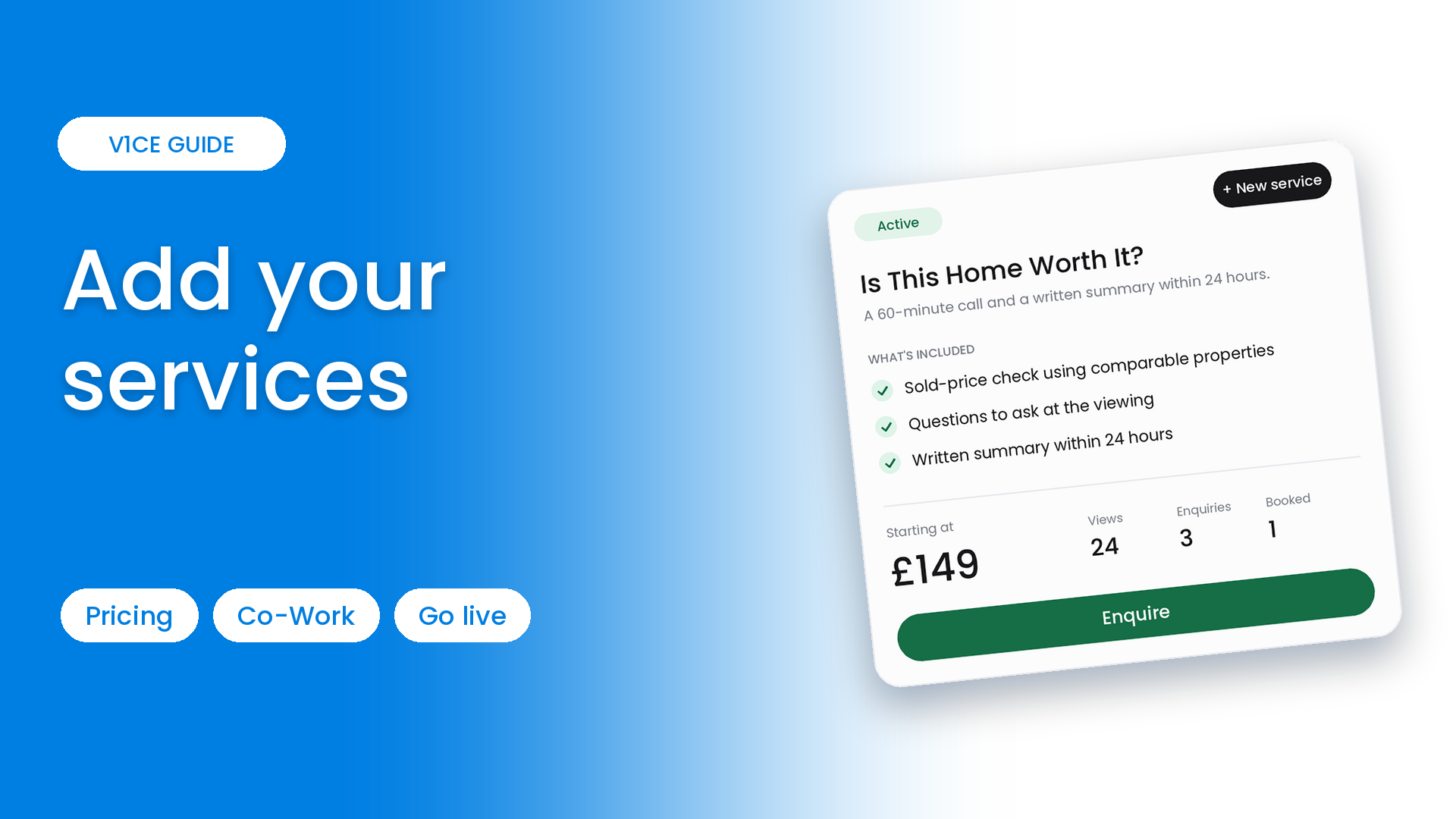
Services let you package what you do into something clients can see, ask about, and pay for, right from your page.
See what you already offer, then build a new service with Co-Work in minutes.
Watch the video
Manage your services
Step 1: Open Services
Select Money in the left menu, then choose Services. Each service shows its own views, enquiries and how many times it has been booked.
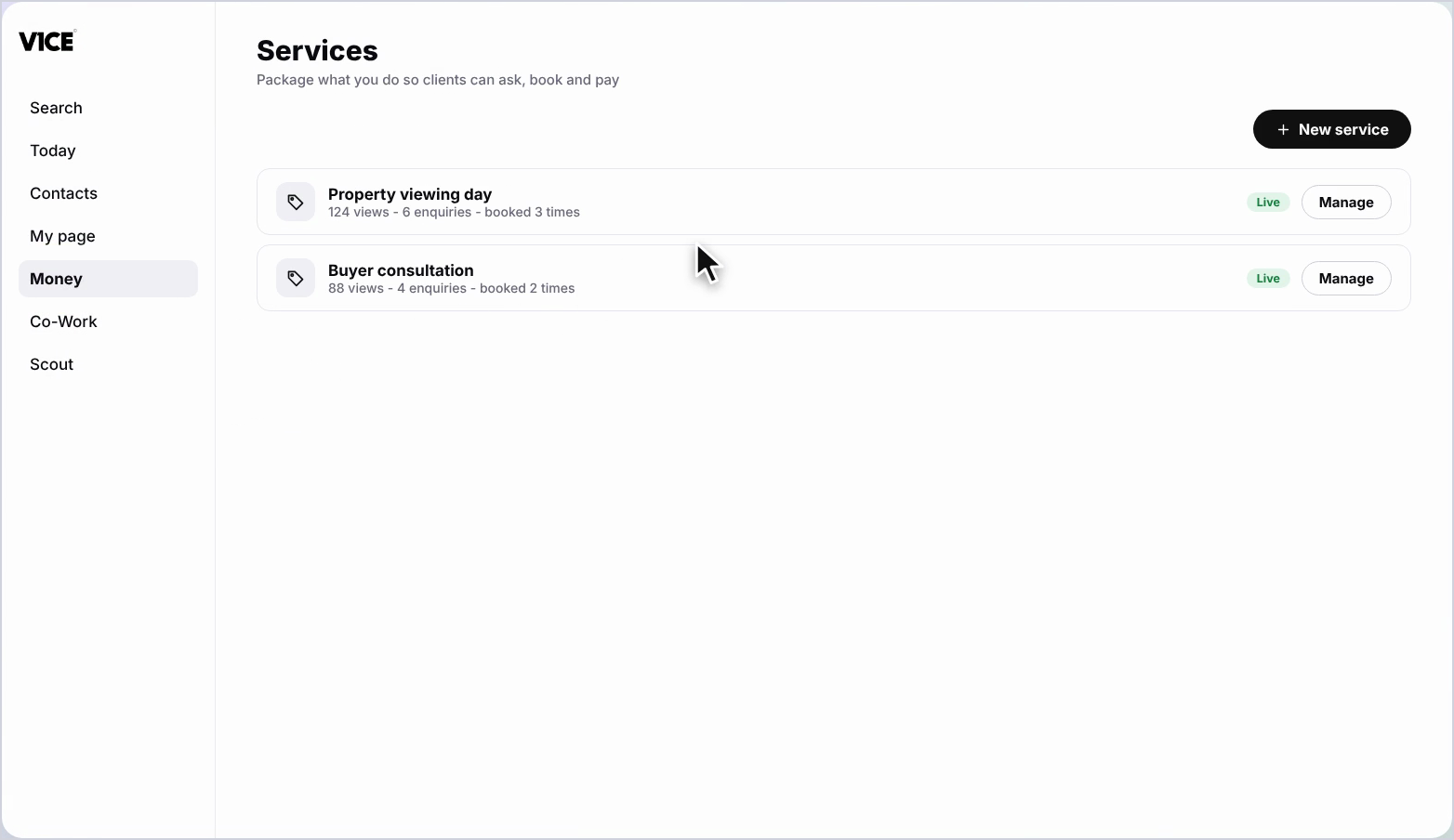
Step 2: Use the Manage menu
Use the menu on any service to preview it, pause it, add it to your page, duplicate it, or delete it.
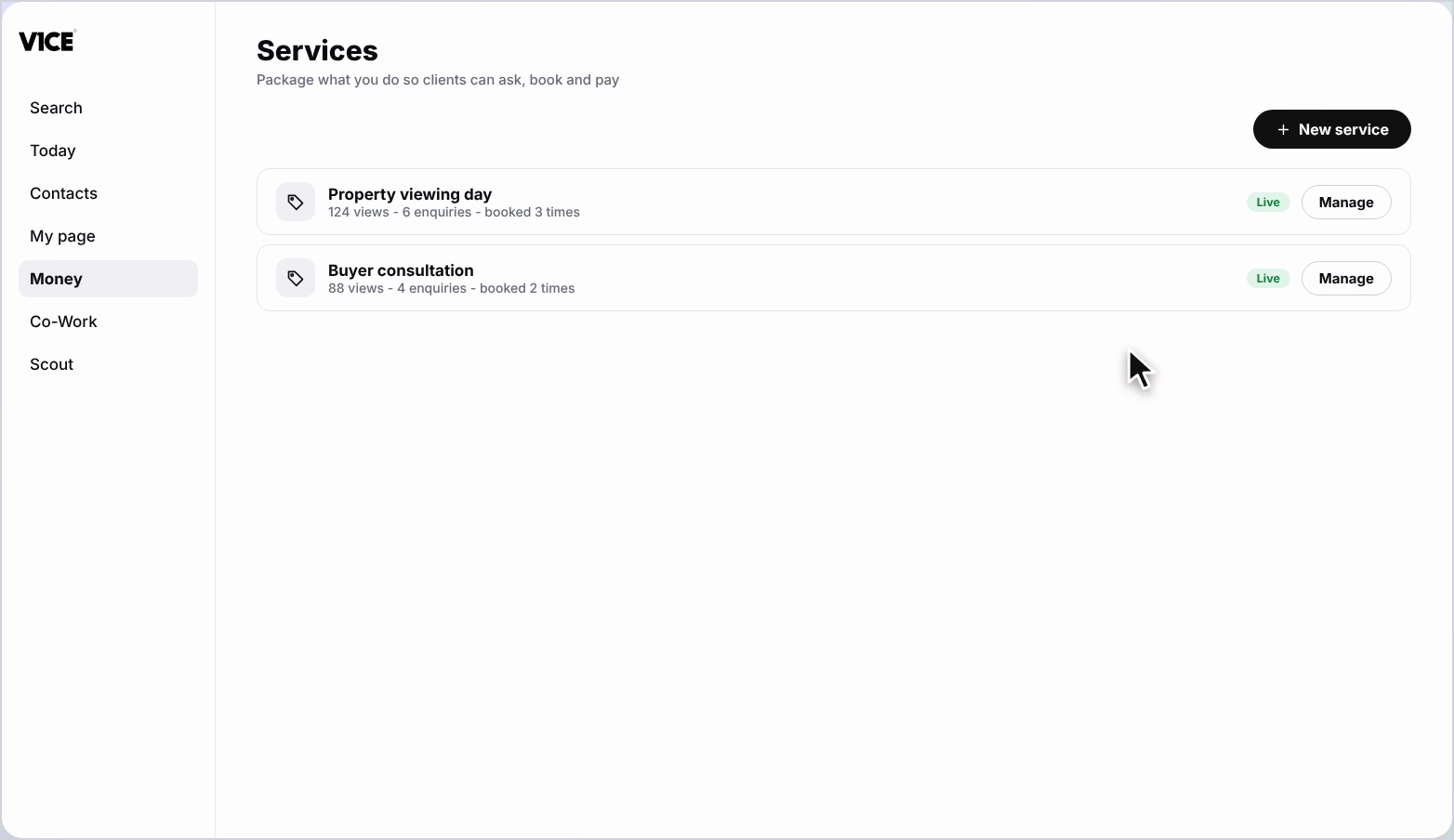
Build a new service with Co-Work
Step 3: Select New service
Select New service. Tell Co-Work what it is called, who it is for and what it costs.
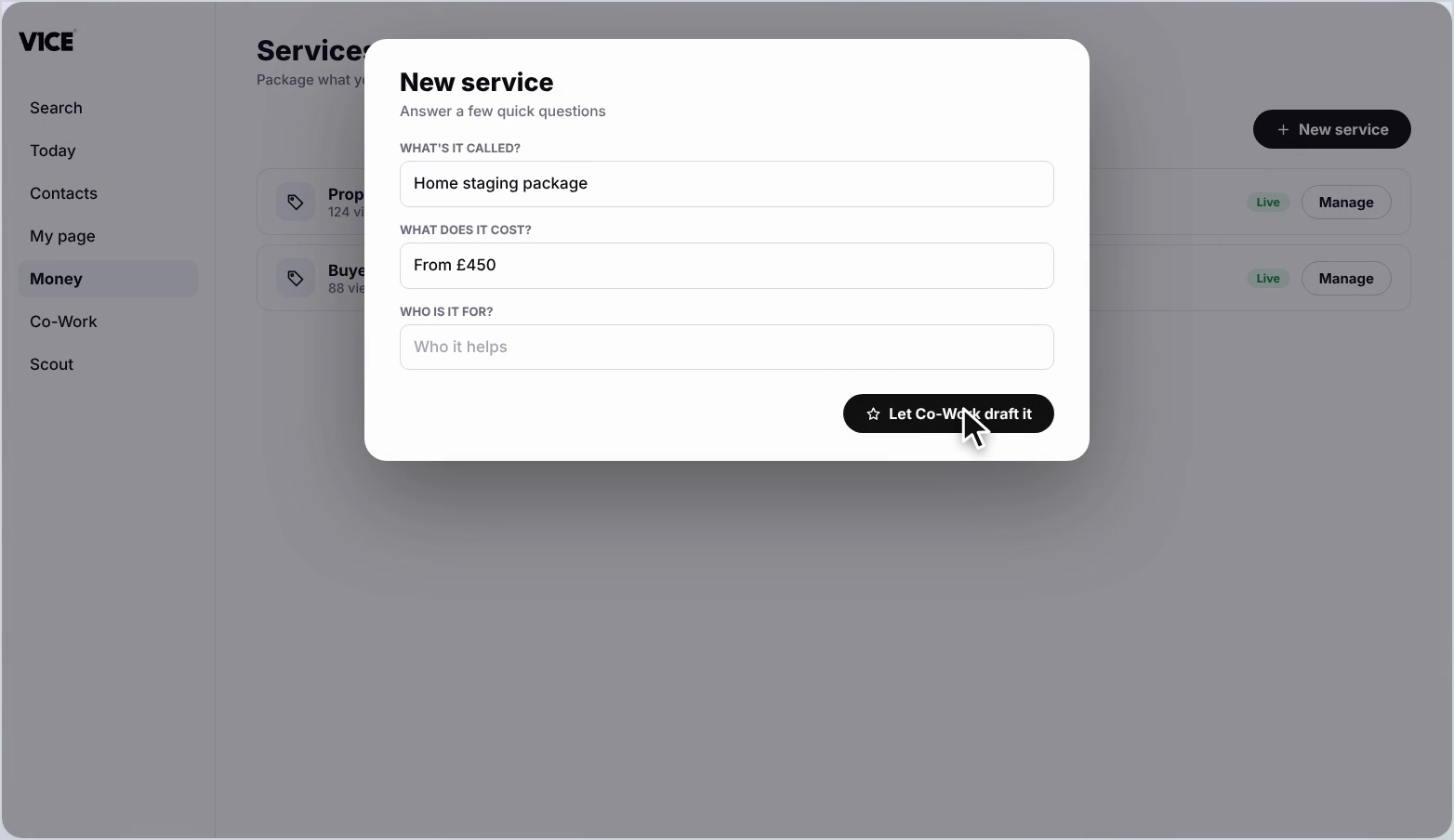
Step 4: Review the draft
Co-Work drafts the whole service for you, ready to fine-tune in the live preview.
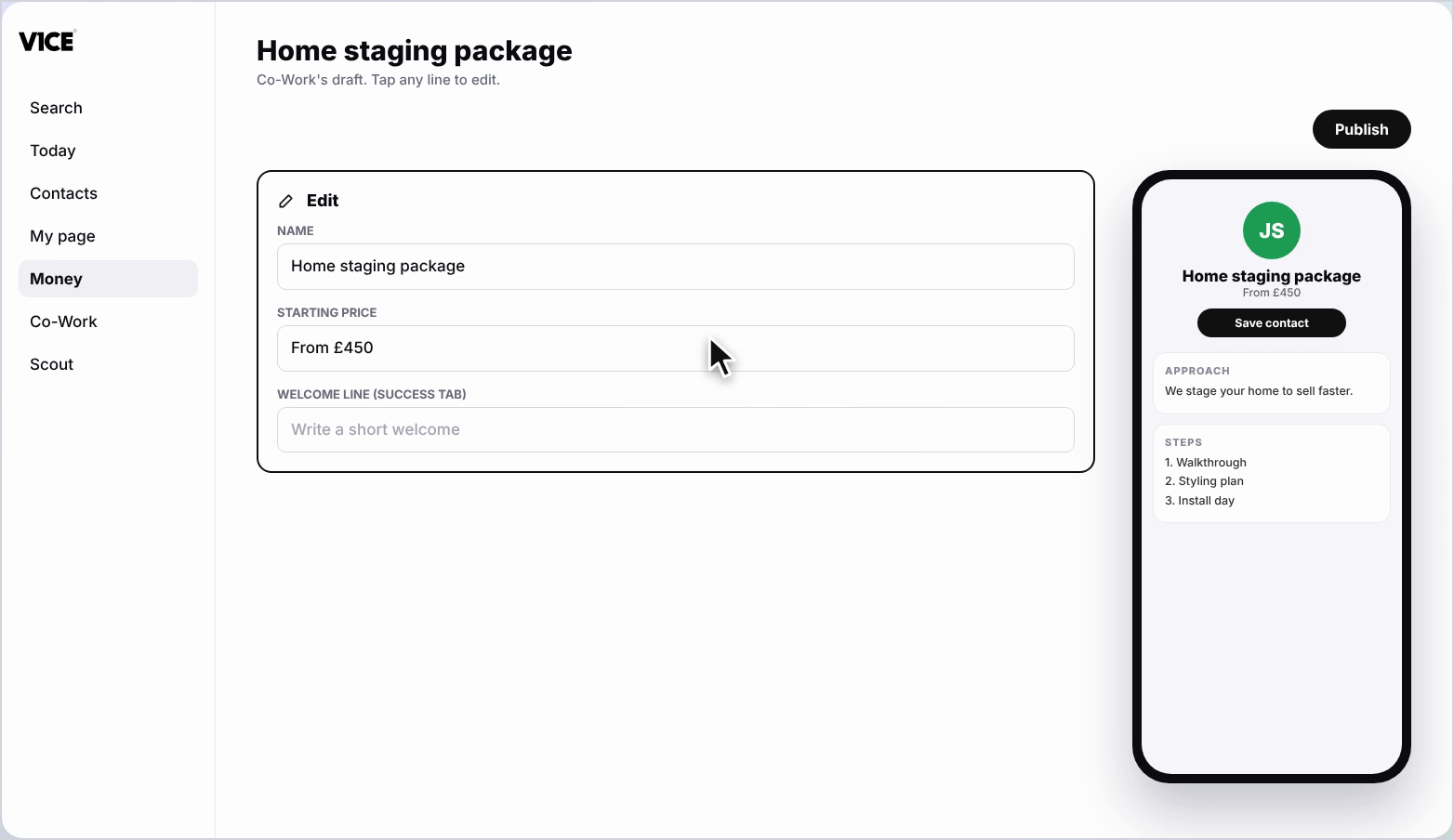
Step 5: Edit any line
Tap any line to edit it, and write your own welcome line for people who enquire.
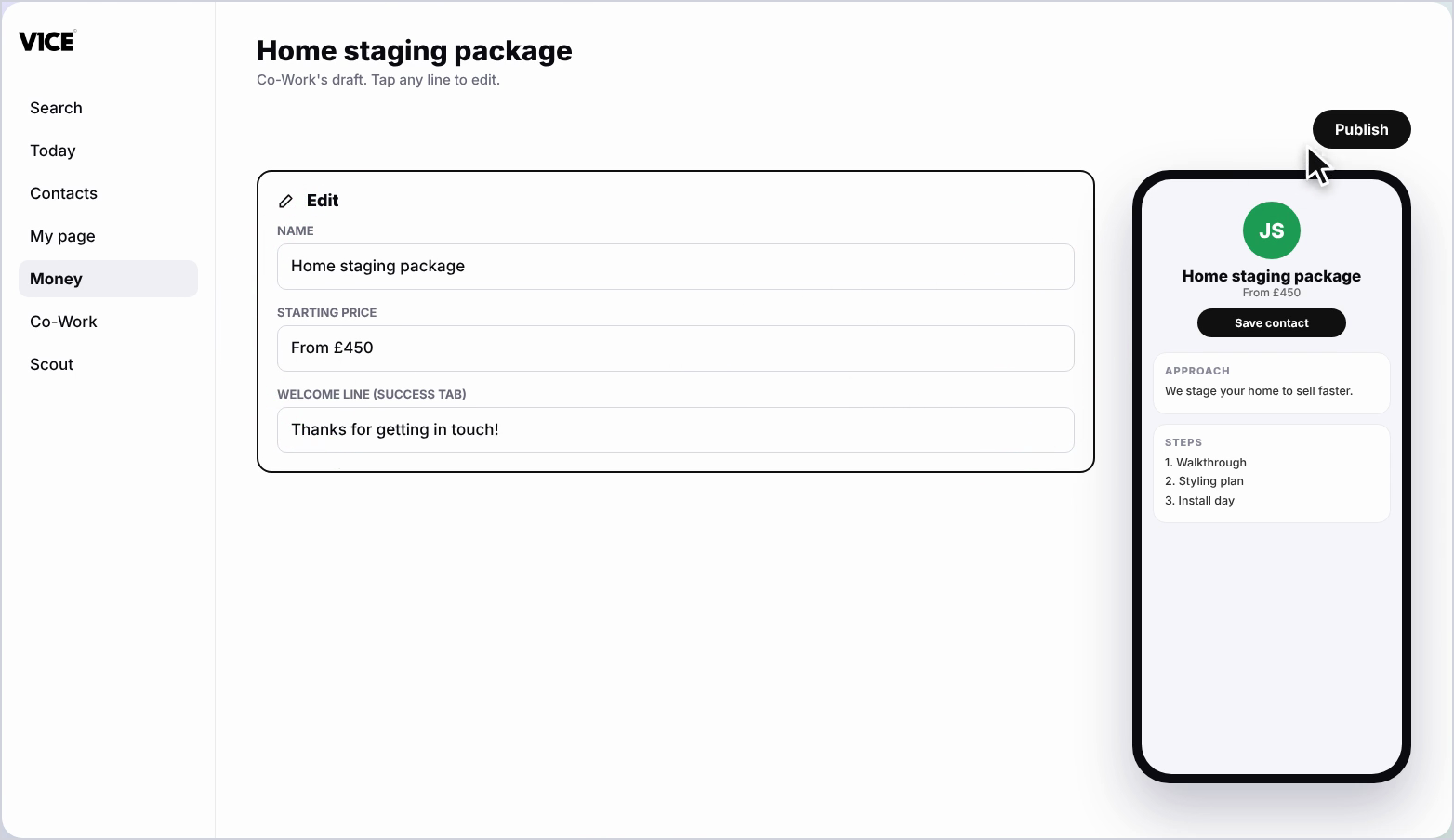
Step 6: Publish it
Select Publish and the service appears on your page instantly.
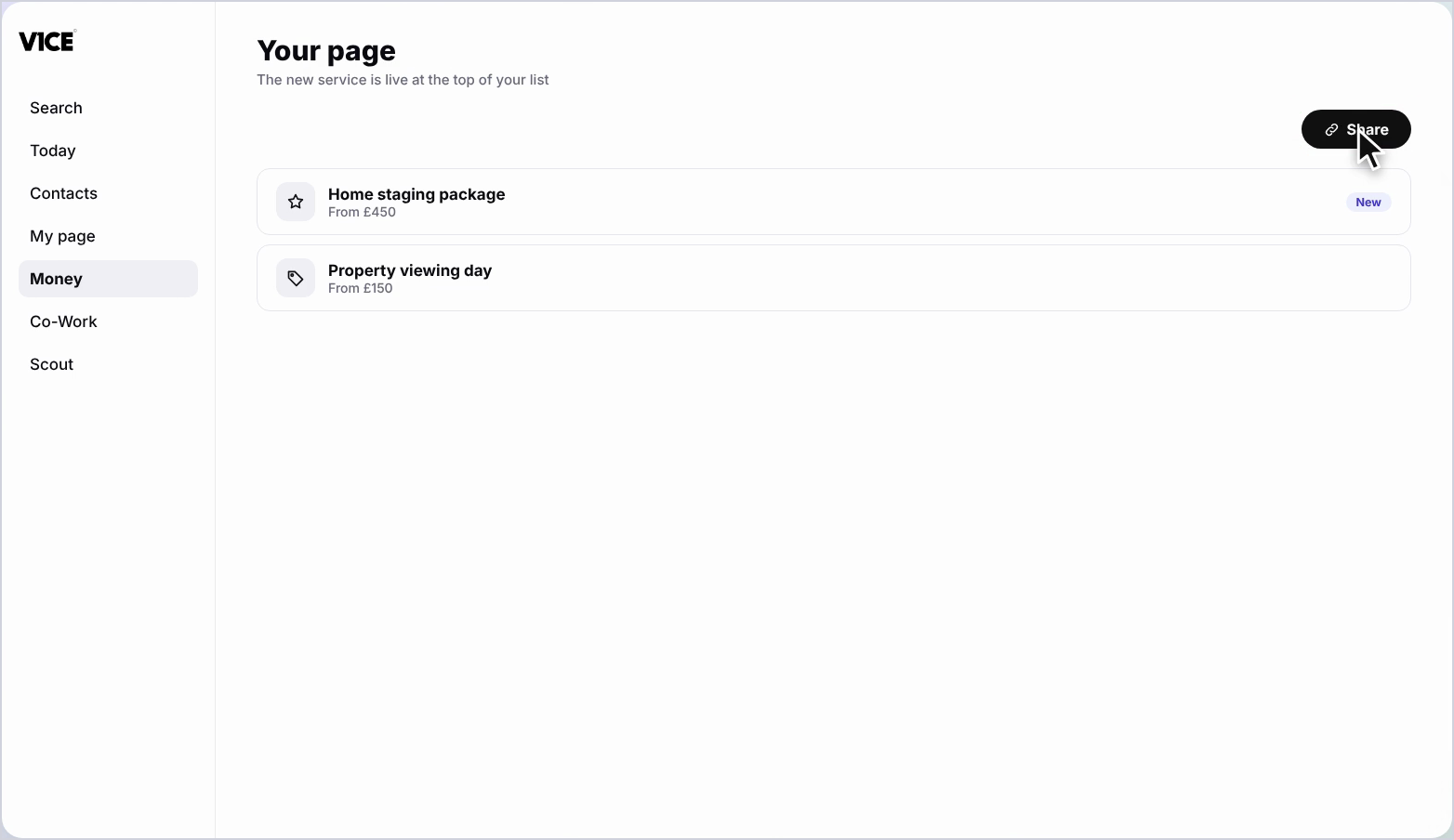
Step 7: See it live
Your new service now sits right at the top of your list.
Share your service
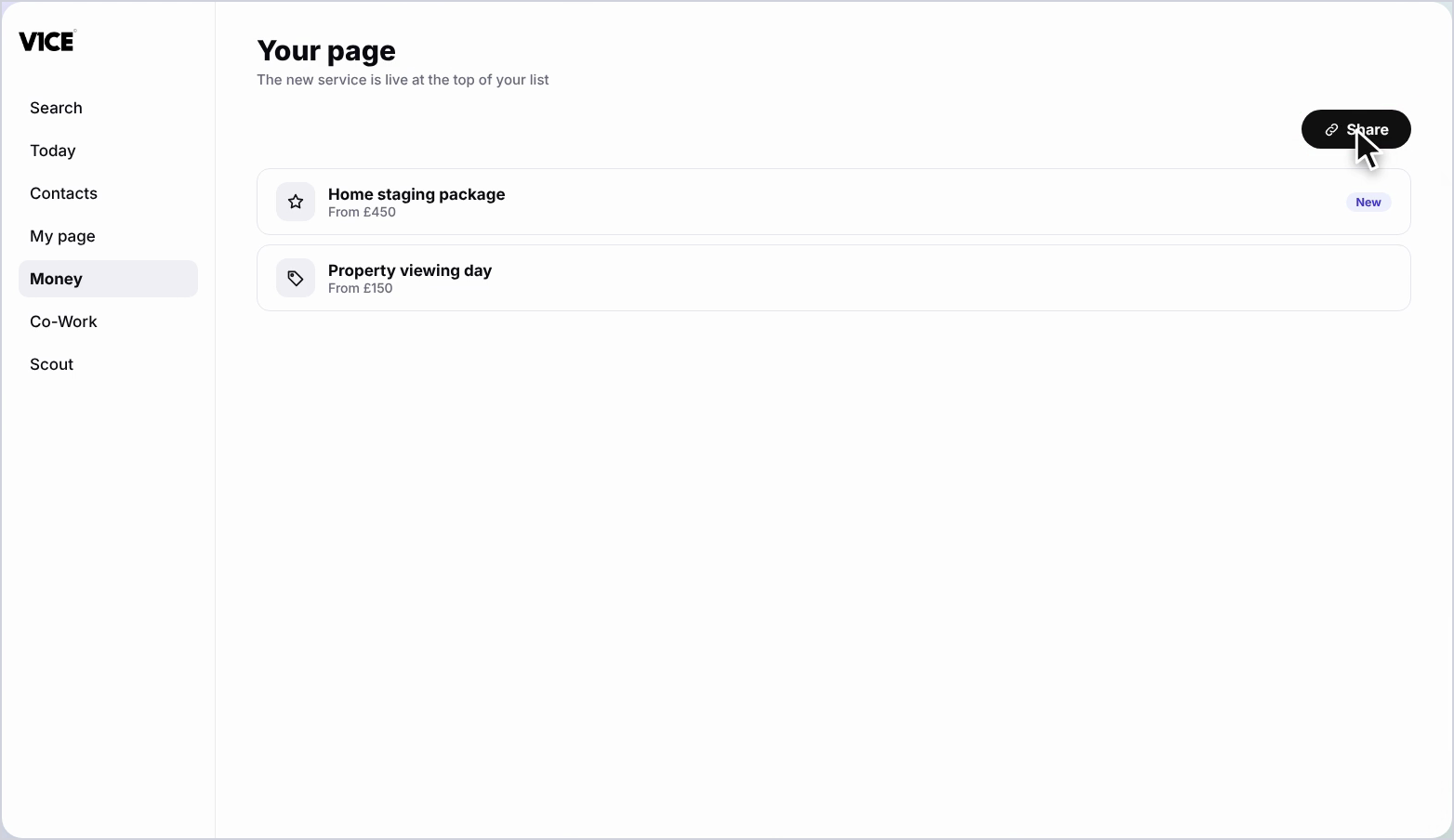
Step 8: Select Share
Select Share to copy the link, or send it straight to WhatsApp, email or social media.
Step 9: Use the QR code
Or share the QR code, perfect for flyers, listings and in-person conversations.
Good to know
- Pause a service any time without deleting it.
- Duplicate a service to build a variation quickly.
- Use the QR code on flyers and listings so people can find your service in one scan.
Frequently asked questions
How do I create a service with a price?
Select New service and tell Co-Work what it is called, who it is for and what it costs. Co-Work drafts the whole service for you.
Can I edit what Co-Work drafted?
Yes. Tap any line to edit it, and write your own welcome line for people who enquire.
How do I put a service on my page?
Press Publish and it appears on your page instantly, right at the top.
How can I share a service?
Select Share to copy the link, or send it to WhatsApp, email or social media. You can also share the QR code for flyers and listings.