How to view and manage orders and send receipts

To manage orders, open Money, then Orders. Every purchase lands there with its status and amount. Use the three dots to view details, send a receipt, refund or archive, and press Mark fulfilled once the service is done.
| Time needed | 1 minute |
|---|---|
| What you need | Your V1CE account |
| Where in the app | Money > Orders |
Video transcript and chapters
Chapters
0:00 Introduction
0:10 Open Orders
0:18 Use the three dots
0:23 View the timeline
0:30 Send a receipt
0:36 Check what your customer sees
0:42 Mark it fulfilled
0:48 You're done

Transcript
Orders is where every purchase from your page lands.
View an order, send a receipt and mark it fulfilled when the service is done.
Open money then orders.
Every purchase lands here with its status and amount, plus your revenue for the period.
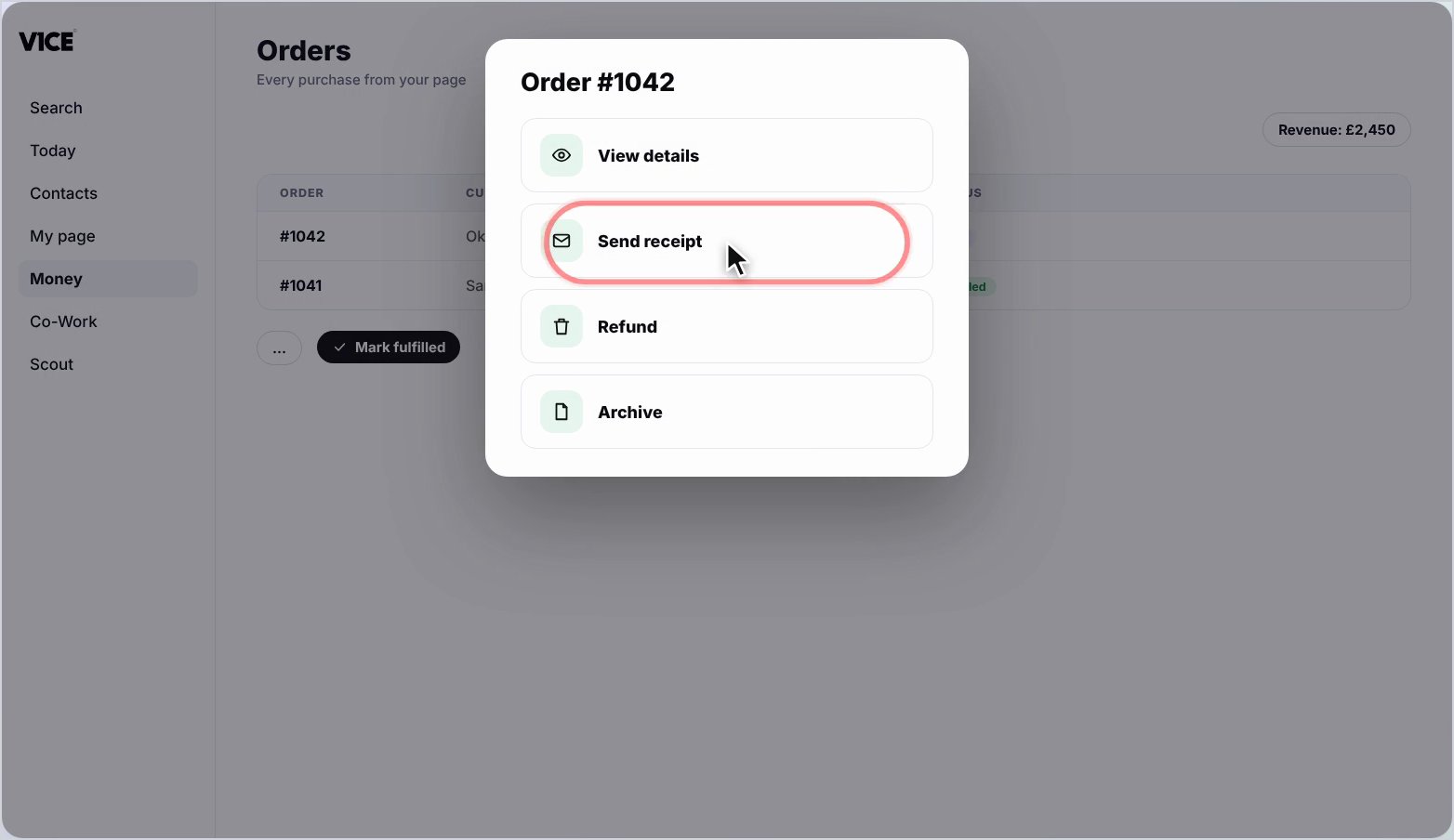
Press the three dots to view details, send a receipt, refund or archive.
View details shows the full timeline.
Order created, payment received, receipts emailed.
To send a receipt, press the three dots, then send receipt.
A confirmation appears once it's gone.
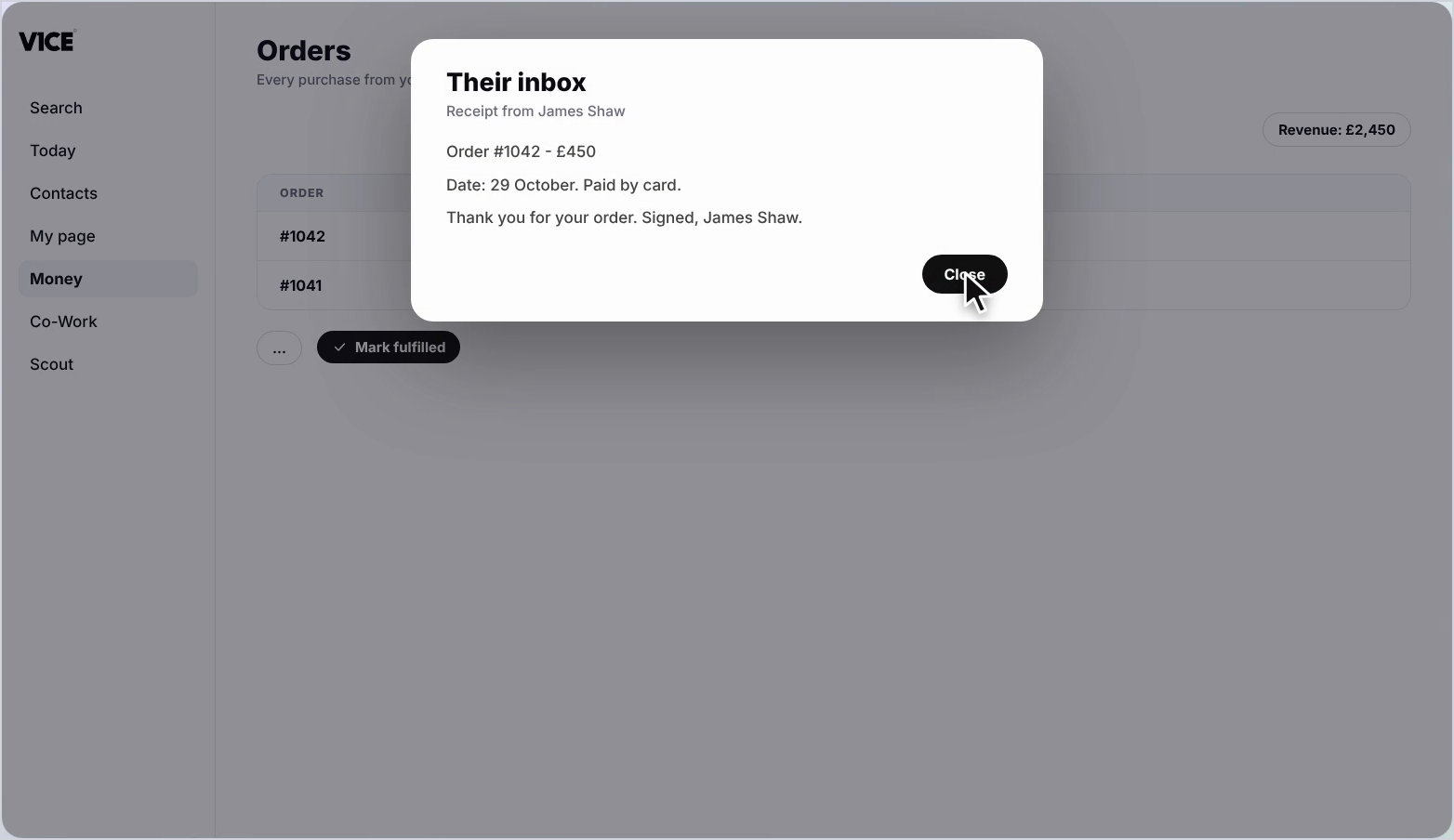
Your customer gets the receipt in their inbox with the order number, amount and date.
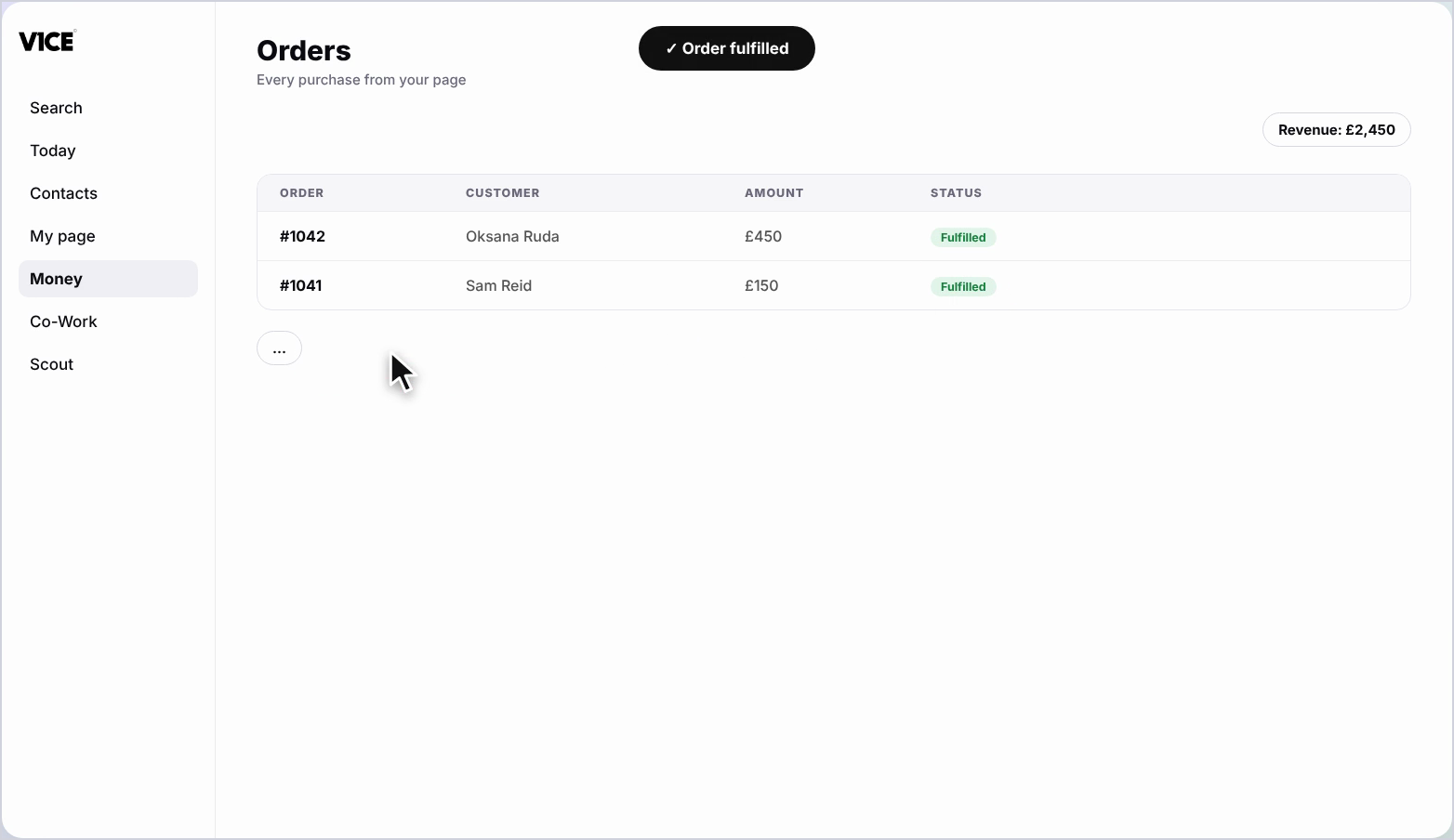
Once you've completed the service, press mark fulfilled.
The order now shows as fulfilled.
That's orders.
Every purchase tracked from payment to done.
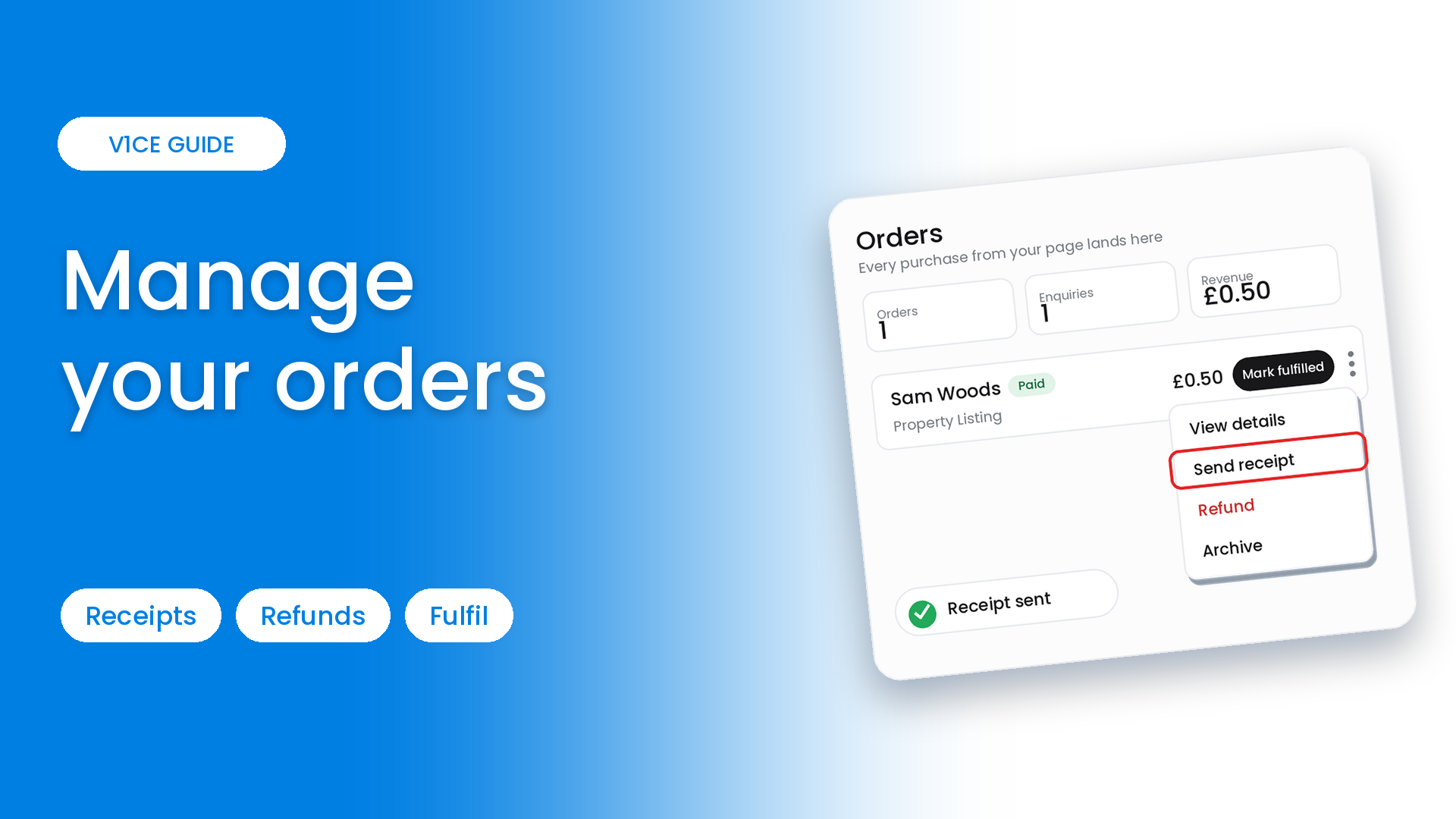
Orders is where every purchase from your page lands, with its status and amount.
View an order, send a receipt, and mark it fulfilled when the service is done.
Watch the video
Find your orders
Step 1: Open Orders
Select Money in the left menu, then choose Orders. Every purchase lands here with its status and amount.
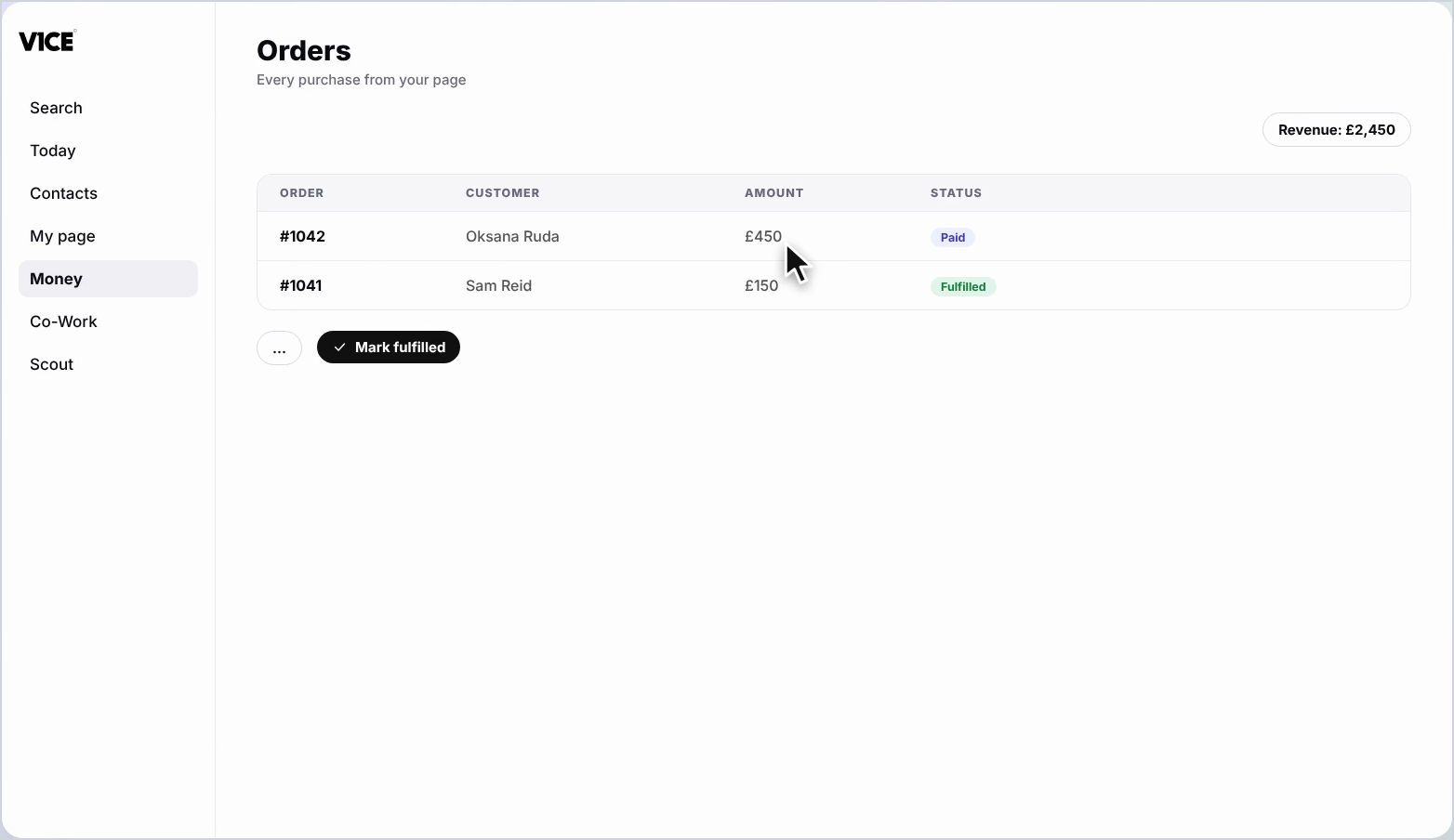
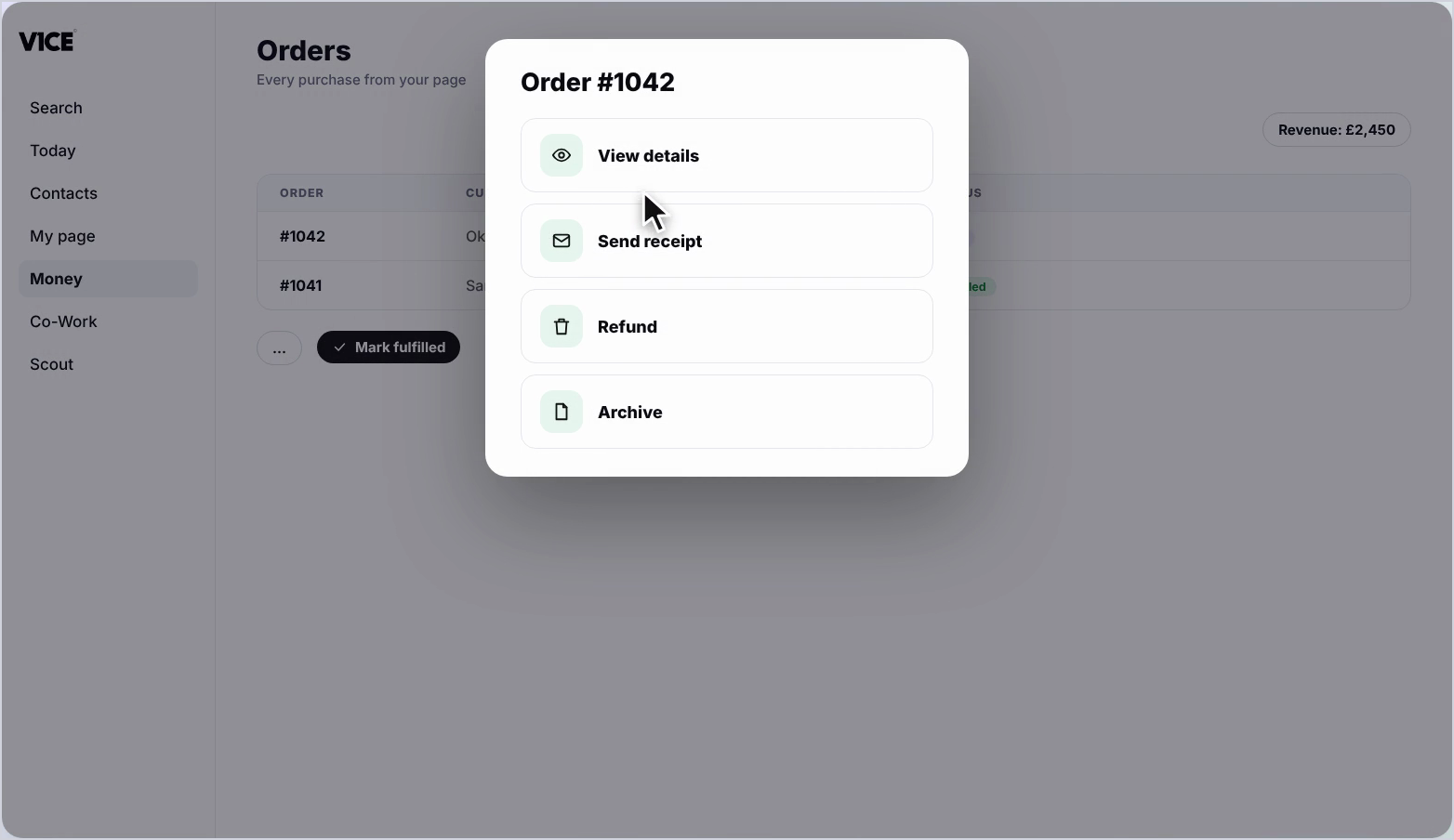
Step 2: Use the three dots
Select the three dots on an order to view details, send a receipt, refund, or archive.
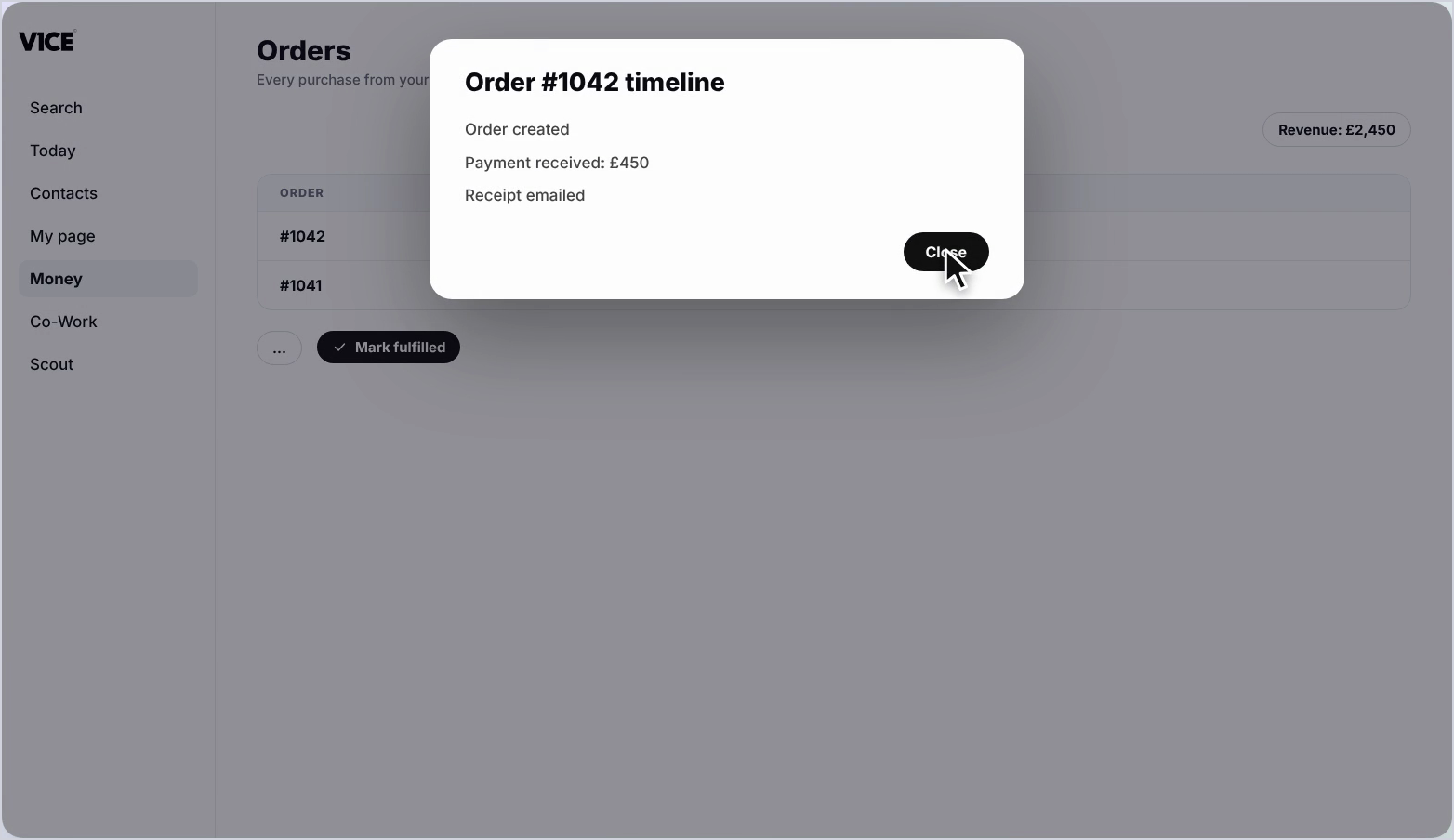
Step 3: View the timeline
View details shows the full timeline: order created, payment received, receipts emailed.
Send a receipt
Step 4: Choose Send receipt
Select the three dots, then Send receipt. A confirmation appears once it has gone.
Step 5: Check what your customer sees
Your customer gets the receipt in their inbox, with the order number, amount and date.
Mark it fulfilled
Step 6: Select Mark fulfilled
Once you have completed the service, select Mark fulfilled.
Step 7: See the new status
The order now shows as Fulfilled.
Good to know
- The timeline shows every step, from order created to receipt emailed.
- You can resend a receipt at any time from the three dots menu.
- Archive an order to keep your list tidy without deleting it.
Frequently asked questions
Where do I see my orders?
Open Money, then Orders. Every purchase from your page lands there with its status and amount.
What can I do from the three dots?
View details, send a receipt, refund or archive an order.
What does the order timeline show?
View details shows the full timeline: order created, payment received and receipts emailed.
How do I mark an order done?
Once you have completed the service, press Mark fulfilled. The order then shows as fulfilled.