How to create and share a booking link

To manage booking links, open Contacts, then Bookings. Upcoming shows your meetings, Booking insights shows how links perform, and Settings holds your calendar and hours. To make a new link, select New booking link and tell Co-Work what kind of call you want.
| Time needed | 2 minutes |
|---|---|
| What you need | Your V1CE account |
| Where in the app | Contacts > Bookings |
Video transcript and chapters
Chapters
0:00 Introduction
0:10 Open Bookings
0:15 See your upcoming meetings
0:23 Open a booking
0:35 Check Booking insights
0:43 Open Settings
0:48 Your booking links
0:59 Create a new link
1:16 You're done

Transcript
Booking links let people pick a time with you without the back and forth.
Create a link, share it and every booking lands in your calendar.
Open contacts in the side menu, then choose bookings.
Upcoming shows every booking coming up with the person, the topic and the time.
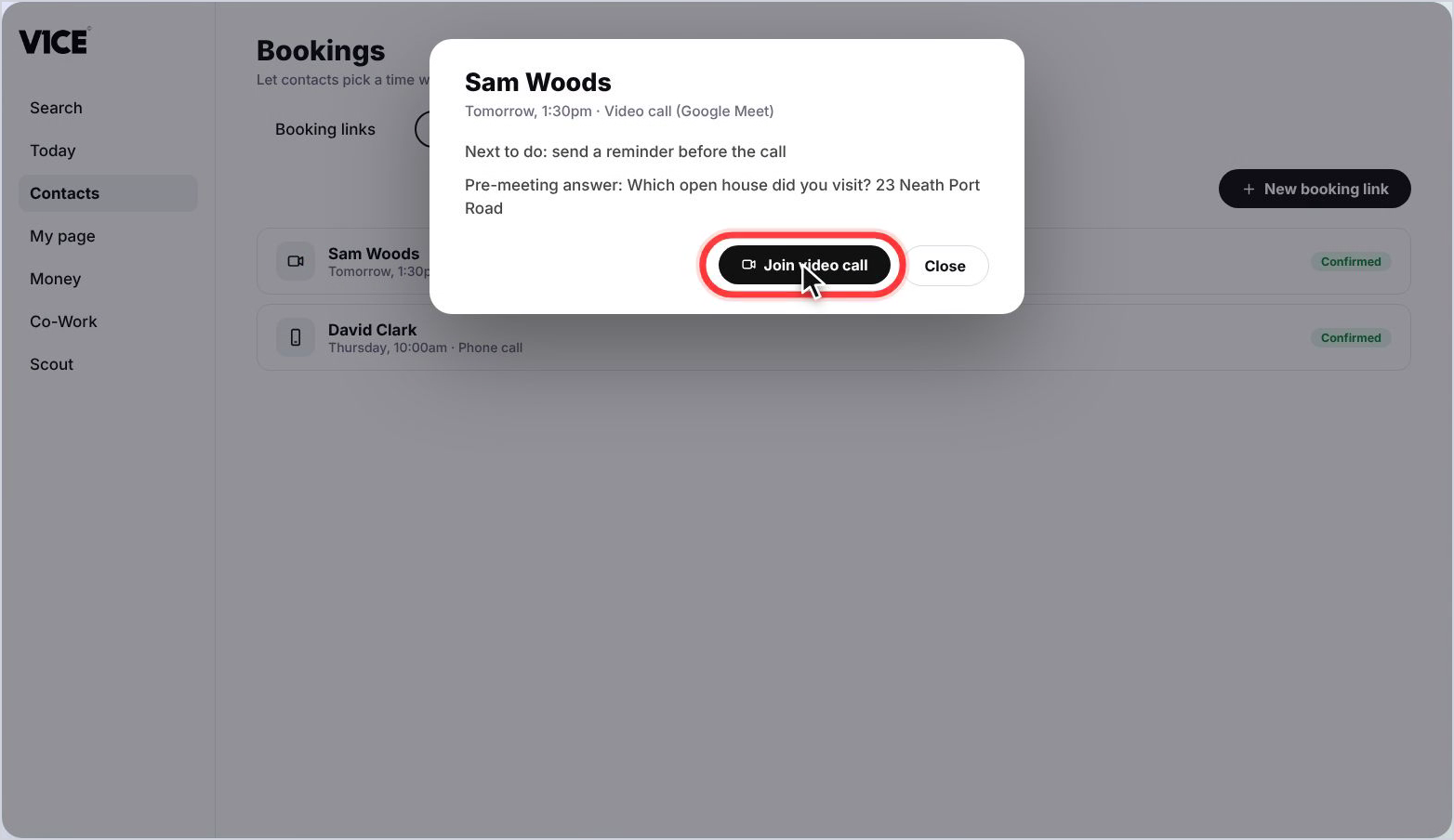
Select a booking to open it.
From here you can join the video call, change the link or cancel the booking.
Their answers to your questions sit underneath.
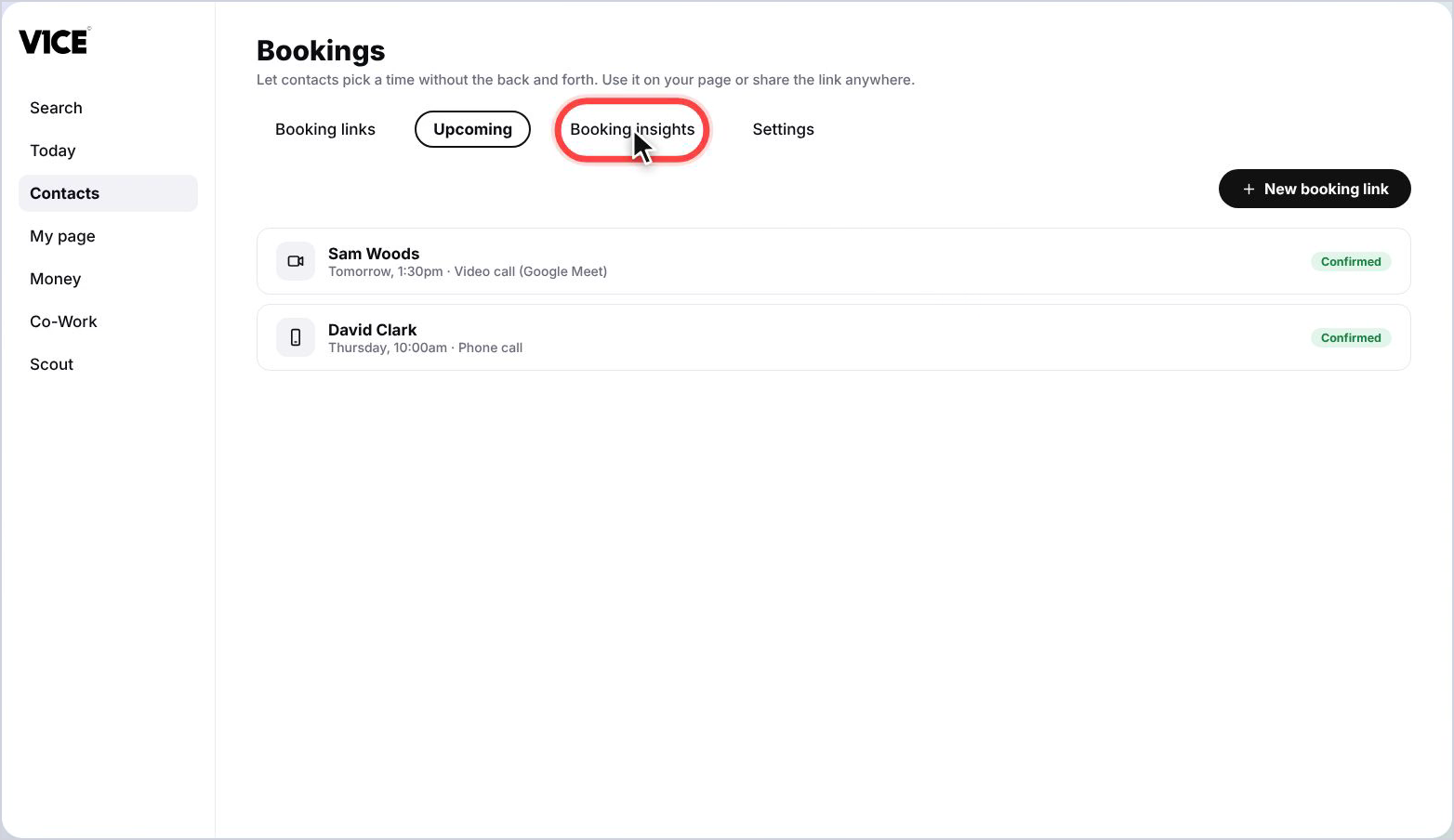
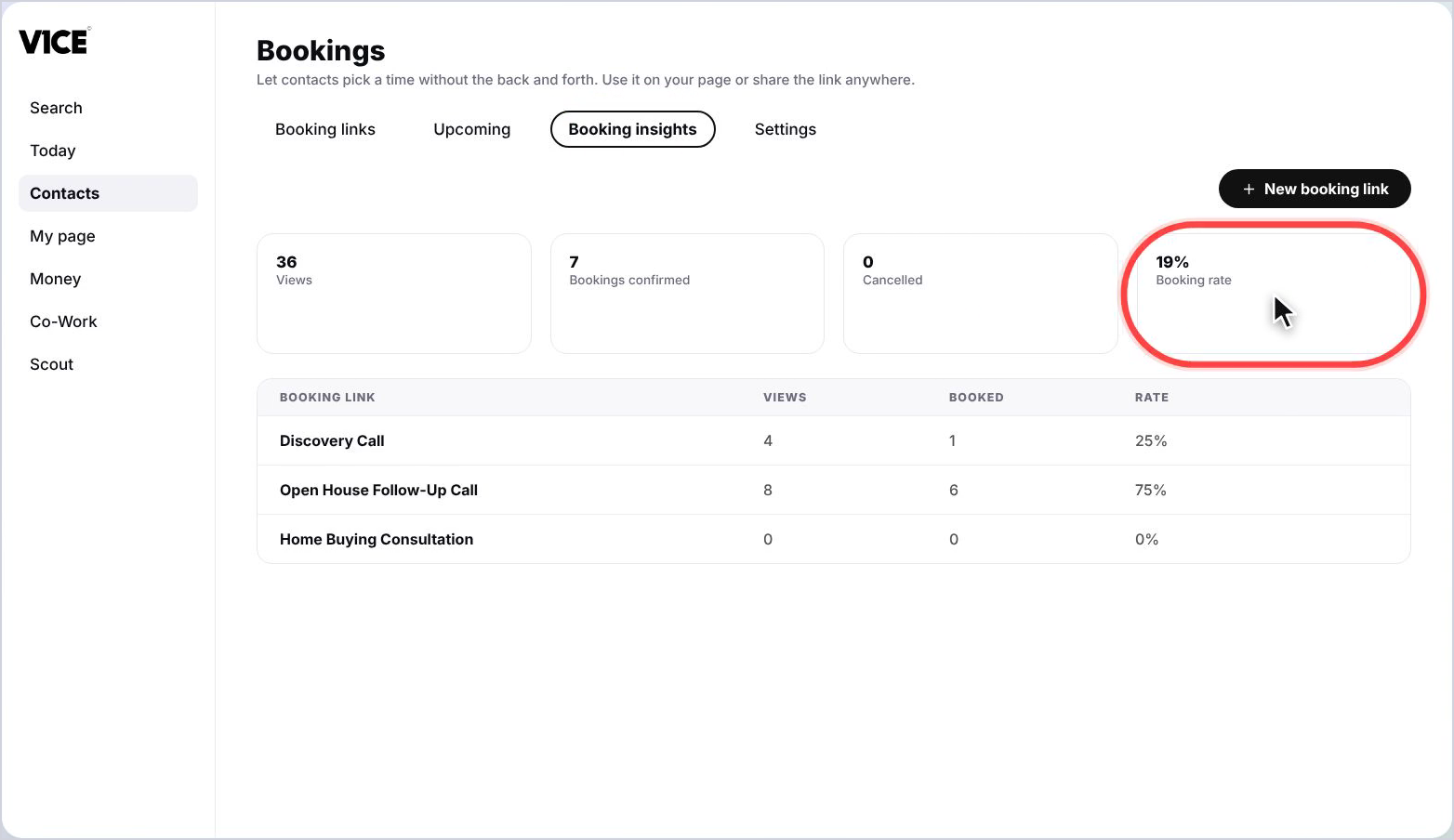
Booking insights shows how your links are performing.
See how many views turned into bookings and which link works best.
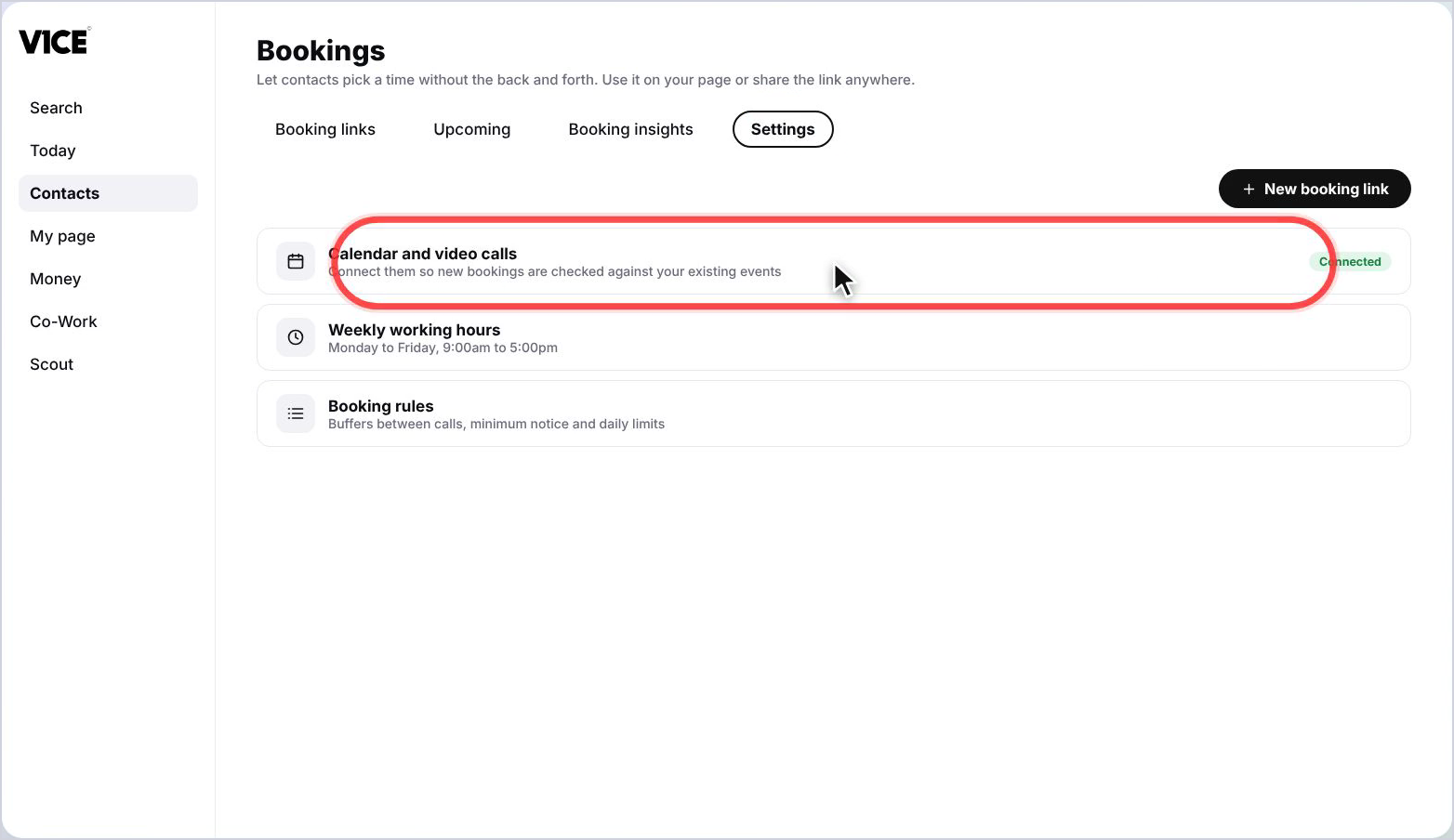
Settings holds your calendar, your weekly hours and time off.
Booking links is where every link you've made lives.
Each card shows the link as your contacts will see it, with views, bookings and your booking rate underneath.
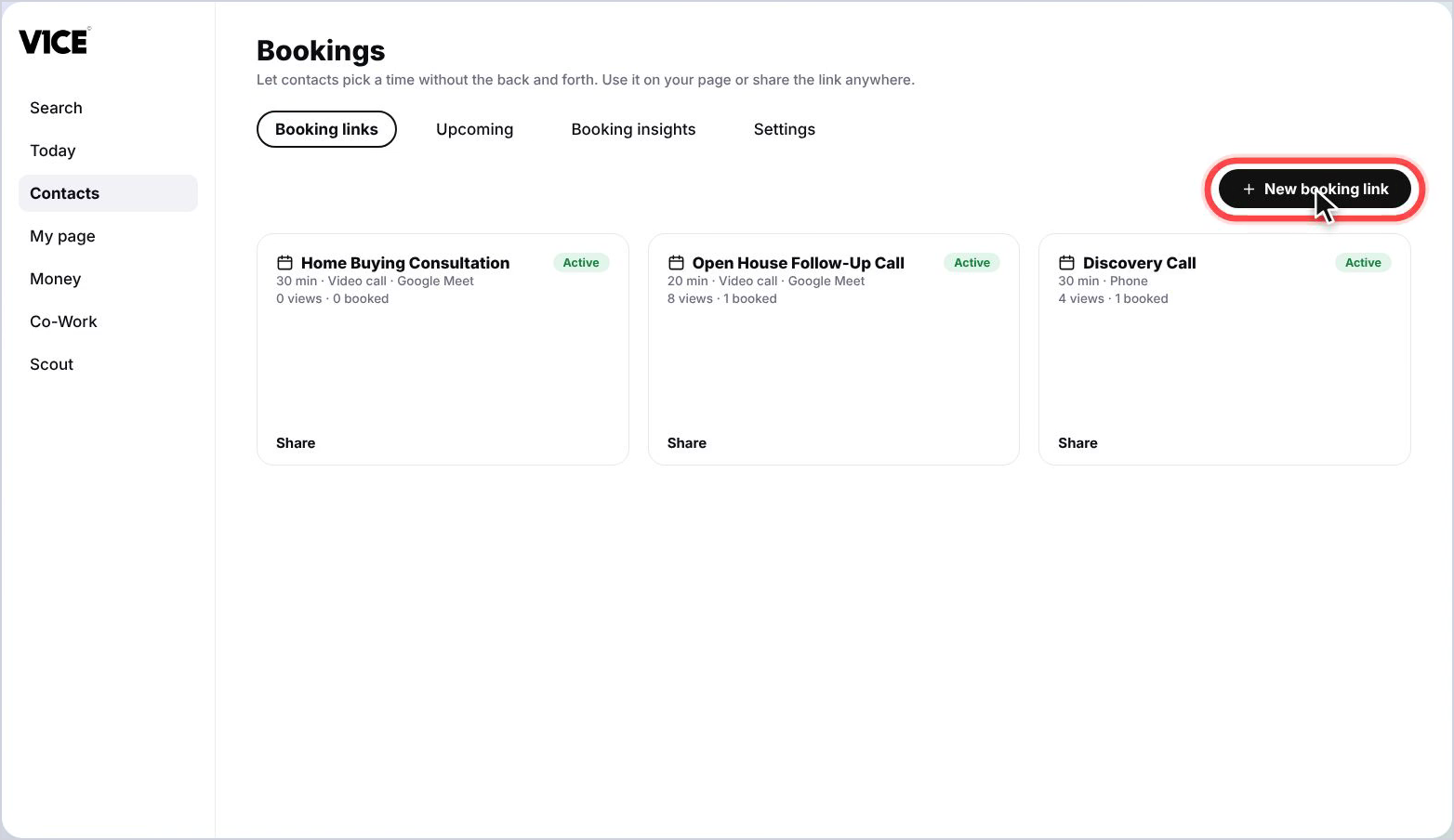
To make a new one, select new booking link.
Co-Work asks what kind of call you want, pick one or choose something else.
Or just describe it in your own words.
Your booking page builds on the right as you go.
That's booking links.
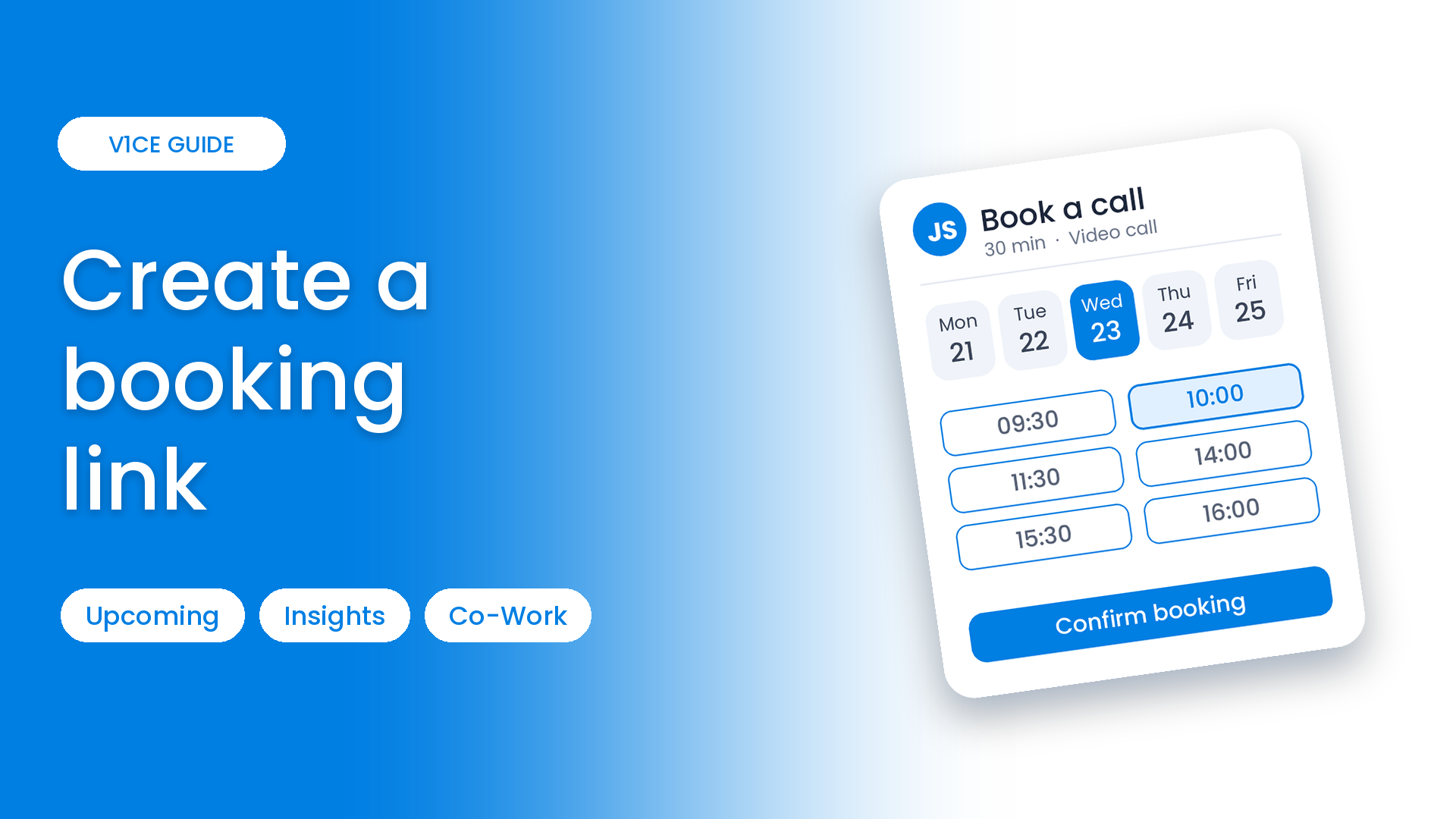
Booking links let contacts pick a time that suits them, straight from your page or a link you share, with no back and forth. Each link shows how often it has been viewed and booked, so you can see what is working.
You can see your upcoming meetings, check your booking insights and set your working hours, then ask Co-Work to build a new link in seconds and share it as a link, a QR code or an embed.
Watch the video
Find your booking links
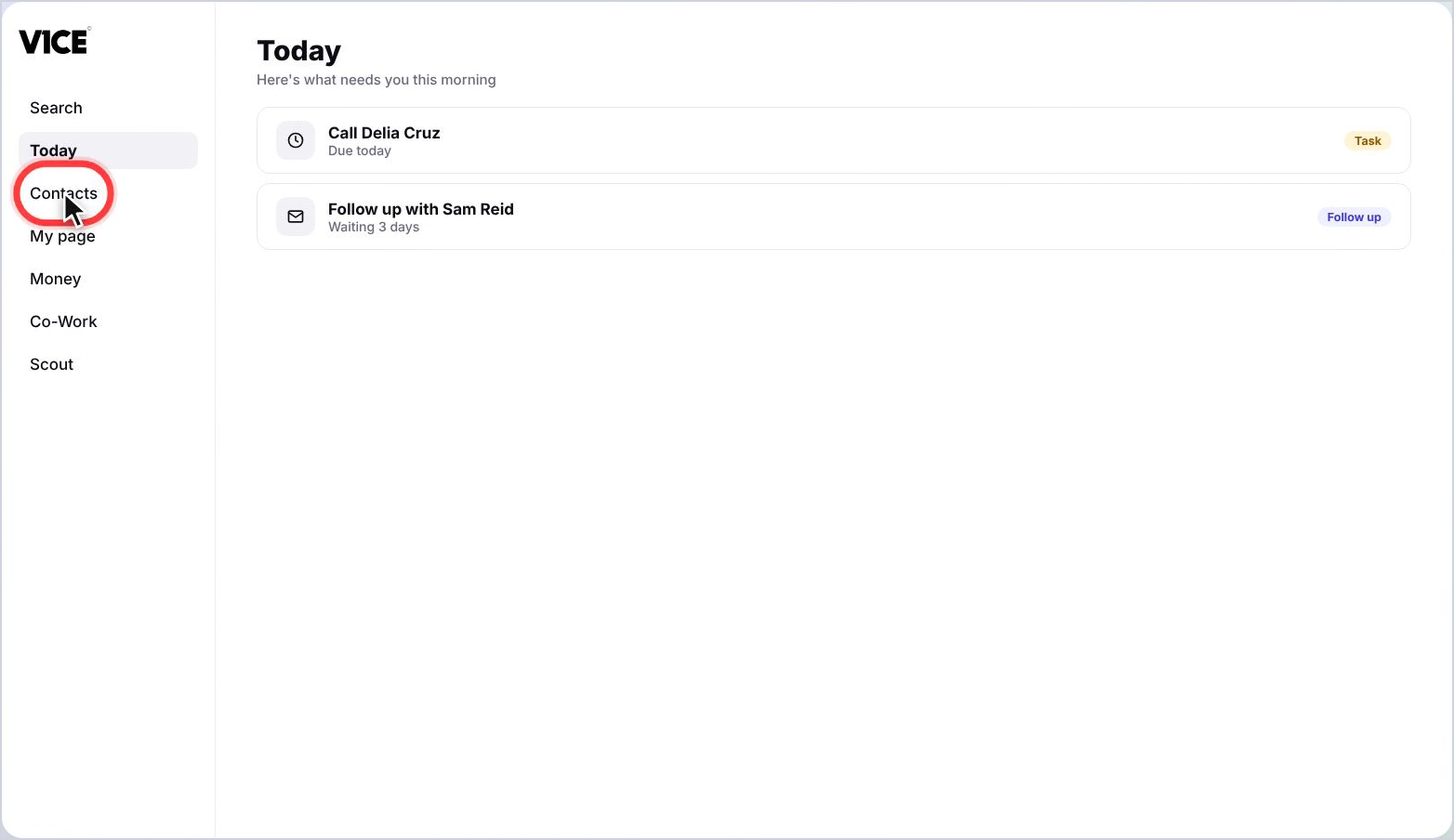
Step 1: Open Contacts
Select Contacts in the left menu.
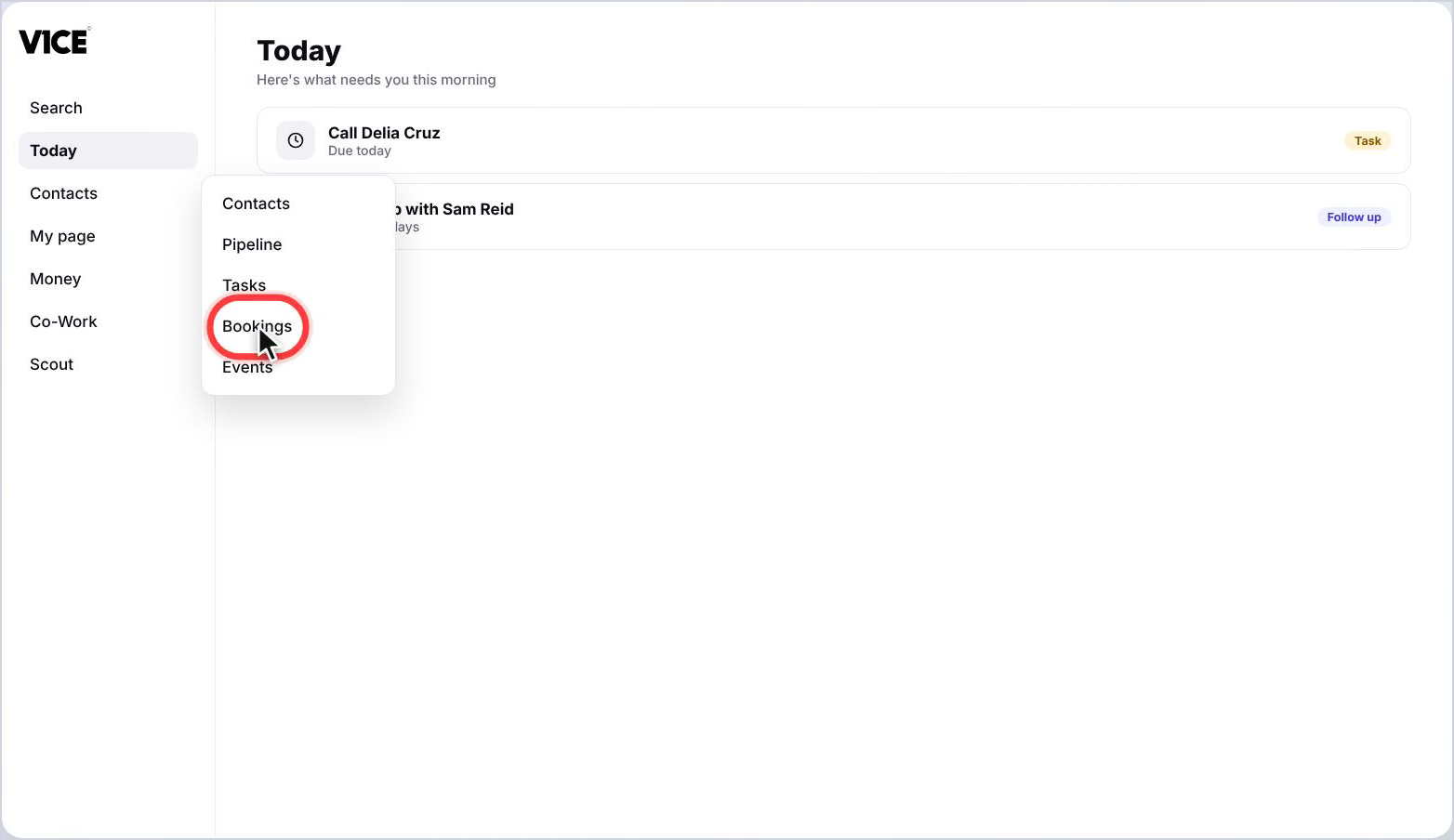
Step 2: Choose Bookings
Select Bookings from the menu that opens.
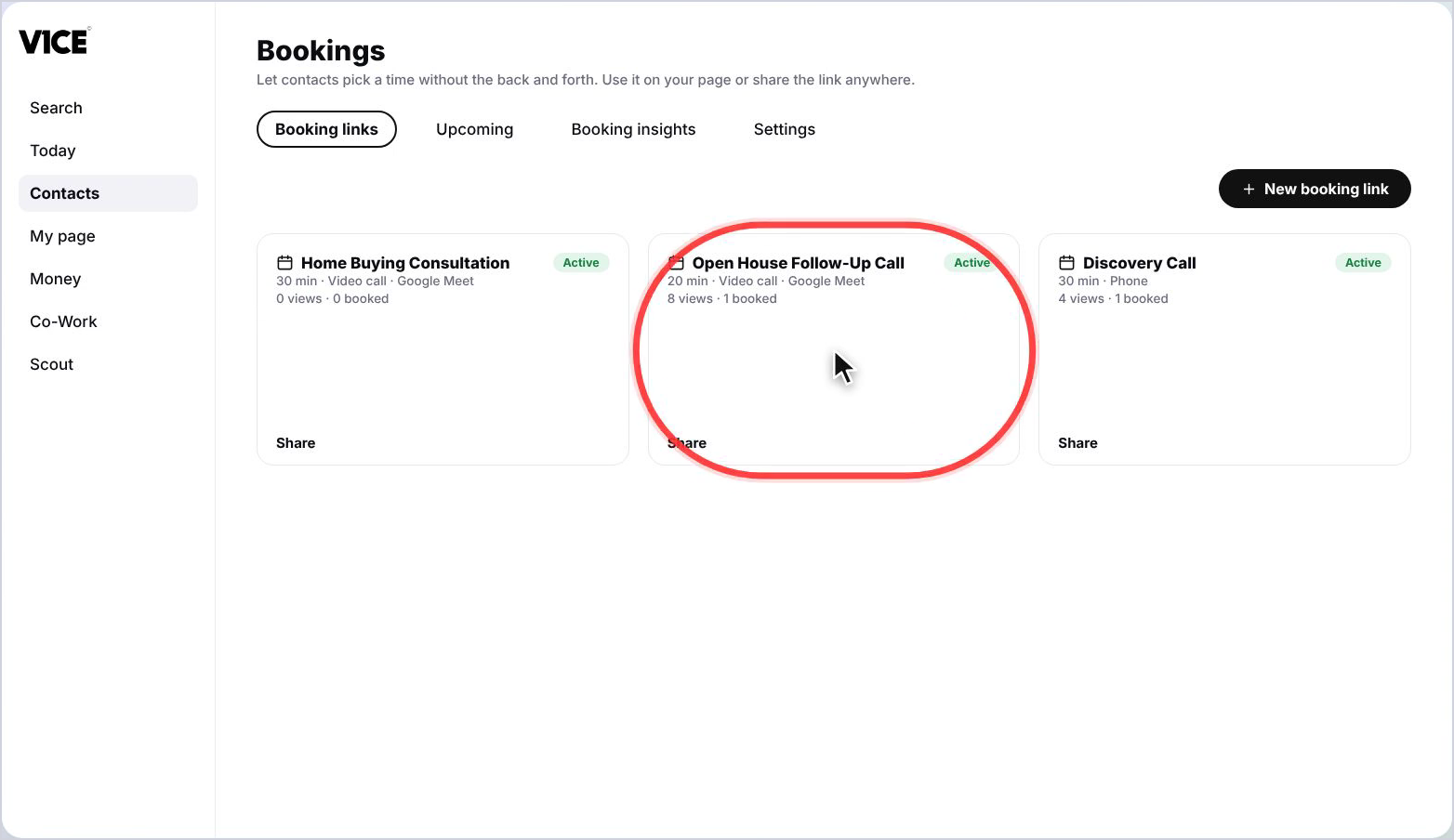
Step 3: See your booking links
Your booking links live here, each with its views and bookings.
Check your meetings, insights and settings
Step 4: Open Upcoming
Select Upcoming to see your confirmed meetings.
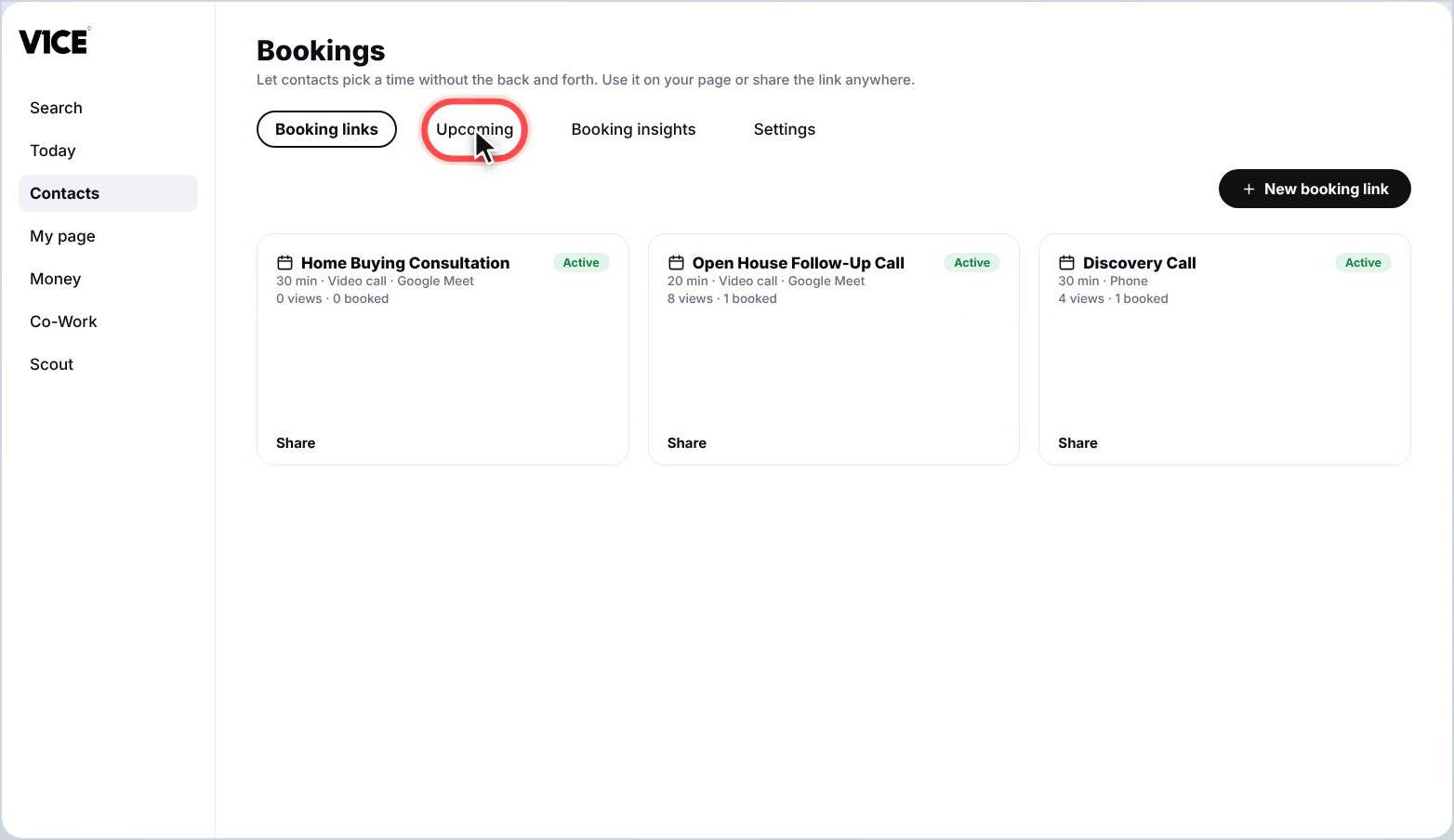
Step 5: Open a meeting
Select a meeting to open it.
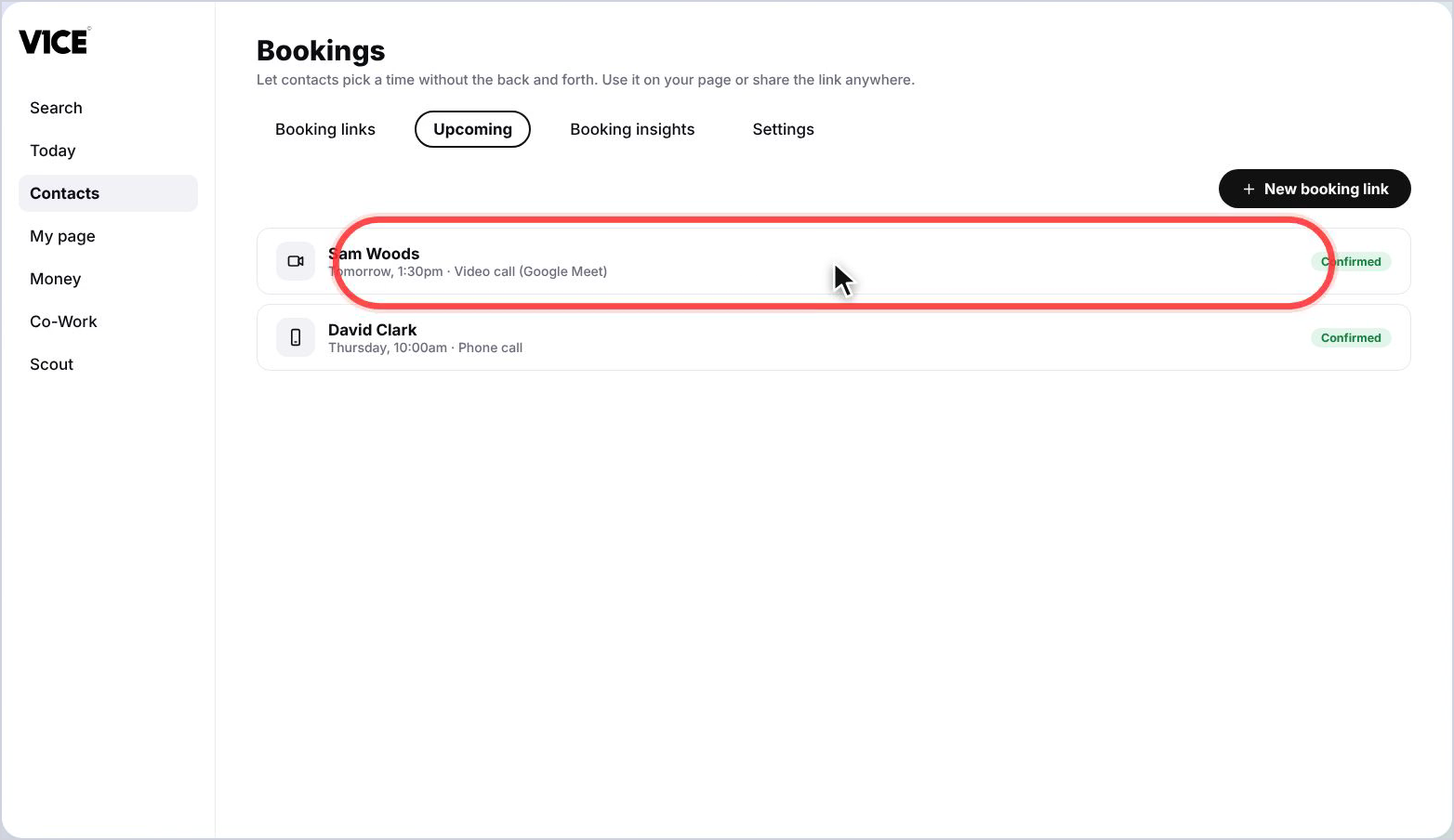
Step 6: Join the call
From here you can join the video call, or send Co-Work in to take notes.
Step 7: Open Booking insights
Select Booking insights to see how your links are performing.
Step 8: Read your numbers
See your views, bookings confirmed and booking rate, with a breakdown by link.
Step 9: Check your settings
In Settings, connect your calendar, set your working hours and choose your booking rules.
Create a new booking link with Co-Work
Step 10: Select New booking link
Go back to Booking links and select New booking link. Co-Work opens and asks a few quick questions.
Step 11: Answer in your own words
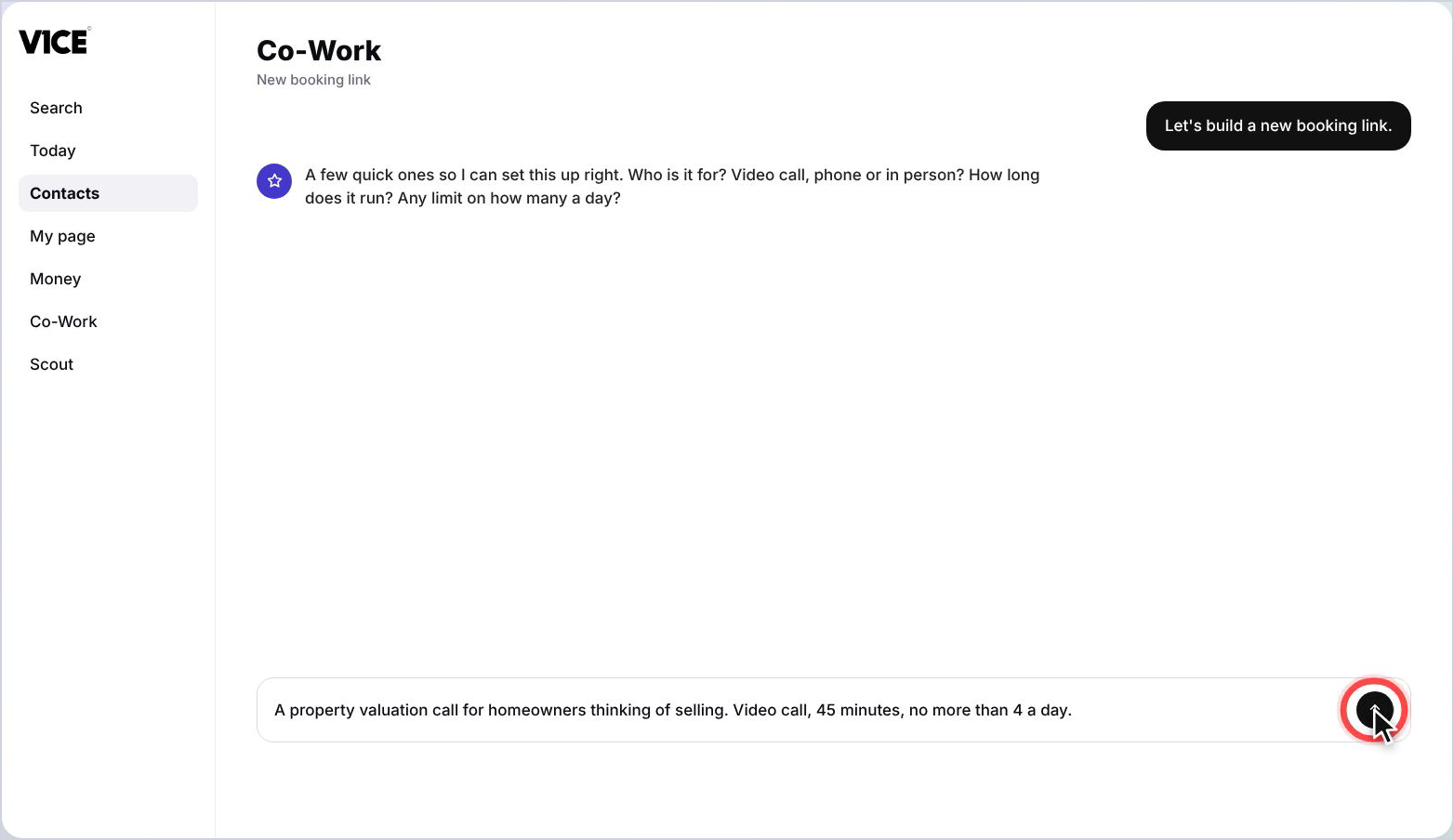
Say who it is for, how the meeting happens, how long it runs and any limit. Here, a property valuation call.
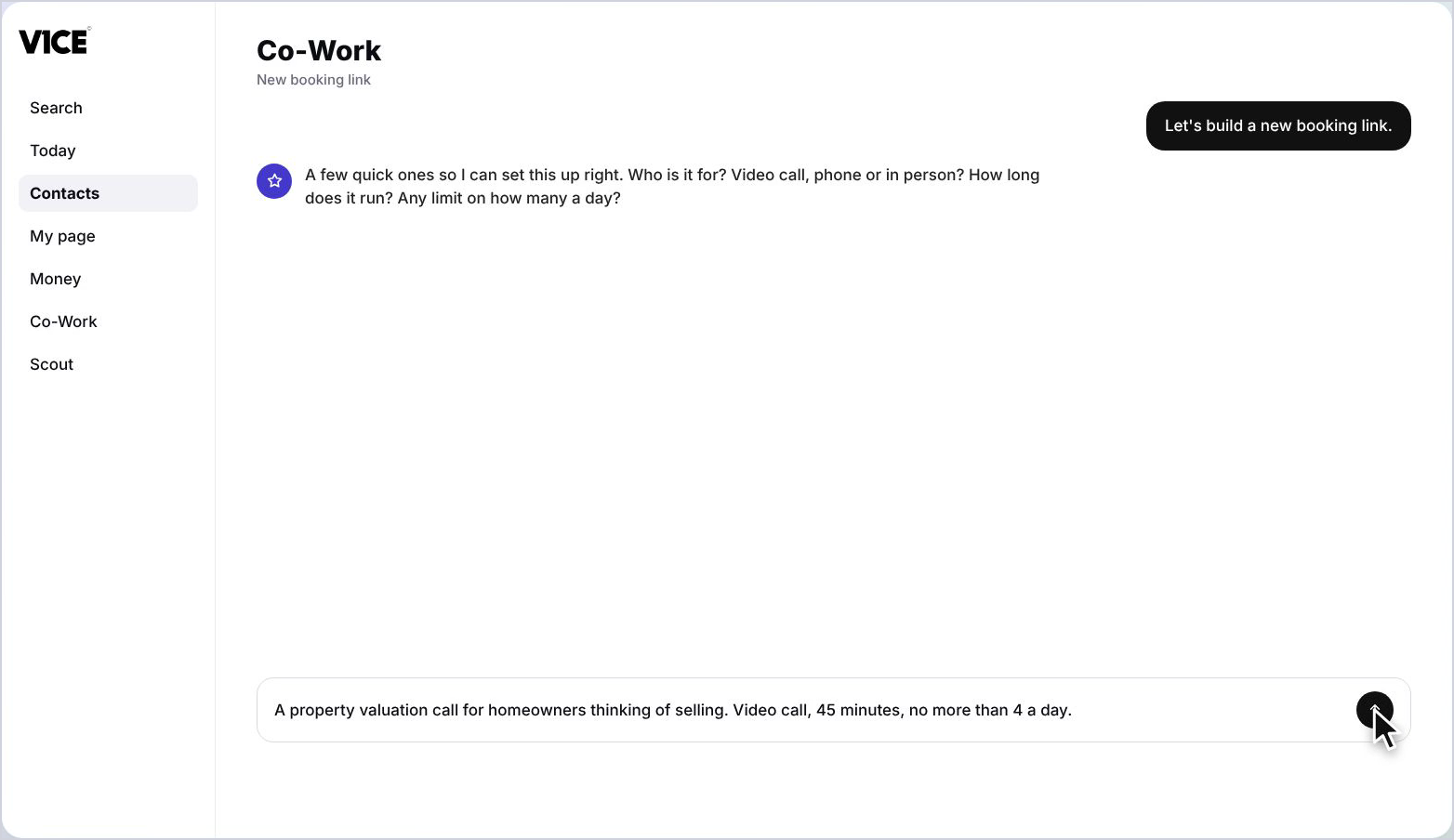
Step 12: Send it
Press send and Co-Work builds the booking page for you.
Step 13: Open your booking links
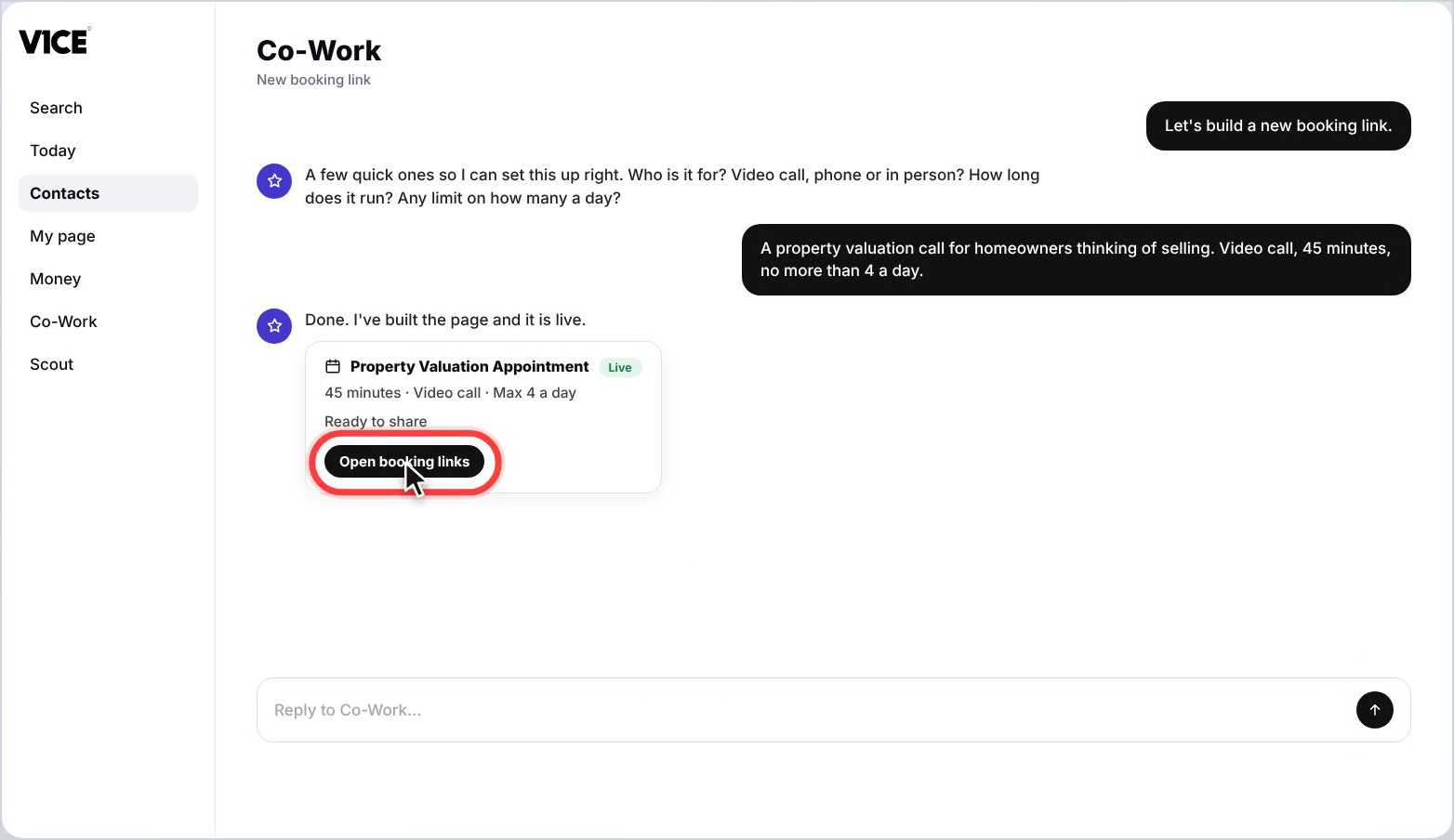
Your new link is live. Select Open booking links.
Share your link
Step 14: Select Share
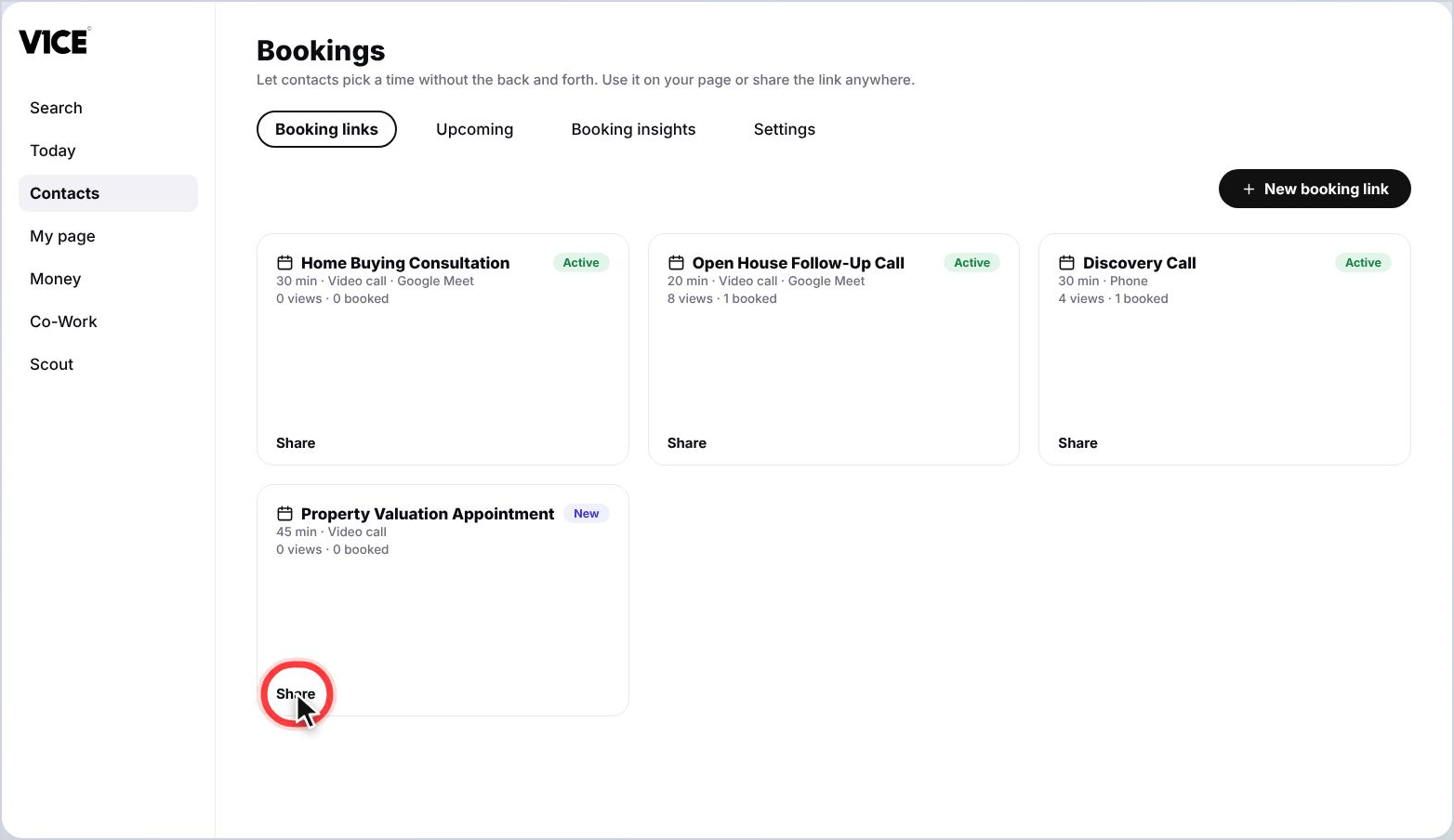
Your new link now sits with the rest. Select Share.
Step 15: Copy the link
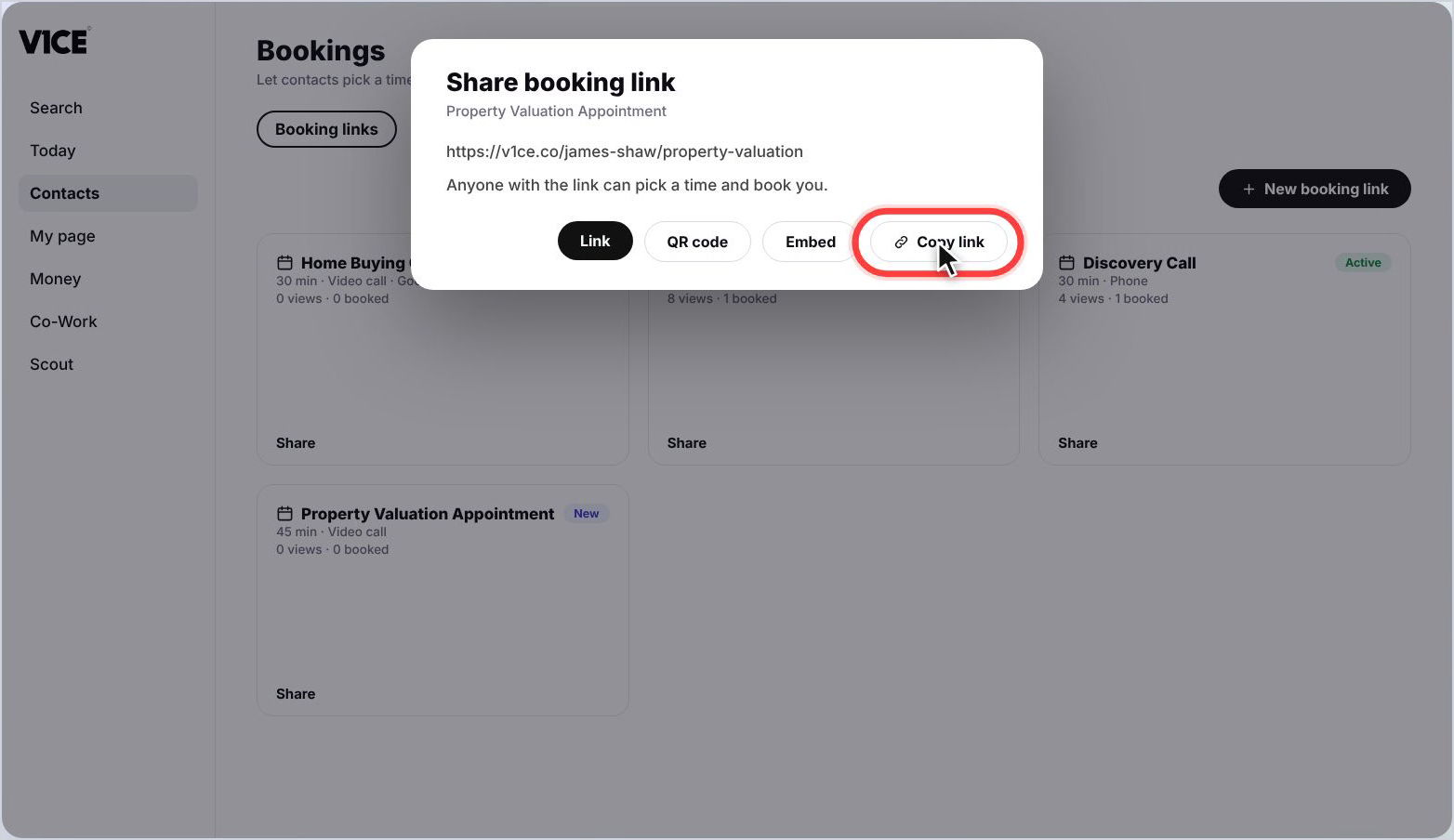
Copy the link to send it anywhere.
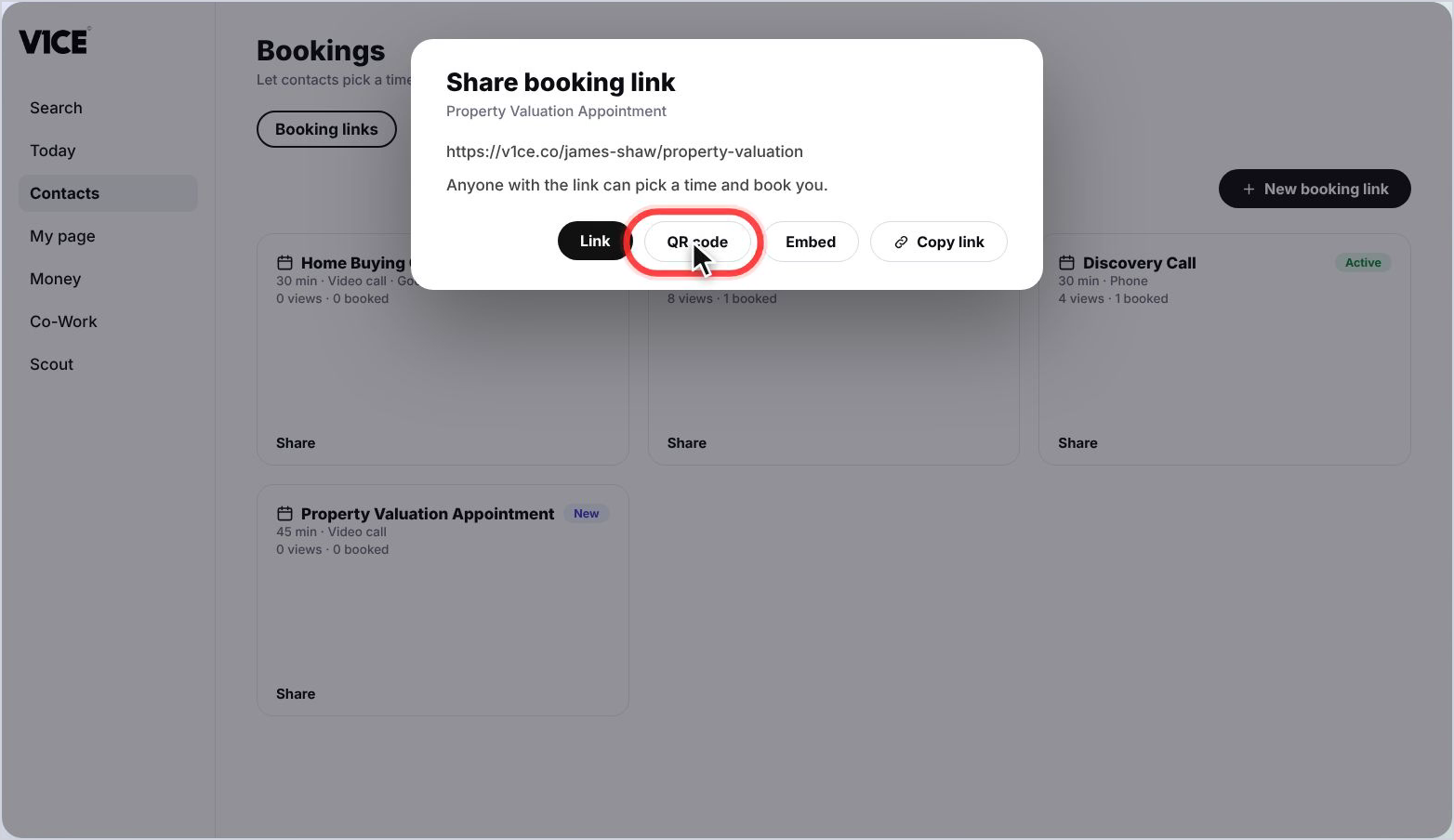
Step 16: Use the QR code
Select QR code so people can scan it to book.
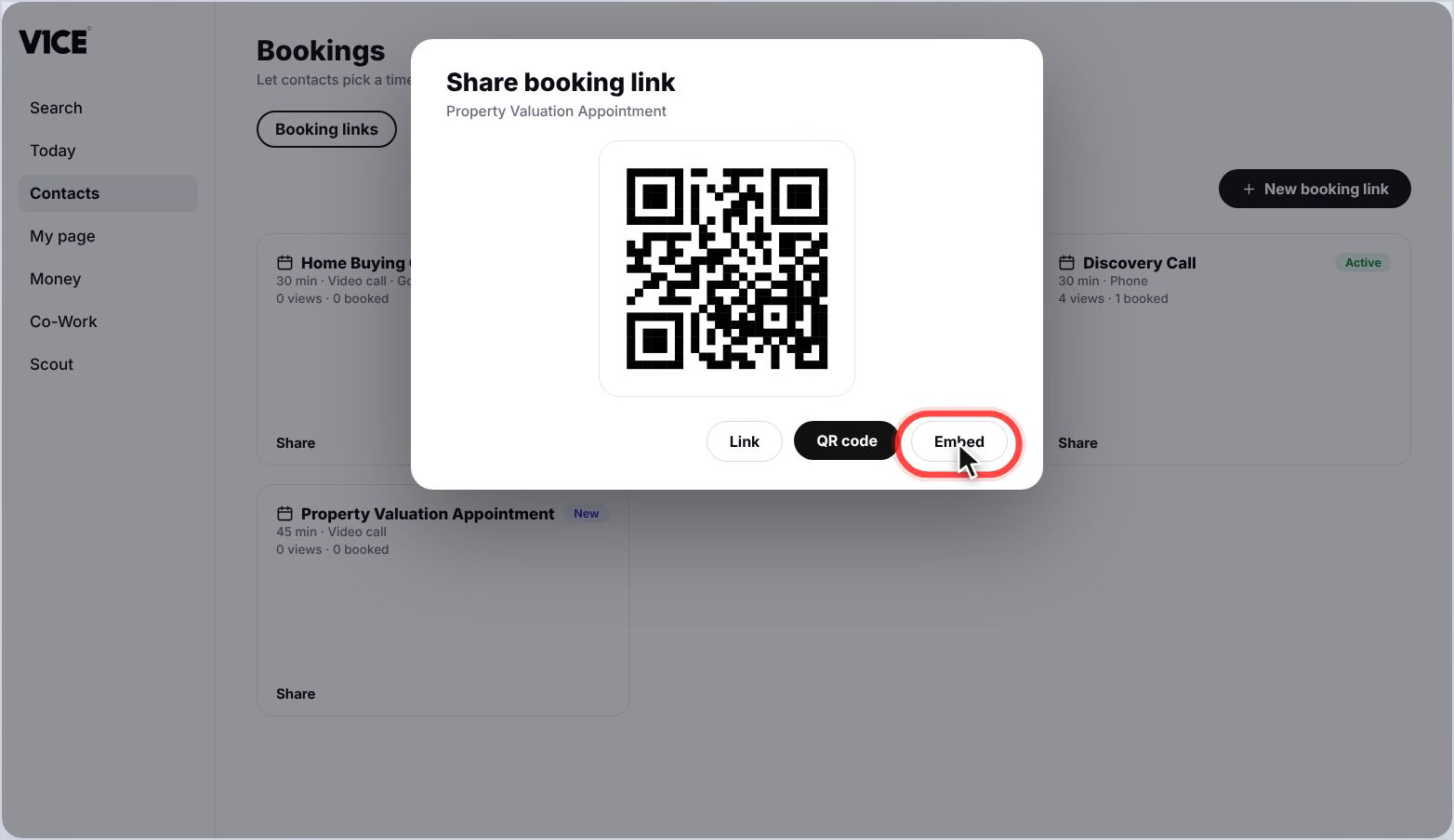
Step 17: Choose Embed
Select Embed to put your booking page on your website.
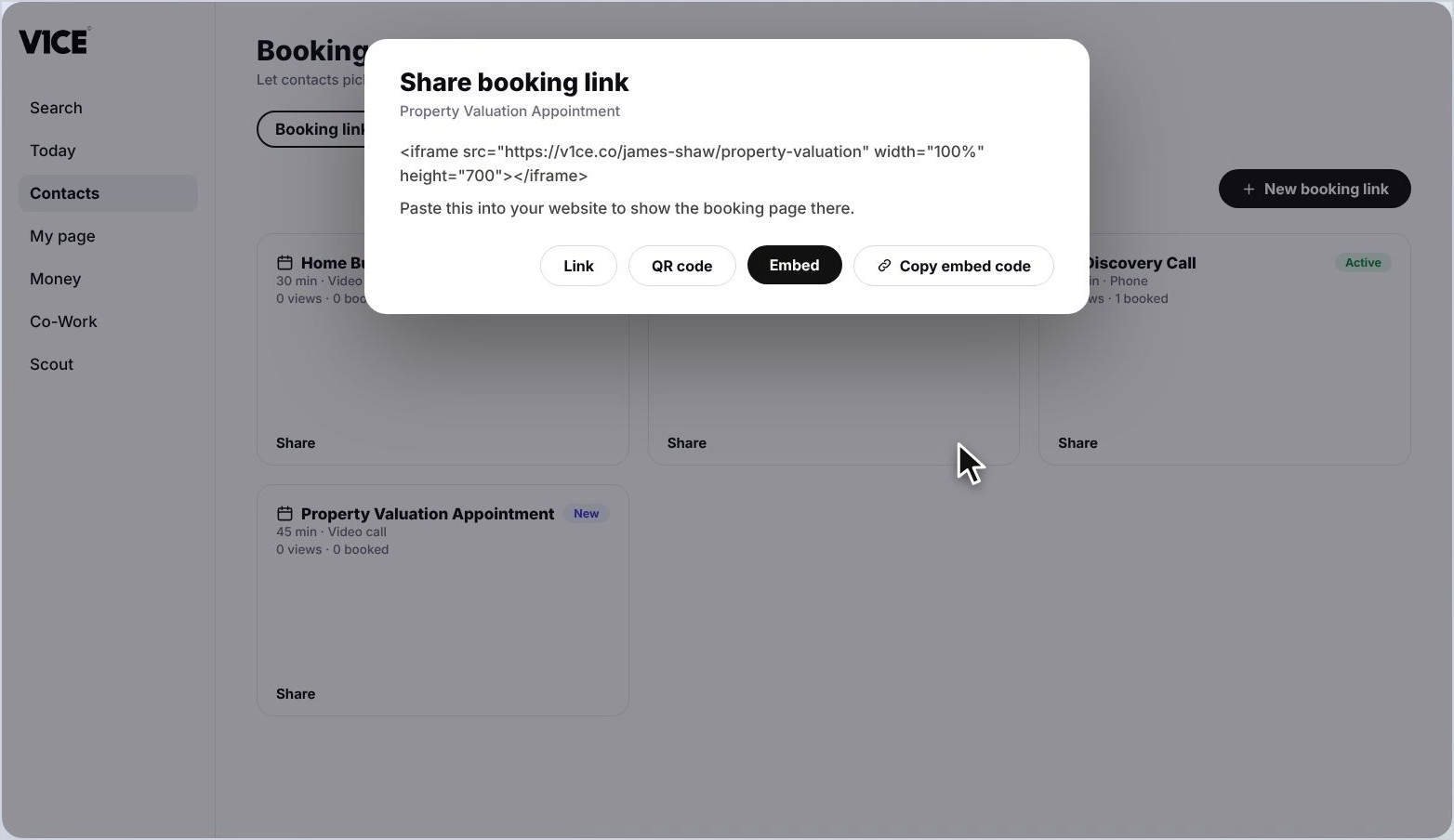
Step 18: Copy the embed code
Select Copy embed code, then paste it into your website. Your booking page appears there.
Good to know
- Each booking link shows its own views and bookings, so you can see which ones work.
- Connect your calendar in Settings so new bookings are checked against your existing events.
- Share a link, a QR code or an embed, whichever suits where your contacts are.
Frequently asked questions
Where do I find my booking links?
Open Contacts, then choose Bookings. Your booking links live there, each with its views and bookings.
How do I create a new booking link?
Select New booking link. Co-Work asks what kind of call you want. Pick one, or describe it in your own words, and your booking page builds on the right as you go.
Where do I see my upcoming meetings?
In Bookings, select Upcoming. It shows every booking coming up with the person and the time. Select a booking to open it, join the call or change the link.
How do I see which link works best?
Booking insights shows how your links are performing: how many views turned into bookings, and which link works best.