How to add reviews to your page

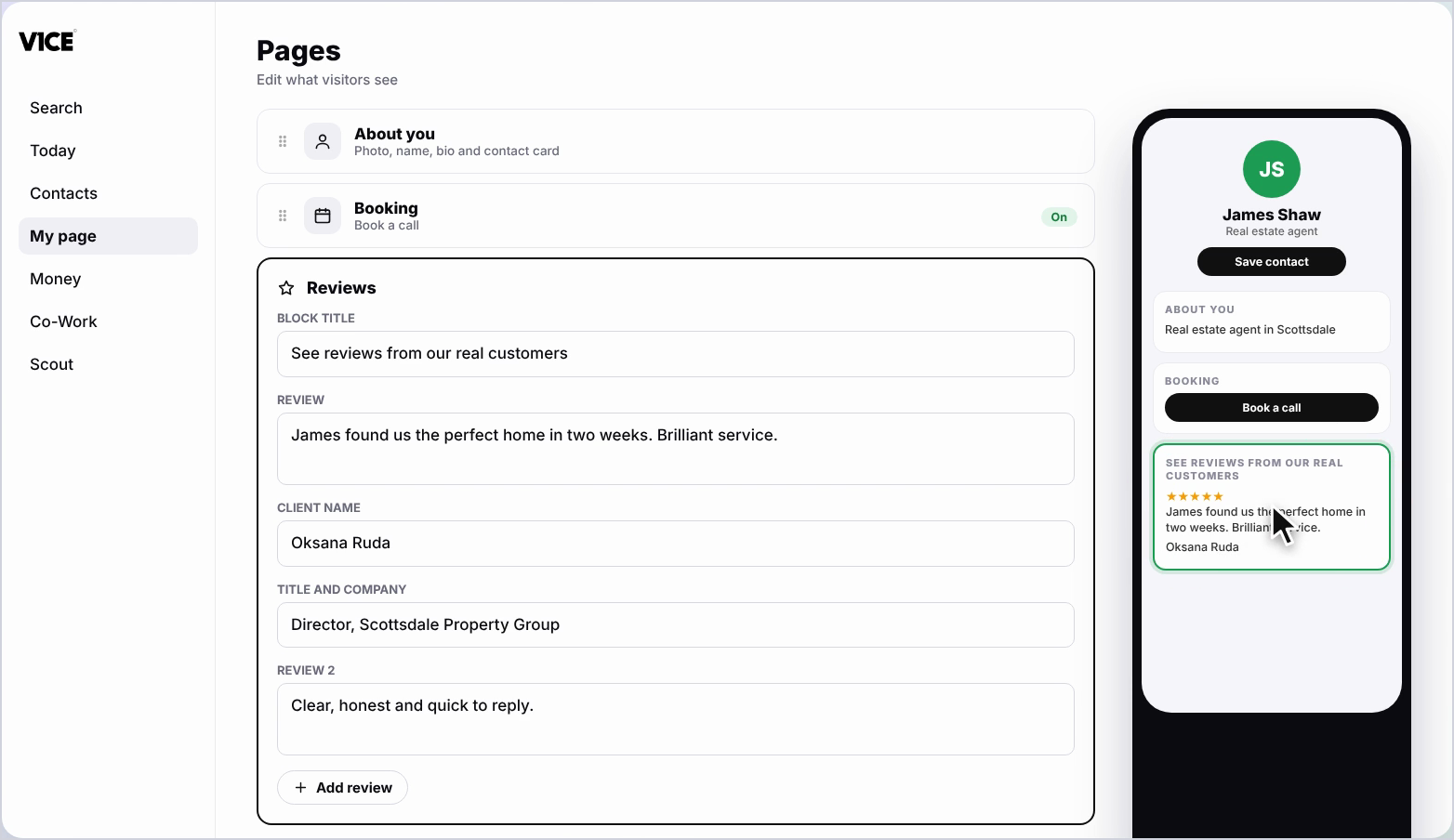
To add reviews, open My page, then Pages, click Add a block and choose Reviews. Give the block a title, type in each review as your client wrote it, add their name, title and company, and click Add review for more.
| Time needed | 1 minute |
|---|---|
| What you need | Your V1CE account and your customer reviews |
| Where in the app | My page > Pages > Add a block > Reviews |
Video transcript and chapters
Chapters
0:00 Introduction
0:09 Open My page
0:16 Find Reviews
0:19 Give the block a title
0:24 Type in the review
0:27 Add the client's details
0:31 Add another review
0:37 See it on your page
0:40 You're done

Transcript
Show customer reviews on your V1CE page.
Add a Reviews block, then type each review with the client's details.
Open my page, then Pages.
Scroll to the bottom of your page and click Add a block.
Find reviews in the list and click it.
Give the block a title, like See Reviews from Our Real Customers.
Type in the review, just as your client wrote it.
Add the client's name along with their title and company.
To add another review, click Add Review and repeat for each one you'd like to show.
Your reviews now show on your page.
That's how to add reviews to your page.
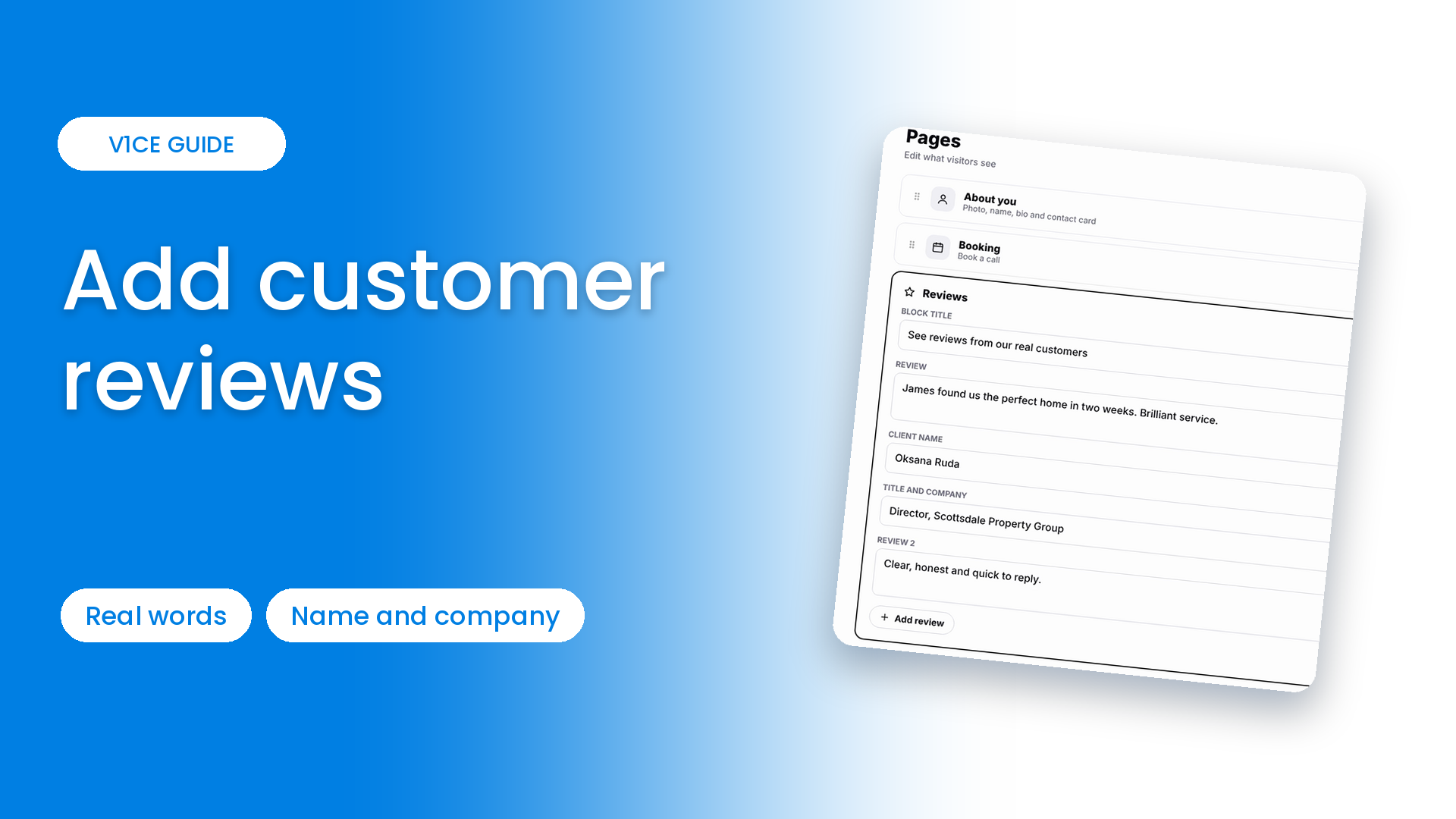
Show customer reviews on your V1CE page.
Add a Reviews block, then type each review with the client's details.
Watch the video
Follow the steps
Step 1: Open My page
Open My page, then Pages.
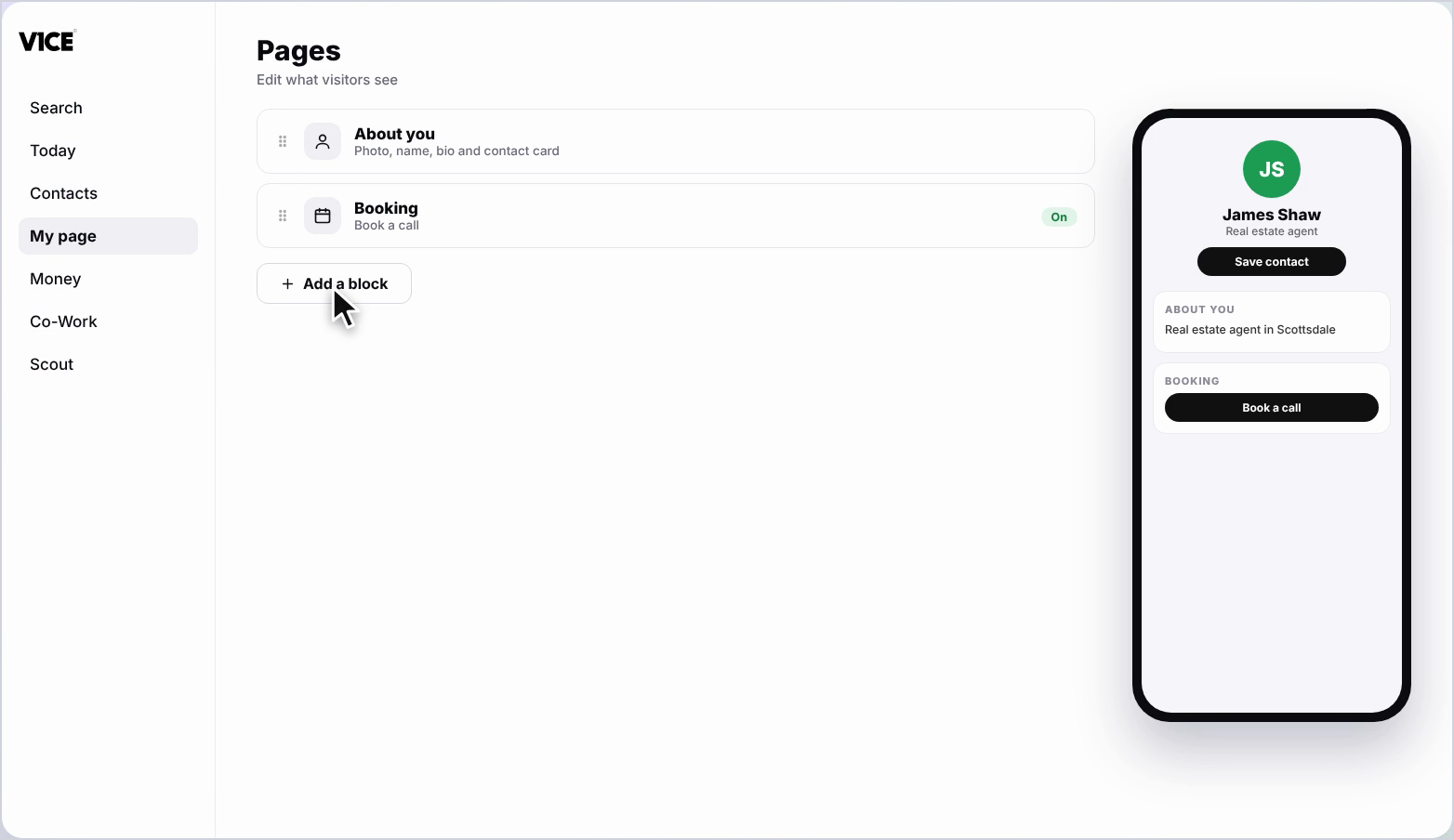
Step 2: Click Add a block
Scroll to the bottom of your page and click Add a block.
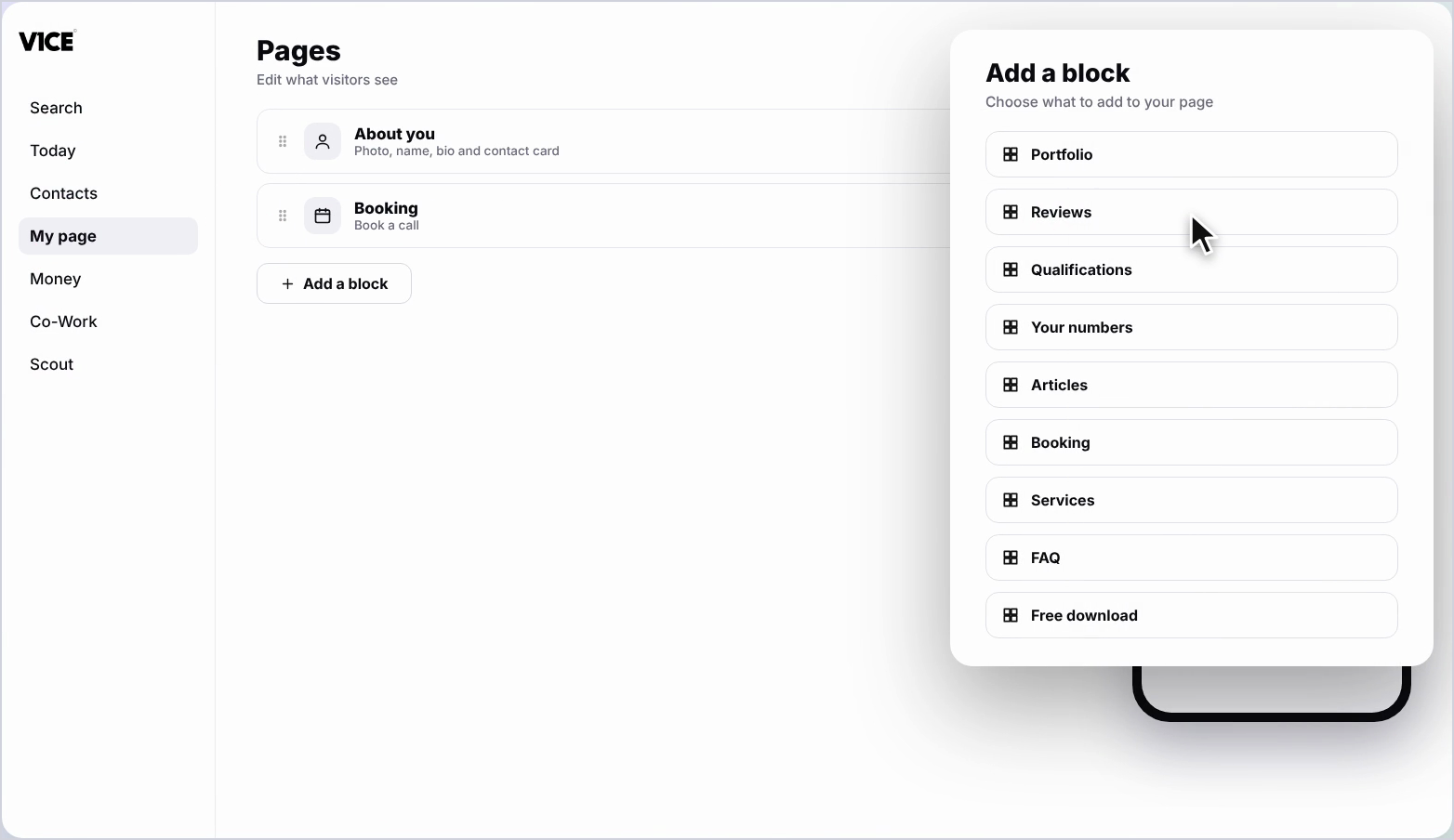
Step 3: Find Reviews
Find Reviews in the list and click it.
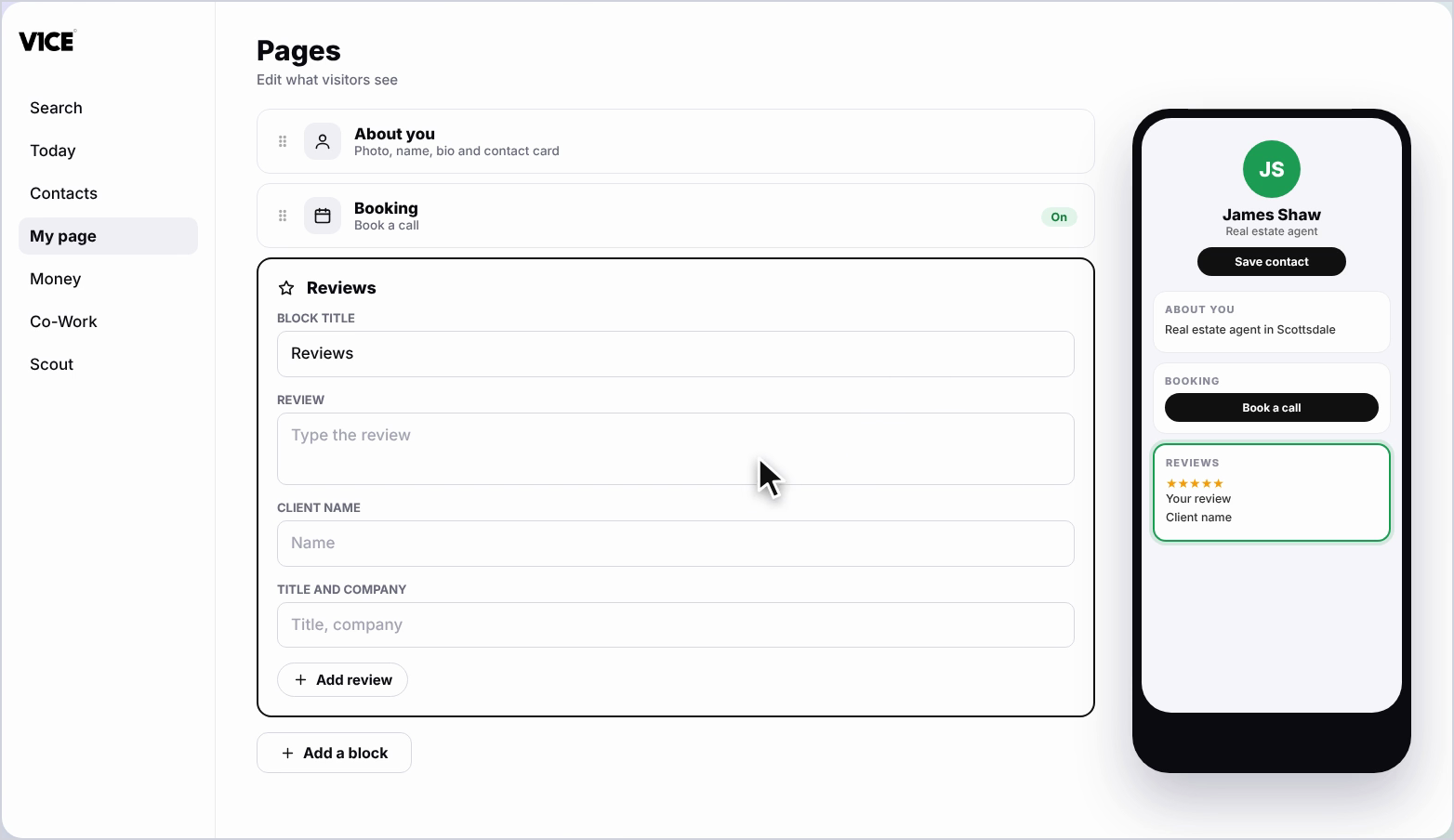
Step 4: Give the block a title
Give the block a title, like See reviews from our real customers.
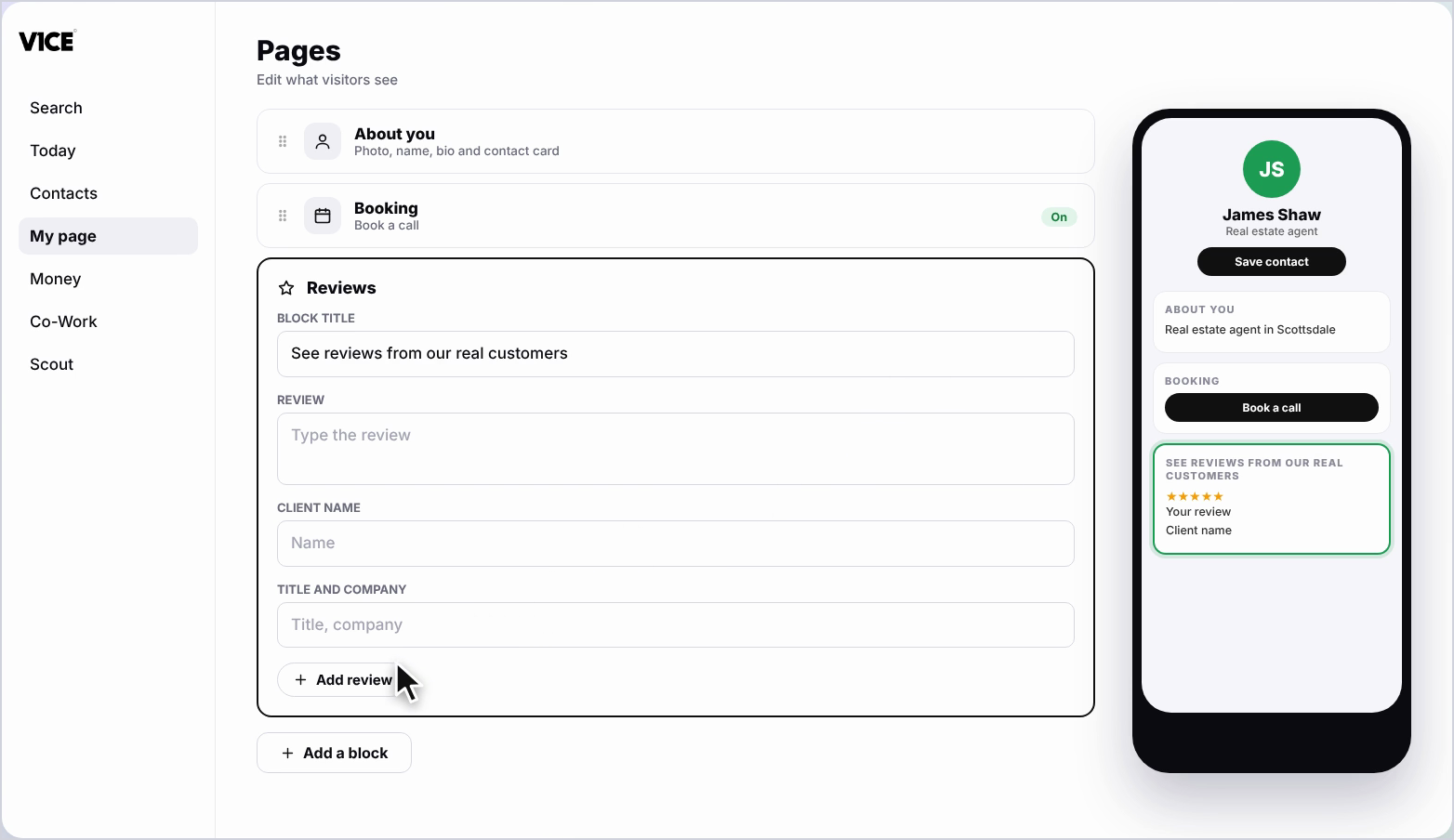
Step 5: Type in the review
Type in the review, just as your client wrote it.
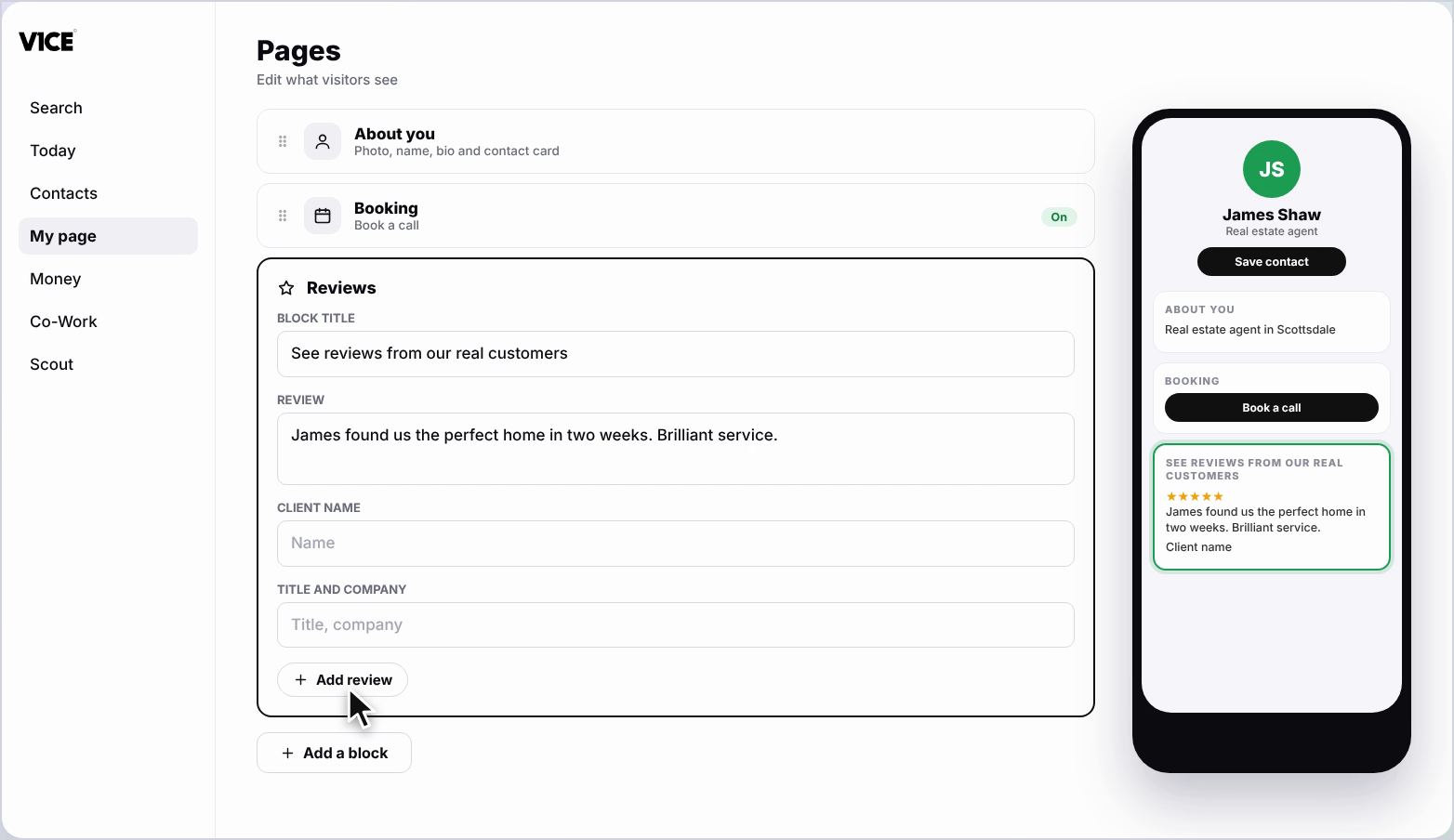
Step 6: Add the client's details
Add the client's name, along with their title and company.
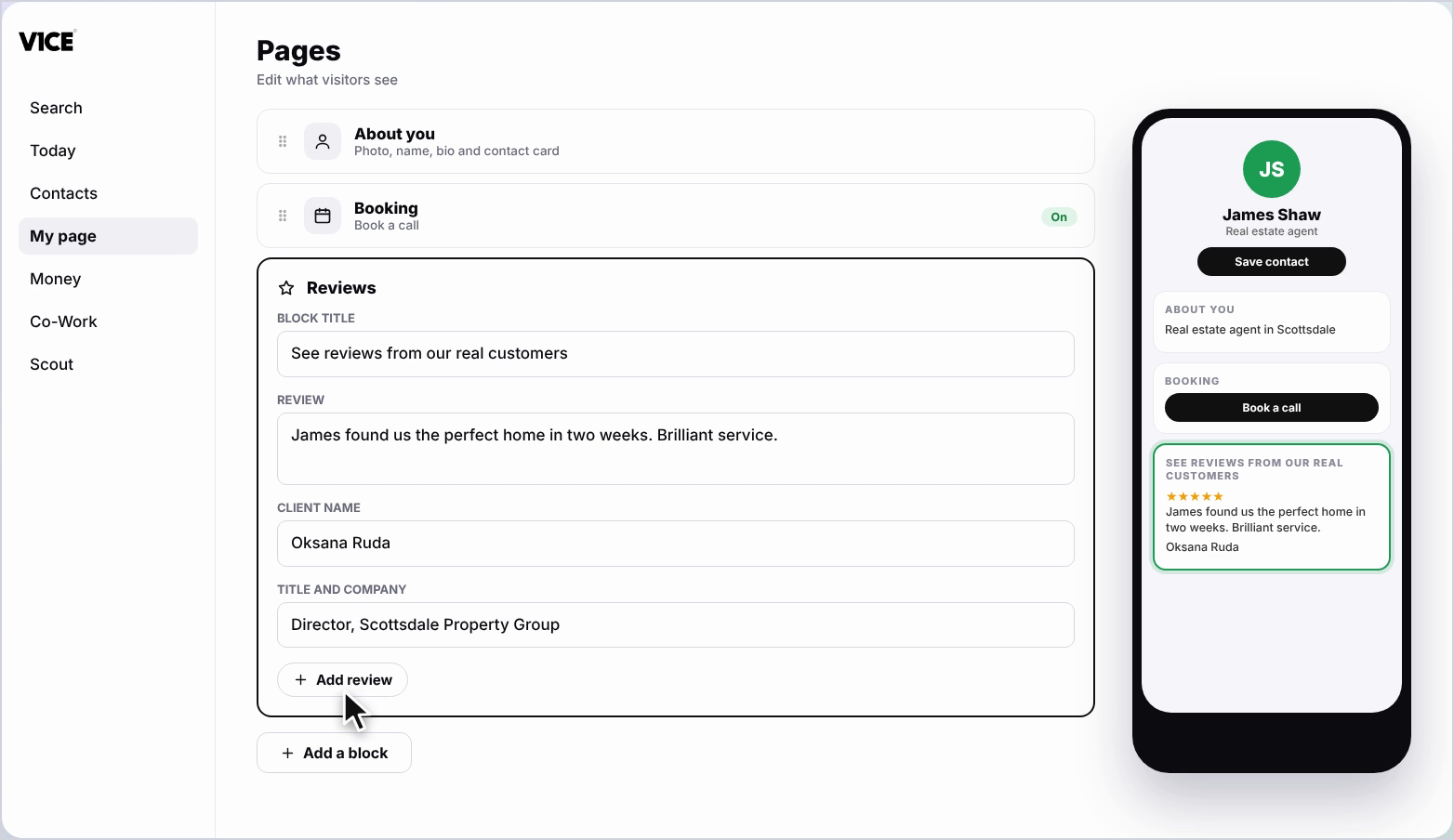
Step 7: Add another review
To add another review, click Add review, and repeat for each one you'd like to show.
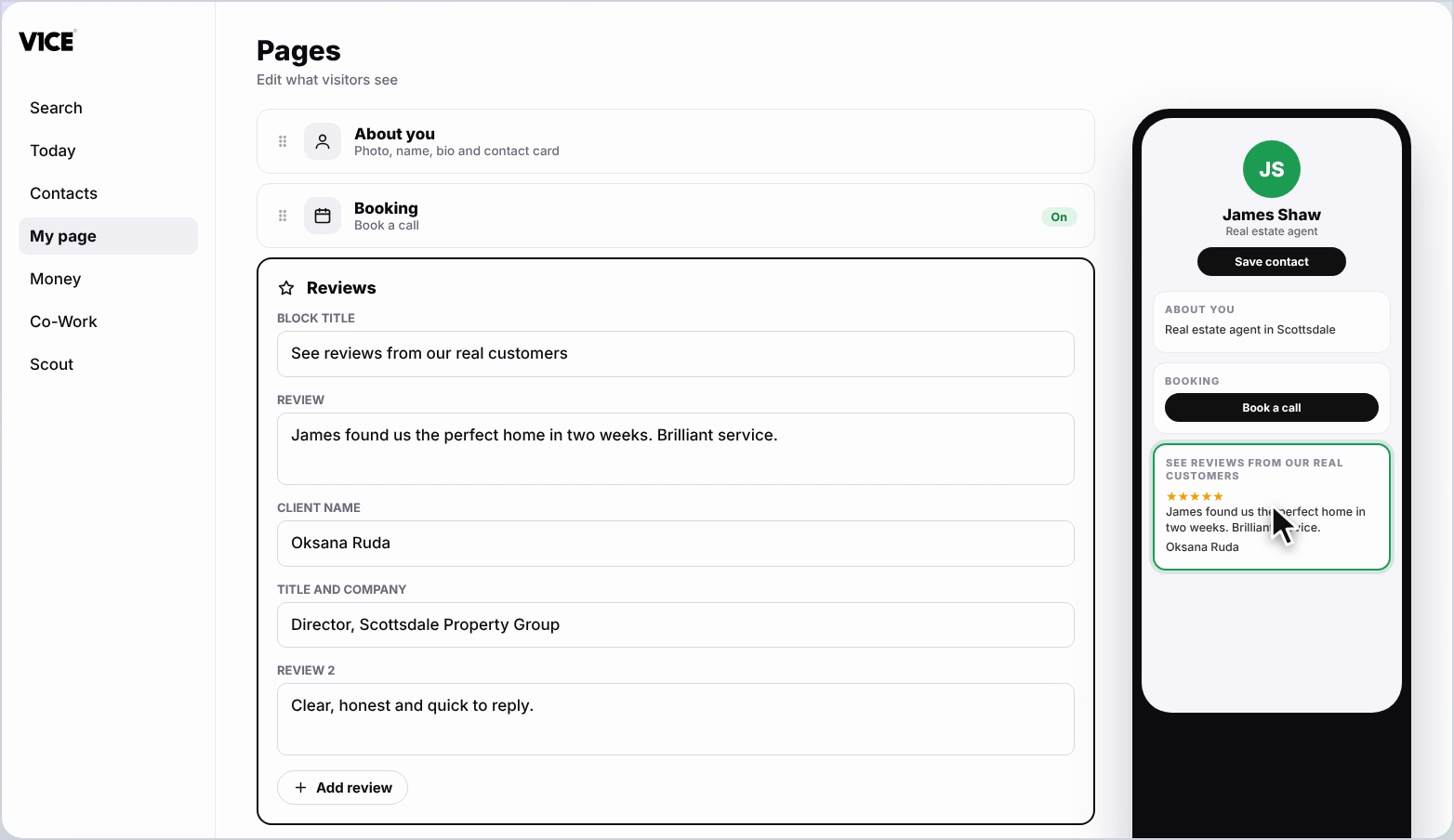
Step 8: See it on your page
Your reviews now show on your page.
Frequently asked questions
How do I add a review to my page?
Click Add a block, find Reviews and click it. Type in the review, just as your client wrote it.
What details can I add about the client?
Add the client's name, along with their title and company.
How do I add more reviews?
Click Add review, and repeat for each one you would like to show.