How to add key numbers to your page

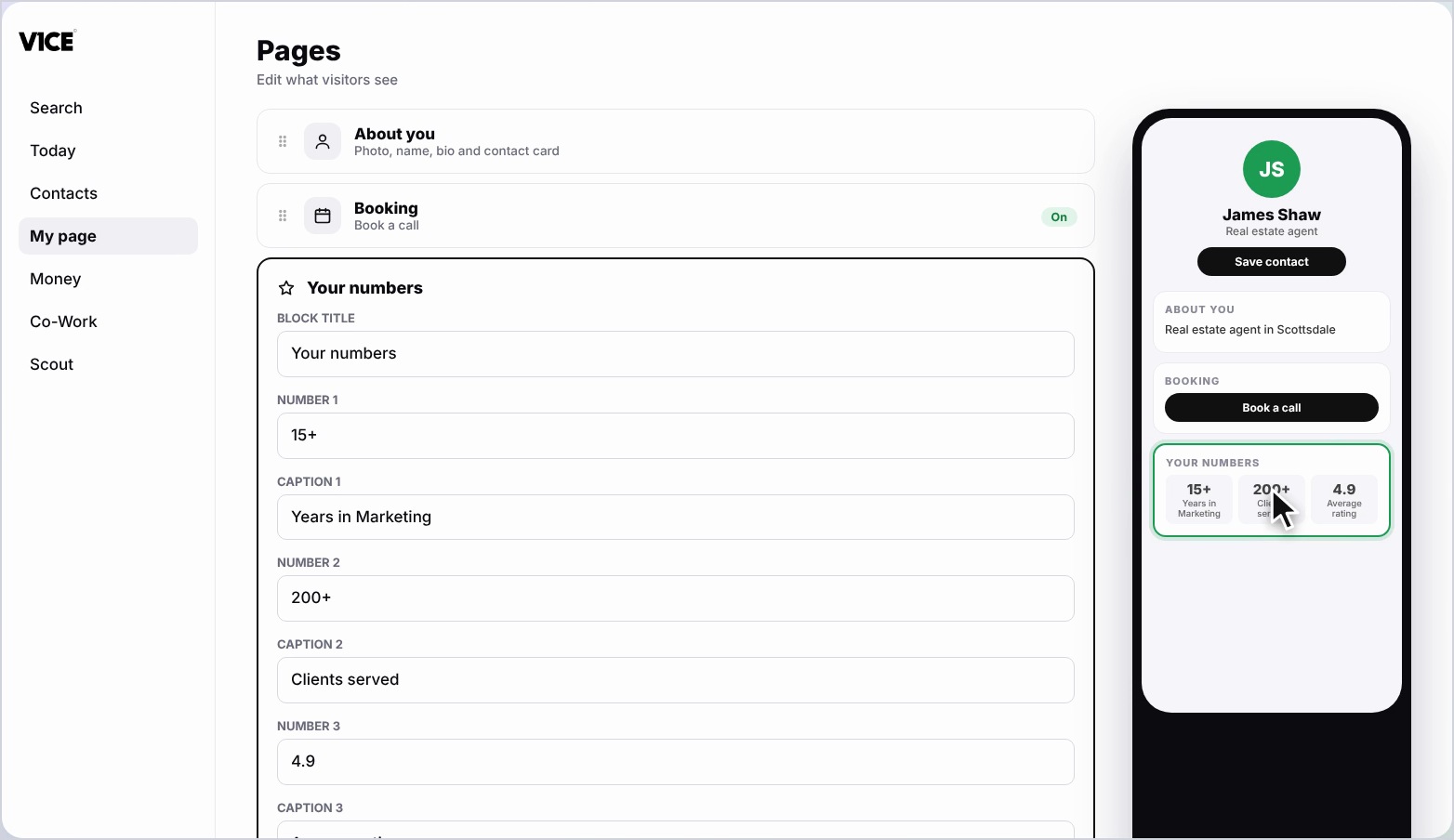
To add key numbers, open My page, then Pages, click Add a block and choose Your numbers. Fill in three boxes, each with a number such as 15 plus and a caption such as 15 plus Years in Marketing.
| Time needed | 1 minute |
|---|---|
| What you need | Your V1CE account and three results you want to show |
| Where in the app | My page > Pages > Add a block > Your numbers |
Video transcript and chapters
Chapters
0:00 Introduction
0:10 Open My page
0:16 Find Your numbers
0:19 Find the three boxes
0:23 Add the first number
0:29 Add the second number
0:32 Add the third number
0:36 See it on your page
0:39 You're done

Transcript
Show off results like years in business or clients served.
Add a Your Numbers block, then fill in three numbers and their captions.
Open my page, then Pages.
Scroll to the bottom of your page and click Add a block.
Find your numbers in the list and click it.
You'll see three boxes, each with a number and a caption.
Type in a number like 15 plus, then add a caption like 15 plus years in marketing.
Do the same for the second one.
And again for the third, add a number, then it's caption.
Your key numbers now show on your page.
That's how to add key numbers to your page.
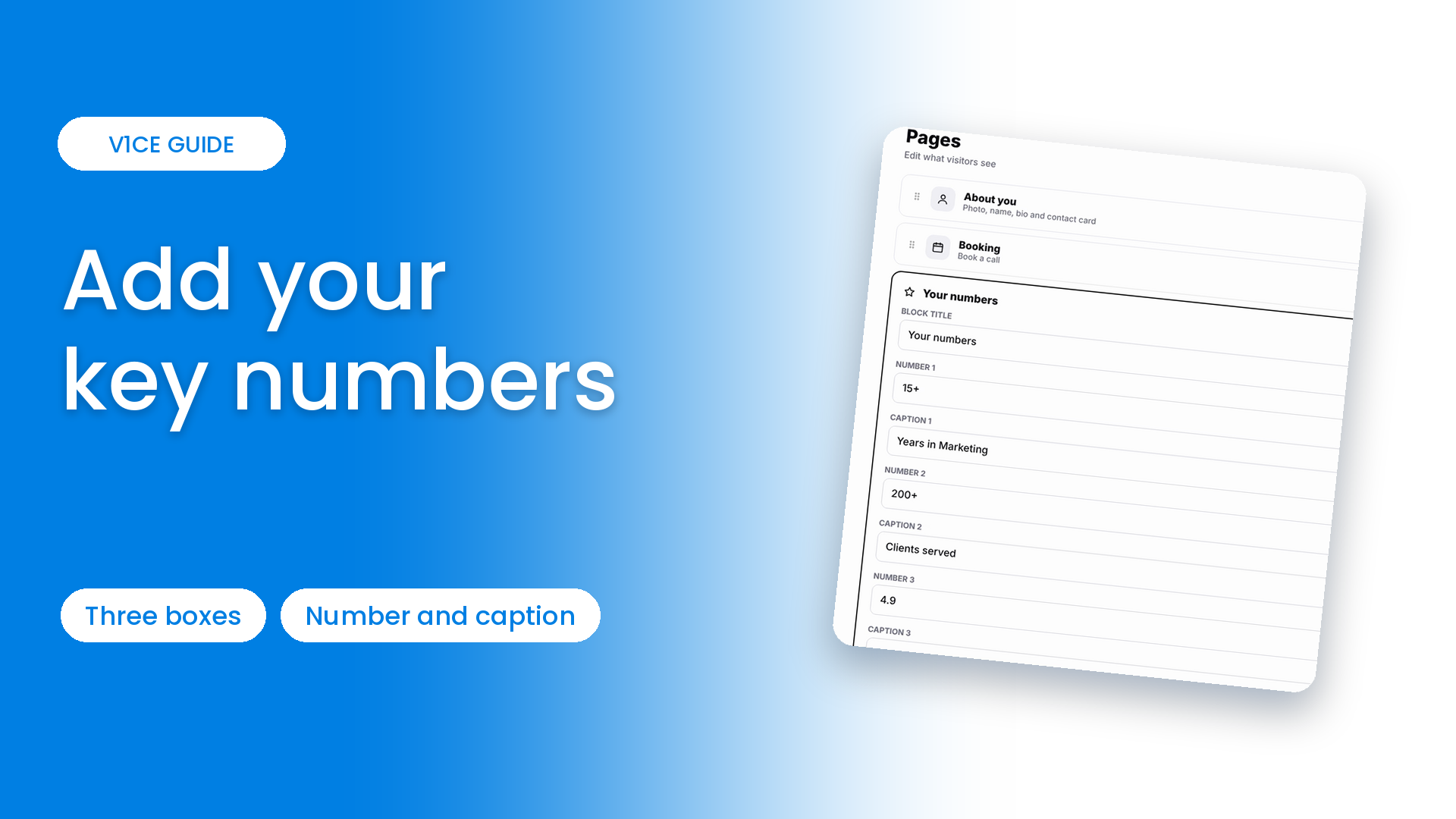
Show off results like years in business or clients served.
Add a Your numbers block, then fill in three numbers and their captions.
Watch the video
Follow the steps
Step 1: Open My page
Open My page, then Pages.
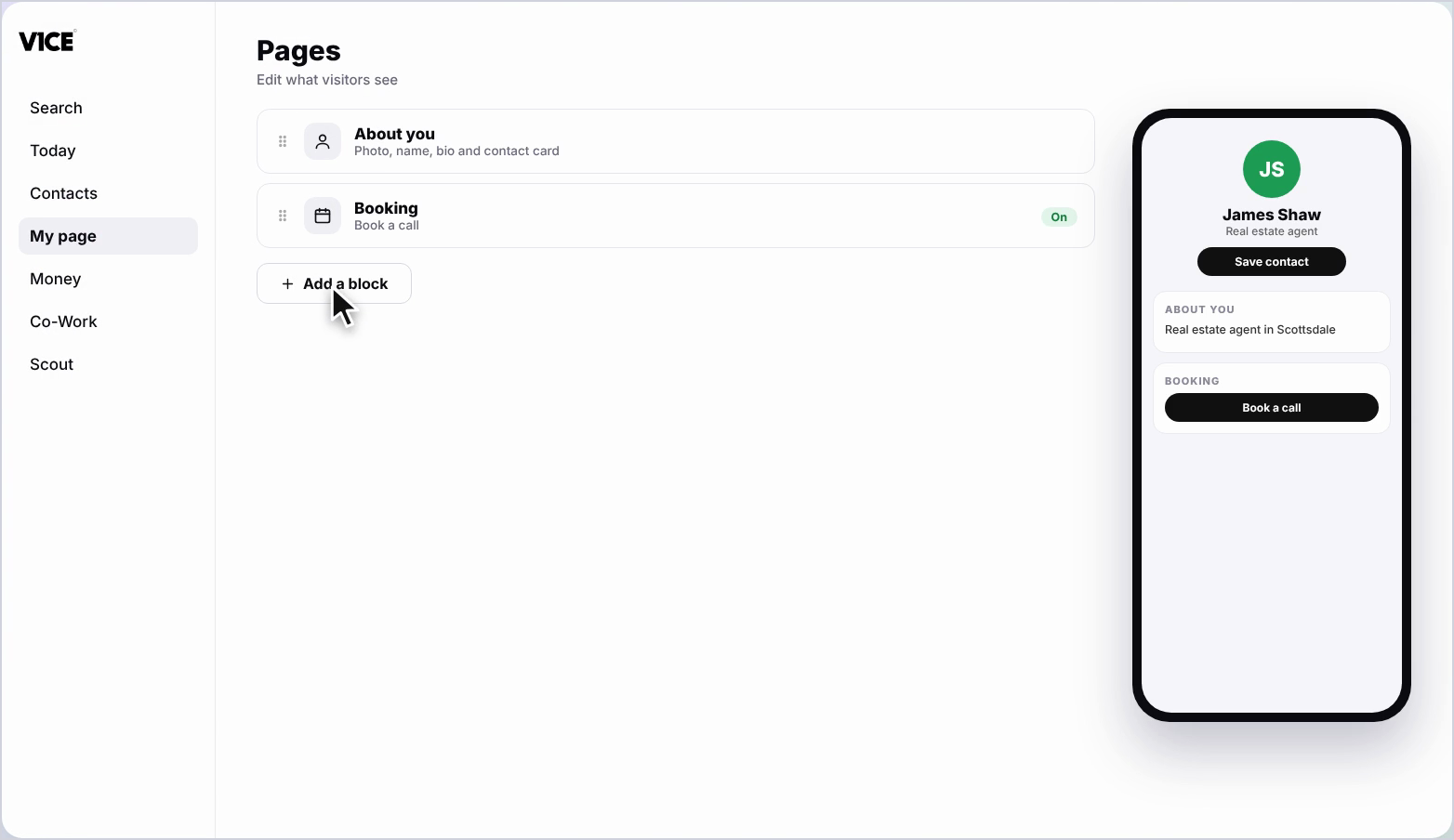
Step 2: Click Add a block
Scroll to the bottom of your page and click Add a block.
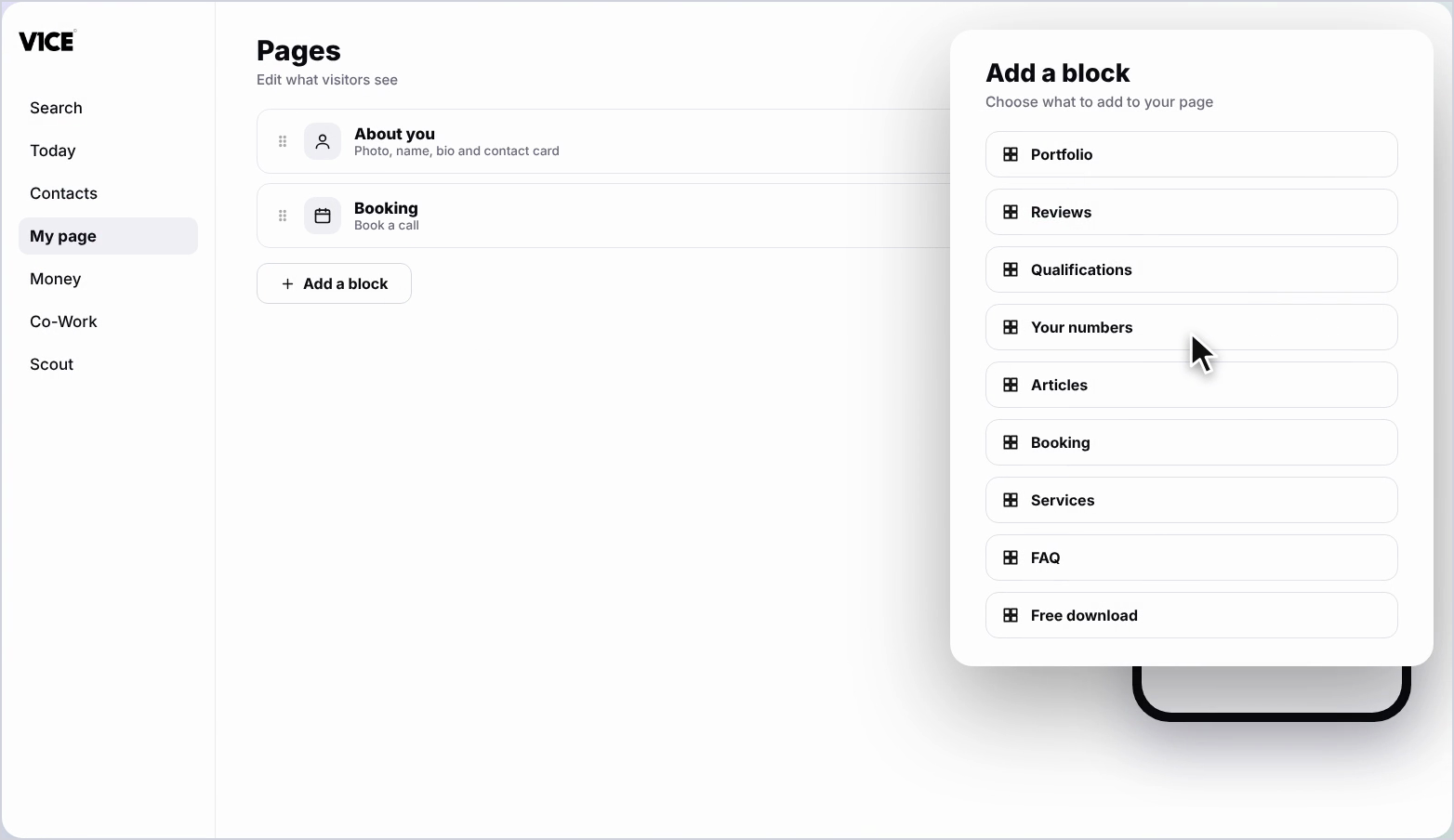
Step 3: Find Your numbers
Find Your numbers in the list and click it.
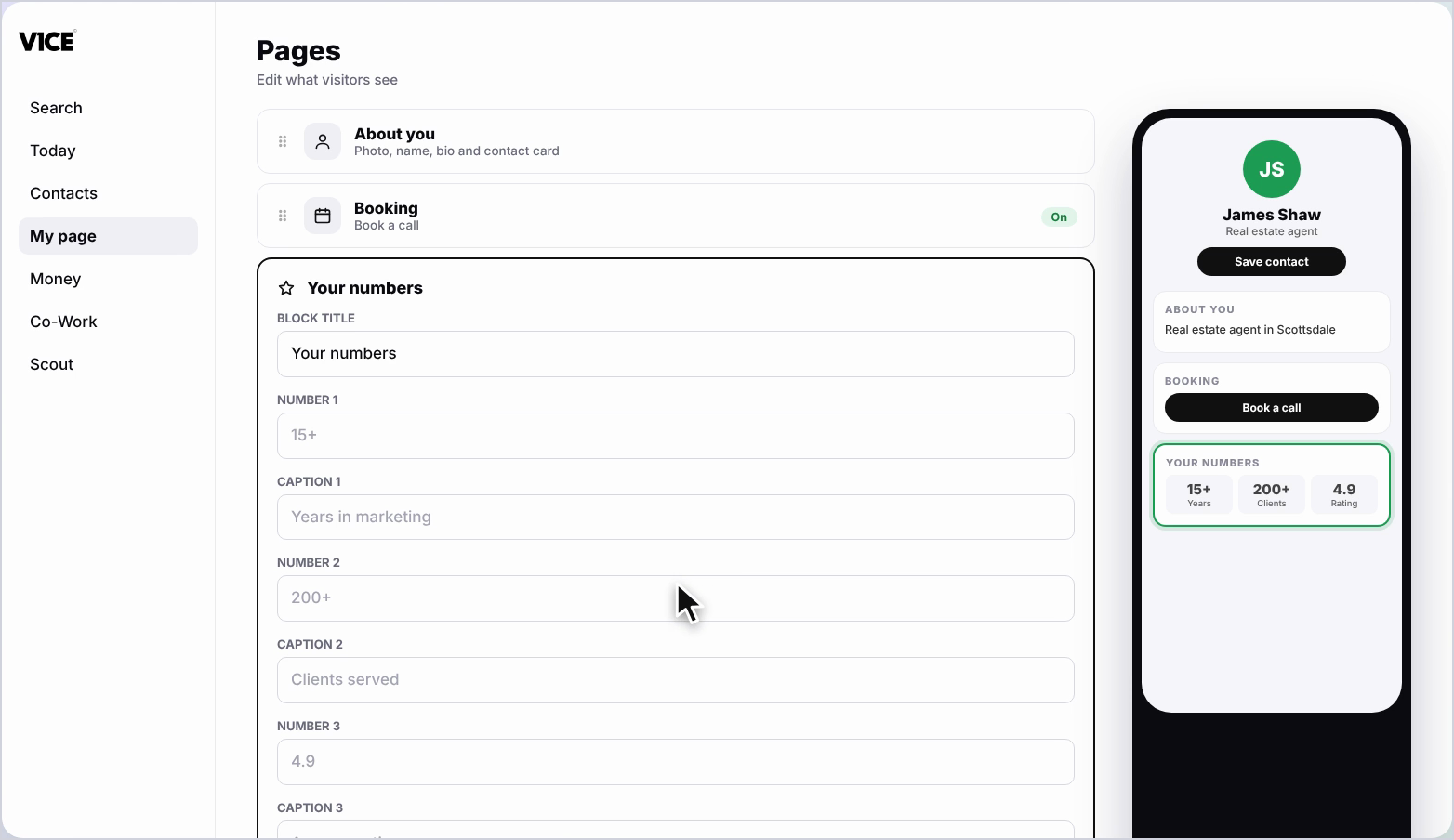
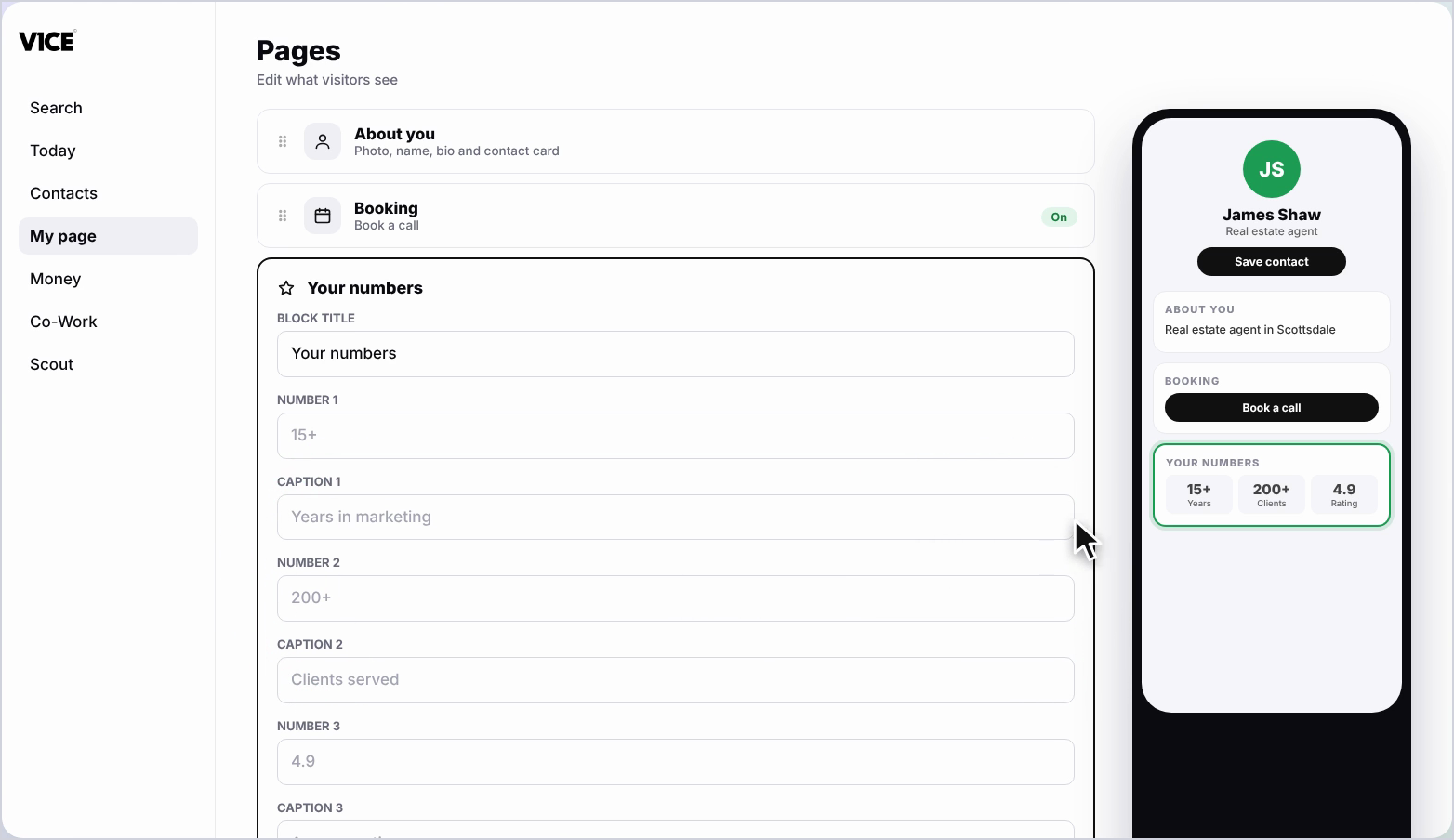
Step 4: Find the three boxes
You'll see three boxes, each with a number and a caption.
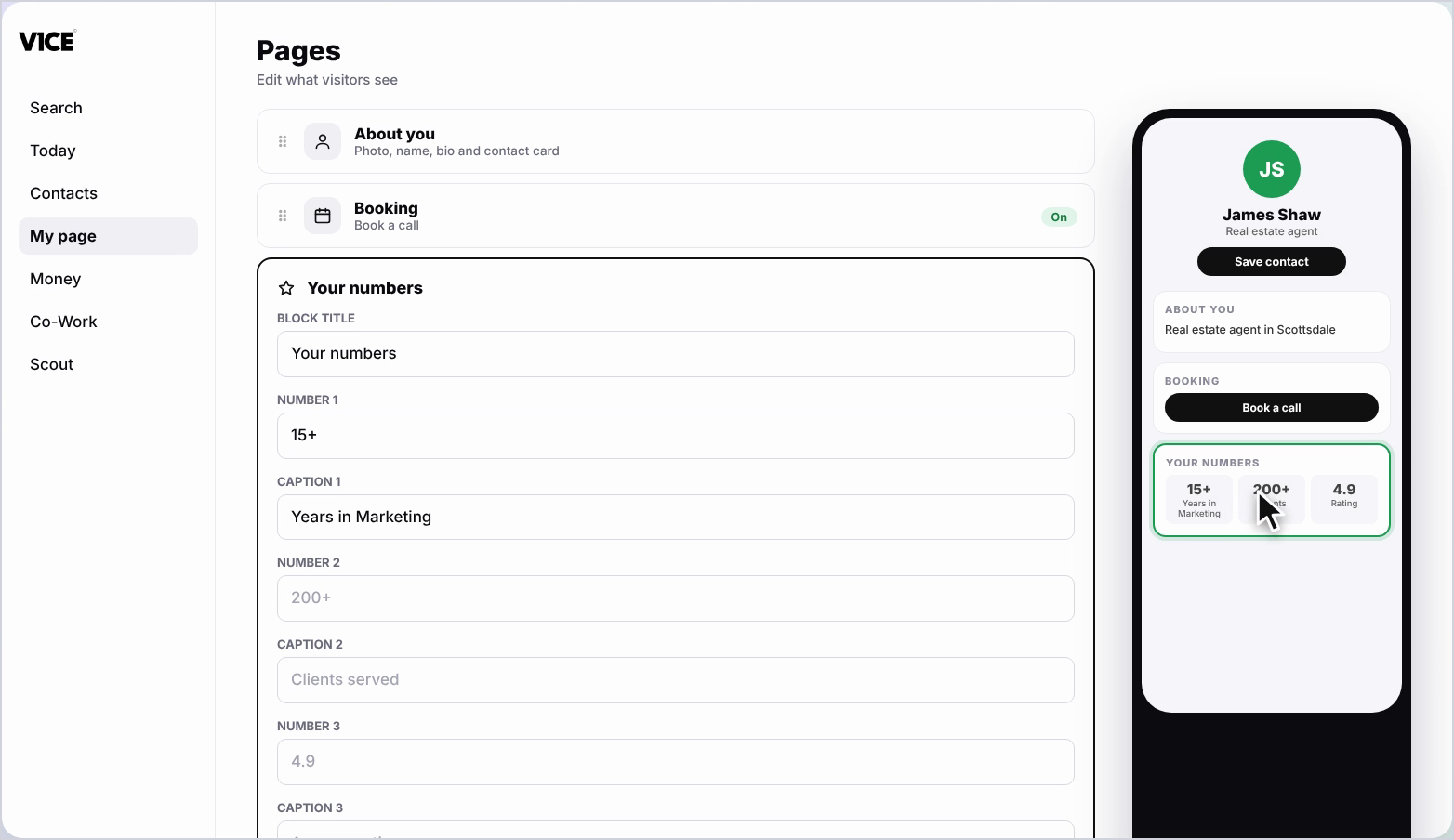
Step 5: Add the first number
Type in a number, like 15 plus, then add a caption, like 15 plus Years in Marketing.
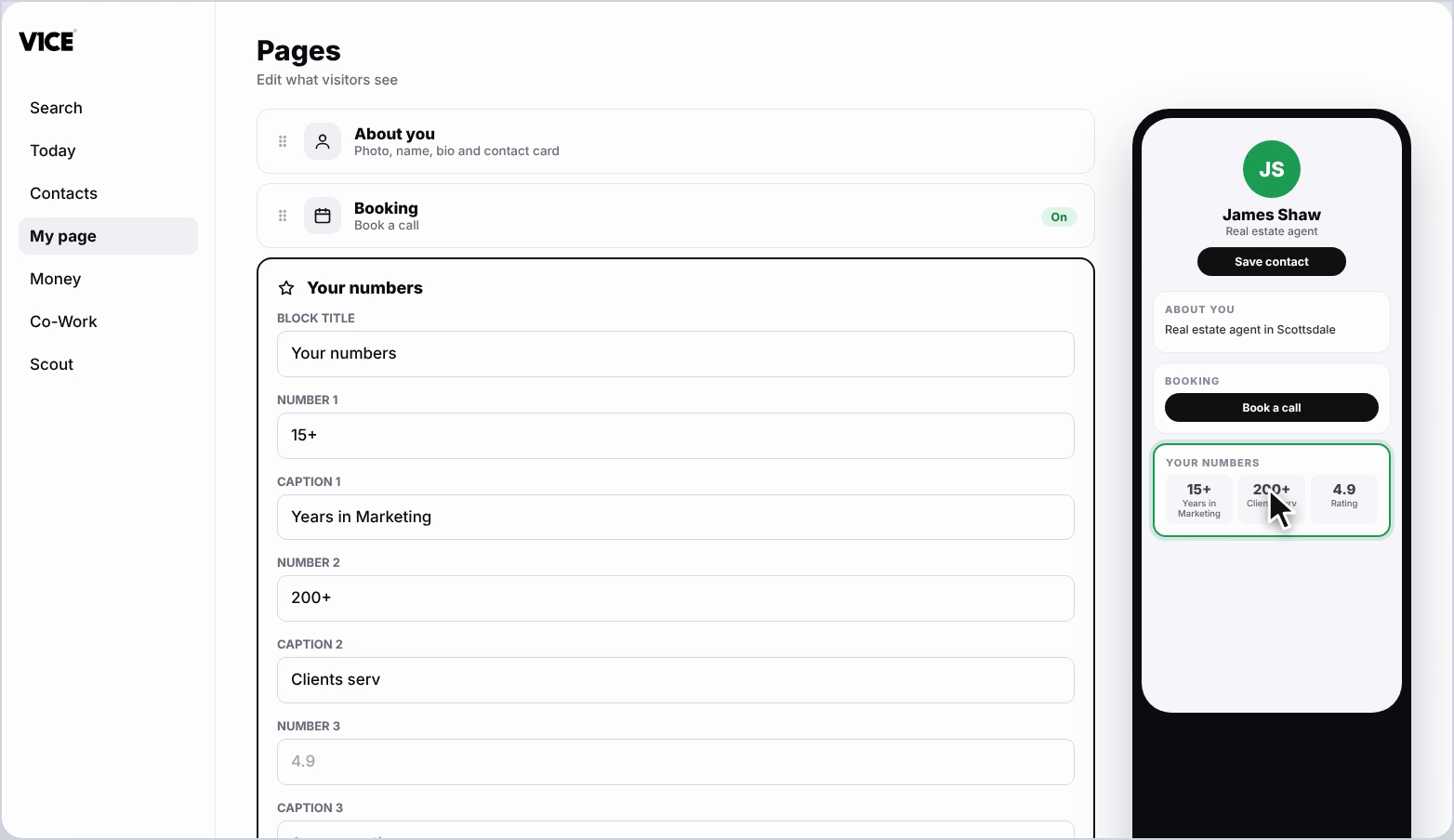
Step 6: Add the second number
Do the same for the second one.
Step 7: Add the third number
And again for the third. Add a number, then its caption.
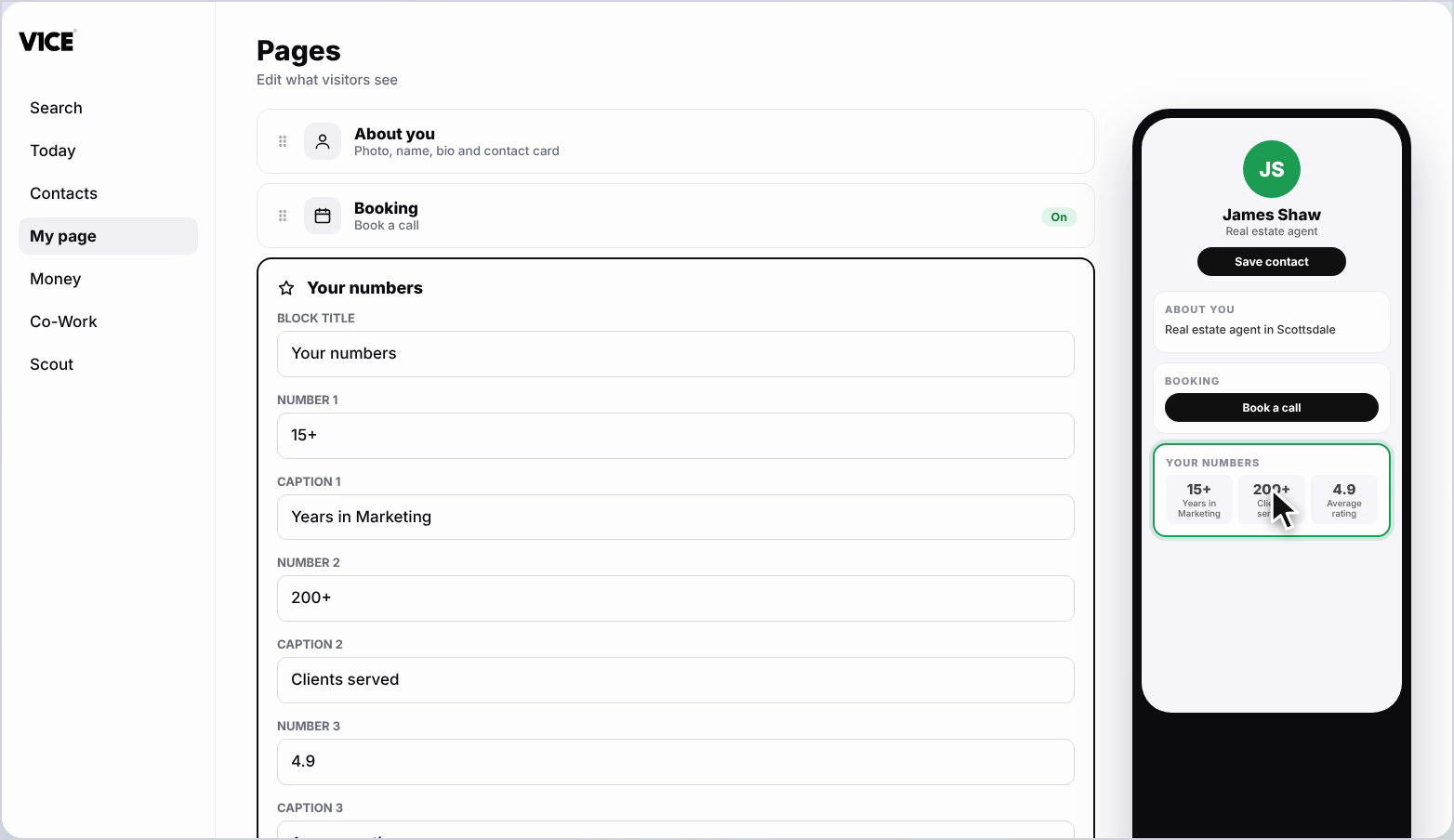
Step 8: See it on your page
Your key numbers now show on your page.
Frequently asked questions
How many numbers can I show?
Three. You will see three boxes, each with a number and a caption.
What should I put in each box?
Type in a number, like 15 plus, then add a caption, like 15 plus Years in Marketing.
Where does the block show?
Your key numbers show on your page once you have filled them in.