How to add a second link and page

To add a second link and page, click your profile picture at the top left and choose Add another user. Type their name, choose Copy my page or Start blank, check the link and press Add them. Then update About you and each block.
| Time needed | 2 minutes |
|---|---|
| What you need | Your V1CE account |
| Where in the app | Profile picture (top left) > Add another user |
Video transcript and chapters
Chapters
0:00 Introduction
0:14 Add another user
0:19 Name them and choose a design
0:26 Check the link
0:30 Check their new page
0:36 Update About you
0:40 Replace their details
0:45 Update each block
0:50 Switch between accounts
0:56 You're done

Transcript
Managing your colleagues in one place?
You can add a second link with its own page to your account.
Keep the same design to save time or start from scratch.
Then update the info and switch between accounts whenever you need to.
Click your profile picture at the top left, then choose Add Another User.
Type their name.
Choose Copy My Page to keep the same design, or Start Blank to build theirs from scratch.
Check the link looks right, then press Add Them.
Their new page appears with the same design and blocks as yours, and their link shows at the top.
Open About You and remove the photo, then add theirs.
Replace the name, job title and contact details with theirs.
Do the same for each block below so everything on the page is right for them.
To switch between accounts, click your profile picture and choose the person you want to manage.
That's how to add a second link.
Managing your colleagues in one place? You can add a second link, with its own page, to your account.
Keep the same design to save time, or start from scratch. Then update the info and switch between accounts whenever you need to.
Watch the video
Follow the steps
Step 1: Add another user
Click your profile picture at the top left, then choose Add another user.
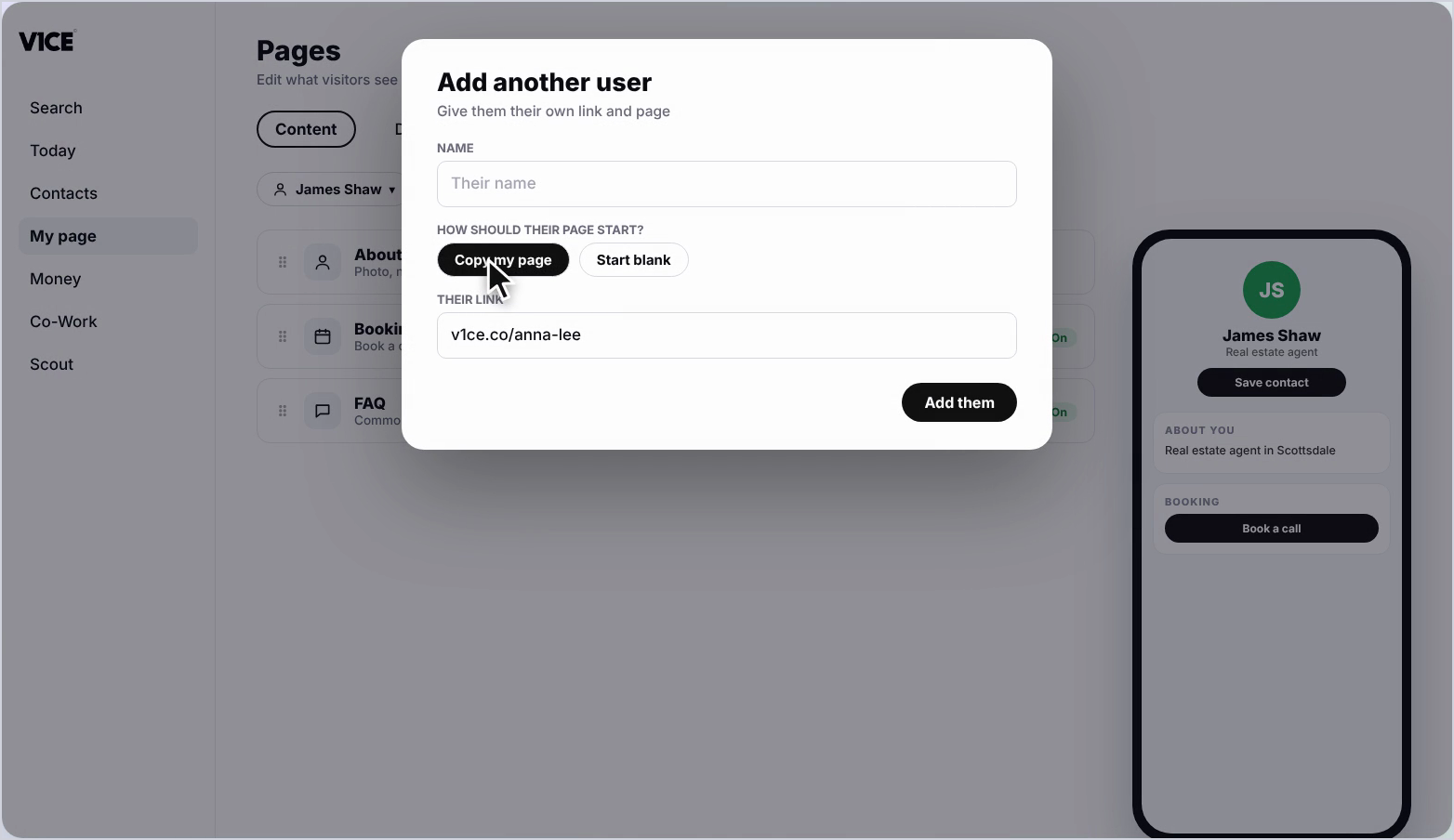
Step 2: Name them and choose a design
Type their name. Choose Copy my page to keep the same design, or Start blank to build theirs from scratch.
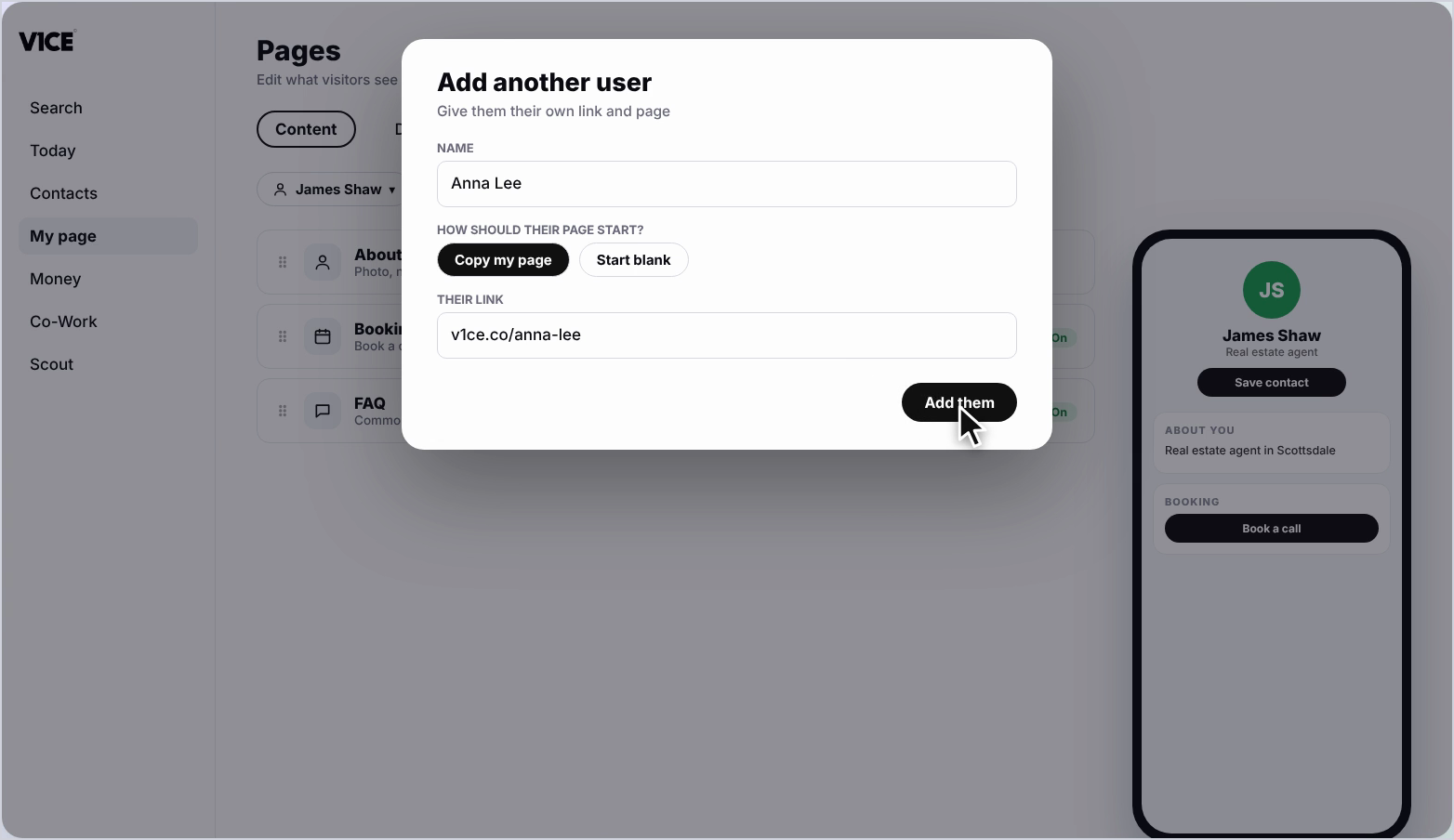
Step 3: Check the link
Check the link looks right, then press Add them.
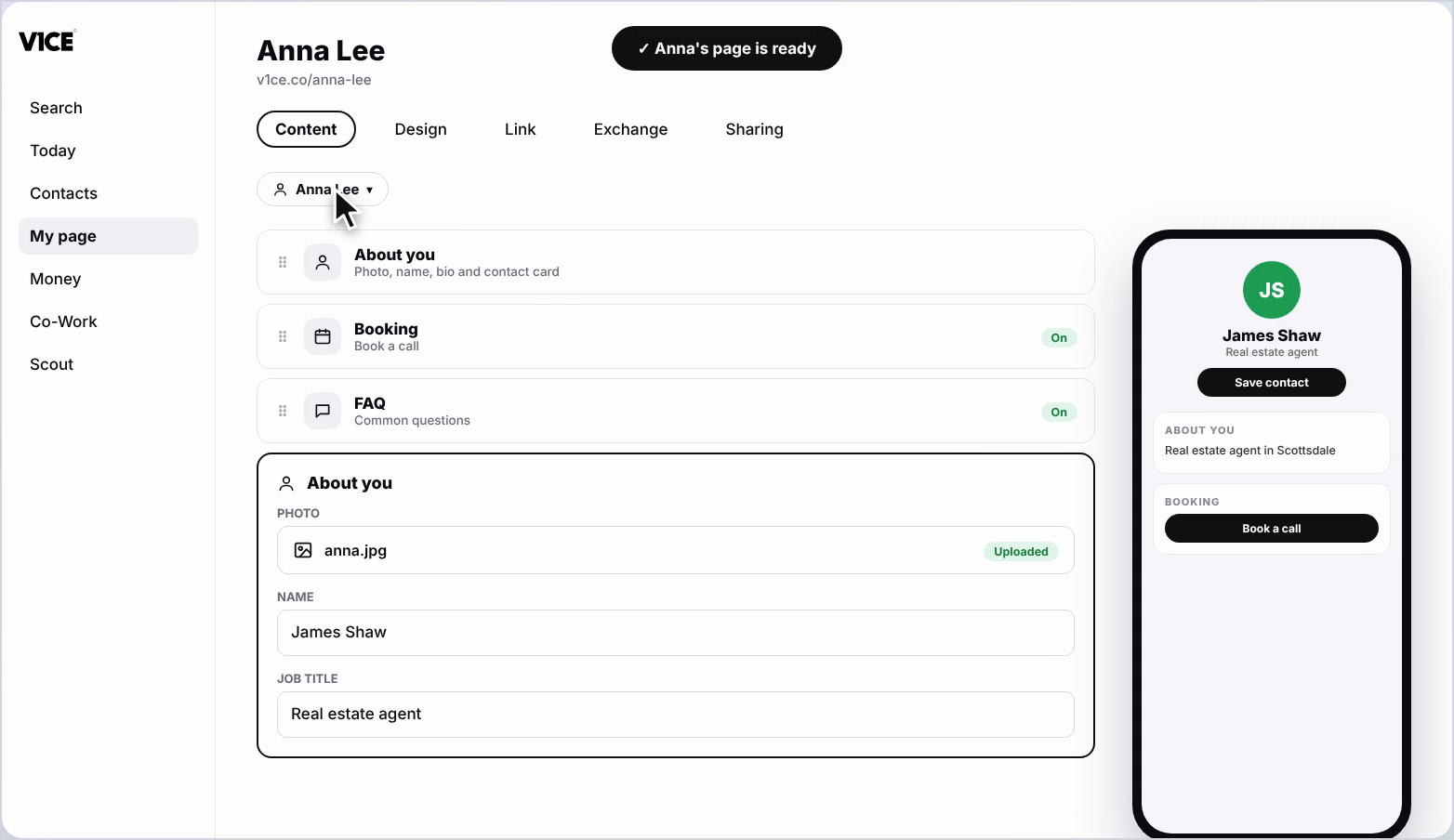
Step 4: Check their new page
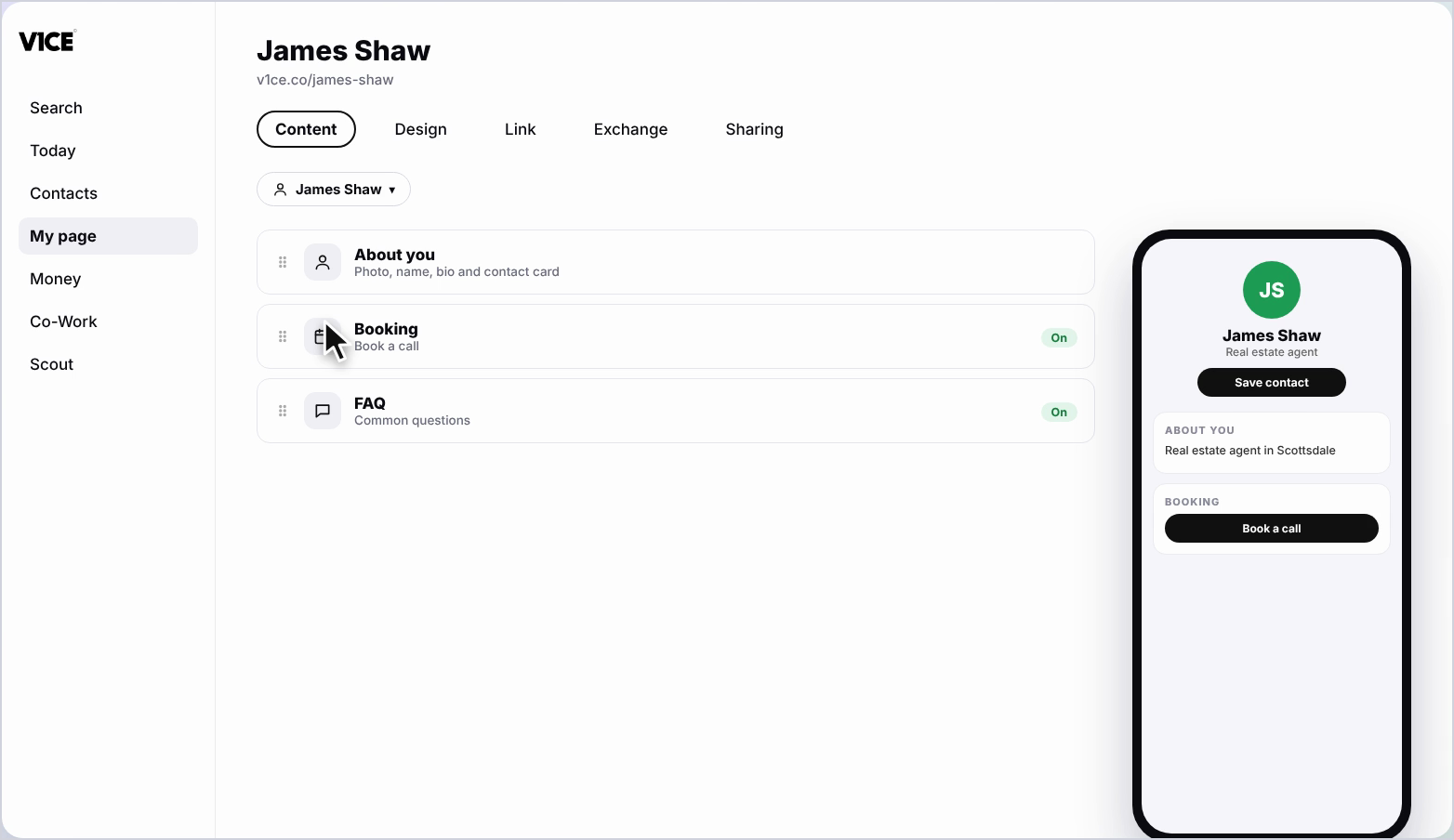
Their new page appears with the same design and blocks as yours, and their link shows at the top.
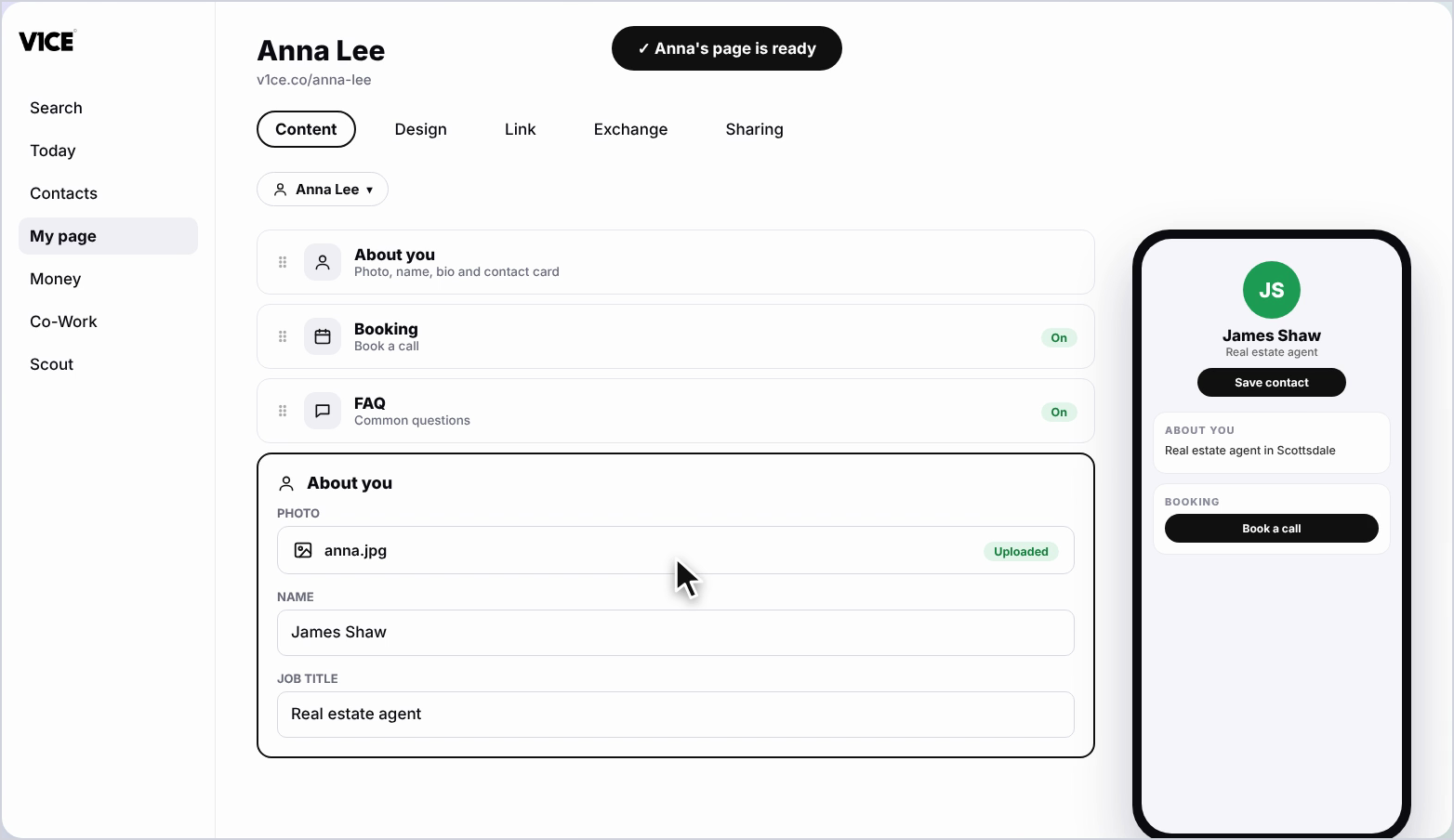
Step 5: Update About you
Open About you and remove the photo, then add theirs.
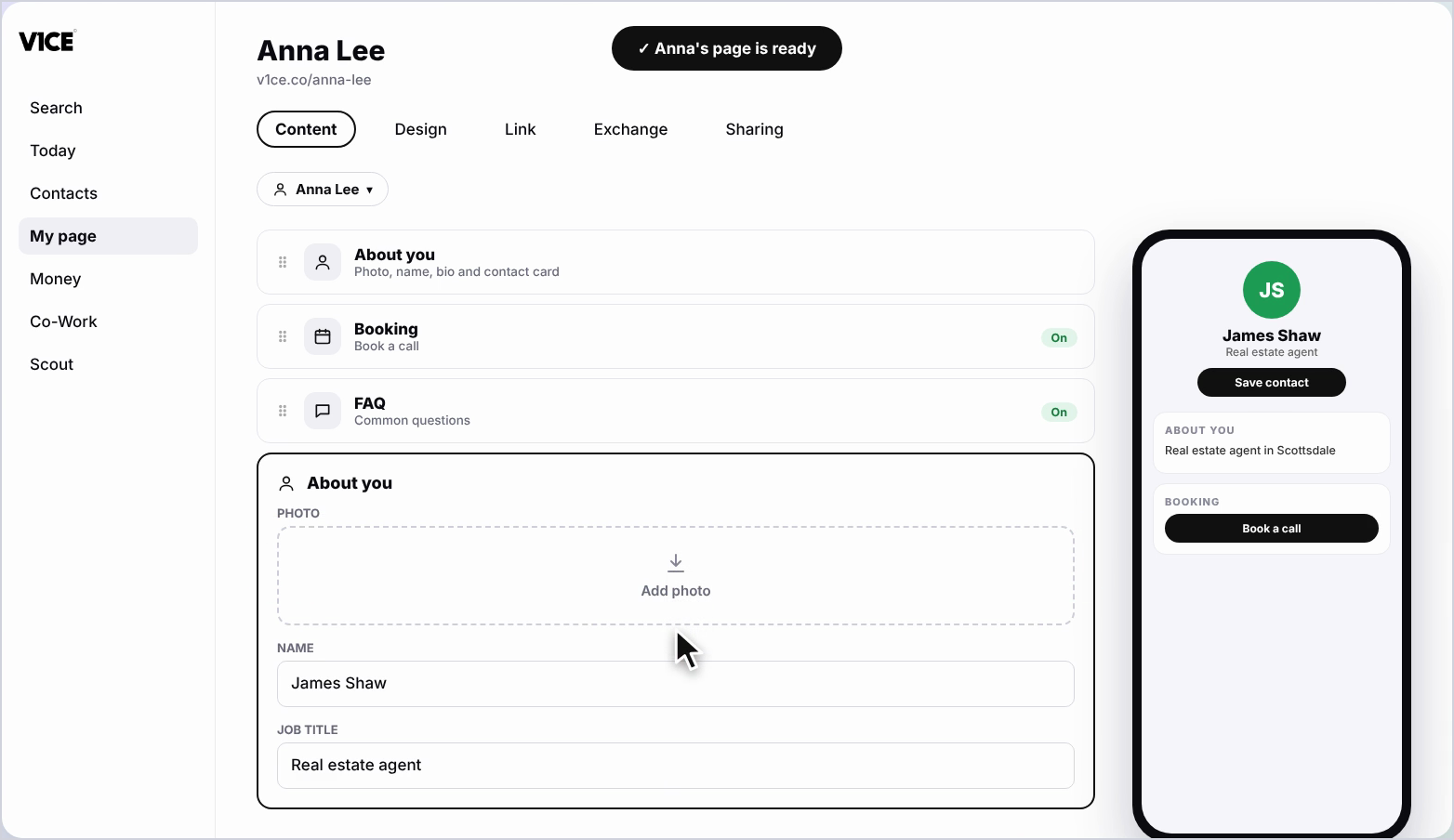
Step 6: Replace their details
Replace the name, job title and contact details with theirs.
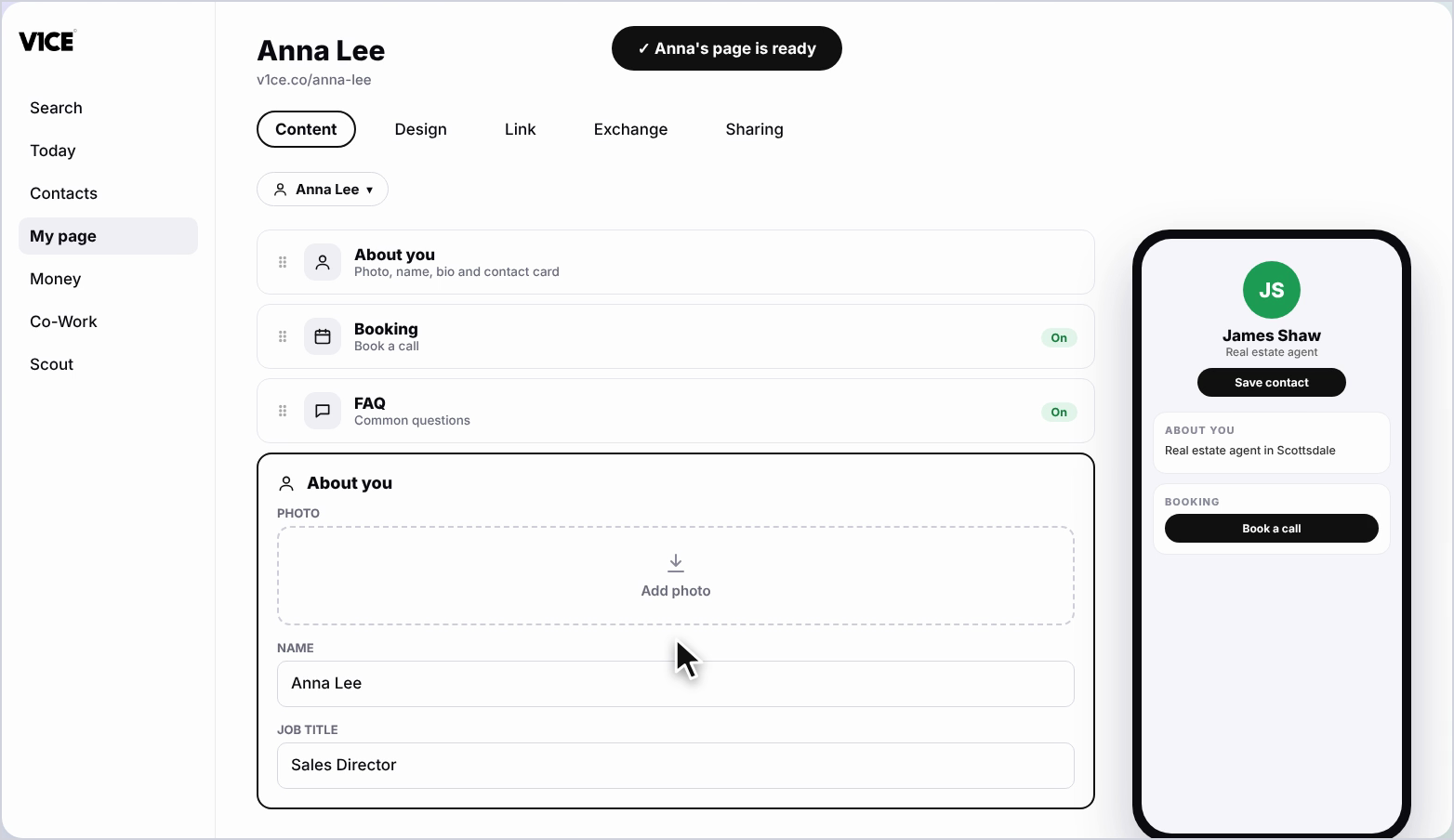
Step 7: Do the same for each block below
Do the same for each block below, so everything on the page is right for them.
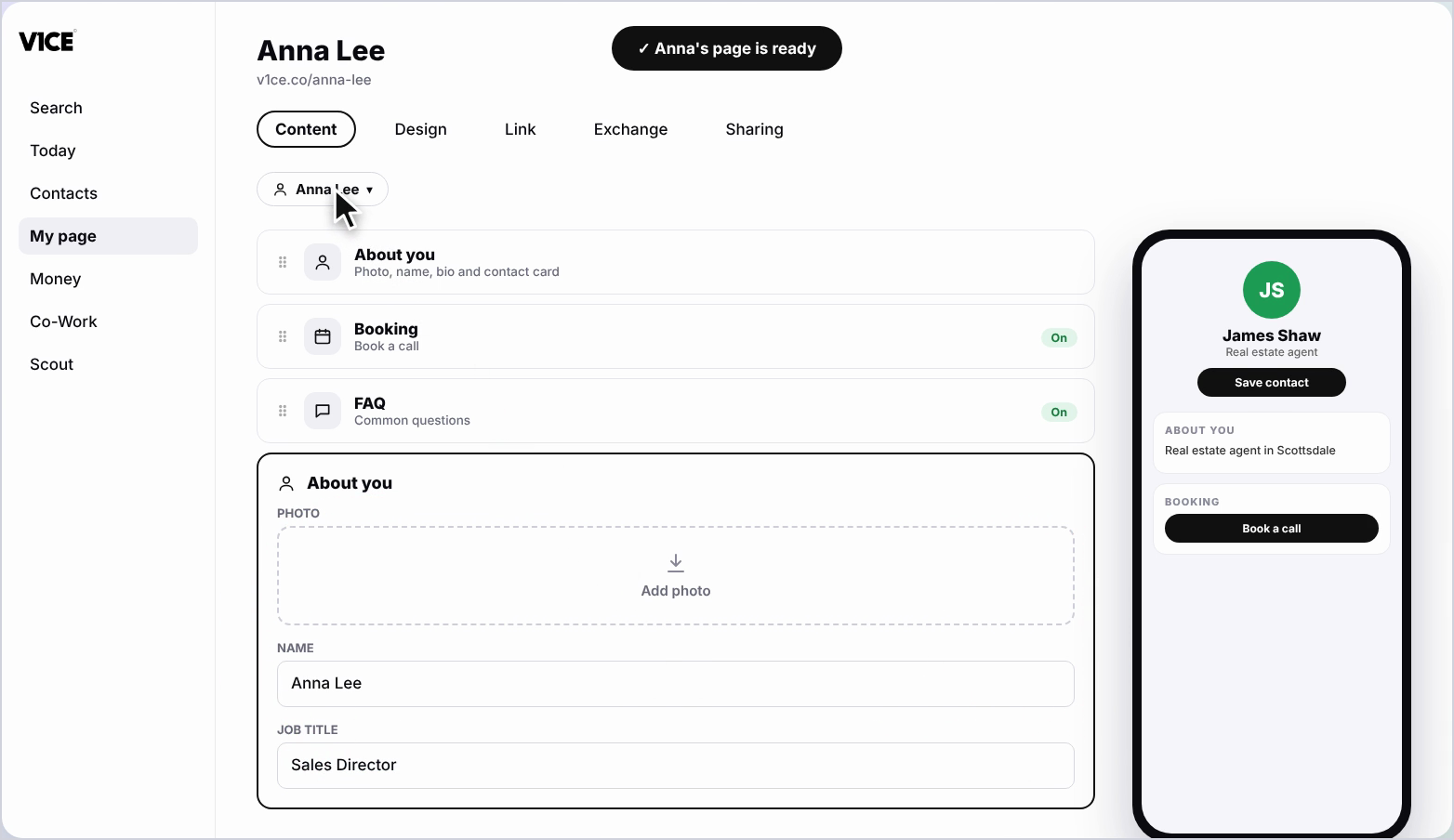
Step 8: Switch between accounts
To switch between accounts, click your profile picture and choose the person you want to manage.
Frequently asked questions
How do I add a second link and page?
Click your profile picture at the top left, then choose Add another user. Type their name and press Add them.
Can I keep the same design?
Yes. Choose Copy my page to keep the same design, or Start blank to build theirs from scratch.
What do I update on the new page?
Open About you and replace the photo, name, job title and contact details with theirs, then do the same for each block below.
How do I switch between accounts?
Click your profile picture and choose the account you want.