How to add a portfolio to your page

To add a portfolio, open My page, then Pages, click Add a block and choose Portfolio. Add items one at a time with a title, a photo or video, a description and an optional link, then choose a layout.
| Time needed | 1 minute |
|---|---|
| What you need | Your V1CE account and photos or videos of your work |
| Where in the app | My page > Pages > Add a block > Portfolio |
Video transcript and chapters
Chapters
0:00 Introduction
0:10 Open My page
0:16 Find Portfolio
0:20 Give your first item a title
0:22 Upload a photo or video
0:29 Add a description and link
0:34 Add another item
0:37 Add a video
0:42 Choose a layout
0:46 See it on your page
0:51 You're done

Transcript
Show photos and videos of your work on your V1CE page.
Add items one at a time with a photo or video, a description and a link.
Open my page, then Pages.
Scroll to the bottom of your page and click Add a block.
Find portfolio in the list and click it.
Give your first item a title.
Click Upload photo or video to add an image, then crop it and save.
You can also paste a video link.
Add a description and a link if you'd like people to click through.
To add another item, click Add another item.
For a video, paste in the link, then add a title and description.
Choose a layout to change how your portfolio looks.
Your portfolio now shows on your page.
Click any item to open it.
That's how to add a portfolio to your page.
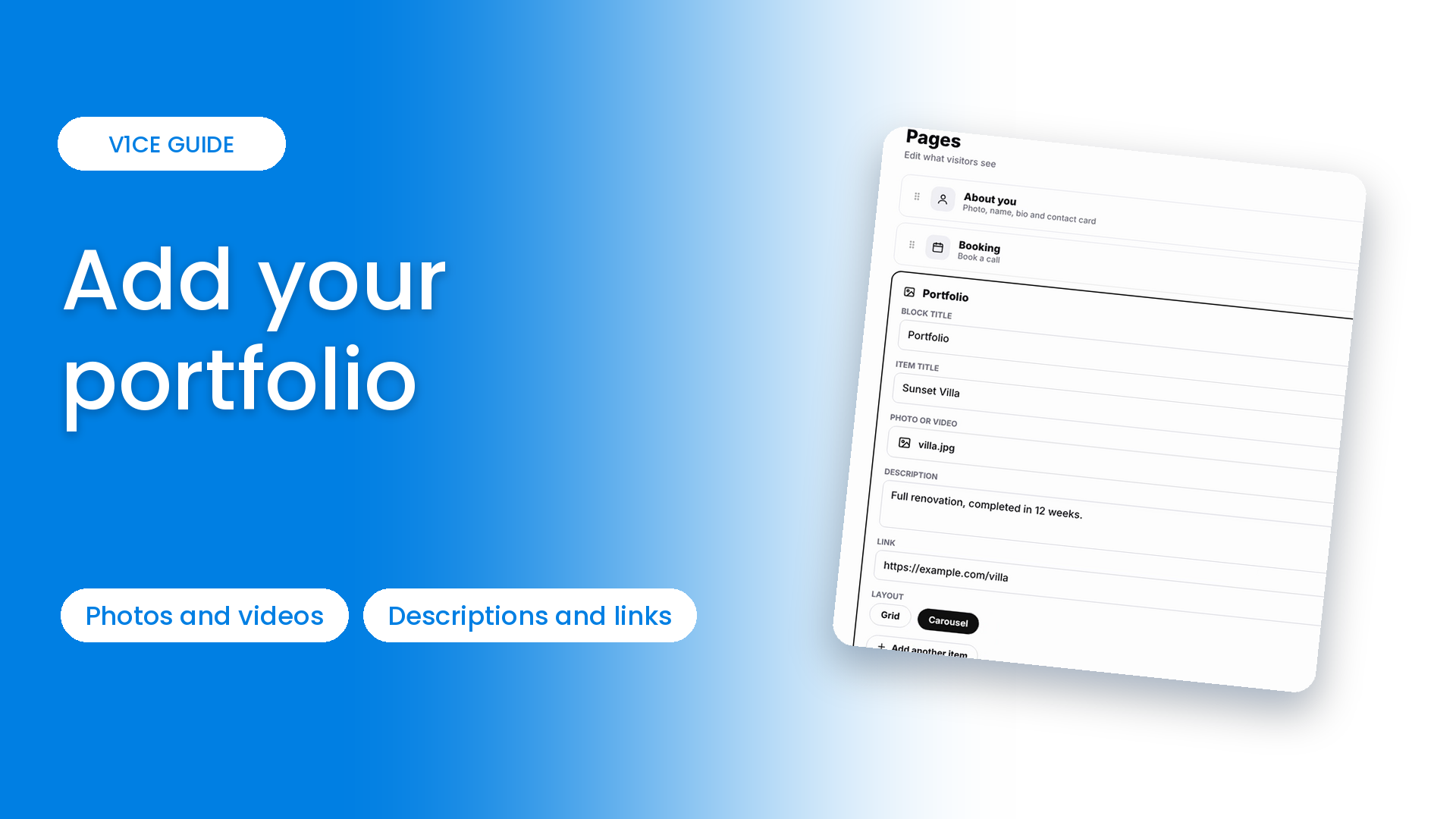
Show photos and videos of your work on your V1CE page.
Add items one at a time, with a photo or video, a description and a link.
Watch the video
Follow the steps
Step 1: Open My page
Open My page, then Pages.
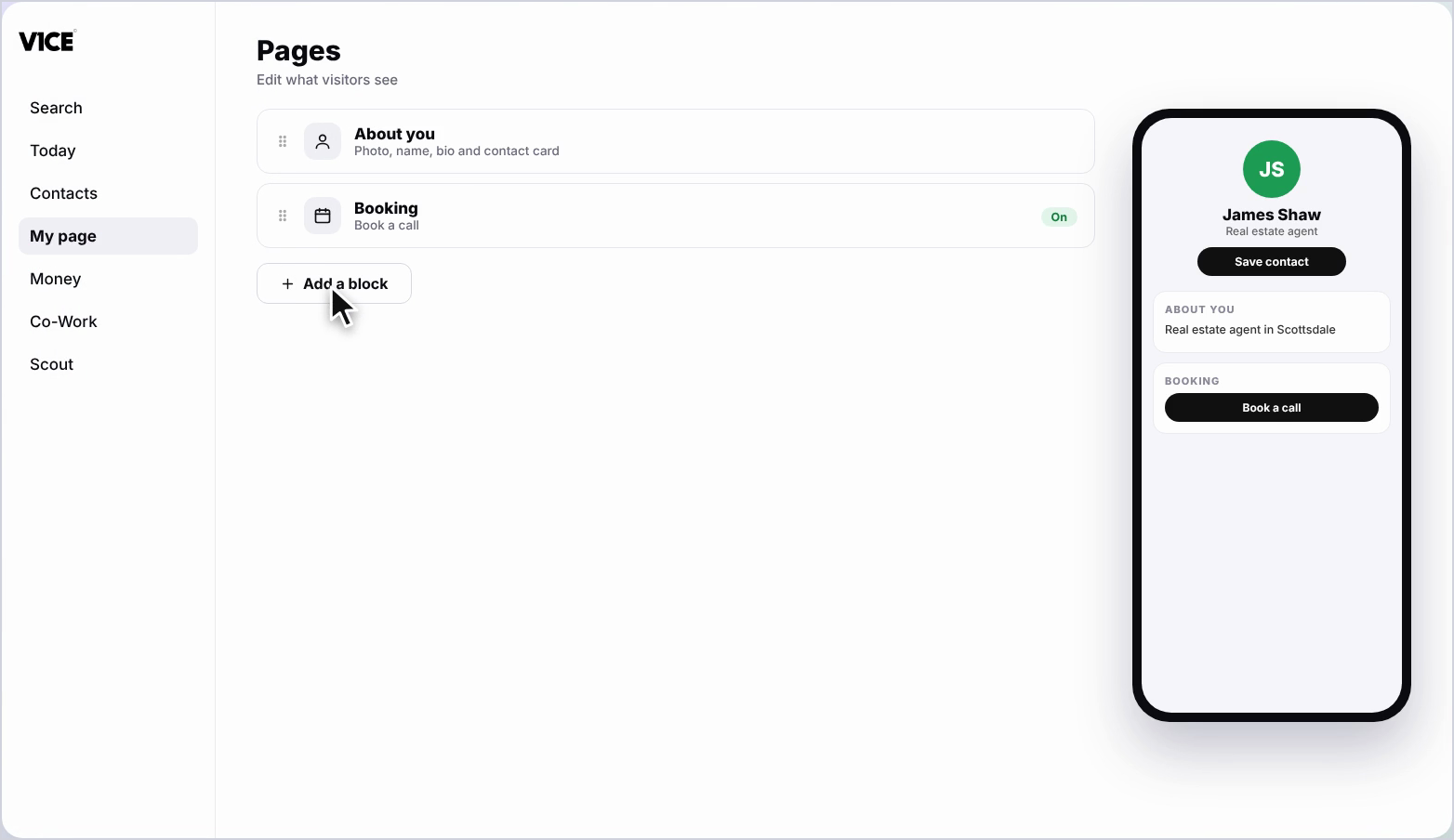
Step 2: Click Add a block
Scroll to the bottom of your page and click Add a block.
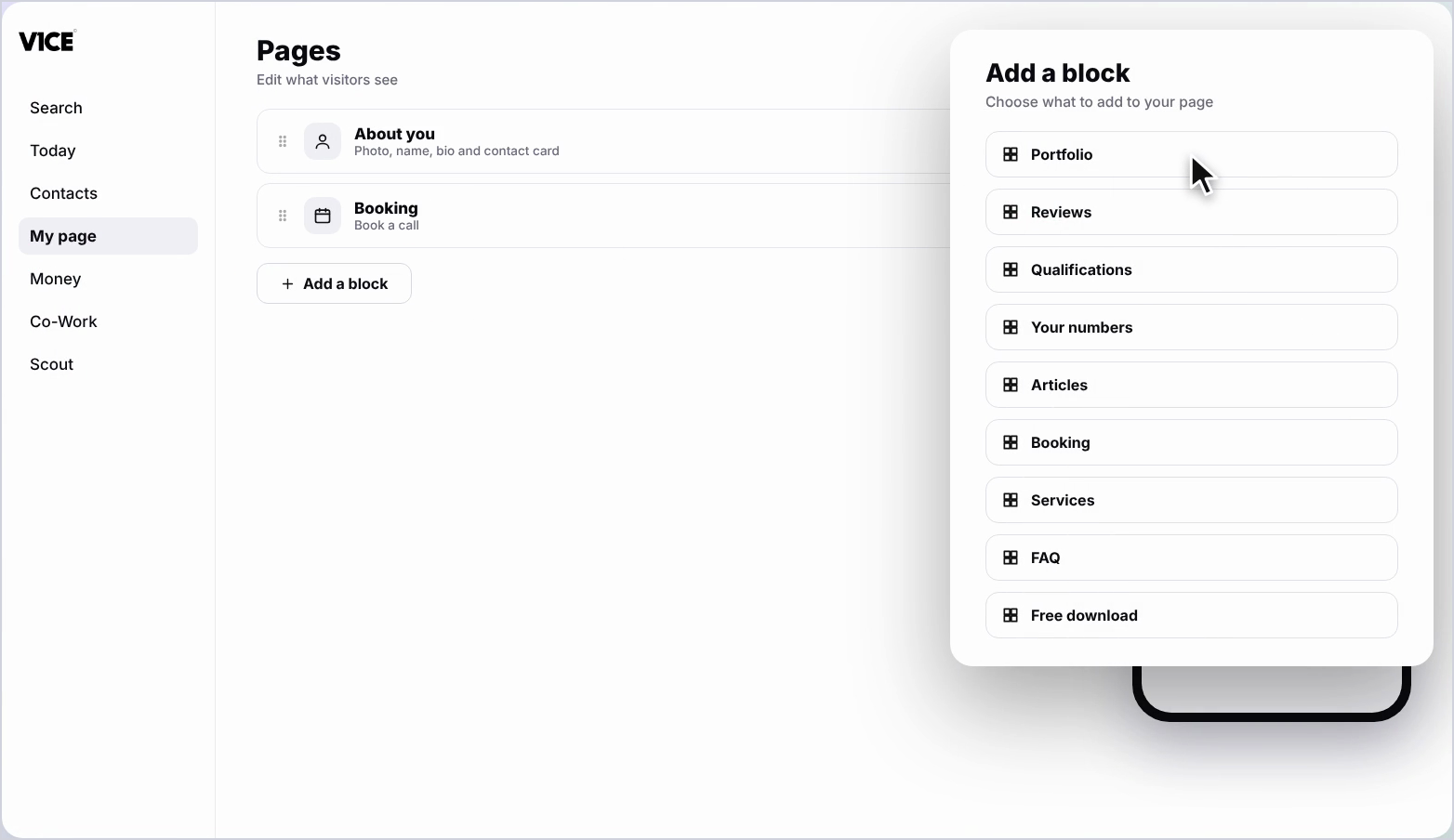
Step 3: Find Portfolio
Find Portfolio in the list and click it.
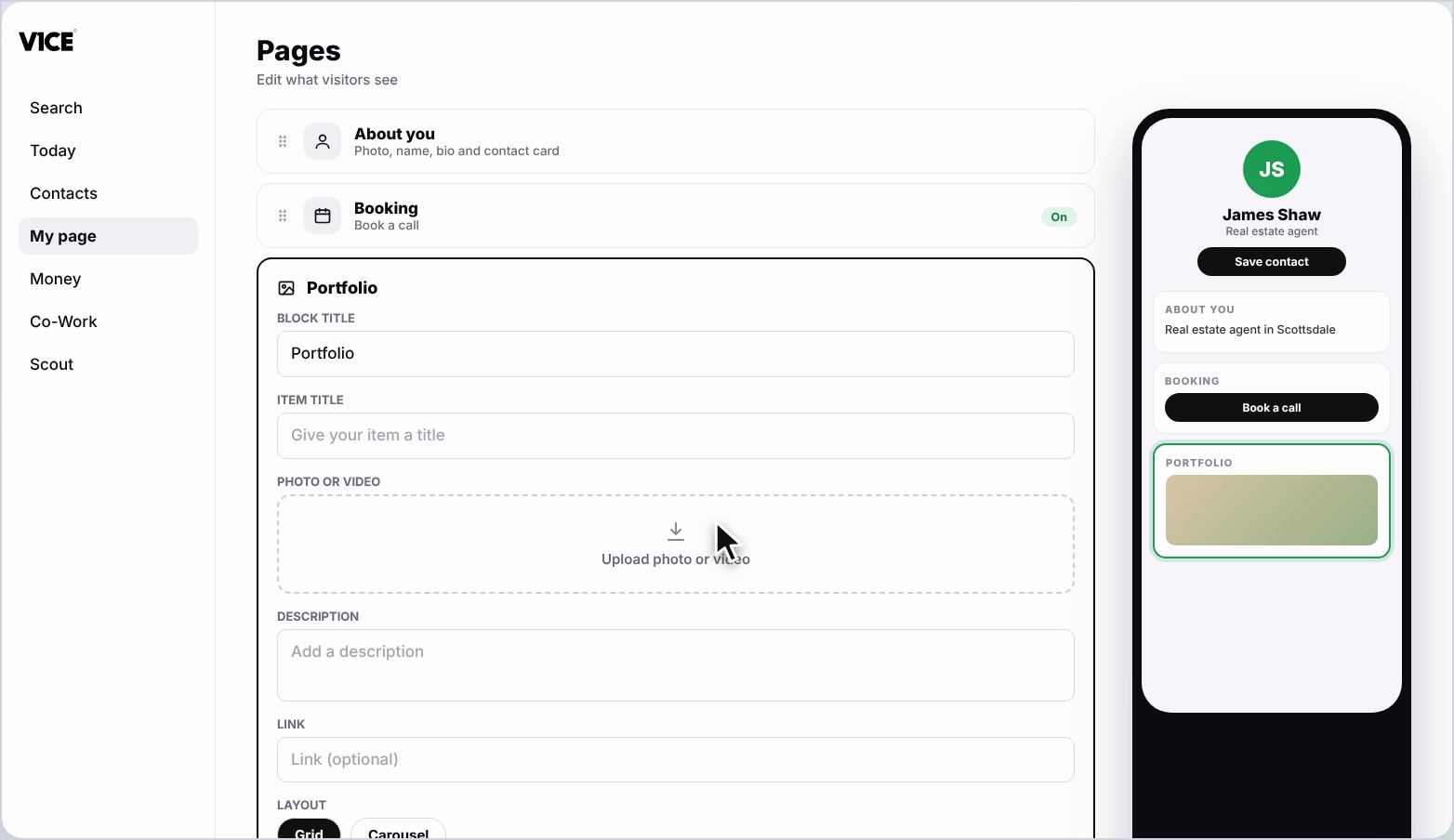
Step 4: Give your first item a title
Give your first item a title.
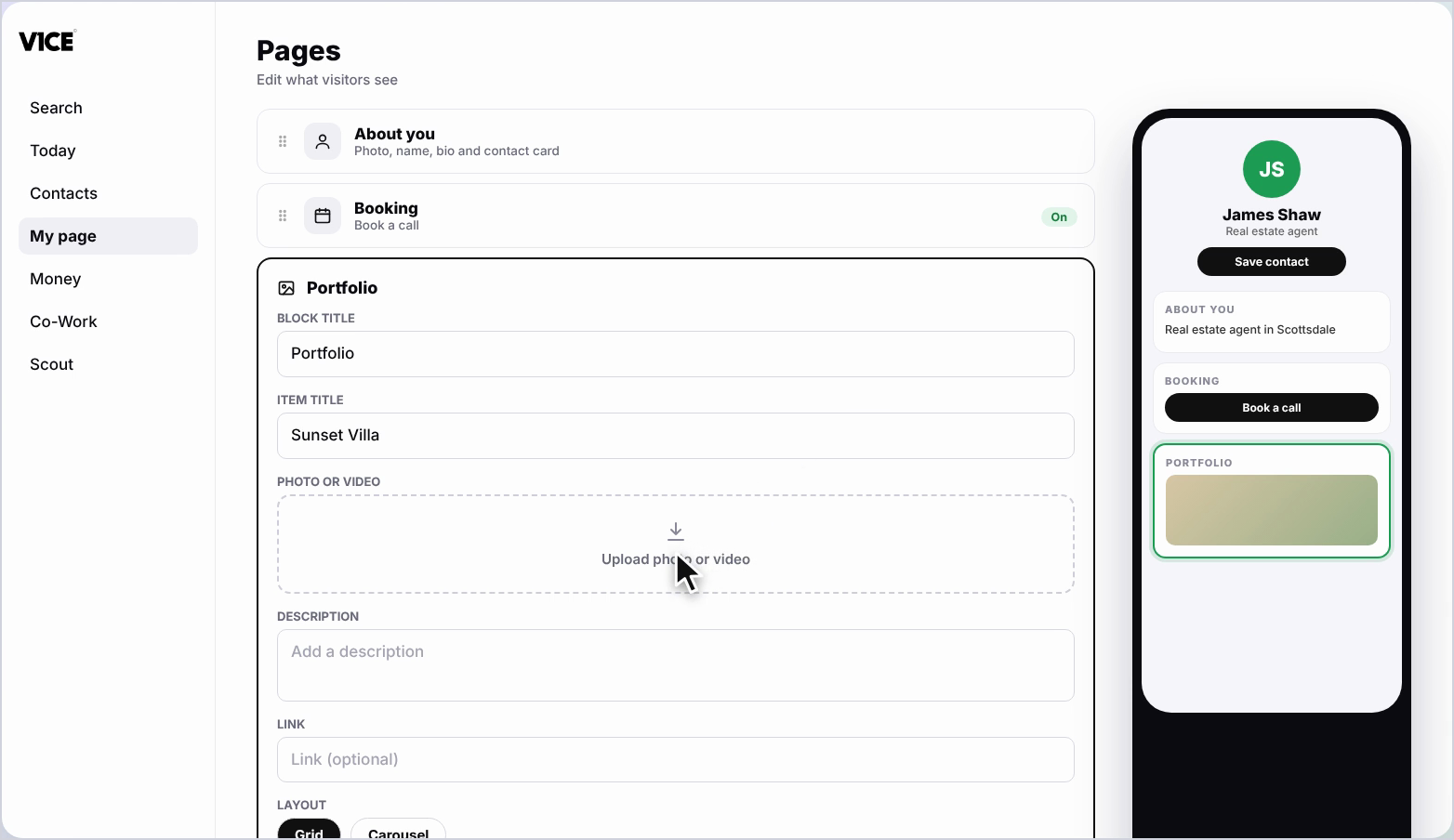
Step 5: Upload a photo or video
Click Upload photo or video to add an image, then crop it and save. You can also paste a video link.
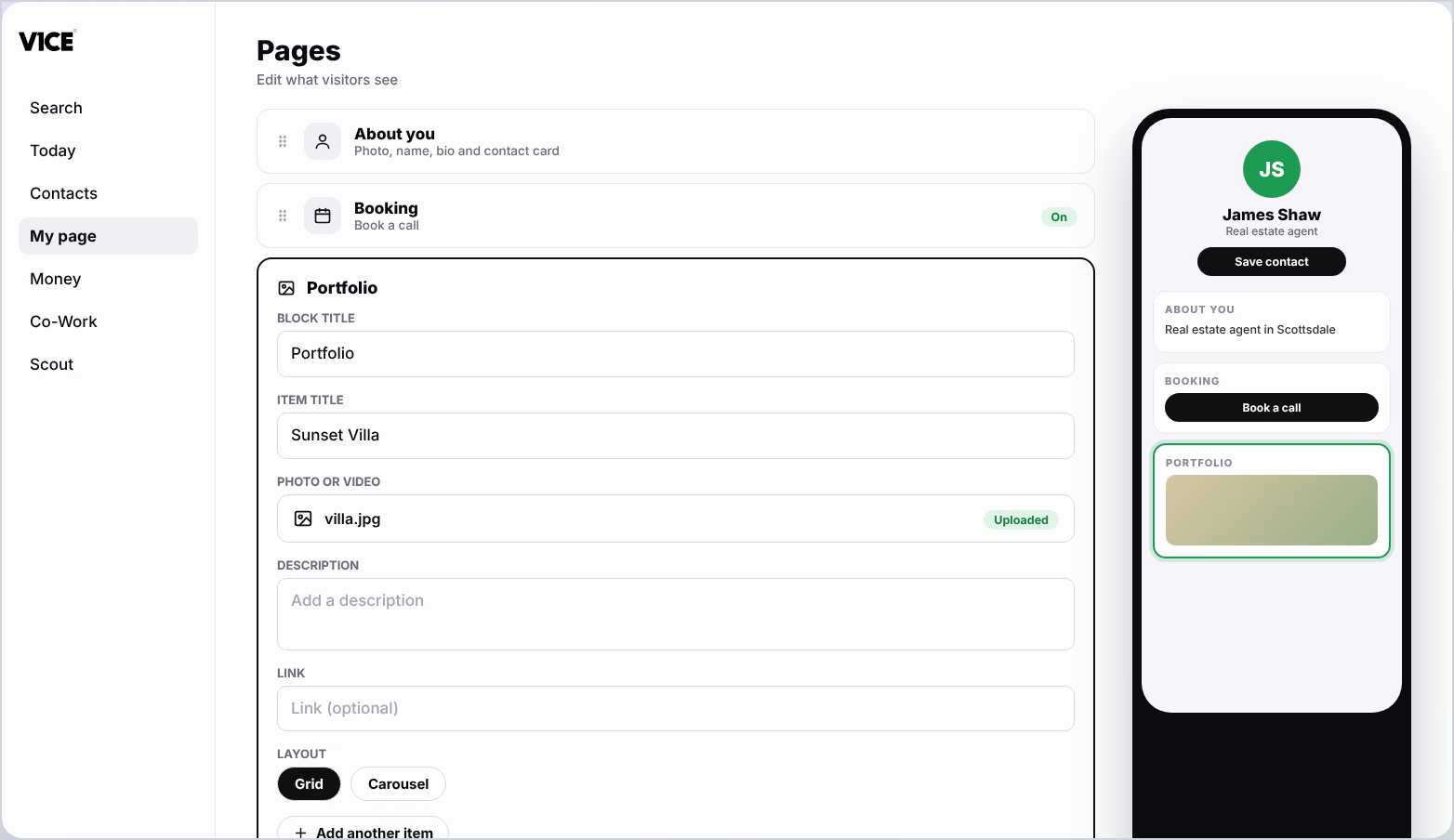
Step 6: Add a description
Add a description, and a link if you'd like people to click through.
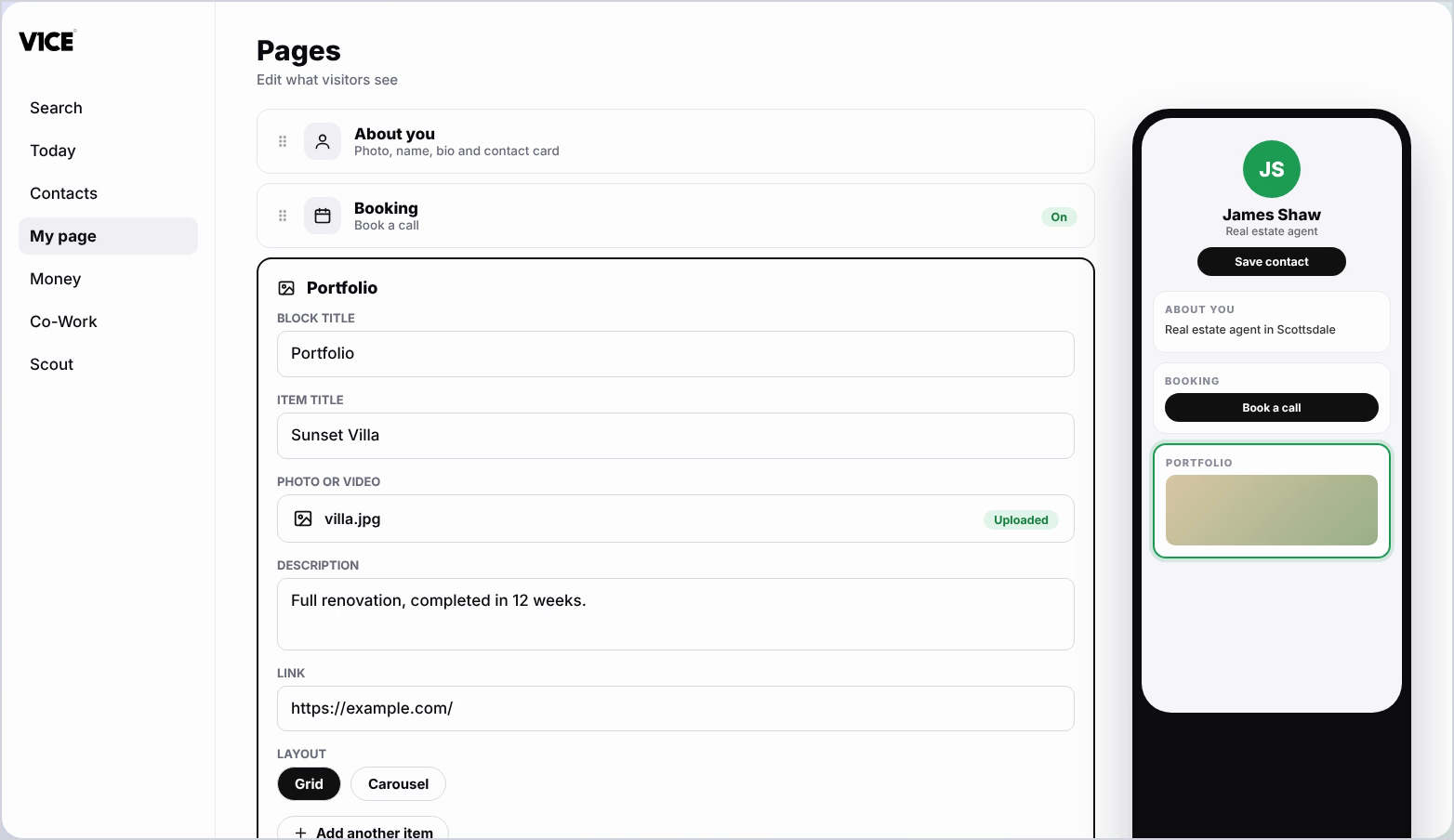
Step 7: Add another item
To add another item, click Add another item.
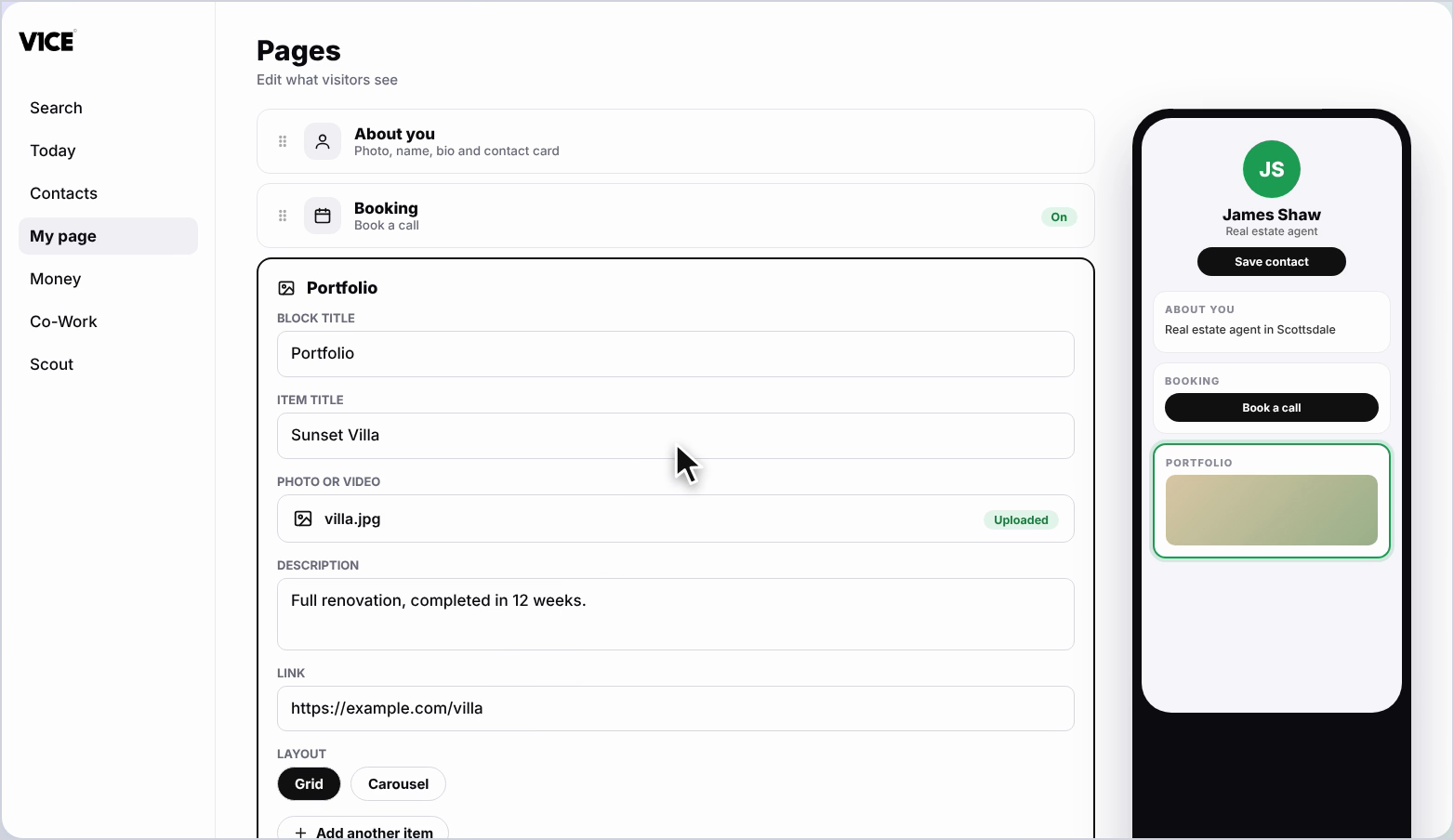
Step 8: Add a video
For a video, paste in the link, then add a title and description.
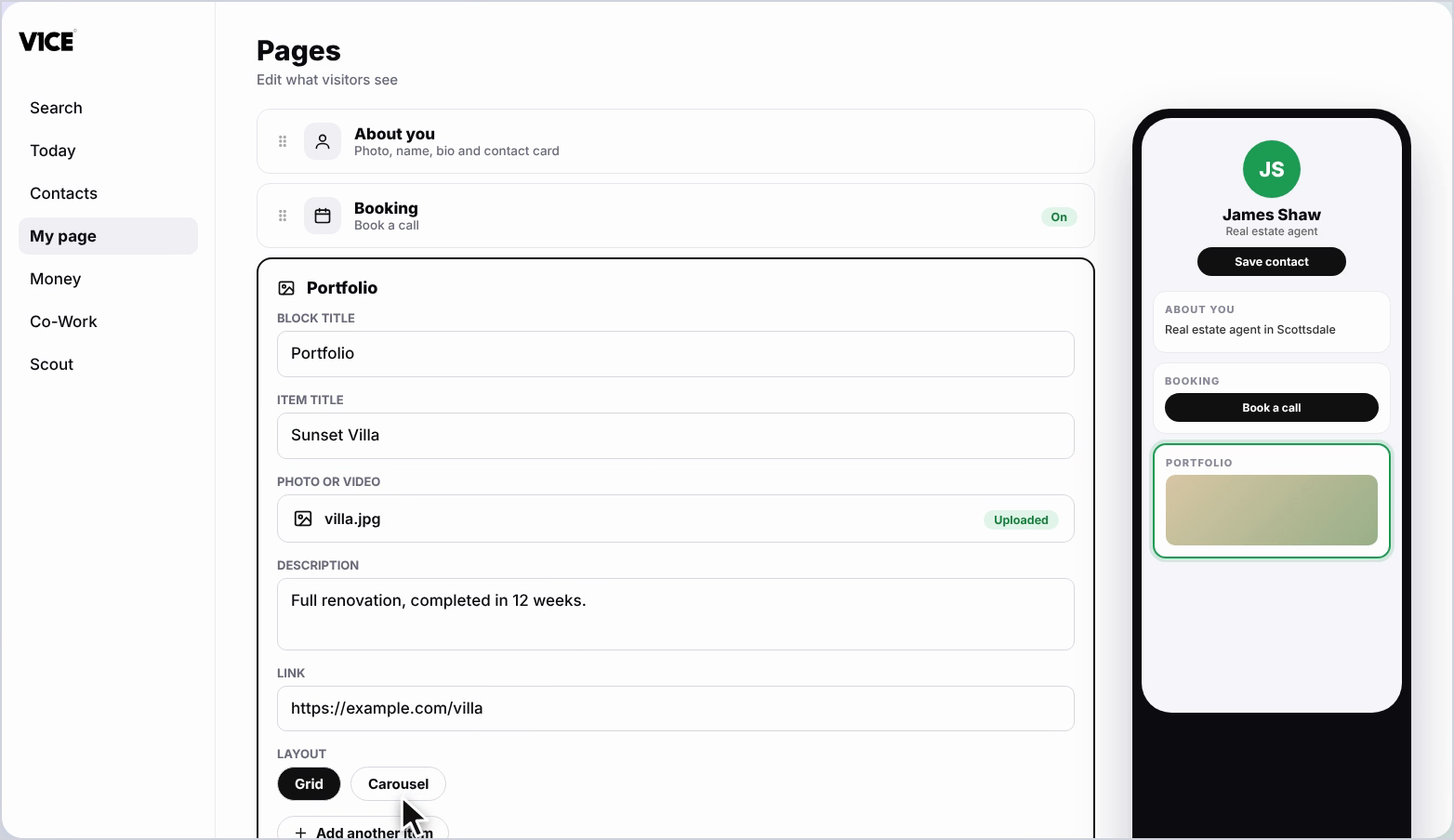
Step 9: Choose a layout to change how your portfolio looks
Choose a layout to change how your portfolio looks.
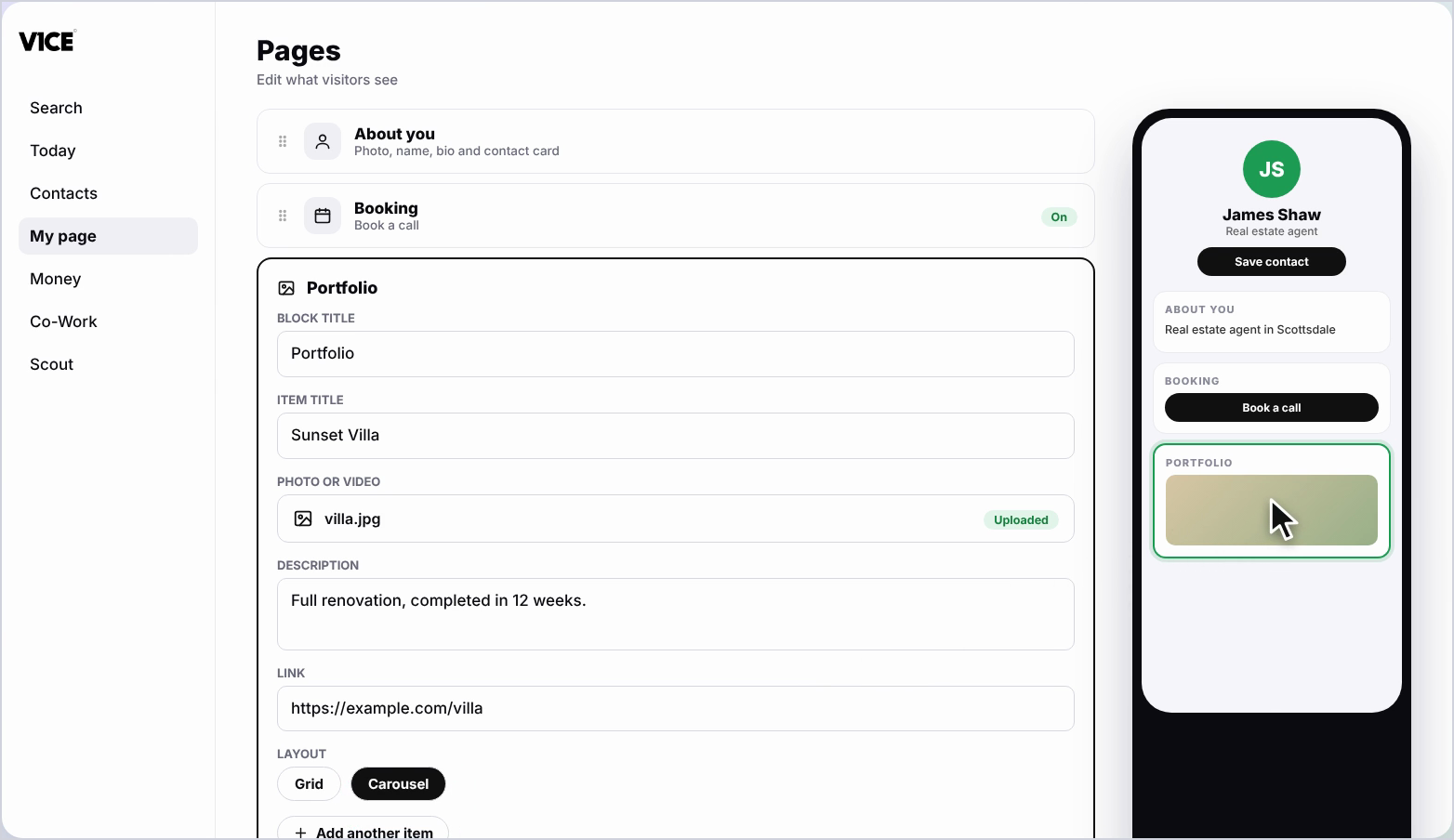
Step 10: See it on your page
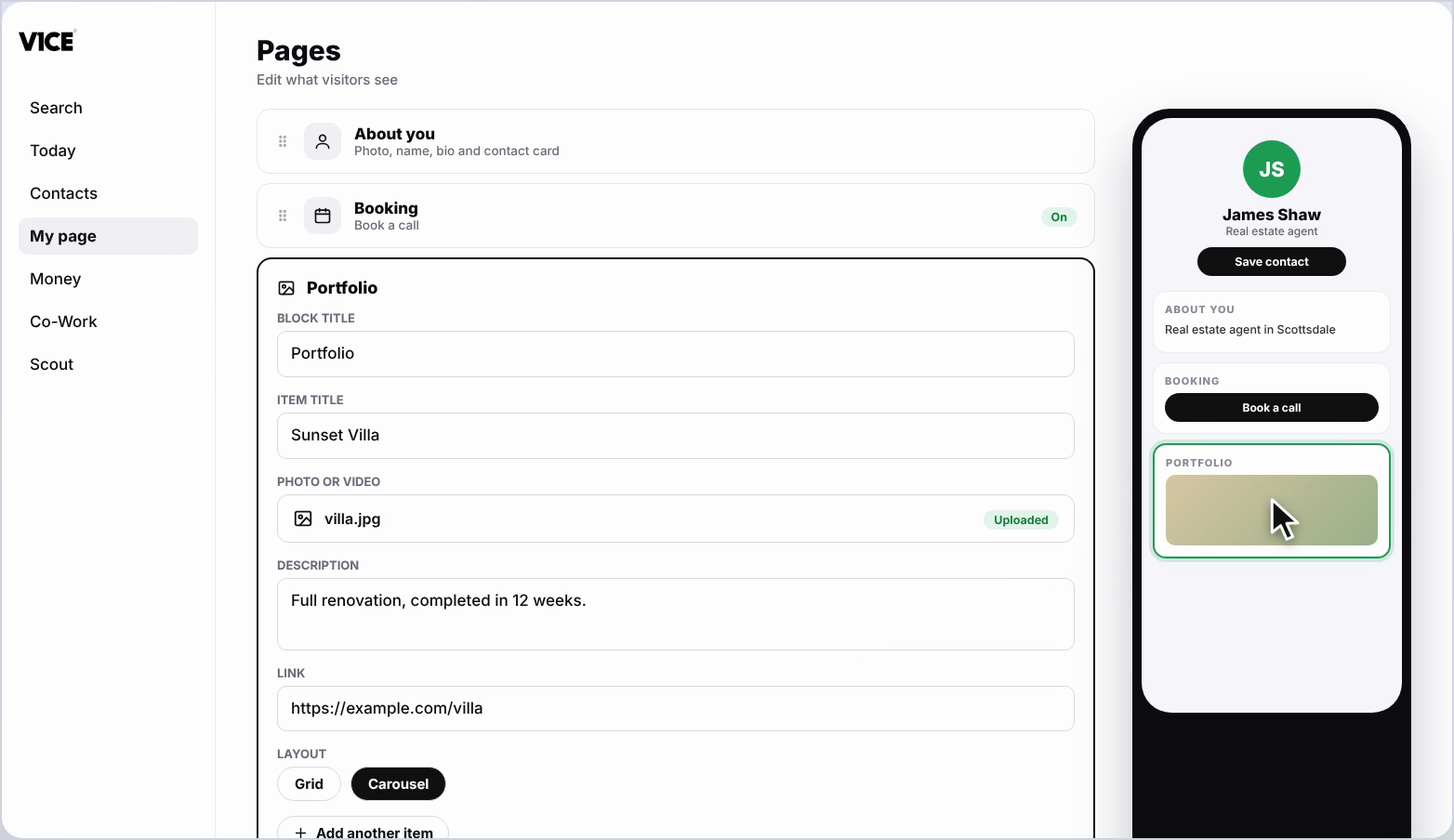
Your portfolio now shows on your page. Click any item to open it.
Frequently asked questions
Can I add videos to my portfolio?
Yes. For a video, paste in the link, then add a title and description.
How do I add a photo?
Click Upload photo or video to add an image, then crop it and save.
How do I add more items?
Click Add another item.
Can I change how my portfolio looks?
Yes. Choose a layout to change how your portfolio looks.