How to add a map to your page

To add a map, open My page, then Pages, click Add a block and choose Map. Add a title, choose your address, drag the map to place the pin, and switch on Area you cover to set how far you travel. Changes save automatically.
| Time needed | 1 minute |
|---|---|
| What you need | Your V1CE account and the address you want to show |
| Where in the app | My page > Pages > Add a block > Map |
Video transcript and chapters
Chapters
0:00 Introduction
0:10 Open My page
0:16 Find Map
0:19 Add your title
0:24 Choose your address
0:29 Move the pin
0:33 Switch on Area you cover
0:39 See it on your page
0:48 You're done

Transcript
Show people where you are, and the area you cover.
Choose your location, move the pin, and set how far you cover.
Open my page, then Pages.
Scroll to the bottom of your page and click Add a block.
Find map in the list and click it.
Click the title and type your own, for example, view my location.
Click the address box, start typing, and choose your location from the list.
Drag the map to move the pin to exactly the right spot.
Switch on area you cover.
Drag the slider to set how far you cover.
Your map now shows on your page.
Click the back arrow, your changes save automatically, and your map shows on your page.
That's how to add a map to your page.
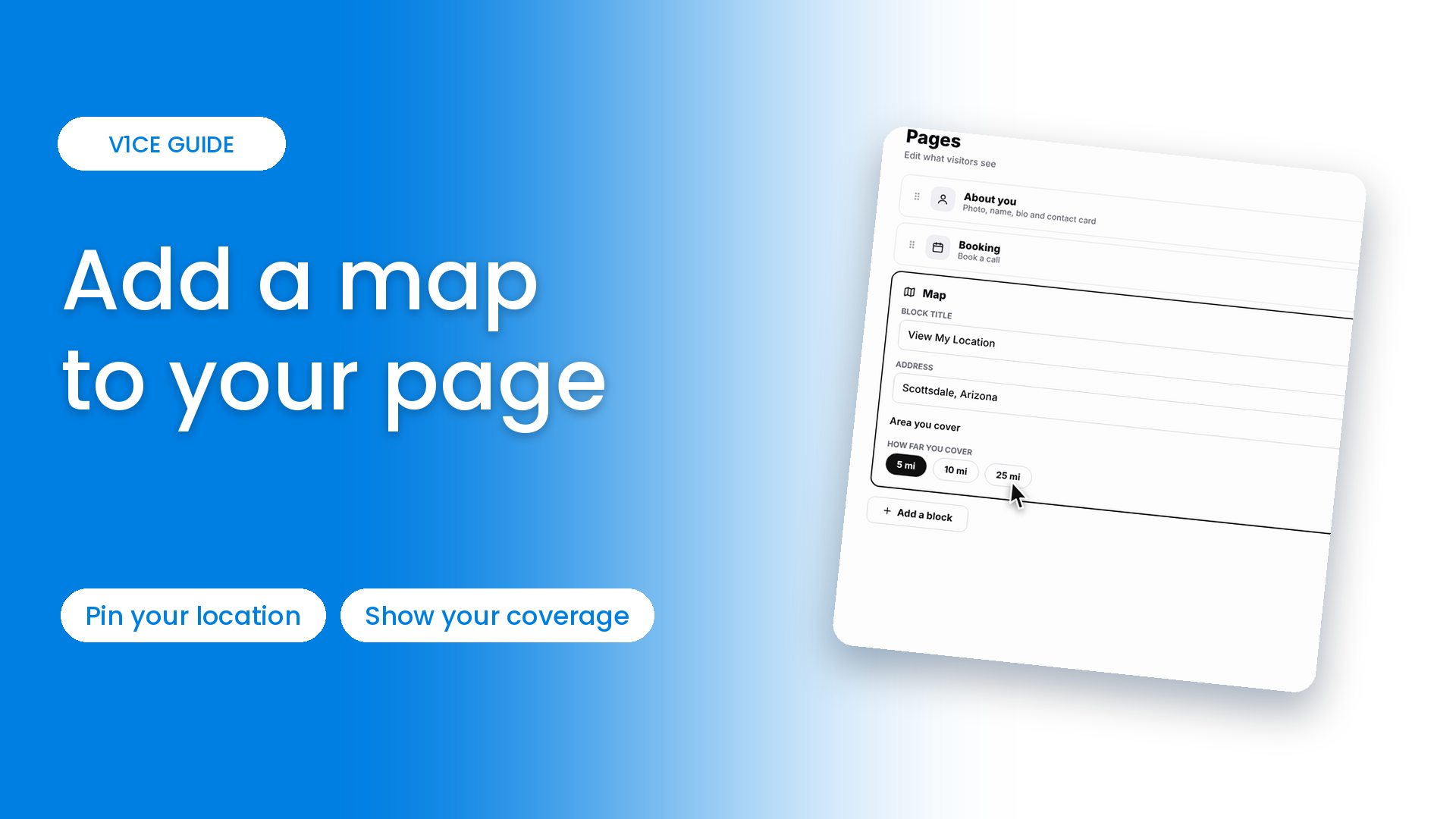
Show people where you are, and the area you cover.
Choose your location, move the pin, and set how far you cover.
Watch the video
Follow the steps
Step 1: Open My page
Open My page, then Pages.
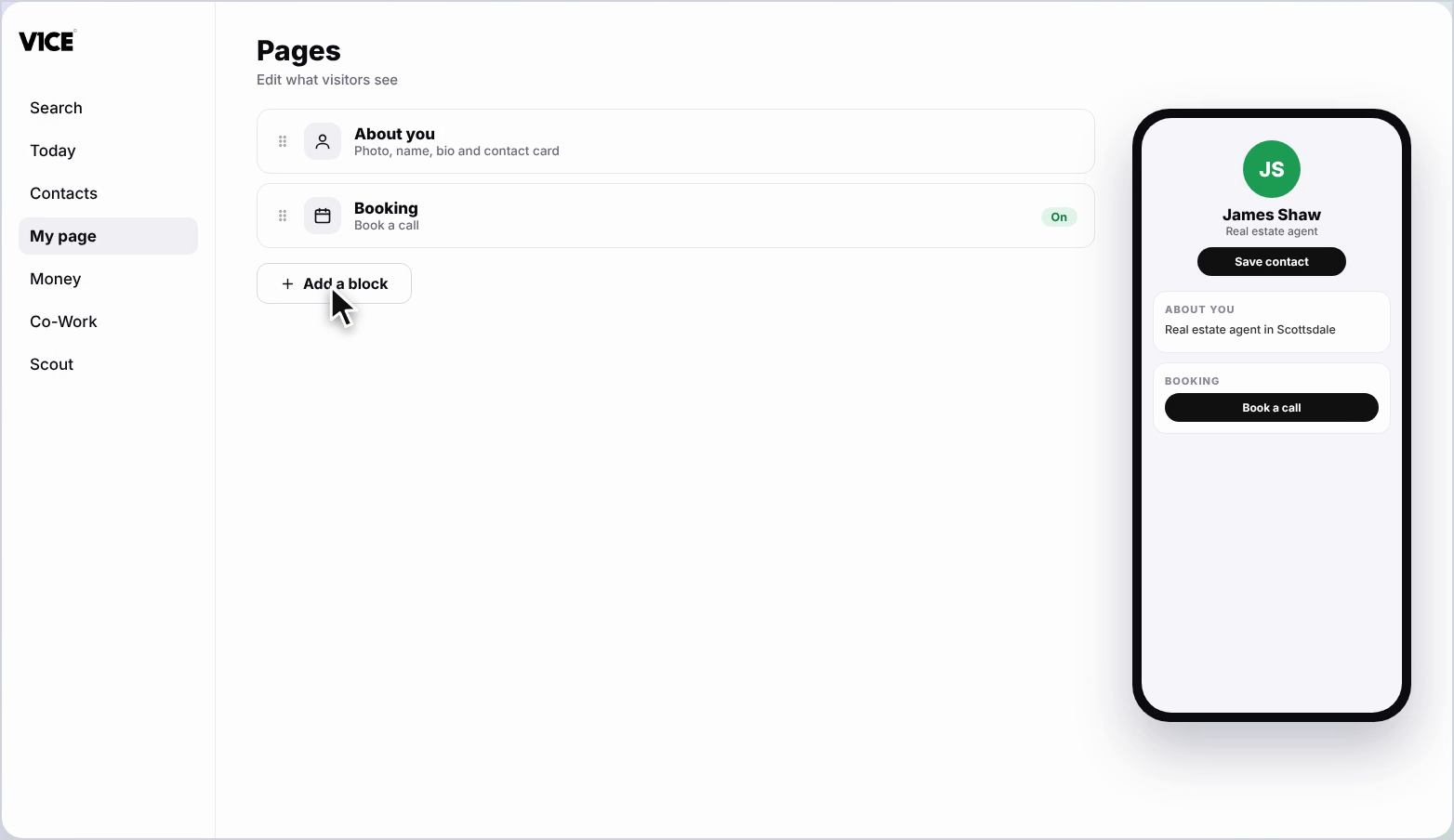
Step 2: Click Add a block
Scroll to the bottom of your page and click Add a block.
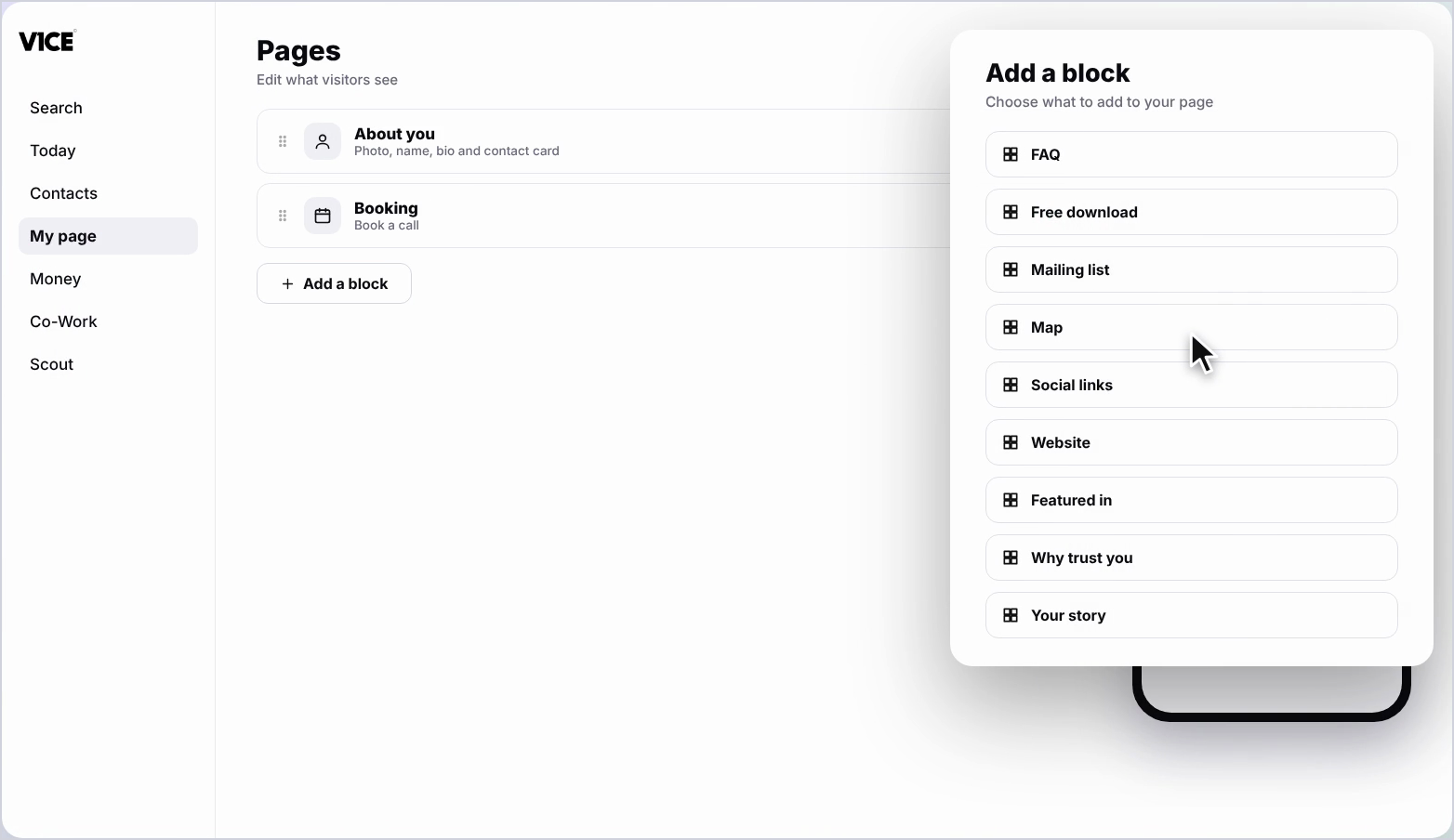
Step 3: Find Map
Find Map in the list and click it.
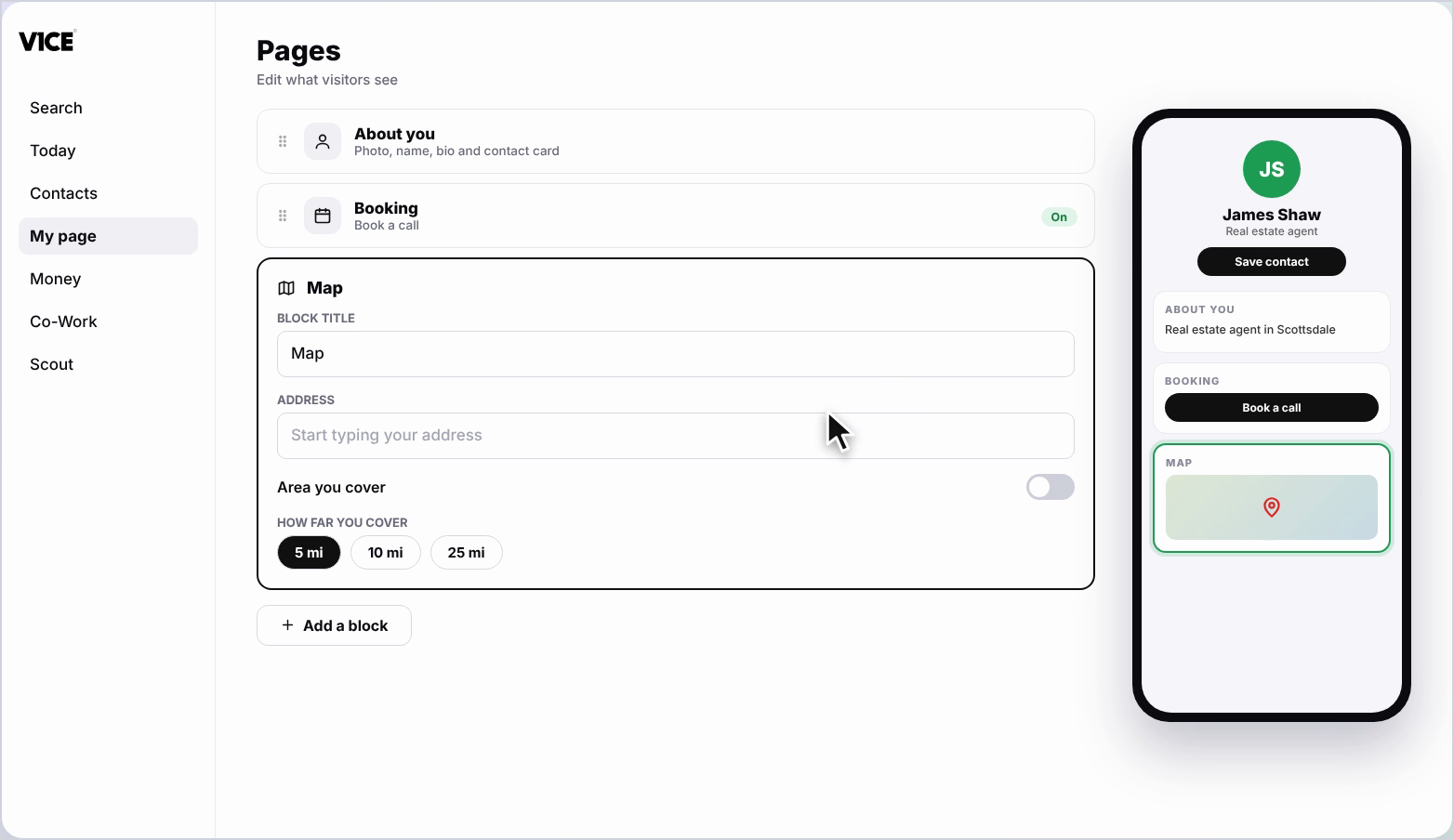
Step 4: Add your title
Click the Title and type your own, for example View My Location.
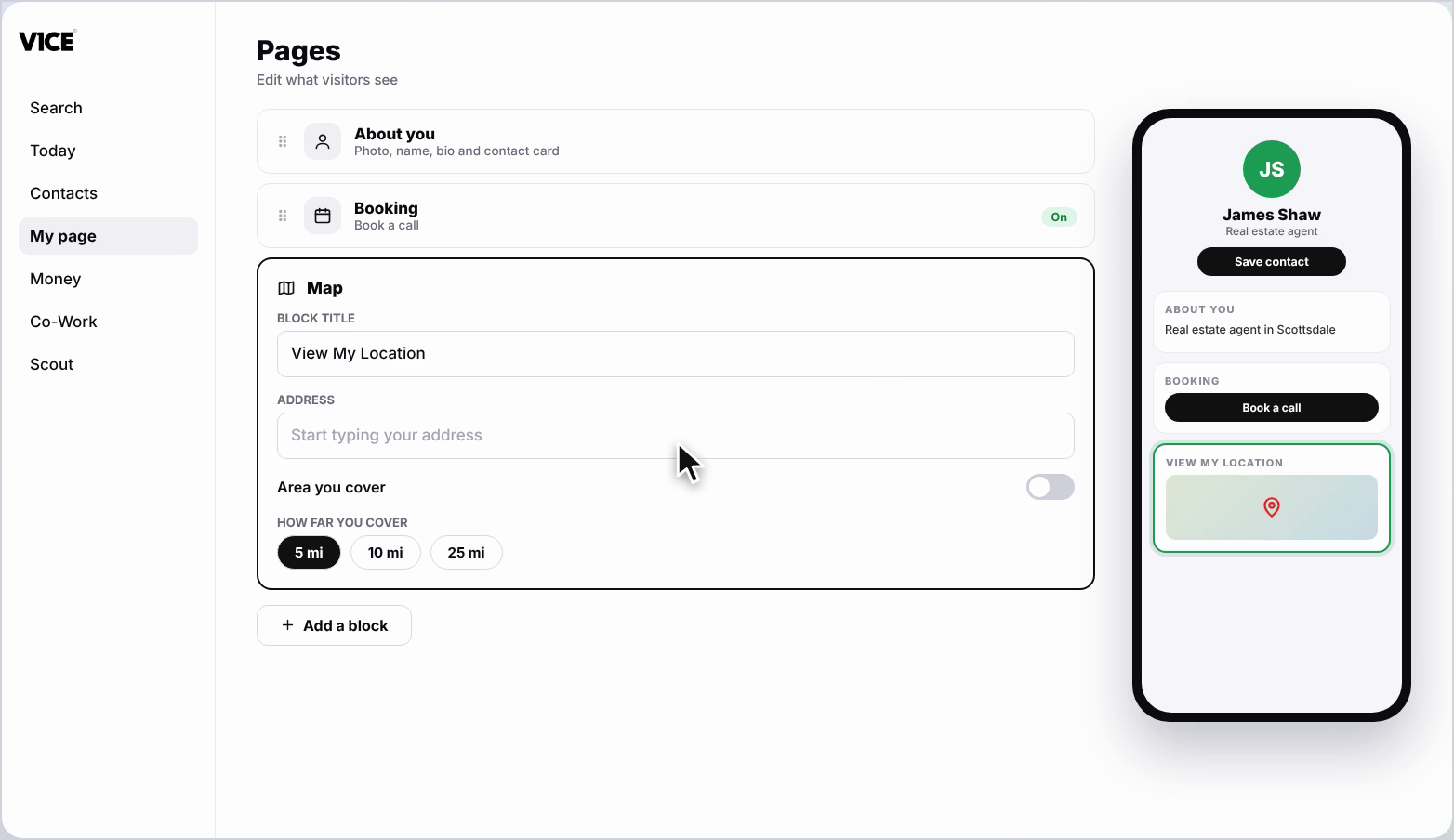
Step 5: Choose your address
Click the Address box, start typing, and choose your location from the list.
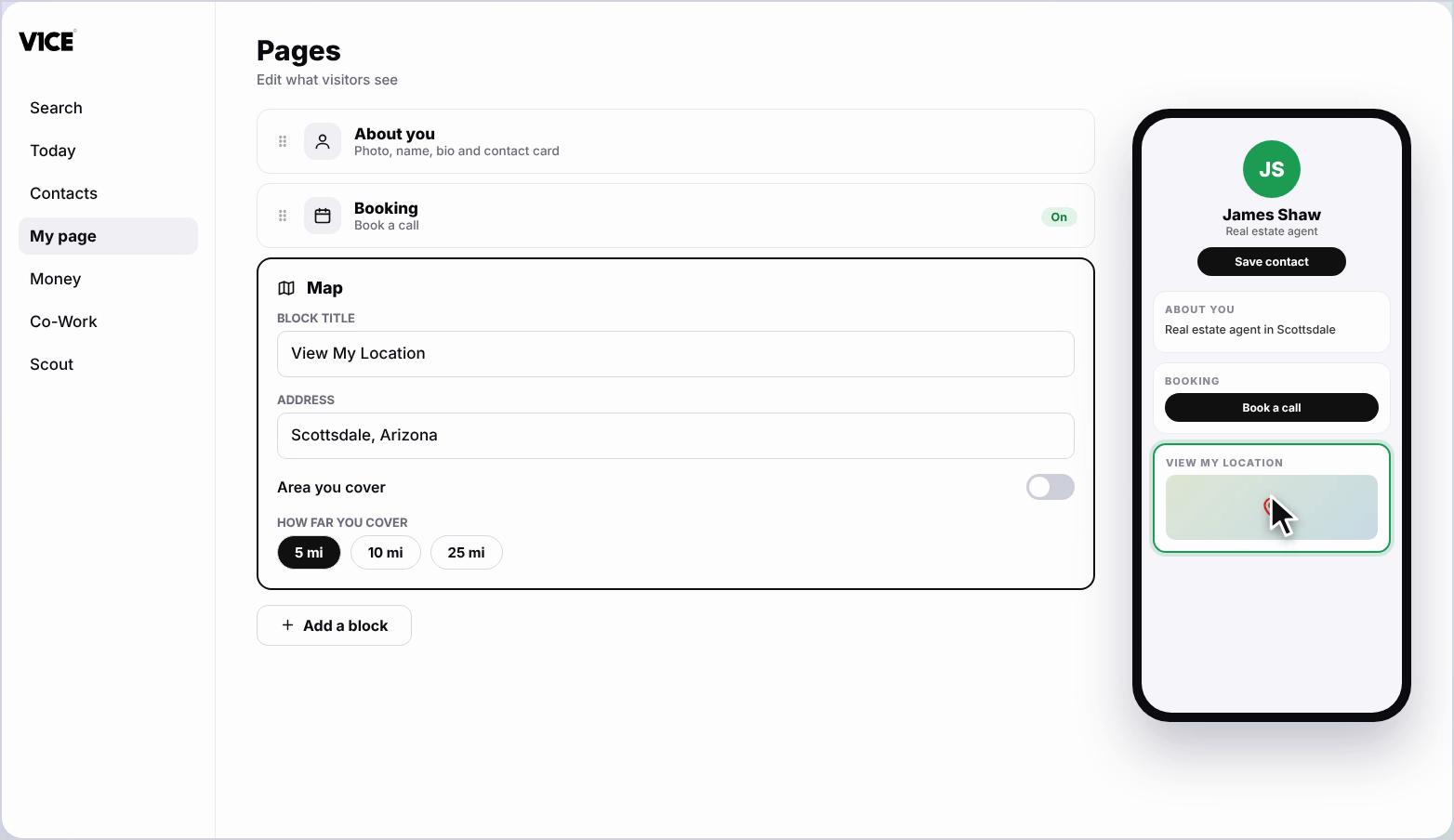
Step 6: Move the pin
Drag the map to move the pin to exactly the right spot.
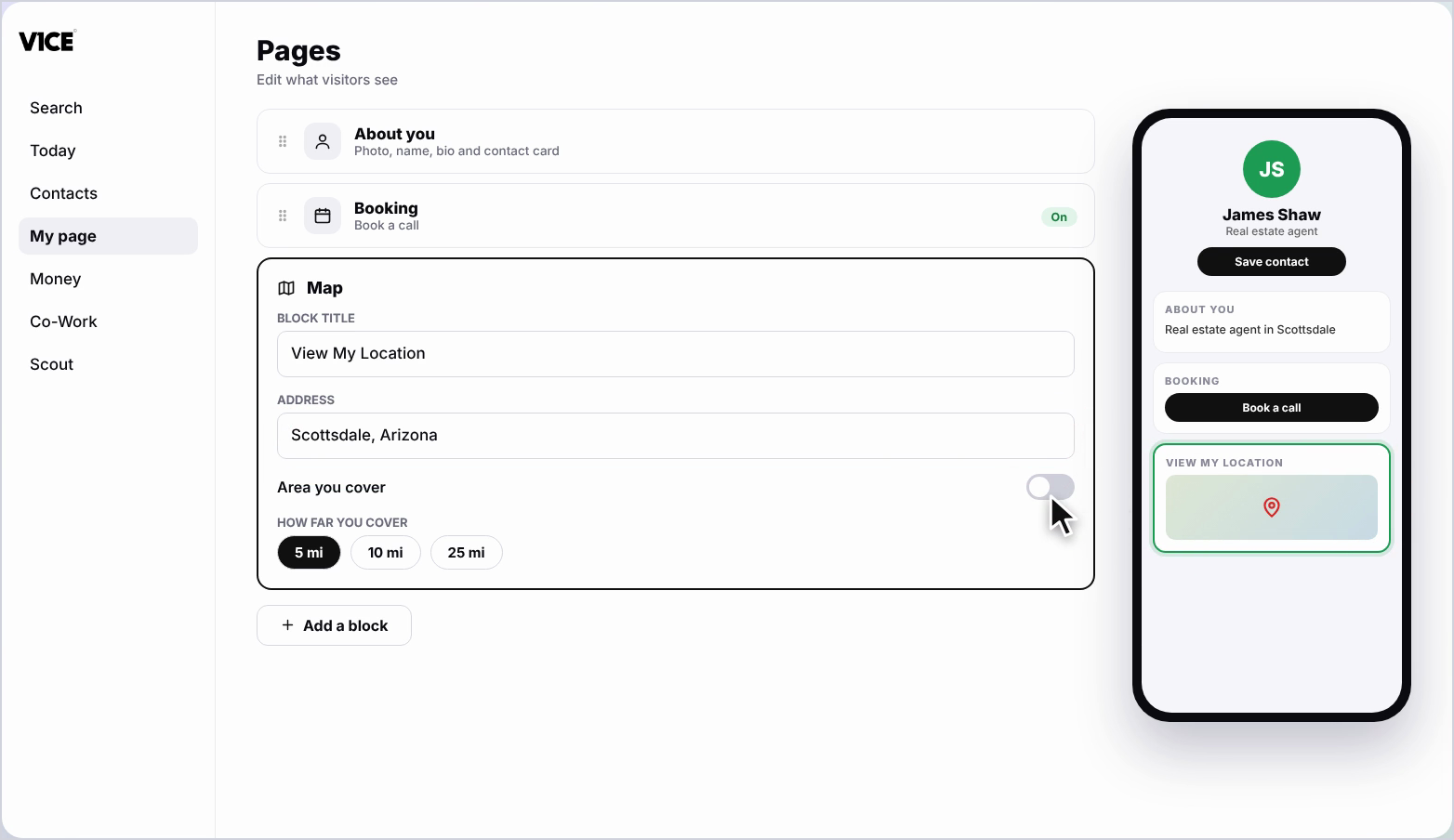
Step 7: Switch on Area you cover
Switch on Area you cover.
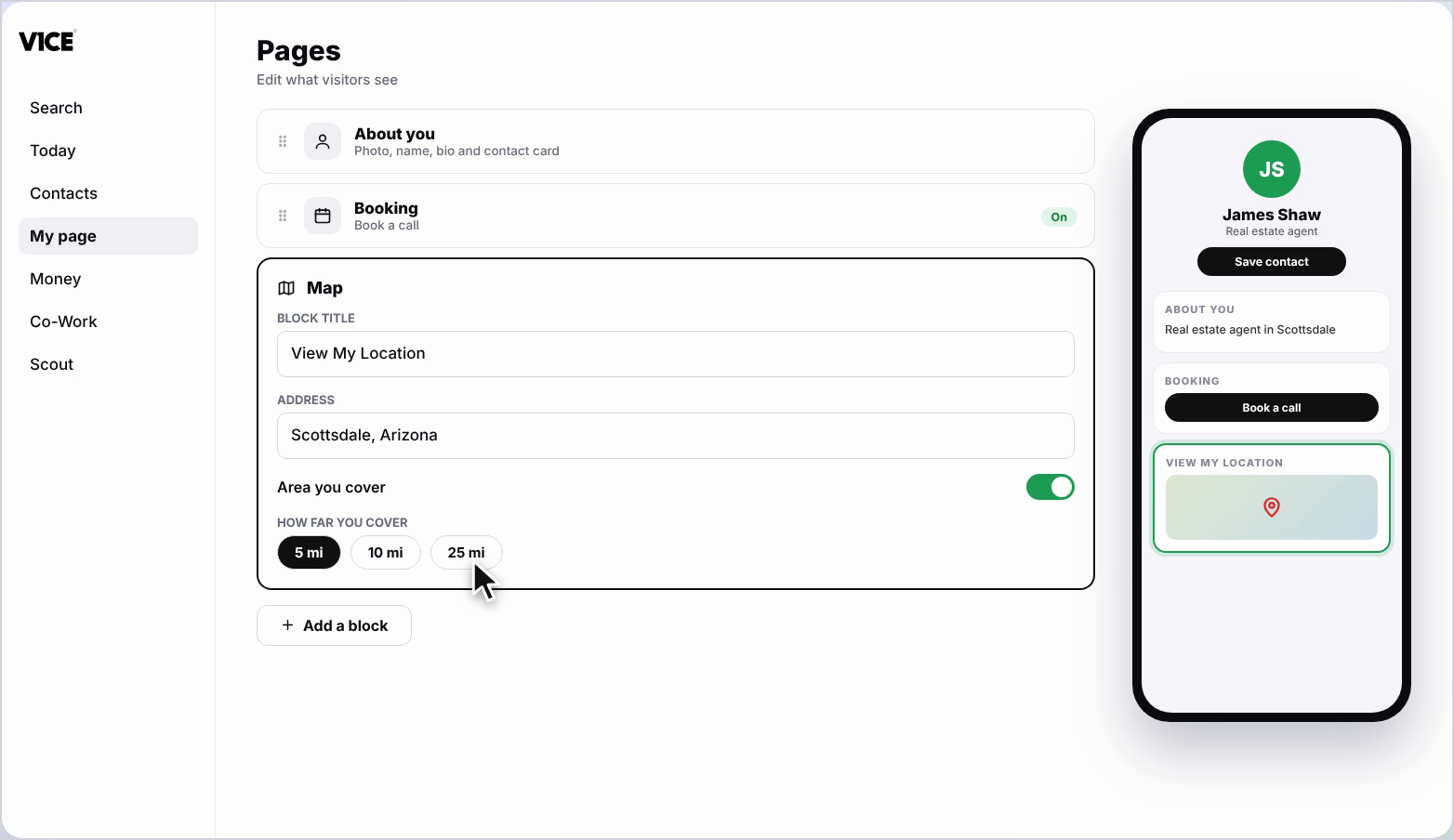
Step 8: Set how far you cover
Drag the slider to set how far you cover.
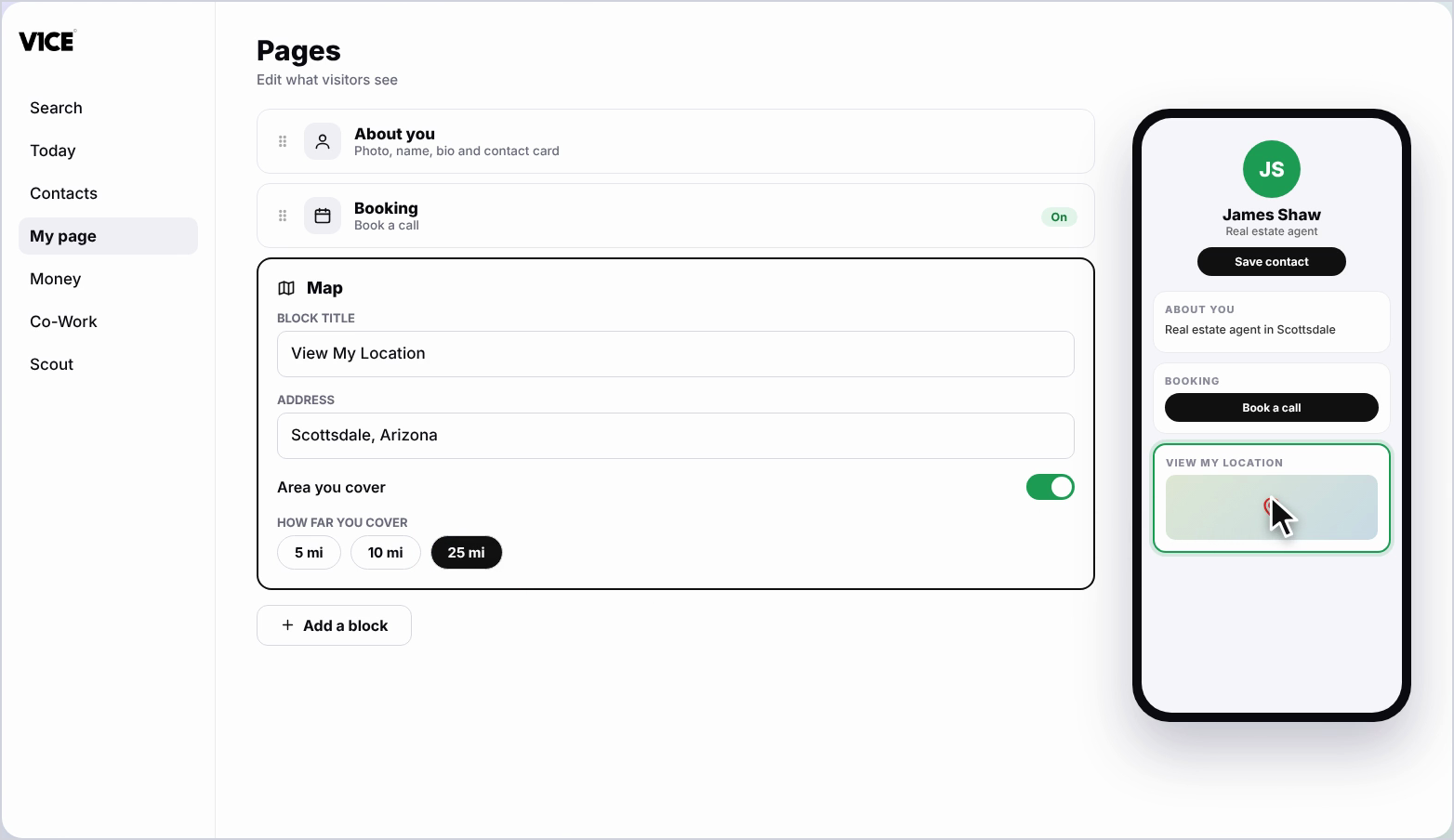
Step 9: See it on your page
Your map now shows on your page.
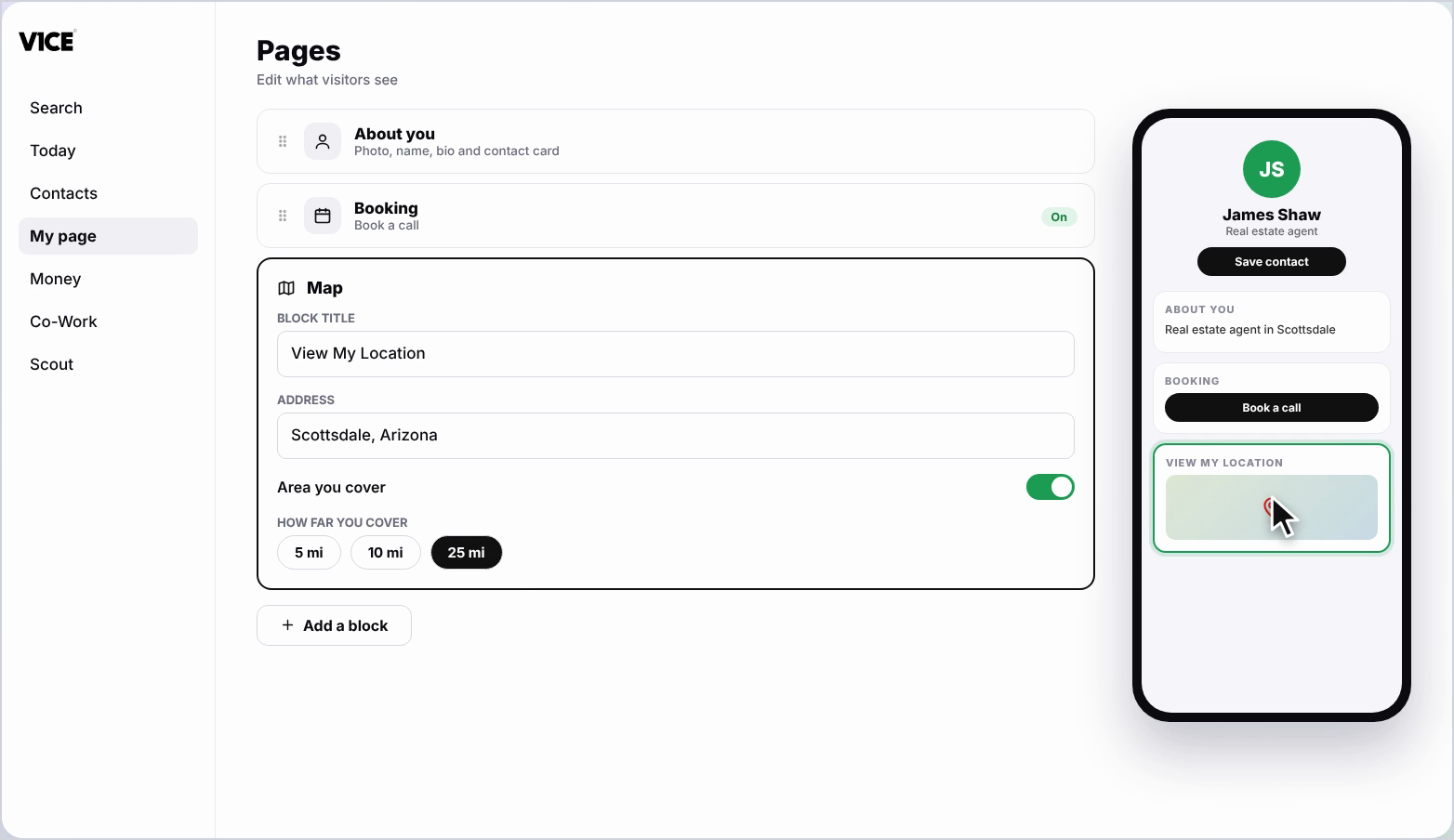
Step 10: Save your changes
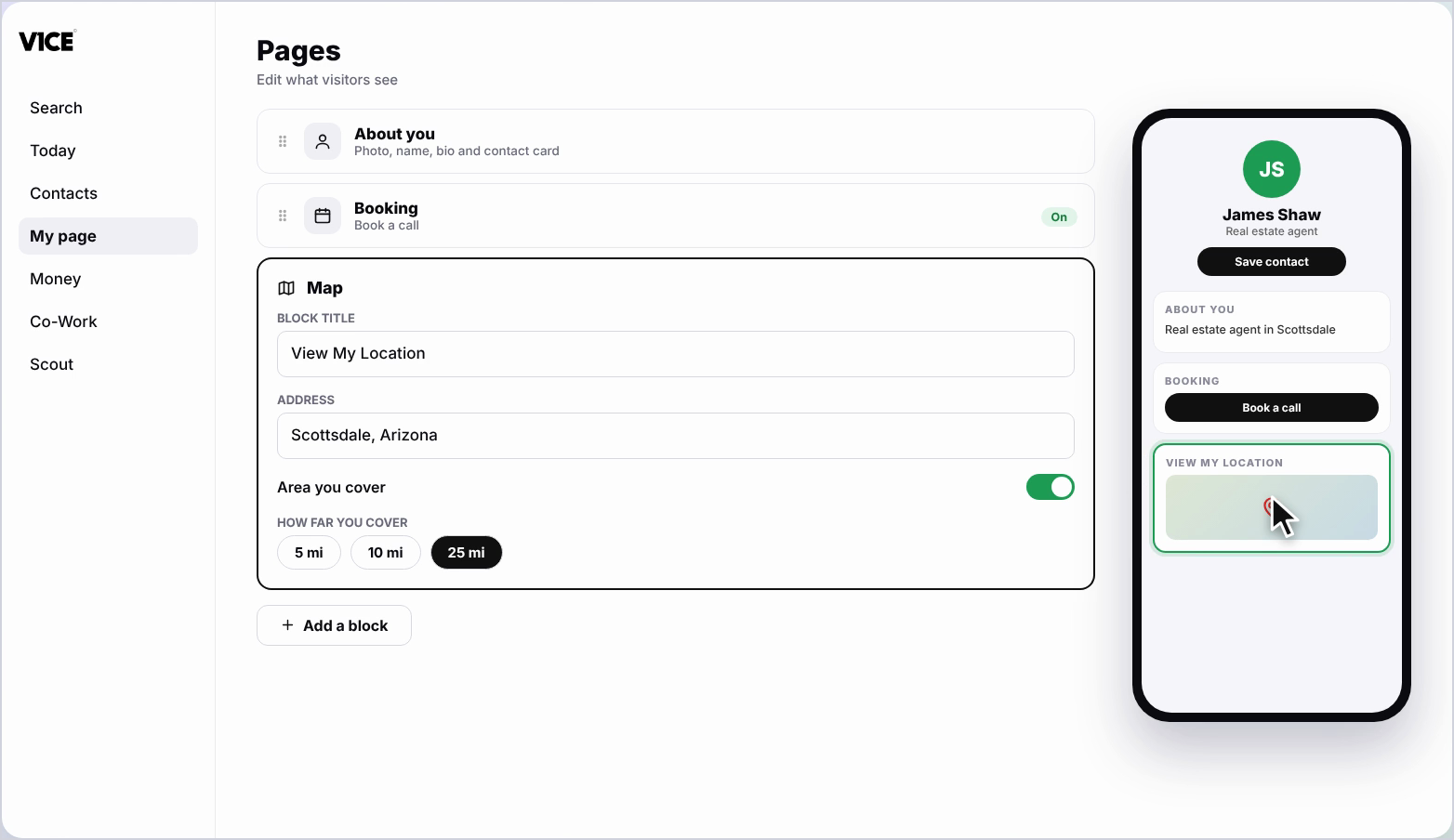
Click the back arrow. Your changes save automatically, and your map shows on your page.
Frequently asked questions
How do I add a map to my V1CE page?
Click Add a block, find Map and click it. Click the Address box, start typing and choose your location from the list.
Can I move the pin?
Yes. Drag the map to move the pin to exactly the right spot.
Can I show the area I cover?
Yes. Switch on Area you cover and drag the slider to set how far you cover.
Do I need to save my changes?
No. Click the back arrow and your changes save automatically.