How to add FAQs to your page

To add FAQs, open My page, then Pages, click Add a block and choose FAQ. Type a question and its answer, click Add question for more, then drag to reorder, hide with the eye, or remove with the cross. Changes save automatically.
| Time needed | 1 minute |
|---|---|
| What you need | Your V1CE account |
| Where in the app | My page > Pages > Add a block > FAQ |
Video transcript and chapters
Chapters
0:00 Introduction
0:10 Open My page
0:16 Find FAQ
0:20 Add a question
0:24 Add the answer
0:27 Add another question
0:32 Reorder questions
0:36 Hide a question
0:41 Remove a question
0:45 Save your changes
0:49 See it on your page
0:52 You're done

Transcript
Answer the questions people ask most.
Right on your V1CE page.
Add a FAQ block, then write each question and answer.
Open my page, then Pages.
Scroll to the bottom of your page and click Add a Block.
Find FAQ in the list and click it.
Click the question box and type a question people often ask.
Click the answer box and type your answer.
Click Add Question to add another,
then fill in the question and answer.
Drag a question up or down by its handle to change the order.
Click the eye to hide a question from your page without deleting it.
Click the cross to remove a question completely.
Click the back arrow.
Your changes save automatically.
Your FAQs now show on your page.
That's how to add FAQs to your page.
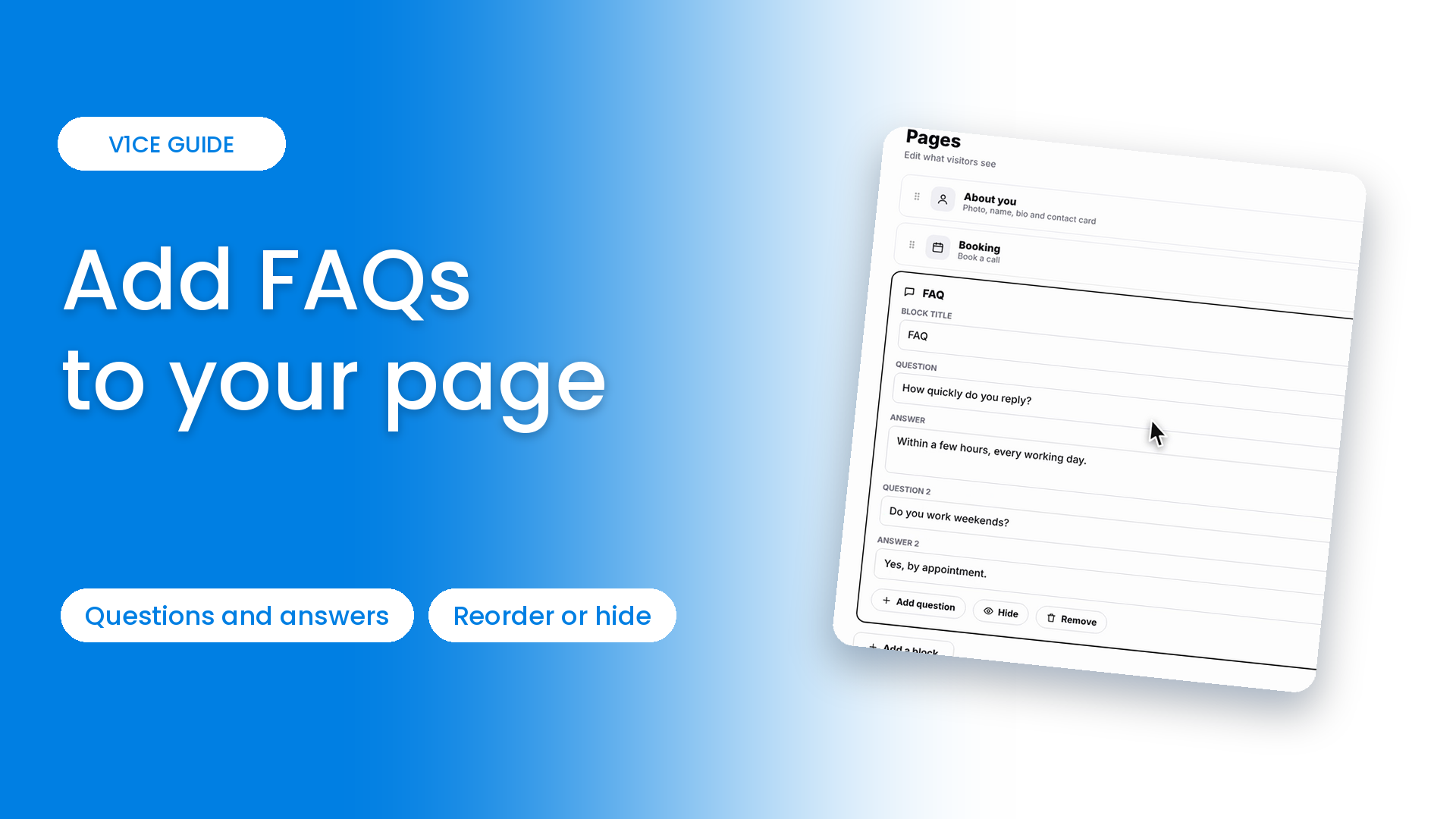
Answer the questions people ask most, right on your V1CE page.
Add a FAQ block, then write each question and answer.
Watch the video
Follow the steps
Step 1: Open My page
Open My page, then Pages.
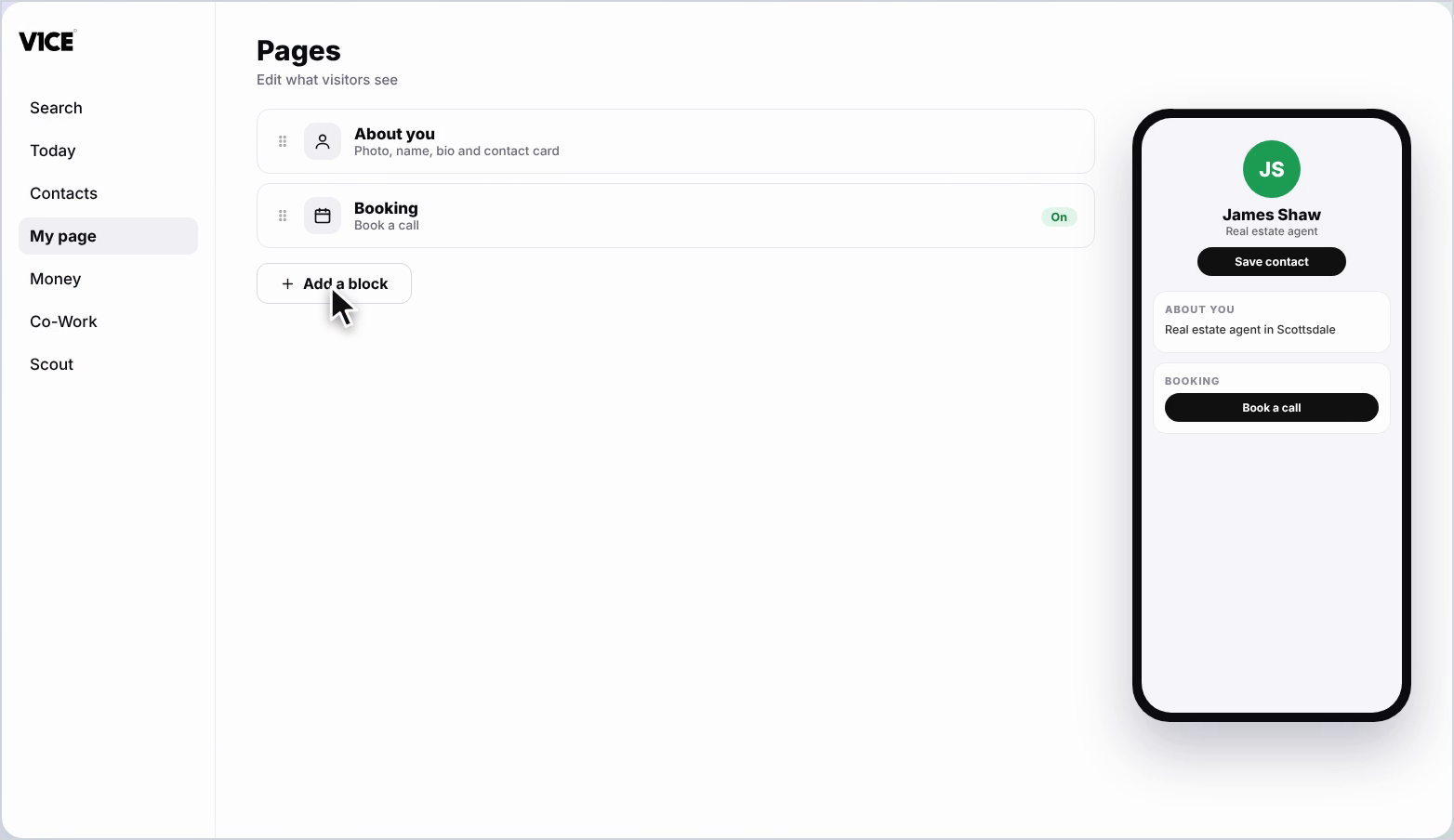
Step 2: Click Add a block
Scroll to the bottom of your page and click Add a block.
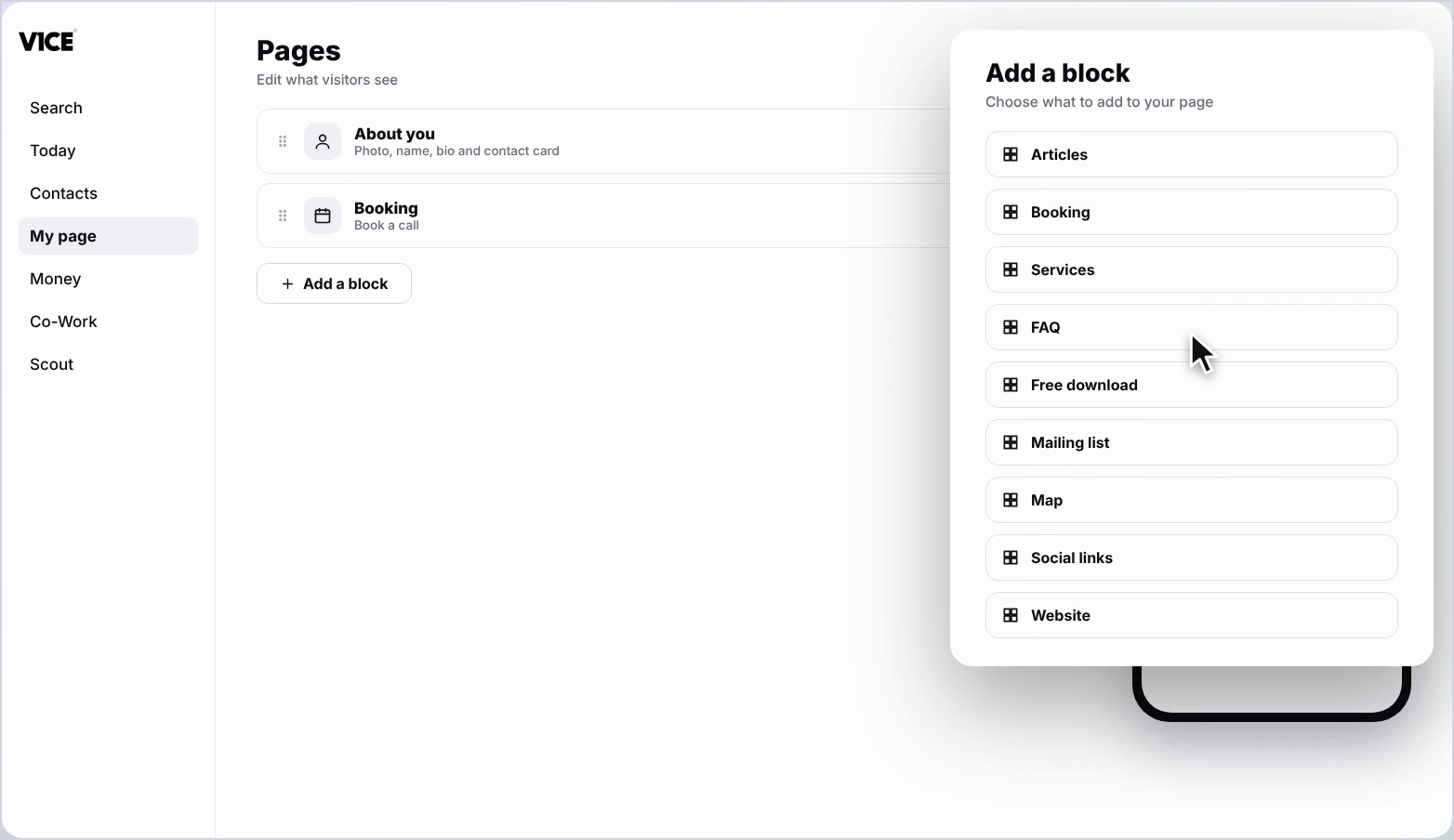
Step 3: Find FAQ
Find FAQ in the list and click it.
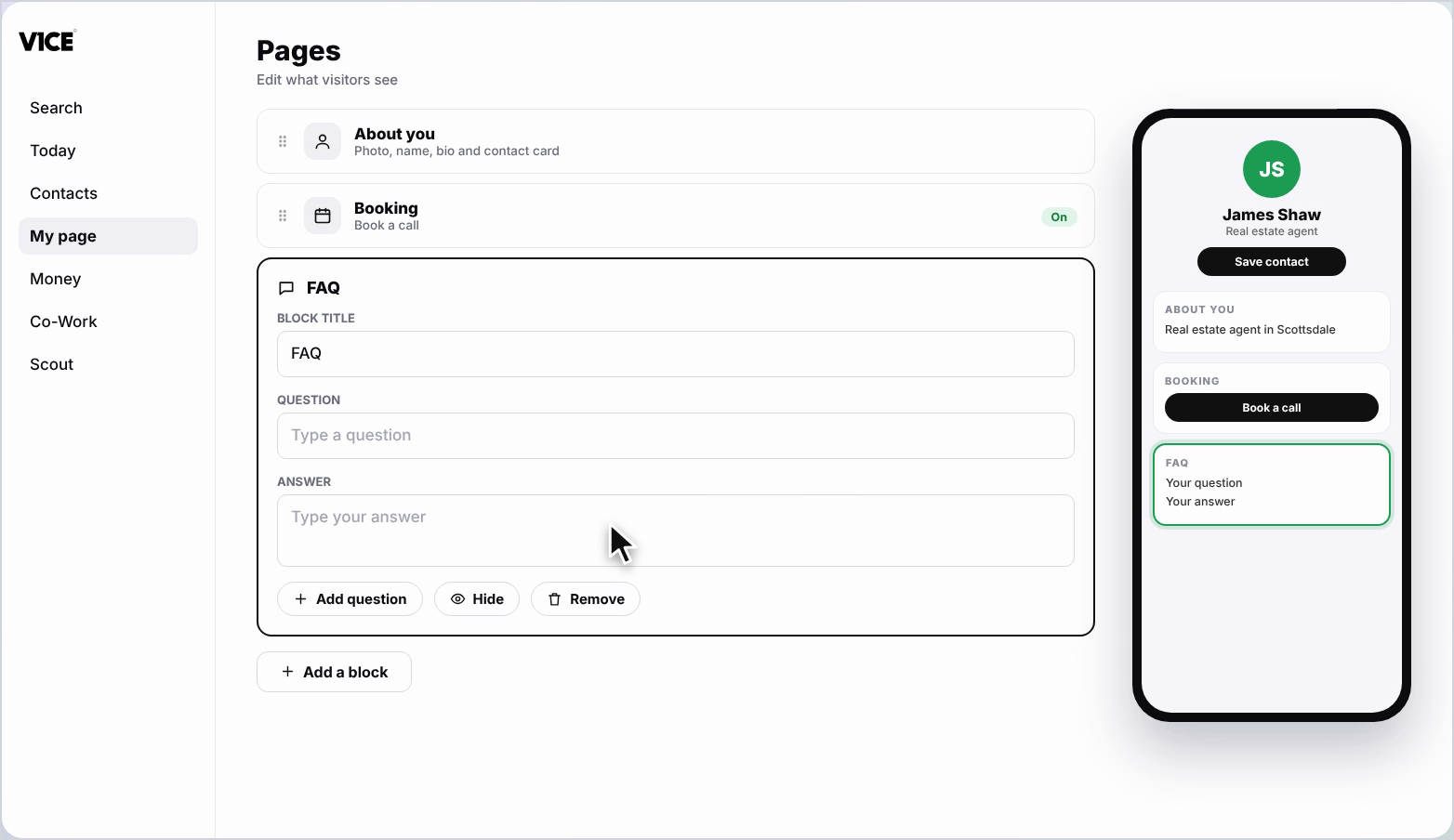
Step 4: Add a question
Click the Question box and type a question people often ask.
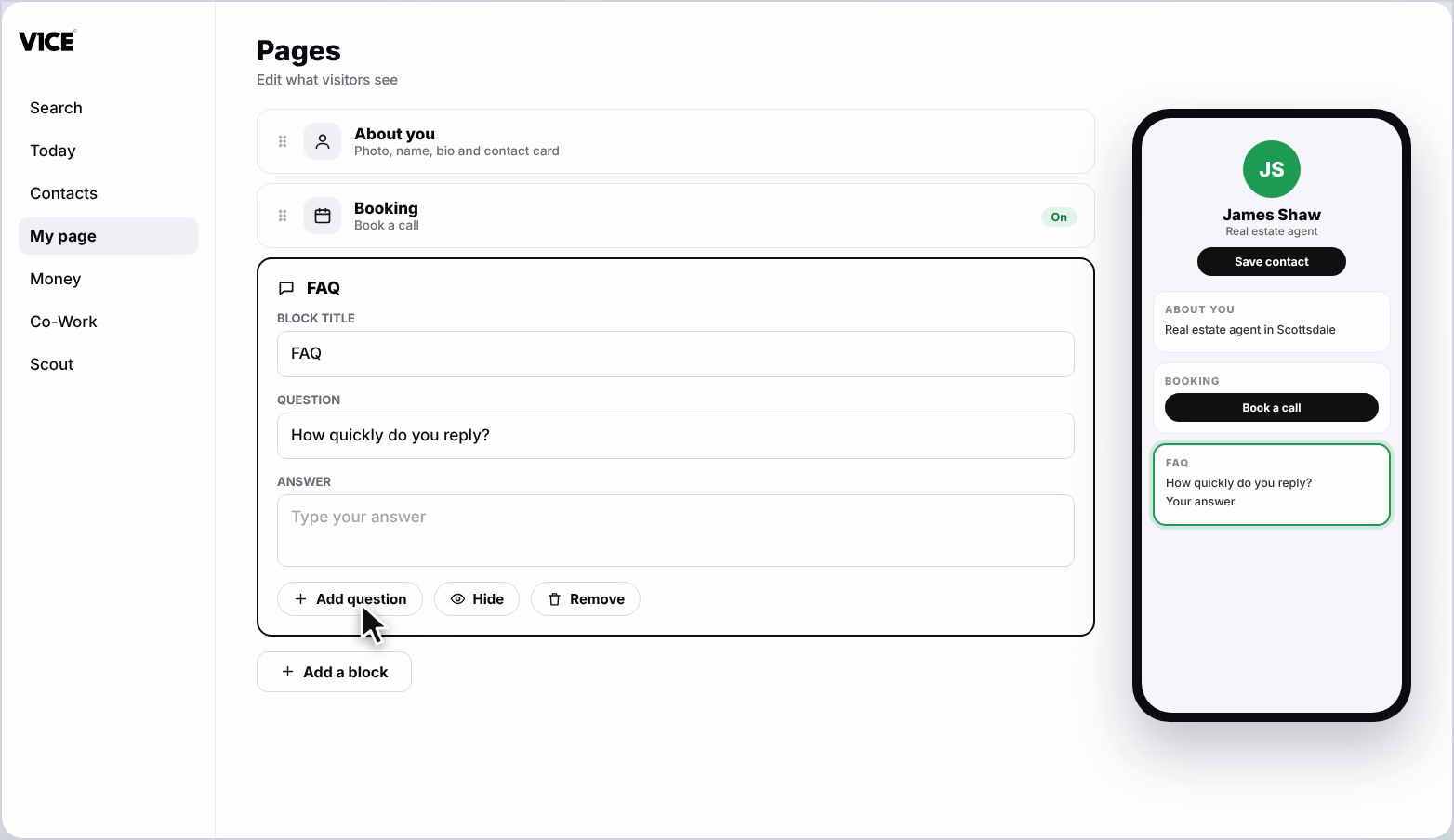
Step 5: Add the answer
Click the Answer box and type your answer.
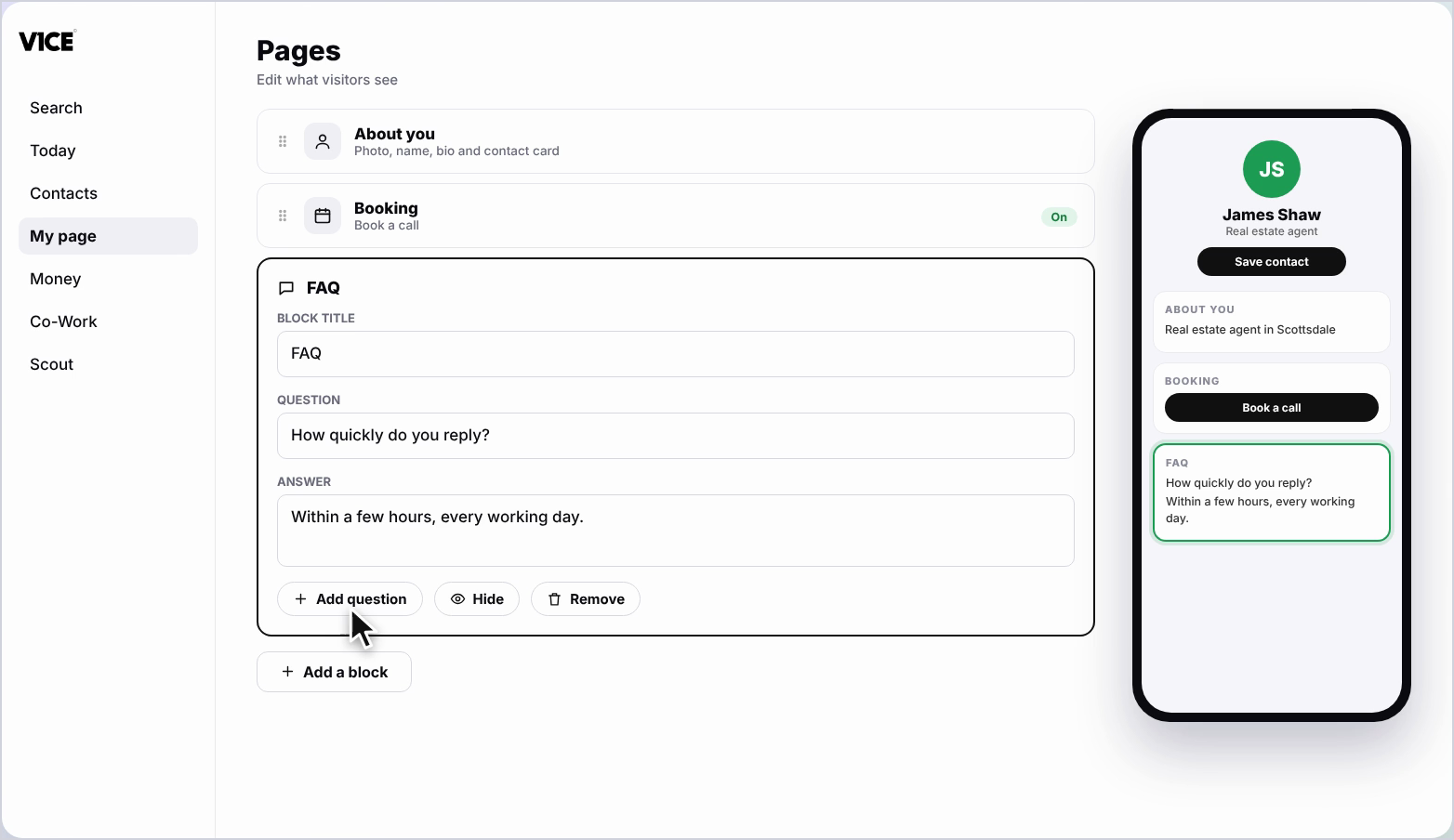
Step 6: Add another question
Click Add question to add another, then fill in the question and answer.
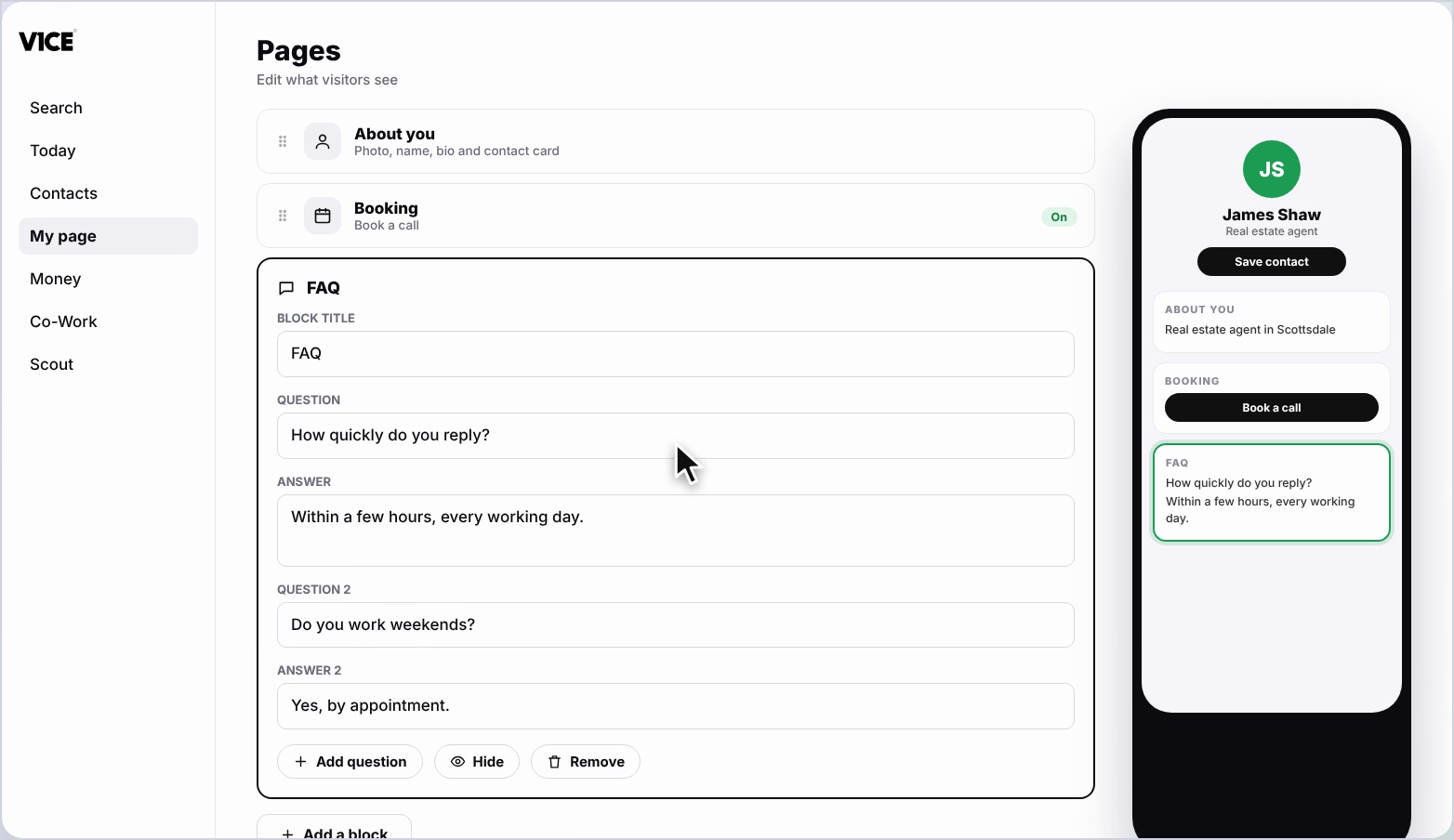
Step 7: Reorder questions
Drag a question up or down by its handle to change the order.
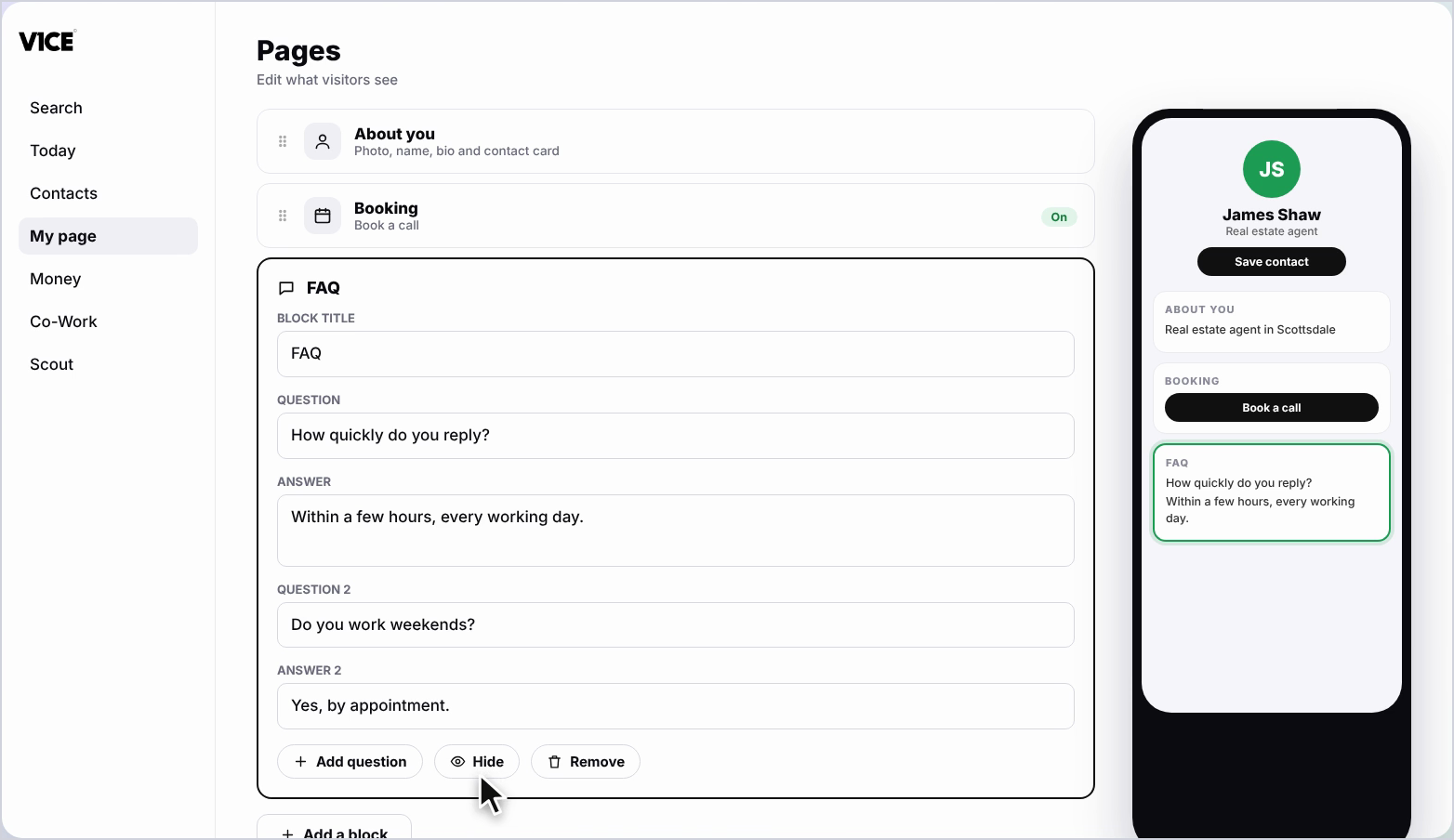
Step 8: Hide a question
Click the eye to hide a question from your page without deleting it.
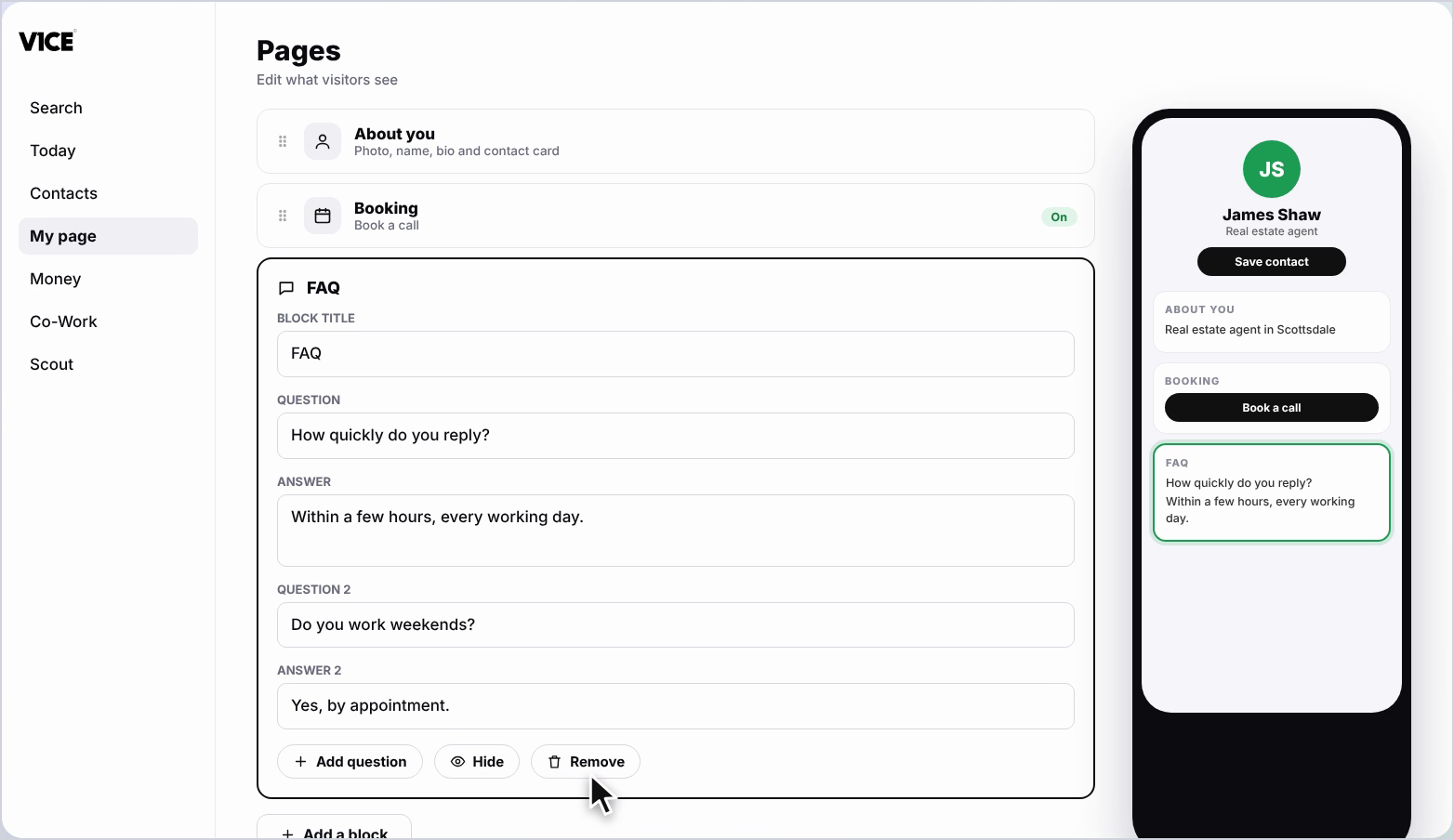
Step 9: Remove a question
Click the cross to remove a question completely.
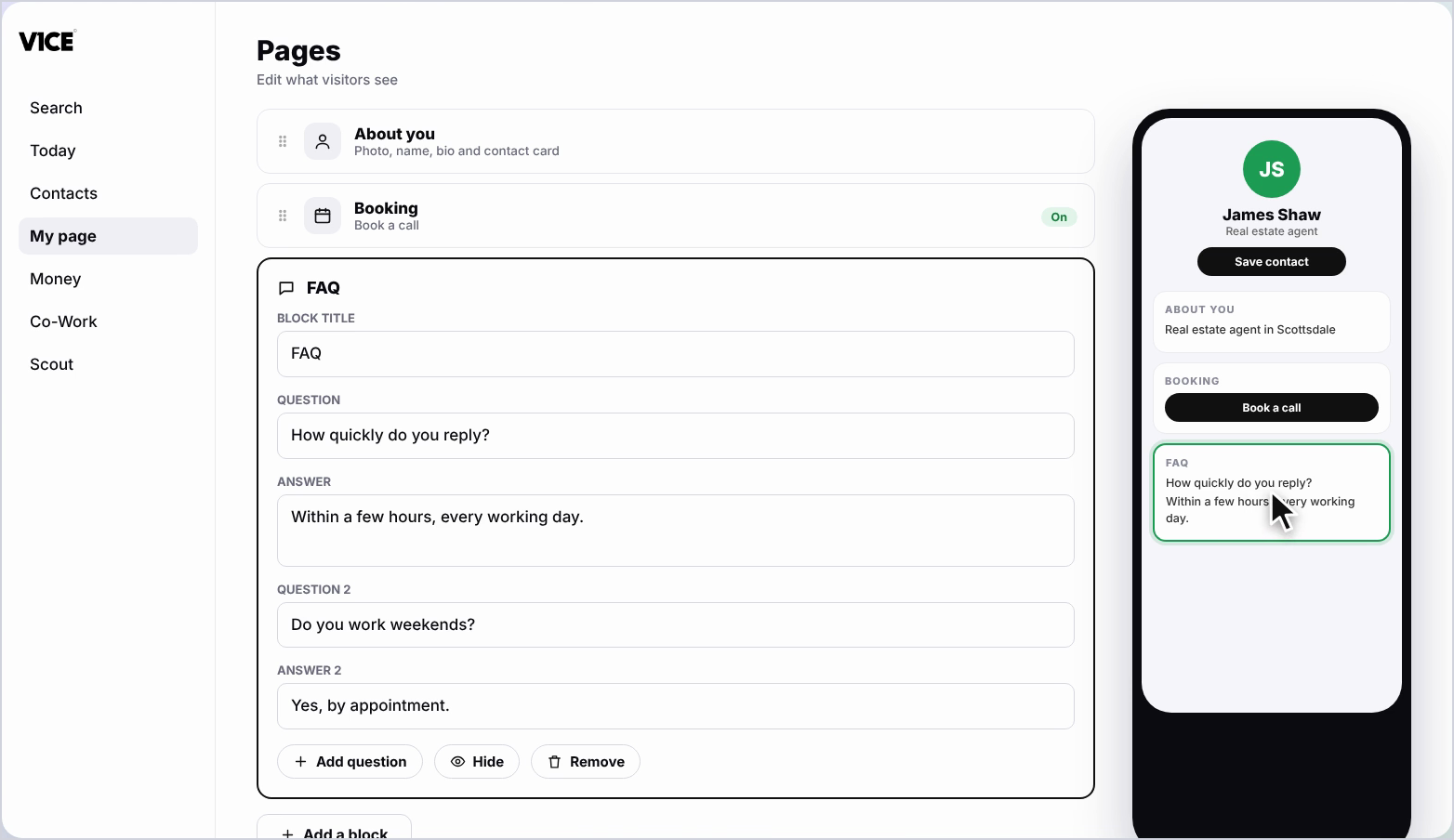
Step 10: Save your changes
Click the back arrow. Your changes save automatically.
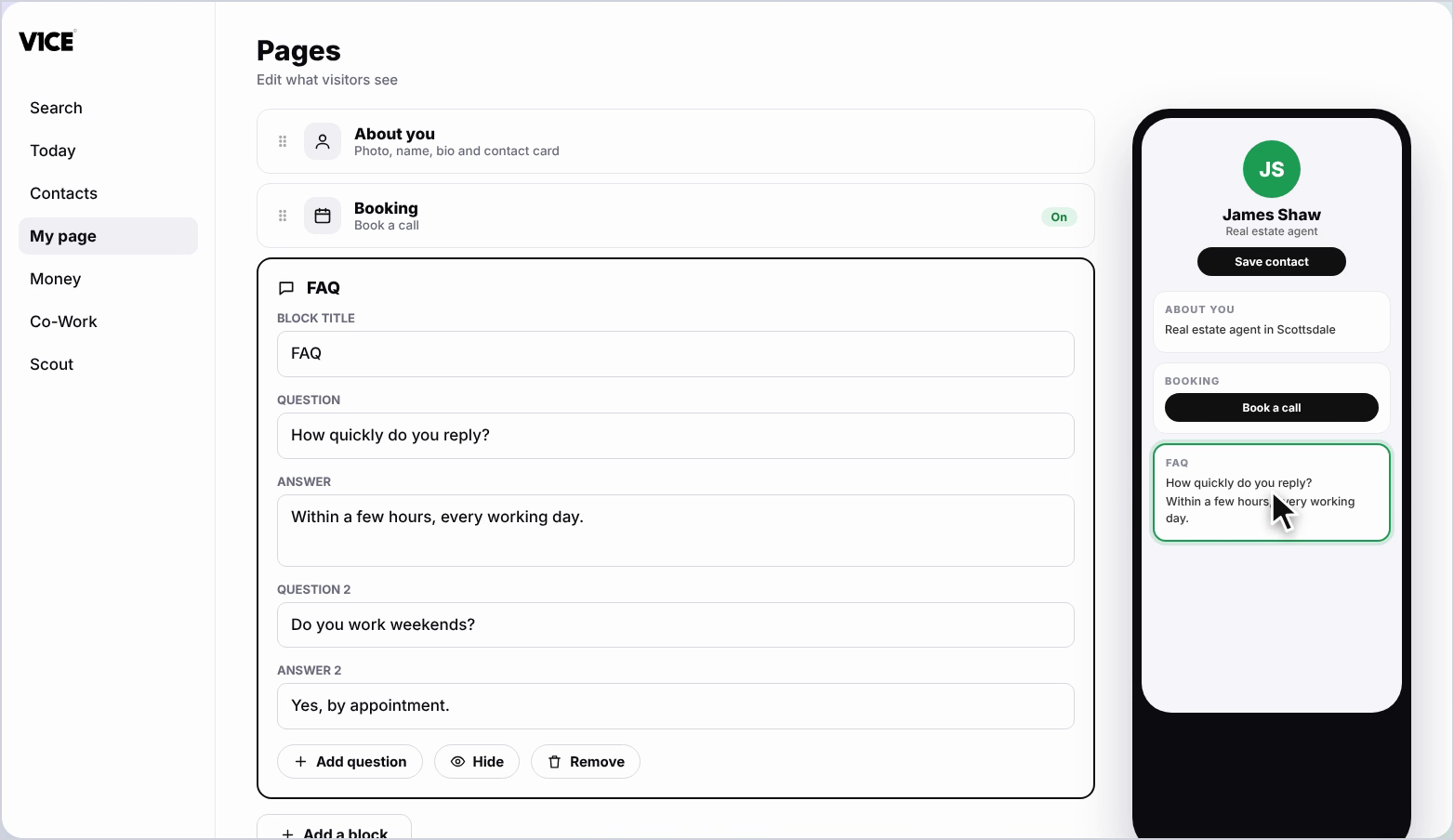
Step 11: See it on your page
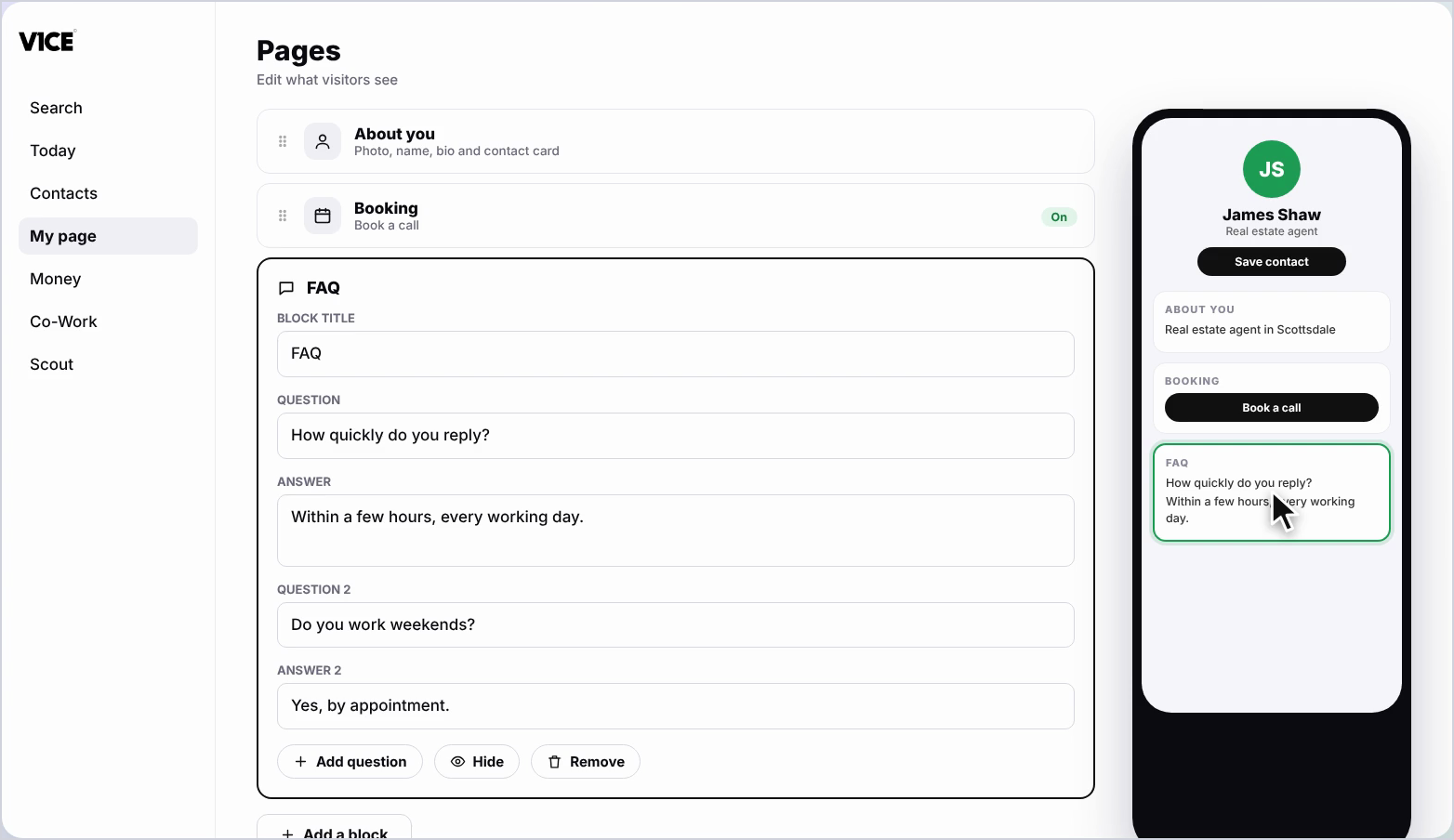
Your FAQs now show on your page.
Frequently asked questions
How do I add a FAQ to my V1CE page?
Click Add a block, find FAQ and click it. Type a question people often ask in the Question box and your answer in the Answer box.
Can I hide a question without deleting it?
Yes. Click the eye to hide a question from your page without deleting it.
How do I change the order of my questions?
Drag a question up or down by its handle.
How do I remove a question completely?
Click the cross to remove a question completely.